


KDE has a new terminal, and no, it's not a Konsole update. It's called Kwi (pronounced "kwee"). It's built on Ghostty's terminal library, renders on your GPU and is made for KDE Plasma from scratch.
Version 0.1.0 is out so I took it for a test ride. I ran it in a CachyOS virtual machine with KDE Plasma (of course), so treat this as a feature tour and not a performance review.
If videos are your thing, I've covered the same features here on our YouTube channel:
Why another terminal when KDE has Konsole?
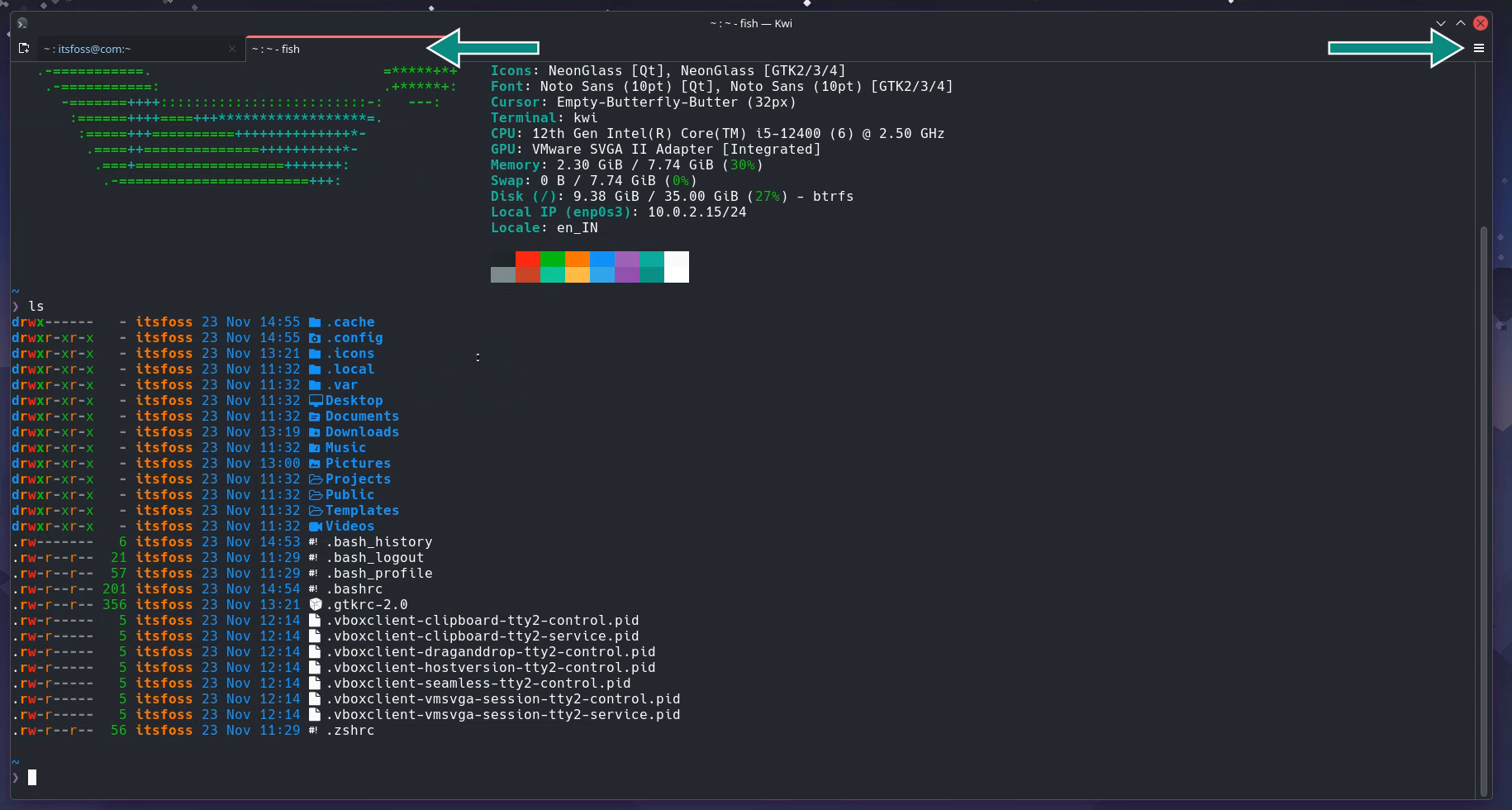
Konsole has been around for 29 years. It's also one of the most customizable terminals you can use on Linux. So, why build a new one?
I would say that speed is a big part of the answer. Konsole is built on Qt Widgets and draws on the CPU. Kwi uses Qt Quick, which lets it render on the GPU through Vulkan or OpenGL.
Its developer, Eike Hein, claims that Kwi is 3 to 35 times faster than Konsole, depending on the benchmark. I haven't verified those numbers, and frankly, the numbers don't tell you everything about everyday use, but they do hint at what the project is aiming for.
The other part is Ghostty. Now, Kwi doesn't use the Ghostty app itself. It uses libghostty-vt, the library that handles terminal parsing behind the scenes.
The interface on top is pure KDE. It's built with the Kirigami framework and follows KDE's latest design guidelines. It also picks up your Plasma color scheme automatically, so it blends well with the rest of your KDE Plasma desktop.
Exploring Kwi and its features
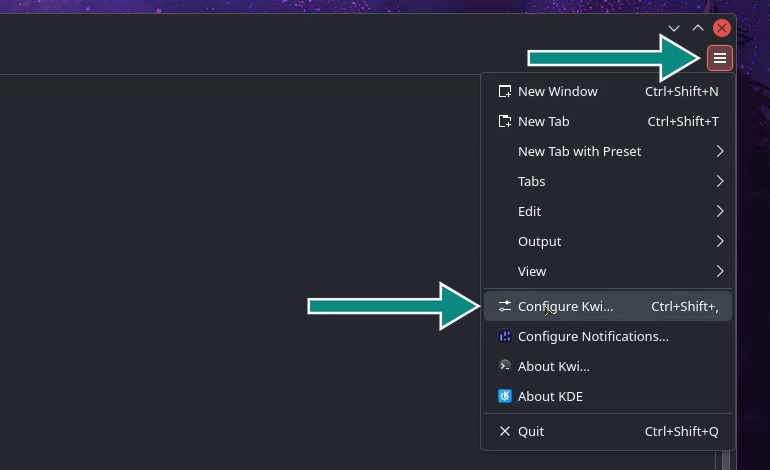
Click the menu button and you will see the Configure Kwi option. This is where you can tweak the looks of the terminal.
Change the font
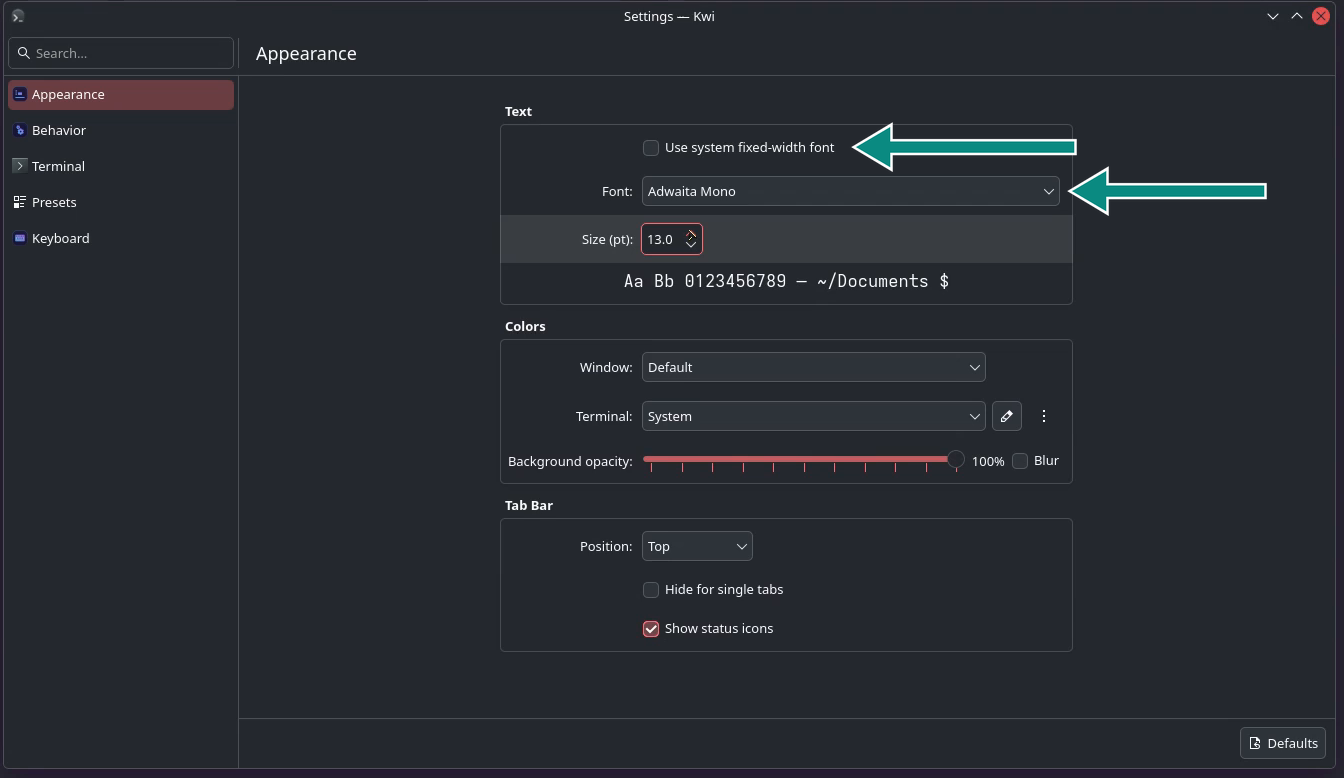
By default, Kwi uses your system's fixed-width font. If you want something else, uncheck Use system fixed-width font. Then choose your font and its size.
The terminal behind the settings window updates live. That makes it easy to find something comfortable.
Change the colors
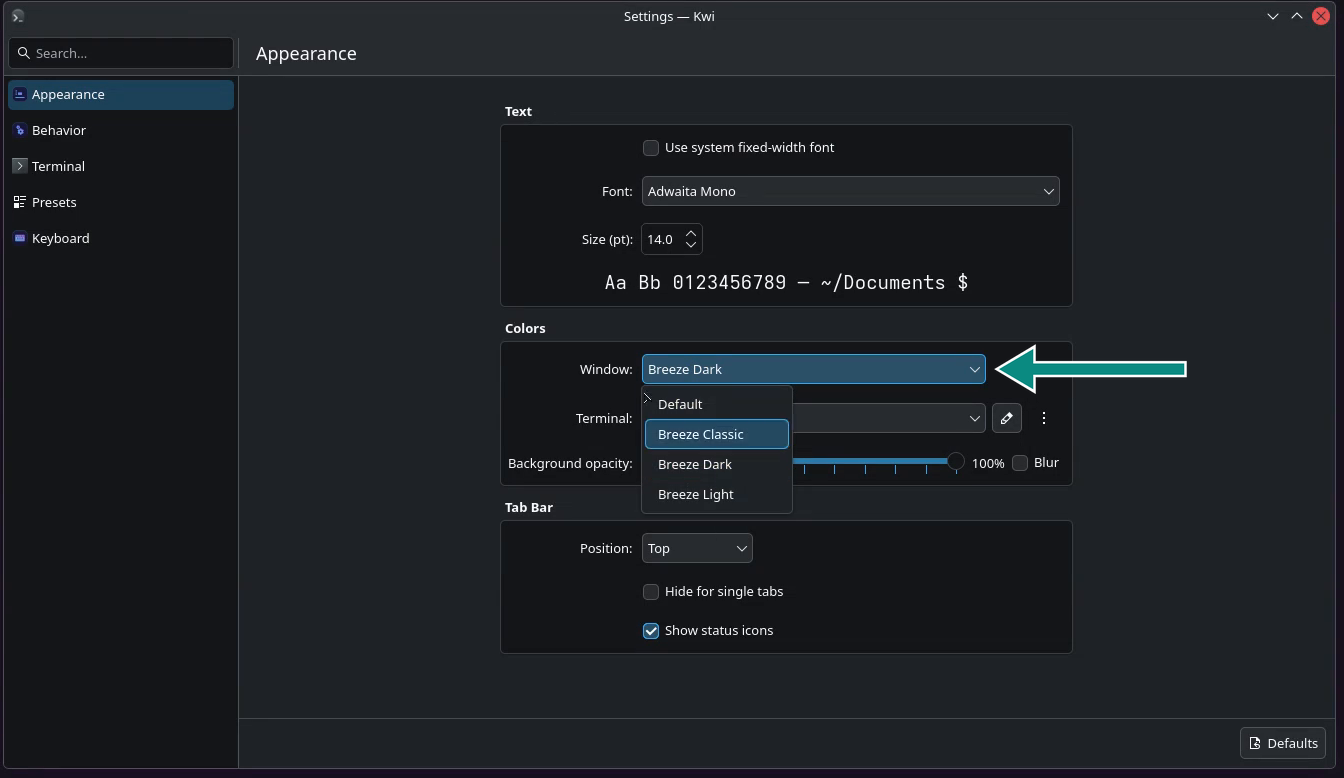
In the Colors section, the Window option controls the appearance of the app itself. You can switch between Breeze Light, Breeze Dark and the other available schemes.
The Terminal dropdown below it changes the colors inside the terminal.
Your Konsole color schemes work here
Here's good news for longtime KDE users. Kwi works with Konsole color schemes, so your favorite theme doesn't have to stay behind.
Download a Konsole color scheme from the KDE Store. In Kwi's settings, click the three-dot button next to the Terminal dropdown, choose Import and select the downloaded file.
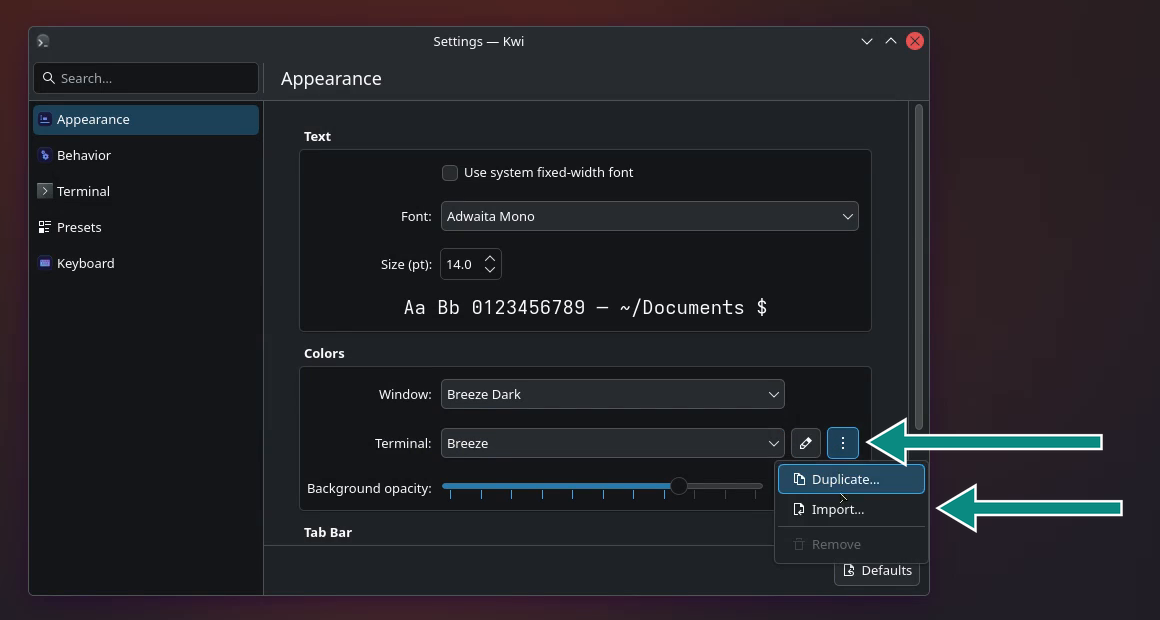
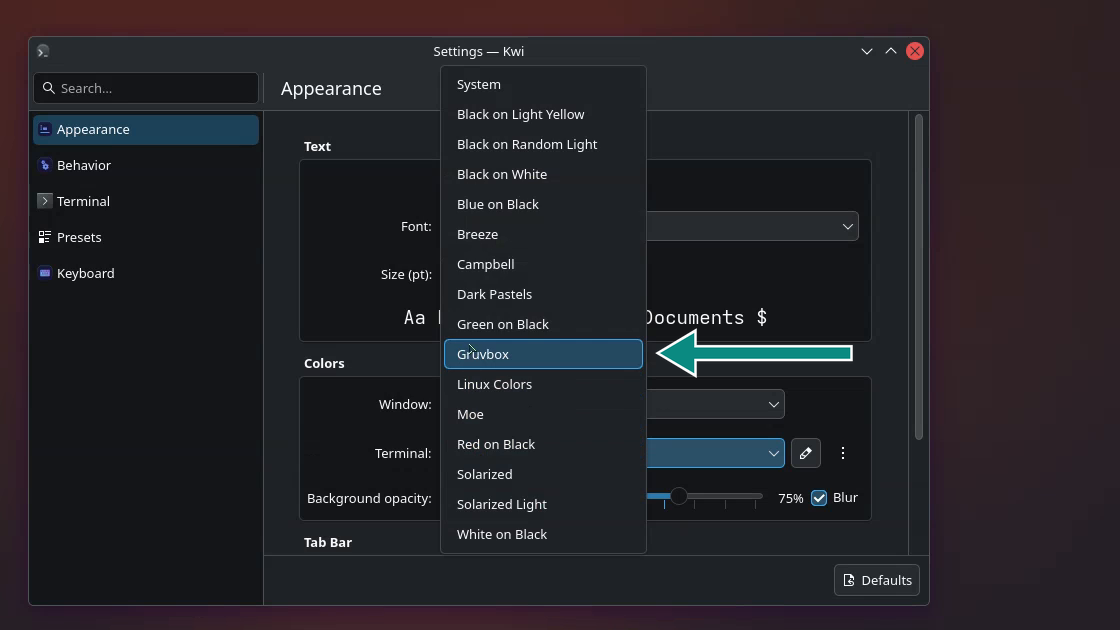
The imported scheme now appears in the Terminal dropdown. I imported Gruvbox in the test here.
Make it transparent, with blur
If you like a see-through terminal, use the background opacity slider on the Appearance page. There's a Blur checkbox next to it.
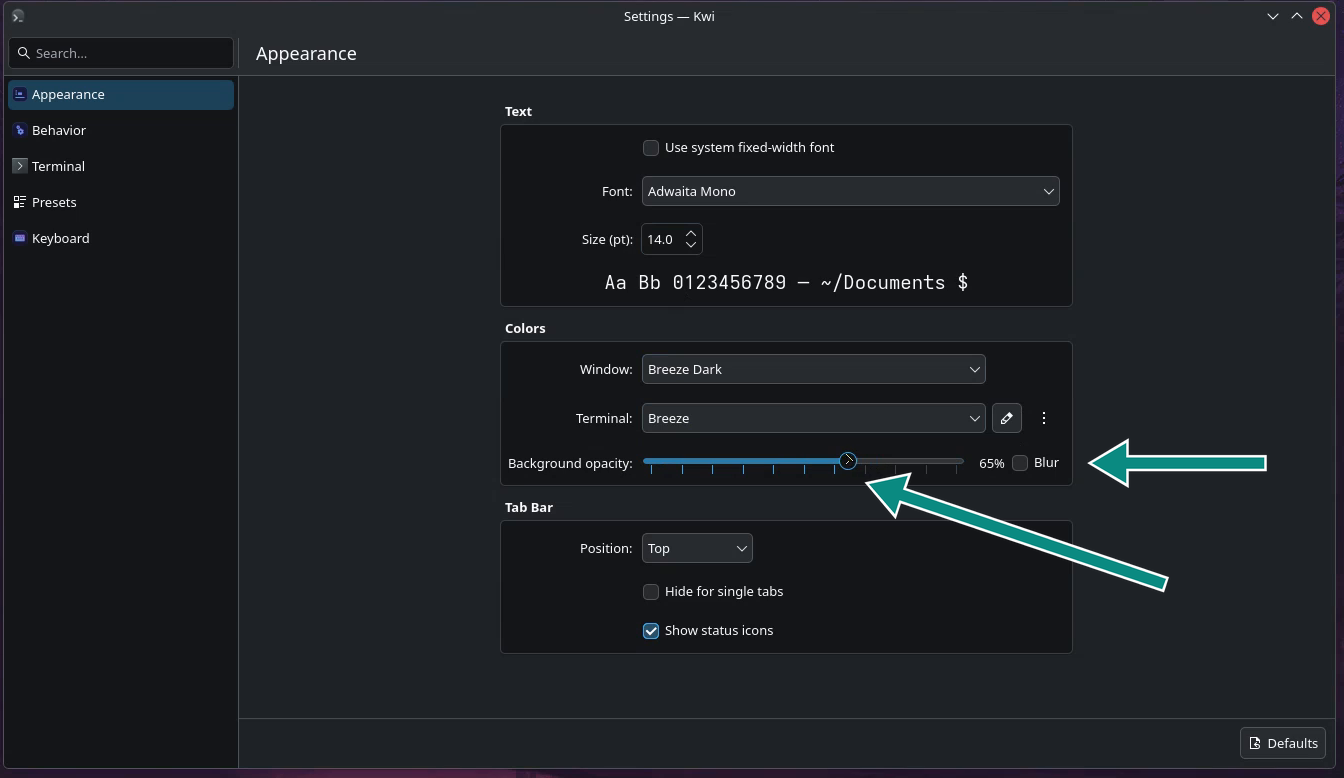
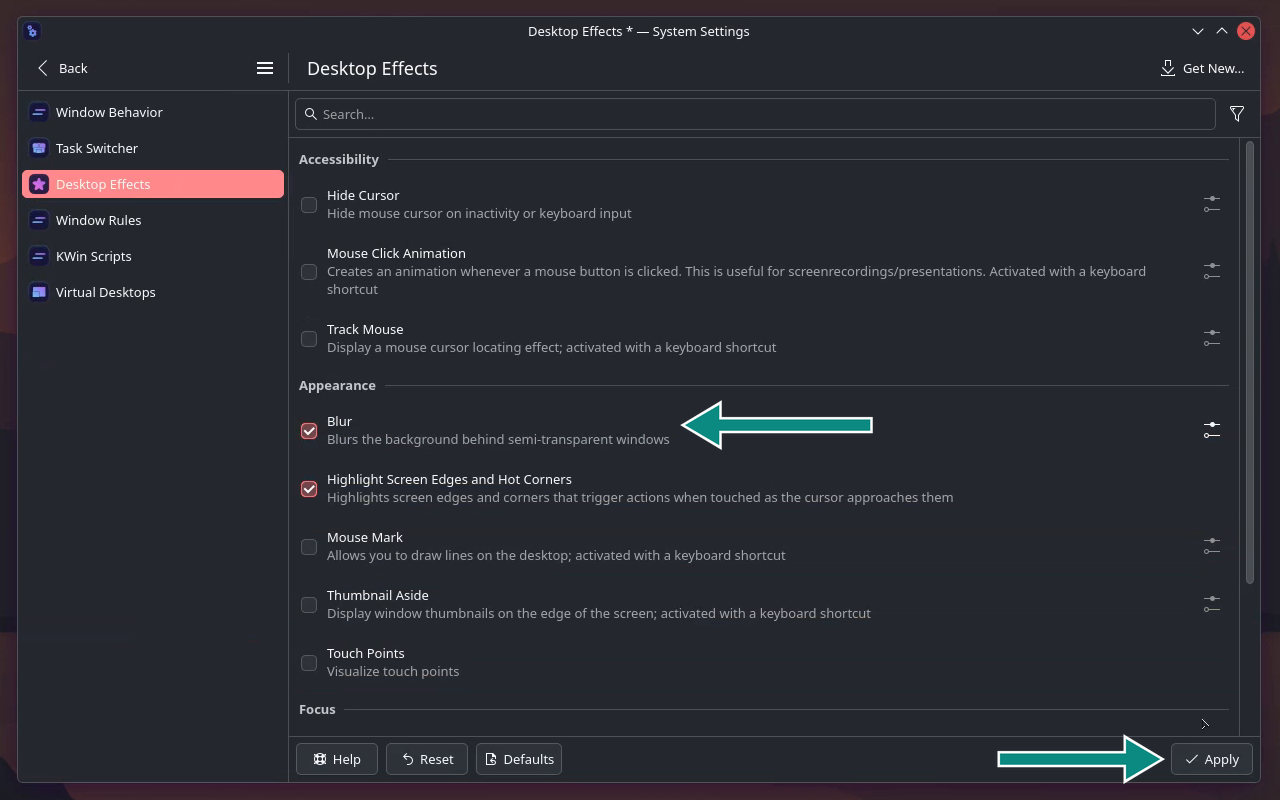
However, the checkbox won't give you the frosted glass look if Plasma's own blur effect is disabled. To enable it, open System Settings -> Animations and click the Desktop Effects button.
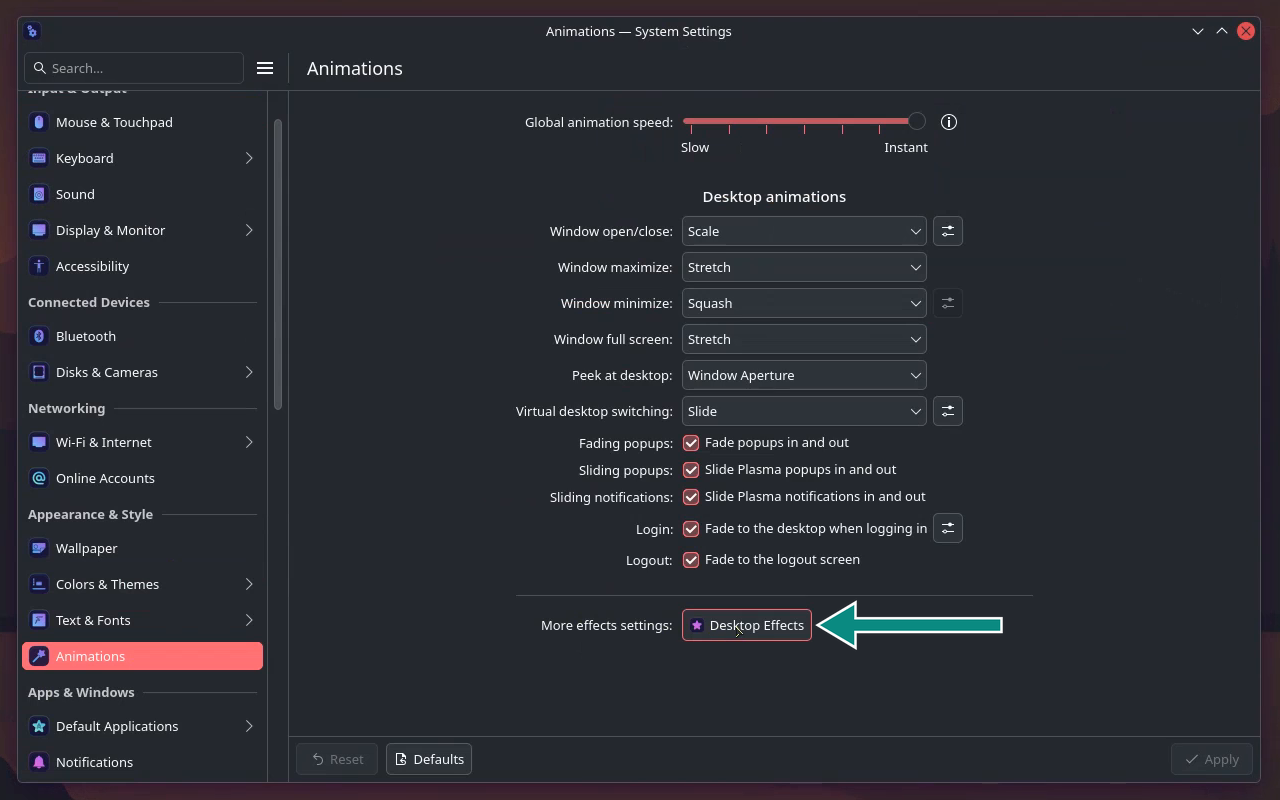
Enable Blur here and hit Apply.
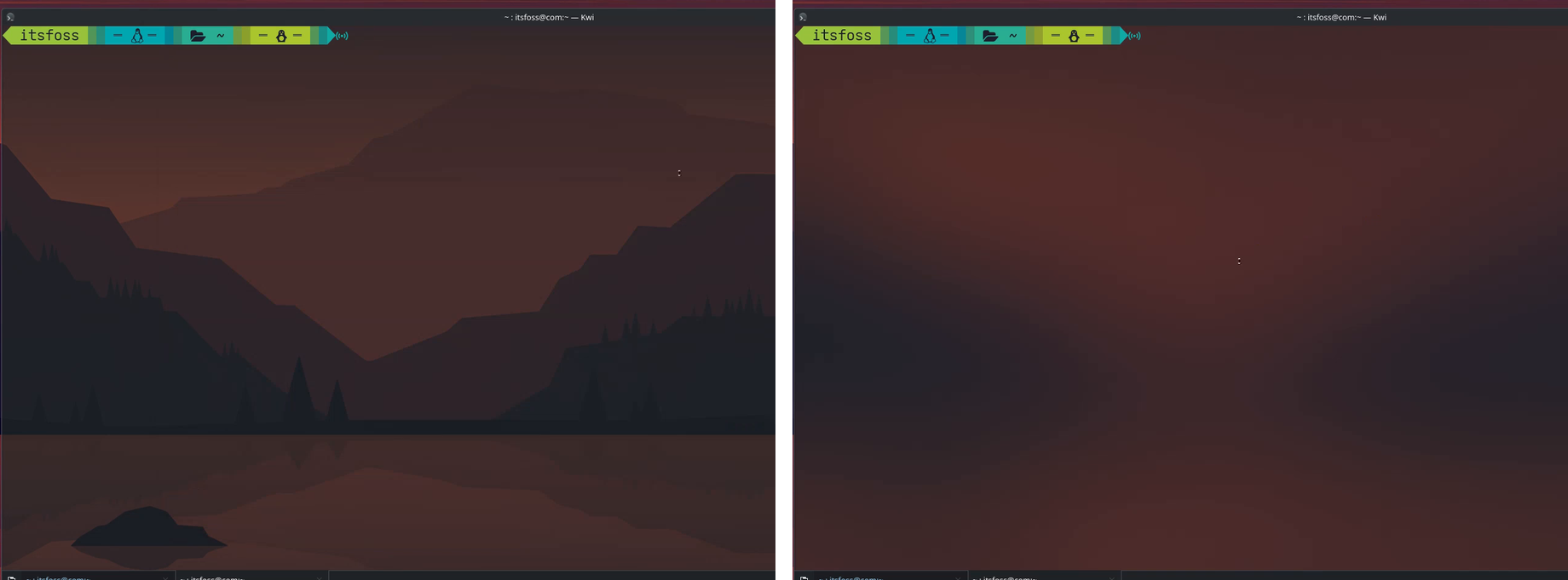
Now go back to Kwi's Appearance settings and enable Blur there too. You get the frosted look everyone is going gaga over these days.
Move the tab bar
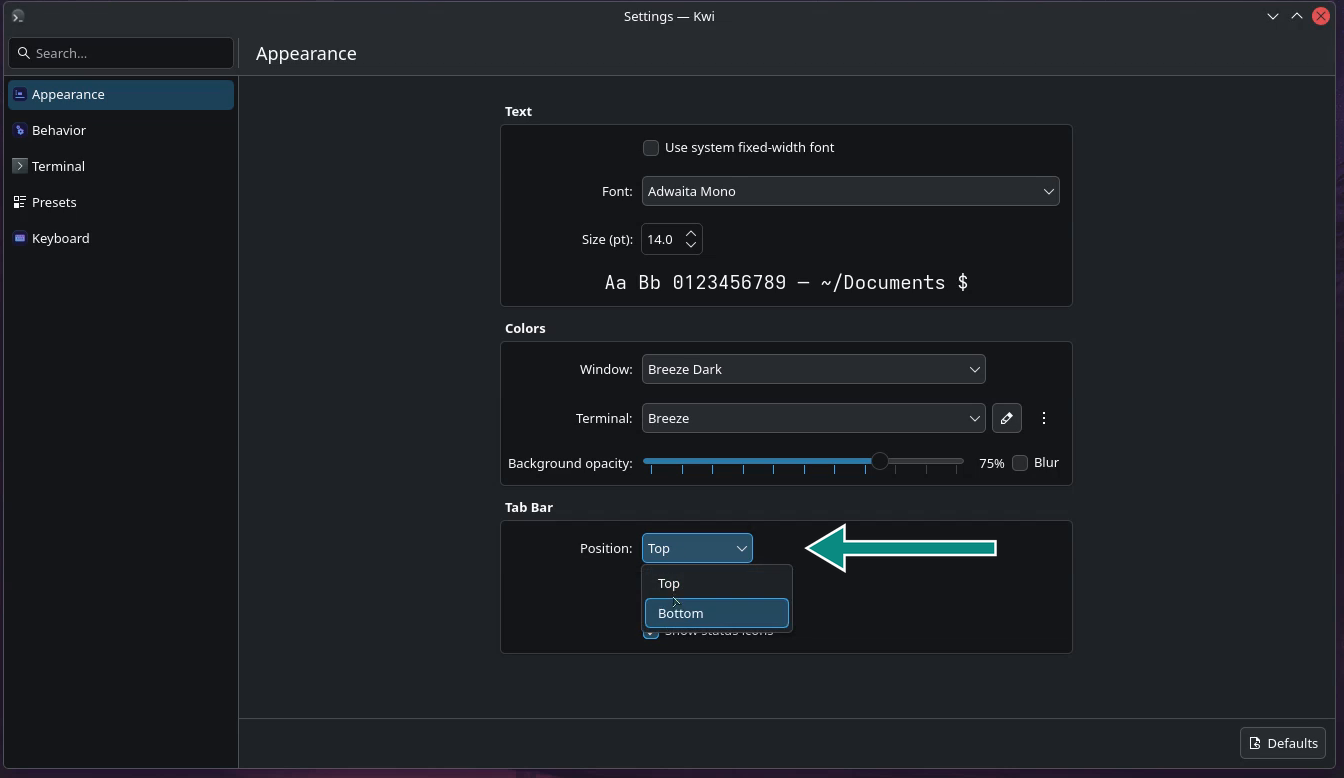
You can move the tab bar to the top or bottom of the window. Konsole lets you do this too, so nothing extraordinary here. There's also an option to hide the tab bar when only one tab is open.
Control the behavior
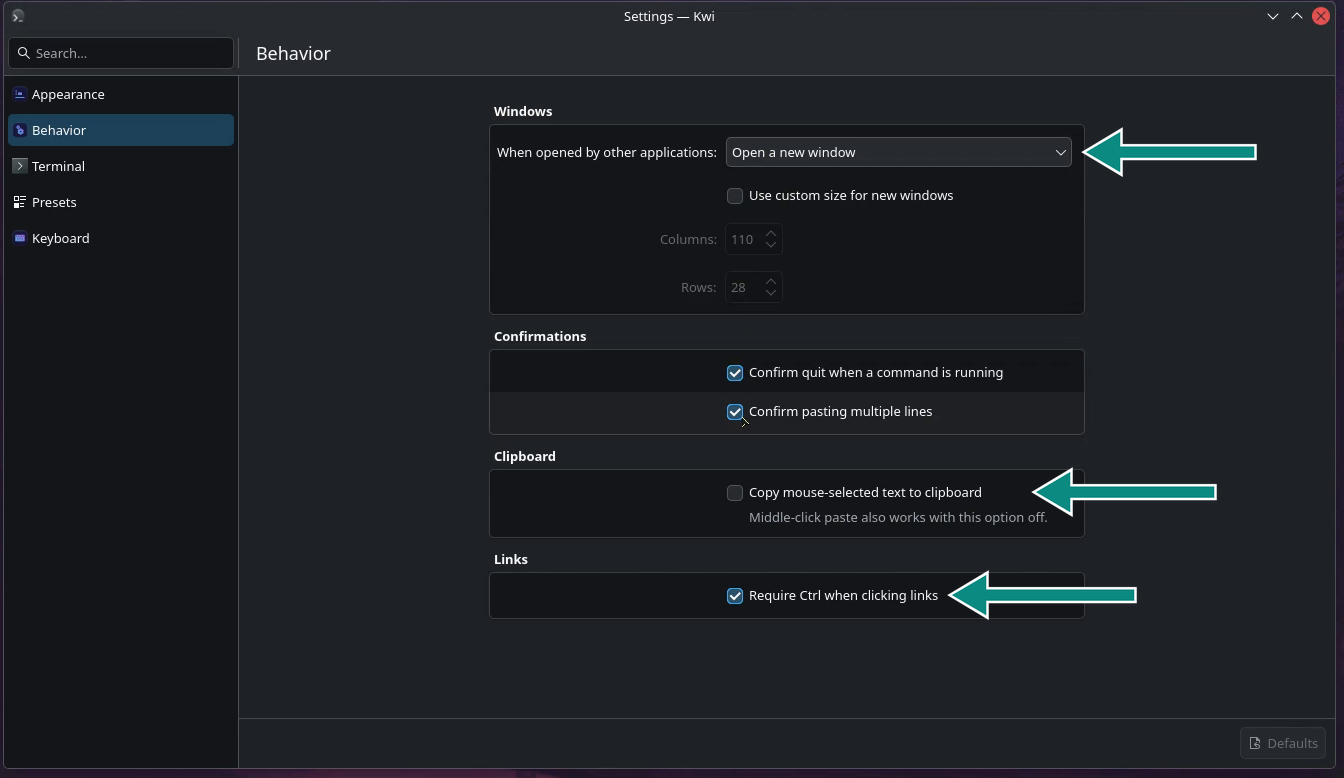
The Behavior page controls what happens when another application opens Kwi. You can choose between a new window and a new tab.
You can also copy mouse-selected text to the clipboard automatically, and choose whether opening a link requires Ctrl+click. There's an even nicer way to open links, which I'll show you in a minute.
Limit the scrollback and change the cursor
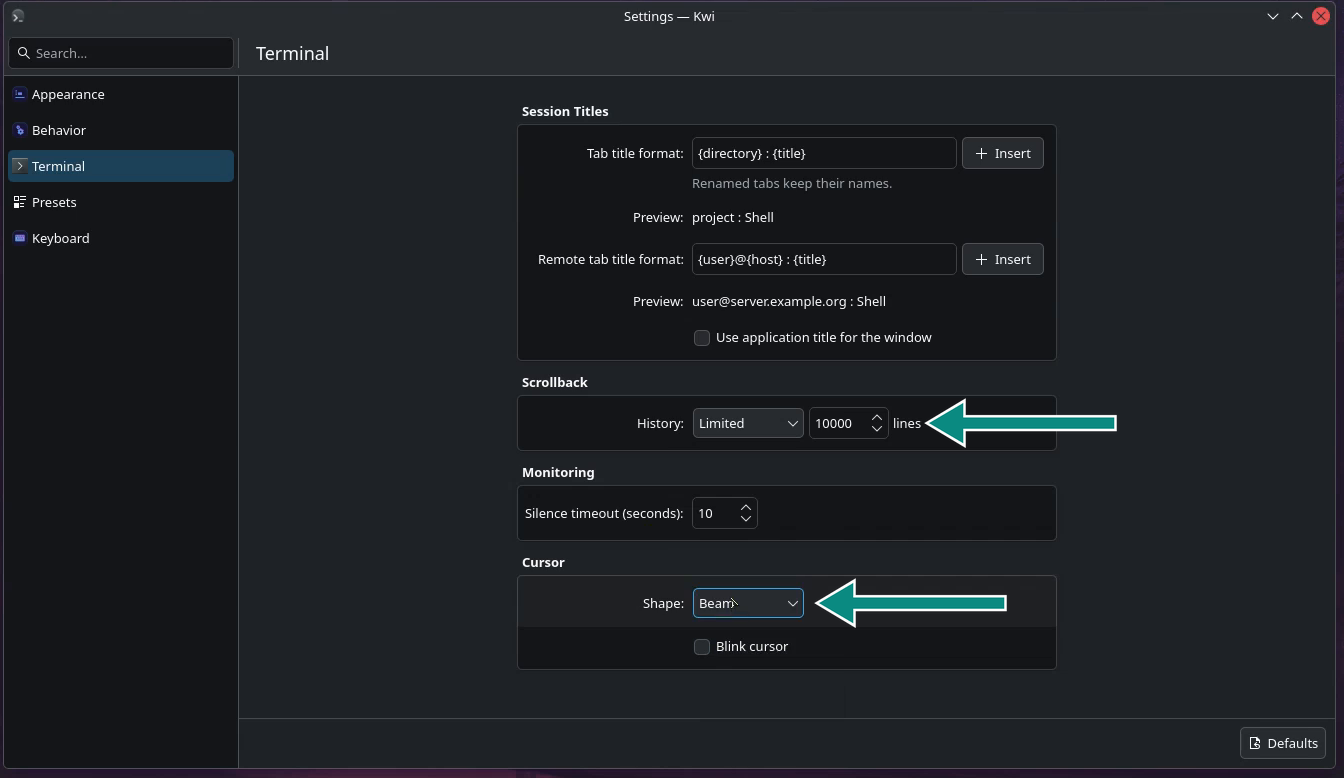
In the Terminal section, you can set the scrollback history. On my installation, it was set to unlimited. I prefer limiting it to something like 10,000 lines, which should usually be enough.
You can also change the cursor shape to a block, beam or underline and decide whether it blinks.
Create presets
A preset is basically a saved terminal profile. The easiest way to create one is to duplicate an existing preset from the three-dot menu.
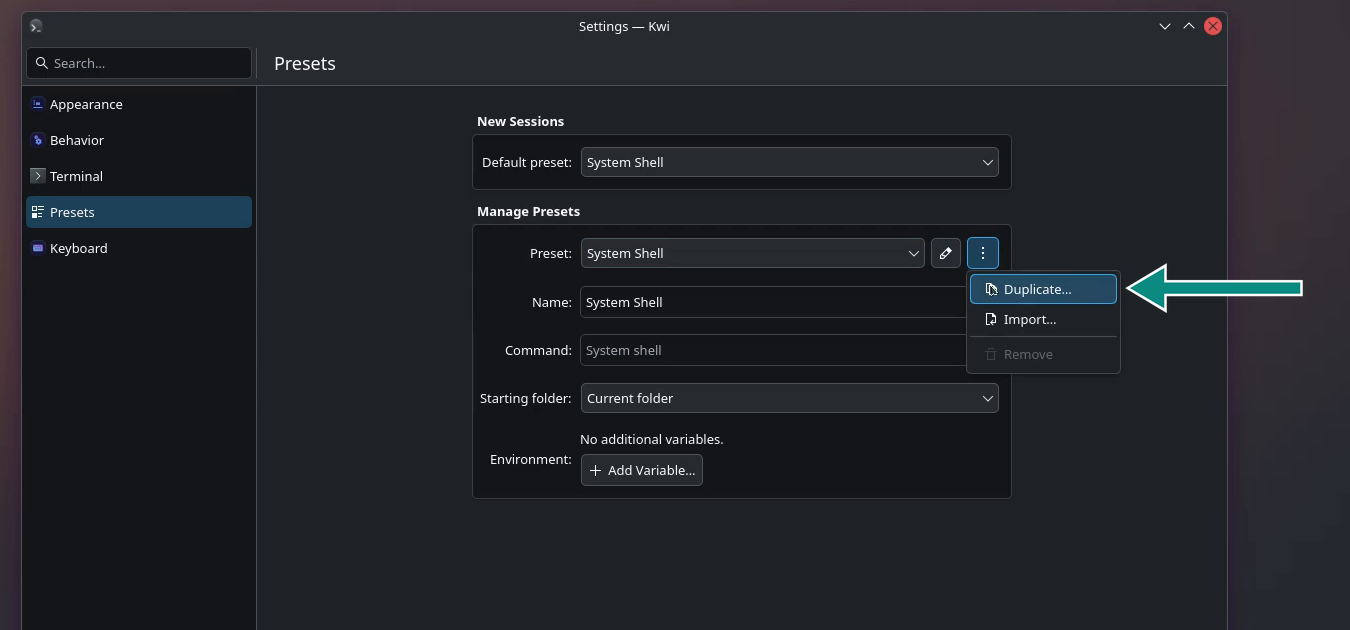
Give it a name, a command to run and a starting folder. You can set environment variables for it too.
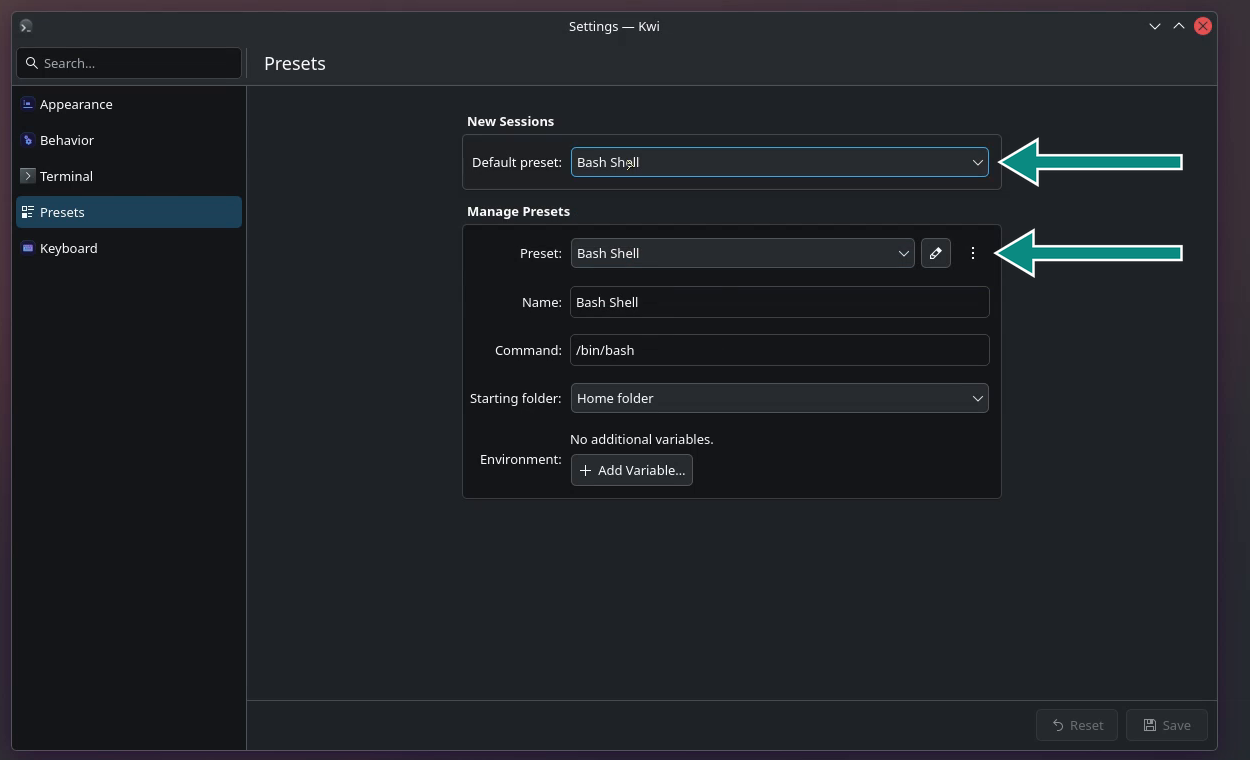
In my case, I made one called Bash Shell. It runs /bin/bash and starts in my home directory. You can open a new tab with a preset from Menu -> New Tab with Preset, or make it the default for new sessions.
Customize keyboard shortcuts
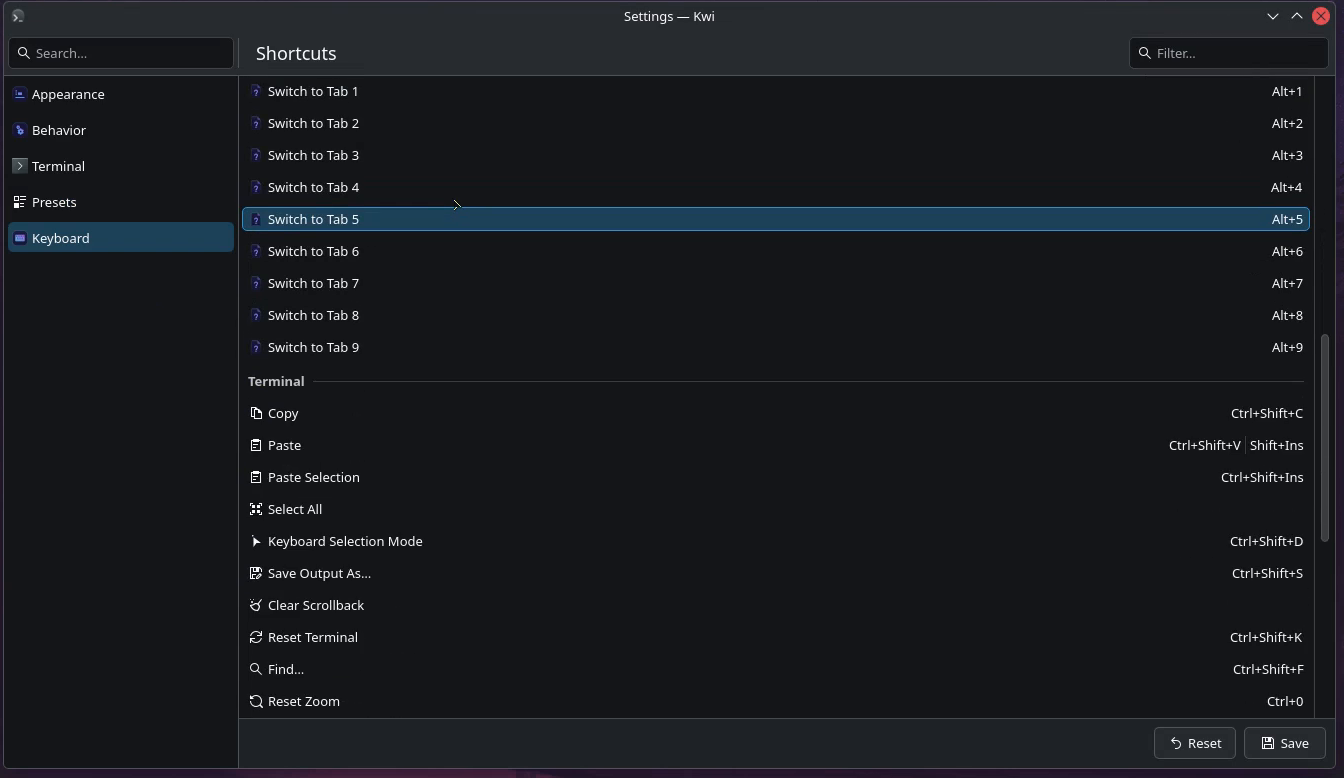
Keyboard shortcuts get their own page in the settings. You can filter the list and change the shortcuts to suit your workflow.
A few handy features
The settings are mostly what you'd expect from a KDE application. Some of the features outside them are rather more interesting.
Make the terminal read-only
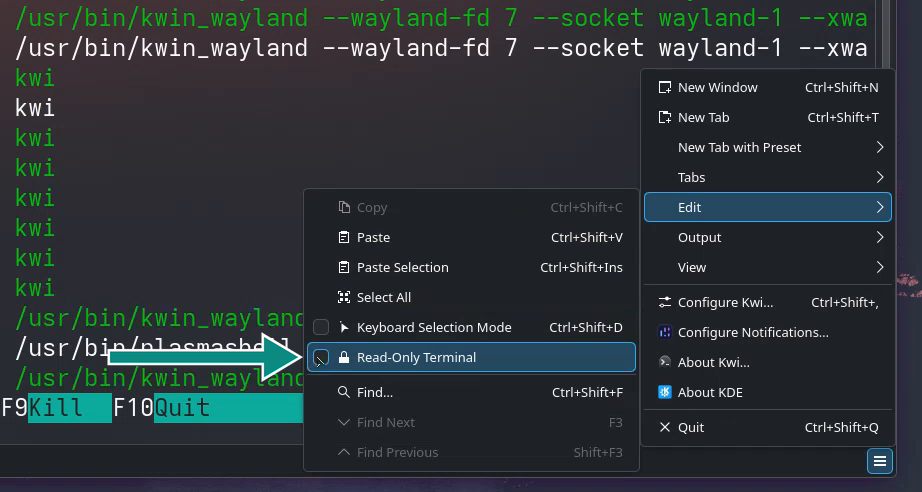
Go to Menu -> Edit -> Read-Only Terminal. This blocks keyboard input, so you won't accidentally type into a terminal that's running something important.
Okay, it's not unique to Kwi. Other terminals offer this feature too, but it's good to have.
Find and open links
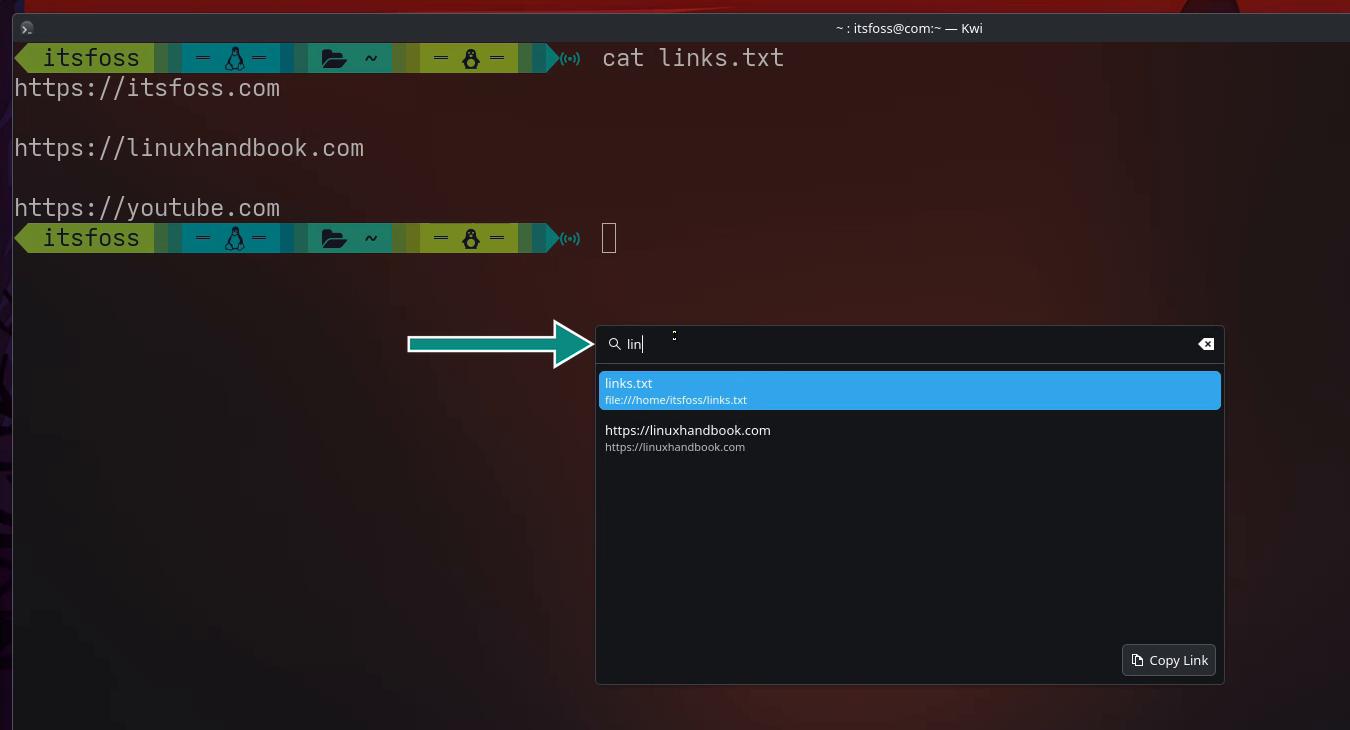
This is my favorite little feature. If your terminal output has lots of links, go to Menu -> Output -> Open Link.
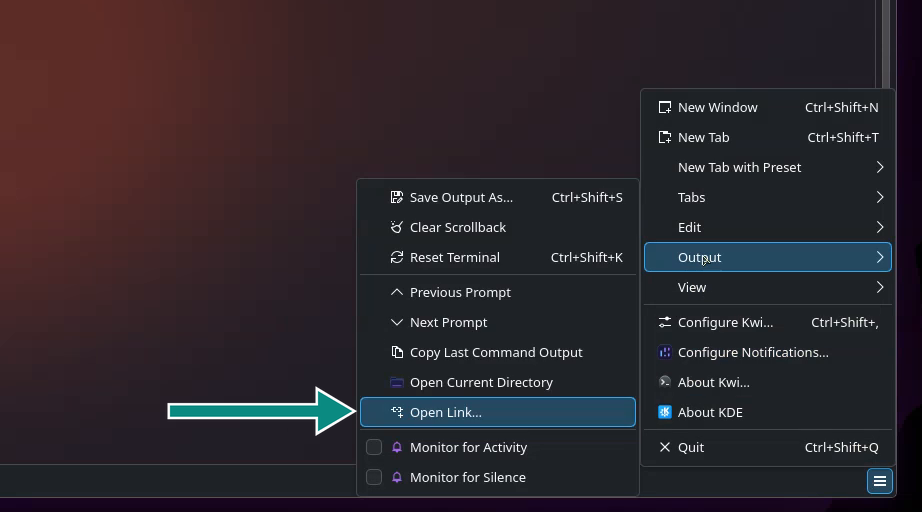
You get a small dialog that lists the links on your screen. Type to search, select the one you want and press Enter to open it in your default browser. No need to hunt through the output with your mouse.
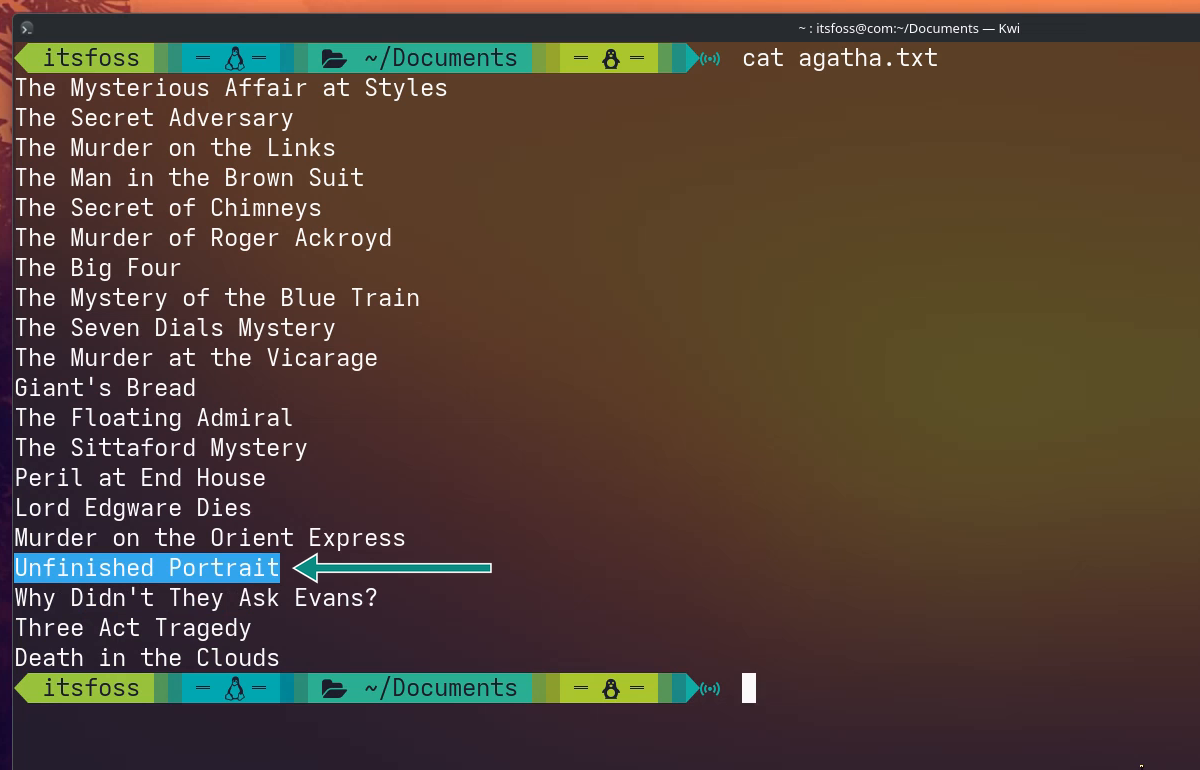
Select text with the keyboard
Press Ctrl+Shift+D or go to Menu -> Edit -> Keyboard Selection Mode. Now you can move around the terminal output with your keyboard.
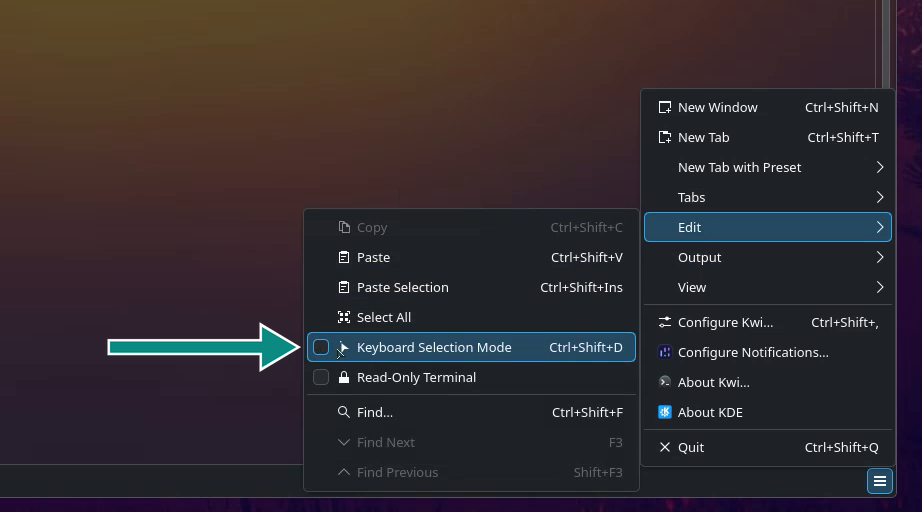
Use Ctrl+Shift and the arrow keys to select text, then press Enter to copy it. Paste it in the terminal with Ctrl+Shift+V, or use the usual paste shortcut in another application.
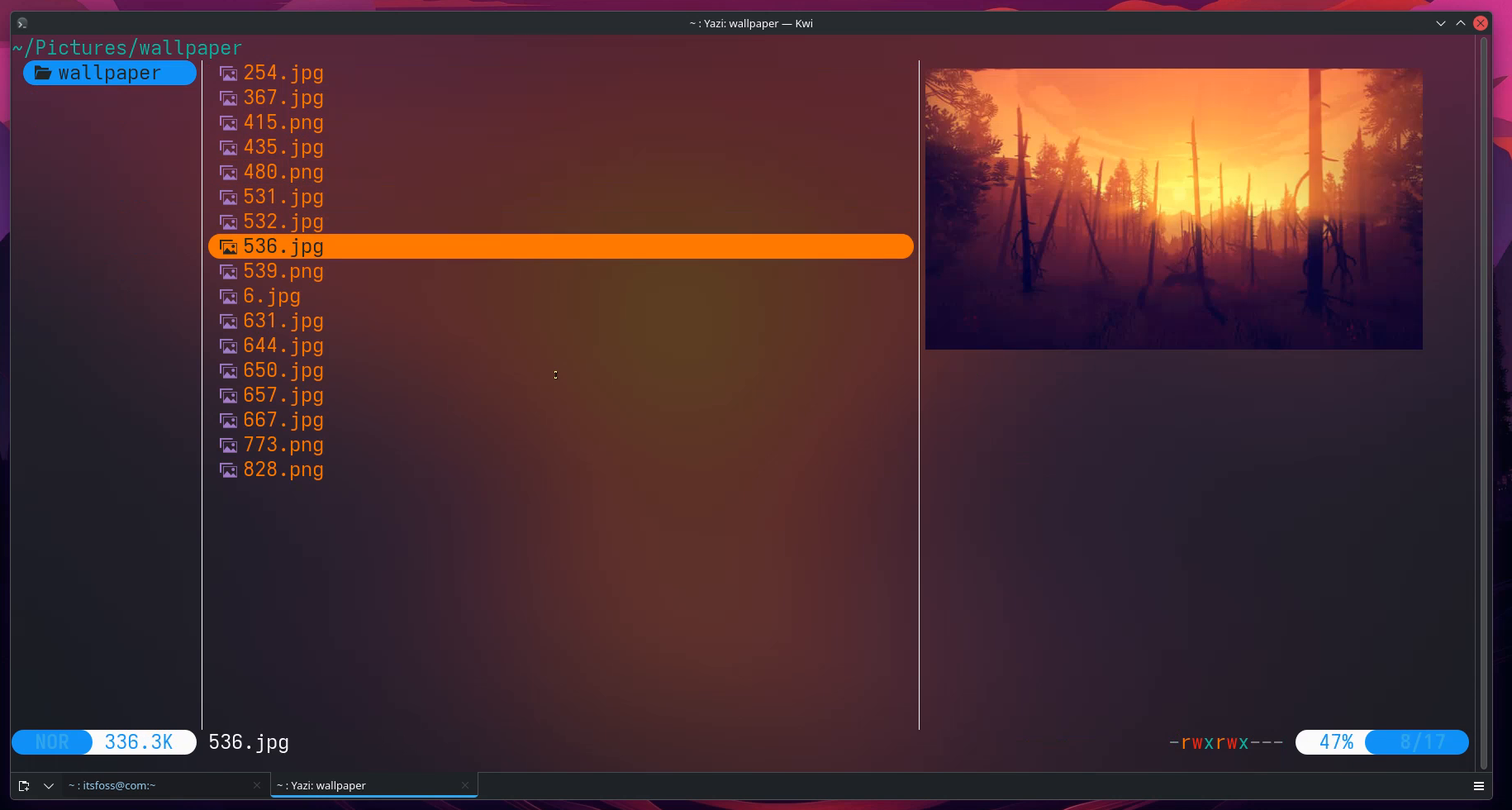
View images in the terminal
Kwi supports the Kitty image protocol. I used the Yazi file manager to browse a folder of wallpapers, and the previews appeared right inside the terminal.
Kwi's announcement also lists support for font ligatures, Nerd Font icon scaling, the Kitty keyboard protocol and progress indicators, along with accessibility improvements for screen readers. I didn't test these individually.
Getting Kwi on your Linux
Kwi is still very, very new. Keep your expectations low and expect bugs. Explore it as an experimentation for now.
The easiest option is Kwi's Flatpak package from Flathub. If you have Flatpak set up with the Flathub repository, use this command to install Kwi:
flatpak install flathub org.kde.kwi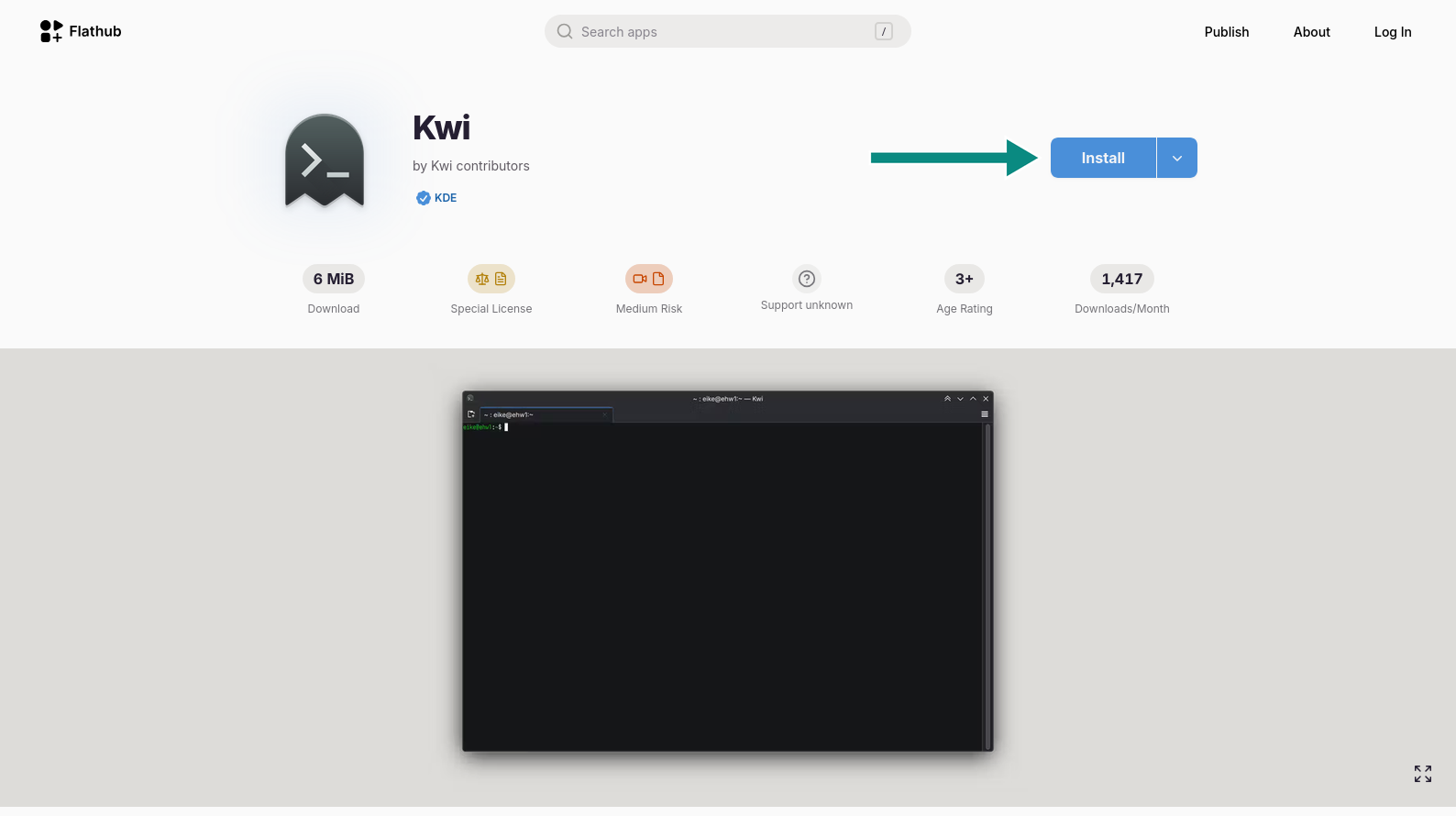
If you run into bugs, report them on KDE Bugzilla under kwi. That's one way to help the Linux ecosystem.
Wrapping up
Kwi was introduced as an experiment. It has since passed the KDE Review process and is now an official KDE project. That doesn't mean it's replacing Konsole, though. No such decision has been announced.
It also has fewer features than Konsole. Split panes are the obvious gap if you use them. They are planned, but not here yet.
Personally, I like where this is going. Kwi felt fast even in my virtual machine. It blends well with KDE Plasma and already has some useful features, especially the link picker and the keyboard selection mode.
I wouldn't ask you to drop Konsole for it today. While Kwi develops further, you can explore a few Konsole tweaks or look at other terminal emulators for Linux.
💬 Now, it's up to you. Would you switch from Konsole to Kwi once it matures? Let me know in the comments.
Enjoyed this update? Support independent Linux news coverage
It's FOSS has been helping people use Linux for the past 14 years. Help us stay independent from big tech. Become a Plus member, enjoy ad-free reading and get 5 eBooks.
Skip the AI slop and SEO spam in your Google results
Tell Google you prefer It's FOSS, and it will show our Linux news and tutorials, created by experienced Linux users, more often when you search. It takes just a click.
Set as preferred sourceGet FOSS Weekly in your inbox