


You close the lid and the laptop keeps running. Or you leave it alone for an hour and it never goes to sleep. Often nothing is broken. The cause is a program that asked systemd to hold off sleep.
That request is called an inhibitor lock. In this article, you'll list the locks on your system, read what each one blocks, tell a lock that stops a suspend from one that only delays it, and close the program that holds it.
Every command here works on any distribution that uses systemd. I ran them on an Ubuntu 26.04 desktop virtual machine with GNOME, which ships systemd 259.
What an inhibitor lock is
A program takes an inhibitor lock from systemd-logind, the systemd service that handles sleep, shutdown and the power keys. The lock says what the program wants to hold back, why, and for how long.
A backup tool might hold a lock while it copies files, so the laptop doesn't suspend halfway through. A video player might hold one so the screen doesn't go idle during a movie. When the program exits, its lock goes away with it.
The problem starts when a program holds a lock it no longer needs, or holds a stronger lock than it should.
List every inhibitor lock
The systemd-inhibit command lists the active locks. It needs no root.
systemd-inhibit --list
To have a lock to clear later in this article, I first started a stand-in backup job wrapped in systemd-inhibit. It holds a block lock on sleep and shows up as "Backup script". Everything else in the list below came from the system itself.
WHO                          UID  USER     PID  COMM            WHAT                                                     WHY                                                         MODE
Backup script                0    root     4952 systemd-inhibit sleep                                                    Copying files to the NAS                                    block
ModemManager                 0    root     1322 ModemManager    sleep                                                    ModemManager needs to reset devices                         delay
NetworkManager               0    root     1196 NetworkManager  sleep                                                    NetworkManager needs to turn off networks                   delay
Realtime Kit                 0    root     1497 rtkit-daemon    sleep                                                    Demote realtime scheduling and stop canary.                 delay
UPower                       0    root     2006 upowerd         sleep                                                    Pause device polling                                        delay
Unattended Upgrades Shutdown 0    root     1365 unattended-upgr shutdown                                                 Stop ongoing upgrades or perform upgrades before shutdown   delay
GNOME Shell                  1000 demouser 3538 gnome-shell     sleep                                                    GNOME needs to lock the screen                              delay
GNOME Shell                  1000 demouser 3538 gnome-shell     sleep                                                    GNOME needs to save screen time data                        delay
demouser                     1000 demouser 3683 gsd-power       handle-lid-switch                                        External monitor attached or configuration changed recently block
demouser                     1000 demouser 3682 gsd-media-keys  handle-power-key:handle-suspend-key:handle-hibernate-key GNOME handling keypresses                                   block
demouser                     1000 demouser 3682 gsd-media-keys  sleep                                                    GNOME handling keypresses                                   delay
demouser                     1000 demouser 3683 gsd-power       sleep                                                    GNOME needs to lock the screen                              delay

12 inhibitors listed.
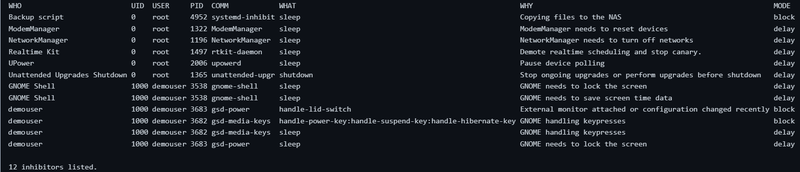
Here is what each column tells you.
- WHO is the name the program gave itself.
- PID and COMM are the process that holds the lock. You'll use the PID later to find and close it.
- WHAT is what the lock holds back.
- WHY is the reason the program gave.
- MODE says whether the lock blocks the action or only delays it.
Read the WHAT column
The WHAT column tells you which problem a lock can cause. These are the values that matter for suspend and idle.
sleepcovers suspend and hibernate. Ablocklock here stops the laptop from suspending at all.idlestops the system from treating your session as idle. That blocks anything that waits for idle, such as automatic suspend after a timeout. This is the usual reason a laptop ignores its idle timer.handle-lid-switchtakes over the lid. While a program holds it, systemd doesn't act when you close the lid.handle-power-key,handle-suspend-keyandhandle-hibernate-keydo the same for those keys. Desktops often hold them because they handle the keys themselves, so these locks are normal.shutdowncovers power off and reboot.
A lock can list more than one value, separated by colons, such as sleep:shutdown.
Tell a block lock from a delay lock
The MODE column has two values.
A block lock stops the action for as long as the program holds it. Only a privileged user can override it. This is the kind that leaves a laptop awake.
A delay lock only holds the action back for a short time, so the program can finish something first. A chat app might save its state before the laptop sleeps. When the time runs out, systemd suspends anyway. The limit is InhibitDelayMaxSec= in /etc/systemd/logind.conf. The commented default in that file is 5 seconds.
Delay locks exist only for sleep and shutdown. When I tried to take one for idle, systemd refused it.
systemd-inhibit --what=idle --mode=delay --who=test --why=test true
Failed to inhibit: Delay inhibitors only supported for shutdown and sleep
Most of the list above is delay locks from GNOME, NetworkManager, ModemManager, Realtime Kit and UPower. They rarely cause trouble. When your laptop won't sleep, look for a block lock on sleep, idle or handle-lid-switch.
Show only the block locks
On a desktop, the list can run to a dozen lines. Add --mode=block to see only the locks that can stop an action.
systemd-inhibit --list --mode=block
WHO           UID  USER     PID  COMM            WHAT                                                     WHY                                                         MODE
Backup script 0    root     4952 systemd-inhibit sleep                                                    Copying files to the NAS                                    block
demouser      1000 demouser 3683 gsd-power       handle-lid-switch                                        External monitor attached or configuration changed recently block
demouser      1000 demouser 3682 gsd-media-keys  handle-power-key:handle-suspend-key:handle-hibernate-key GNOME handling keypresses                                   block

3 inhibitors listed.

Here is what each of the three does.
Backup script is the stand-in job. It holds a block lock on sleep, so the laptop can't suspend while it runs.
gsd-power is GNOME's power manager. It holds a block lock on handle-lid-switch. Its reason reads "External monitor attached or configuration changed recently". GNOME takes this lock while an external monitor is attached and for a short time after the display setup changes, so the laptop keeps running when you close the lid. If your laptop stays on when you close the lid, check for this lock first.
gsd-media-keys is GNOME's key handler. It blocks systemd from acting on the power, suspend and hibernate keys because GNOME handles those keys itself. This lock is normal on a GNOME desktop.
You might expect --what=sleep to narrow the list the same way. On systemd 259 it doesn't. systemd-inhibit --list --what=idle printed every lock on my test machine, including the ones on sleep and shutdown. The man page doesn't say that --list filters by WHAT, so read the WHAT column yourself.
Find and close the program that holds a block lock
Take the PID from the lock you want to clear. Look at the full command line of that process.
ps -p 4952 -o pid,comm,args
    PID COMMAND         COMMAND
   4952 systemd-inhibit systemd-inhibit --what=sleep --who=Backup script --why=Copying files to the NAS --mode=block sleep 300
In this case the lock comes from a script that wraps a job in systemd-inhibit, so the command line shows the job it's running. When COMM shows a normal application, such as a browser or a media player, that application holds the lock itself.
The cleanest fix is to close the program the way you normally would, or to change its own power setting. Some programs have their own setting that keeps the system awake. If the program is stuck, end it with its PID.
sudo kill 4952
List the locks again to confirm the lock is gone.
systemd-inhibit --list --mode=block
WHO      UID  USER     PID  COMM           WHAT                                                     WHY                                                         MODE
demouser 1000 demouser 3683 gsd-power      handle-lid-switch                                        External monitor attached or configuration changed recently block
demouser 1000 demouser 3682 gsd-media-keys handle-power-key:handle-suspend-key:handle-hibernate-key GNOME handling keypresses                                   block

2 inhibitors listed.

If the lock belongs to a system service, stop that service with systemctl instead of killing the process, so it doesn't start again and take a new lock.
Check whether a lock is really the cause
Inhibitor locks only apply when a suspend goes through systemd. That covers systemctl suspend, the suspend option in your desktop's menu, the lid and the idle timer.
To find out whether a lock is what keeps your laptop awake, suspend once with the lock checks turned off.
sudo systemctl suspend --check-inhibitors=no
If the laptop suspends now, a lock was the cause, and the steps above will find it. If it still doesn't suspend, the cause is outside systemd's locks. The kernel log from the failed attempt is the next place to look.
Conclusion
When a Linux laptop refuses to sleep, start with systemd-inhibit --list. Look for a block lock on sleep, idle or handle-lid-switch, find its process from the PID, and close that program or change its power setting. A delay lock only holds the suspend for a few seconds and is rarely the problem.
This is just one of the many systemd tools you can use for troubleshooting your Linux system.
 Neville Ondara

Next time your laptop stays awake with the lid closed, run the list before you start digging through power settings.
If this helped you, consider supporting It's FOSS
It's FOSS has been helping people use Linux for the past 14 years. Help us stay independent from big tech. Become a Plus member, enjoy ad-free reading and get 5 eBooks.
Skip the AI slop and SEO spam in your Google results
Tell Google you prefer It's FOSS, and it will show our Linux news and tutorials, created by experienced Linux users, more often when you search. It takes just a click.
Set as preferred sourceGet FOSS Weekly in your inbox