


There is no dearth of note taking apps for Linux. There are tools like Obsidian that are local first, tools like Joplin that are both local and cloud. There are also collaborative tools like Etherpad that put encrypted notes on a remote server.
And then I come across a new tool this week called Privacy Notes. It mixes several things at once and tries to be the "one note app to rule them all". It is Markdown-first with WYSIWYG editor, vault for storing passwords, ssh keys etc, journal and more.
Privacy Notes
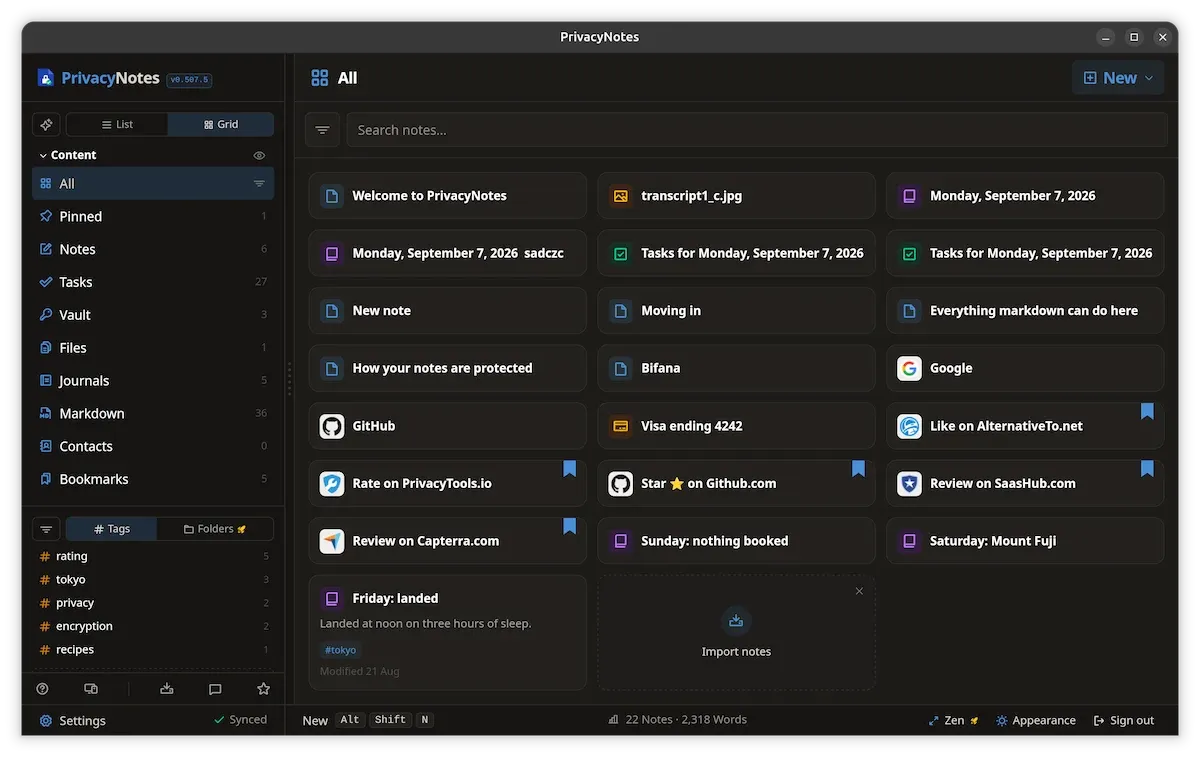
The idea of Privacy Notes is to give you an application that is primarily aimed at keeping your most important documents safe on their server by providing client side encryption.
This means that the notes and files are encrypted on your device first and then they get uploaded to Privacy Notes's servers. Privacy Notes website mentions that their servers are hosted in Switzerland.
This is zero knowledge encryption which means you have to save your key or phrase somewhere safe because if you lose that, not even Privacy Notes can give the data back as everything is encrypted.
Privacy Notes is developed by Lifetime Labs and they have the motto to provide software but NOT as a service.
In that regard, Lifetime Labs offers a lifetime price for Privacy Notes. You get 500 MB of encrypted storage for $48 (early adapter price, and it rises to $89 later). If you want more storage, extra storage is self-serve from $4.80/GB per year.
Note that server storage is a recurring cost, unlike desktop software. That's why extra storage has a recurring subscription fee.
Privacy Notes apps are open source and the source code is available on their GitHub repository. This includes the web, desktop and mobile clients and even their encryption and threat model.
More than just plain note taking
While the name suggests it is another Markdown based editor focused on privacy, it does offer a few things different than most other editors in this category. Let me share them with you.
Store your passwords and keys in vault
Privacy Notes has the option to add sensitive information in a predefined template and in its own dedicated section in the sidebar.
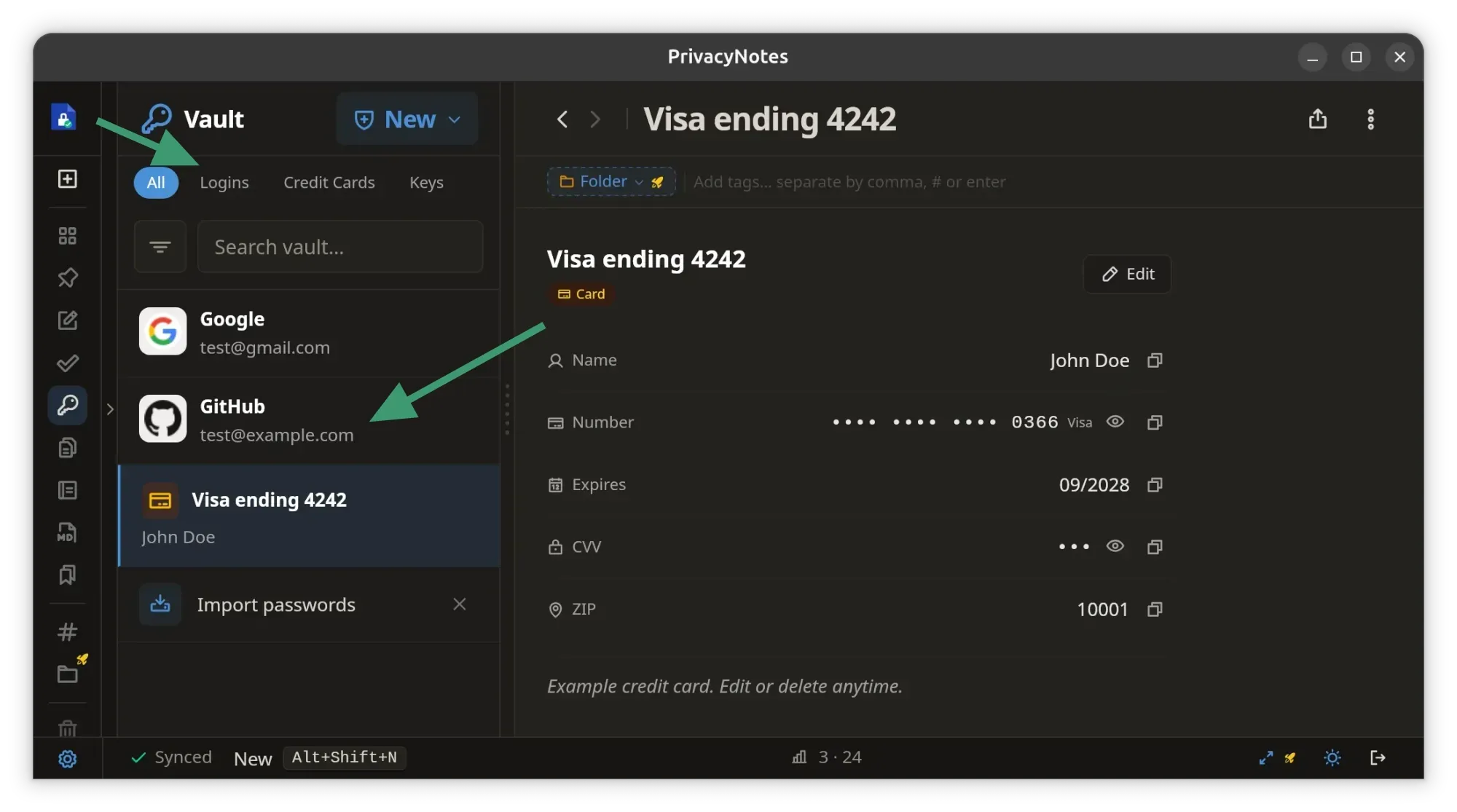
This is a feature password managers like Bitwarden and Proton Pass offer. Merging it in the notes is a good move, especially when the idea is to have secret, encrypted notes. Login passwords, credit card information, SSH/GPG keys are the common secrets people store.
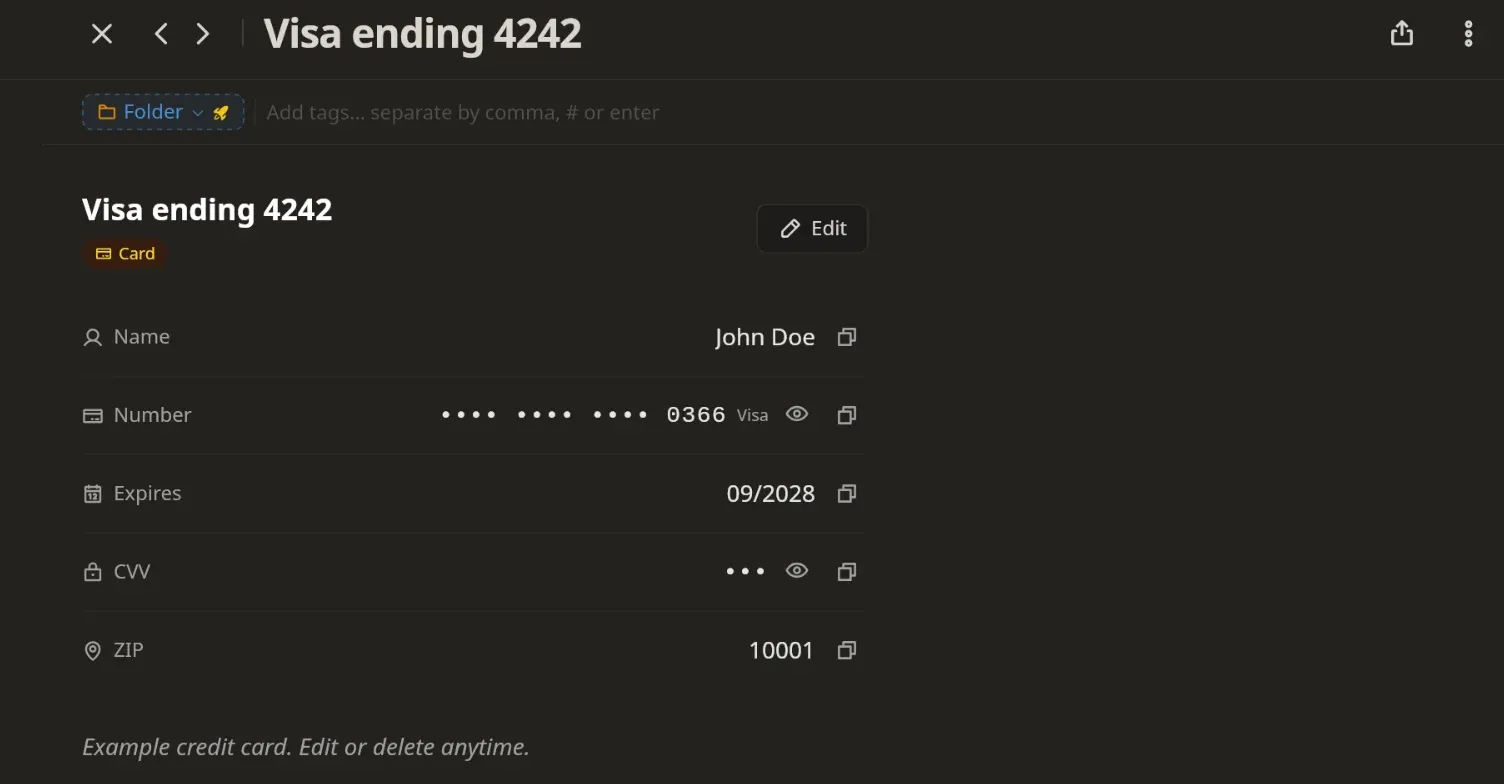
You can also generate and save new Ed25519 SSH keys and passwords in the app. I think it can also store TOTO 2FA keys.
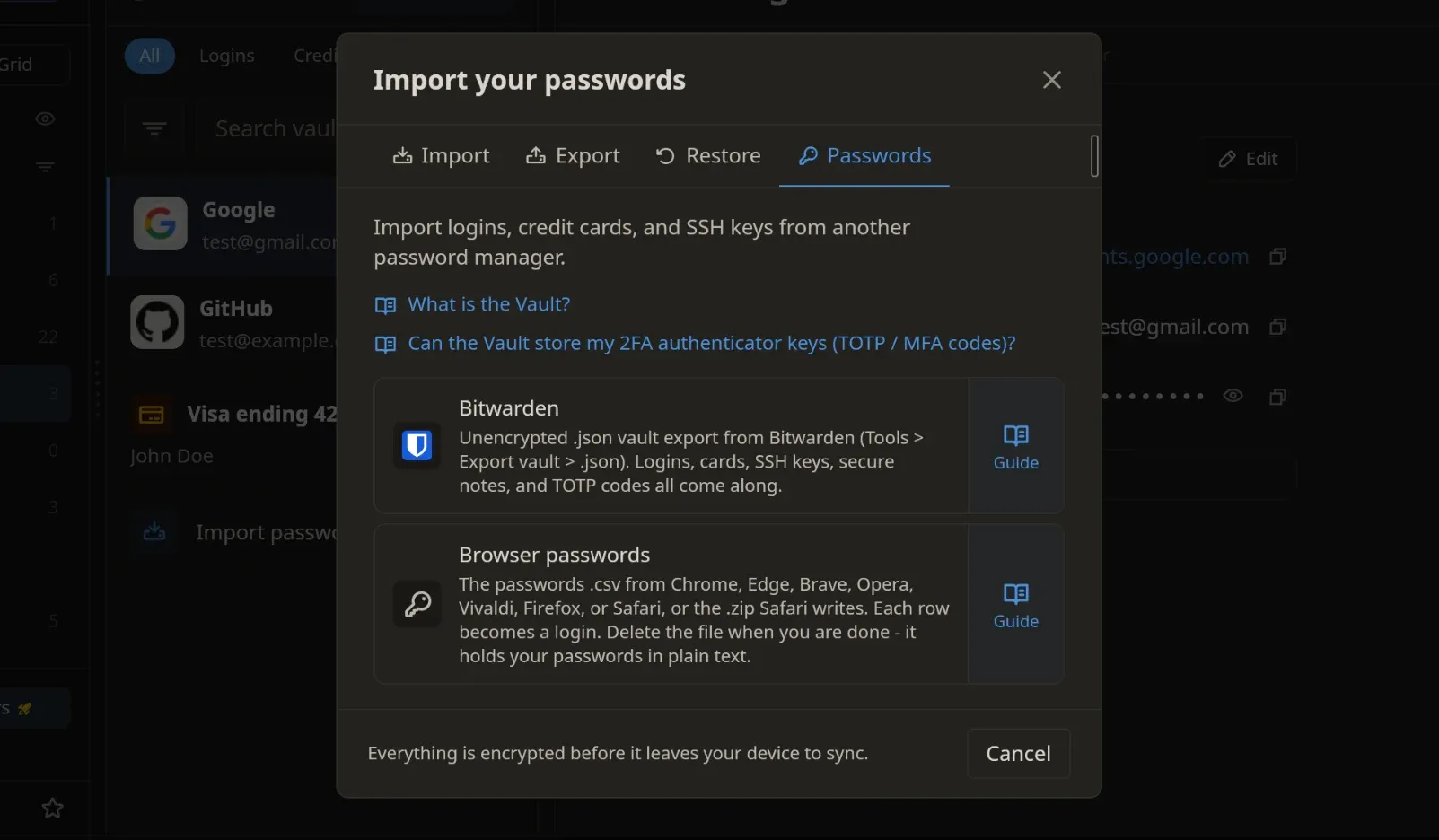
You can also import your passwords from your browser or other password managers:
Tasks
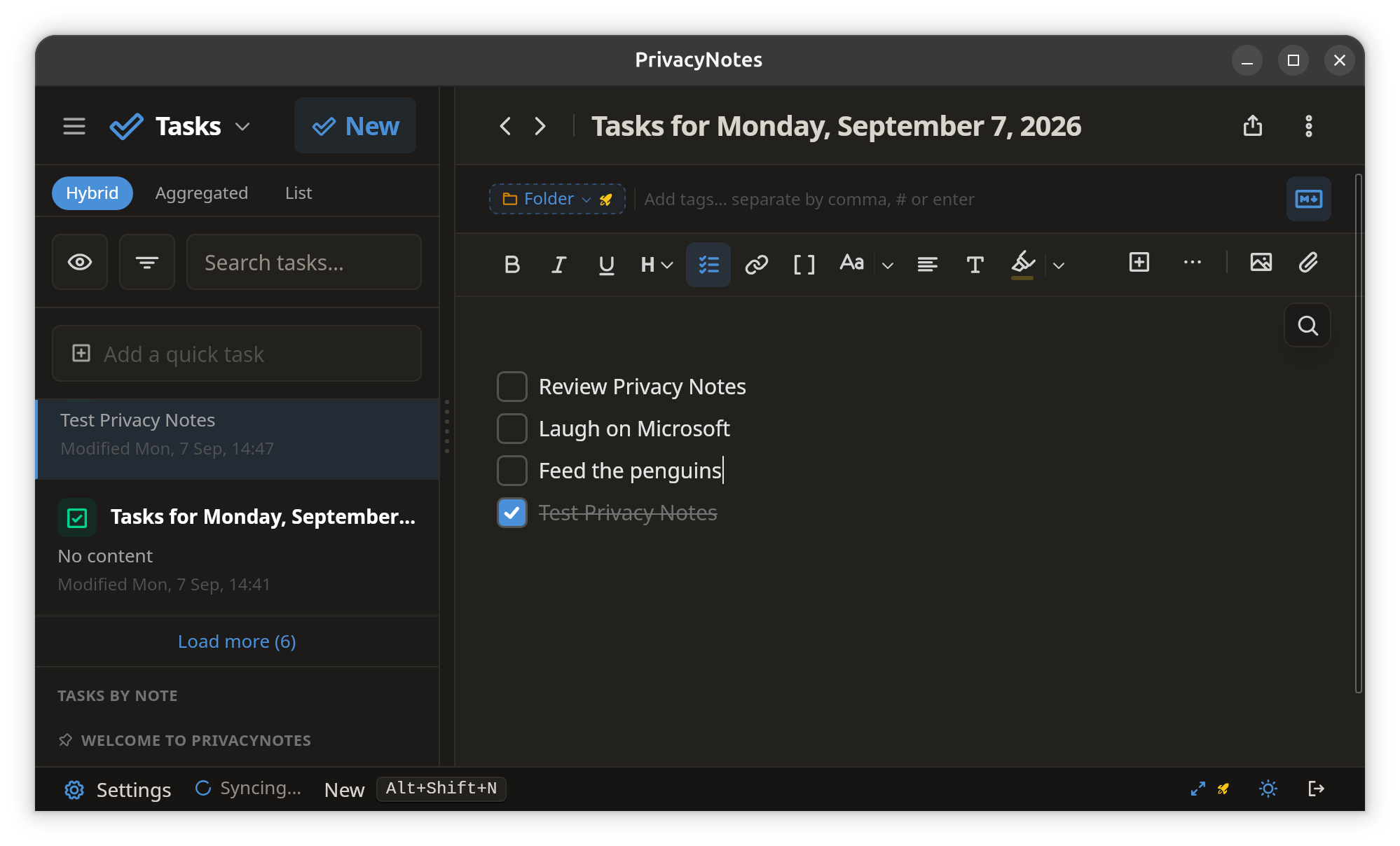
Since the idea is to provide a full-featured note apps, there are also tasks here. Now, there is no Kanban-styled task board here. Tasks are just regular notes but if you click to create a new task, it starts with a checklist. You can still add text and other markdown formatting in the tasks.
You can add checklists in regular notes as well but when you go into the Tasks view, it shows all the notes that have any kind of checklist in it.
I think the idea to give a separate view for all to-dos in one place. Which is a good thing as to-do list may get buried in the pile of notes.
More note types
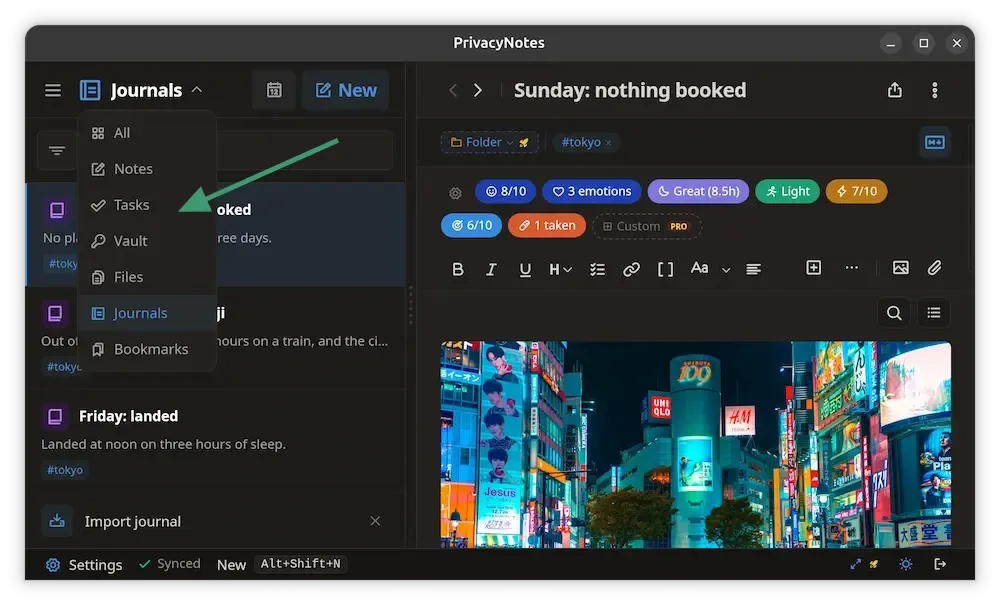
There are two more note types. Bookmarks and Journals. Both are evident from their names.
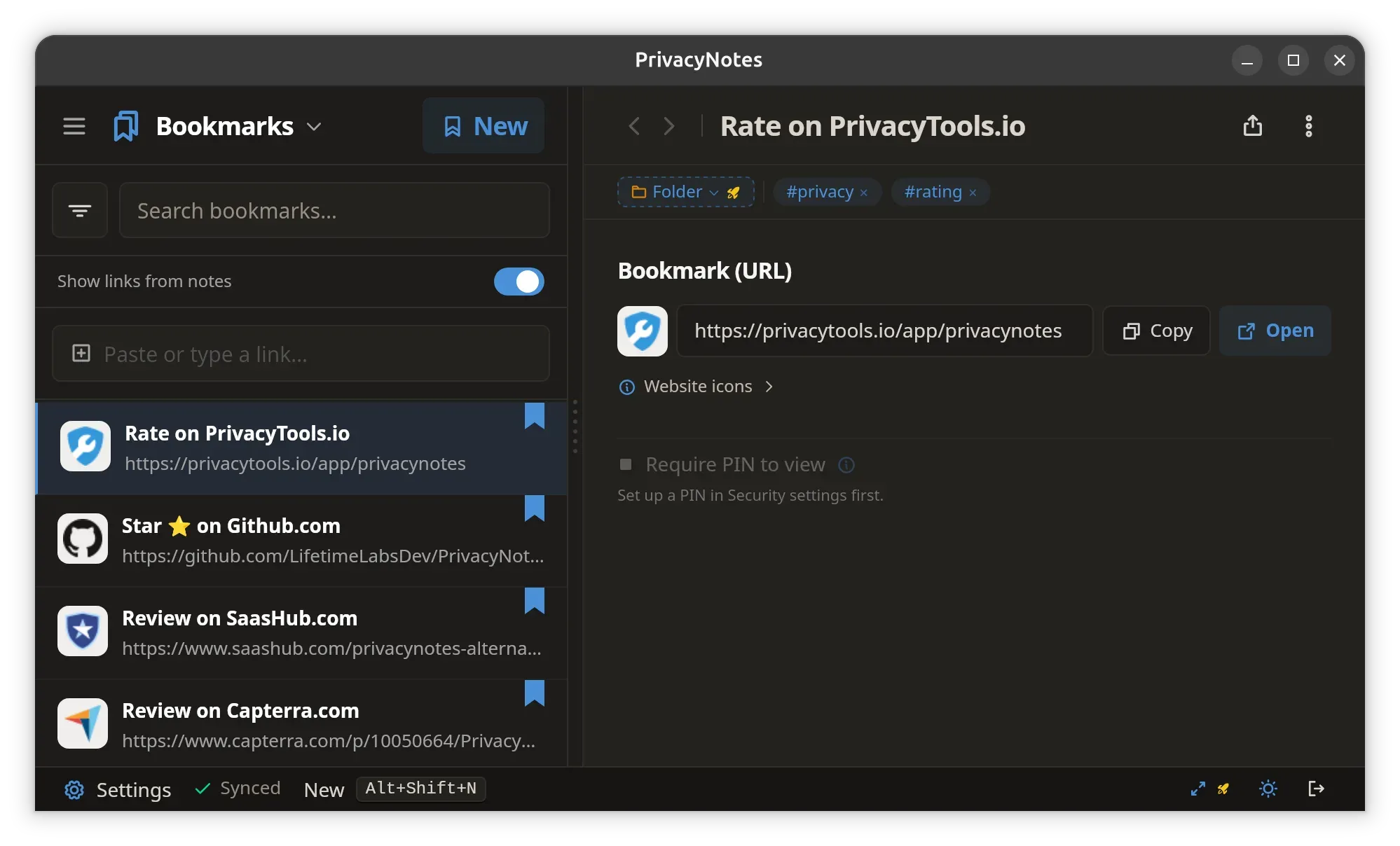
Bookmarks type of notes are for saving bookmarks. It's okay to have such a feature, but to me, the place of a bookmark is in a browser or in a dedicated bookmark manager.
It would have been better to have a quick note field in the bookmarks to quickly know or search what the bookmark is about.
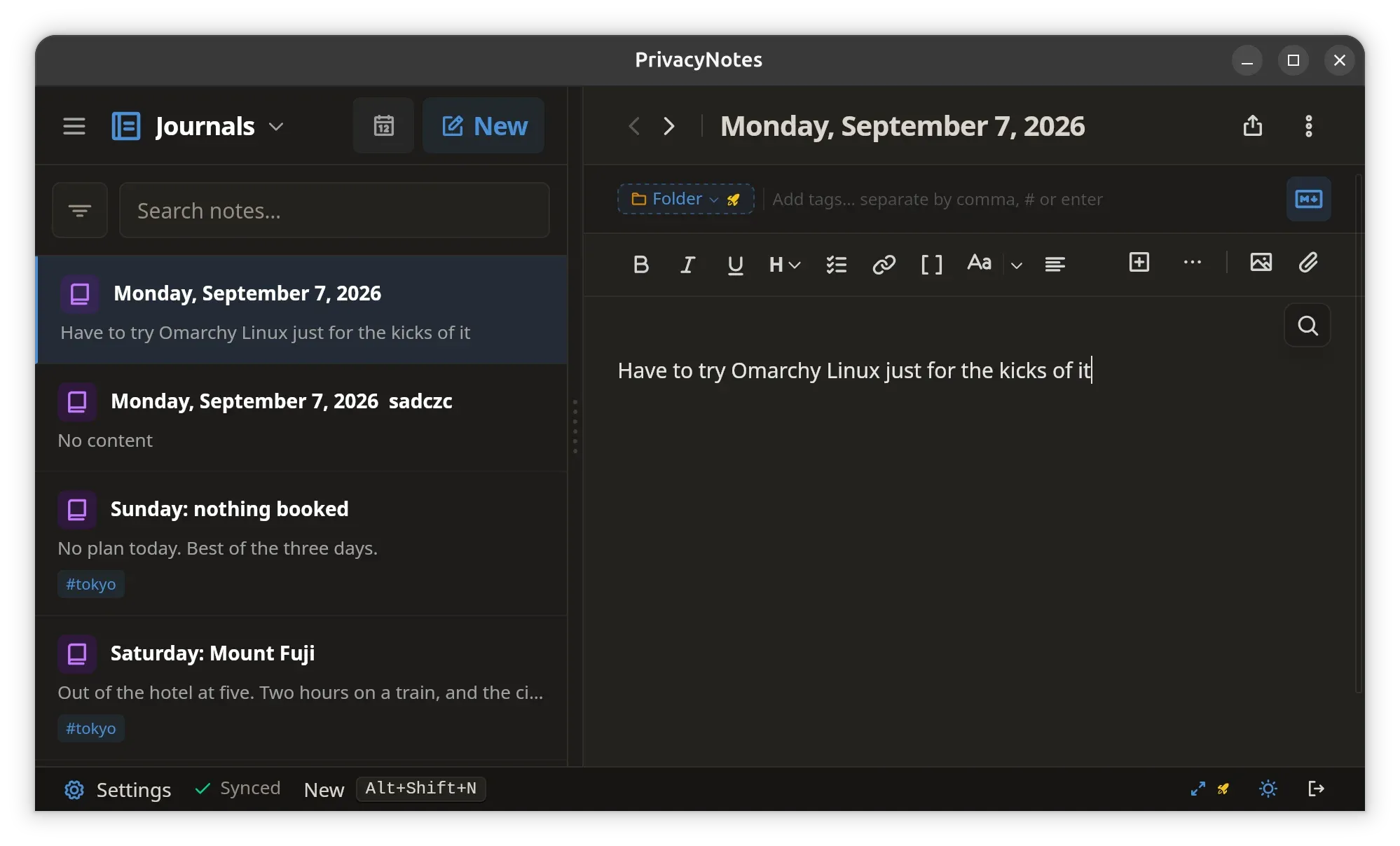
And there are journals. Logseq and some other personal knowledge base tools have the concept of journal entries. Which is like having a personal diary.
Each new note in the journal automatically gets the day and date as its name. You can create a new journal note the same day only when you rename the existing entry of the day.
You can also upload images, audio and any other file type via the Files option. This is good. Important documents can also be in image format. Like, I could save my passport and other official IDs in image format.
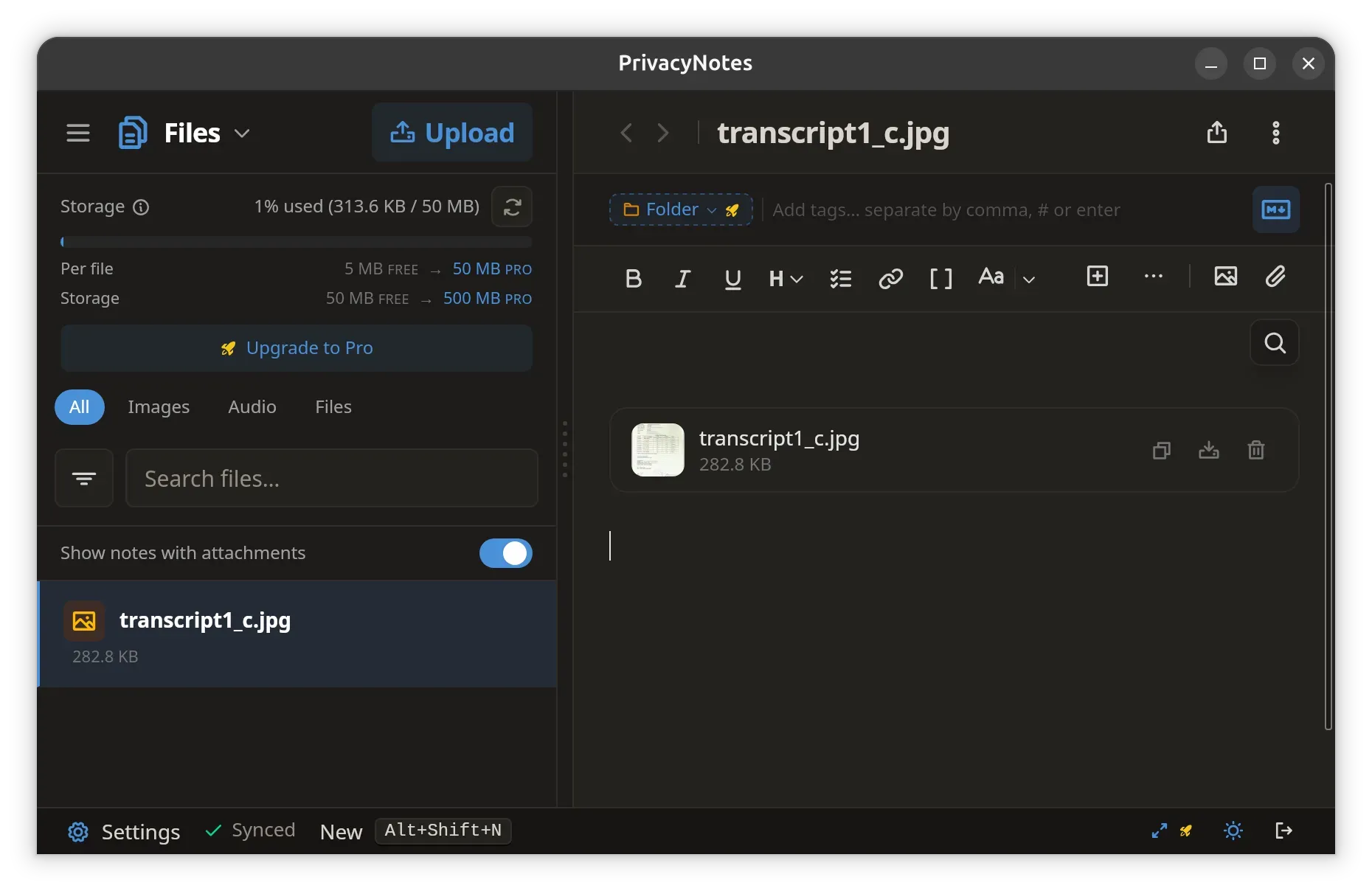
Since all the files are client side encrypted, this is better than keeping them in Google or One Drive where the images may be used to train AI (we don't know that for sure).
Burn after reading
Privacy Notes allows you to share links to your encrypted files. Anyone with the link can view the file but here is the twist. It can be viewed only once. The link self-destructs after is opened once.
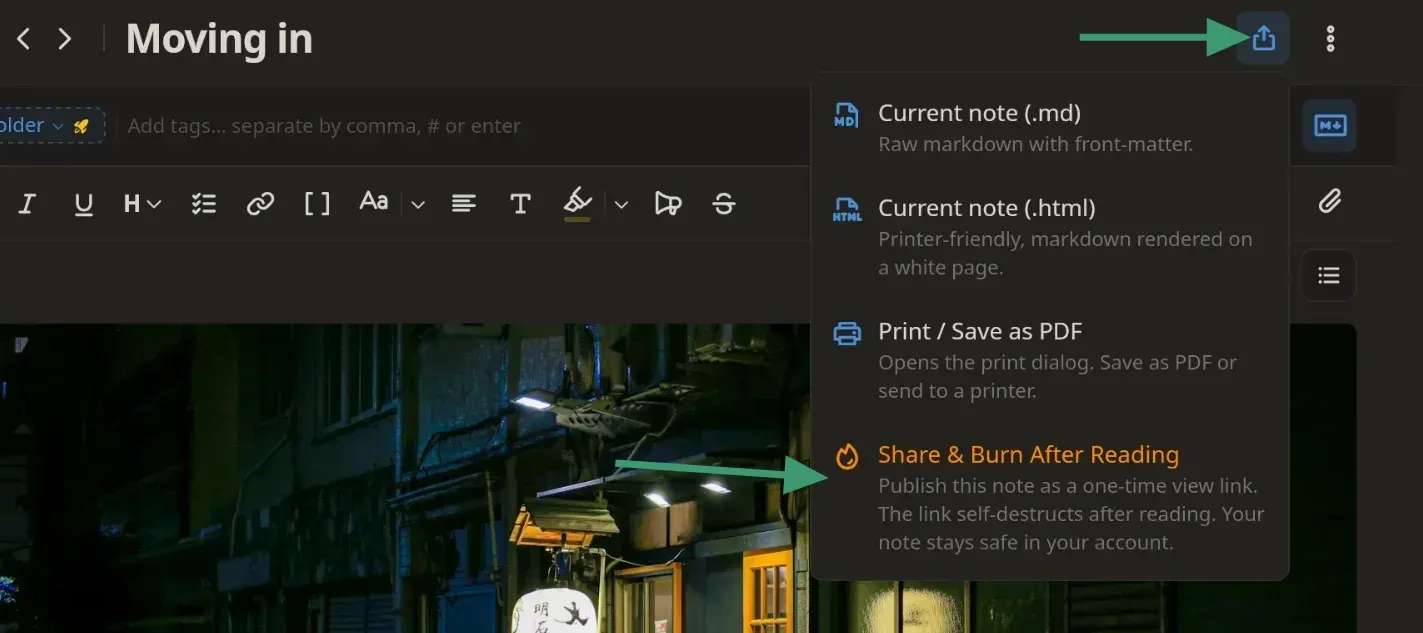
This burn after reading reminds me of both Victorian era love letters and Ethan Hunt in Mission Impossible.
Local markdown files
Privacy Notes desktop application allows you to view and edit local markdown files. If you have personal knowledge base built on Markdown (like Obsidian) or have GitHub repo, you can use it inside Privacy Notes. It edits the files in place, keeps subfolders, and converts nothing.
Keep in mind that these files stay on your systems locally and they are not encrypted. You can choose to add them to the encrypted , though. This way, the notes will be encrypted first and then saved on to your Privacy Notes account in the cloud.
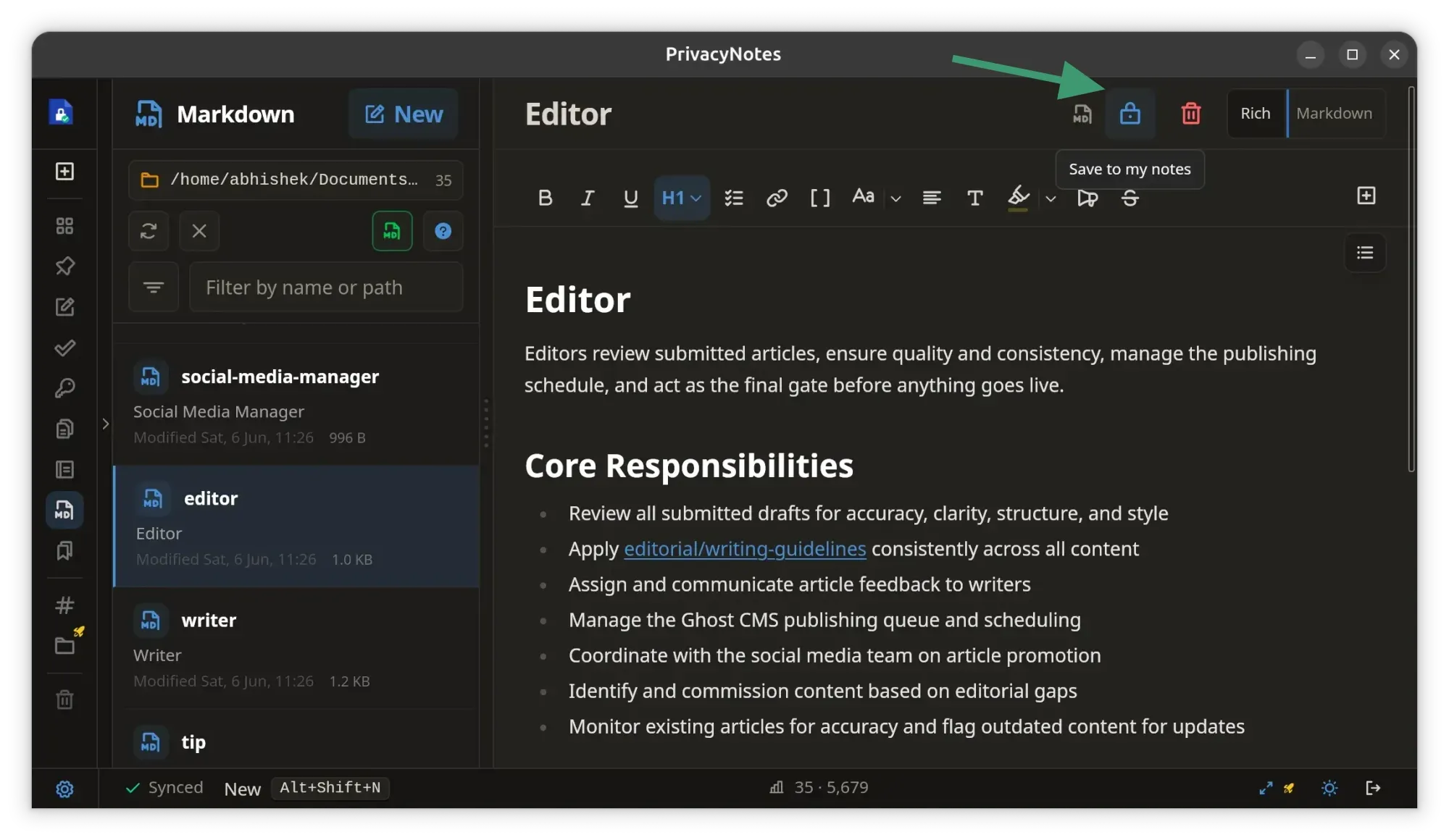
I like this idea. If you have only 50 MB of the free encrypted cloud storage or 500 MB of lifetime Pro version, you cannot dump all your notes in it. You can be selective and only upload the notes and documents that need to be in the (encrypted) cloud.
But do note that the standard features you saw above—like bookmarks, journals, vaults, etc.—are not stored locally. So you cannot create new passwords or ssh keys using the vault template and store it locally, it gets encrypted and gets stored on the server and gets counted in your storage quota.
Local markdown notes remain local. They don't get the fancy templates. But you can use the editor that works great for markdown files.
You can also mix and match. Store only the most important, sensitive data in the encrypted cloud, while regular files can be synced to a Git repo.
Also, you can export your notes any time.
Should you use Privacy Notes?
Privacy Notes is a mix of local plus (encrypted) cloud storage. Now, Linux servers are suggested to follow the classic 3-2-1 backup strategy.
We are not dealing with servers here but personally, I keep multiple backups of my data. Some are in my homelab and some stay in the cloud.
My scanned IDs, warranty papers, insurance documents, and other such important data live in the cloud. They used to be in email 15 years ago.
Privacy Notes can be part of the multiple backup strategy. Since it is especially for notes you cannot use it for dumping GBs of images but you can try using it for storing important documents, notes, passwords, SSH key, 2FA recovery codes etc. The client-side encryption adds a layer of trust.
The free account gives you 50 MB of encrypted storage. Which should be enough for you to try it and also keep on using it if you have limited needs.
The Pro version will give you 500 MB of storage for a single payment of $48. It's a lifetime subscription, something I prefer over a recurring subscription.
The Pro version allows you to use the synced notes on multiple devices (free plan syncs only 2 devices) and keeps upto 20 revisions of a file. You do benefits for the amount you are paying.
Getting Privacy Notes
If you want to take the feel of Privacy Notes, there is a web-based demo here. That gives you an idea of what the tool is like.
And then, when you decide to use it, you have apps available for Linux, Windows, macOS, iOS and Android.
For Linux users, Privacy Notes is available in AppImage and .deb format for for x86_64 and ARM64 platforms so even SBCs like Raspberry Pi are covered here. Every release is signed and carries a SHA-256 checksum on GitHub.
If you are using Android, you can get the app in APK format from Zapstore or Obtanium, platforms that verifies developer signature. Pure APK can be downloaded from the website, too. Google Play store integration is in works.
You can download the apps from the download section of their website:
Or, check out the source code from their GitHub repo.
If this helped you, consider supporting It's FOSS
It's FOSS has been helping people use Linux for the past 14 years. Help us stay independent from big tech. Become a Plus member, enjoy ad-free reading and get 5 eBooks.
Skip the AI slop and SEO spam in your Google results
Tell Google you prefer It's FOSS, and it will show our Linux news and tutorials, created by experienced Linux users, more often when you search. It takes just a click.
Set as preferred sourceGet FOSS Weekly in your inbox