


Mozilla has been experimenting a lot with Firefox lately, and a good chunk of that effort has gone into AI. The sidebar can house a chatbot of your choice, and Smart Window has an assistant that lets you pick the AI model.
Luckily, they have stopped tunnel-visioning into AI, and the UX side of the browser has seen some big upgrades.
Containers keep work, shopping, and personal browsing separate; Split View shows two pages side by side in one window; and Vertical Tabs move your tab list into the sidebar.
I believe that these upgrades have made Firefox a much more compelling option when compared to other popular web browsers.
Of course they are not stopping there. Mini Window is the latest addition to that list, which builds on the work done in Picture-in-Picture, the floating video player.
Firefox Mini Window
Using Mini Window on Linux with Firefox 160 feels like a beta from the start. It needs a regular browser window with a tab open to work because a standalone mini window is not possible yet.
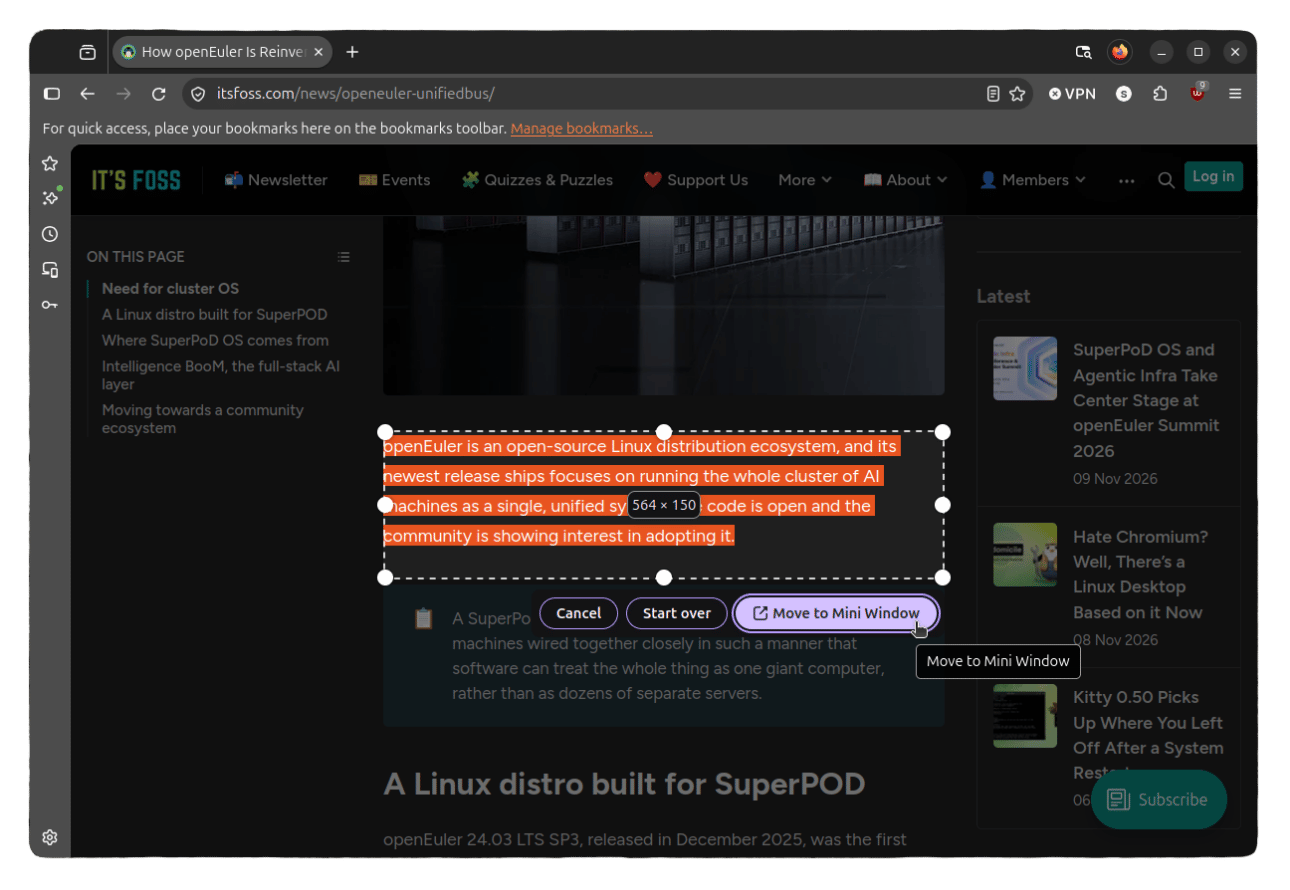
It comes in two modes. Move full tab sends the whole page into a small window that floats above your other windows, and Move selection lets you draw a box around the part of a page you want and sends only that.
Either way, the moved tab is not available in the main window until you send it back.
A full tab mini window looks like a tiny browser window. The top bar has the page address along with reload, back, forward, send back, and close buttons. Pages adapt to the smaller size as well.
During testing, websites like ours, Wikipedia, and Associated Press were successfully switching to their compact layout.
A selection mini window is more compact and shows just the chosen area under the page address, with a reload button and the same close and send back buttons.
Both kinds can be dragged around and resized. Selection mini windows have some rough edges because they can appear too small and refuse to resize well.
They are still handy for research sessions where you need to check small bits of information without opening more tabs and cluttering the desktop.
Try it Out
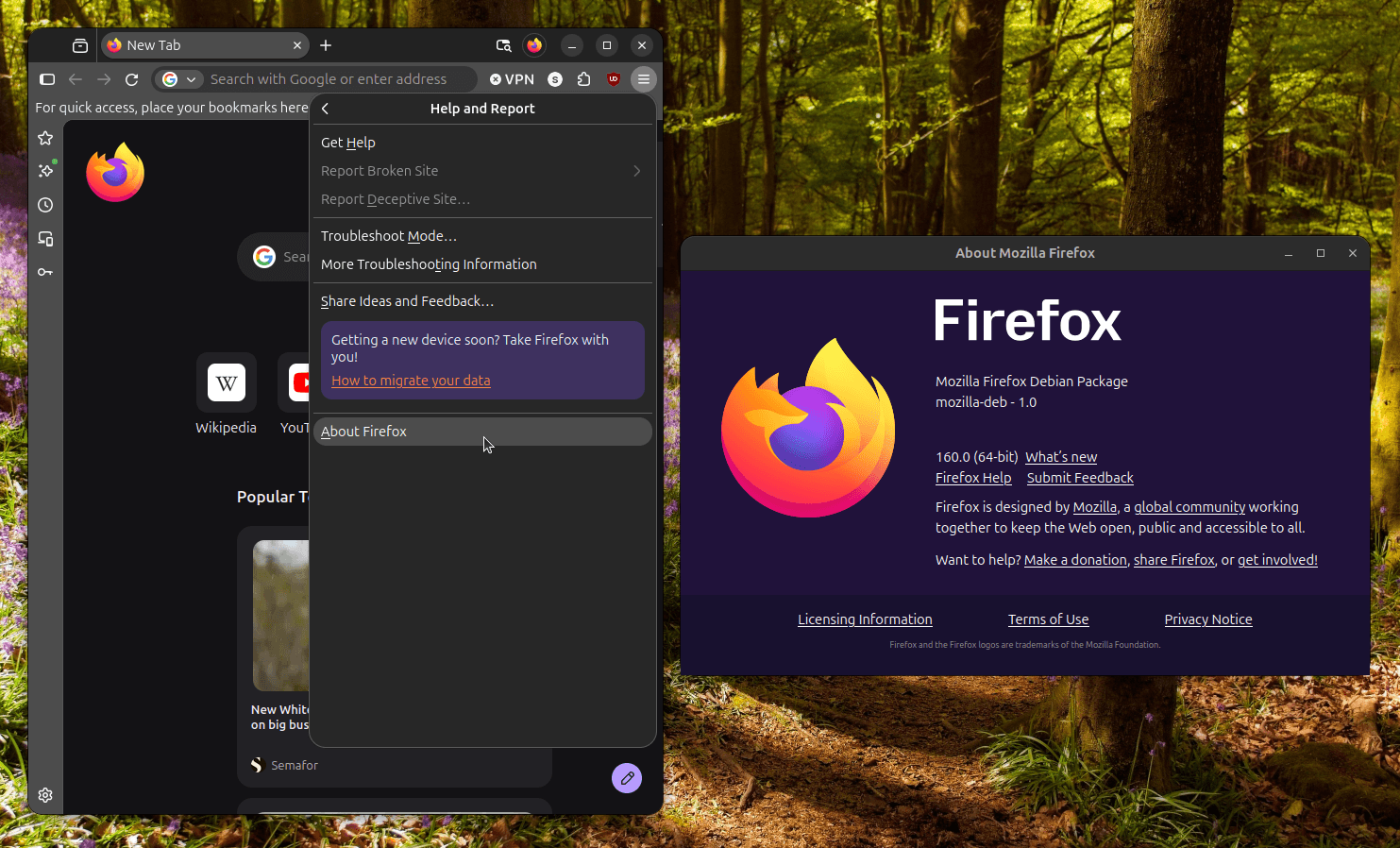
Before you get started using Mini Window, you first have to ensure that you are on Firefox 160 or later. To do that, go into the hamburger menu and open "Help and Report." Here, click on "About Firefox" and take note of the version shown in the dialog that opens up.
If you find that an older build of Firefox is installed, then get the latest release from the official website or the official FTP mirror.
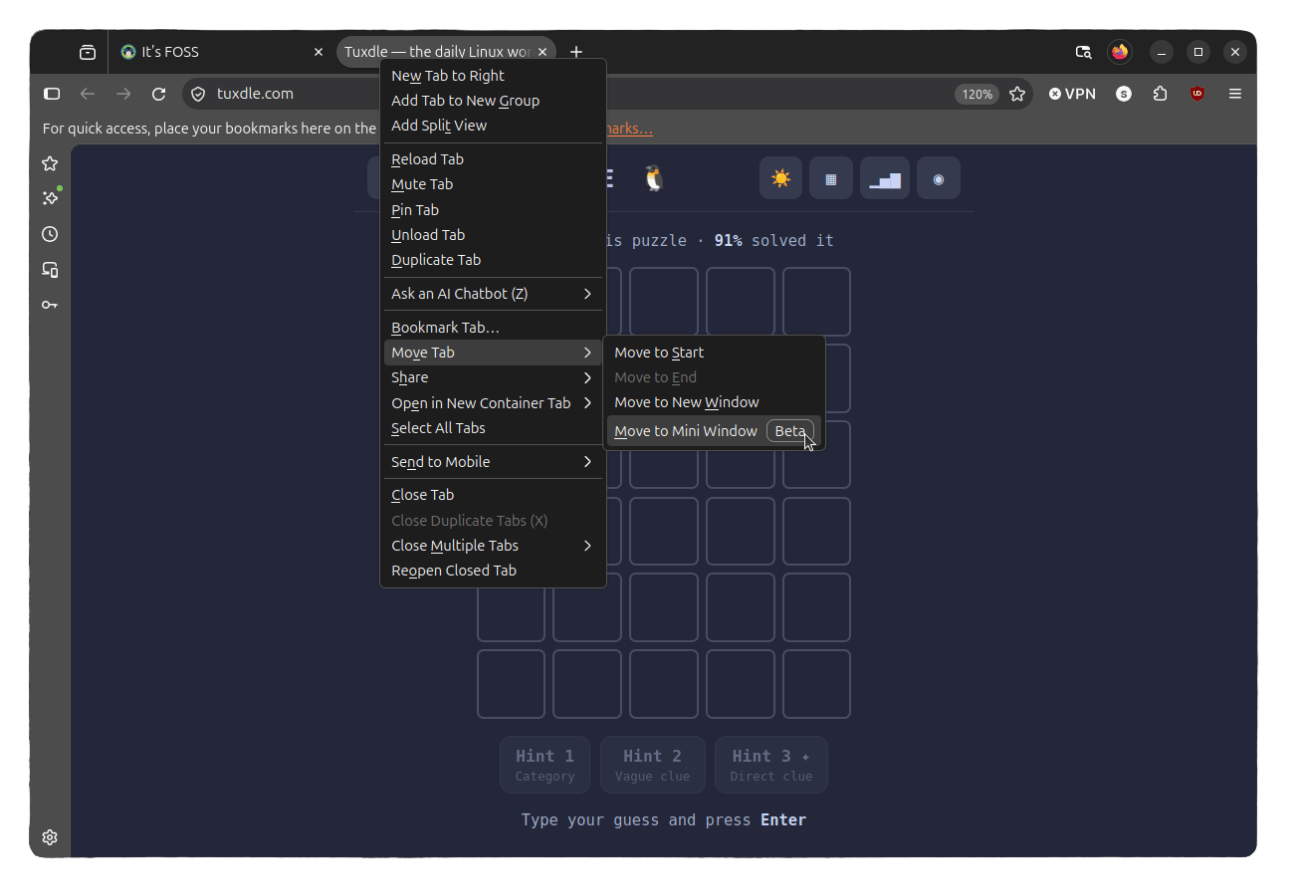
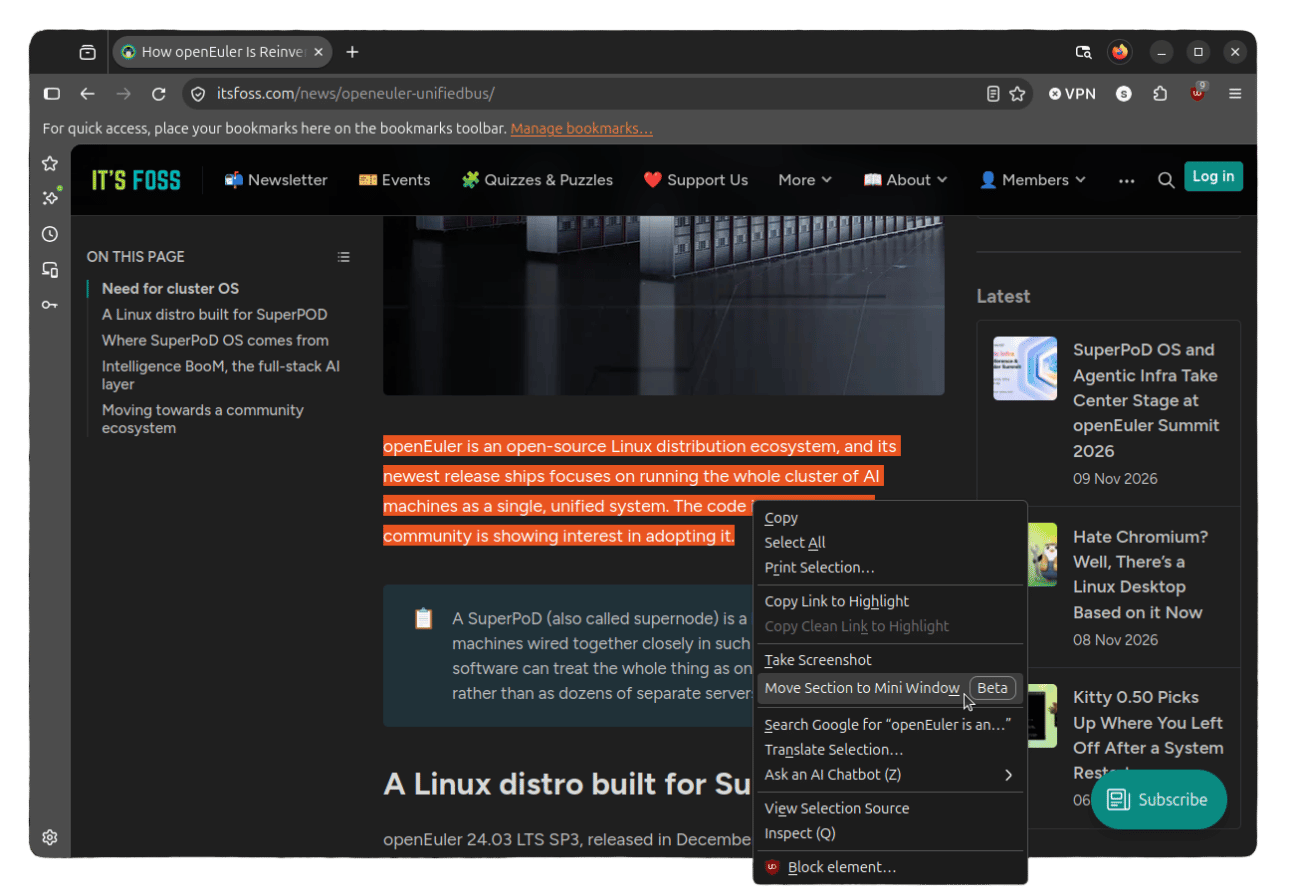
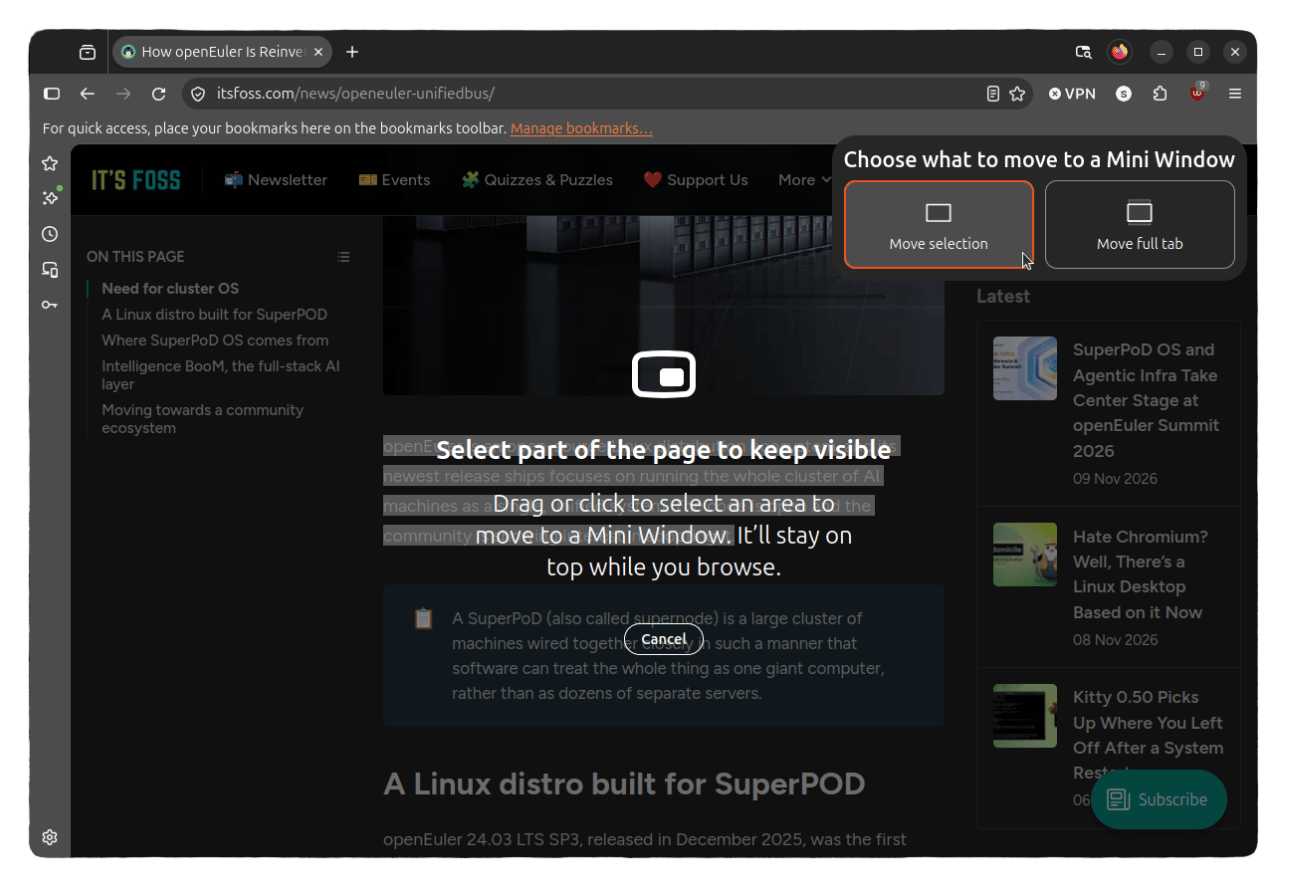
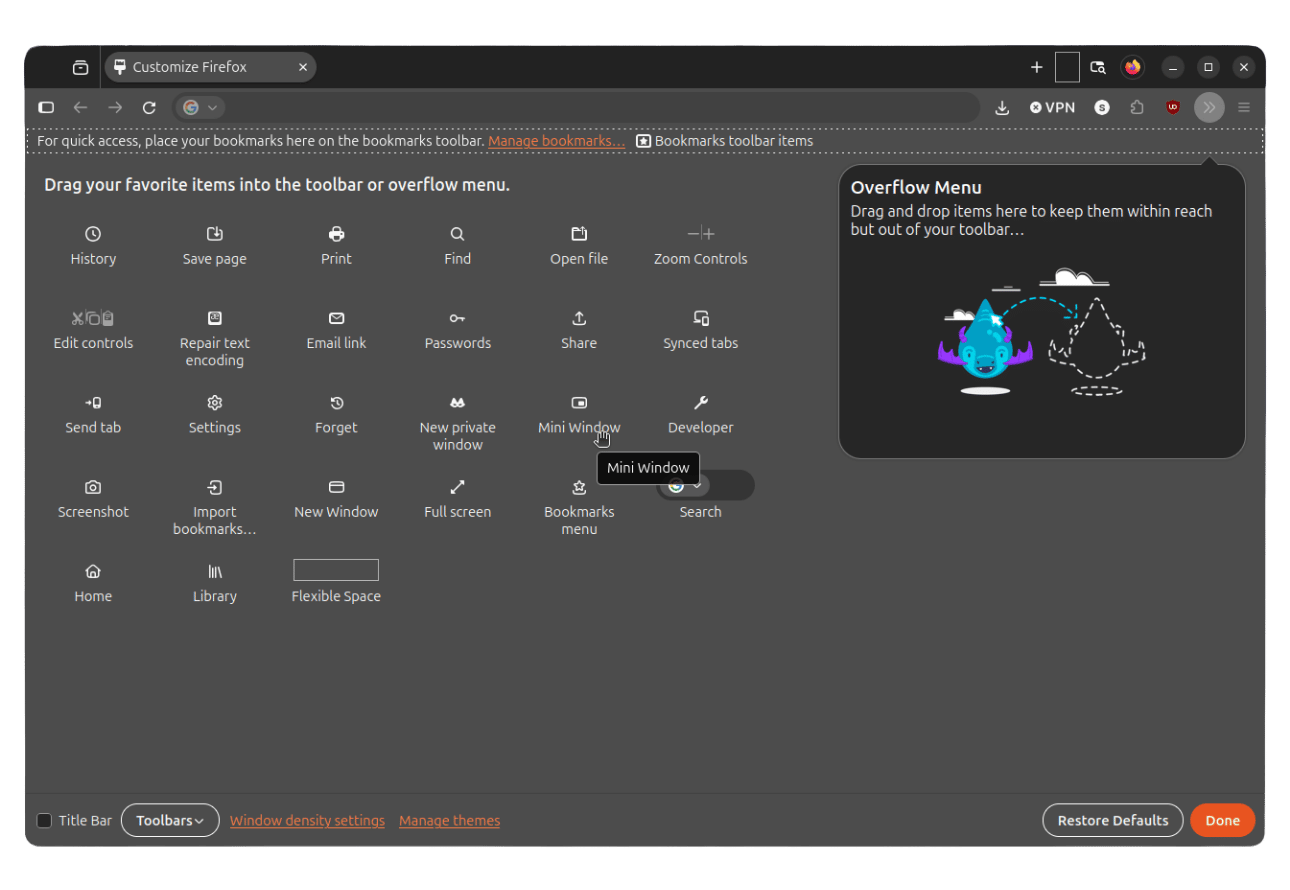
Next, you just have to start a normal browsing session with multiple tabs and follow any one of these three approaches to get started:
- Add the Mini Window icon to the toolbar.
- Right-click a tab and go into "Move Tab."
- Right-click the page content and choose Move Section to "Mini Window."
For the toolbar method, right-click the toolbar and open "Customize Toolbar." Find the Mini Window icon in the list and drag it onto the toolbar, then hit "Done." After that, the feature is just one click away on any page.
Suggested Read 📖: Firefox can do a lot more than you realize. Here are 21 features most people overlook.
 Sreenath
Enjoyed this update? Support independent Linux news coverage
It's FOSS has been helping people use Linux for the past 14 years. Help us stay independent from big tech. Become a Plus member, enjoy ad-free reading and get 5 eBooks.
Skip the AI slop and SEO spam in your Google results
Tell Google you prefer It's FOSS, and it will show our Linux news and tutorials, created by experienced Linux users, more often when you search. It takes just a click.
Set as preferred sourceGet FOSS Weekly in your inbox