


COSMIC has been quite the undertaking. System76 spent years building this Rust-based desktop environment from scratch, and it finally got a stable release with Pop!_OS 24.04 LTS.
During my testing of it, the experience was quite good. The window tiling is slick, the desktop settings allow for a wide range of customization, and the gaming experience is okay.
POP!_OS itself is Ubuntu-based but if you are already using Ubuntu, you don't need to remove Ubuntu just to try COSMIC. There is an unofficial PPA that packages the fledgling desktop environment for Ubuntu.
Just a quick demo of COSMIC on Ubuntu 24.04 LTS.
How do you install COSMIC desktop on Ubuntu?
You add the unofficial PPA with sudo add-apt-repository ppa:hepp3n/cosmic-epoch and then install COSMIC desktop with sudo apt install cosmic-session. Once installed, log out from the system and choose COSMIC session from the login screen.
Before I show the steps in detail, you have to understand that this PPA could interact with many critical packages like Mesa, Wayland, LLVM Toolchain 20, and the Rust compiler. I tested this on a fresh installation of Ubuntu 24.04 LTS to ensure a conflict-free installation, but I am unsure how this PPA will behave when applied to an existing installation.
This PPA should also work for Ubuntu 24.04-based distros like Linux Mint 22.x, Zorin OS 18, and elementary OS 8.x. The same warning applies for these distros as well.
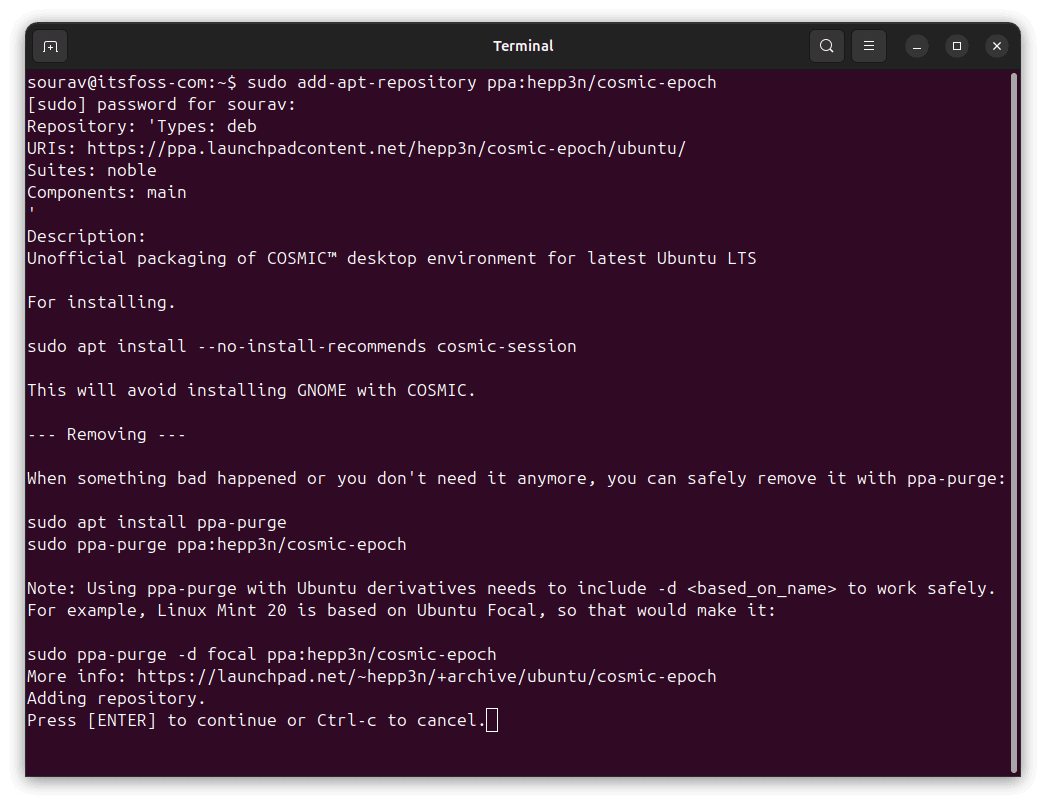
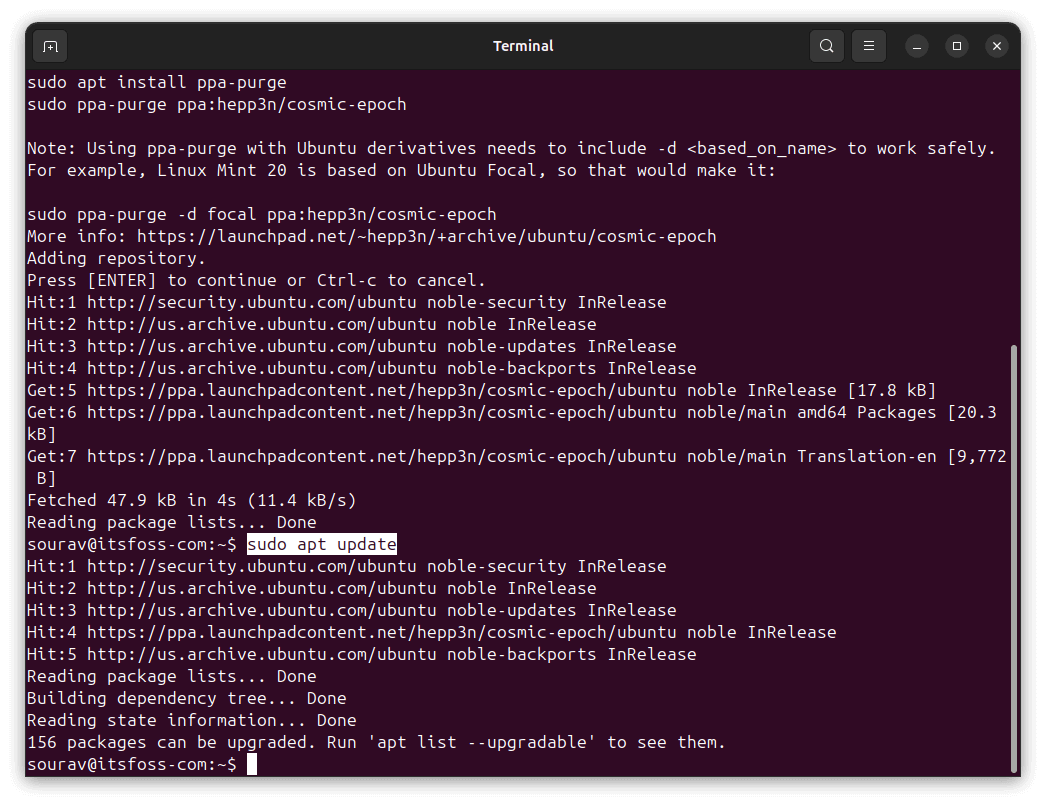
First, open your terminal and run this command to add the PPA:
sudo add-apt-repository ppa:hepp3n/cosmic-epochThe system will ask for your password and show you information about the PPA. Press Enter to confirm.
After adding the PPA, update your package list. This step is not needed in Ubuntu as adding a new repo automatically triggers package cache update.
sudo apt update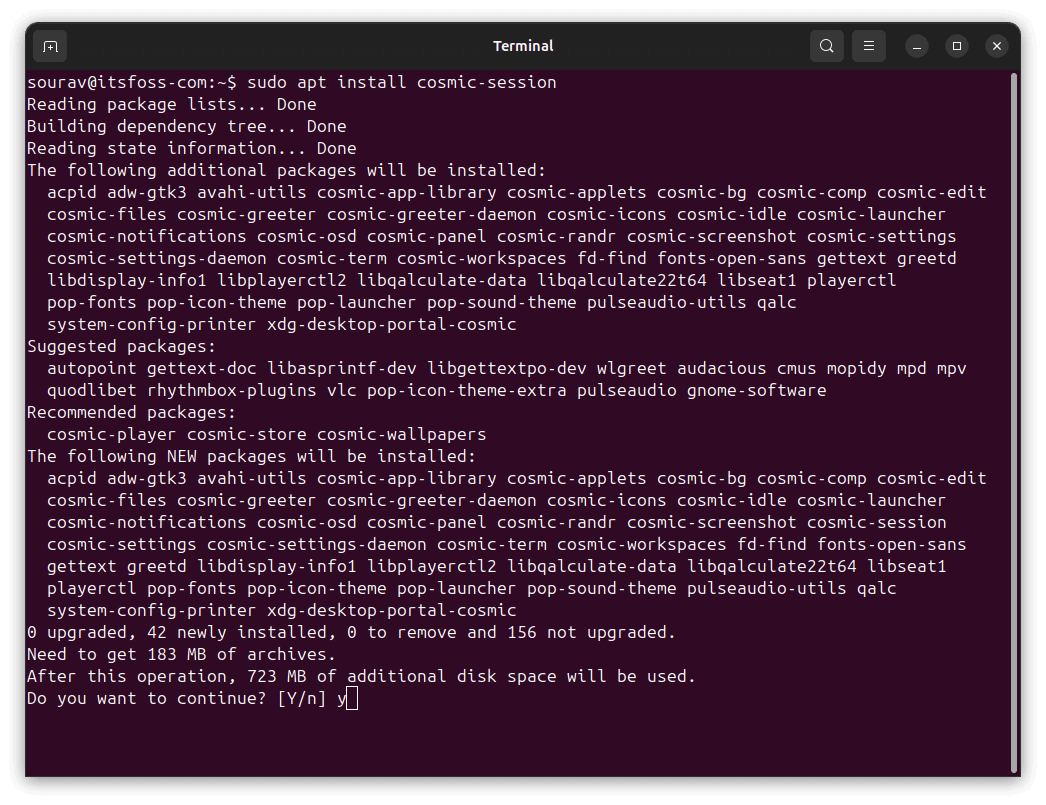
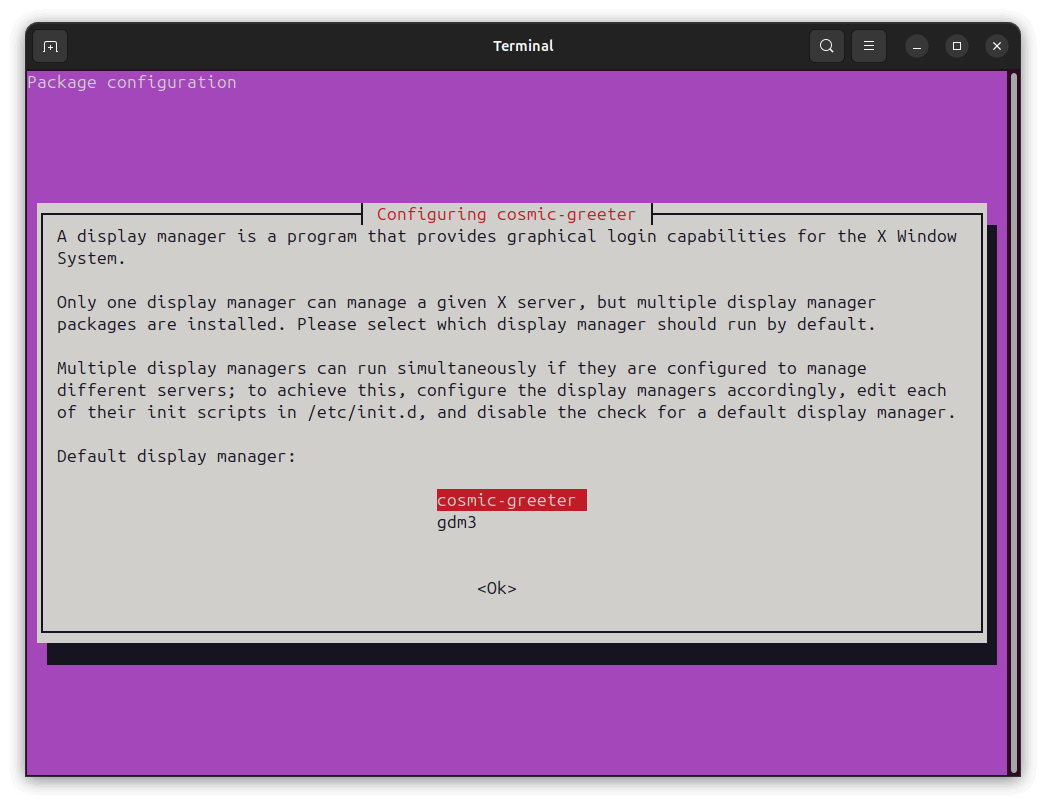
Now install the COSMIC desktop session with:
sudo apt install cosmic-session⚠️ During the installation, you'll be prompted to choose a display manager (the login screen). This is an important decision. Use the arrow keys to select your choice and press Enter.
If you want to go full COSMIC, select cosmic-greeter. This is what I did during my testing. But if you plan to keep using GNOME or want to switch between desktop environments, stick with gdm3 (GNOME Display Manager).
That is the safer choice if you are not ready to commit fully to COSMIC.
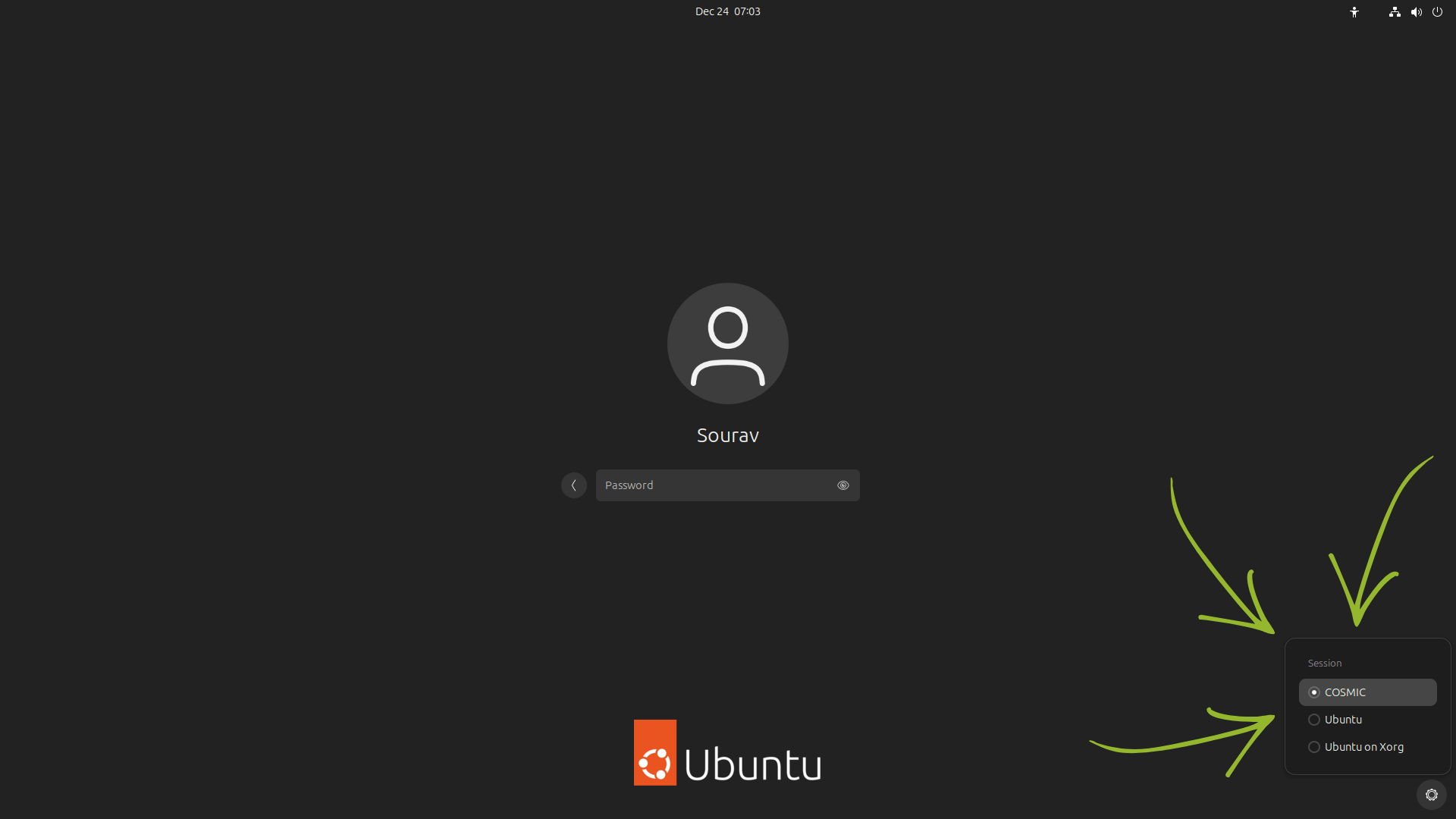
Once the installation completes, log out of your current session. At the login screen, look for the session switcher. On gdm3, this is usually a gear icon or a dropdown menu in the bottom-right corner.
Click on it and select COSMIC from the list of available sessions. Then log back in.
If everything goes well, your system should boot into the COSMIC desktop environment. You'll see the familiar workspace switcher on the top-left, and the application launcher and dock at the bottom.
Going back to GNOME
I'll quickly tell you the steps:
- Log out from the system, and then choose GNOME and log into the GNOME session
- Reset back to GDM by using the command:
sudo dpkg-reconfigure gdm3and when asked, make GDM the default display manager. - Now that you are back with GNOME properly, you can remove COSMIC:
sudo apt remove cosmic-session
Via: OMG! Ubuntu
If this helped you, consider supporting It's FOSS
It's FOSS has been helping people use Linux for the past 14 years. Help us stay independent from big tech. Become a Plus member, enjoy ad-free reading and get 5 eBooks.
Skip the AI slop and SEO spam in your Google results
Tell Google you prefer It's FOSS, and it will show our Linux news and tutorials, created by experienced Linux users, more often when you search. It takes just a click.
Set as preferred sourceGet FOSS Weekly in your inbox