


Remember the last time you used backspace key to go back to previous web page while browsing in Mozilla Firefox? It was probably when you were in Windows.
Firefox is the default web browser in many a Linux distributions including Ubuntu. And in here, the backspace key to go back to previous web page doesn’t work, by default.
The Firefox keyboard shortcut to go back is pressing Alt+Left Arrow key. This can be changed easily by altering the configuration.
In this quick post, we shall see how to enable backspace action in Ubuntu and other Linux distributions. This will work on any operating system using Firefox.
Enable backspace action in Firefox
Just follow the below steps:
Step 1
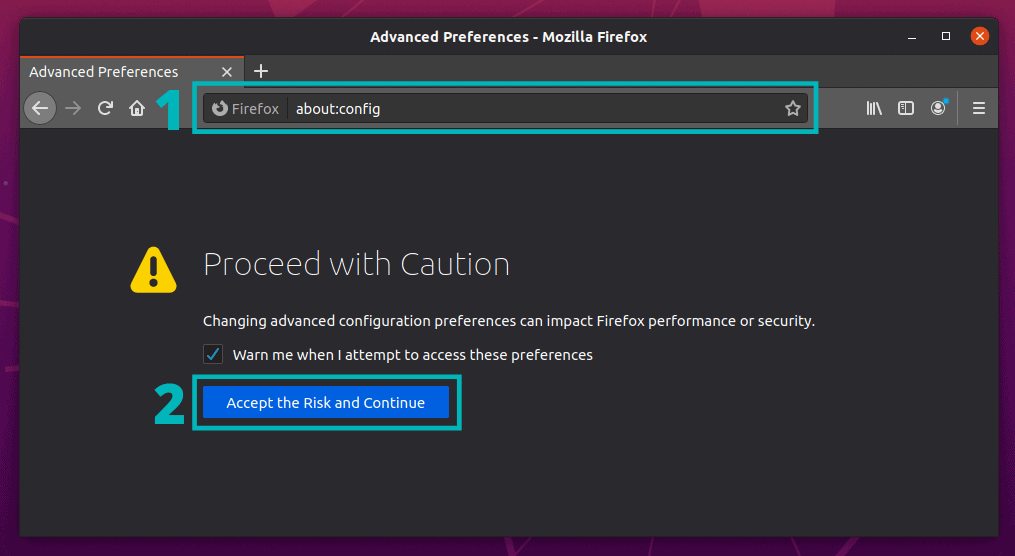
Open Firefox and enter about:config in the address bar. It’s just a way of opening Firefox preferences setting.
A warning from Firefox will be displayed that your warranty will be void (as if there is one). You can ‘pinky’ promise to be careful and click on “Accept the Risk and Continue”.
Step 2
Here search for browser.backspace_action. Note that copy-pasting this value will yield no results. Since the entries are in alphabetical order, you can easily look for it.
When you find it, double-click on it and change its value to 0.
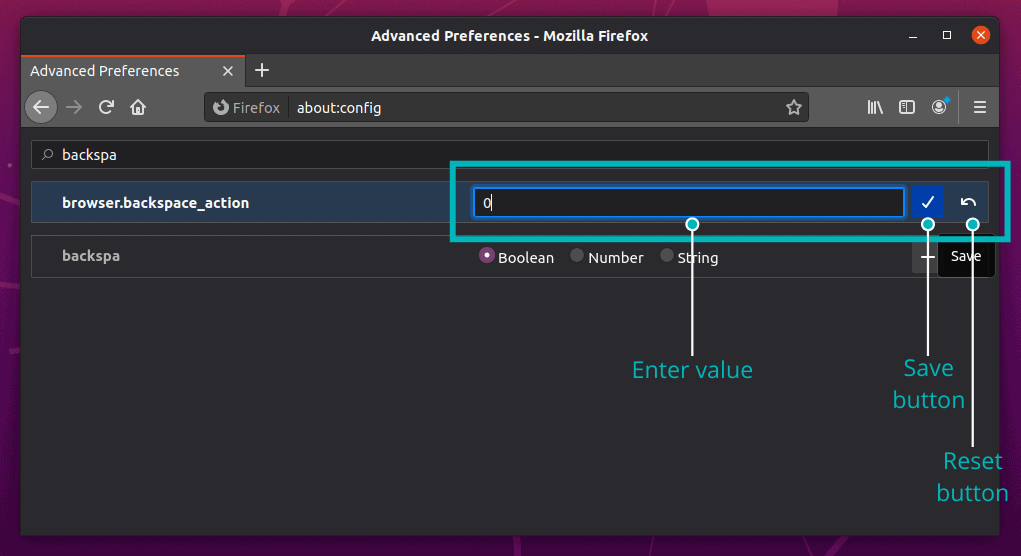
That’s it. Now if you hit backspace, it will take you to the previous web page.
Disable backspace action in Firefox
If you change the same with value 1, the backspace key will work for scrolling page up (going upside of the page).
In future if you want to disable it, you can change it back to 2 or just click the reset button, it will load its default value.
More Firefox Tweakings
You can do a lot of other Firefox tweaks to make it behave the way you want.
For example, remove the title bar from the top.
 Abhishek Prakash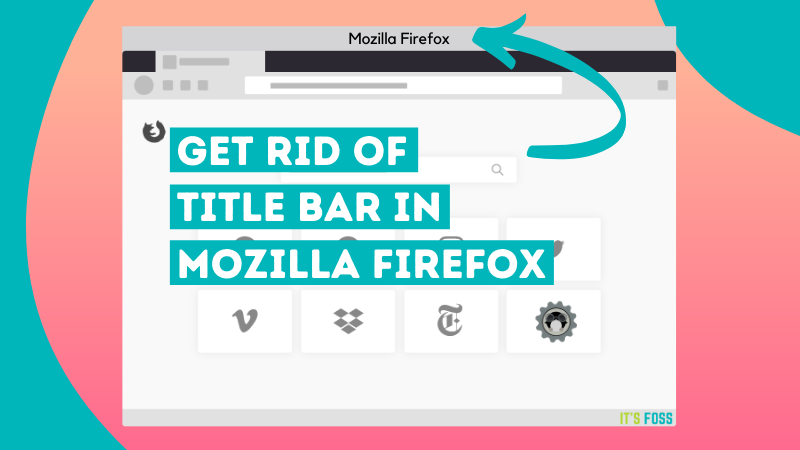
You can also enable dark mode. There is no end to tweaking Firefox.
John Paul Wohlscheid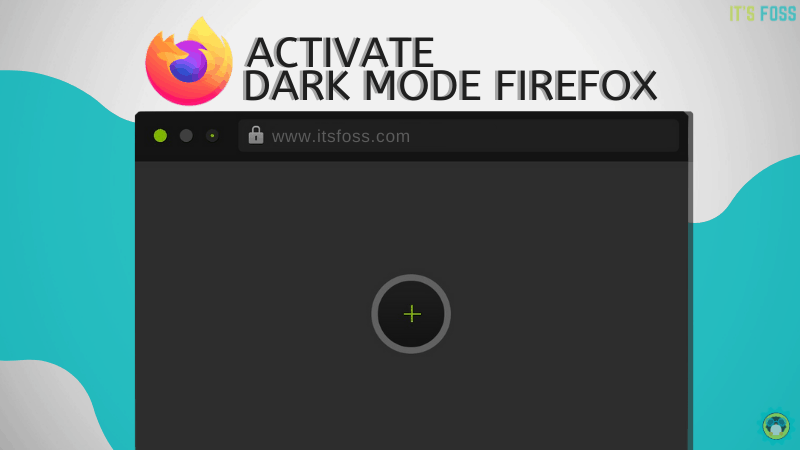
You can always explore the extensions to power up your Firefox game.
Pratham Patel
Enjoy Firefox the way you want :)
If this helped you, consider supporting It's FOSS
It's FOSS has been helping people use Linux for the past 14 years. Help us stay independent from big tech. Become a Plus member, enjoy ad-free reading and get 5 eBooks.
Skip the AI slop and SEO spam in your Google results
Tell Google you prefer It's FOSS, and it will show our Linux news and tutorials, created by experienced Linux users, more often when you search. It takes just a click.
Set as preferred sourceGet FOSS Weekly in your inbox
