

Brief: This tutorial shows you how to connect Bluetooth devices to your Ubuntu system. It will also help you troubleshoot common Bluetooth issues.
One of the It’s FOSS reader, Tim Pedersen, requested a tutorial on setting up Bluetooth speakers in Ubuntu around 20 days back. What a coincidence! Because I have been thinking of buying a Bluetooth speaker for some time and I used Amazon Prime Day to buy me JBL headsets a few days later. I am not going to review it. The post is dedicated to setting up and using Bluetooth speakers in Ubuntu Linux.
Connecting Bluetooth speakers in Ubuntu
Let’s see what do you need to get the Bluetooth Speaker working in Ubuntu.
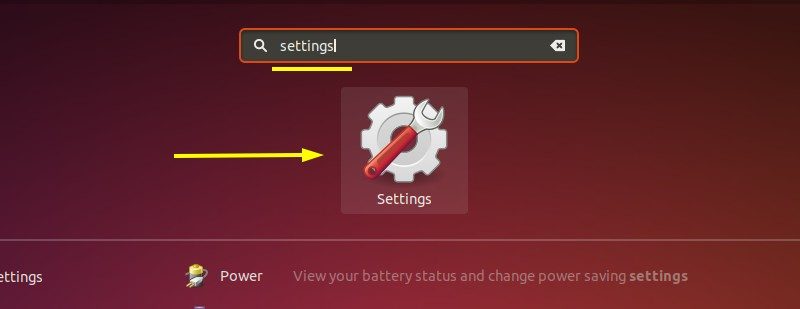
Go to System Settings. Just press Windows key (also called Super key in Linux world) and type settings:
And in here, go to the Bluetooth settings. Make sure that you have the Bluetooth turned on. There is a toggle
You’ll notice that it automatically starts scanning for Bluetooth devices and lists all the found devices.
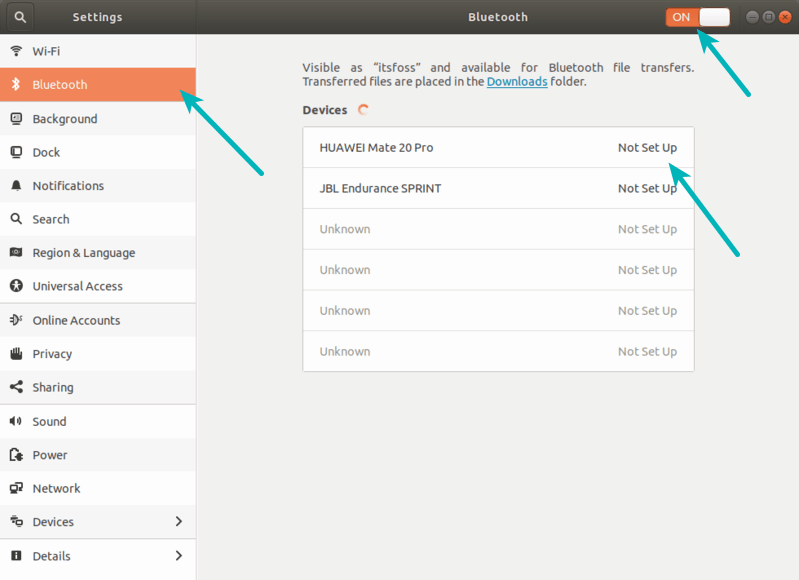
The devices that have never connected to your Ubuntu system are shown with ‘Not Set Up’.
Just click on the device that you want to connect and it should connect immediately. You’ll notice that its status is changed to ‘Connected’.
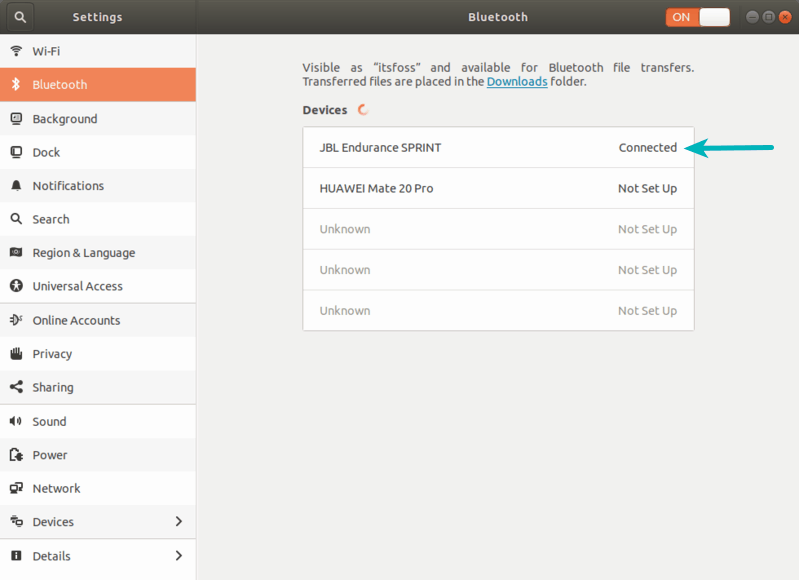
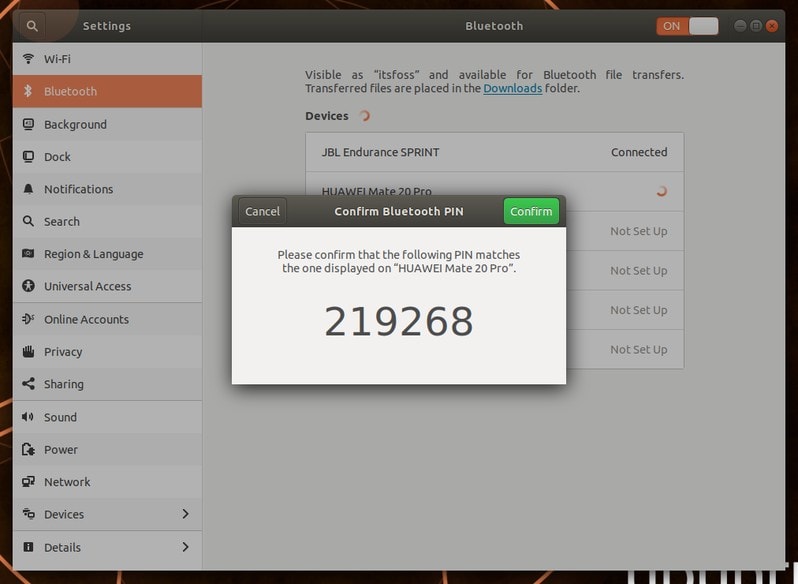
It’s as simple as that to connect Bluetooth speakers to Ubuntu. If you try to connect a smartphone or tab via Bluetooth, it may ask you to enter a PIN on your other device.
The PIN is shown on your desktop and you’ll have to enter it on the device you are trying to connect. This provides an additional layer of security because smartphones and tabs are used for data transfer.
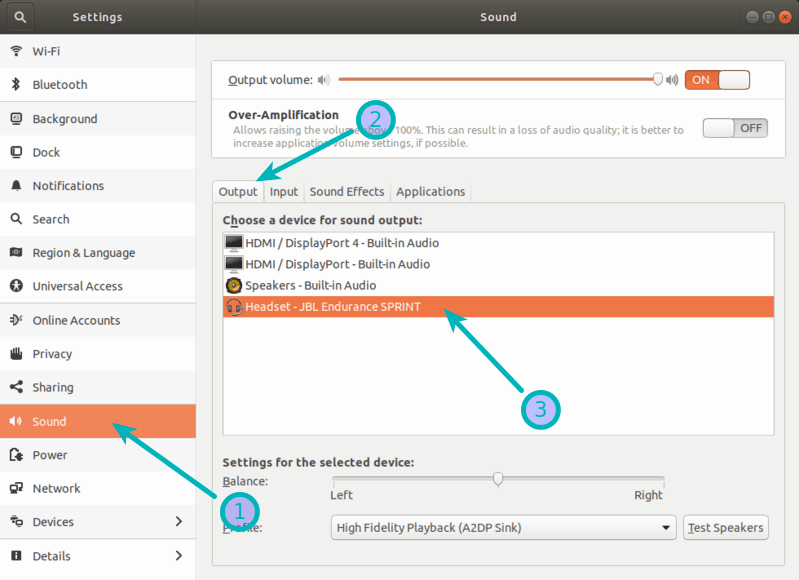
Ubuntu automatically switches to Bluetooth device for playing sound as soon as it gets connected. If that’s not the case, you can go to the audio settings and make sure that the output is set to your connected Bluetooth device.
If you do not succeed to play through Bluetooth speakers right after the setup. try restarting both Ubuntu and speakers. Surprisingly, it works at times.
Removing a connected Bluetooth device in Ubuntu
If you want to remove a Bluetooth device connected in the past, simple click on it in the Bluetooth settings.
It will give you the option to disconnect (if it is presently connected) or remove it from the connected devices.
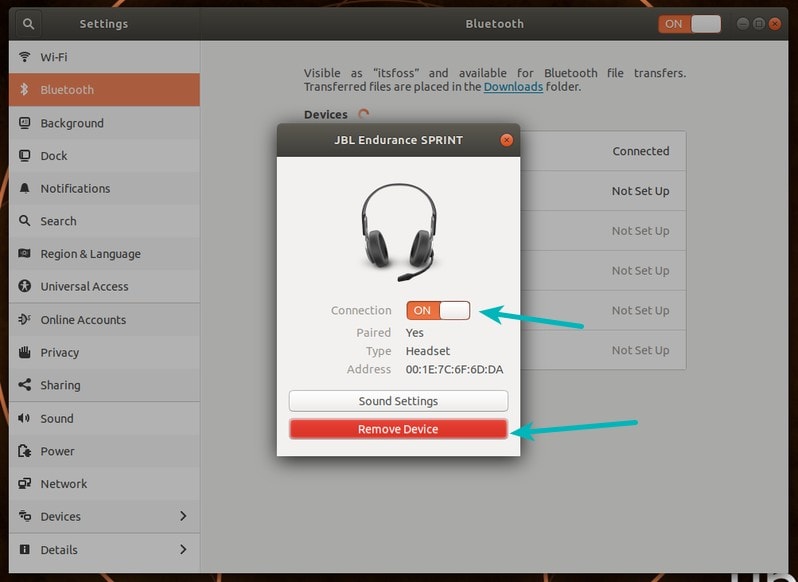
Why would you want to disconnect a connected device? Because if you want to connect the speaker to some other device, you need to ‘free’ the connected speaker.
That brings us to the point where your Bluetooth speaker doesn’t connect. I mean, the things might look simple and they are most of the time but connecting to Bluetooth devices could be real pain at times.
Troubleshooting Bluetooth speaker not connecting to Ubuntu
Let’s see some of the common scenario when your Linux system doesn’t connect to Bluetooth device.
You need to learn a thing or two about the nature of Bluetooth. It always prefers to connect to the last device it was connected.
Suppose you have a Bluetooth speaker that you connected to your Linux system. Later on, you connected the same speaker to your smartphone to play some music.
At an even later time, you have your Bluetooth speaker turned off. Both of your Ubuntu system and your smartphone have their Bluetooth on. If you turn your speaker on, by default it will connect to the last device it was connected. In this scenario, it will be the smartphone.
And that poses a problem, specially in a shared household. While you can see the connected devices on your computer’s screen, the same is not possible with a speaker.
You’ll sit around with your system that you want to connect to the speaker but your speaker is connected to some other device and you probably cannot even figure out which device it is connected to.
Force connecting to a Bluetooth speaker
So, what do you do in such case?
Thankfully, you can force your Bluetooth device to connect with your Ubuntu system.
All Bluetooth speakers and headsets has a pairing mode option. Most of the times, it’s a button that you need to hold for a few seconds.
Put your Bluetooth speaker/headset in pairing mode. This will disconnect all the active connections and starts looking for active Bluetooth devices nearby.
Now you can connect to your speaker/headset by going to the Bluetooth settings and clicking on your displayed device (as you saw in the first part of this tutorial).
Trust me, most of the time the Bluetooth speakers don’t connect because they are paired to some other device. Putting them into pairing mode again ‘fixes’ the problem.
Different speakers and headsets have different way of entering the pairing mode. You may have to search for it on the internet with your specific model if you cannot figure it out yourself.
Worked for you?
This is all you need to do for setting up Bluetooth speakers in Ubuntu. Hope this helps you fix no sound in Bluetooth headsets in Ubuntu. Any questions or suggestions are always welcomed.
