

Note: This is an old post written for an older version of Ubuntu. MTP is well supported on Ubuntu these days. So before following this tutorial, please connect your Kindle Fire with your Ubuntu computer and see if it is recognized automatically. If not, follow the tutorial below.
I bought a Kindle Fire HD 16GB. After a couple of weeks, I tried to transfer some ebooks from my computer running Ubuntu to Kindle Fire HD. When I connected it through the USB. to my surprise, Ubuntu did not recognize Kindle Fire at all.
Usually when you connect a USB device, Ubuntu automatically recognizes it and (generally) opens the file manager with the home directory of the newly found device.
Earlier, I had a similar problem with my Samsung Galaxy S2 not being recognized by Ubuntu which I solved with MTP connection and we will use the same here.
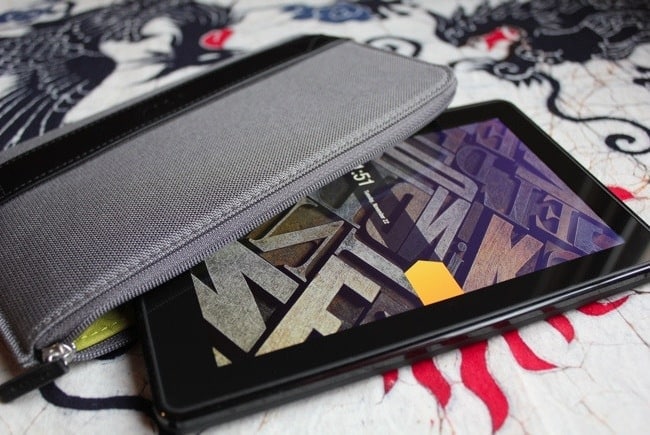
How to fix Kindle Fire HD not recognized by Ubuntu
First, make sure that you have selected the MTP (media transfer) option in the Kindle settings. This ensures that you have connected the device for transferring data, not for charging it.
If it doesn’t work even after this, you may try the solution I am going to discuss here.
The solution described here is more of a ‘workaround’ than a complete solution. Because this way you will be able to do file transfer and other stuff by connecting your Kindle Fire with Ubuntu but Ubuntu will still not recognize it automatically. If you want to get this partial solution, follow the steps of the
Step 1: Install gMTP
gMTP is GTK based GUI for MTP (Media Transfer Protocol). This application will help you in connecting the Kindle (or any other media device) with its easy-to-use graphical interface. To install gMTP in Ubuntu, use the following command:
sudo apt install gmtpStep 2: Connect Kindle to Ubuntu:
Now we are all set up here. Connect the Kindle Fire to your computer with a USB. Now open gMTP by searching it in Unity dash:
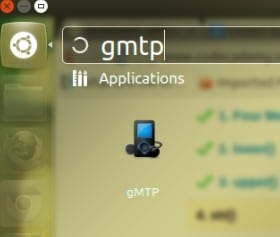
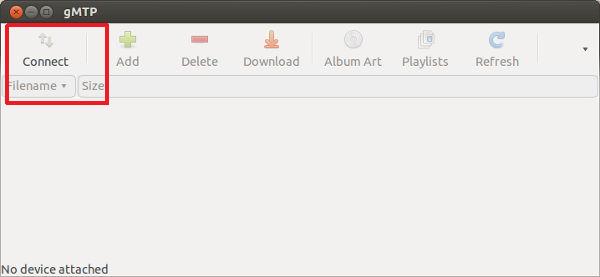
The interface of the gMTP will look like the picture below. Click on the ‘Connect‘ button:
When it recognizes the device, it will explore the drive in the following manner:
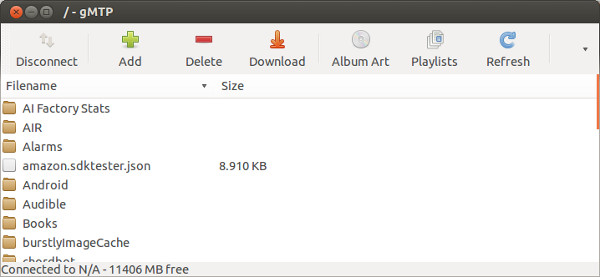
When you need to copy something in to or from the Kindle Fire, you can simply copy paste it in this interface.
In a related post, read this article and learn a few tips to get more out of your Kindle on Linux.
