


When I saw Wike in the GNOME Software store, I thought, "Who is so obsessed with Wikipedia that they need a dedicated app for it?" And that too when it doesn't even work offline. Why use an app instead of just accessing Wikipedia from a web browser?
Yet I decided to give it a spin. It turns out that taking Wikipedia out of a messy browser tab and putting it into its own clean, native space entirely changes the experience. And there is more to this app than it seems on the surface.
What is Wike?
Wike is a native Wikipedia app for your desktop. It is a GNOME Circle application, which means it meets GNOME’s quality, design, and openness standards and is officially recognized by the GNOME Project.
Even though it is designed for GNOME, you can use it on other desktop environments too, at the cost of some missing features.
Some of Wike features are
- Supports more than 300 languages
- Simpler and distraction-free view of articles
- Desktop searches
- Bookmarks and List
Let me show some of the features that make Wike worth a install for a Wikipedia loving Linux user.
Search articles from GNOME Activities
One of the best features of Wike is that it integrates into the GNOME Activities Search. You can search Wikipedia topics right from the GNOME search. No need to open a web browser or even Wike itself.
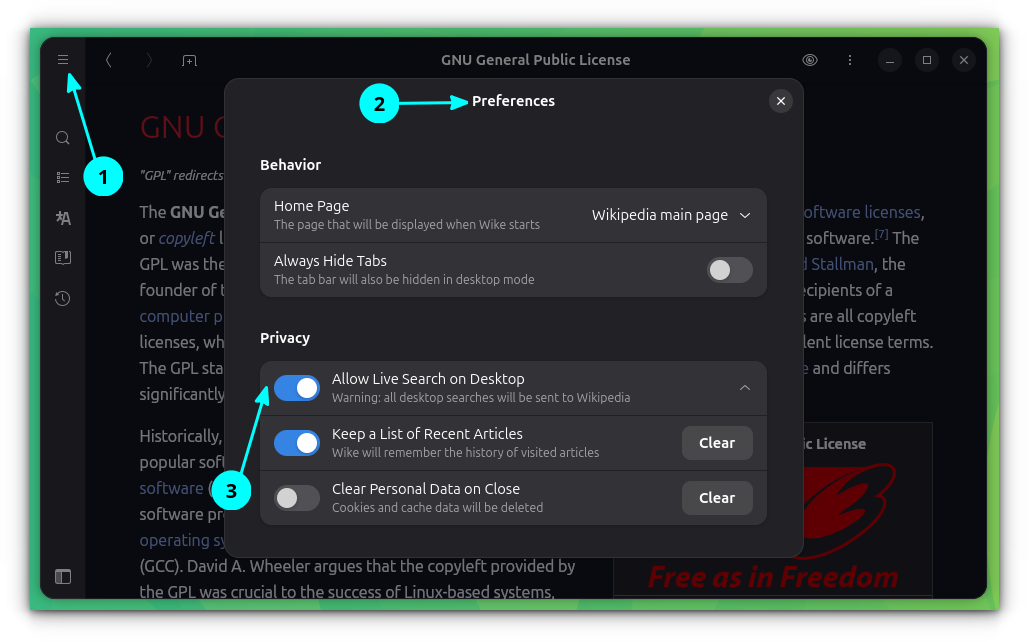
You need to enable this feature, though. Open Wike, go to the preferences and enable the "Allow Live Search on Desktop" toggle button.
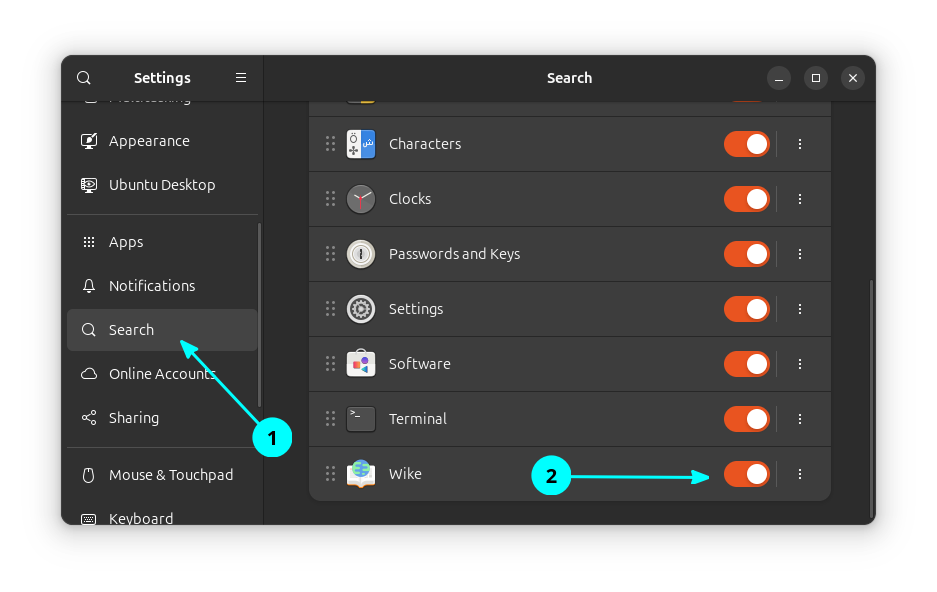
This will add an entry "Wike" to your list of search providers. Open GNOME Settings and go to the Search section. Here, enable the toggle button adjacent to the Wike entry.
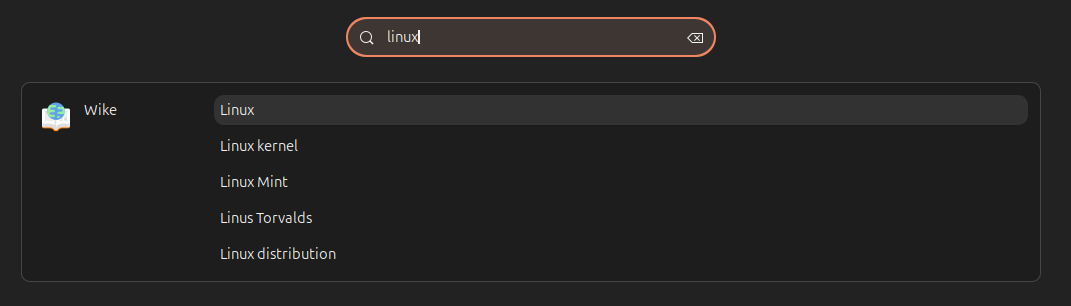
That's it. You can now search for Wikipedia contents by hitting the Super key and entering the search term.
Enjoy link previews
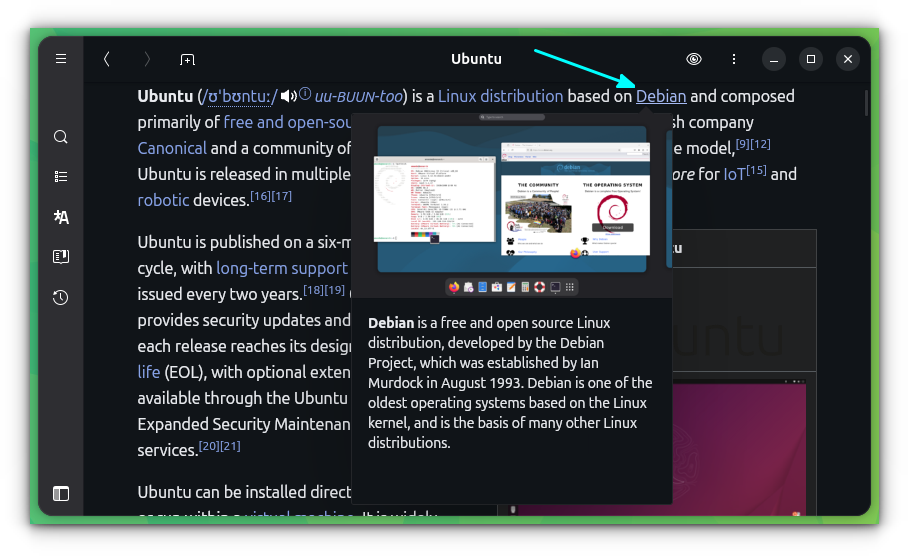
Wike can give you a small preview of hyperlinks when you hover over a link. For this, you need to enable the Link Preview from the top-right eye button, as shown in the screenshot below:
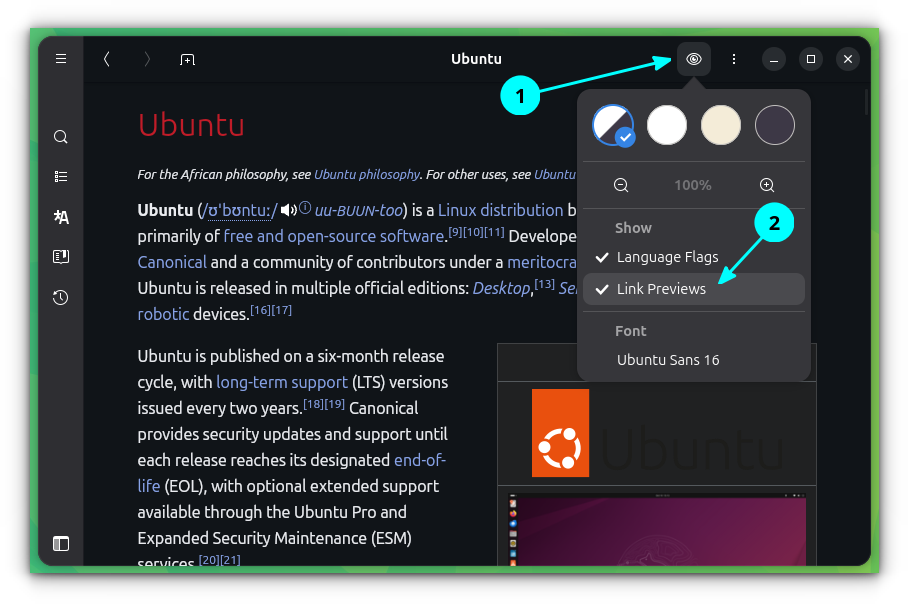
Once done, hover over any link to get that cute little preview.
Read content in your favorite font
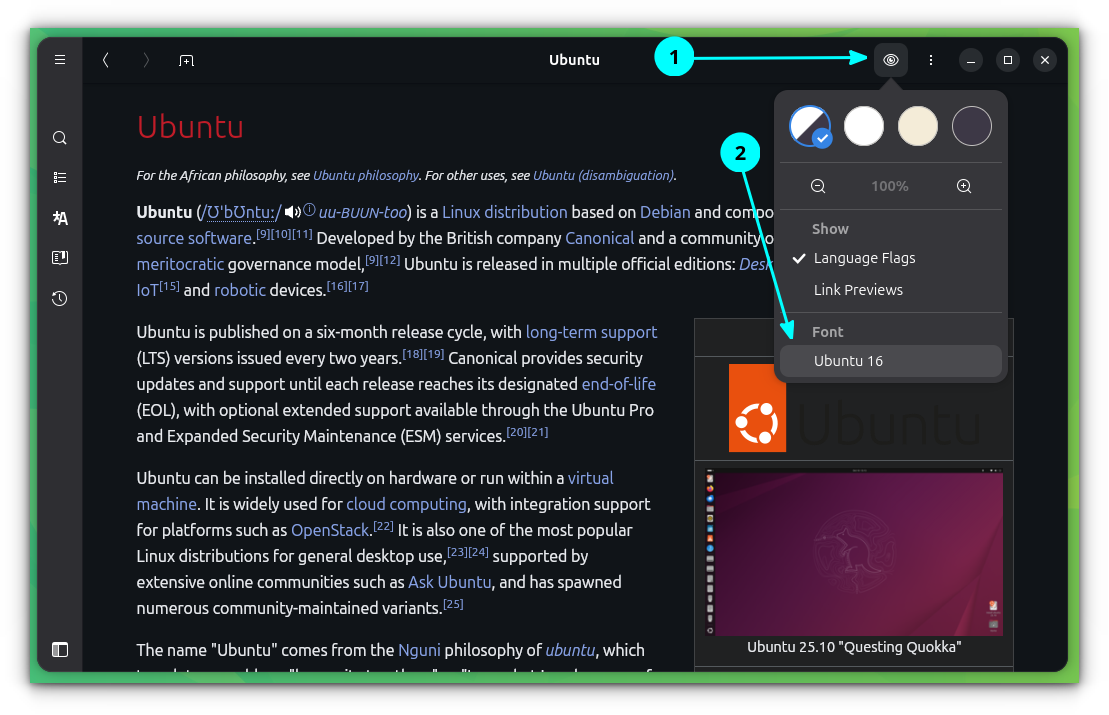
You can change the font to any installed font on the system. For this, click on the eye button on top-right and select fonts.
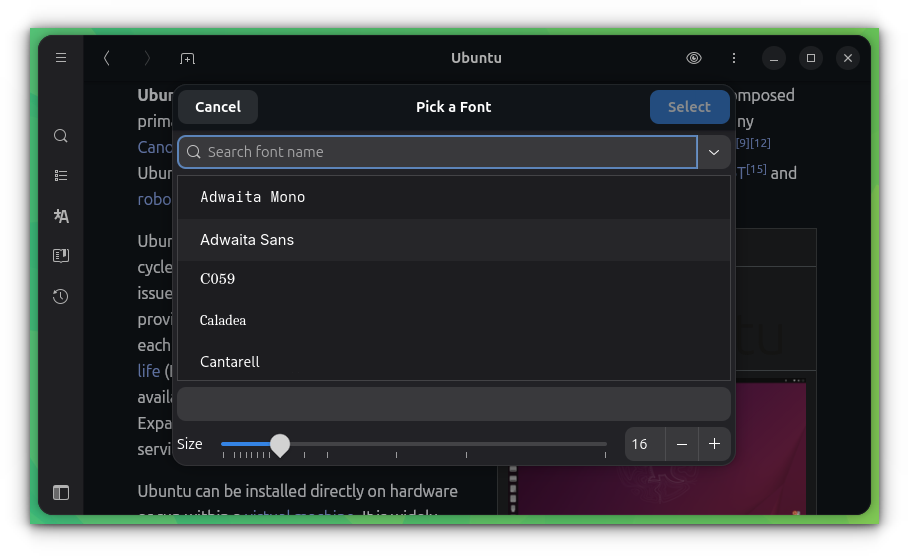
Now, choose your favorite font from the list.
Add a table of contents in the sidebar
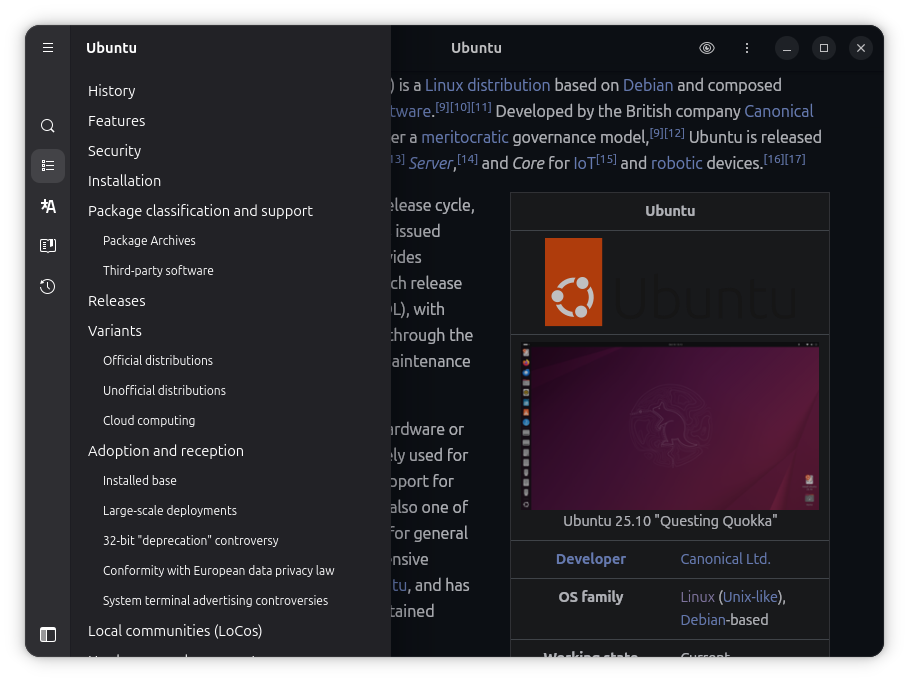
You can get a dismissable table of contents in the sidebar. Enable it whenever needed. At other times, save essential screen space.
Set your favorite language
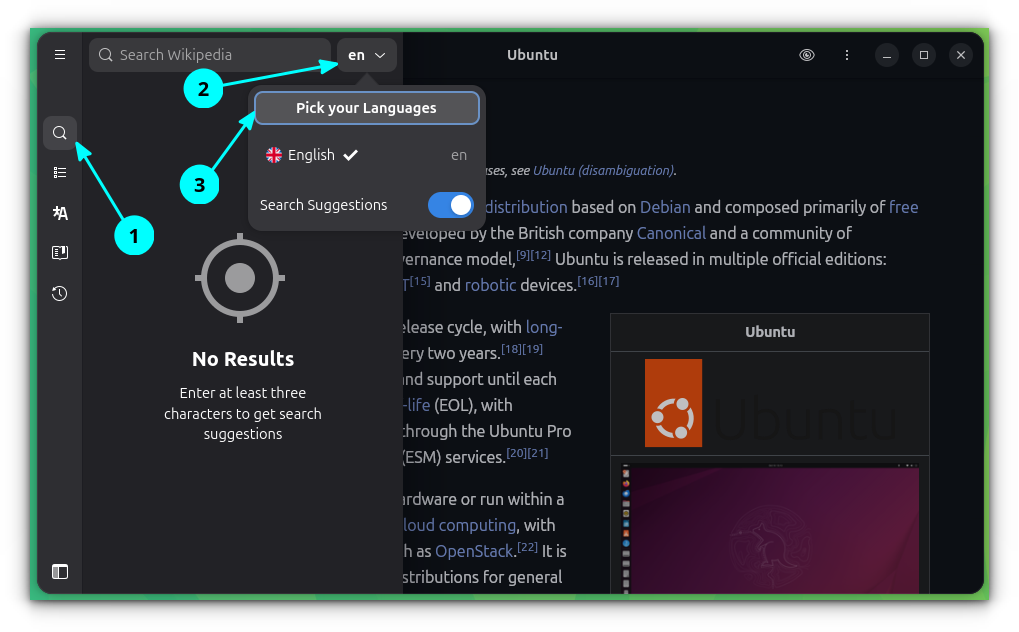
You can select a set of languages in which you can later translate the articles. For this, click on the search button in the left sidebar and click 'Pick your Languages'.
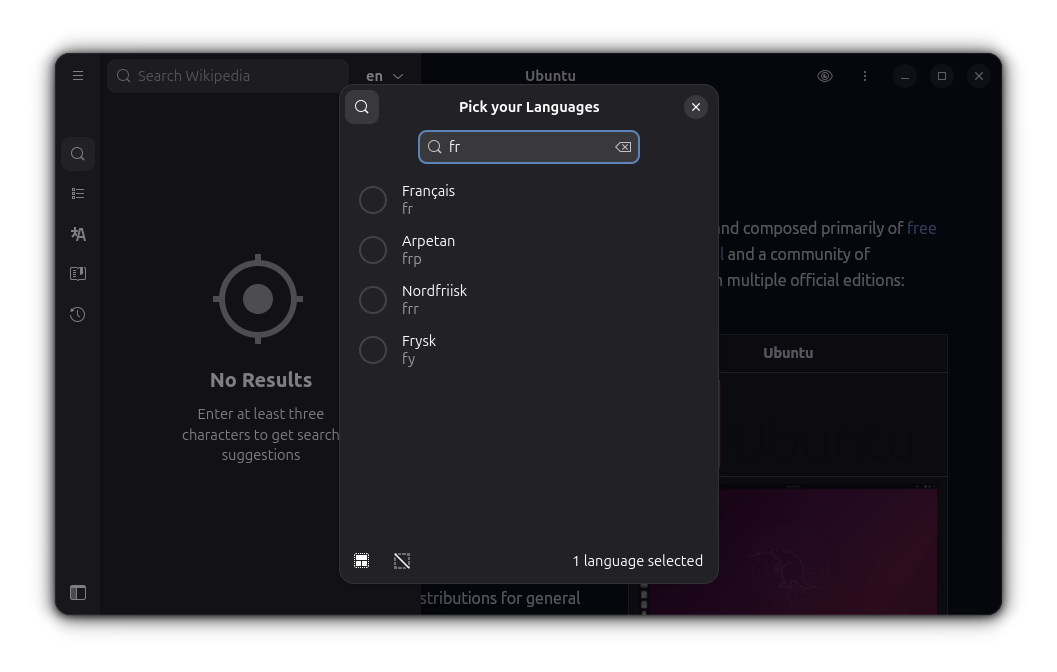
From the new dialog box, search and select languages that you want. I have selected French other than English.
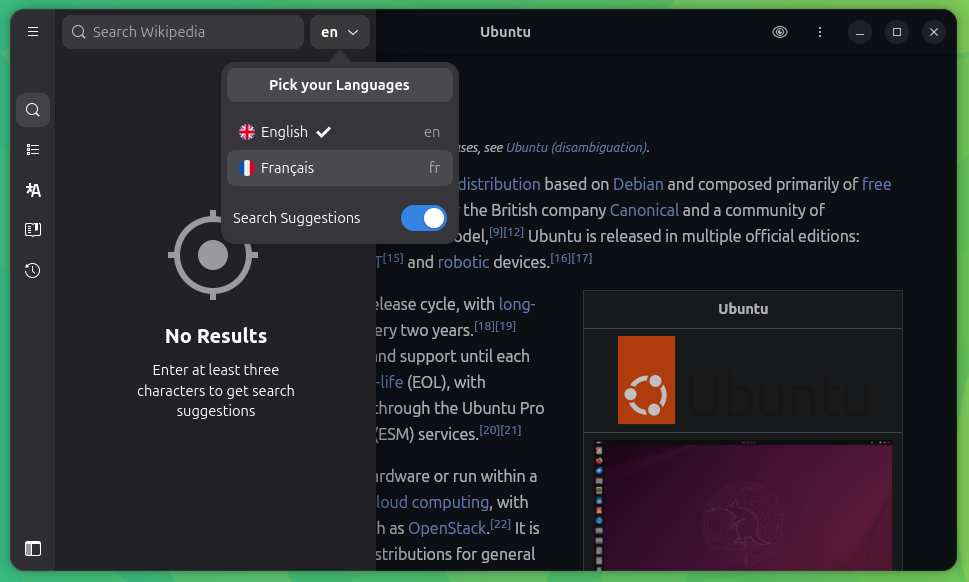
Now, you can see that I have two languages, English and French, available.
While you are viewing an article, click on the Translate button in the sidebar and select the languages from Your Languages list.
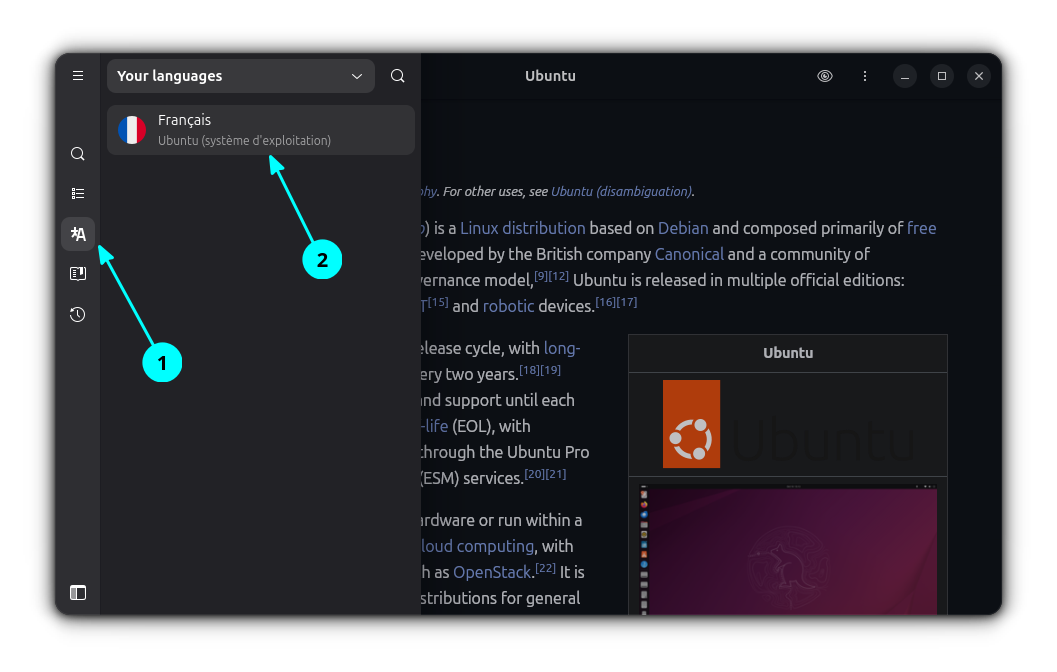
You can see that the article now appears in French.
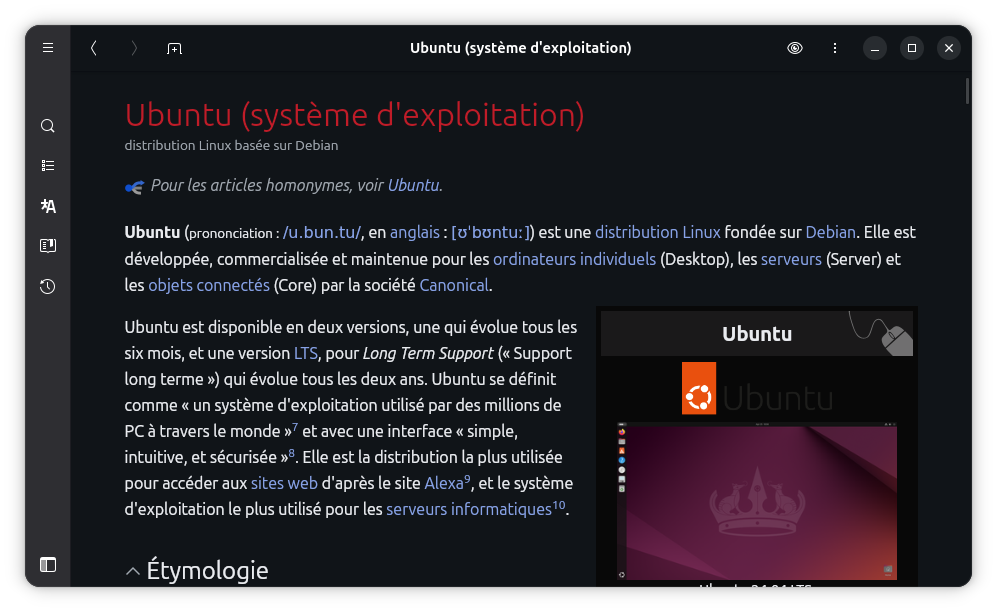
Likewise, you can set a list of languages so that a one-click change is possible.
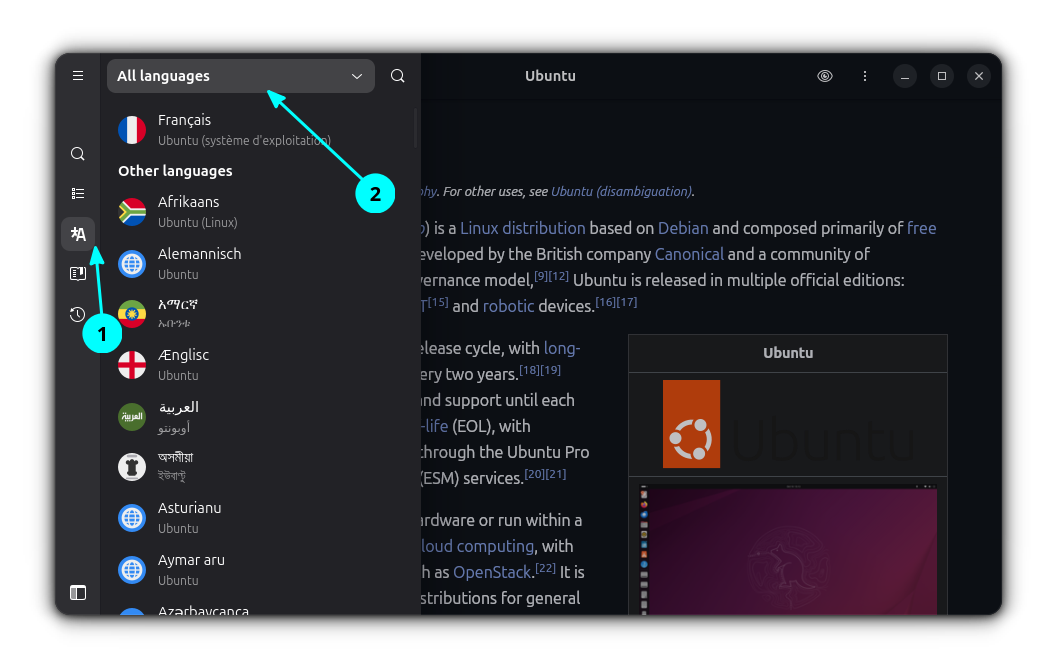
If you don't want to set any languages, you can always select a language from the list of language that Wikipedia content is available. Just select the All Languages option as shown in the screenshot below, and select a language of your choice.
Copy link with highlight
You can always use CTRL+U keyboard shortcut to copy a Wikipedia URL. But you can also copy the link to a highlighted section of the page.
Select a text or paragraph while reading and right click on it. Now, select Copy Link with Highlight.
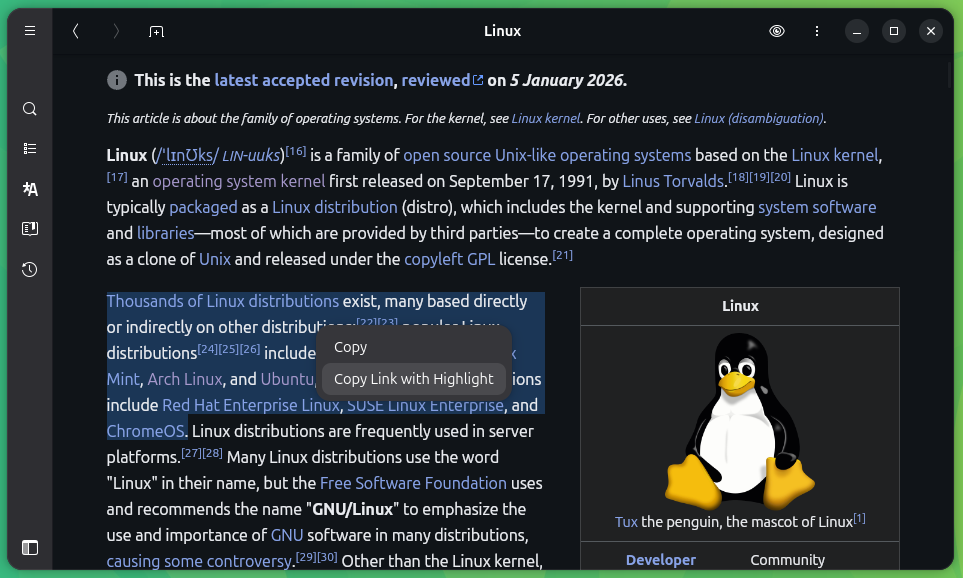
You can share this link with others, and they, in their browser, get the exact text highlighted. Perfect for winning online arguments 😉
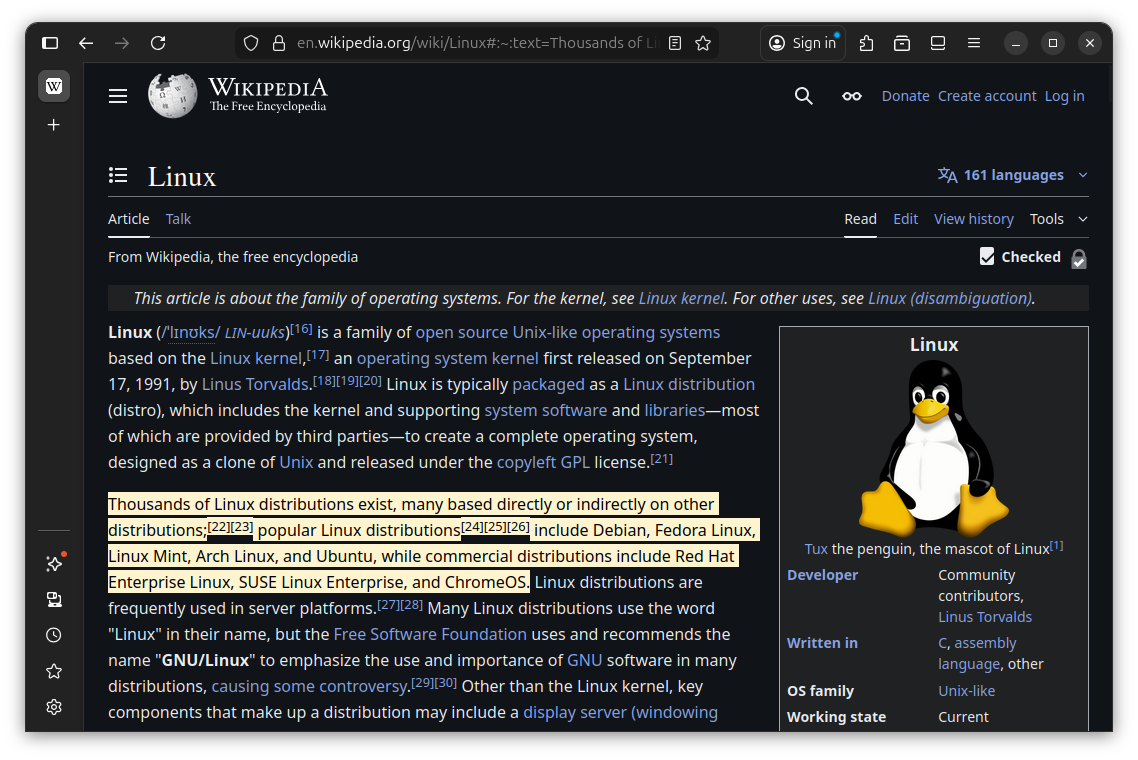
This works in both recent Firefox and Chromium-based browsers.
Other features I like
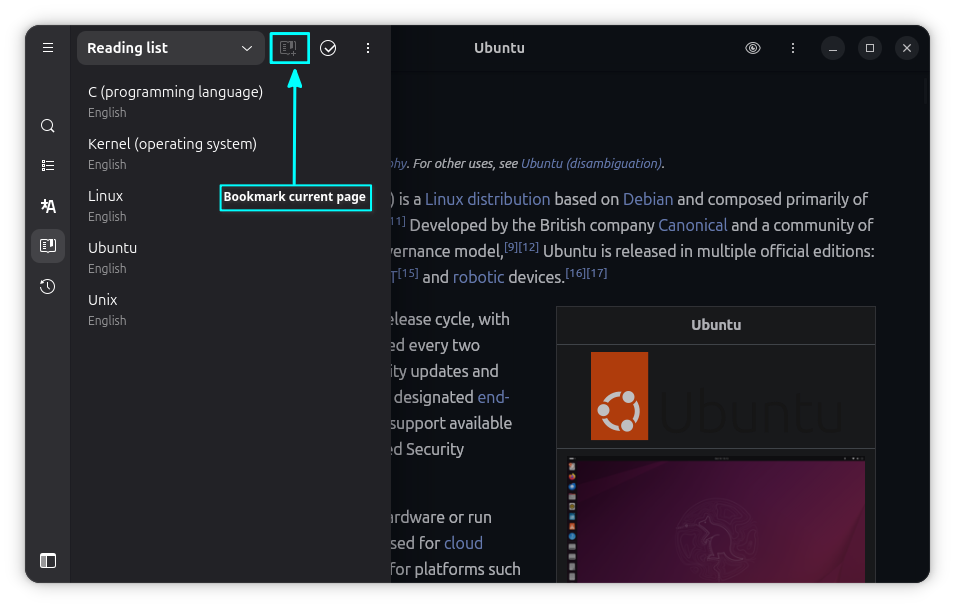
The ability to bookmark and create a reading list is an excellent feature for Wikipedia explorers.
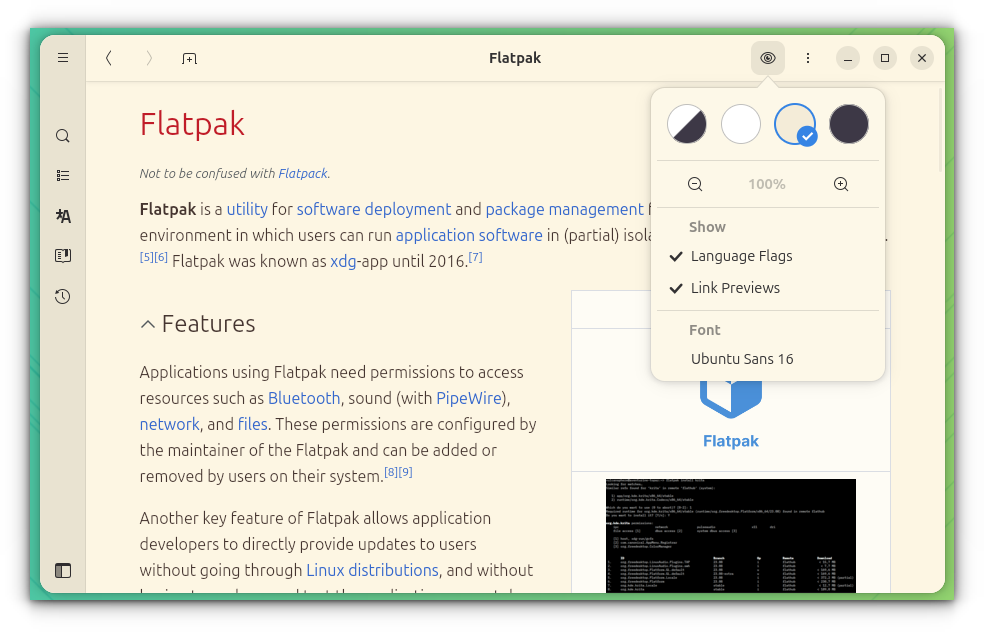
System theme alignment with a light, dark and sepia colored interface adds to modern feel.
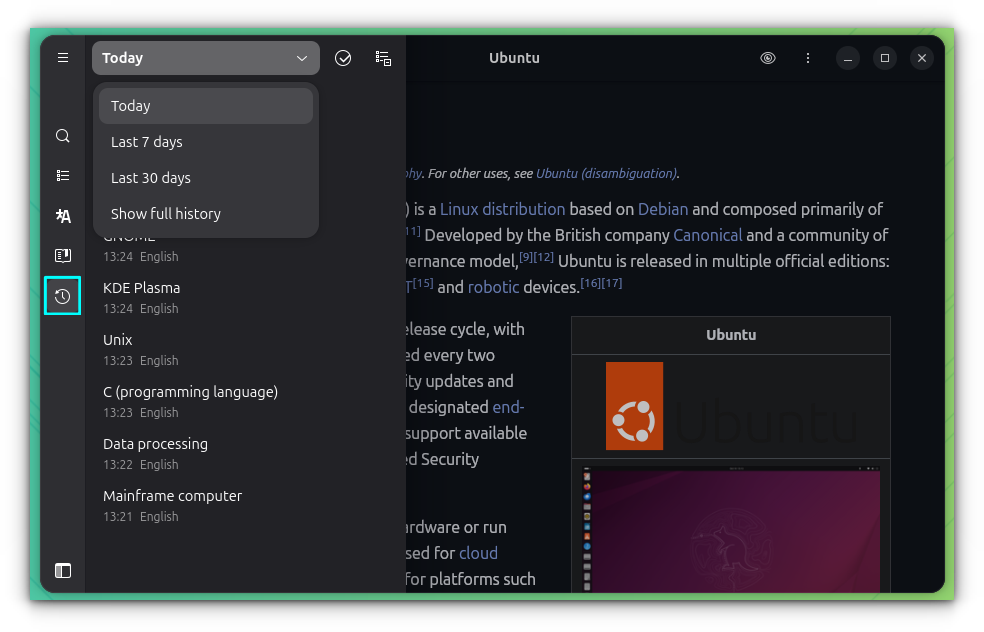
A neatly arranged history according to time of visit could be helpful, too.
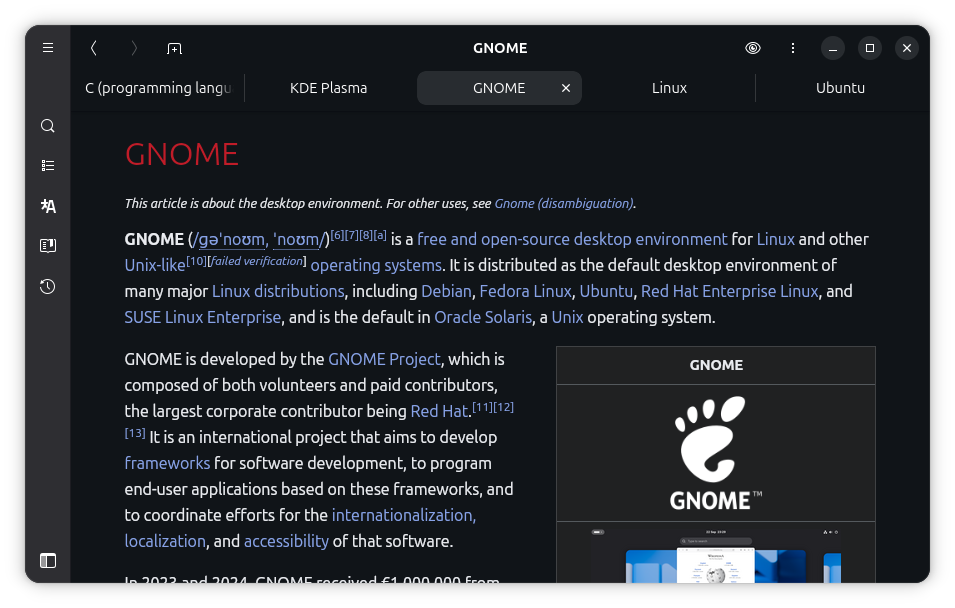
Multiple tabs support lets you enjoy prolonged Wikipedia reading sessions.
Install Wike
If all this makes you want to try Wike, you can get it on your Linux system in Flatpak format. If your system has Flatpak support enabled, use the command:
flatpak install flathub com.github.hugolabe.WikeWrapping up
I don't need to tell you that this is for the people who enjoy the free and open knowledge provided by Wikipedia.
I also think that it would have made more sense to provide the option to read the content without the internet. Sure, you can self-host entire Wikipedia or buy a PrepperDisk that comes with all sorts of knowledge in offline mode. But nothing beats the simplicity of an offline encyclopedia app of the 90s.
Your views are welcome.

