

PhotoPrism is a local AI-powered, self-hosted photo management application. Now, this is different from your regular desktop oriented photo management applications, such as Shotwell.
In the sense that you don't have it installed just for one computer. You install it on one computer and then you can access it on other computers connected to your home network.
This is part of my homelab where one system acts as the server that has these self-hosted software installed and I access it from other computers.
Let me share the step-by-step installation of PhotoPrism using Docker Compose. While there might be more ways, I prefer Docker in my homelab.
Prerequisites
Hardware choices make a huge difference in how smoothly PhotoPrism runs. The CPU and GPU handle the AI inference for object detection and face recognition. RAM plays its own critical role, storing temporary data during indexing.
And don’t underestimate the storage speed. PhotoPrism constantly reads image files, so a good NVMe SSD is recommended.
If you’re self-hosting on a box that’s also running other containers, consider capping PhotoPrism’s CPU and memory usage so it doesn’t hog everything else on the system.
Network performance isn’t a big deal day to day, but it matters during the first import or when moving your library to new hardware. After that, PhotoPrism caches thumbnails and previews, so browsing feels snappy even on average home connections.
For the server, a hardware system with 2+ CPU cores and a minimum of 4GB RAM is required, though 8GB performs better with large libraries. SSD storage will dramatically improve indexing speed. For AI features, some GPU will be advisable.
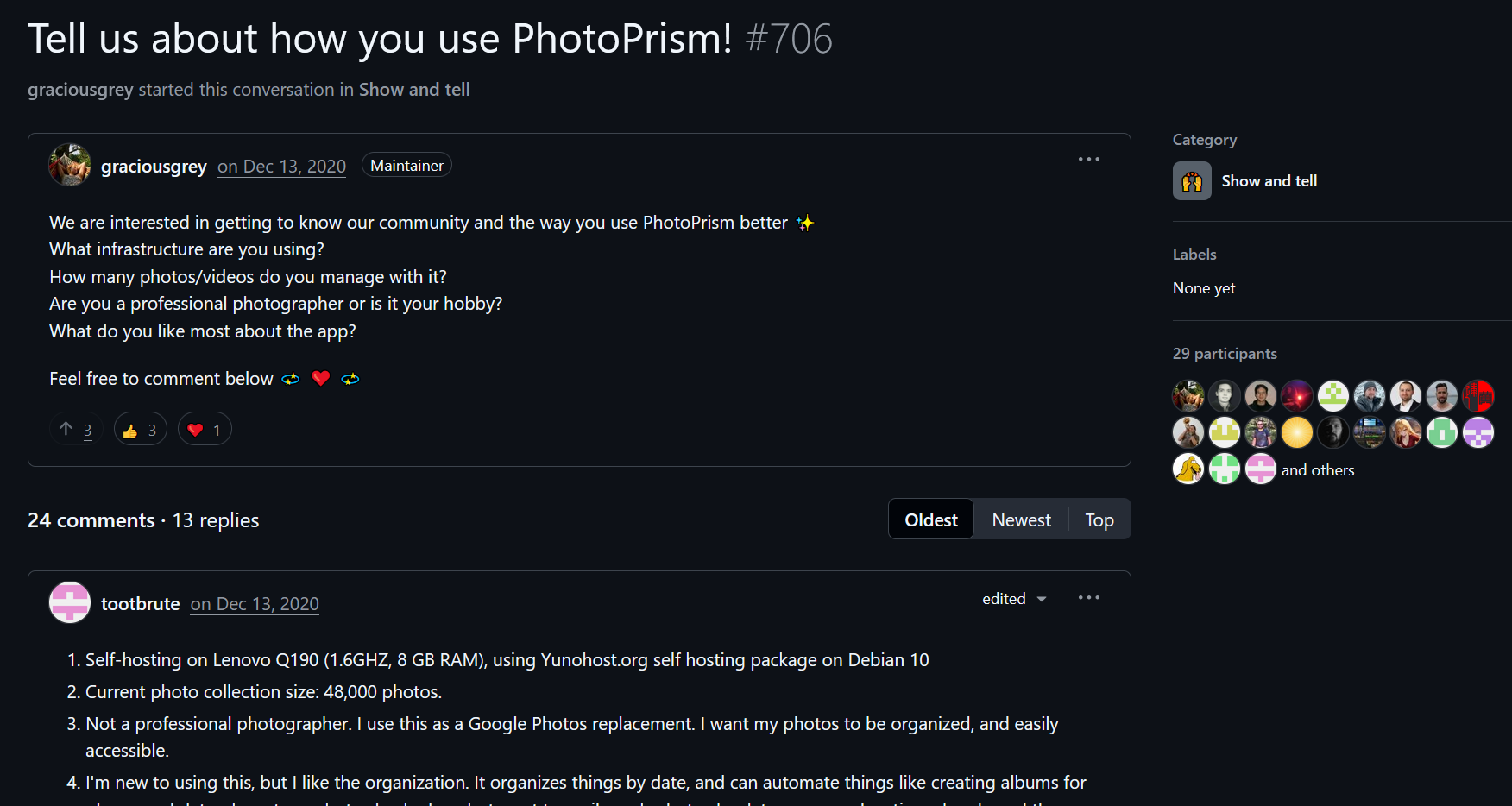
You can see this GitHub thread to get more ideas on what you can achieve with your available hardware and some possible ways to utilize PhotoPrism.

If you are not familiar with Docker, I highly recommend learning it. You'll be as at ease with your homelab as you are with Linux with the command line knowledge. It helps a lot, trust me.
If you are looking for a good starting point for beginners, we have a Docker series on our other website, Linux Handbook.
Installation requires Docker and basic command-line comfort. If you don't have Docker installed, follow the Docker documentation that has straightforward installation guides for most operating systems. Also, ensure the Docker Compose plugin is installed.
Verify the installation:
docker --version
docker compose version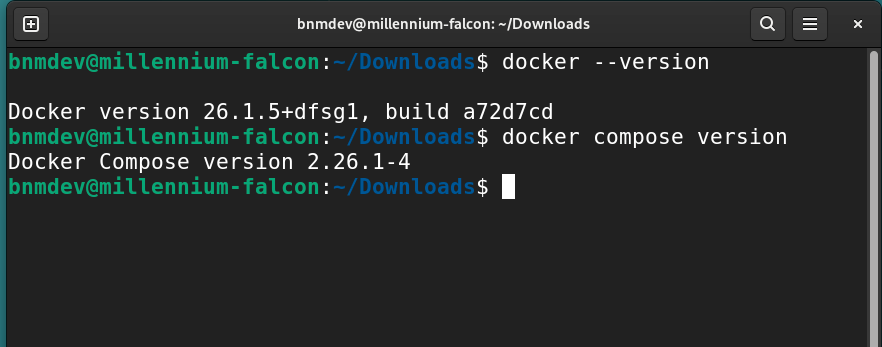
Step 1: Environment Setup
Open a terminal. Create a project directory.
mkdir ~/photoprism
cd ~/photoprism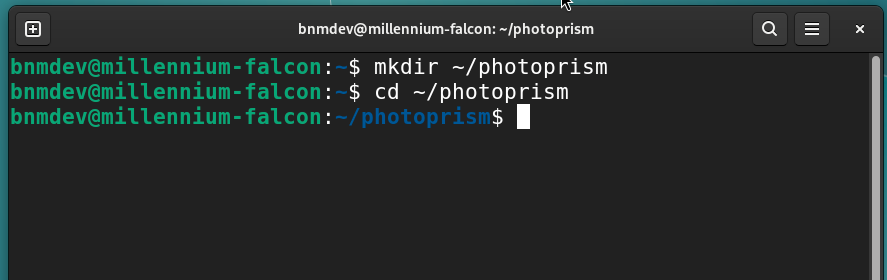
Your directory layout during setup decides where PhotoPrism keeps everything, and it’s worth getting right from the start. The storage folder, on the other hand, is where PhotoPrism drops its working data, i.e., the database, thumbnails, cache, and a few odds and ends.
You should add your current user to docker group.
sudo usermod -sG $USER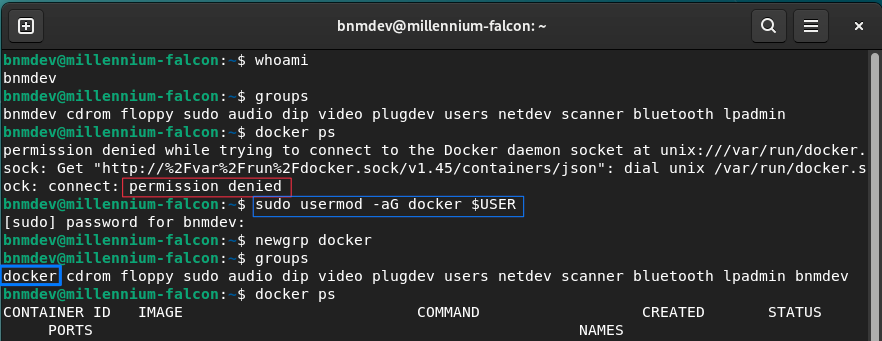
Also, check the permissions for the photos folder if the user group has proper permissions.
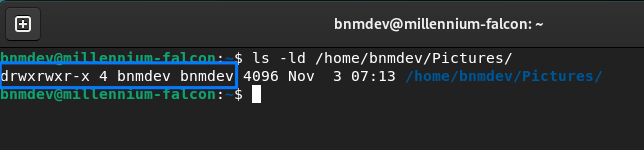
I’ve lost more time than I’d like chasing down “access denied” messages, so a little planning here saves a lot of frustration later.
Step 2: Configuration
Download the official PhotoPrism docker-compose.yml.
wget https://dl.photoprism.app/docker/compose.yamlMove this file to the ~/photoprism folder if it is in the ~/Downloads folder or somewhere else.
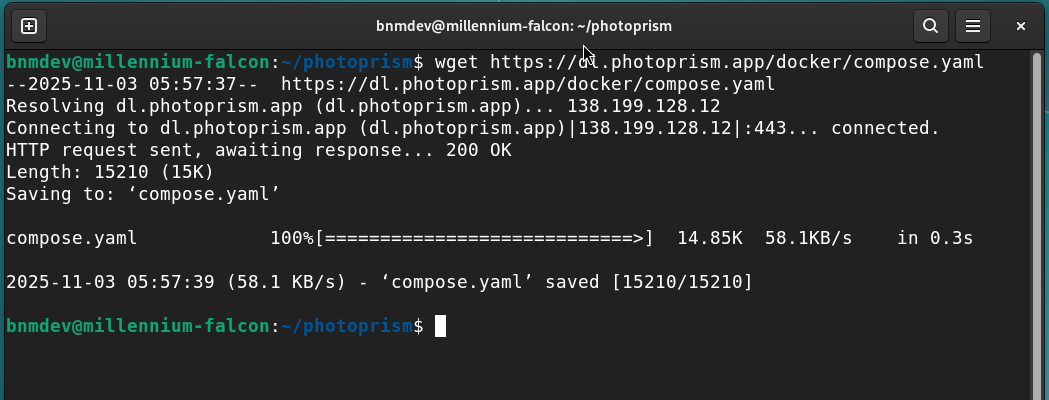
Open the compose file in your favorite terminal-based text editor or GUI editor, and edit key environment variables in it.
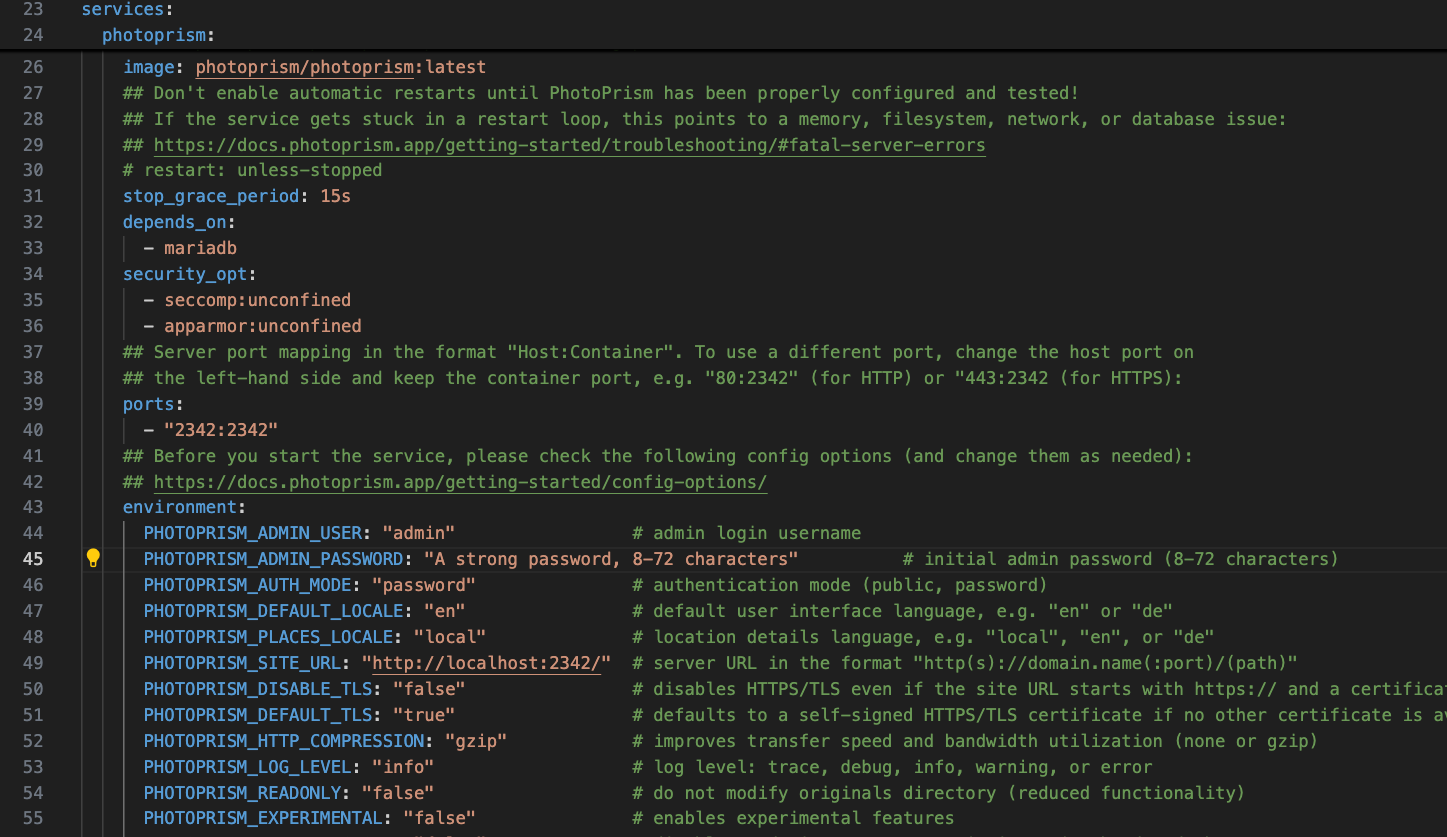
- PHOTOPRISM_ADMIN_PASSWORD: Change from “insecure” to something secure, you think, with a minimum of 8 characters.
- Volume paths:
/photoprism/originalspoints to your~/Picturesdirectory by default. Change it only if you have pictures stored somewhere else. - ports: Defaults to 2342, change only if needed.
Your docker-compose.yml file is basically the blueprint for your entire PhotoPrism setup. It defines everything from where your photos live to how the app behaves under the hood.
Beyond the basic environment variables, there’s a long list of optional settings worth exploring. You can turn off facial recognition if privacy matters more to you than auto-tagging (though that’s one of PhotoPrism’s best features). You can tweak thumbnail quality and size to save disk space or go for sharper previews if you’ve got room to spare.
There’s also a toggle for how metadata changes are handled, whether PhotoPrism should write tags and edits back to the original files or keep them inside its own database.
If you’re planning to make your instance accessible from outside your LAN, put it behind a reverse proxy such as Nginx or Caddy for HTTPS.
Step 3: Deploy
no configuration file provided: not found error.Run this Docker Compose command. Docker runs in detahc mode, keeping the container running in the background.
sudo docker compose up -d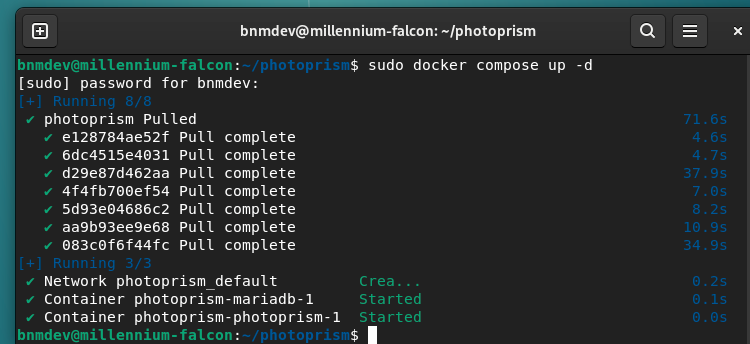
The container pulls required images, initializes the database, and starts services. Initial startup takes 2-3 minutes on typical hardware.
If you hit permission issues with the photo directory, a common Docker issue, ensure the user running Docker has read access to your photos.
docker compose ps, and if something feels off, investigate the issue with the command docker compose logs -f photoprism . This will provide its real-time output. The logs tell you exactly what went wrong when the app refuses to start or the database throws a fit.Updating PhotoPrism in future
When it’s time for an update, the process is refreshingly simple. Pull the latest image with:
docker compose pullThen rebuild the containers with:
docker compose up -dDocker swaps in the new version while keeping your data safe in persistent volumes.
You don’t have to worry about losing your photos or reindexing everything from scratch. Its data lives outside the container images, thanks to Docker volume.
Step 4. Access and Configuration
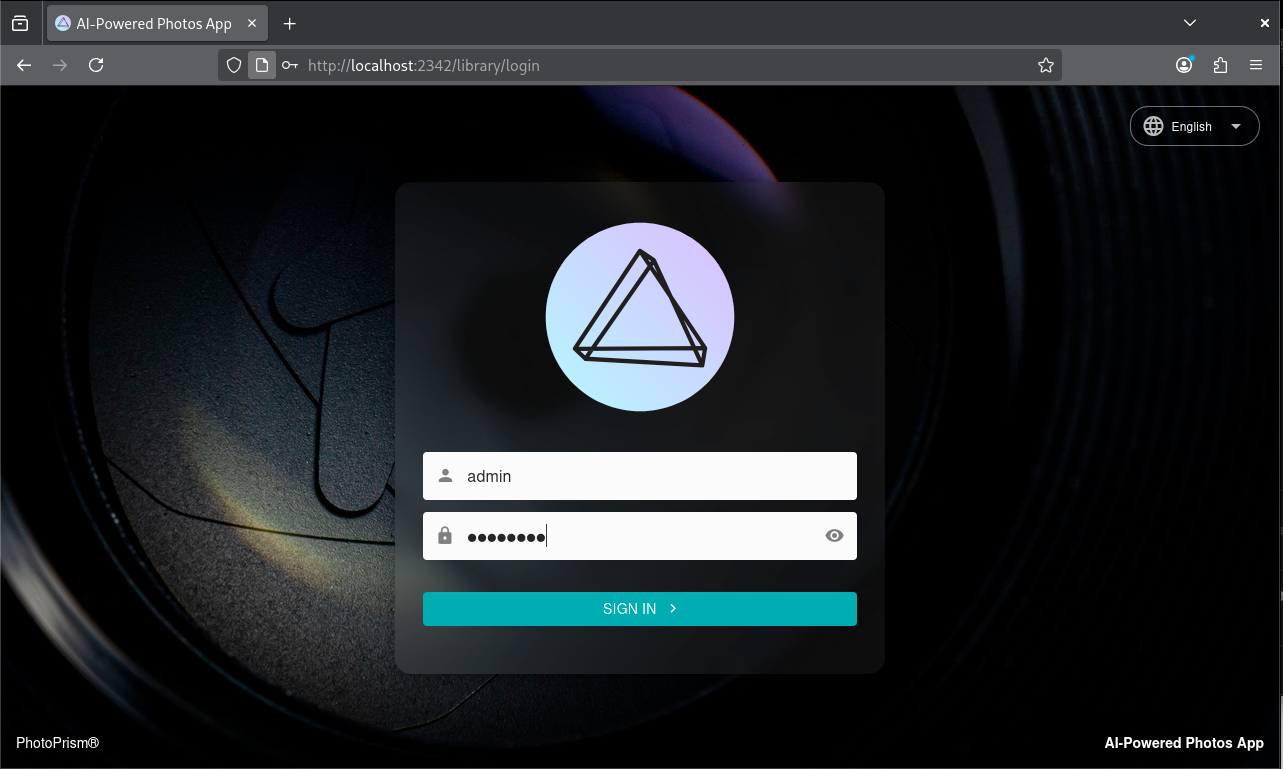
Browse to http://localhost:2342. Log in with username “admin” and your configured password that you used in compose.yml file.
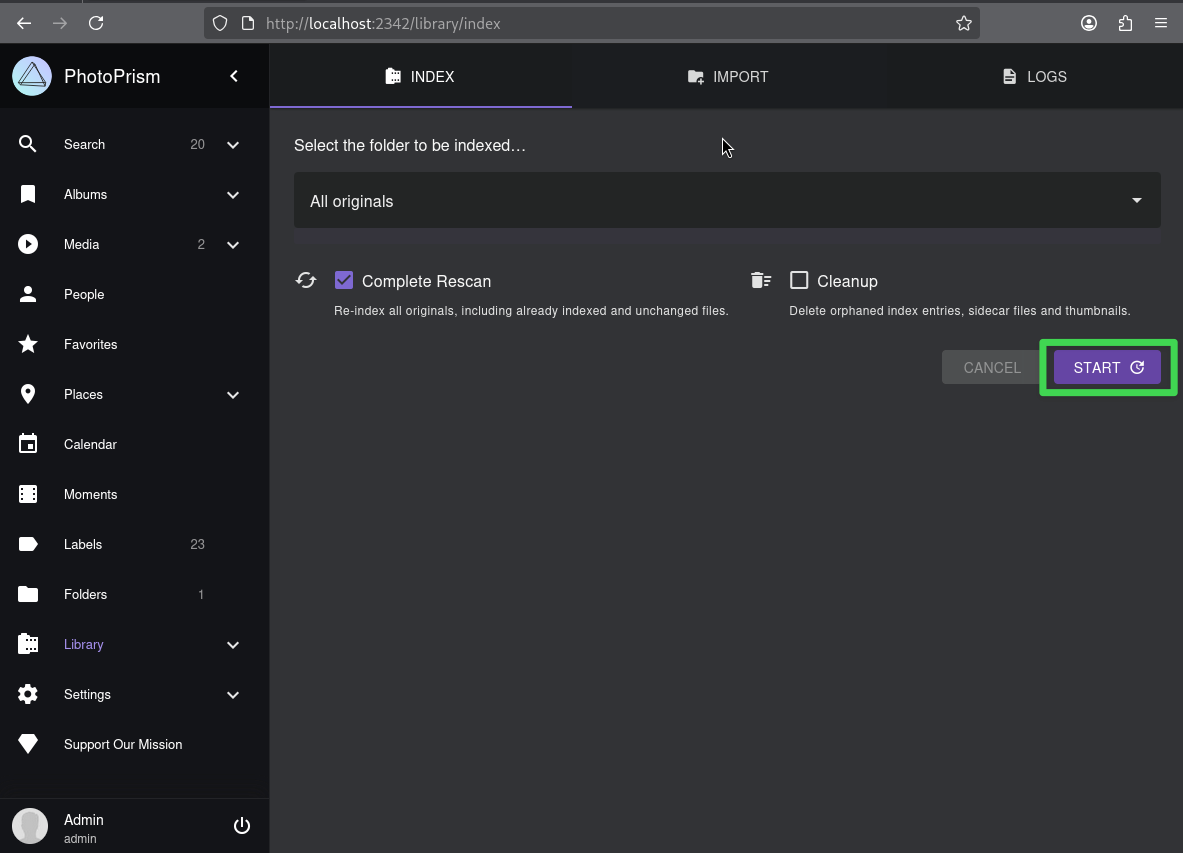
Navigate to Library > Index. Select “Complete Rescan” and press “Start.”
The indexing process examines every file in your originals directory, extracts metadata, generates thumbnails, runs AI analysis, and populates the database. This computation-intensive operation taxes your CPU and I/O subsystems.
On modest hardware with large libraries, expect indexing to take hours. The good news? This only happens once. Subsequent scans only process new or modified files, completing in minutes rather than hours.
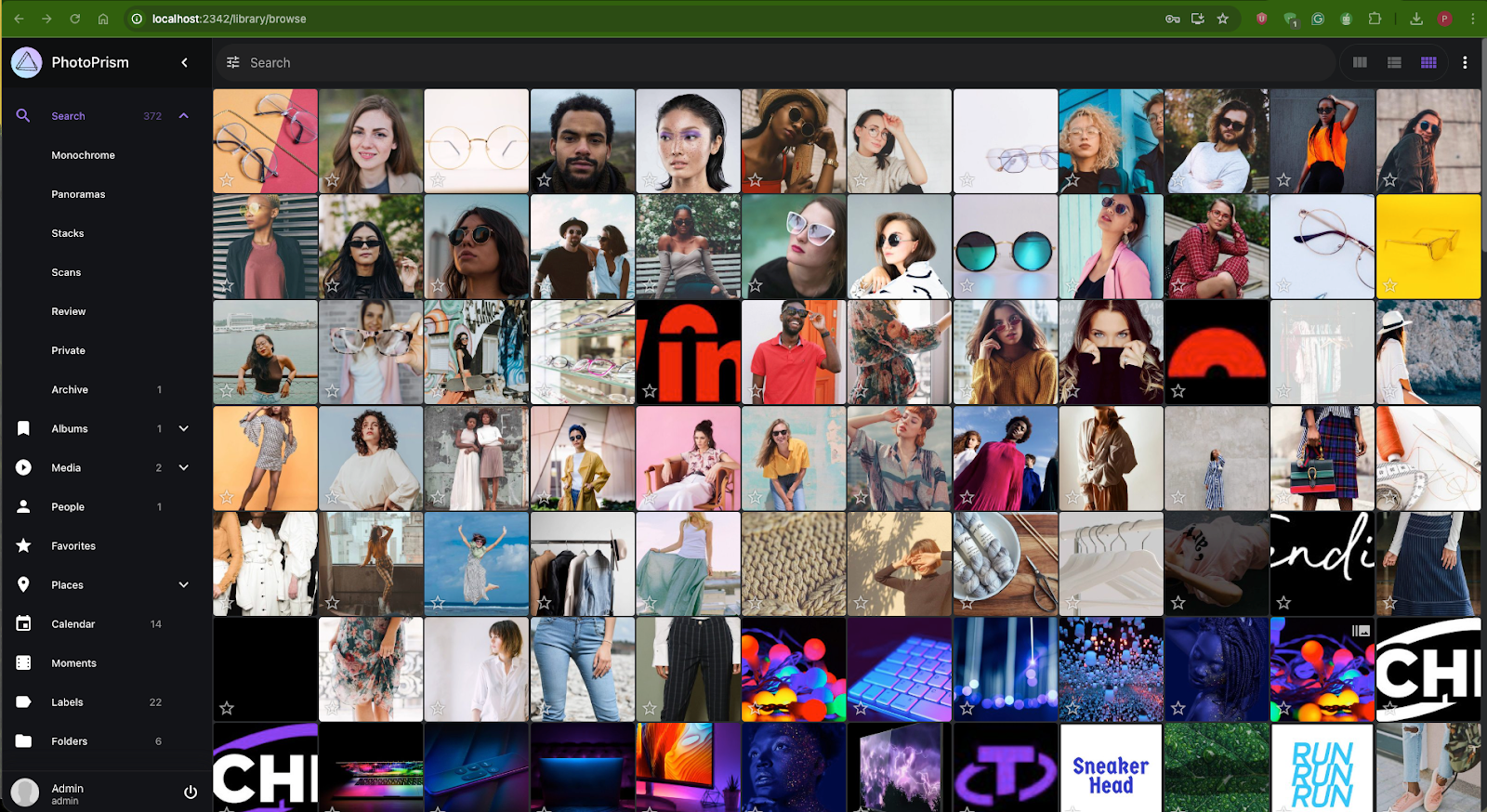
After indexing completes, you will have your personal and self-hosted photo management software that you control.
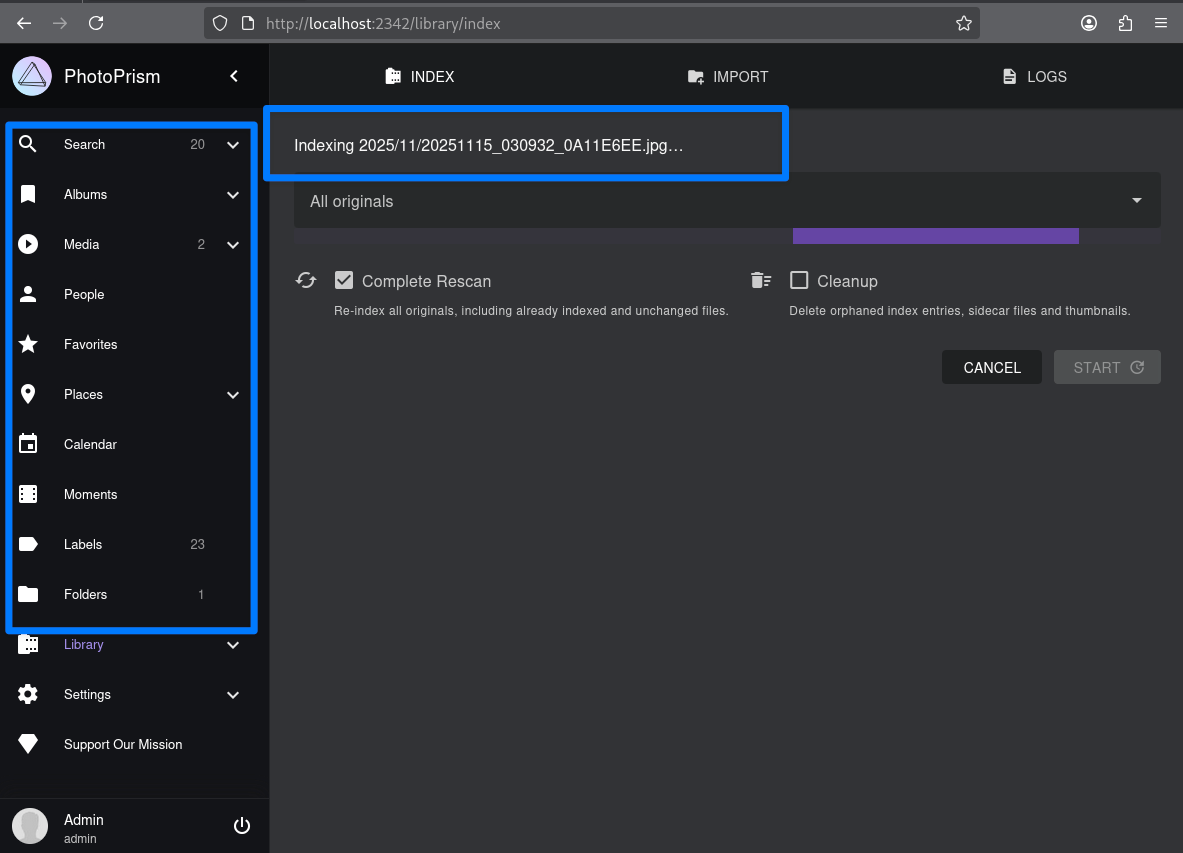
The system remains fully usable during indexing. Browse already-processed photos while it continues working through the remainder of your library in the background.
If you want to browse your media gallery from your mobile phone, there are options such as Gallery for PhotoPrism (Android only) or PhotoSync (a freemium application available on both Android and iOS platforms).
Additionally, the interface is a progressive web app that provides a native app-like experience. You can easily install it as a shortcut on the home screen of all major operating systems and mobile devices, or you can use third-party sync tools that support the WebDAV protocol.
Post-Installation Setup
Once the initial indexing wraps up, I would suggest taking a few minutes to poke around PhotoPrism’s settings. There’s plenty worth tuning, including quality filters, estimated locations, and stacking pictures taken at the same time and location.
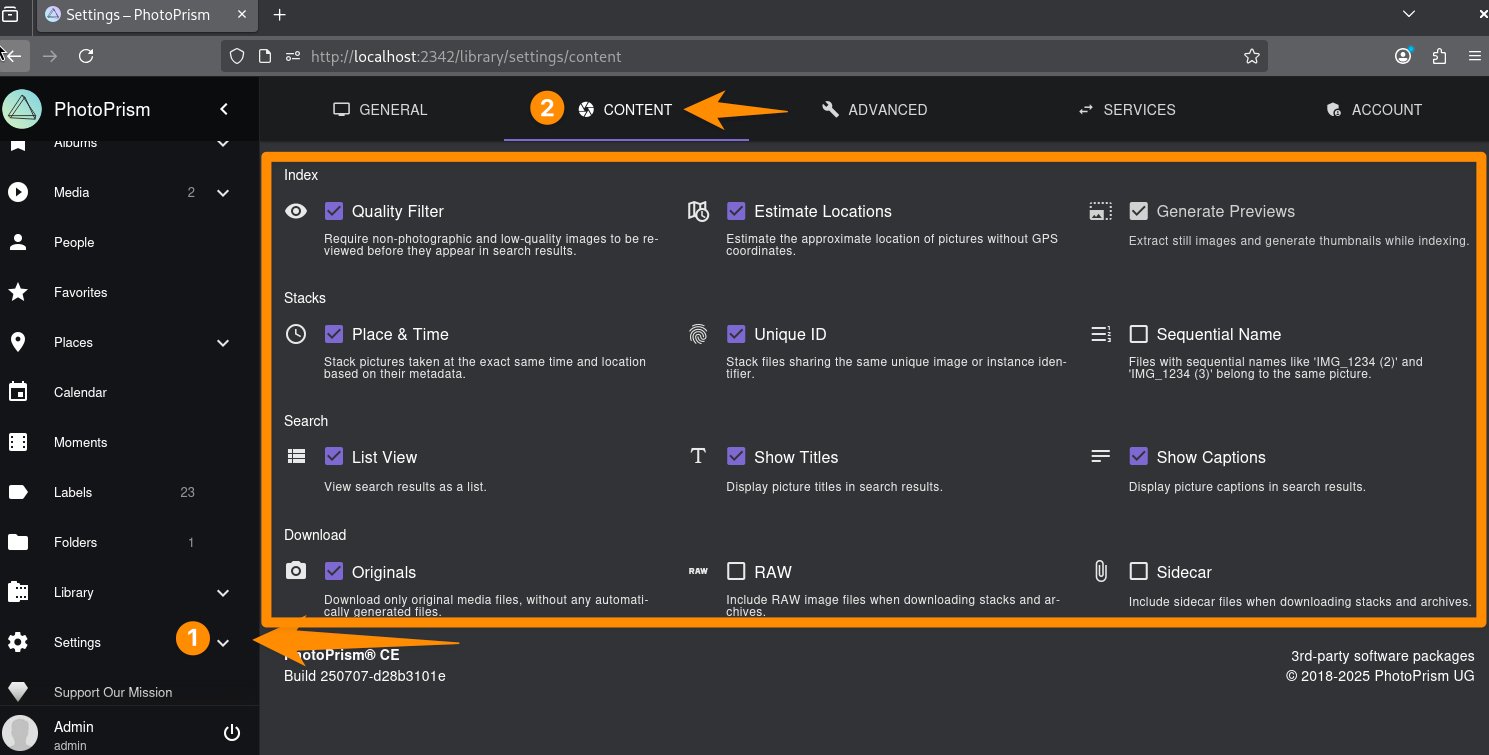
A couple of small tweaks here can make a big difference in how PhotoPrism feels day to day. Each setting has trade-offs, like Dynamic Preview generates on-demand thumbnails but requires high CPU usage.
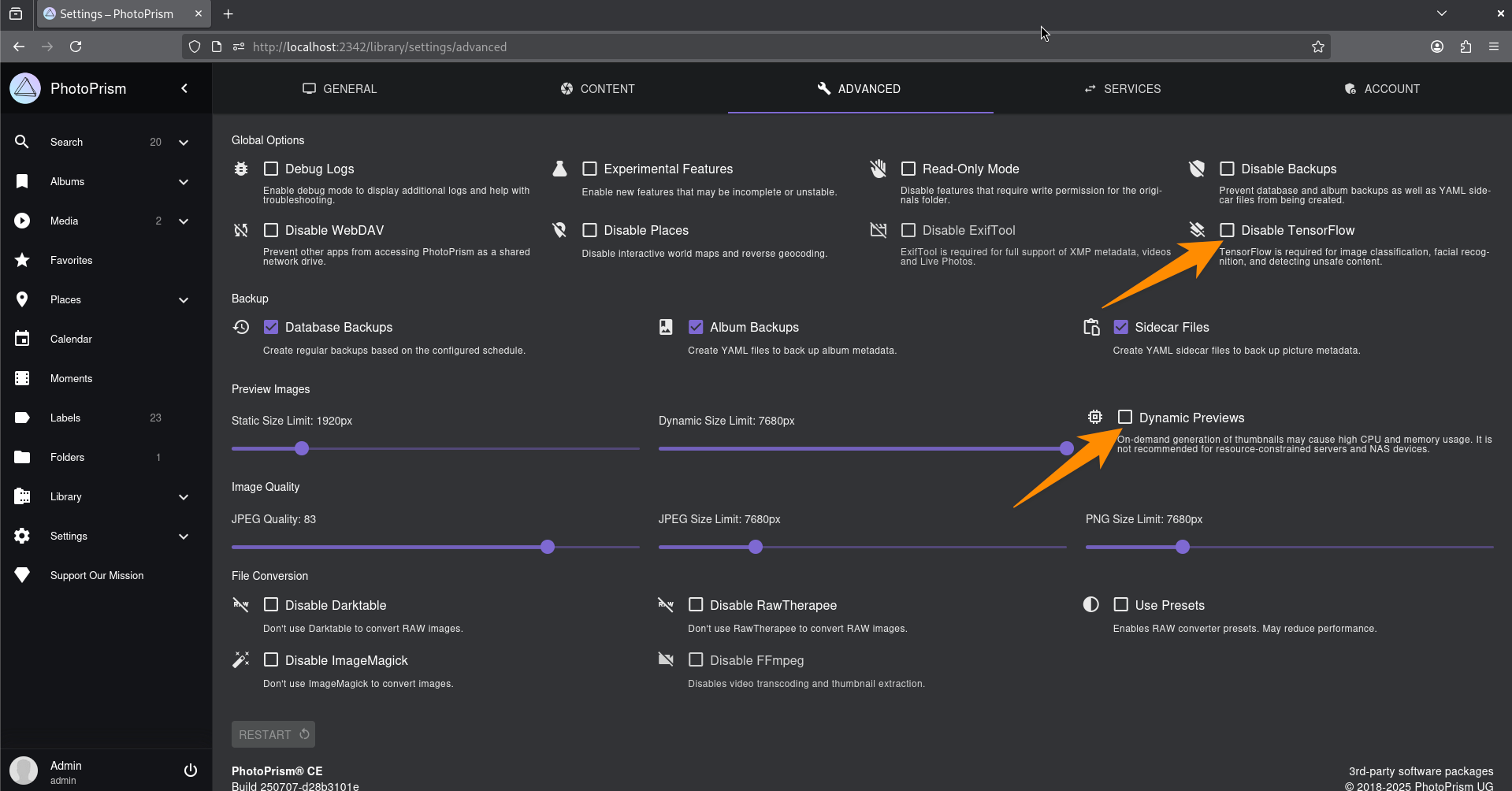
Similarly, disabling Tensorflow saves CPU but loses some of the app’s AI magic. It’s worth experimenting to see what balance fits your setup.
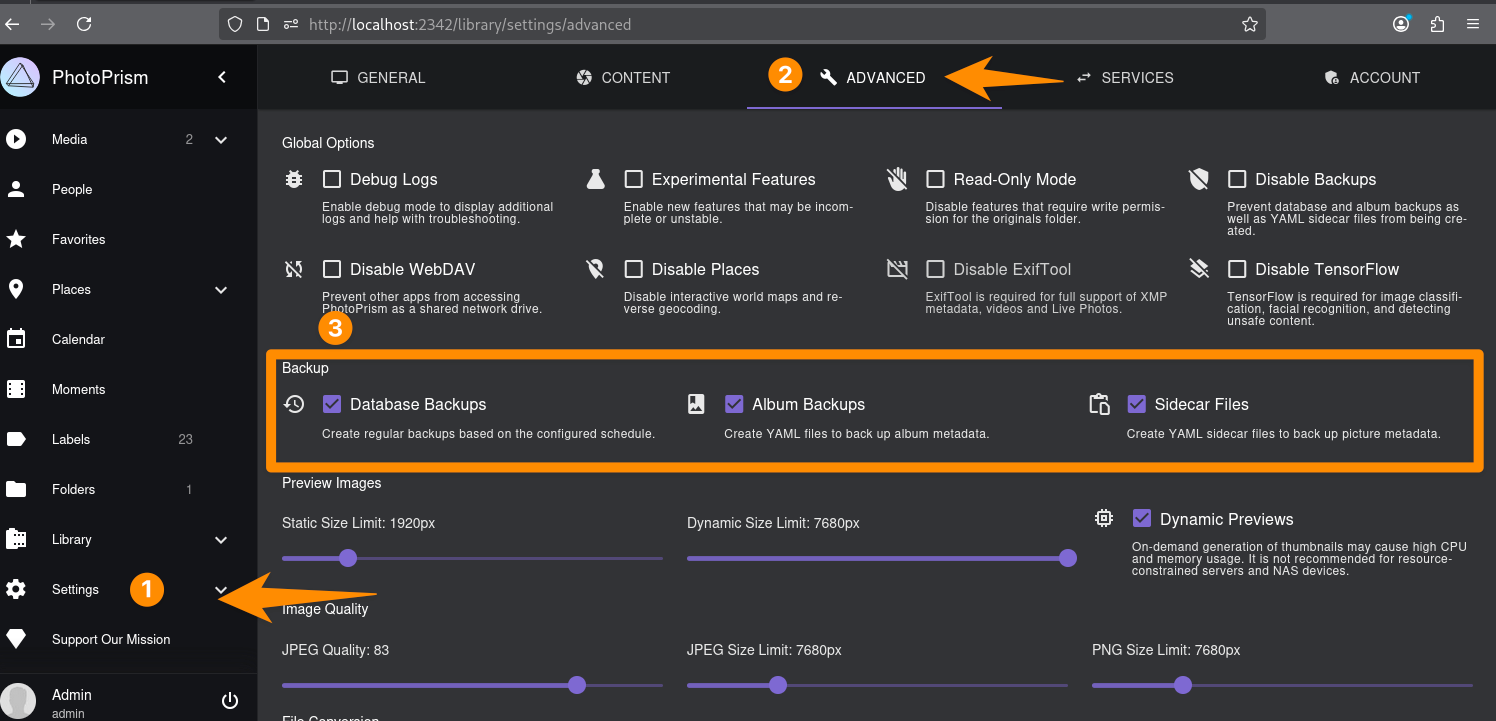
On the topic of safety, backups aren’t optional. Most people already keep multiple copies of their original photos (or at least they should), but it’s easy to forget that PhotoPrism’s database is just as important. That’s where all your indexing, face data, and album organization live. Without it, you’re basically starting from scratch.
At the very least, back up the entire storage directory to an external drive or NAS once in a while. If you like things more automated, tools like rsync, restic, or borgbackup can handle versioned, incremental backups.
Monitoring is another good habit to build early. You can utilize simple bash scripts to check if the Docker instance is running and ping the PhotoPrism web interface periodically to verify it’s working.
#!/usr/bin/env bash

CONTAINER="photoprism"
LOG="/var/log/photoprism-monitor.log"

log() {
  echo "$(date '+%Y-%m-%d %H:%M:%S') - $*" >> "$LOG"
}

# Check if container exists
docker inspect "$CONTAINER" >/dev/null 2>&1 || {
  log "ERROR: Container '$CONTAINER' not found."
  exit 1
}

# If running, exit silently
if docker inspect -f '{{.State.Running}}' "$CONTAINER" | grep -q true; then
  exit 0
fi

# Restart if down
log "WARNING: '$CONTAINER' is down. Restarting..."
if docker restart "$CONTAINER" >/dev/null 2>&1; then
  log "SUCCESS: '$CONTAINER' restarted."
else
  log "ERROR: Failed to restart '$CONTAINER'."
fi
And later, move to more robust container monitoring solutions.
Conclusion
PhotoPrism offers one path toward that goal with particular emphasis on autonomy and privacy. PhotoPrism processes everything locally. With PhotoPrism, your vacation photos don’t become training data for someone else’s business model. They remain what they actually are, your memories, under your control.
The setup requires more initial effort than clicking "sign up" on a cloud service. Also, you are responsible for backups, updates, and hardware. But the tradeoff is permanent ownership. Your photos live on storage you control, backed up to locations you choose.
So, spin up PhotoPrism on a spare machine with a small library. See how it performs. Test the features. Evaluate the trade-offs. If it clicks, expand your self-hosted stack.
