

From Clickup to Trello, there are plenty of free-to-use online Kanban tools. But they are not open source and your data is with someone else. Not everyone likes that, most certainly not me.
And then there are self-hostable open source software like Taiga and Tududi but deploying software on a server is not feasible for everyone and overkill for someone who just wants a digital version of sticky notes on a wall for managing personal tasks.

If you are looking for a simple, offline way to organize your personal life or small projects without the clutter of "pro" features or deployment hurdles, you might want to check out Schedule.
What is this Schedule app?
Schedule (found on Flathub as This Week in My Life) is a lightweight, open-source planner built for the Linux desktop and intended for offline, personal usage.
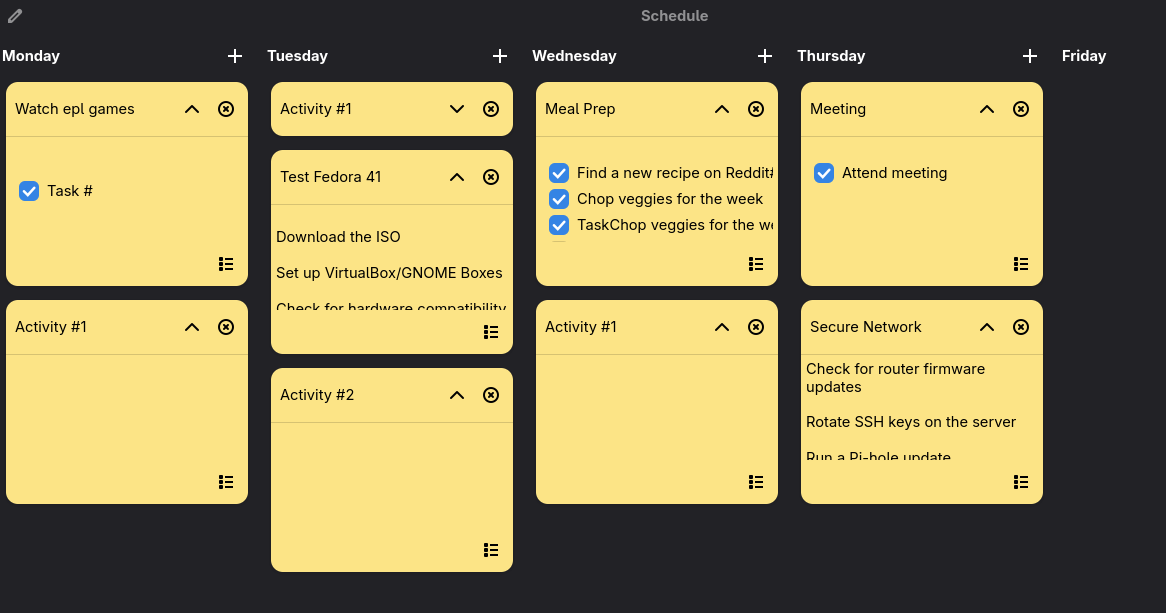
At its core, Schedule is a digital Kanban board. For those unfamiliar with the term, Kanban is a workflow method popularized by Toyota in the 1940s. It uses a visual board with columns representing different stages of a process. You create "cards" for your tasks and move them from left to right as you make progress.
Built with modern GTK4 and Libadwaita, the app feels incredibly "native" to the GNOME desktop. It’s fast, clean, and most importantly, stays out of your way.
Installing Schedule with Flatpak
Schedule is primarily distributed via Flathub, which is the gold standard for getting the latest version of apps across different Linux distributions.
If you have Flatpak enabled, you can install it via your terminal or through the software center (except for Ubuntu):
flatpak install flathub io.github.zhrexl.thisweekinmylife
Once installed, it will appear in your app grid as "Schedule".

Using Schedule for managing personal tasks
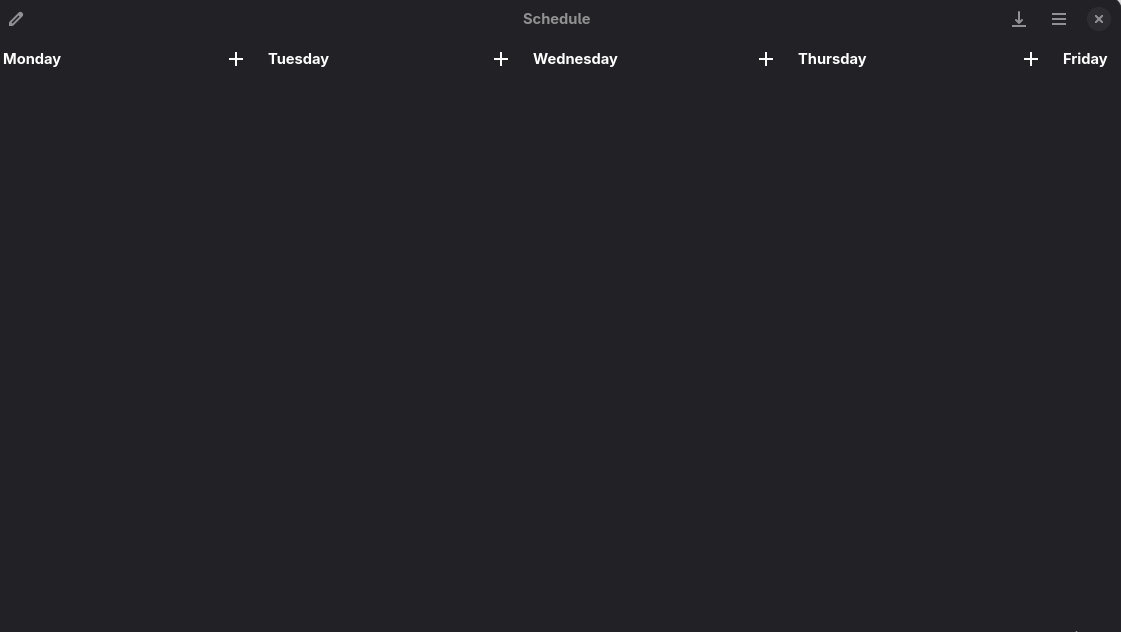
When you first open Schedule, you aren't greeted by a complex on-boarding wizard. Instead, you get a clean slate for your weekly tasks.
While the internal name ThisWeekInMyLife suggests a weekly planner, the app doesn't force you into that box.
You can rename those days columns to anything you like. You could set it up as:
- A Classic Kanban: Backlog, In Progress, Review, Done.
- A Content Calendar: Ideas, Writing, Editing, Published.
- A Life Admin Board: Bills to Pay, Chores, Appointments, Personal.
You can also add new lists/columns on the board. Click the hamburger menu in the top right corner to add new columns.
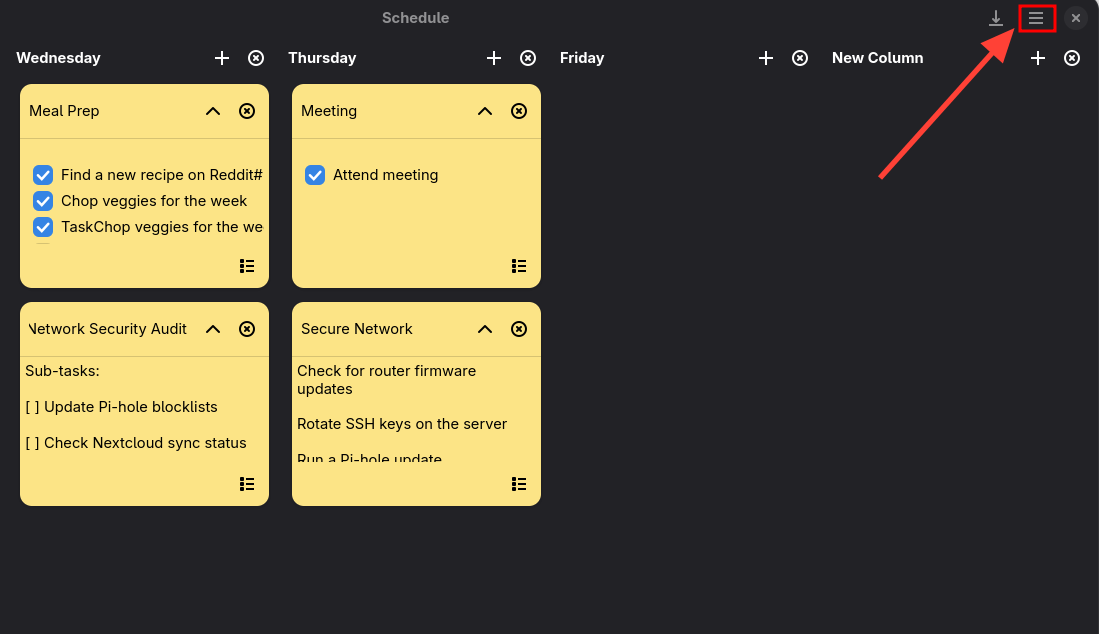
This way, you implement your own system of task management. You can create a "Backlog" column for ideas that aren't ready yet, or a "Waiting for Feedback" column for tasks that are stuck.
The beauty of a Kanban board is the tactile feel of moving a task toward completion. Like taking the sticky note from one place to put it up at next stage. Schedule handles this beautifully with a smooth drag-and-drop interface.
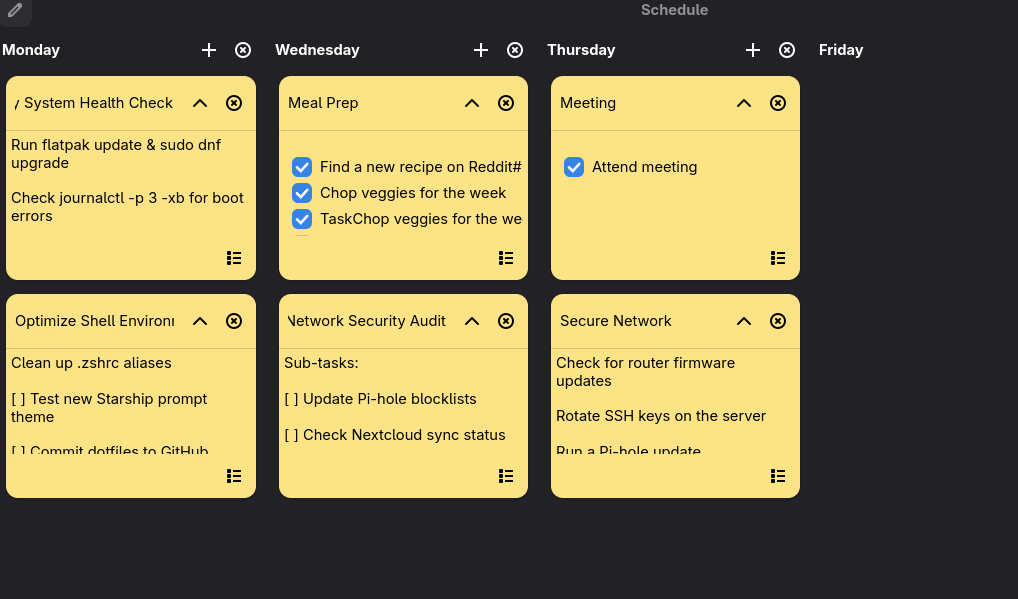
Creating a task is a one-click process. You type in your activity, add notes if necessary, and it appears as a card on your board. If your priorities change (as they often do on a Tuesday morning), you can grab a card and slide it to a different column or reorder it within the same list.
One small but thoughtful feature is the ability to collapse columns. If you have a "Finished" column that is getting a bit crowded and distracting, you can hide it to keep your focus on the work that is actually currently in progress.
Automatic saving 'saves the project'
You never have to look for a "Save" button in Schedule. The app saves your progress in real-time. Whether you're moving a card or checking off a sub-task, the app writes those changes to your local system immediately.
Export your board and data
If you look at the top-left corner of the window, you’ll see a small download icon (a downward-pointing arrow). This is a vital tool for anyone who likes to keep backups. This feature allows you to export your entire board.
Completely offline
In a world where every app wants to store your life in "the cloud," Schedule takes a privacy-first, local-first approach. There are no accounts to create, and nothing gets stored in a cloud. It works perfectly offline, making it a great companion for deep-work sessions where you want to turn off your Wi-Fi and just focus.
With great features, comes some downside too
Of course, no app is a perfect fit for everyone, and Schedule’s commitment to minimalism does come with some trade-offs.
First, there is a complete lack of a notification or reminder system; unlike other mainstream task management apps, Schedule won't inform you when a deadline is approaching.
Additionally, because the app is a local Linux tool, there is currently no native way to sync your boards with a mobile device or other computer. If you need to check your tasks while you're away from your desk, you’ll find yourself either taking a manual screenshot or carrying your laptop with you.
For those who rely on cross-platform cloud syncing and regular alerts, these limitations might make the app feel too basic.
But remember that it's by design. Schedule doesn't want to become an alternative to Sunsama like tools. The idea is to keep it simple.
Not for everyone, but ideal for some
Schedule is a perfect example of what makes the Linux app ecosystem great. It doesn't try to be everything to everyone. Sometimes when you are looking for something simple to organize your tasks, Schedule could do the job.
If your current to-do list is a mess of half-used apps and scattered notebooks, give Schedule a week of your time. You might find that a simple board is all you ever needed.
What do you think? Are you a "simple list" person, or do you prefer the "Kanban" approach for your daily tasks? Let us know in the comments!
