


Retro techs are no longer stranger things. Just like vinyl records and vintage fashion, retro computing has captured our collective imagination, irrespective of the age group.
I mean, there's something deeply satisfying about amber-on-black terminals and chunky pixel fonts that modern UIs can't replicate.
The good thing here is that we Linux users are perfectly positioned to embrace this nostalgia wave.
No, I am not talking about those ultra-lightweight distros that involuntarily give retro vibes of the late 90s and early 2000s. I am going to share a few interesting software that will help you get the retro feel on your modern Linux system.
Cool Retro Term: A terminal with the 80s feel
I'll start with my favorite, which is also a functional tool.
cool-retro-term is a terminal emulator which mimics the look and feel of the old cathode tube screens. That's just about it. You do not get any special abilities, just the good-old look.
But here's the thing. You can use it like your regular terminal, it has vintage looks but the modern features still work the same.
There is more than one preset of colors and styles available.
Cool Retro Term
Installing Cool Retro Term
You can install it on Ubuntu, Fedora, and Arch Linux using the commands respectively:
sudo apt install cool-retro-term #For Debian/Ubuntu
sudo dnf install cool-retro-term #For Fedora
sudo pacman -Syu cool-retro-term #For Arch based distrosRSC8: Rust based retro feel terminal
RSC8 is a CHIP-8 virtual machine/emulator written in Rust with no_std core. It is yet another makeover for your terminal. So, if you like to use a retro terminal but built with Rust, give this a try.
RSC8 Chip-8 Virtual machine/emulator
Install it using cargo.
cargo install --locked --git https://github.com/jerryshell/rsc8To use rsc8, you'll have to download ROMs of your choice from this GitHub repo and then use the following command:
rsc8_tui <your_rom.ch8>Retro Pie: Play retro games on Linux
RetroPie transforms your Raspberry Pi, ODroid C1/C2, or PC into a nostalgic gaming powerhouse.
It leverages platforms like Raspbian, EmulationStation, RetroArch, and other innovative projects, allowing you to enjoy classic Arcade, home-console, and vintage PC games with minimal hassle.
RetroPie Walkthrough
Since there were multiple kinds of platforms/consoles in the past, there are different emulators for them.
But that's only half of the story. You also need to download ROMs that consist of games of that platform.
For example, if you want to play games that were available Nintendo's NES console, you download the ROM with NES games and then use the NES emulator in RetroPi to load this ROM. It's like inserting a virtual disk.
The problem here is that these ROMs are often deemed illegal to distribute, and hence the websites that host them are often removed.
Playing Super Mario World in RetroPie
Installing RetroPi
Please ensure that you have git installed on your system as you'll have to clone the Git repo here.
cd
git clone --depth=1 https://github.com/RetroPie/RetroPie-Setup.git
Run the setup script:
cd RetroPie-Setup
sudo ./retropie_setup.sh
Follow the onscreen instructions for a basic installation.
Hot Dog Linux: Relive the Windows 3.1
Hot Dog Linux is an X11 Window Manager with Windows 3.1 Hot Dog Stand, Amiga Workbench, Atari ST GEM, Mac Classic and Aqua UI pre-installed.
HOTDOG is an acronym that stands for Horrible Obsolete Typeface and Dreadful Onscreen Graphics.
HOTDOG Linux
It is built using Objective-C and uses bitmapped graphics, low DPI displays. There are no unicode support here.
Installing Hot Dog Linux
Download the ISO and install in VirtualBox. Make sure 3D acceleration is enabled.
DOSBox: Emulate MS DOS and the 8-bit games
DOSBox is free and open-source software that allows you to emulate the MS-DOS operating systems from the previous century.
It allows you to play the 8-bit games.
Playing Doom2 in DOSBox
DOSBox also emulates CPU:286/386 realmode/protected mode, Directory FileSystem/XMS/EMS, Tandy/Hercules/CGA/EGA/VGA/VESA graphics, a SoundBlaster/Gravis Ultra Sound card for excellent sound compatibility with older games.
Installing DOSBox
On Ubuntu, and Arch, you can use the following commands respectively:
sudo apt install dosbox #For Ubuntu/Debina
sudo pacman -Syu dosbox #For Arch
DOSBox Staging
Fedora ships with DOSBox Staging, a modern continuation of DOSBox. DOSBox Staging is also available in Flathub.
For Arch, it is in AUR. And, for Ubuntu and Mint, add the following PPA to get it installed:
sudo add-apt-repository ppa:feignint/dosbox-staging
sudo apt-get update
sudo apt install dosbox-stagingFRANK OS: Restro styled Linux distro for microcontrollers
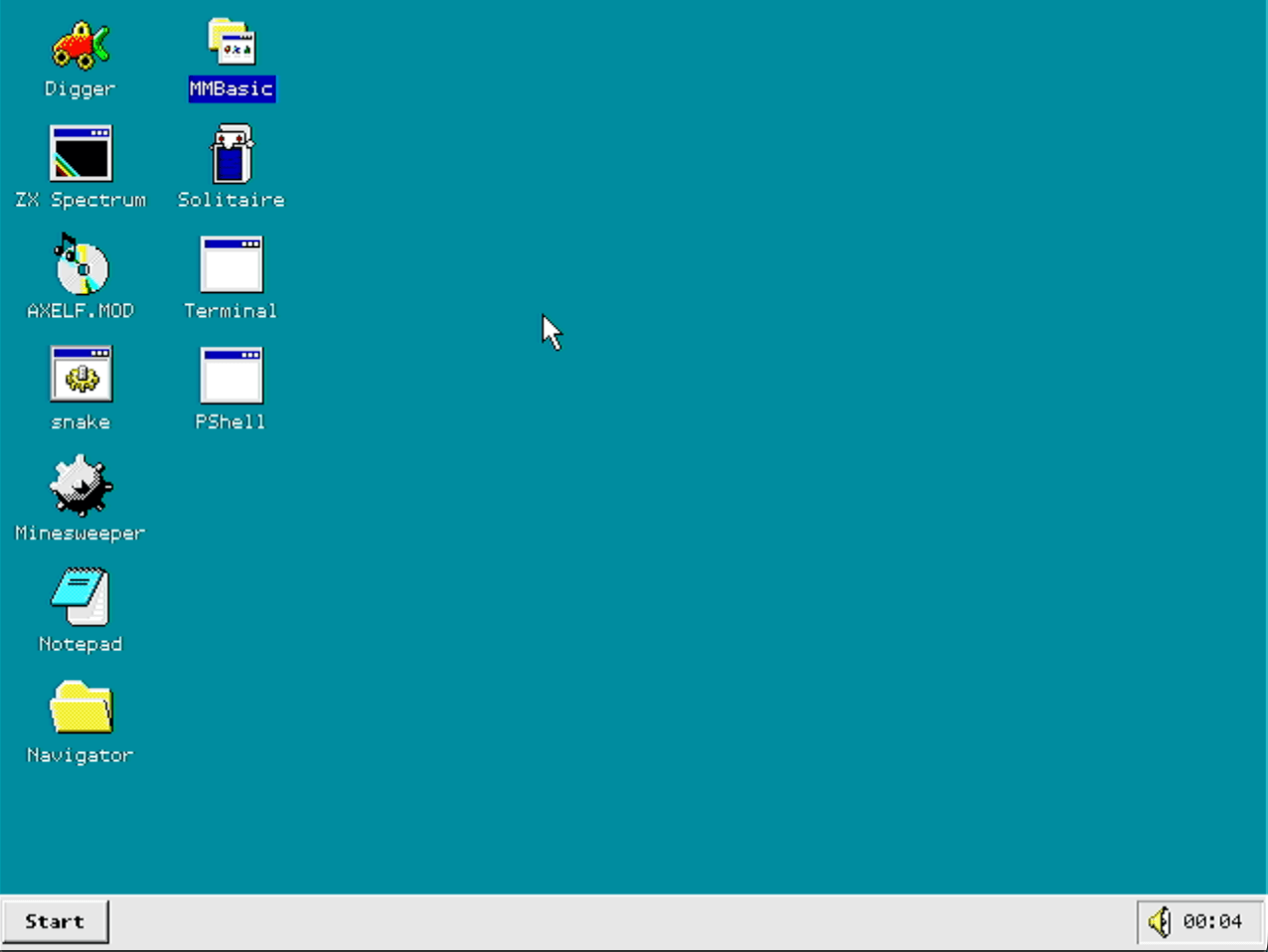
If running retro-looking software on Linux is not enough for you, how about running an actual retro-style desktop operating system on a microcontroller?
FRANK OS is a GPLv3-licensed desktop OS built for the RP2350 microcontroller. It is based on FreeRTOS and gives you a Windows 95-style desktop with overlapping windows, a taskbar, a Start menu, and a file manager, all on a chip with 520 KB of SRAM.
It ships with nine applications out of the box, including a VT100 terminal, a text editor, Minesweeper, Solitaire, Digger, a ZX Spectrum 48K emulator, an MP3 player, a BASIC interpreter, and PShell.
Installing FRANK OS
Well, you will have to build FRANK OS from source. The prerequisites and installation steps can be found on the project's GitHub repo.
Wrapping Up
Linux enables users to have a godly amount of customization options. Whether you want your desktop to look clean, and contemporary, or you want to give it a retro look, there are certainly a few tools for that.
Come to think of it, I should do a tutorial on how to give a retro makeover to your Linux distro, somewhat like the modern makeover video of Linux Mint.
Linux makes it easy to bring the retro vibe back to life. Whether it’s an old-school terminal, a full-blown vintage desktop, or classic games from the 90s, there’s a tool for every kind of nostalgia.
What is your favorite tool that we missed listing here? Let me know in the comments below.
