


If you have ever felt intimidated by the Linux command line while trying to manage your code, you are not alone. While Git is the backbone of modern software development, its terminal-based interface can be a steep learning curve for beginners.
This is where GitHub Desktop comes in. It provides a beautiful, user-friendly graphical interface (GUI) that allows you to clone repositories, create branches, and commit changes with just a few clicks. In this guide, I'll show you how to install this powerful tool on Ubuntu using the most reliable methods.
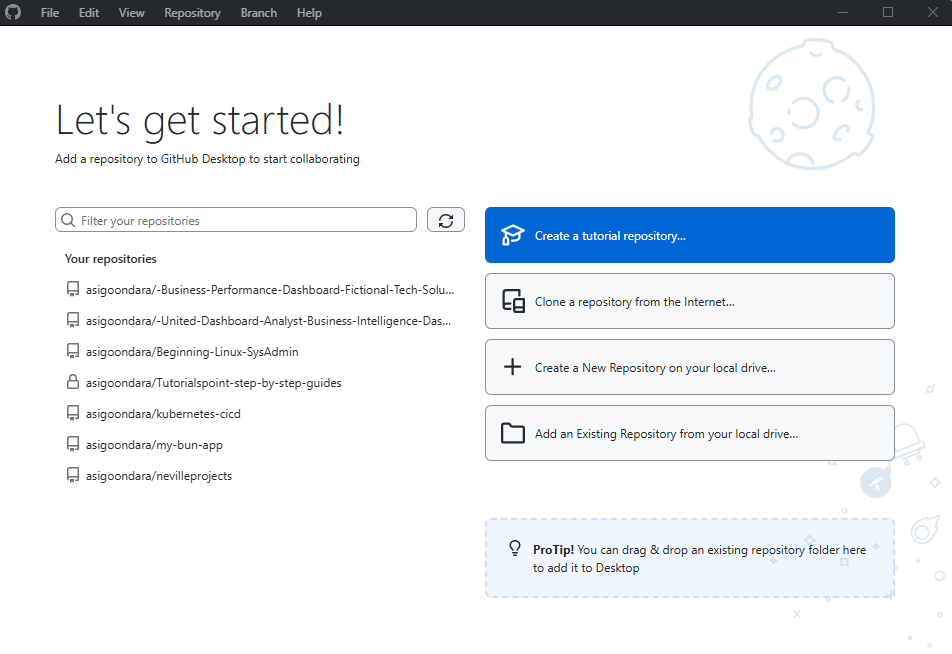
Two ways to install github desktop on Ubuntu
One thing that confuses new users is why they can't just download GitHub Desktop from the main GitHub website.
The truth is that GitHub (the company) only officially supports Windows and macOS. However, because the app itself is open-source, a developer named Brendan Forster (known as ShiftKey) created a "fork."
He adapted the code to work perfectly on Linux. It is identical to the official version in every way, the same icons, the same logic, and the same security. It is so widely trusted that it has become the "unofficial official" version for the entire Linux community.
Now, let's get started with the installation:
Method 1: Using the APT Repository
This is the recommended method for the majority of Ubuntu users. By adding the ShiftKey repository to your system, Ubuntu will treat GitHub Desktop like any other official app. This means when an update is released, your system will automatically download it for you.
Step 1: Prepare Your System
First, ensure your system is ready to receive new software. Open your terminal and type the following:
sudo apt update && sudo apt upgrade
Step 2: Add the GPG Key
Linux security requires "keys" to prove that the software you are downloading hasn't been tampered with. Use this command to add the repository key:
wget -qO - https://mirror.mwt.me/shiftkey-desktop/gpgkey | gpg --dearmor | sudo tee /etc/apt/keyrings/mwt-desktop.gpg > /dev/null
Step 3: Add the Software Source
Now, tell Ubuntu where to find the GitHub Desktop files by adding the repository to your list:
sudo sh -c 'echo "deb [arch=amd64 signed-by=/etc/apt/keyrings/mwt-desktop.gpg] https://mirror.mwt.me/shiftkey-desktop/deb/ any main" > /etc/apt/sources.list.d/mwt-desktop.list'
Step 4: Install the App
Finally, update your list one last time and install the app:
sudo apt update
sudo apt install github-desktop
Once the process finishes, you can find the app in your "Show Applications" menu by searching for "GitHub."
Method 2: Use the Flatpak Version
If you want to keep your apps isolated for security, Flatpak is excellent. Flatpaks are "sandboxed," meaning they bring their own helper files with them and don't touch your core system files.
Step 1: Enable Flathub
Flathub is the "App Store" where the Linux community hosts software.
flatpak remote-add --if-not-exists flathub https://flathub.org/repo/flathub.flatpakrepo
Step 2: Install the App
This command pulls in the Freedesktop Platform runtime (the foundation) and the app itself.
flatpak install flathub io.github.shiftey.Desktop
First-Time Launch: Authenticating Your Account
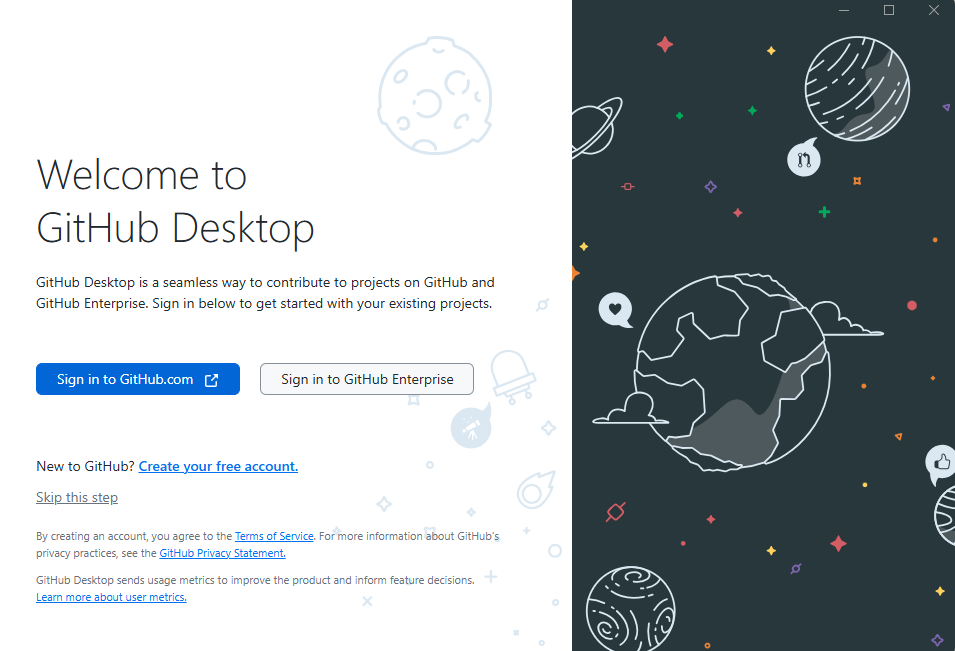
Once installed, find GitHub Desktop in your Applications menu. The first time you open it, you need to "Introduce" your computer to your GitHub account.
- Sign In: Click "Sign in to GitHub.com."
- The Browser Handshake: Your default browser (Firefox or Chrome) will open. Log in as usual.
- Authorize: Click the green "Authorize Desktop" button.
- The Redirect: A pop-up will ask if you want to allow the site to open a link. Click "Allow" or "Open Link." The app will now be logged in!
How to Remove GitHub Desktop
If you decide to go back to the command line or try another tool like VS Code, removing GitHub Desktop is a clean and simple process.
Removing the APT Version
If you used the first method, open your terminal and run:
sudo apt remove github-desktop
If you want to be extra thorough and remove the "keys" and "sources" we added earlier, run these two commands:
sudo rm /etc/apt/sources.list.d/mwt-desktop.list
sudo rm /etc/apt/keyrings/mwt-desktop.gpg
Removing the Flatpak Version
If you used the second method, the removal is even shorter:
flatpak remove io.github.shiftey.Desktop
To reclaim the disk space used by the app's internal files, you can also run: flatpak uninstall --unused
I Like Using GitHub Desktop
I prefer having a visual history because, instead of squinting at scrolling text logs, I can actually see a clear timeline of my project’s changes. I also love that it eliminates syntax errors; I don't have to stress about remembering the exact flags for commands like git commit -am "message" since I can just type my note in a box and click a button.
When it comes to conflict resolution, merging code from different developers can be a nightmare, but I’ve found that GitHub Desktop makes these conflicts much easier to spot and fix before they break anything.
Additionally, the seamless integration is a huge win for me, as it connects directly to my GitHub account, making it incredibly simple to manage my private work or contribute to the open-source projects I care about.
It's sad that GitHub Desktop is not officially available for Ubuntu but in Linux world, we (almost) always find a workaround.
