


Firefox is the default web browser in many Linux distributions, and Ubuntu is one of them. Firefox comes preinstalled on Ubuntu unless you are using Ubuntu's minimal version.
In this tutorial, I am going to show you how to install the latest version of Firefox on Ubuntu or any other Linux distribution.
Install Firefox from Official Repositories (Recommended)
Firefox is available for almost all the Linux distributions out there. It is also preinstalled in most of them.
If that’s not the case, you should stick to the official package manager provided by your distribution for installing Firefox. That’s the easiest and best method. It will be updated automatically to newer versions with system updates.
Open the software center and search for Firefox. You should see it there and just click on the installation button.
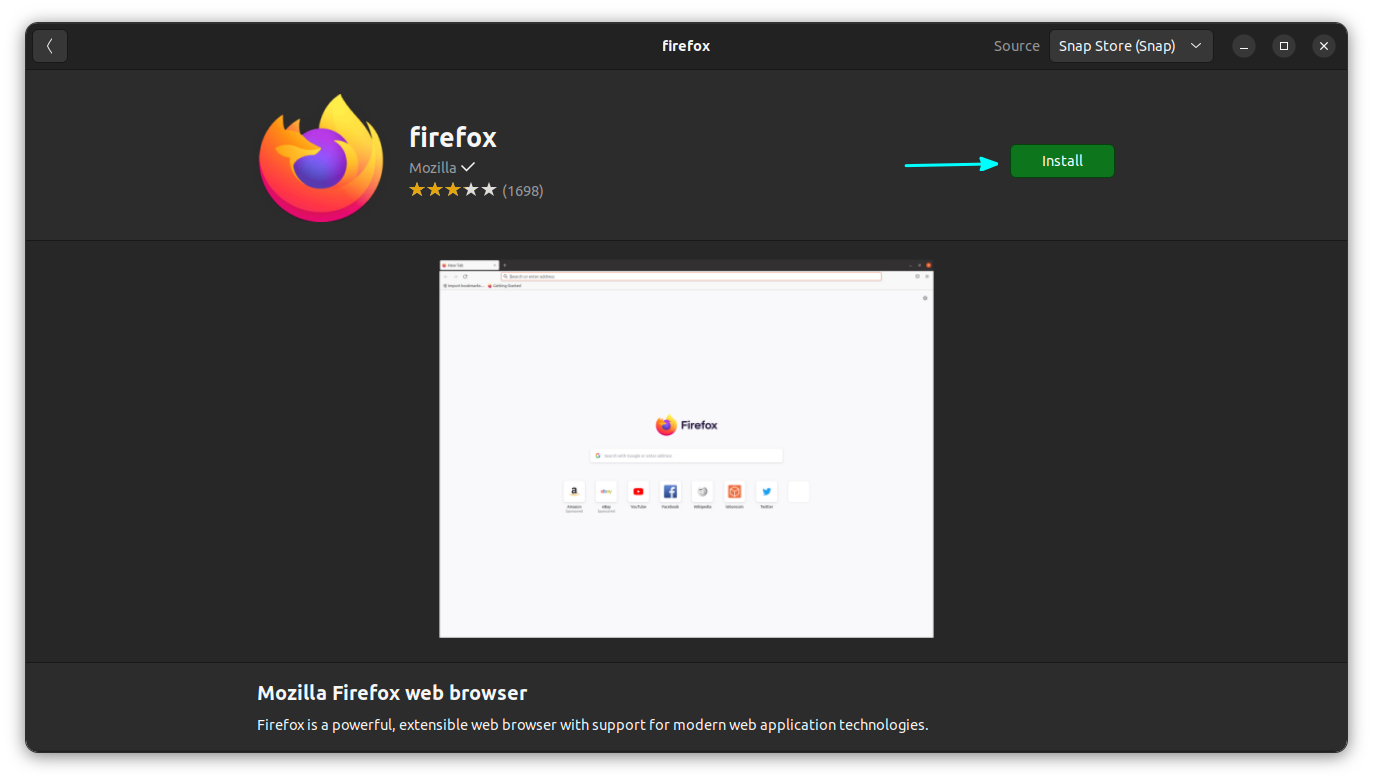
If you prefer the command line, open a terminal and use the following command in Debian, and other distributions based on Ubuntu and Debian such as Linux Mint, elementary OS etc.
sudo apt install firefoxSimilarly, Fedora users can use dnf command, Arch users can use pacman and other package managers provided by the distribution.
sudo dnf install firefox
sudo pacman -Syu firefox
Once installed, just look for it in the menu and launch it.

Installing Firefox using Snap or Flatpak
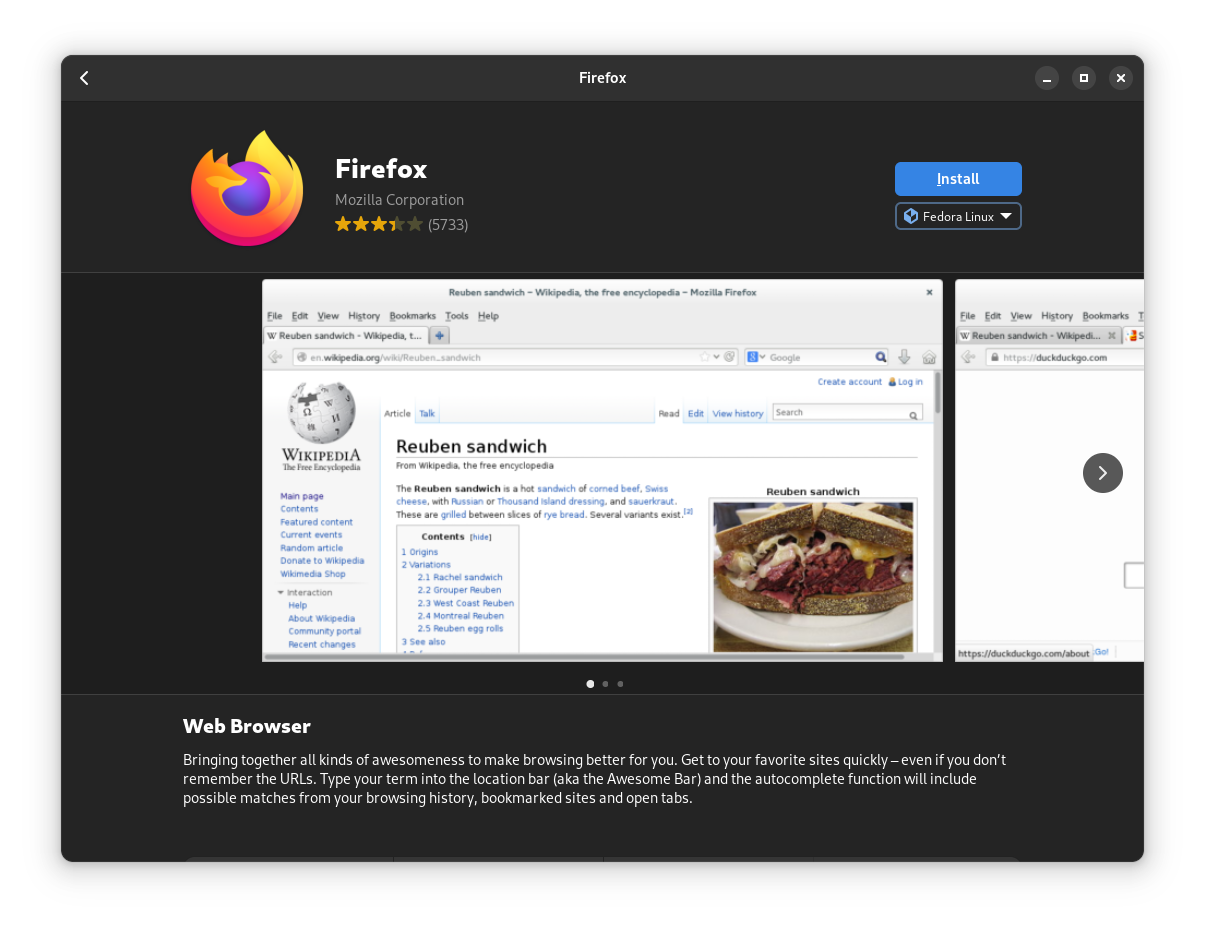
Mozilla Firefox maintains both Snap and Flatpak packages. So, you can pick any of them in any Linux distribution.
If your software center supports Flatpak/Snap integration, you do not need to use the commands. If it does not, follow the commands for quick installation.
To install the Snap package, make sure that you have snap installed. Once done, enter the following command in the terminal (or search for it in your software center):
sudo snap install firefoxSimilarly, you will have to install and configure Flatpak first. Once done, enter the following command to get it installed (or search for it in your software center):
flatpak install flathub org.mozilla.firefoxSuggested Read 📖
 Ankush Das
Installing Firefox from the Official Website
Another method that would work in any Linux distribution is to download the binary from the Firefox website and then use it for running Firefox.
It will take more time, but if it is something you prefer, you can follow the steps below:
- Remove Existing Firefox
Before installing another Firefox, it is good to make sure that you don't have any Firefox already installed. So, on Debian and other similar systems, use:
sudo apt purge firefox

Similarly, if you have Firefox Flatpak, it can be removed by using:
flatpak uninstall org.mozilla.firefox
On Ubuntu snap, first remove the snap version. Also remove any Firefox transitional packages.
sudo snap remove firefox
sudo apt purge firefox
- Download and Extract Firefox
Once the existing Firefox is removed, you can now download the Firefox files from the official website.
This will download the Firefox Tar file. To extract, open a terminal and use the following command on the directory where you downloaded it:
tar xjf firefox-*
- Setup Firefox
It’s a standard practice to use the /opt directory for keeping application files.
So, just to make sure that you don’t have a Firefox directory already in there, run the command below:
sudo rm -r /opt/firefox
Now, copy the extracted directory to /opt. For this, open a terminal on the location where you have the extracted Firefox directory and run:
sudo mv firefox /opt
To make it work, you need to create a symbolic link to the Firefox in /usr/local/bin.
ln -s /opt/firefox/firefox /usr/local/bin/firefox
- Create a Desktop File to Get an Icon on the System Menu
To access Firefox from your system menu, you need a desktop file. You can use the official format from Firefox.
Open a terminal and run:
wget https://raw.githubusercontent.com/mozilla/sumo-kb/main/install-firefox-linux/firefox.desktop -P /usr/local/share/applications
Alternatively, you can download the desktop file by clicking on the button below. On the page, right click and select the “Save Page As” option. Save it as firefox.desktop.
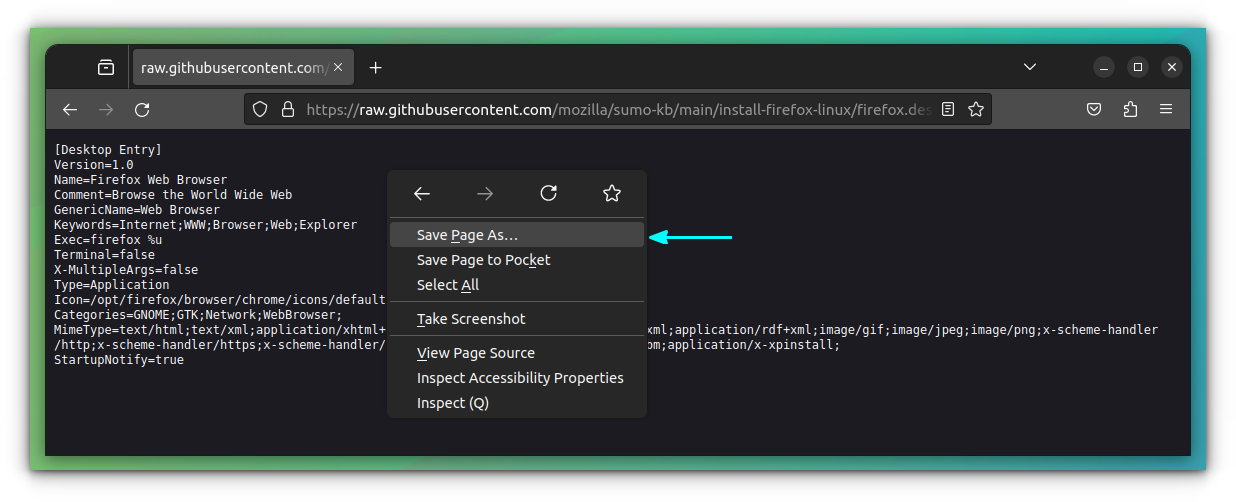
Paste this firefox.desktop file to /usr/local/share/applications/.
That's it. You can now launch Firefox from the system menu.
Suggested Read 📖
Sagar Sharma
Updating Firefox
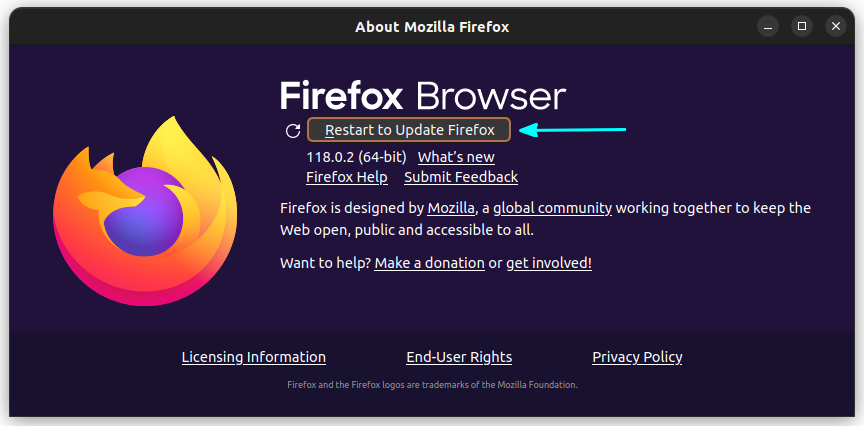
If you have a new version, Firefox will notify you about the same on the About page. For this, click on the menu button on the top right and then go to Help ⇾ About Firefox.
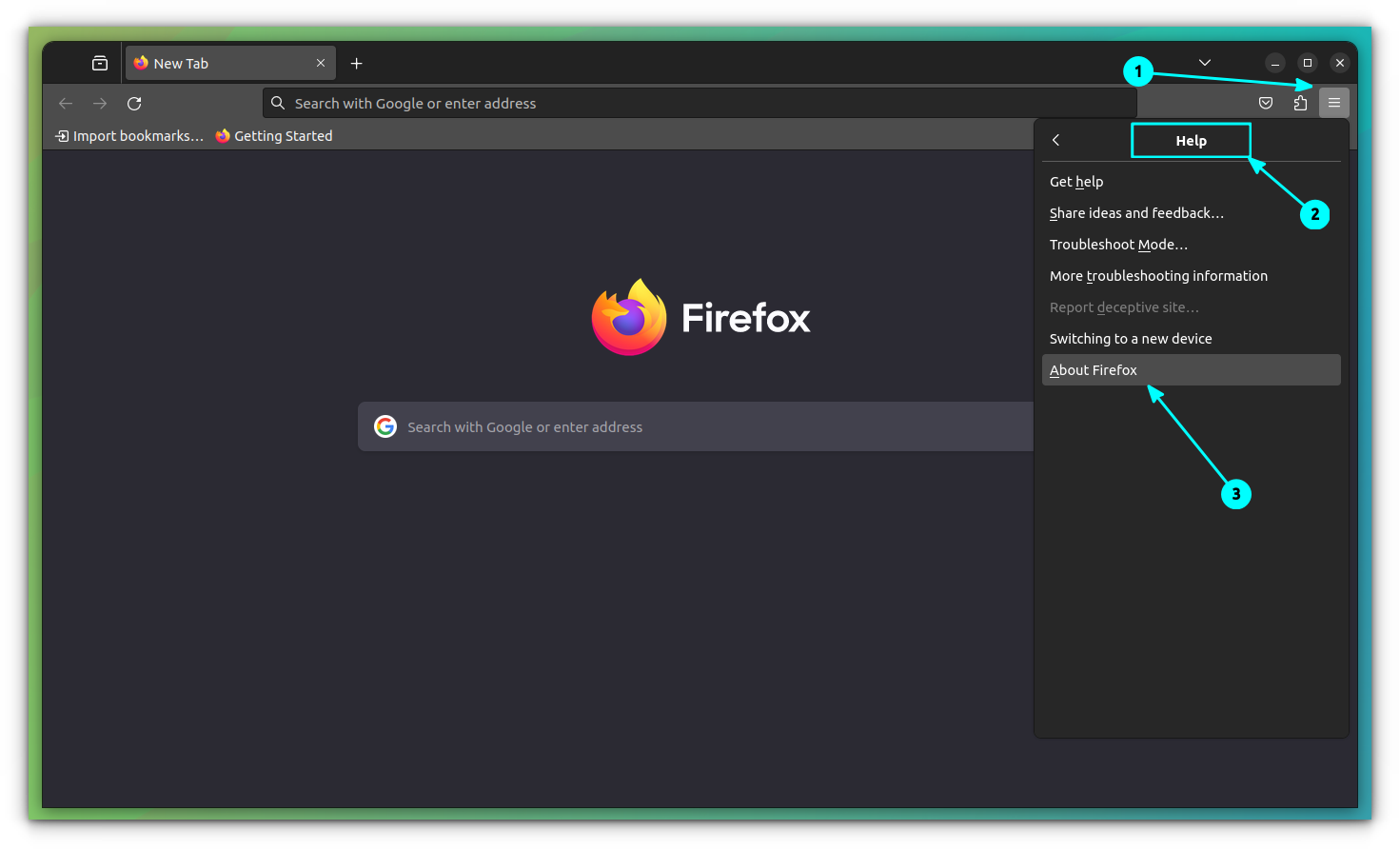
Click on the “Restart to update Firefox” button to update Firefox.
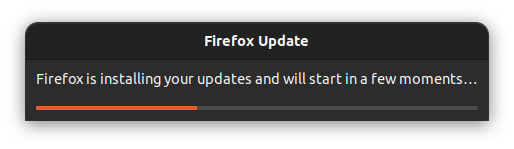
This will show a progress dialog box.
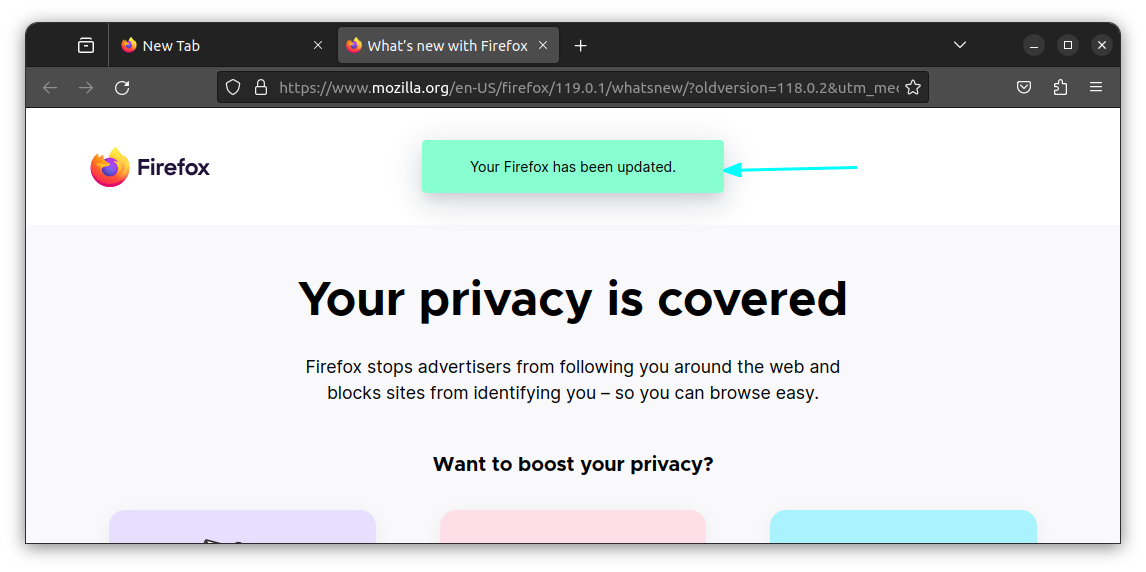
Once completed, it will launch the updated Firefox for you.
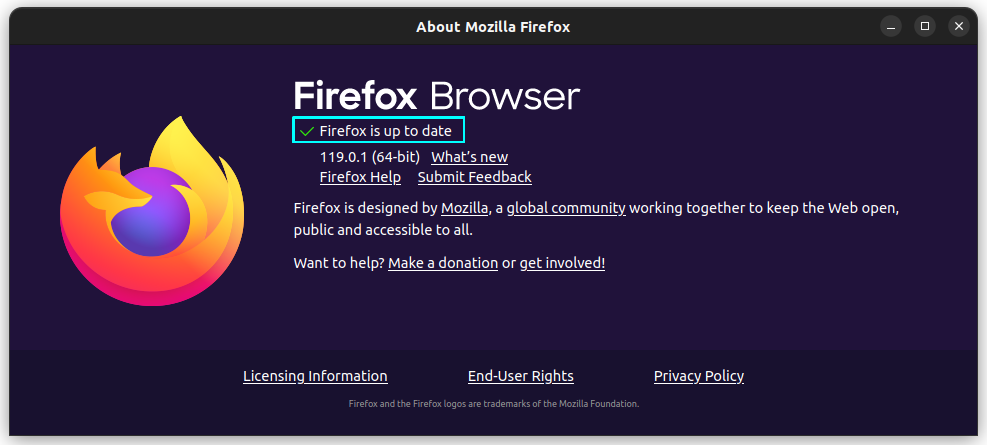
You can check the About page for more.
Uninstall Firefox
Uninstalling Firefox installed through the website is pretty straightforward. Just retrace the path you have used. First remove the Desktop file and the symlink from their respective location.
sudo rm /usr/local/bin/firefox
sudo rm /usr/local/share/applications/firefox.desktop
Now, remove the Firefox directory from /opt.
sudo rm -r /opt/firefox
You have uninstalled Firefox.
Bonus: Install Firefox Nightly Version
If you want to experience the latest features before its final release, you can install the nightly version by downloading the respective binaries from the official website.
You can follow the same method detailed in the previous section to install it.
For Debian and its derived distributions like Linux Mint, Pop!OS etc., Mozilla provides a PPA to install Firefox Nightly version. The major advantage is that, you will get a better performance, automatic updates and also a preconfigured desktop integration.
First, you need to create a directory to store APT repository keys if it doesn't exist, and then import the Mozilla APT repository signing key.
sudo install -d -m 0755 /etc/apt/keyrings

wget -q https://packages.mozilla.org/apt/repo-signing-key.gpg -O- | sudo tee /etc/apt/keyrings/packages.mozilla.org.asc > /dev/null
Now, import the GPG key and add the Mozilla APT repository to your sources list.
gpg -n -q --import --import-options import-show /etc/apt/keyrings/packages.mozilla.org.asc | awk '/pub/{getline; gsub(/^ +| +$/,""); print "\n"$0"\n"}'

echo "deb [signed-by=/etc/apt/keyrings/packages.mozilla.org.asc] https://packages.mozilla.org/apt mozilla main" | sudo tee -a /etc/apt/sources.list.d/mozilla.list > /dev/null
Once done, you can now update your package list and install the Firefox Nightly.
sudo apt update
sudo apt install firefox-nightly
Suggested Read 📖
Ankush Das
Wrapping Up
Firefox is available in various formats to install in Linux. In most cases, Firefox should come baked in with the distribution of your choice.
If it is not there, you can search for it in the software manager or get the Snap/Flatpak builds.
If you are an Ubuntu user, sticking with the default Snap version, using the pre-built binary from Firefox or Firefox Flatpak is recommended.
You can also follow our dedicated guide on removing Firefox Snap if you want to get rid of it and want to install it differently:
Abhishek Prakash
💬 What is your preferred way of installing Firefox on Linux? Share your experiences in the comments below!
If this helped you, consider supporting It's FOSS
It's FOSS has been helping people use Linux for the past 14 years. Help us stay independent from big tech. Become a Plus member, enjoy ad-free reading and get 5 eBooks.
