


When it comes to open-source office suites, we're not short on options, despite what it may seem at first glance. Yet, without a doubt, two names stand head and shoulders above all others. LibreOffice and ONLYOFFICE sit unchallenged as the most popular office solutions built and distributed on open principles. Both are solid in their own rights, and both have loyal communities that swear by them and no others. But between the two, which one is right for you?
In this article, we'll have a closer look at both office suites, with a friendly comparison of their strengths and weaknesses and what makes them truly unique, especially compared to each other. By the end, you'll be better equipped to choose which one you'd prefer, if you so desire.
A note on testing methodology
For the sake of fairness, both office suites were tested on the same system running Ubuntu 25.10, and represent the latest available release of either suite at the time of writing. For LibreOffice, that's 25.8.4.2, and for ONLYOFFICE, 9.3.1.8.
My test system is fairly powerful, though no longer cutting-edge: an MSI GE76 Raider with an 11th Gen Intel Core i7, 64GB of RAM, and NVIDIA RTX 3060 graphics. Most of the screenshots and hands-on impressions in this article were taken in a KDE Plasma 6 (on Wayland). However, GNOME is my usual desktop environment, so some real-world impressions described here also reflect longer-term use there.
I'll briefly touch on online/self-hosting availability, since both office suites have web-based solutions available, but a full review of either suite's web versions isn't covered in this article.
Meet the "contenders"
It's highly likely that you're already familiar with either one of these two, but even so, it's still good to get a little insight and history of each one. LibreOffice is technically the older of the two, though the office suite that became ONLYOFFICE was in fact first released in the same year that LibreOffice was forked.
LibreOffice: the unbeatable survivor
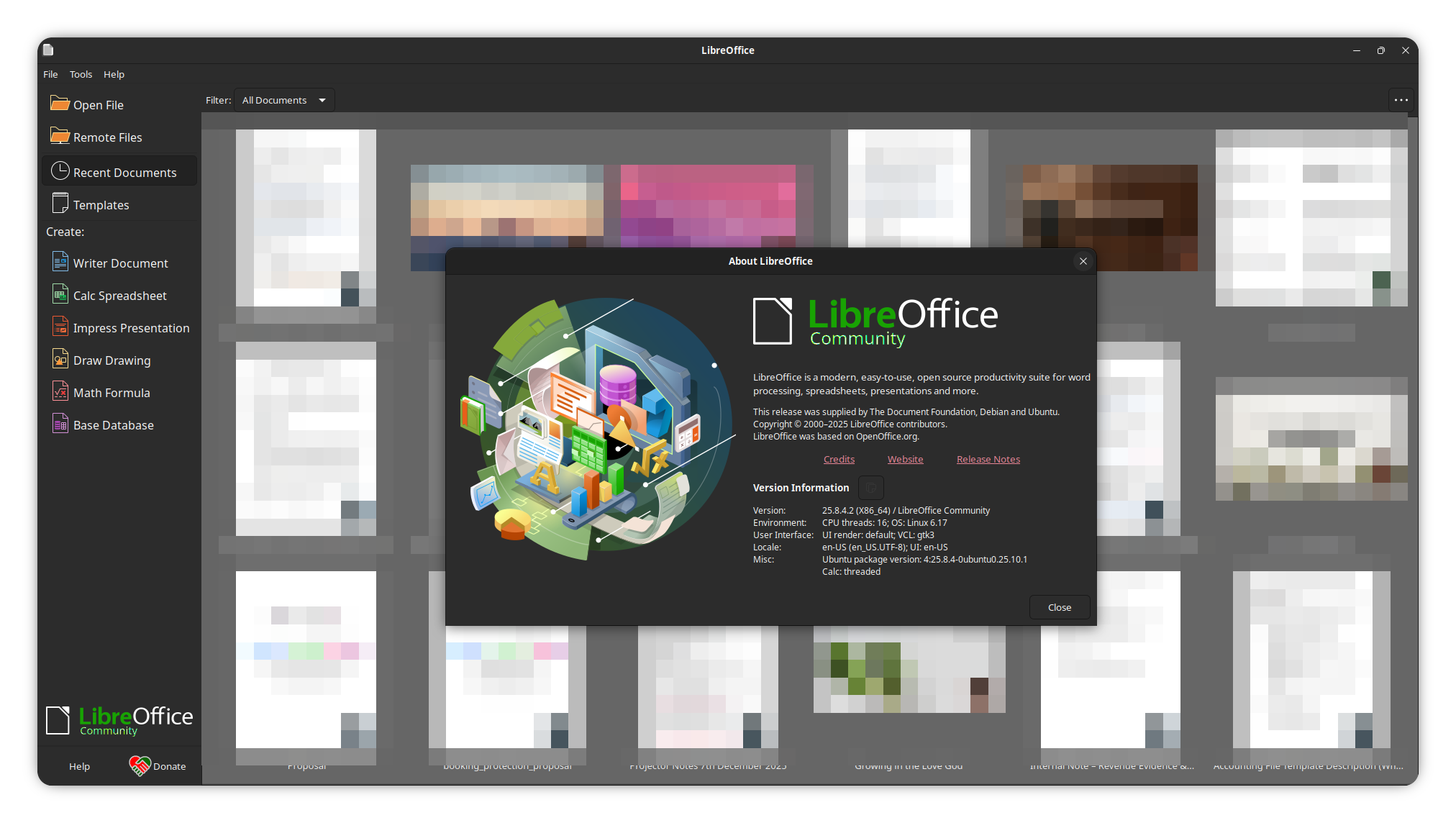
Consisting of 6 major applications, Writer, Impress, Calc, Draw, Base, and Math, LibreOffice is the phoenix that arose from the ashes of the once famous OpenOffice.org (now Apache OpenOffice), after Oracle's acquisition of Sun Microsystems in January 2010 put OpenOffice.org development in danger of being discontinued.
The Document Foundation chose the name LibreOffice after they were unable to acquire the OpenOffice.org trademark, and the organization took over the mission to continue developing OpenOffice.org as an open-source effort (itself born out of the StarOffice source code, released on October 13, 2000).
LibreOffice and The Document Foundation continue on today as more than a legacy, but a living legend among the wider open-source community, constantly adding new features, improving compatibility with other office suites, and even bringing new life to older file formats, through the Document Liberation Project.
ONLYOFFICE: The valiant newcomer
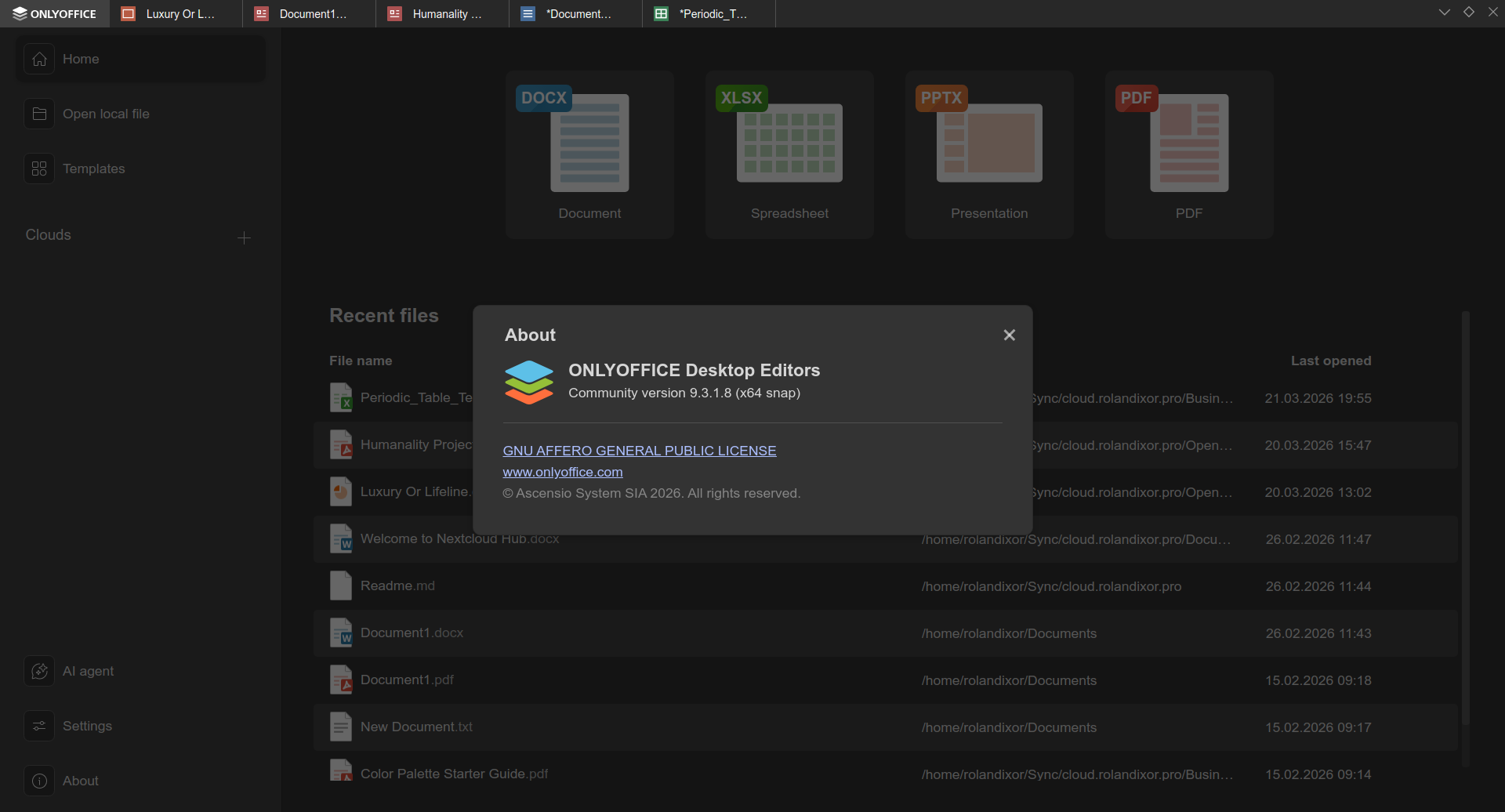
Technically the younger of the two, ONLYOFFICE began life in 2010 as TeamLab, a platform for internal collaboration, before its evolution into the broader office suite that was later rebranded as ONLYOFFICE in 2014. On the desktop, ONLYOFFICE is built around four main editors: Documents, Spreadsheets, Presentations, and PDFs.
With this background in mind, it's easy to see why ONLYOFFICE stands out as the chief of online collaboration among open-source office suites.
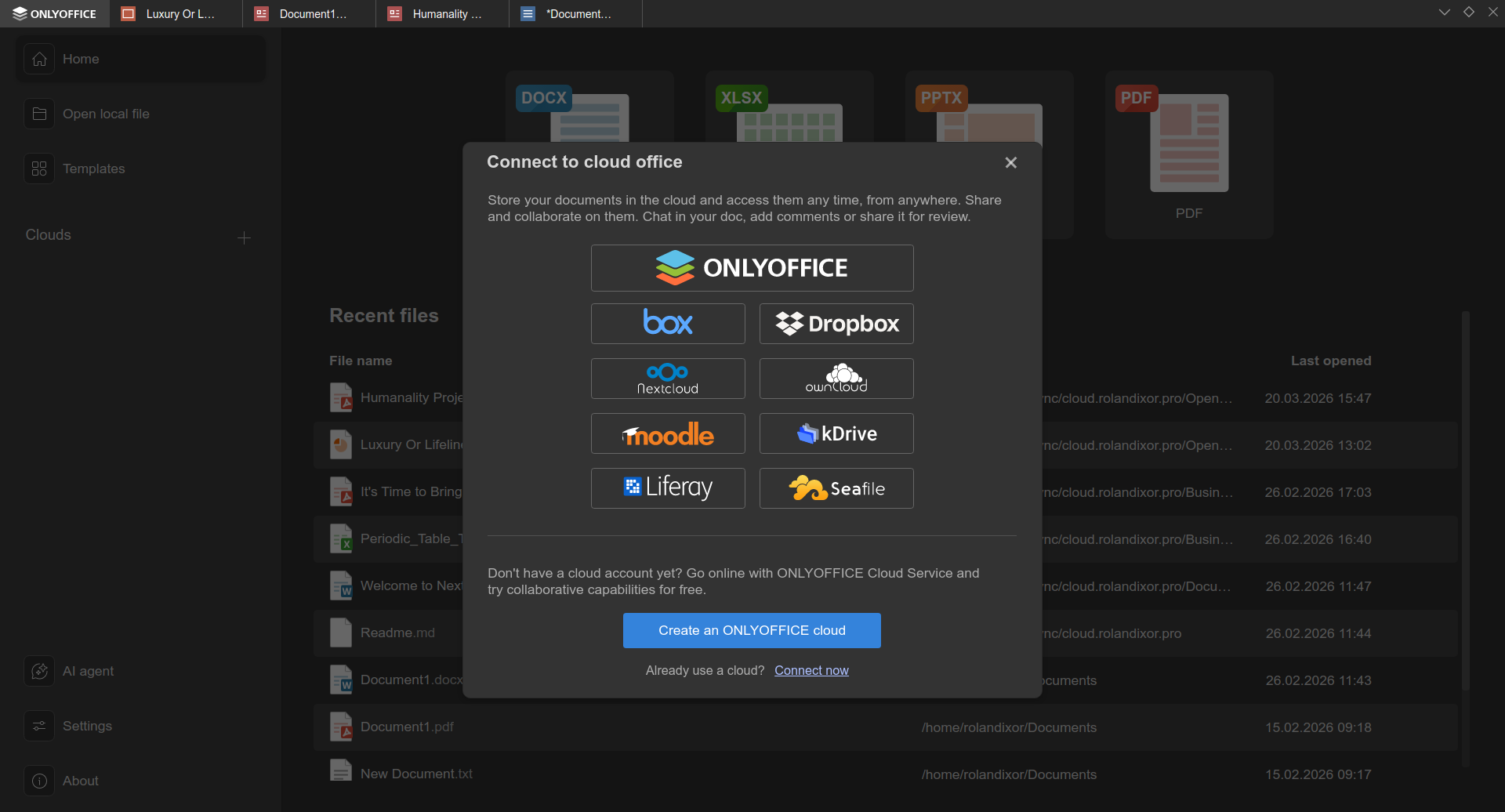
Its robust sharing and interoperability features make it a perfect solution for collaborative work in distributed teams, or for one individual working across multiple devices and locations.
Office format compatibility

File formats are not just a matter of taste. They can define the limits of what a document can store and preserve, affecting everything from formatting and formulas to comments, transitions, and animation compatibility between office suites. While there is real value in choosing open, well-documented formats, there is still a critical need for compatibility with the dominant player in the field: Microsoft Office.
Both LibreOffice and ONLYOFFICE offer strong support for Microsoft Office document formats, but there are some notable differences in the breadth and consistency of that support. If cross-platform compatibility is important to you, or you work in an environment where Microsoft formats are a requirement, those differences can easily become a deciding factor.
Beyond this, these suites differ significantly in their format focus, with ONLYOFFICE focusing on more traditional, modern formats, while LibreOffice preserves support for numerous legacy formats from many other office suites and applications.
LibreOffice: All-in on ODF, with growing support for other formats
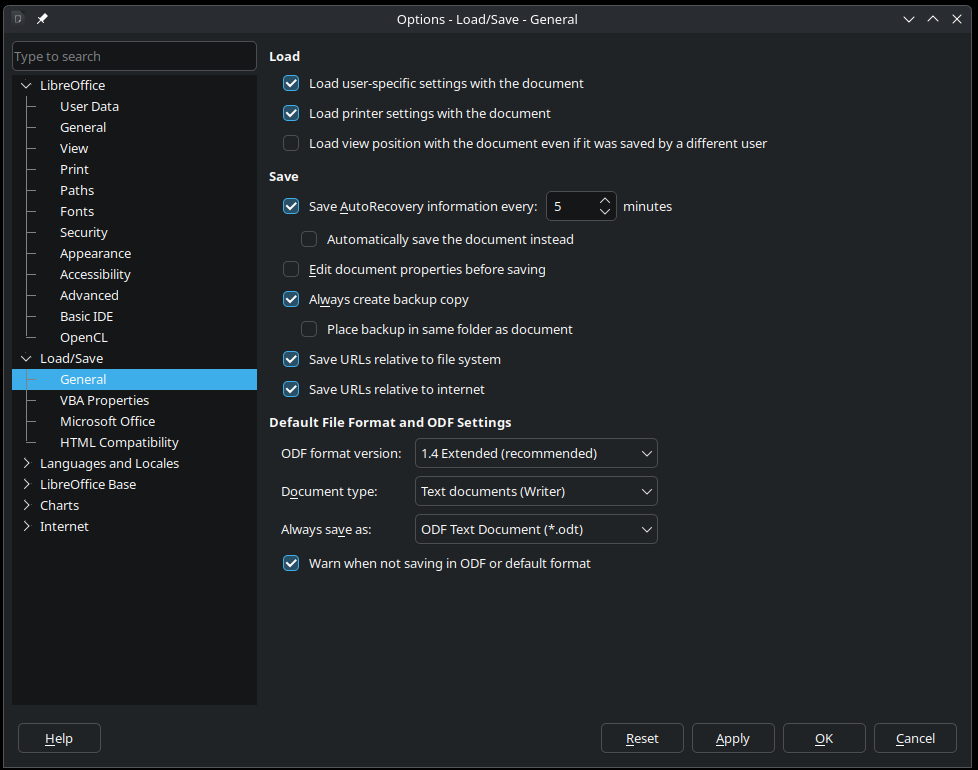
Being developed under The Document Foundation, one of the strongest champions of the Open Document Format (ODF), it should come as no surprise that LibreOffice uses these formats natively across all of its applications. Writer uses Open Document Text (ODT), Impress uses Open Document Presentation (ODP), Calc uses Open Document Spreadsheet (ODS), and so on. In theory, these formats can be opened in any office suite that supports this open standard and preserve full functionality.
Unfortunately, the reality tends to be disappointing in practice. Even though ODF is an open standard and well documented, many office suites still lack full support for its more complex features. The result is that increased data loss in other applications is real — from broken formatting, to altered layouts, to wholly unsupported features.
Ironically, because LibreOffice also offers broad support for both the Office Open XML (OOXML) formats, and older Microsoft document formats, these can sometimes provide a smoother experience for collaboration across different office suites. You can even make these formats the default for some LibreOffice applications. In other words, LibreOffice may be most faithful to ODF, but Microsoft’s formats often remain the practical choice for interoperability.
ONLYOFFICE: Native support for Microsoft Office formats
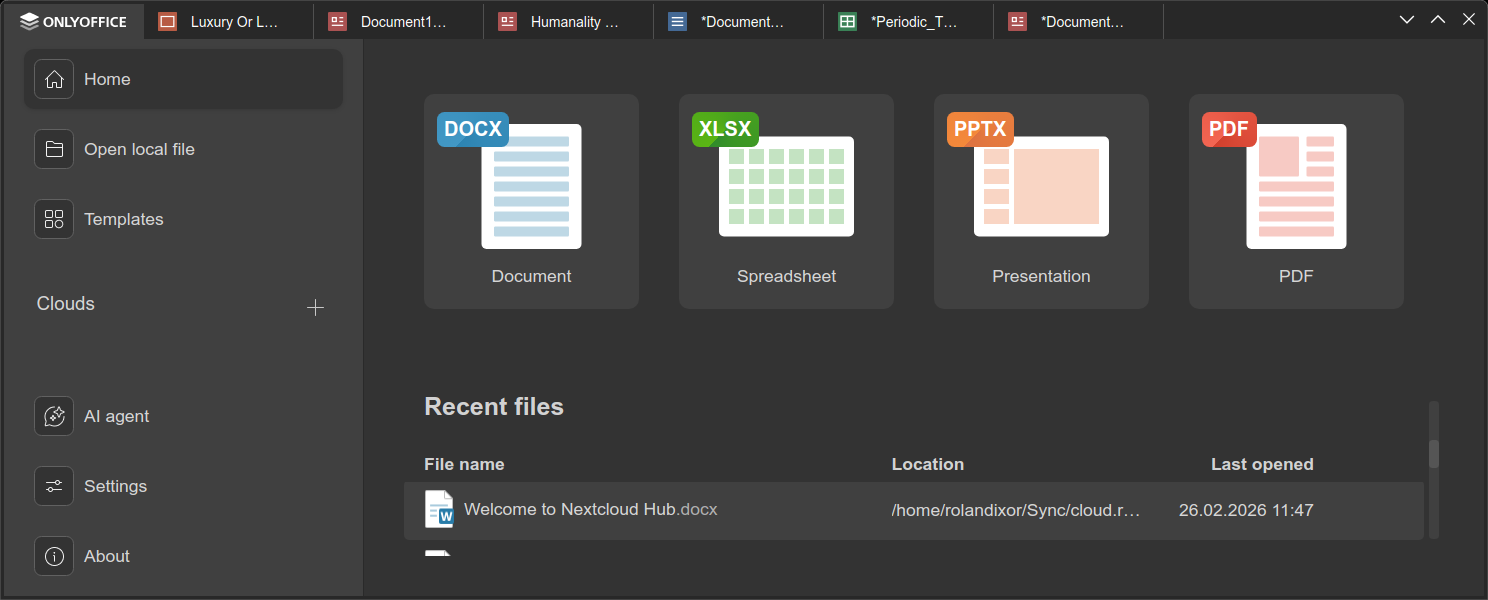
Unlike LibreOffice, ONLYOFFICE was deliberately built around the Office Open XML (OOXML) format, the standard used by Microsoft Office. ONLYOFFICE not only uses DOCX, XLSX, and PPTX for its default outputs, but also as the internal translation of other formats. In practice, this typically translates to ONLYOFFICE having strong compatibility with documents generated in Microsoft Office, especially text documents.
Yet, while this deeper compatibility is a plus on one end, it does come with an unexpected tradeoff. Particularly, ODF documents, while supported, do sometimes fail to convert cleanly, which I've found to result in a loss of formatting or other issues. So, while it's nice to have greater interoperability with Microsoft Office, you might want to reconsider if you're planning to exchange complex documents between ONLYOFFICE and LibreOffice.
Another difference between the two is that ONLYOFFICE doesn't offer the depth of legacy format support available with LibreOffice. To be fair, this won't matter much to the average user, since most documents created in the last twenty years or so were likely saved in formats that are well supported across modern office suites. However, if you're trying to recover or work with files from older or less common apps, such as AbiWord or Microsoft Publisher, you'll be out to sea. ONLYOFFICE specifically targets widely used formats and a narrower set of alternatives.
User interface comparison
No doubt, this is one area where these two office suites couldn't be more different. For starters, ONLYOFFICE is designed to more closely resemble the more popular and familiar Microsoft Office-style "Ribbon" interface, which was first introduced in Office 2007. LibreOffice on the other hand, has long defaulted to a more traditional interface of toolbars and sidebars, before introducing its own "Ribbon-like" interface, along with a selection of others that sit somewhere in between.
Beyond this superficial difference, they use different toolkits for their interfaces, with LibreOffice using its own "VCL" toolkit, and ONLYOFFICE being built on Qt5 and web technologies.
LibreOffice: Highly versatile, unfairly maligned
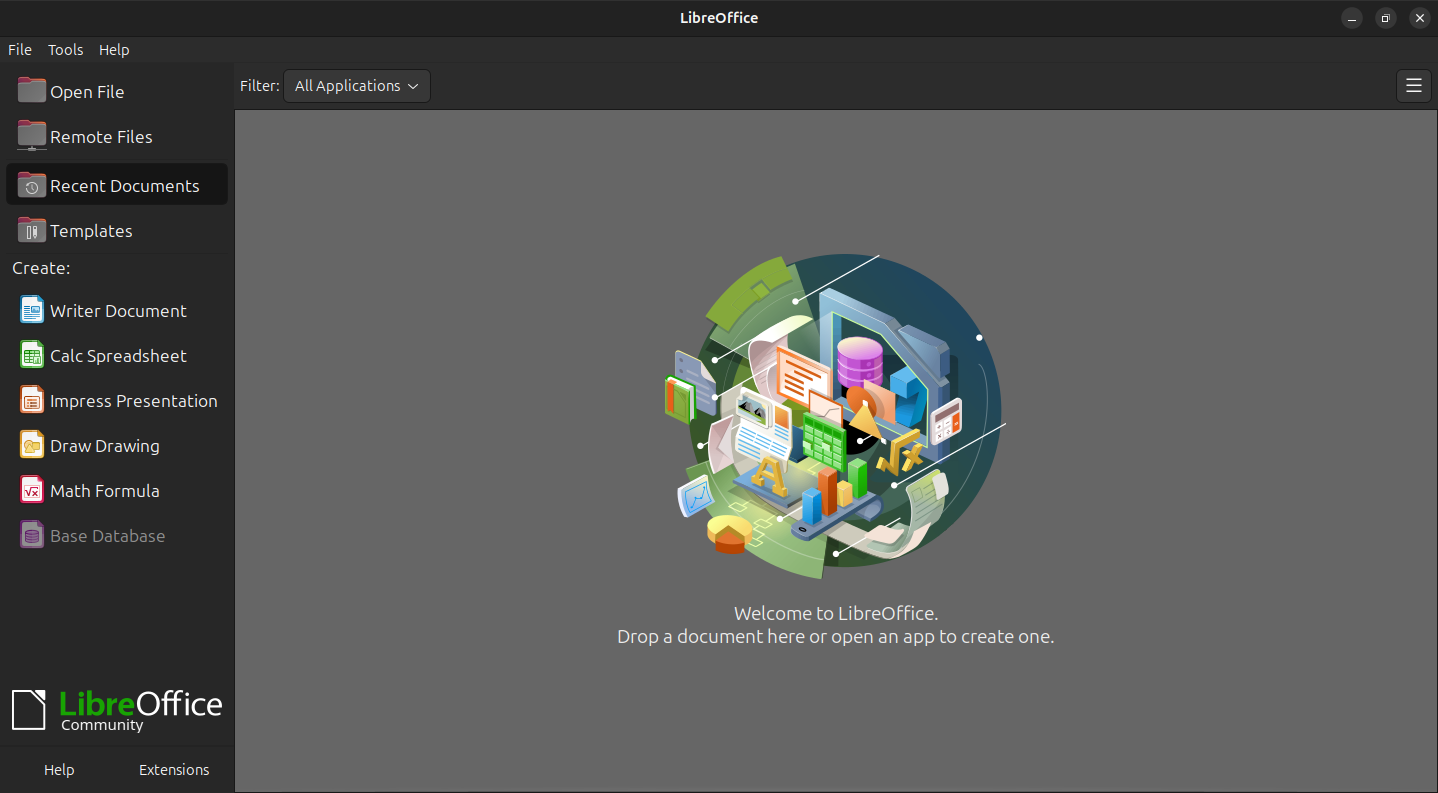
LibreOffice is notorious for its interface, but unfortunately it's because many find it to be somewhat "outdated". To be fair, this is really a mostly matter of taste. LibreOffice interface paradigm emphasises practicality, functionality, and reliability over visual appeal, and its interface is a reflection of this. It hails from a time when applications were judged equally by how much they could do, versus how easily you could get it done.
As a result, the interface can seem a little crowded to some users and perhaps even a little confusing, but LibreOffice overcomes this challenge by presenting users with even more functionality:
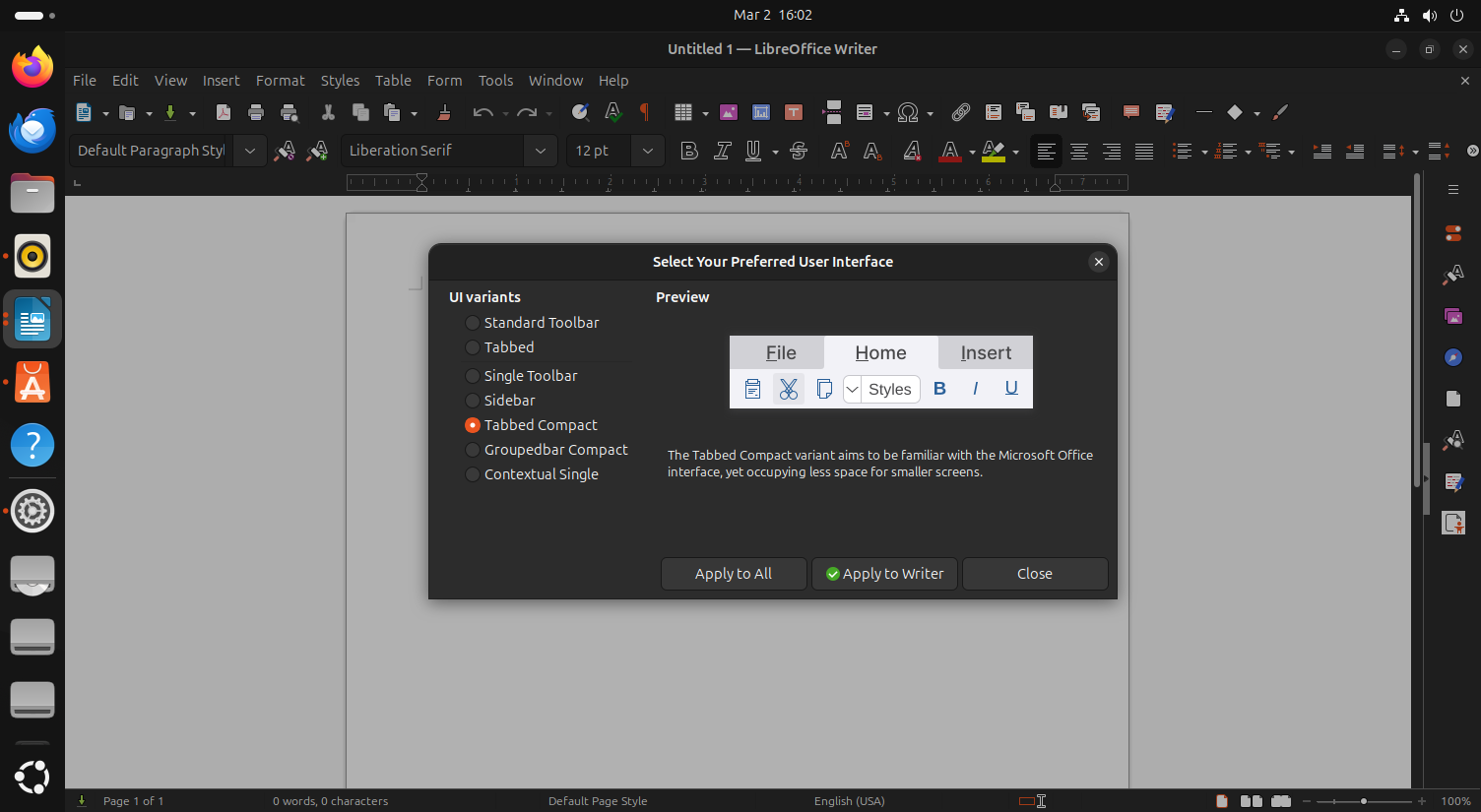
Not only does LibreOffice let you choose between interface styles, it lets you choose styles on as per-application or global basis, so you have the most appropriate UI for your individual needs.
ONLYOFFICE: Familiar for Microsoft Office denizens
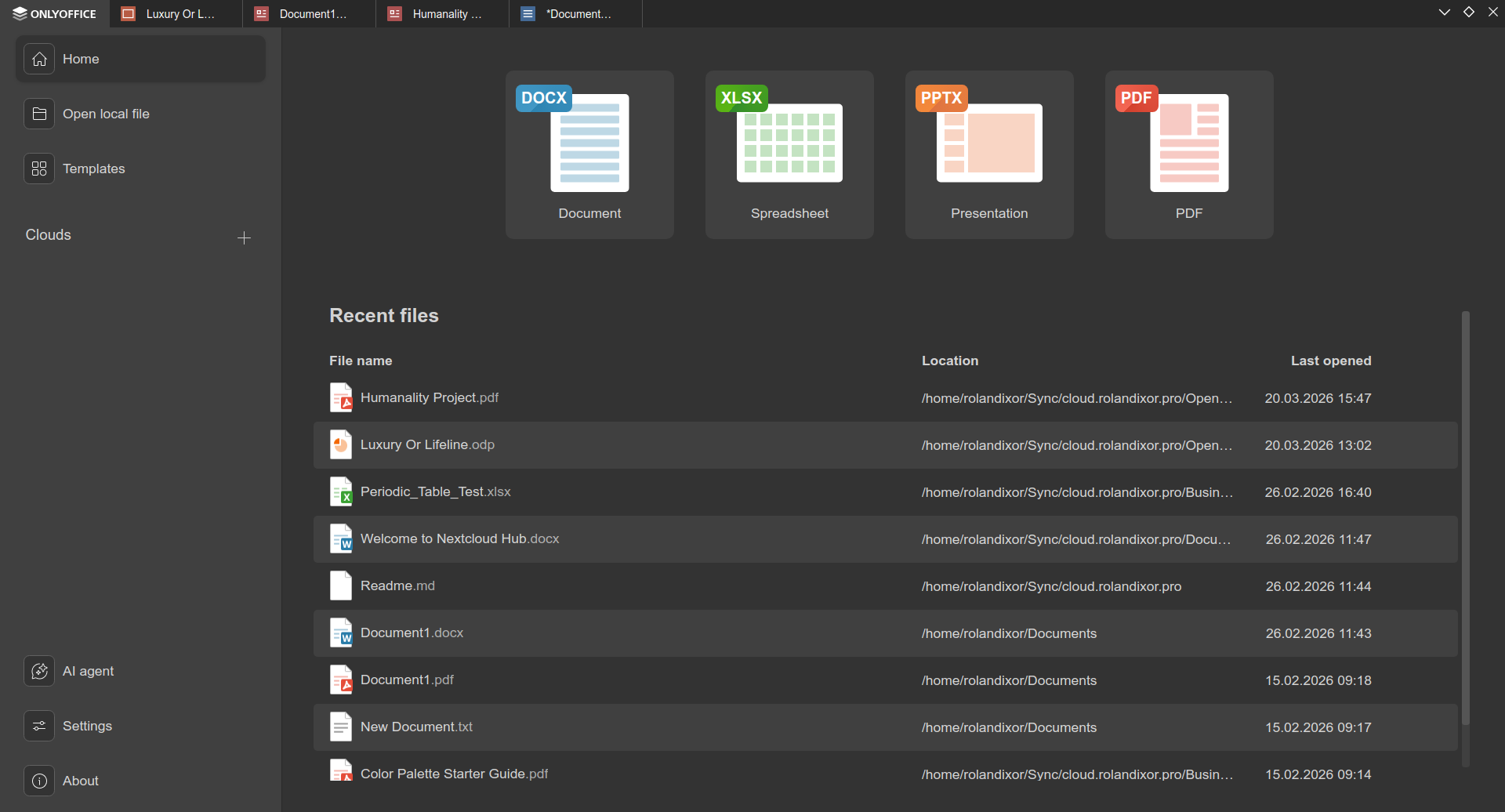
Unlike LibreOffice, which has largely retained the more traditional UI or earlier iterations, ONLYOFFICE aims to more closely resemble MS Office in both appearance and functionality. The first thing you'll notice when you open ONLYOFFICE is its modern aesthetic, which extends to the use of the interface style that was introduced and popularized with Microsoft Office.
Despite being the more "modern" choice, the ONLYOFFICE UI can be a little confusing if you're more used to the "classic", "traditional" interfaces common in office suites of the past. For instance, you might find yourself wondering whether to choose "Home", "File" or "ONLYOFFICE" from the toolbar when trying to open a file. Granted, once you're used to it, any interface becomes second nature, but I personally did find this redundancy to be a minor source of confusion.
Handling documents (word processing)
No office suite is worth even mentioning without a solid word processor, so it makes sense this component is arguably the most mature between these two.
LibreOffice Writer: The underrated juggernaut
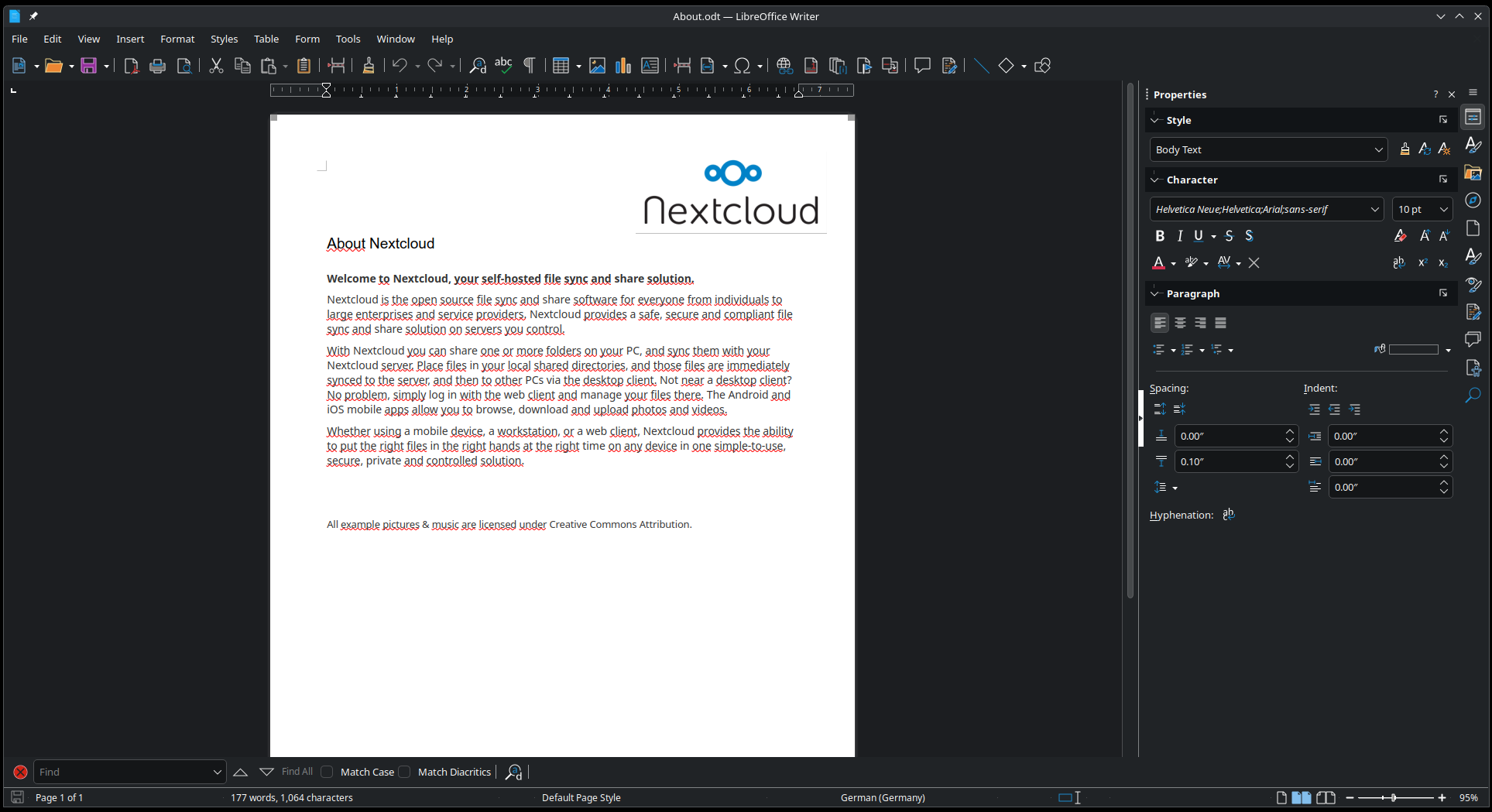
As the subtitle suggests, LibreOffice Writer is often overlooked for just how powerful it really is. Perhaps my bias is showing here, since Writer is by far my word processor of choice whether for business or writing sci-fi novels. Writer comes with features you probably never knew you needed, and even more potential thanks to its extensibility.
Beyond the standard formatting features, Writer features spell-checking with custom dictionaries, grammar checking, a highly intuitive and versatile styling system, collaborative editing features (including comments, change tracking) and support for complex layouts. Writer also allows you to set a printable background image for your document's pages, something which both Microsoft Office and ONLYOFFICE lack.
As someone who sometimes needs to produce branded documents for clients, this is must-have feature that I have yet to find in any other document/word processor. This feature differs from the watermark feature found in other similar applications, a feature writer also possesses.
ONLYOFFICE Documents: Familiar, focused, and collaboration-friendly
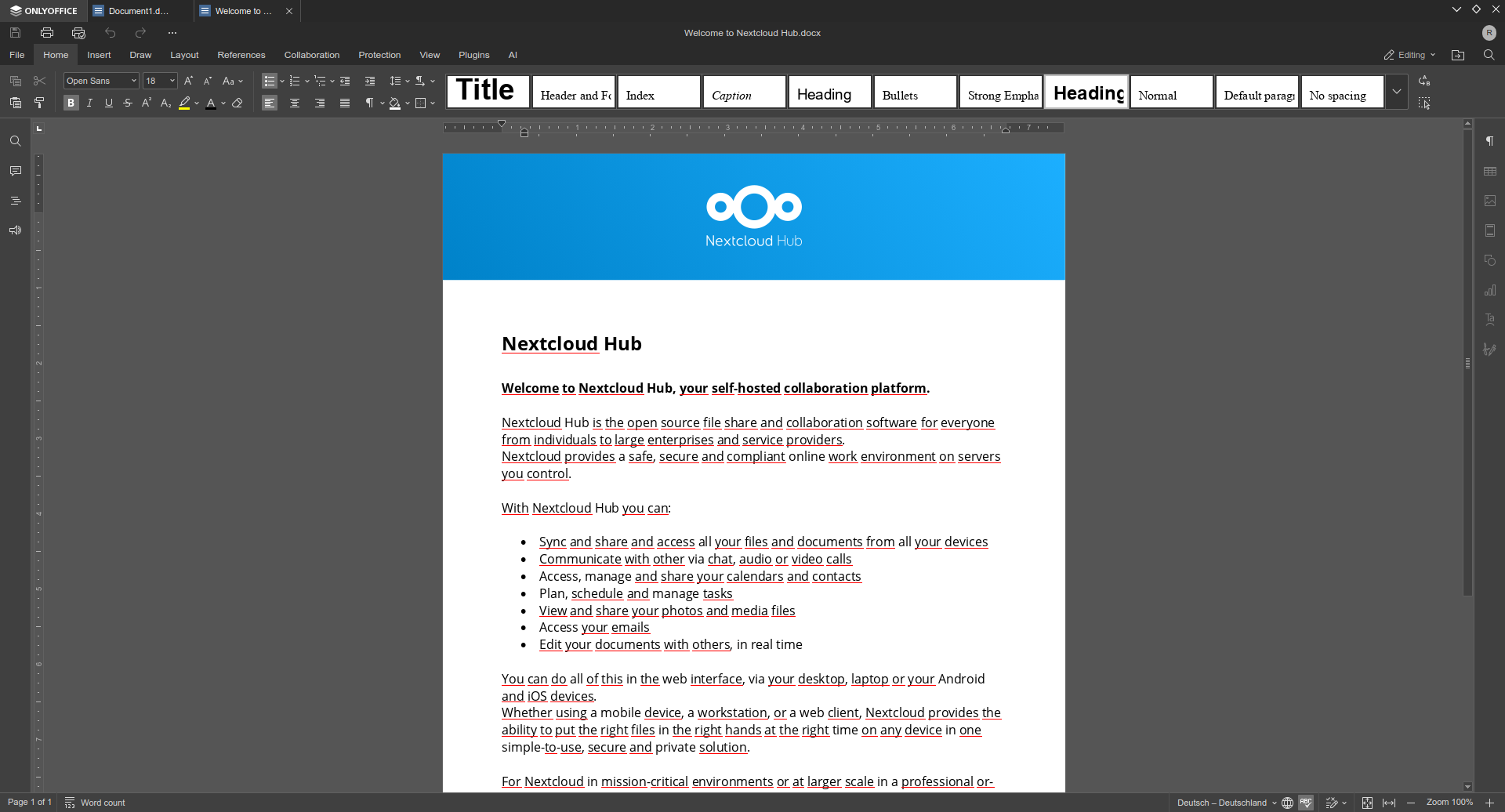
As the "new kid on the block," ONLYOFFICE Documents may not feel quite as deep or immediately distinctive as LibreOffice Writer at first glance, but it makes up for this with its own slew of helpful features. It supports real-time collaboration, plugins for additional functionality, including spellchecking options, fillable forms, and a range of export and conversion options, including Markdown and HTML.
Beyond the expected formatting, styling, and layout tools, ONLYOFFICE Documents puts a strong emphasis on practical compatibility and teamwork. Its featureset and styling choices, even down to the decision not to include the aforementioned page background image support, are all choices to ensure fidelity of OOXML documents.
Its design suits writers who prefer a more focused writing space, with muted icons and tools that only activate when you need them. Where LibreOffice Writer often feels like everything plus the kitchen sink, ONLYOFFICE Documents feels quite streamlined. It doesn't try to overwhelm you with too many paths to the same result, and for many users that simplicity can be a strength.
The presentation experience
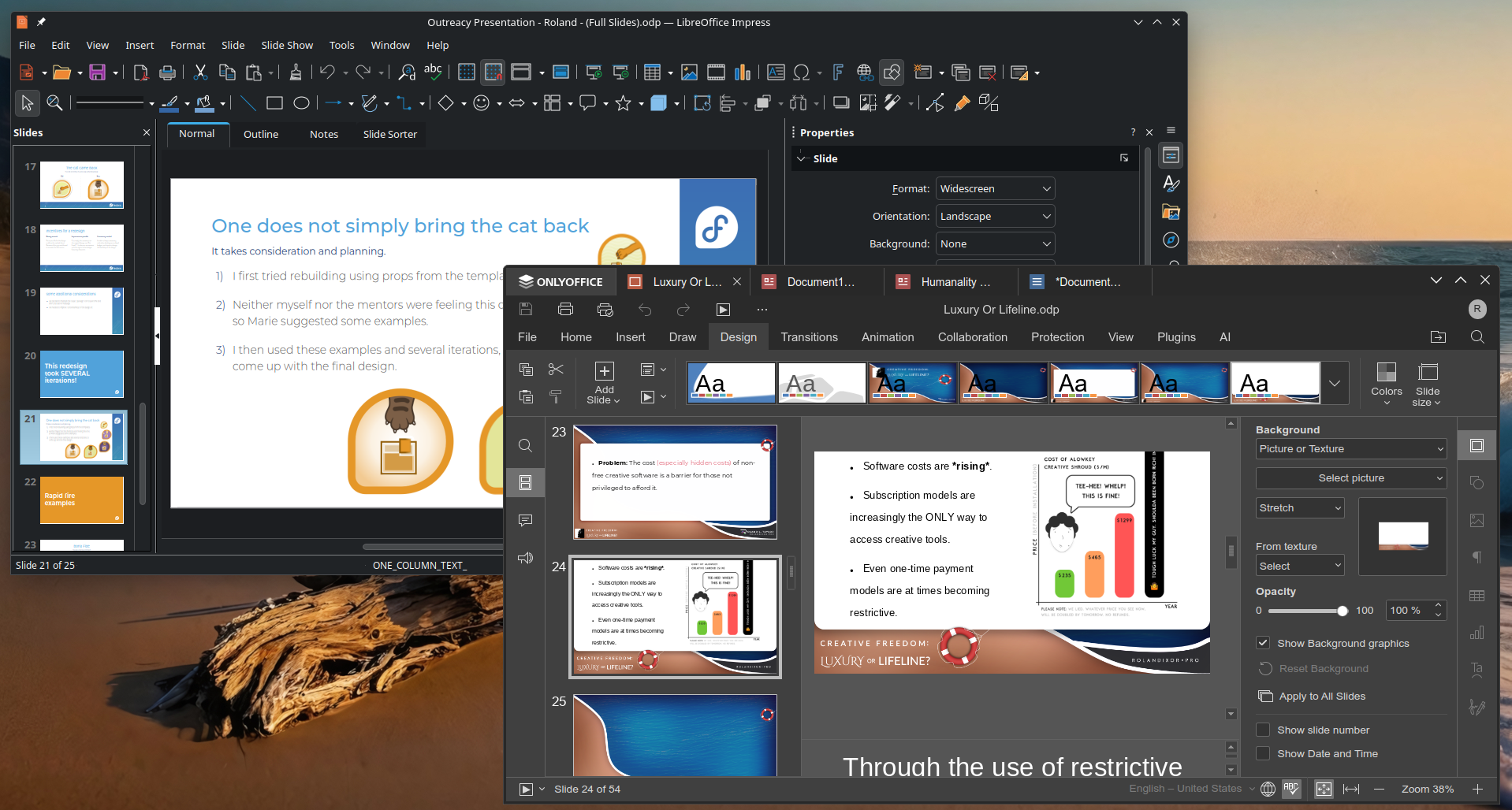
Between the two suites, their approach to presentations is roughly similar, but each edges the other out in different ways, depending on what your priority is. To put it simple, if you're looking for an interface closer to what you'll get in Microsoft's PowerPoint, ONLYOFFICE Presentations is definitely the winner here. However, if you're looking for a more featureful experience, then LibreOffice Impress is arguably the stronger contender. Let's take a closer look below.
LibreOffice Impress: Mature, robust, yet a little rough
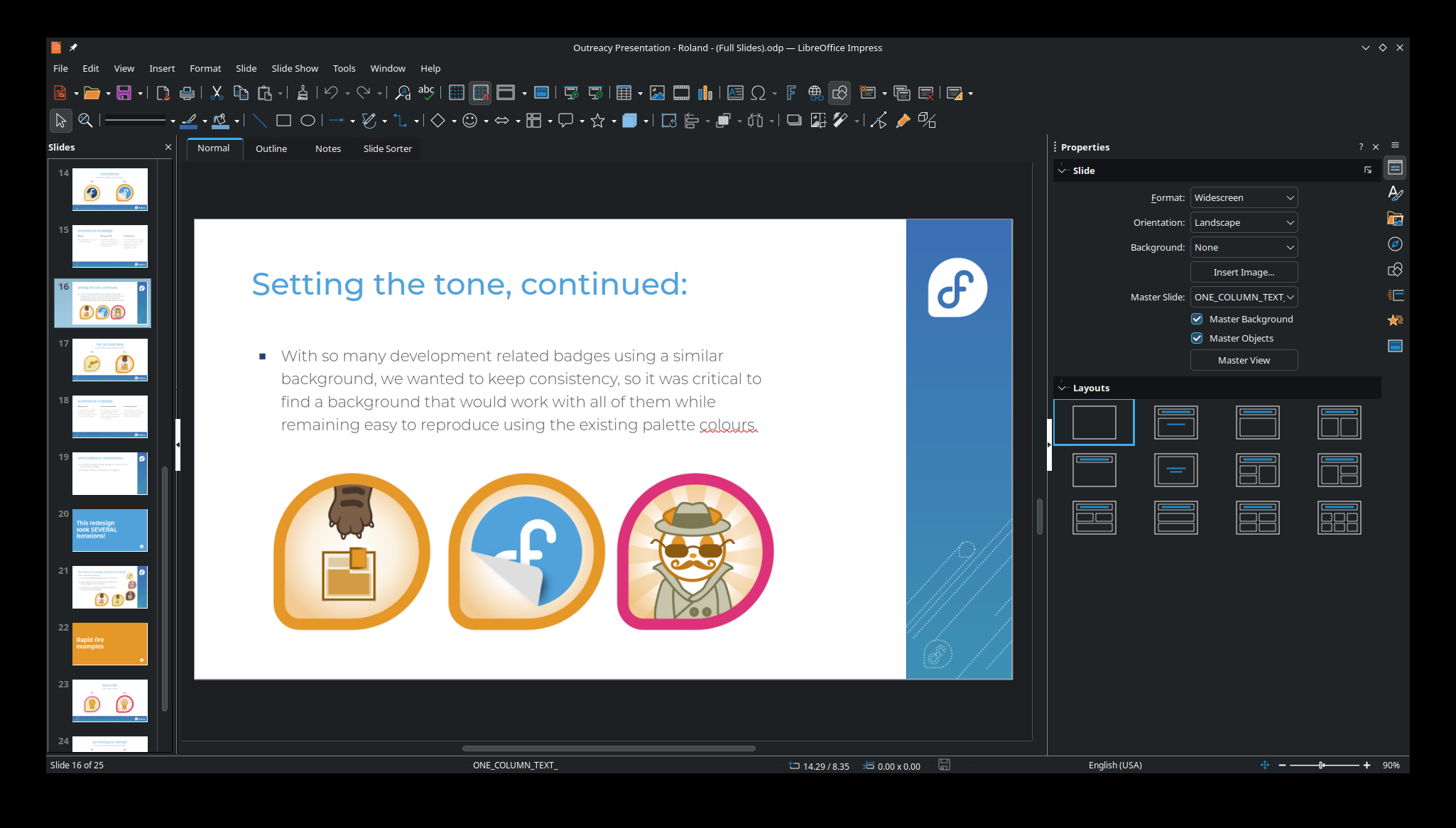
As far as presentation tools go, LibreOffice Impress stands out as one of the more mature options available, featuring much of the standard functionality you'd expect, including complex animations, transitions, and support for multiple master slides and layouts. It's quite comparable to the more well known Powerpoint, but it has long stood out on its own merits, even offering features other presentation editors still don't have. Additionally, it features a polished Presenter Console, and smooth, live presentation editing, two features crucial for professional presenation work.
One example is its impressive 3D transitions, which remain a distinctive and surprisingly effective way to add a little more visual life to a presentation. Impress also supports rich text editing, embedded spreadsheets and charts, videos, and other additions on top of the standard, basic featureset. In my experience over many years of usage, Impress handles both PPT and PPTX files quite well, even up to and including most animations and transitions. Even rich media tends to translate well both on import and export.
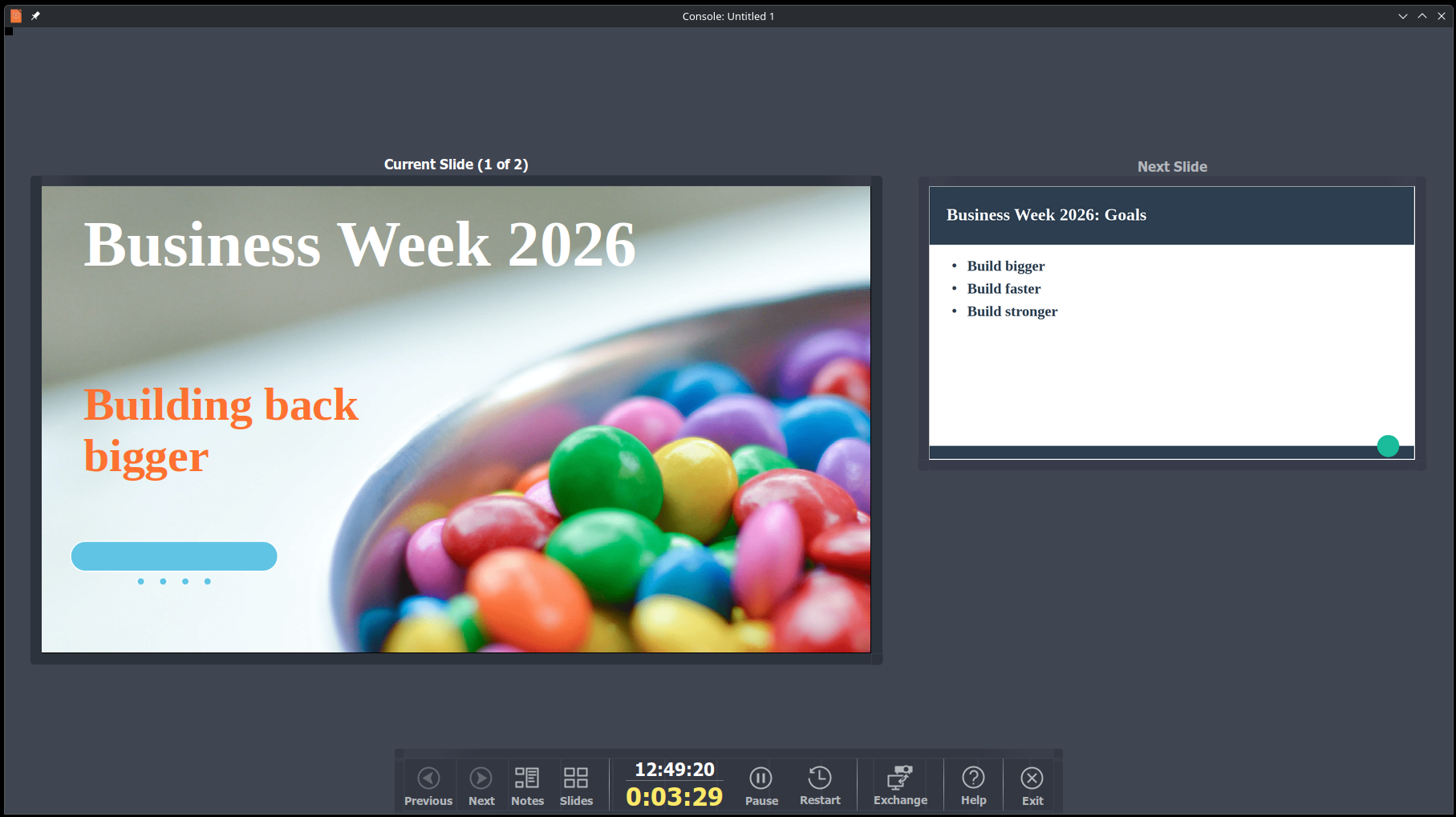
Despite its maturity, Impress can still feel held back in two important ways: familiarity and responsiveness. Users who prefer a more traditional interface may feel right at home, but those more familiar with Microsoft's PowerPoint or similar editors may find the layout a little overwhelming at first. While the learning curve isn't severe, it can take some adjustment for newcomers.
The other issue that some users may encounter with Impress is its performance. In my own experience using LibreOffice across different operating systems and hardware over many years, Impress has consistently been a little sluggish when editing text, or working with larger presentations. Its 3D transitions have also historically not always fared as well on certain graphics drivers.
ONLYOFFICE Presentations: Effectively interesting
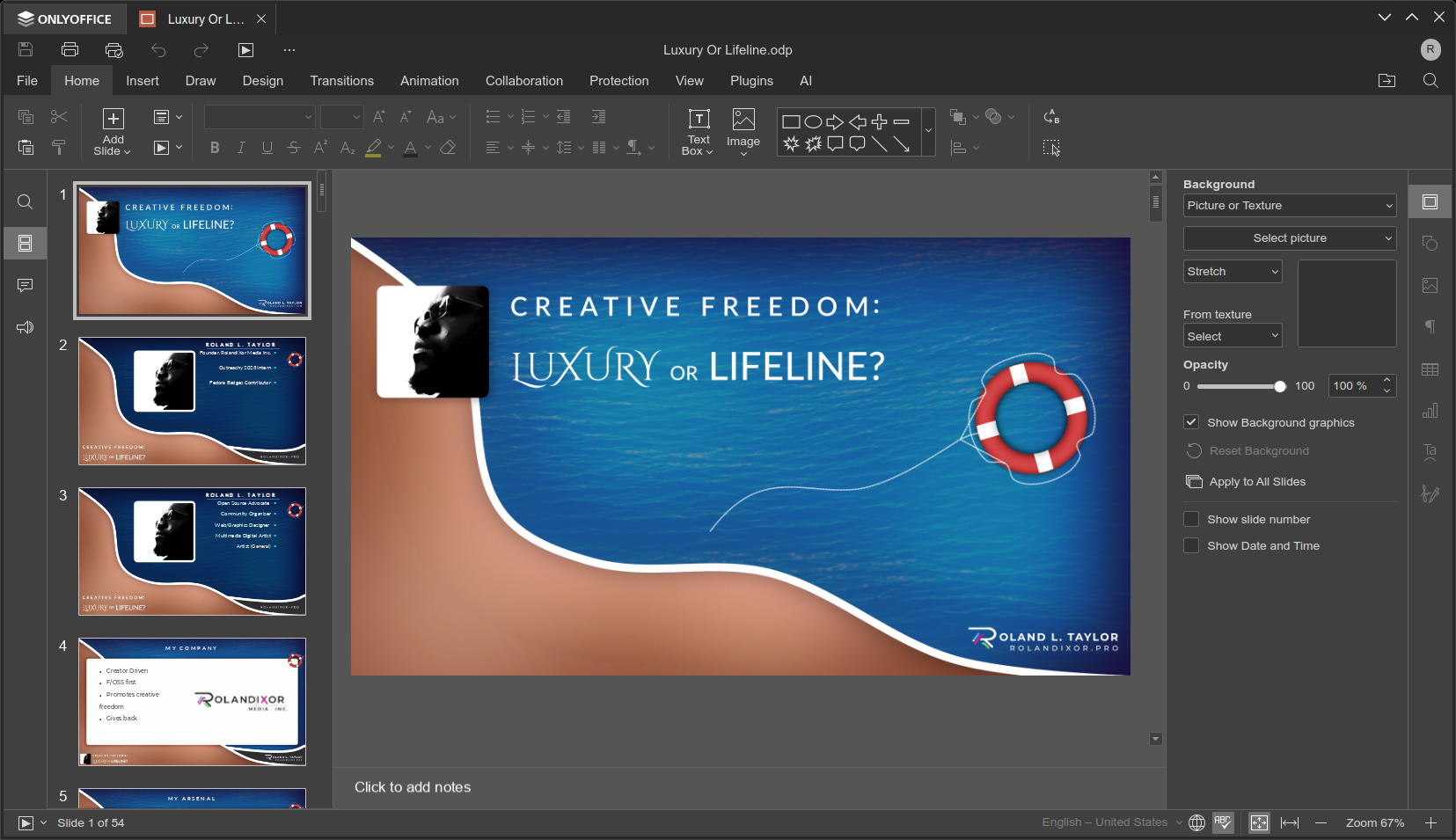
As the newer player of the two, ONLYOFFICE Presentations is not quite as mature as LibreOffice Impress, but it's still quite impressive in its own right. Designed to more closely resemble PowerPoint in both appearance and functionality, it offers a more familiar interface for users who are already accustomed to Microsoft’s presentation workflow. It supports animations, slide transitions, embedded GIFs, and other rich media content, while Slide Master support was added more recently in version 8.1.
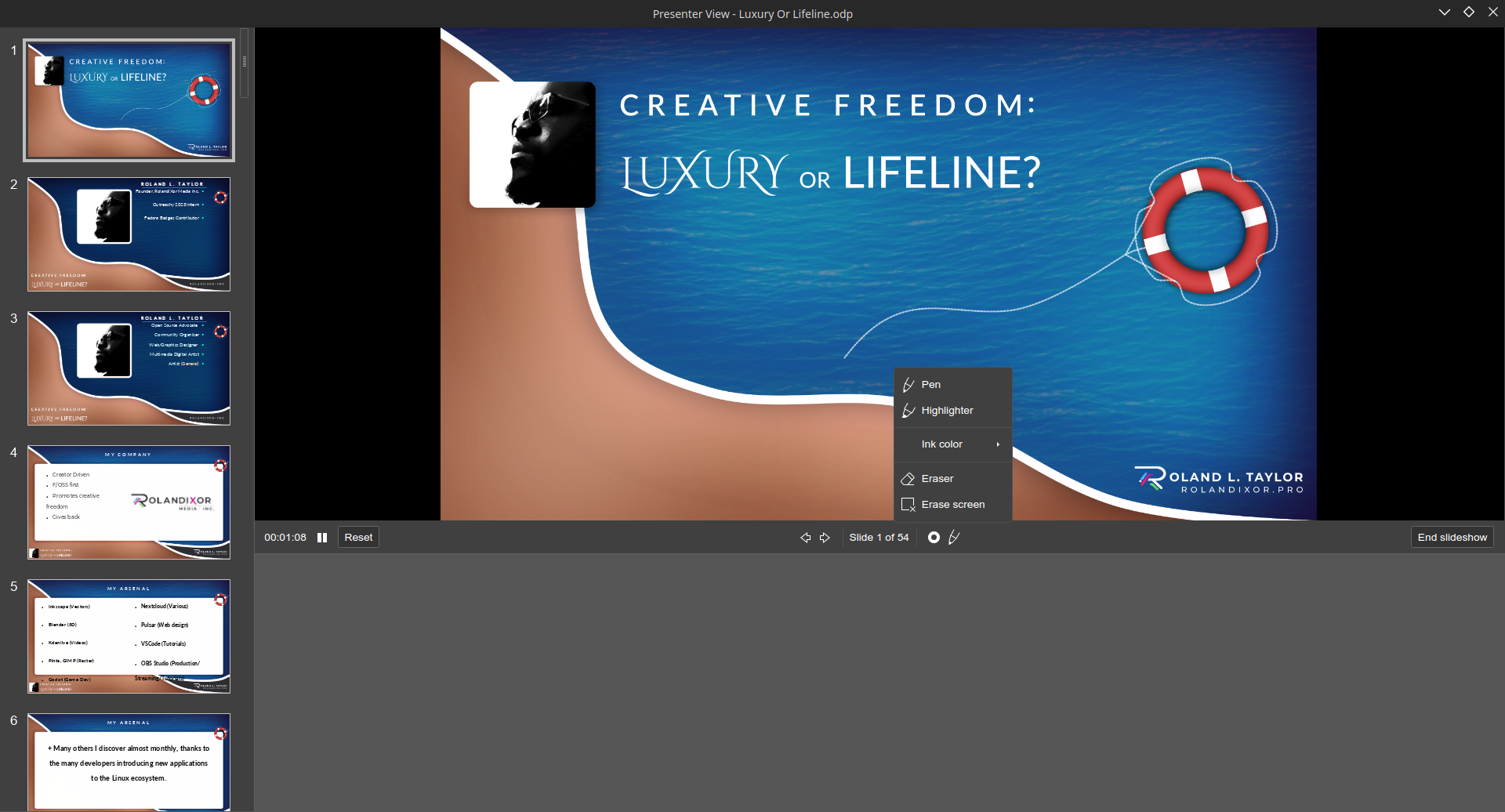
Where ONLYOFFICE Presentations truly stands apart is in its real-time collaborative editing features. From comments to chatting, these features standout front and center in the editor, and make sense for modern workflows where multiple individuals may often be tasked with working together in distributed teams. Additionally, its Presenter View features an intuitive annotation menu. This is a standout feature that even Impress lacks, and for anyone who regularly gives presentations, it could be the decision maker overall. Unfortunately, there's no live presentation editing, unlike with Impress and PowerPoint.
In general, ONLYOFFICE Presentations keeps things simple. Its tools are laid out in a way that feels approachable and easy to understand, which is ideal for users who want to work quickly without digging through layers of controls. Power users may still notice the absence of some of the deeper animation and transition options available in editors like Impress, but for many people, that trade-off will feel perfectly reasonable.
Spreadsheets
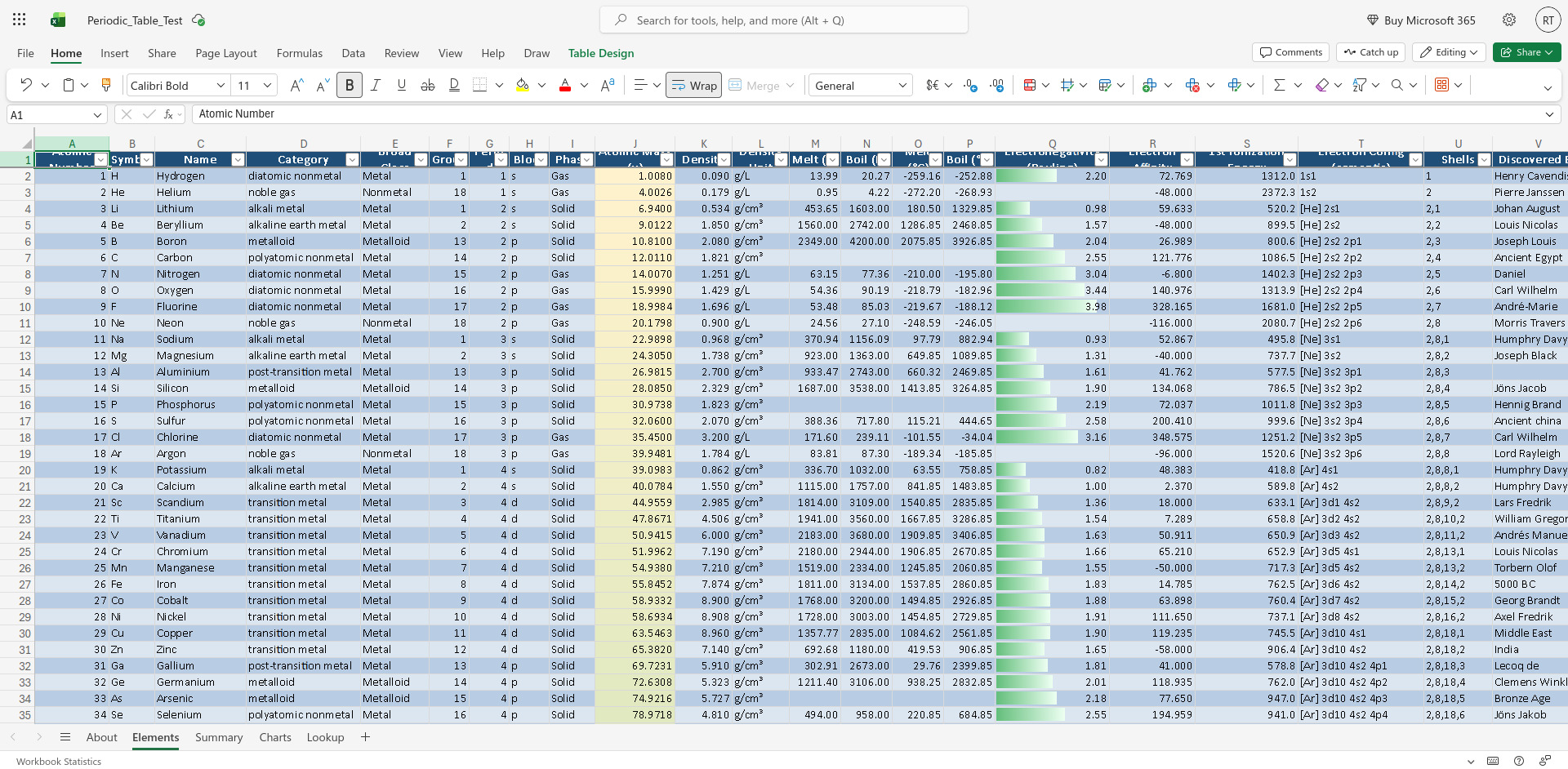
Both these office suites provide robust spreadsheet editors, though their differences are notable when working with complex files. Personally, my rule of thumb with just about any app is to work within its constraints, but when you're working with files that you don't control or you need certain advanced features, certain differences become non-negotiables.
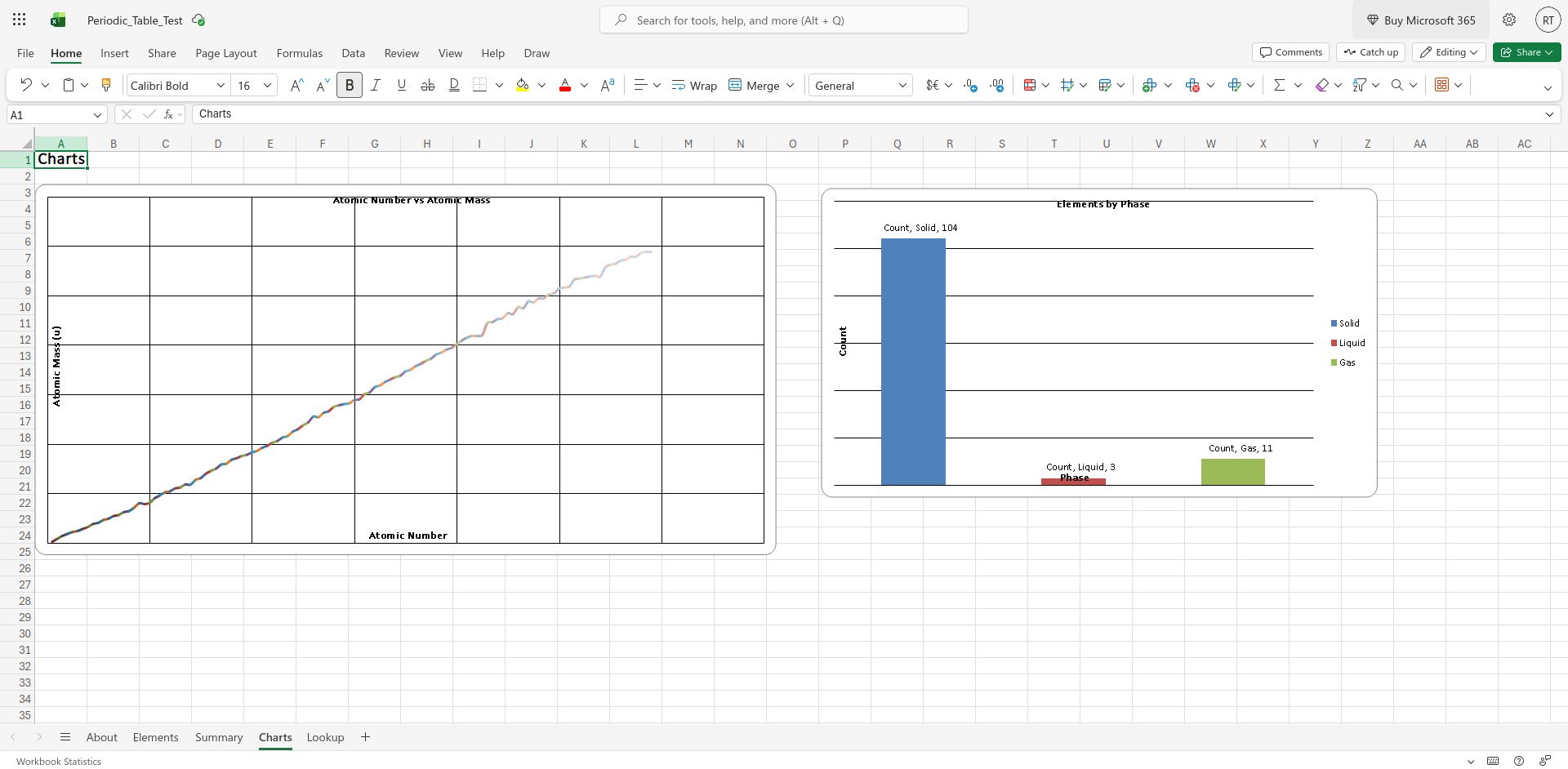
In testing these two with a complex spreadsheet, certain non-negotiables do begin to surface quite quickly. If you're someone who works heavily with spreadsheets, this is one area where the comparison could be "make or break".
LibreOffice Calc: The underrated workhorse
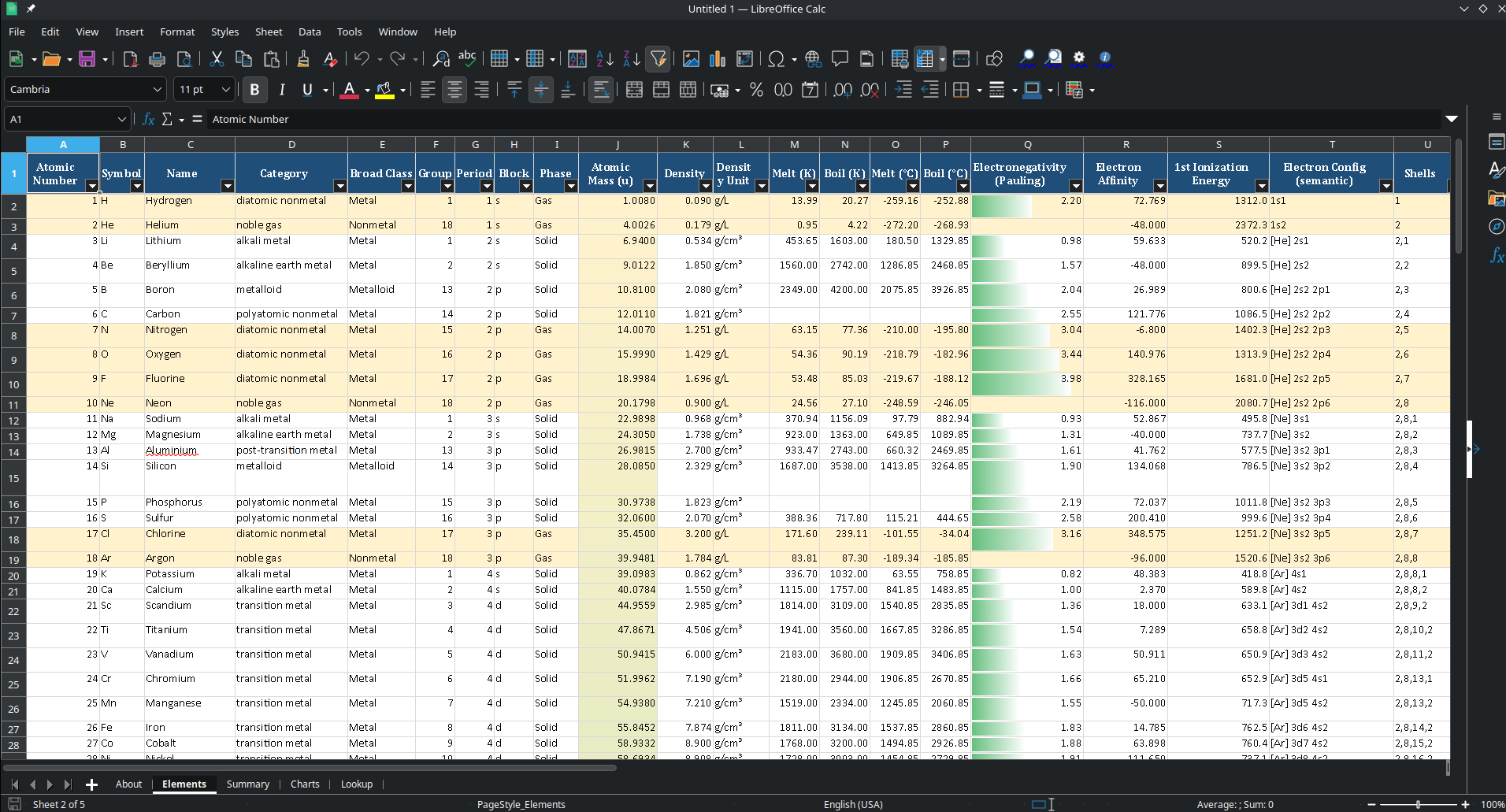
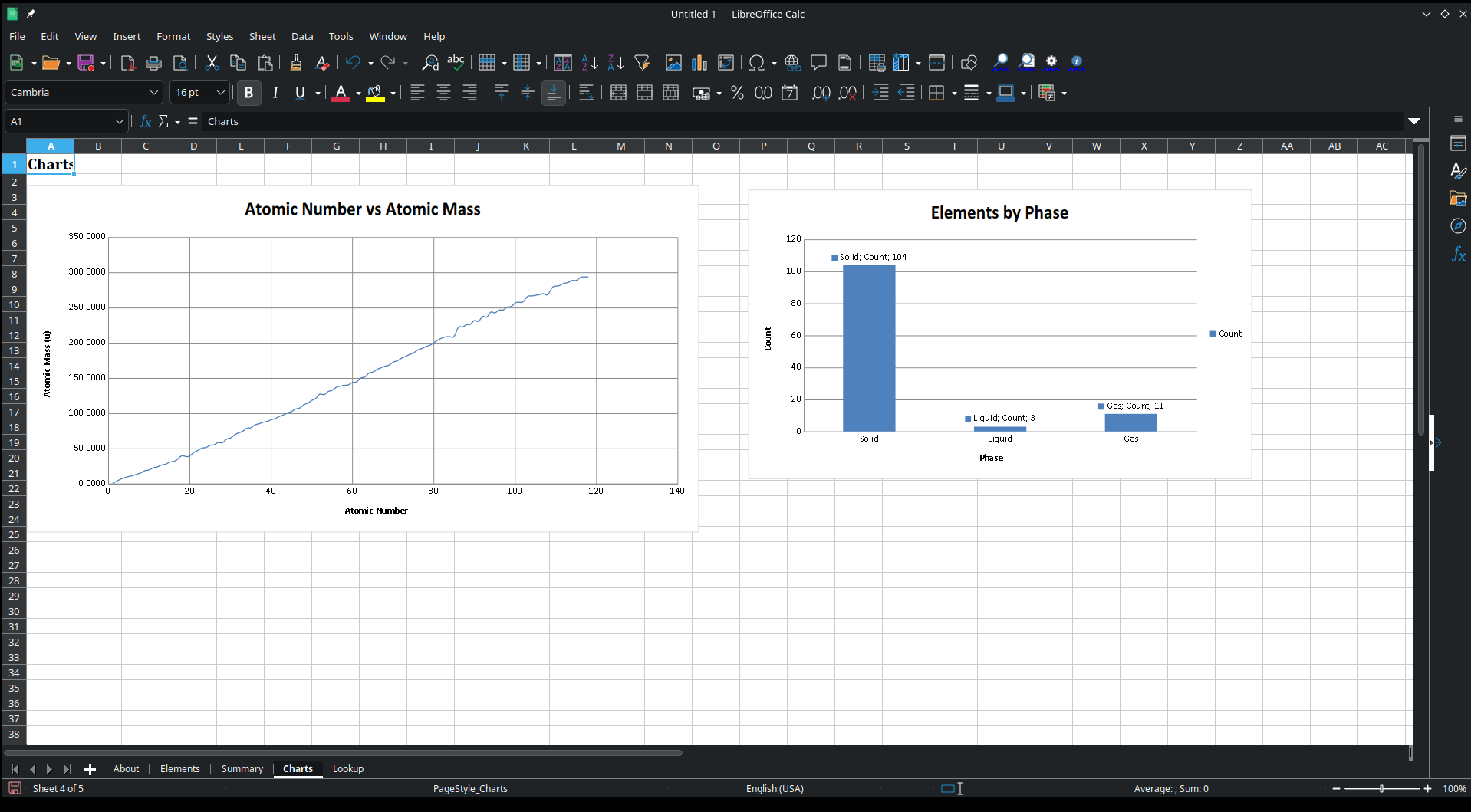
LibreOffice Calc handled the test file reasonably well overall. Both of the charts rendered almost correctly, plotting along the axes accurately. That said, the chart colours weren't preserved, instead defaulting to a generic blue.
In the lookup sheet, the atomic mass field was displayed with an extra decimal place, and some cell background colours were lost, with cells that appeared blue in Excel and ONLYOFFICE showing up with a white background instead.
Individually, these may seem like fairly small issues. In larger spreadsheets, however, especially those with multiple charts, visual cues, or more elaborate lookup tables, they can begin to add up. Even so, Calc still came across as the more dependable of the two in this particular test.
ONLYOFFICE Spreadsheets: Still has some ways to go
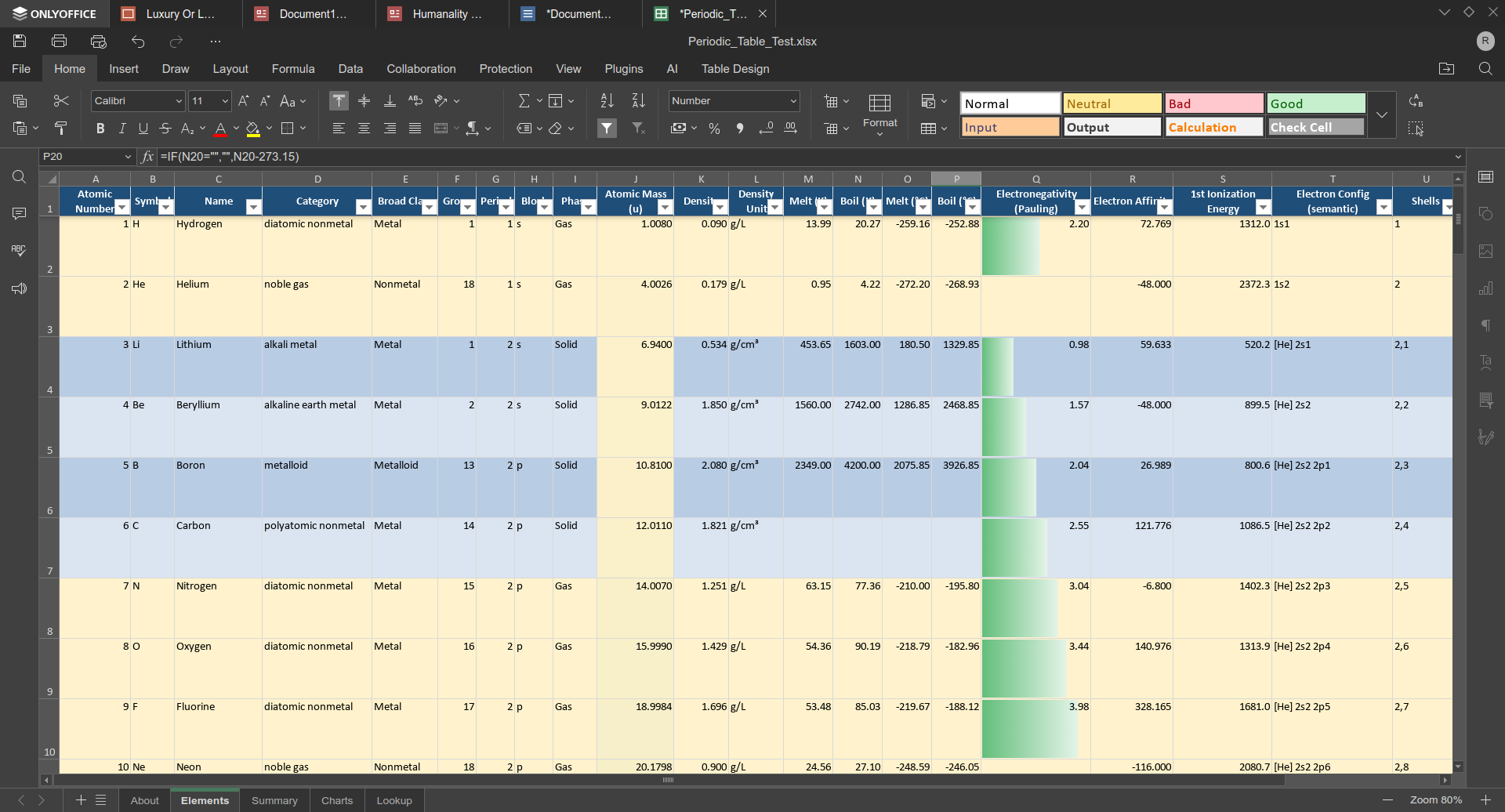
ONLYOFFICE Spreadsheets also managed to open the test file, but with more noticeable rendering problems. Some cells were stretched vertically because the editor chose to wrap overflowing text, which affected the overall layout. The lookup table itself worked correctly, aside from a small rendering bug in the horizontal dividing line beneath the fourth cell.
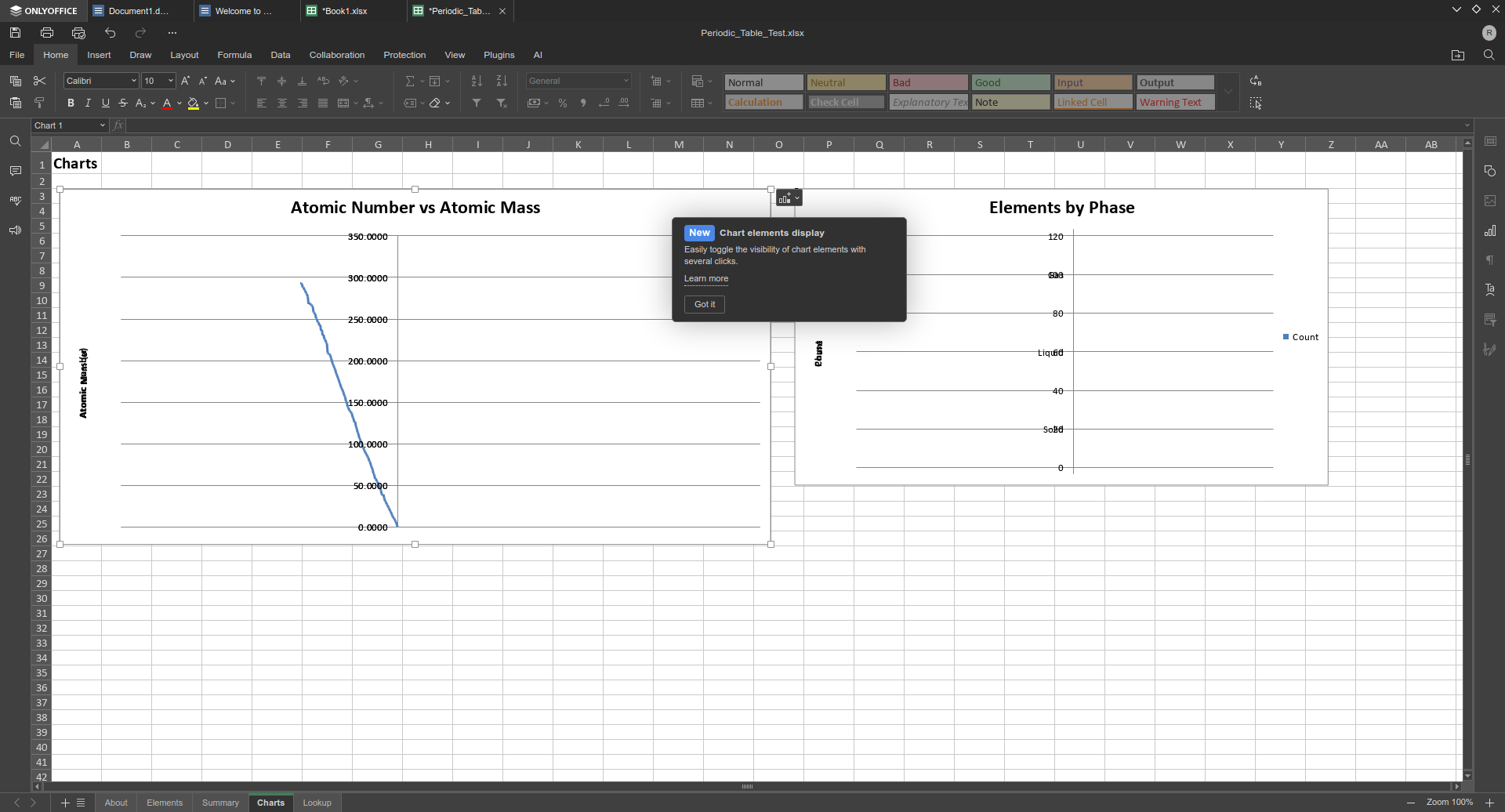
The bigger problem was chart fidelity. The first chart rendered with badly skewed axes, while the second failed to display any data at all. Formula results, however, remained consistent, and the more complex calculations I tested still worked as expected.
If you depend heavily on VBA-driven spreadsheets, it's best to test your own files carefully before settling on either suite.
PDF editing
Full disclosure: I generally use Inkscape and LibreOffice to produce my PDFs. When I need to edit, I just export and replace the original file most of the time. This is probably what most of us do. However, there's still a very real need for editing PDFs for which you don't have the source files, and in that case, you need something more purpose-built for the cause.
So how do these two stack up? Well, while both office suites support PDF editing out the box, the experience between the two couldn't be more different. I'll touch on both of these experiences in more detail below.
LibreOffice Draw: The odd child in the family
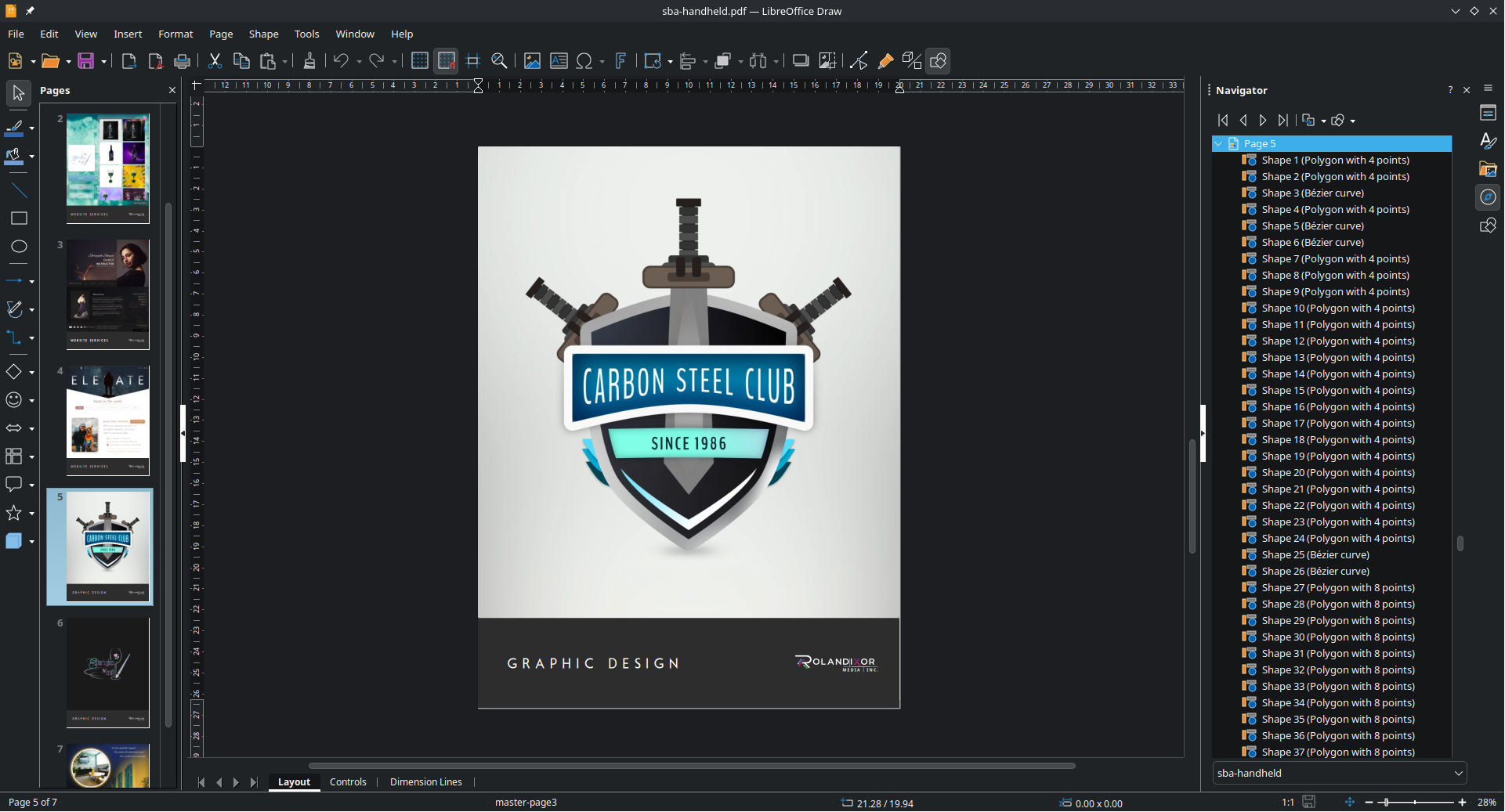
LibreOffice's PDF editing solution is Draw, an interesting blend of a lightweight desktop publishing solution, a diagramming tool, and a vector drawing editor. It doesn't fit neatly into any one category, but this is perhaps its greatest strength.
It can be used for creating and editing PDF documents with complex graphics, flowcharts, and simple illustrations, and is great for handling page layouts. It's one of the most flexible tools in the suite, but its development pace tends to be slower.
Unlike some other PDF editors, Draw isn't well suited for creating or editing long-form text, so if you're authoring such documents, I'd recommend using Writer and exporting to PDF over attempting to edit directly in Draw. Also, while this may be a matter of opinion, its interface and workflow can feel a little clunky when compared to more specialised software in this field, such as Inkscape, but once you get past the differences, Draw makes up for it with a breadth of utility that can sometimes be underestimated.
ONLYOFFICE PDF: "Just right" – at least for text
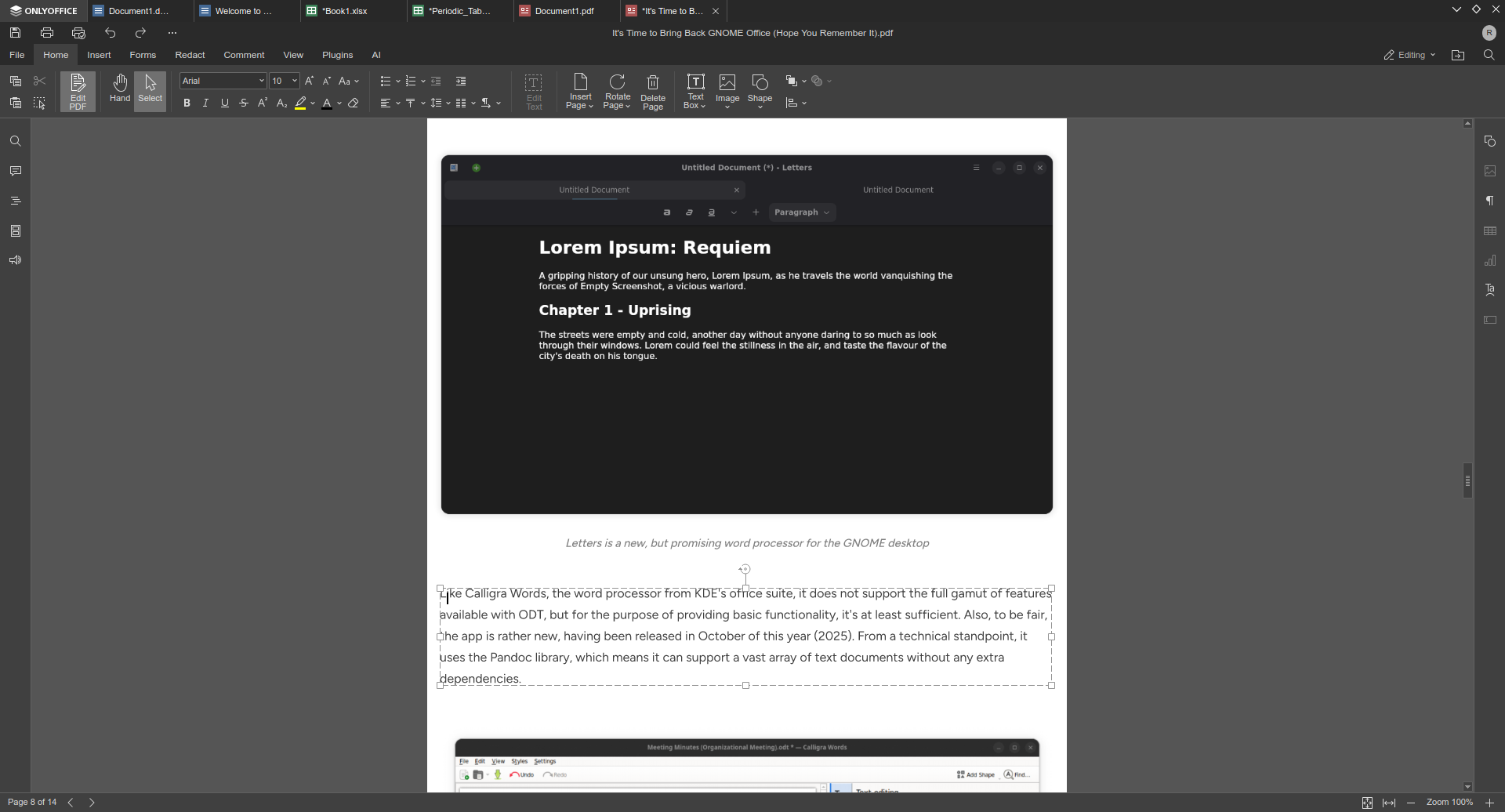
At first glance, ONLYOFFICE PDF appears to be just another word processor, which, I have to say, I found to be a major plus, as there is distinctive lack of Adobe Acrobat-style PDF editors, not only on Linux, but generally.
Where things get even more interesting is the inclusion of different "modes", which automatically activate depending on the nature of the PDF document. If you start a new file in ONLYOFFICE PDF, it functions solely like a word processor. However, if you open a PDF generated in another application, like Inkscape for example, it functions like a more traditional PDF editor, presenting the PDF's contents as objects rather than a flowing text document.
I found this versatility refreshing compared to LibreOffice Draw, but with no clear way to manually switch between these modes on the fly, it leaves a bit to be desired. Perhaps this functionality will improve with time, but for now, it can be a source of some minor confusion.
Unique features and apps between the suites
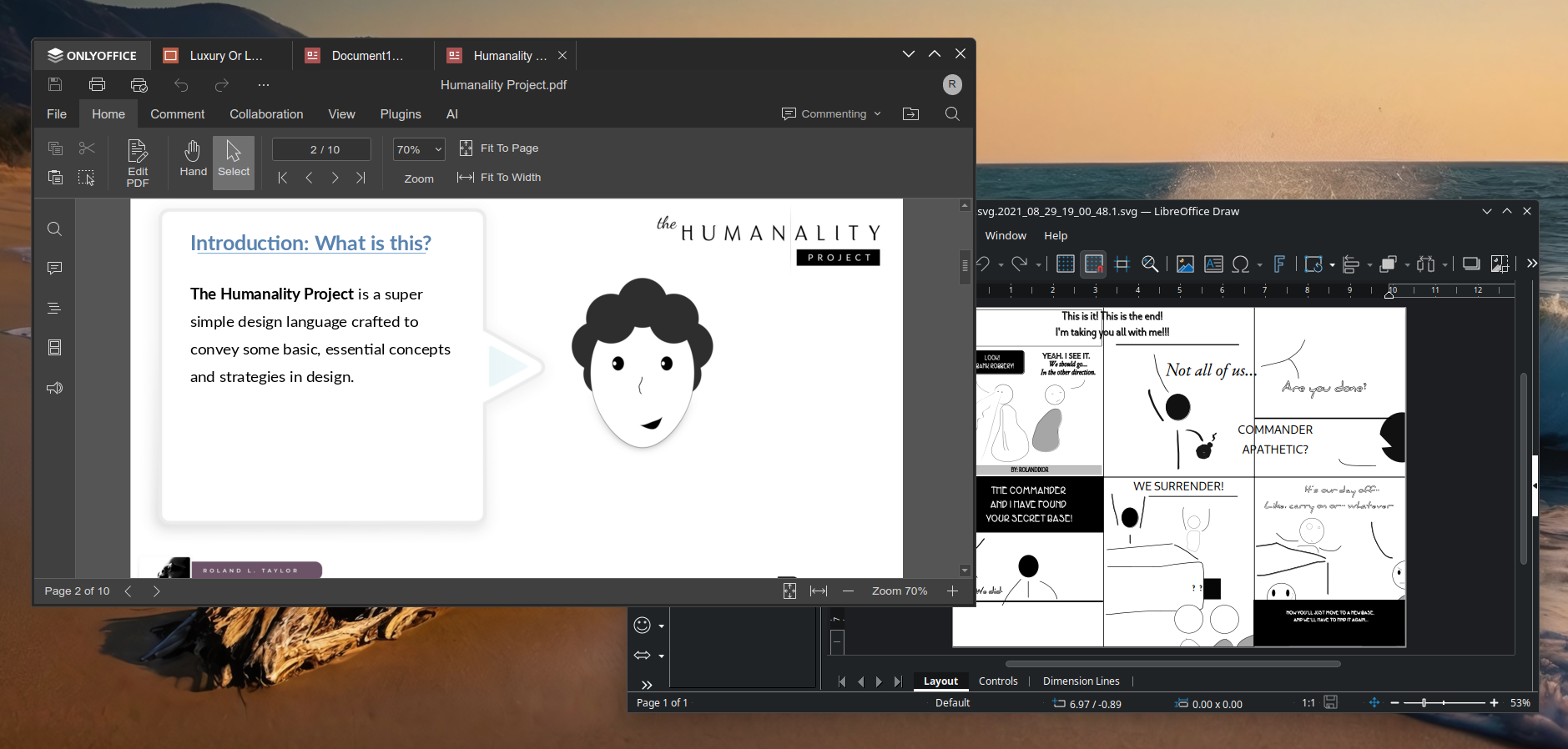
It's true that both these office suites are comprehensive in their own rights, but each one has unique features that set them apart from each other and even above other free and open-source office suites in some respects. After all, it's not just familiar interfaces and file format support that users care about.
LibreOffice: Base, Math
LibreOffice includes two additional applications not typically found in most office suites: Base and Math. They don't get nearly as much attention as the main three (or Draw, for that matter), but they're still an important part of what establishes LibreOffice as one of the of the most popular office suites (open-source or not).
Of the two, LibreOffice Math is least associated with traditional office work at first glance. Even so, all these apps help set LibreOffice apart, not just from ONLYOFFICE, but from office suites as a whole.
LibreOffice Base
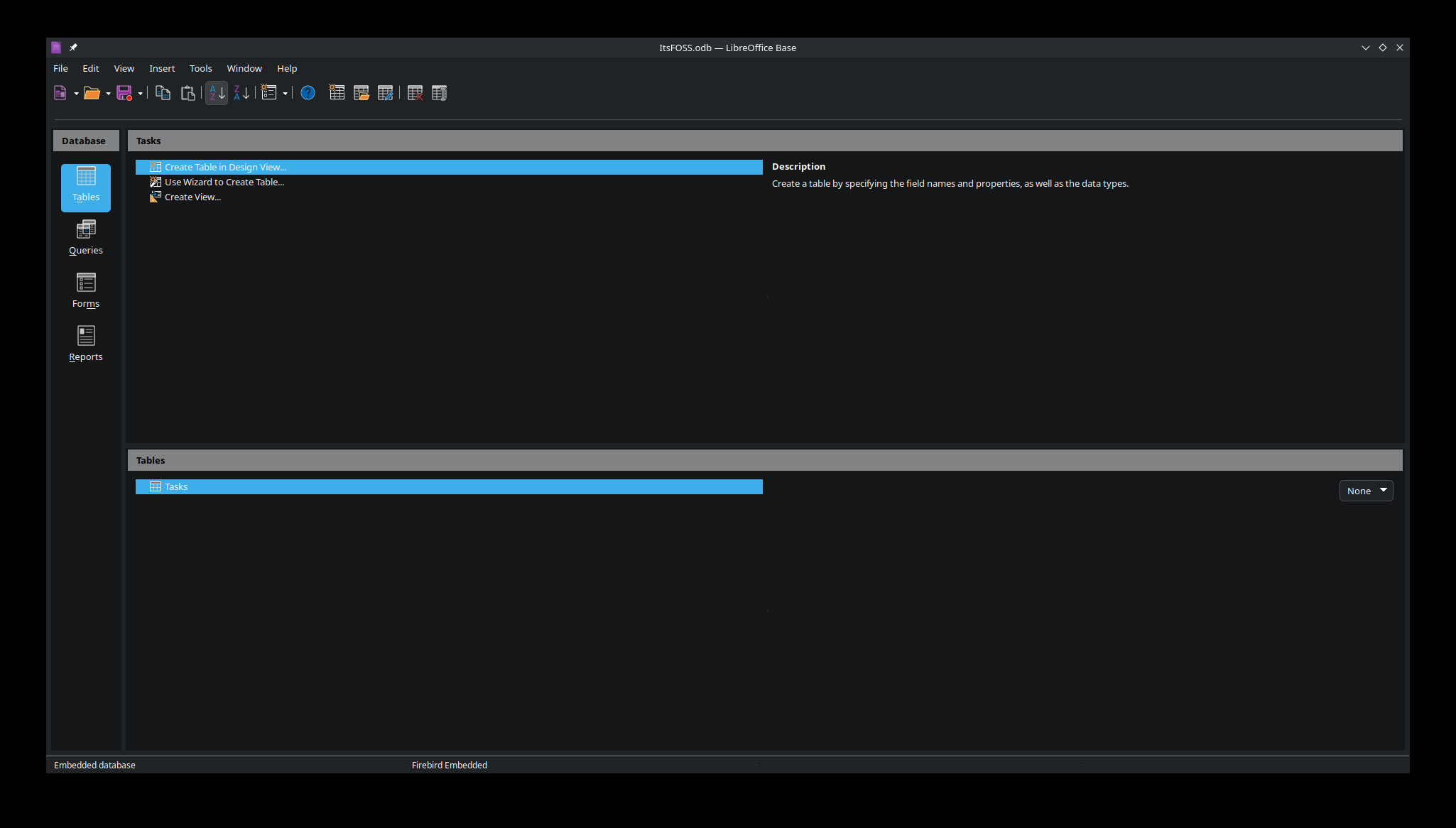
Base is LibreOffice’s database application, and while desktop database tools aren't as visible as they once were, it remains surprisingly relevant. What makes Base truly interesting is its flexibility. It can create embedded databases using HSQLDB or Firebird, or connect to a range of external database systems, including MySQL, Postgres, and others, through standard connectors. Unlike Microsoft Access, Base also a cross-platform tool, and not tied to any Windows-centric libraries or engines.
In practical terms, this means that Base can work equally well as a small, standalone database tool, or as a graphical frontend for other, external data sources. It can even use spreadsheets and other file-based sources, adding to its versatility and usefulness in mixed office environments.
LibreOffice Math
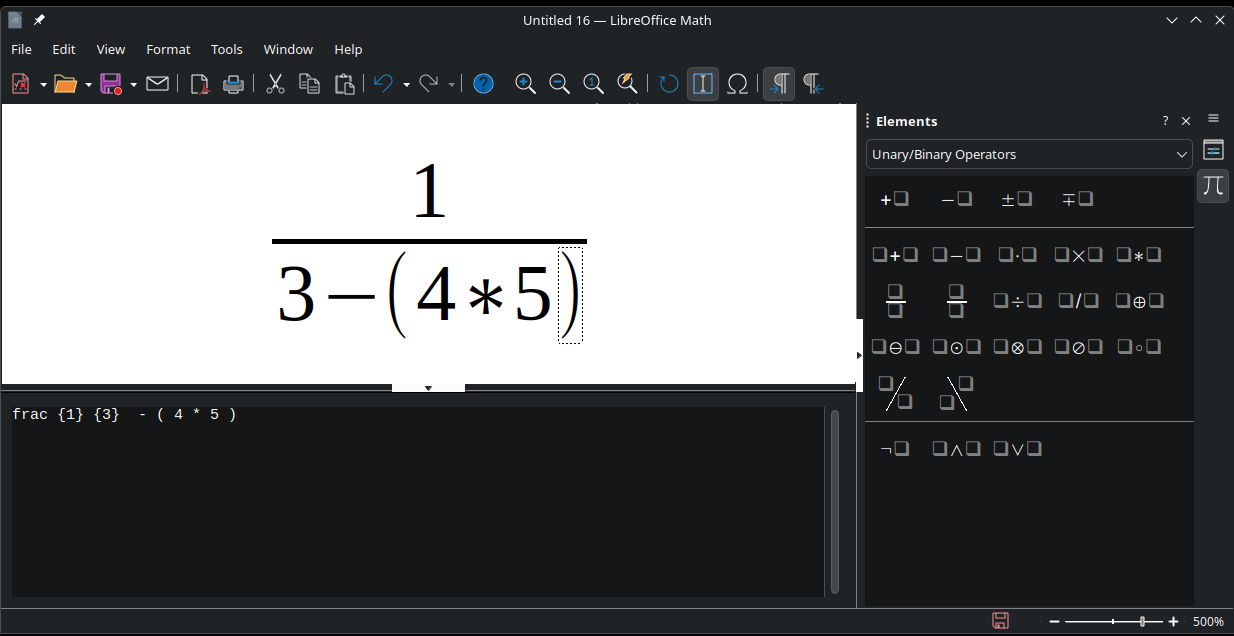
Math is LibreOffice’s formula editor, designed for writing mathematical and scientific expressions. It's perhaps the most specialised of the core LibreOffice apps, it's extremely useful for students, educators, researchers, and anyone working with technical documents. Math is best understood as a dedicated tool for building clean, properly formatted equations that can then be inserted into other LibreOffice documents. It isn't flashy, but it fills an important role that many office suites either overlook or handle less directly.
ONLYOFFICE: Complex AI Integration
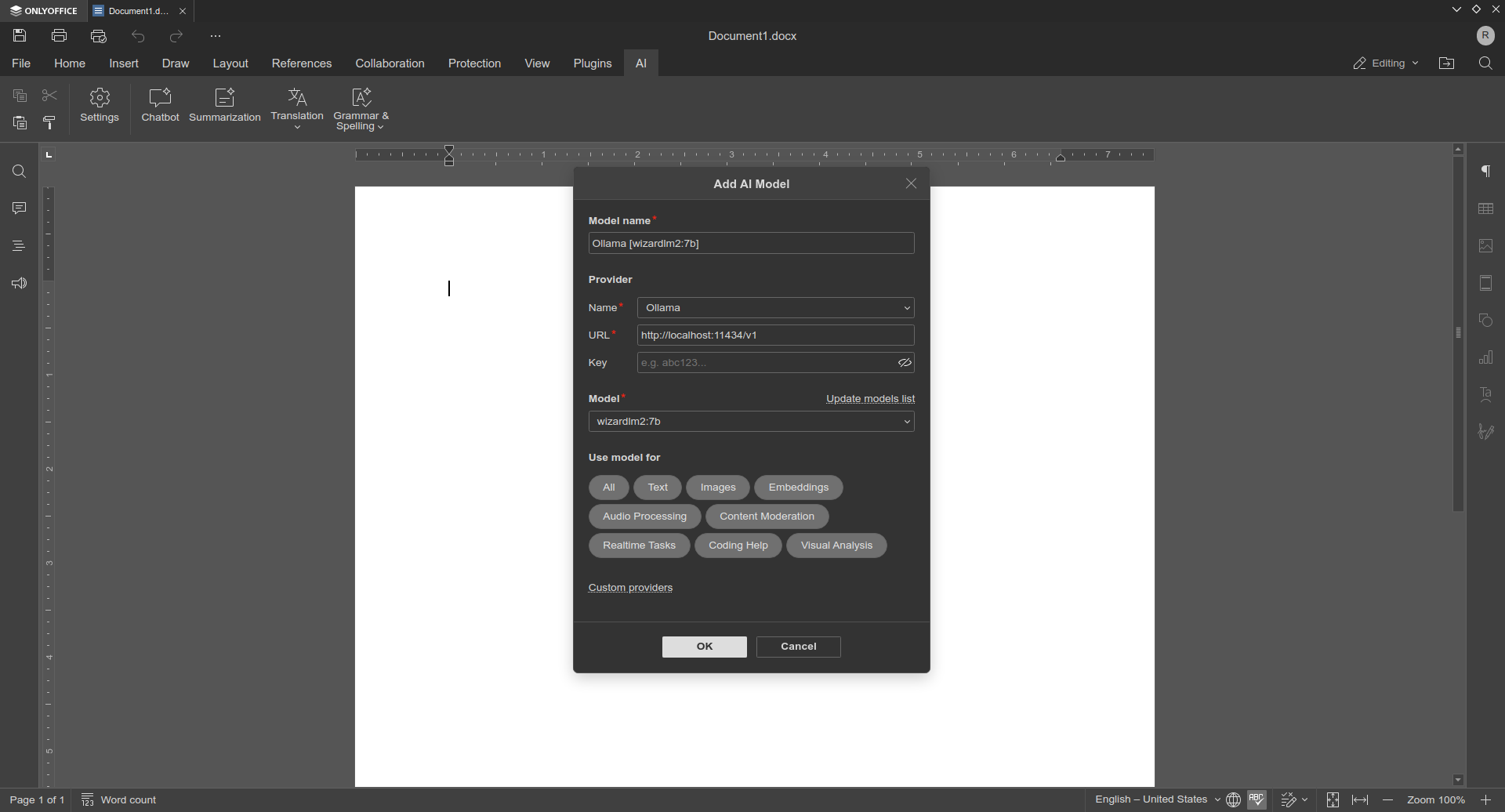
A recent addition but still quite notable, ONLYOFFICE is the only free, open-source office suite currently available for the desktop with built-in AI integration. While this may not be for everyone, it is quite a useful feature to have on hand. Not only can be used for generating documents, but it can serve as an alternative spelling and grammar checker.
Online Availability & self-hosting
This is one area where these two office suites differ quite a bit in strategy and direction. ONLYOFFICE is built with the web as a core concept, but LibreOffice started, and is still best understood, as a desktop-first office suite. Still, both have solutions for online use, including self-hosted options, but they achieve these ends through very different means.
LibreOffice: A mixture of efforts
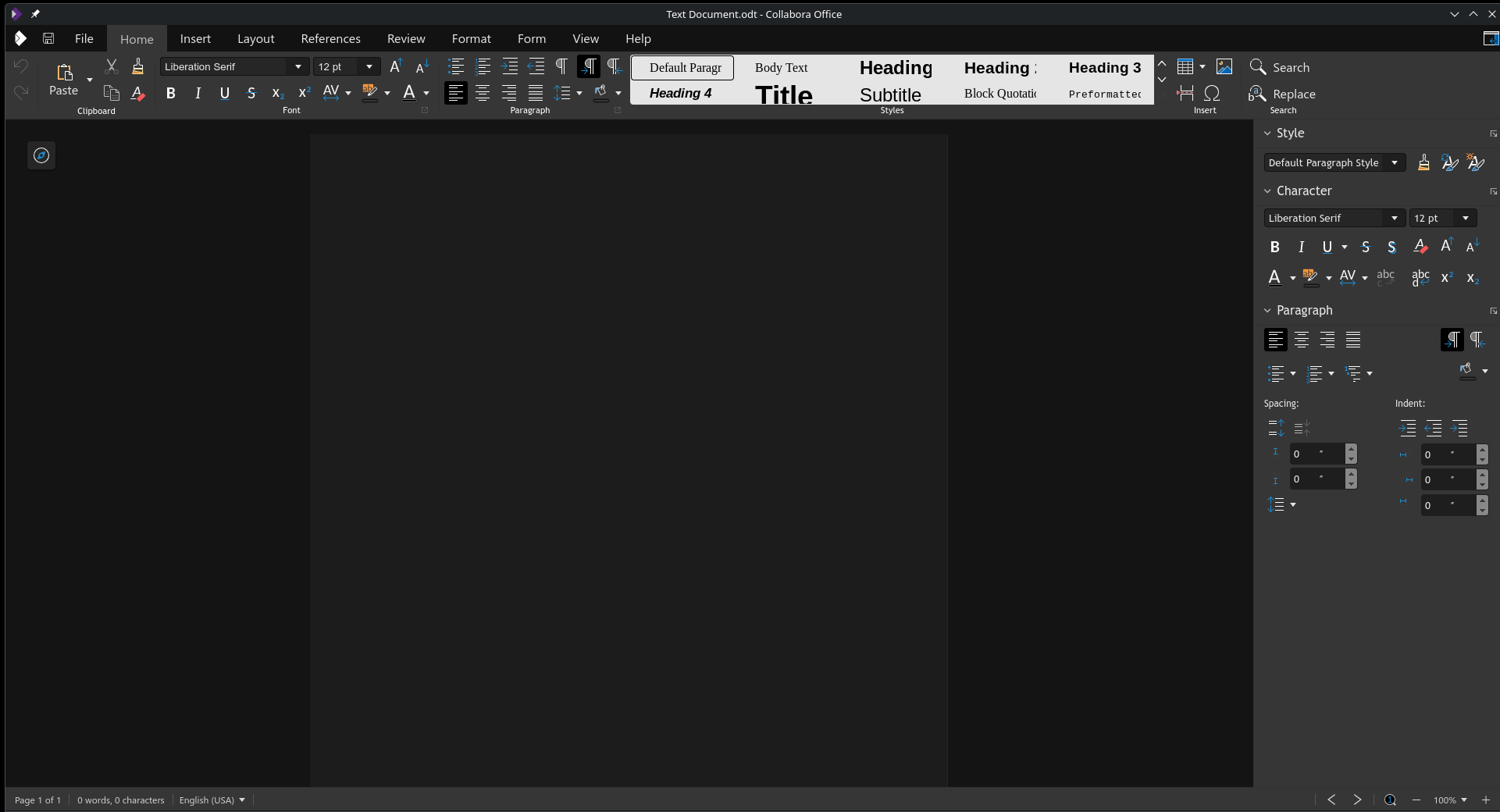
LibreOffice is a huge beast, and the effort to bring it to the web took years of engineering work. Today, the most mature browser-based deployment built on LibreOffice remains a third-party product, Collabora Online (which also powers Nextcloud Office).
That said, The Document Foundation has recently reopened work on LibreOffice Online after several years of dormancy. Interestingly, this decision has caused a bit of controversy, so it remains to be seen what will become of LibreOffice online in the future.
ONLYOFFICE: Built with the web in its veins
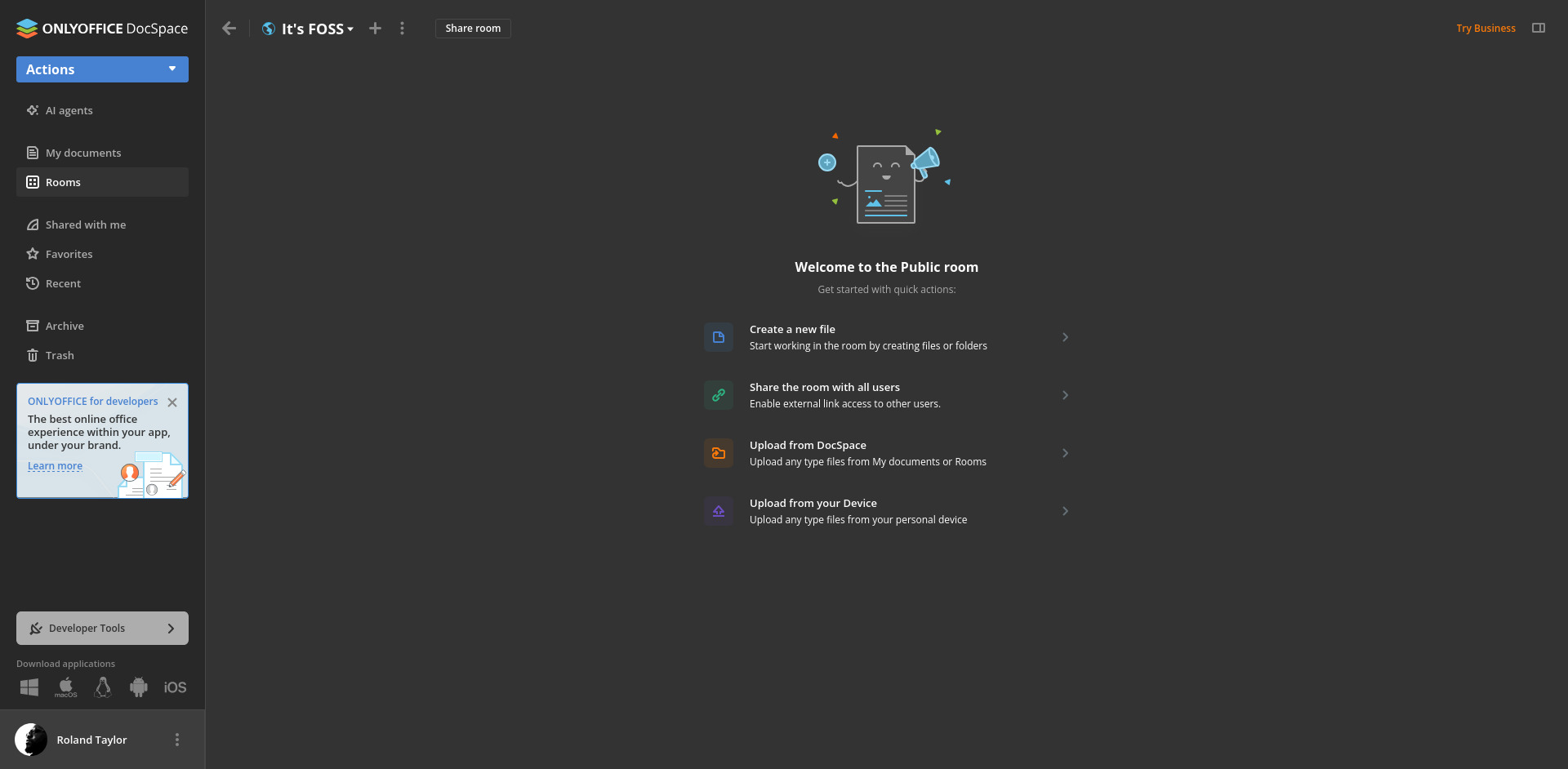
Between the two, ONLYOFFICE most certainly takes the crown in this arena, because its online editors are very much a central part of the product line, and it offers both self-hosted community options and commercial server offerings for individuals, teams, and businesses. In other words, online editing isn't a side quest or afterthought for ONLYOFFICE as a project; it's pretty much the gold standard.
With this being the case, ONLYOFFICE online feels more like what the product is meant to be, and switching between the online and desktop editors is about as close to seamless as you can get. Being designed from the beginning to operate by this modality, ONLYOFFICE doesn't have the same disparity between versions that is evident in LibreOffice's situation.
Mobile availability
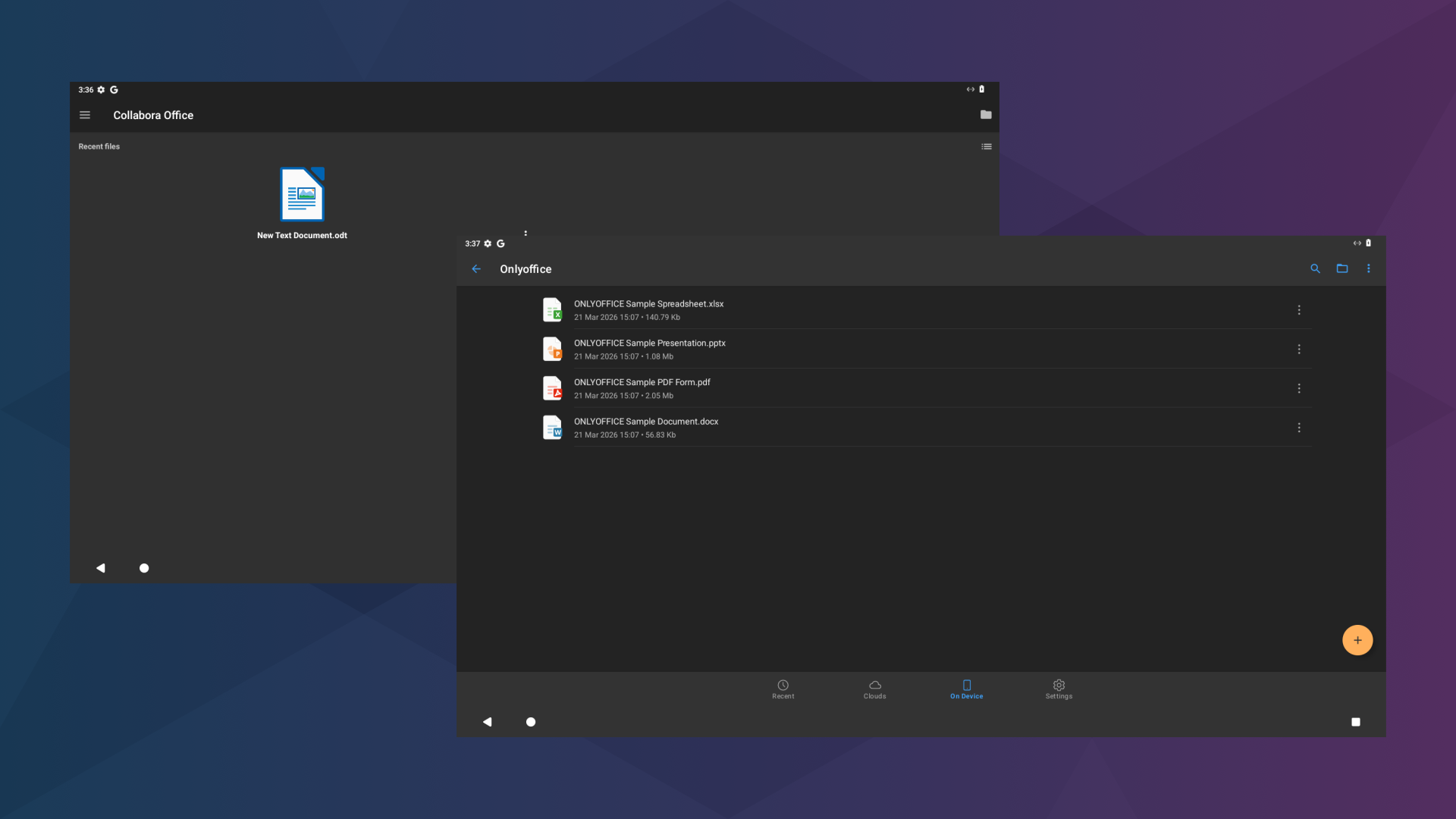
It could be argued that no modern office suite feels complete without some kind of mobile counterpart, at least for Android if not on iOS as well. Both LibreOffice and ONLYOFFICE have a presence on mobile, but the experience differs in both maturity and approach. ONLYOFFICE offers dedicated mobile apps for Android and iOS as a direct part of its wider platform, while LibreOffice’s again serves up a duality of experiences, including an editor built by Collabora.
LibreOffice: A little here, a little there
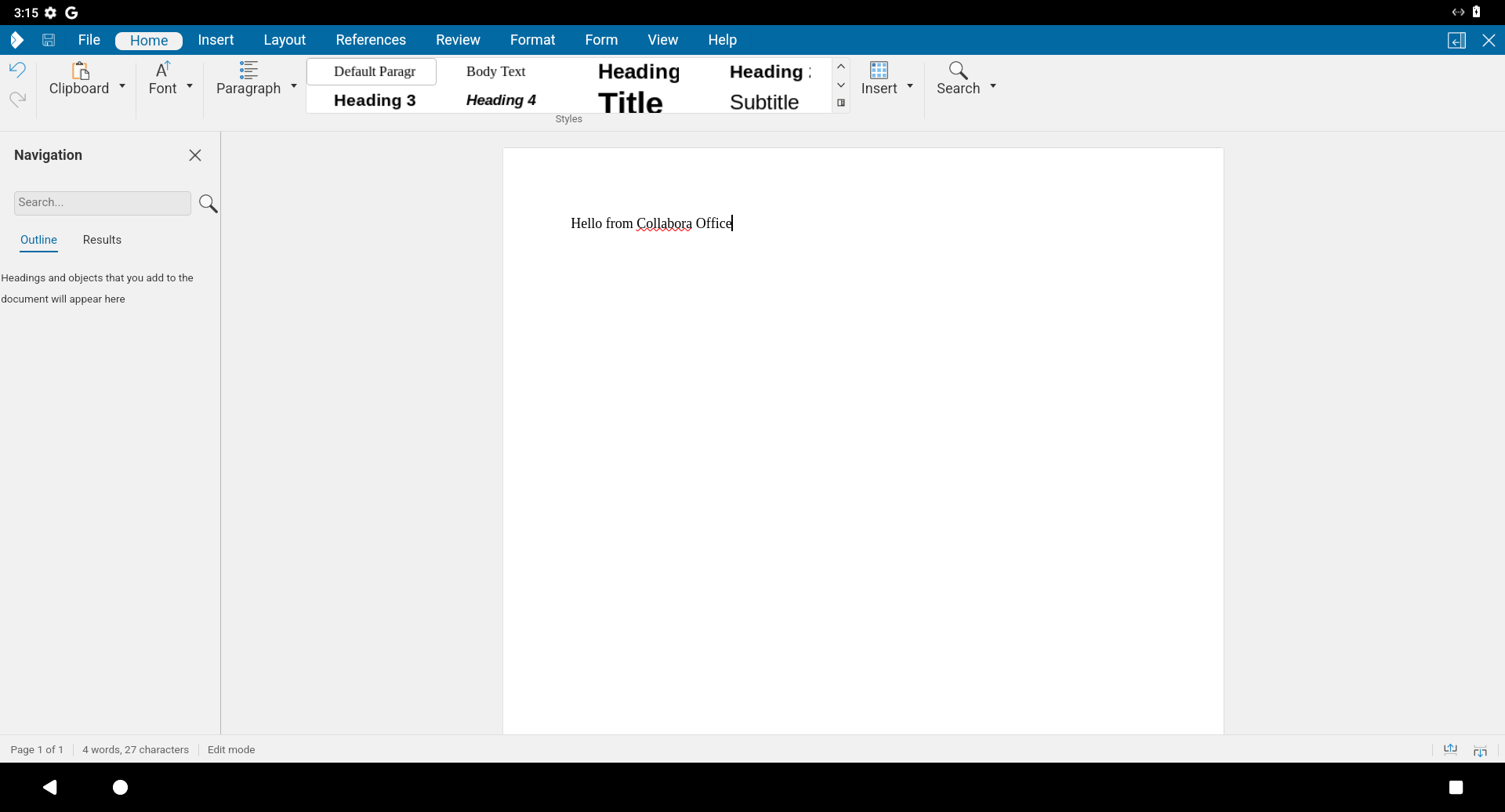
LibreOffice does have a meaningful mobile presence, but it is less direct than ONLYOFFICE’s. Rather than a first-party LibreOffice mobile app in the same sense, mobile editing is most visibly represented through Collabora Office for Android and iOS, which is built on LibreOffice technology and supports document, spreadsheet, and presentation editing on the go.
ONLYOFFICE: Cohesion preserved throughout
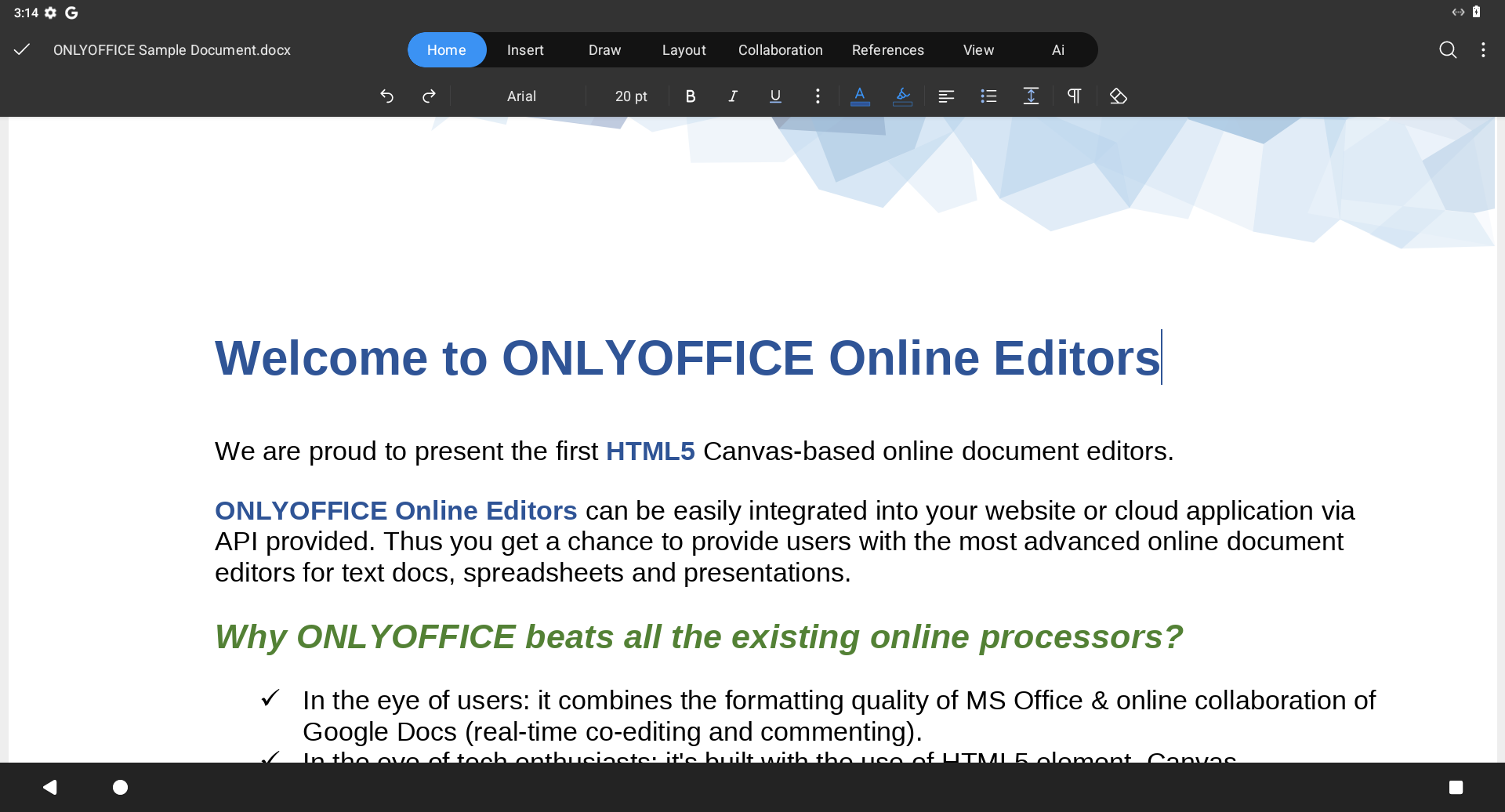
ONLYOFFICE takes a more straightforward route here. It offers free mobile apps for both Android and iOS, positioning them as part of the same broader product family as its desktop and online editors. That makes its mobile story feel more unified, especially for users who want a more seamless experience across devices.
Individual quirks

Of course, no app is without its own quirks and challenges. While both these suites are powerhouses in their own right, shortcomings, unusual behaviours and other issues are to be expected. To be fair, these quirks don't completely take away from the usefulness of either app; they're just things to be aware of that may help you decide which one you'd prefer to use full-time.
LibreOffice: held back by its toolkit
LibreOffice can occasionally feel a little less polished than its feature set deserves. Its interface can feel a little out of place on some platforms due to the VCL toolkit emulating native widgets as opposed using the native toolkit to draw them directly. Some users also report VCL choosing the wrong interface for their platform. This can be particularly jarring on Linux, especially when using custom themes, dark mode, or when certain rendering glitches occur.
ONLYOFFICE: Clean, but still maturing
While ONLYOFFICE generally feels cleaner and more streamlined, it's not without its own rough edges. On Linux, some users have reported issues around Wayland performance, rendering behaviour, and font handling, which can make the desktop editors feel a little less predictable than their polished interface suggests. Furthermore, despite using Qt for some aspects of the interface, most of the ONLYOFFICE UI is built using web technologies, so the "native look" is notably missing.
Final thoughts: which should you choose?
As with any comparison like this, the answer depends on your needs. LibreOffice and ONLYOFFICE are both strong open-source office suites, but they excel in different areas.
LibreOffice offers a broader and more traditional suite, with deeper functionality, more specialised tools, and a stronger connection to open formats. ONLYOFFICE feels more streamlined, more familiar to Microsoft Office users, and often more comfortable in collaboration-heavy workflows built around Microsoft's file formats.
If you value breadth, flexibility, and open standards, LibreOffice is the stronger choice. If you value familiarity, simplicity, and smoother Office-style compatibility, ONLYOFFICE may be the one for you. Of course, these are just my recommendations, but ultimately, the choice is really yours.
