


There was once a time when the only thing different about your terminal was which monitor you were running it on. Everything was a CRT, so beyond refresh rates, size, and resolution, specs didn't matter too much. But those days are long behind us. Using the terminal and choosing your experience is as fun and fancy as picking which games you'd like in your Steam library. Call us terminal lovers spoiled, but hey, nothing wrong with a little choice, right?
In this article, we'll be looking at two of the most popular terminal emulators available, Ghostty and kitty, in a friendly matchup between the two. We'll examine their features and functionality, quirks, and specialities, and attempt to answer the question: Which one is right for you?
Ghostty or Kitty?
Both of these terminal emulators are GPU accelerated, but that's about where their similarities begin and end. Their faithful communities love them fiercely for different sets of reasons, so let's get to know them both in detail.
Ghostty: Unassuming powerhouse
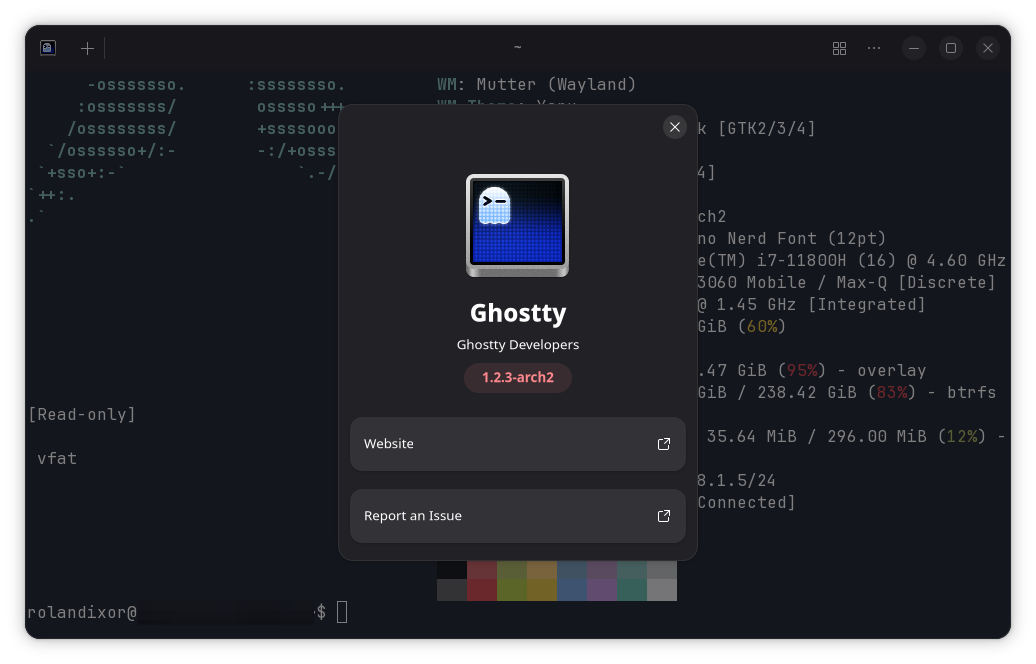
Written in Zig and C (Linux GUI only), Ghostty is a modern, high-performance terminal emulator built with responsiveness and customization as core values. It aims to deliver a smooth but lightweight, visually polished experience that's comfortable for everyday use. User-friendliness is one of the standout priorities of this project, with theme switching, intuitive settings, and quality-of-life features for both beginners and power users.
Ghostty is relatively new on the scene, being created privately in 2022 and first publicly released in 2024. That said, it’s quickly gained in popularity, being noted for its performance, a clean UI, and a focus on making advanced features accessible.
kitty: Clean, lean, terminal emulating machine
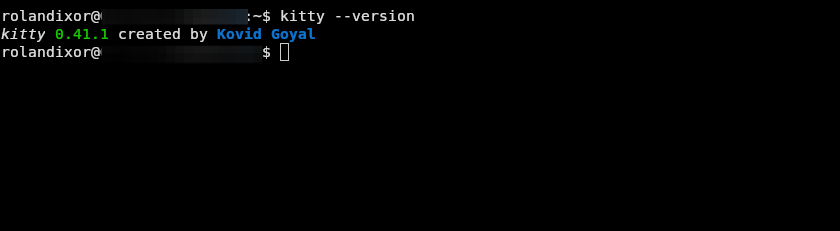
kitty is a minimalist, high-performance terminal emulator with a focus on keyboard- and command- driven interaction, and features catered mainly to power users. Written in C and Python, kitty is well established, having been first released in 2017. kitty is modular and scriptable by design, and includes advanced capabilities including image display, layout management, remote control, and a built-in framework for writing extensions.
It's a big hit among many tinkerers and heavy terminal users.
Interface navigation
Terminal Emulators aren't usually known for their extensive GUIs. After all, the every reason you open up a terminal emulator in the first place is to escape the land of GUIs and dig deep into the keyboard-driven land of system internals, right? Well, there's still a need for some kind of interface navigation, or you could as well jump into a TTY. So where do these two leave us?
Ghostty: Keyboard-friendly, but familiar
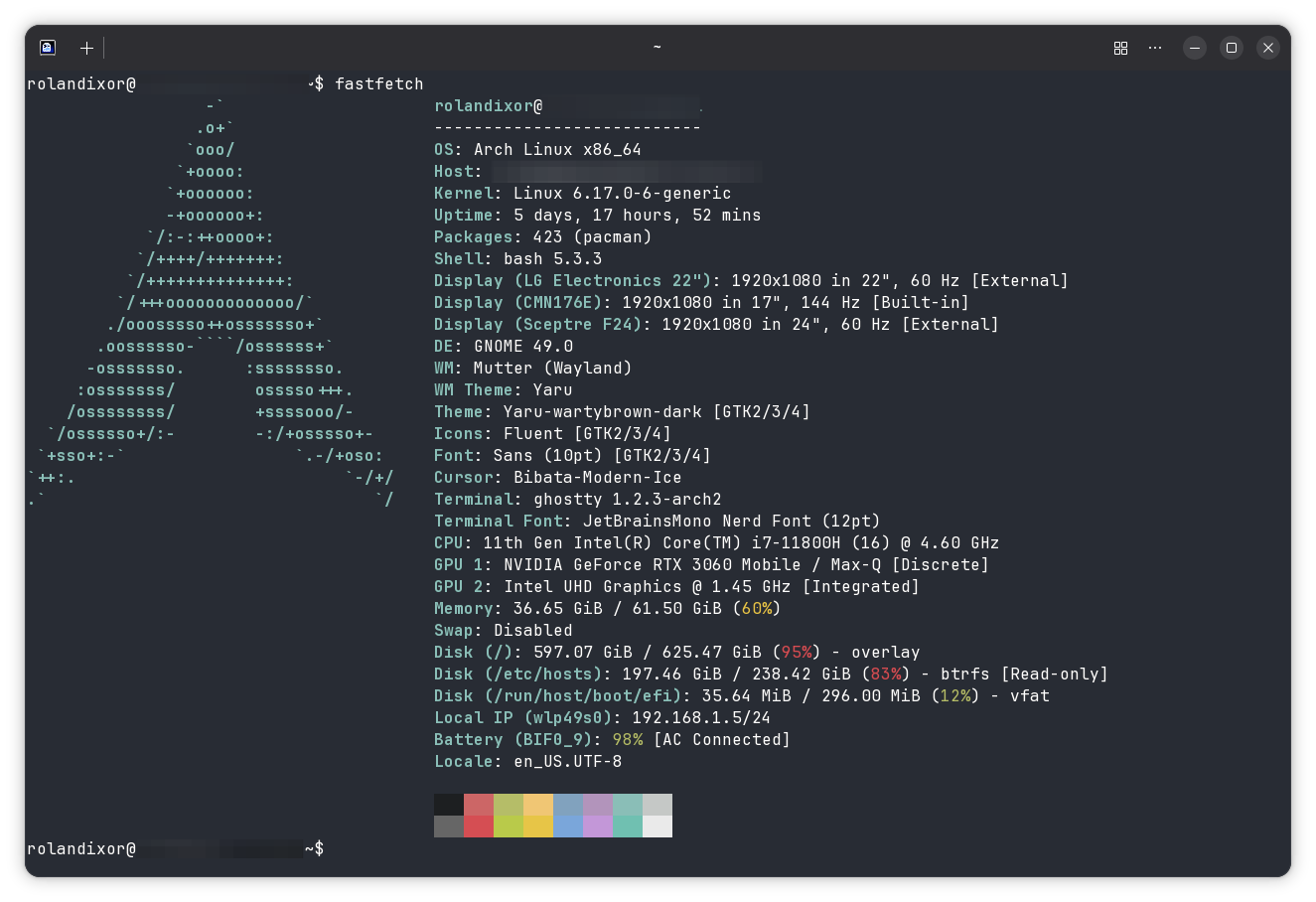
With a familiar GTK4 interface on top of a shared, cross-platform backend, Ghostty provides a familiar blend of mouse and keyboard features that fit right into modern workflows. Its interface is designed to be non-intrusive, showing only the features you need until you need something extra.
kitty: Keyboard driven, mouse capable
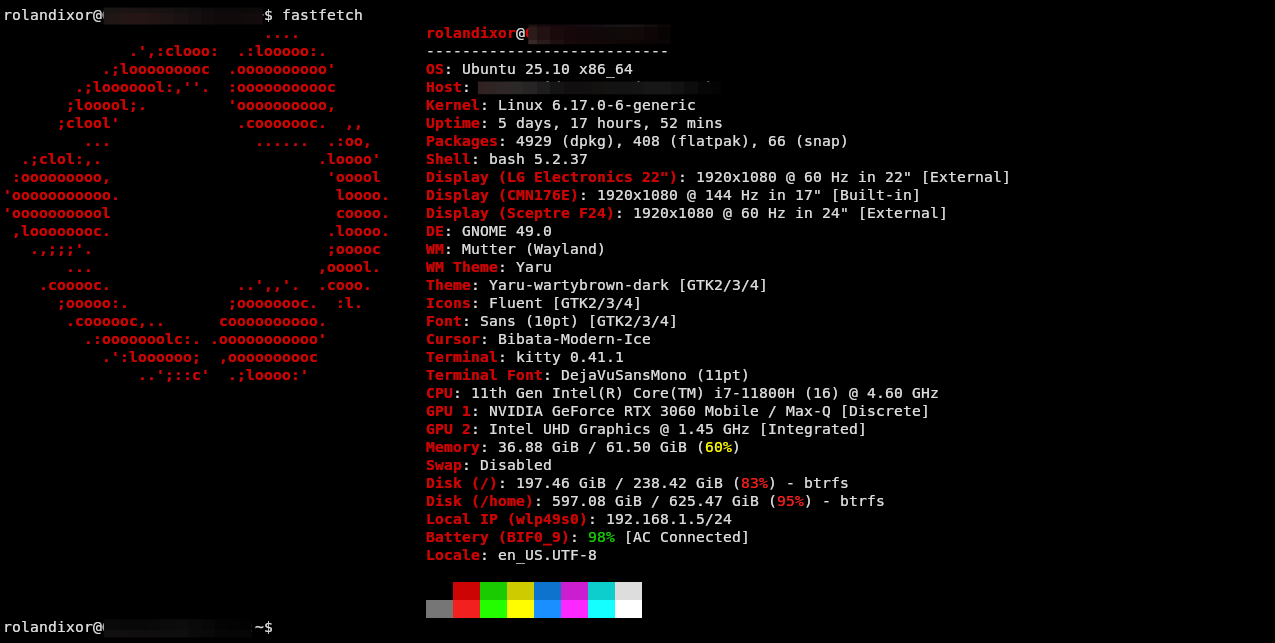
If you love keyboard-driven navigation, kitty is perfect for you. Just about everything you can do in kitty is driven by a keyboard combination, from tab management to scrolling.
Performance: The key factor?
Both of these terminal emulators are built with hardware acceleration as a core feature, which typically lends to enhanced performance overall. While there won't be a deep analysis of either app's core stats in this article, I'll at least attempt to give you a fair assessment based on testing them in real-world conditions to see how they stack up.
I ran two main tests:
- Resizing performance.
- Text output speed, using
while true; do date; sleep 0.05; clear; done.
I chose the first because while my system is notably quick to do most things, there's one area where most terminal emulators struggle and at time stutter when I put them to the test: resizing with active updates. A good way to test this is to run an app like htop, or run tail on an active log. As you resize the window you'll usually notice the lag.
I chose the second as a fairer test between the two, since kitty debounces rendering when resizing by default.
Ghostty: Smooth resizing, slightly faulty static refreshes
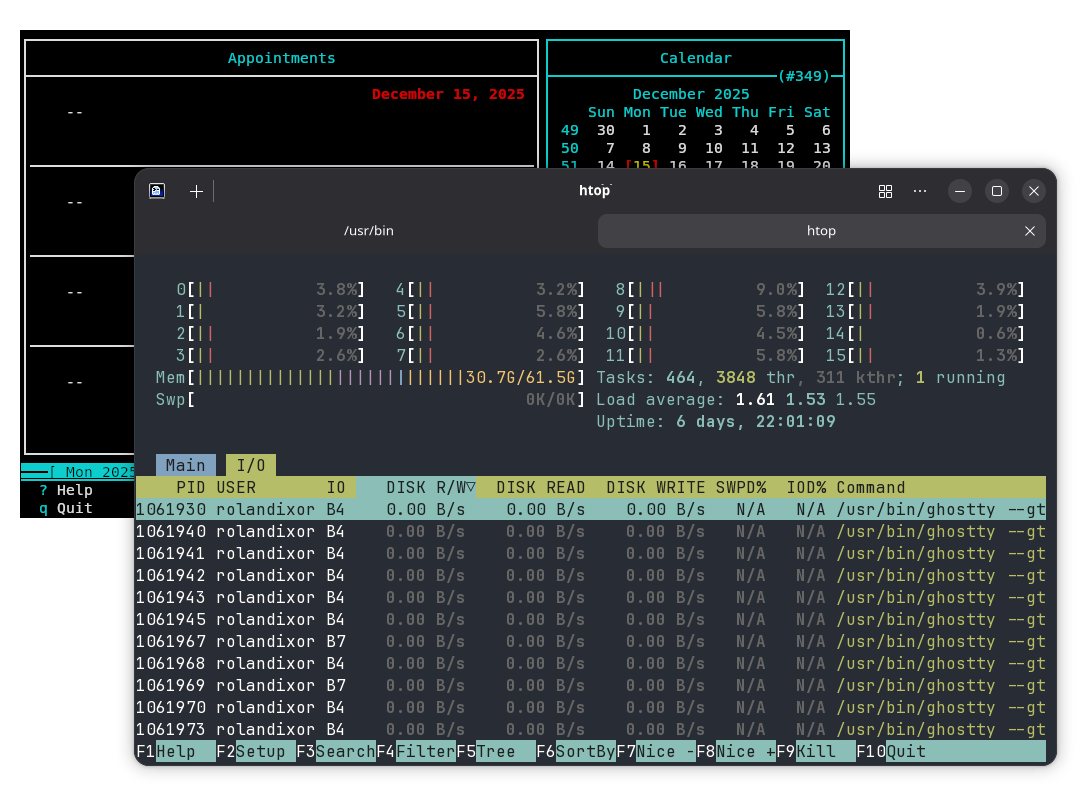
Ghostty handled my resize and update tests with ease. I used a triple split screen and dual tabs, all running htop, which means multiple splits and two tabs running the same constant updates. To make the test a little more taxing, I put on one the Main tab and the other on the I/O tab.
Ghostty handled it all like nothing. Not only did the window update smoothly while resizing, but text reflowed as needed with no stuttering, and each section of my split-screen tab showed its dimensions in real time. Tab switching is equally peppy, showing no lag and no performance hits after the fact.
During the rapid refresh test, however, I noticed visible flickering. This didn’t appear when running htop, and static output tests (such as dumping tens of thousands of lines) completed instantly. The issue only surfaced during very fast, repeated full-screen clears. This could be related to my Nvidia driver setup or another environmental factor rather than Ghostty itself, so I’m cautious about drawing firm conclusions here.
kitty: Instantaneous reflexes
While I didn't test resizing performance with the debounce setting turned off, I did run kitty through the same test with while true; do date; sleep 0.05; clear; done and a number of other mini "stress tests". In each instance, output was smooth and instantaneous, with no apparent frame drops or stuttering whatsoever.
To be honest, I was a little bit surprised, as most terminal emulators I've tried start to show signs of "stress" when doing rapid text refreshes. In this instance, kitty definitely pulled ahead, though it could be a driver issue with Ghostty, so I'll reserve judgement there.
Tab & window management
Both apps support tabs, but the way they're accessed and displayed is quite different between the two. Honestly, for some users, this may be the difference that settles the score on which of the two is the right fit.
Ghostty: Standard fare GTK4 thumbnail tabs
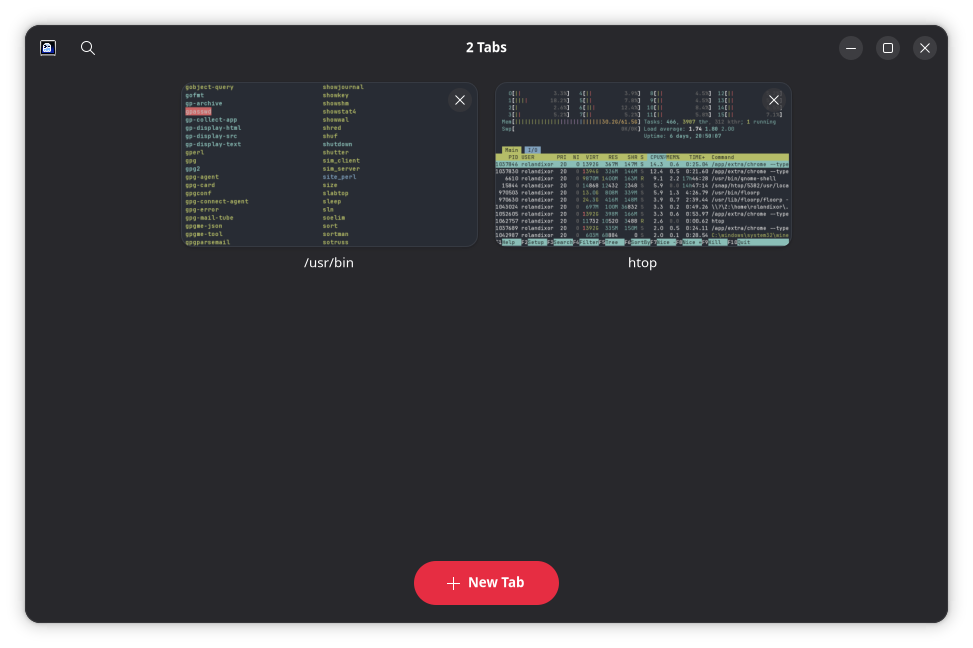
If you're looking for a more familiar experience, this is where Ghostty "wins" hands-down. Its Linux interface is rather similar to other console apps like GNOME Terminal, Konsole, and ptyxis.
Rather than breaking paradigms, it uses the familiar GNOME headerbar layout by default, with a plus sign icon to the far left indicating that you can create a new tab. To the right, there's a grid icon that, when clicked, shows all opened tabs in GNOME's standard tab grid view. For those seeking something flashy, it may be a little underwhelming, but for those just looking for something familiar and intuitive, it's a no-brainer.
Additionally, Ghostty lets you split tabs in as many ways as you like. This is especially helpful for running commands side-by-side. The only issue is, there seems to be no straightforward way to close any of the split views via the GUI, nor move them to their own tabs. However, you can use CTRL+SHIFT+W on the keyboard, or run close_surface from the command palette to a close a split view.
kitty: Tabs as textures, anyone?
Now here's where things get interesting. As mentioned earlier, kitty relies primarily on a keyboard-driven interaction paradigm. It's not for everyone, but its still an efficient way to use applications. When it comes to tab management, it's no different: you'll need to memorize and recall a keyboard shortcut to open tabs.
Customization and theming
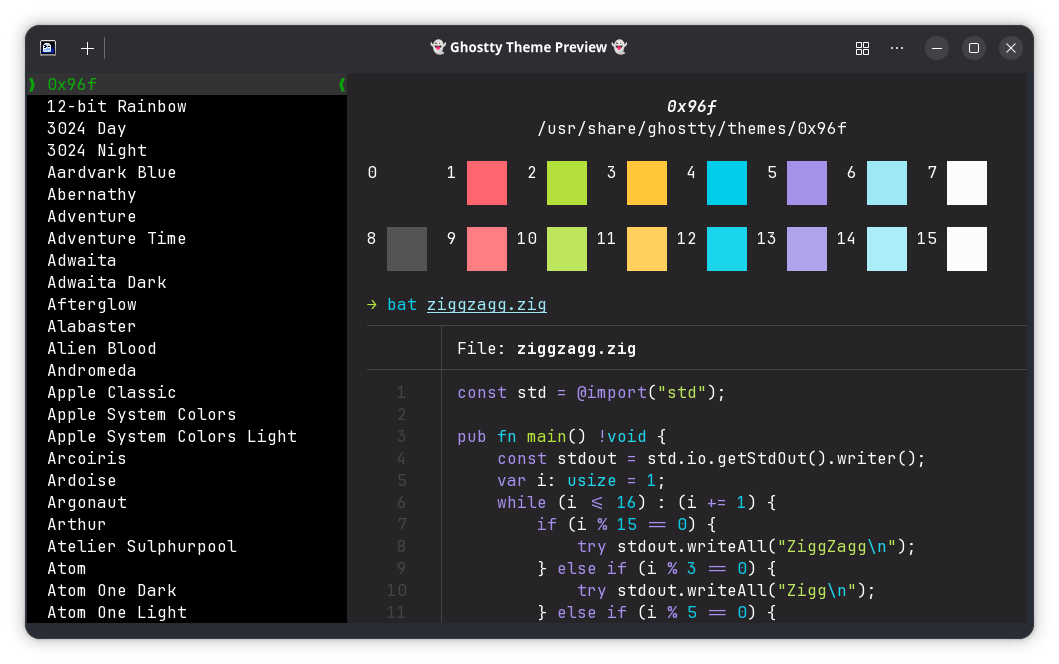
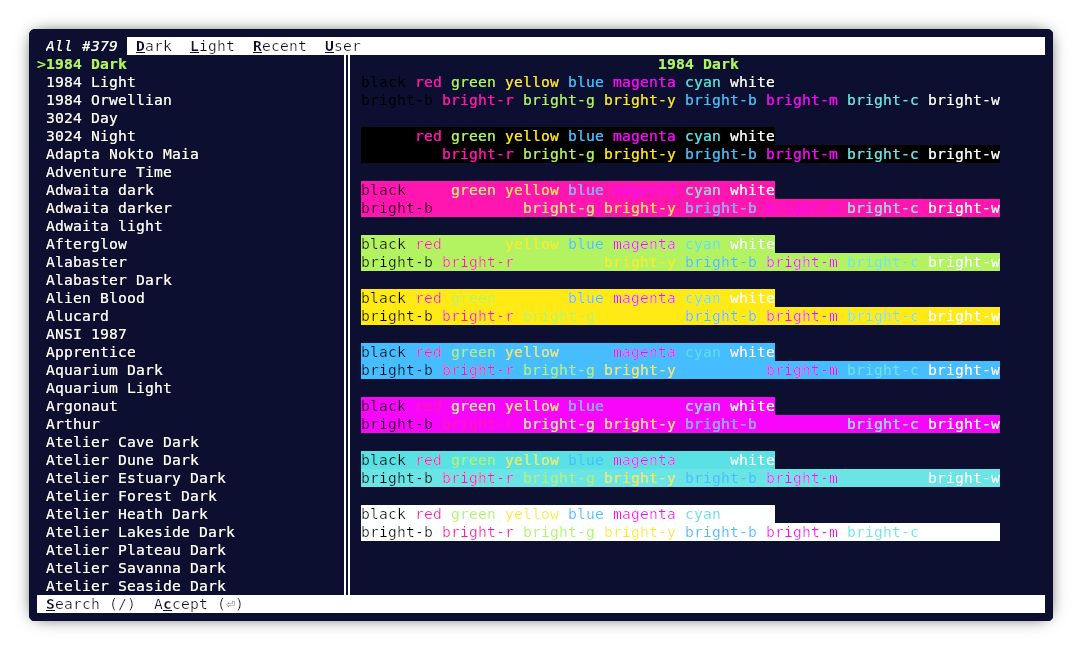
One way these apps are somewhat aligned is that they both support extensive customization through configuration files and custom themes. It would be impossible to demonstrate the variety of themes each app has, so suffice it to say, there are many between them. So where do they differ? Let's find out.
Ghostty
kitty
Configuration experience
Both apps use configuration files rather than the preference dialog found in many other terminal emulators.
Ghostty: Clever defaults, and more Options that you'll know what to do with
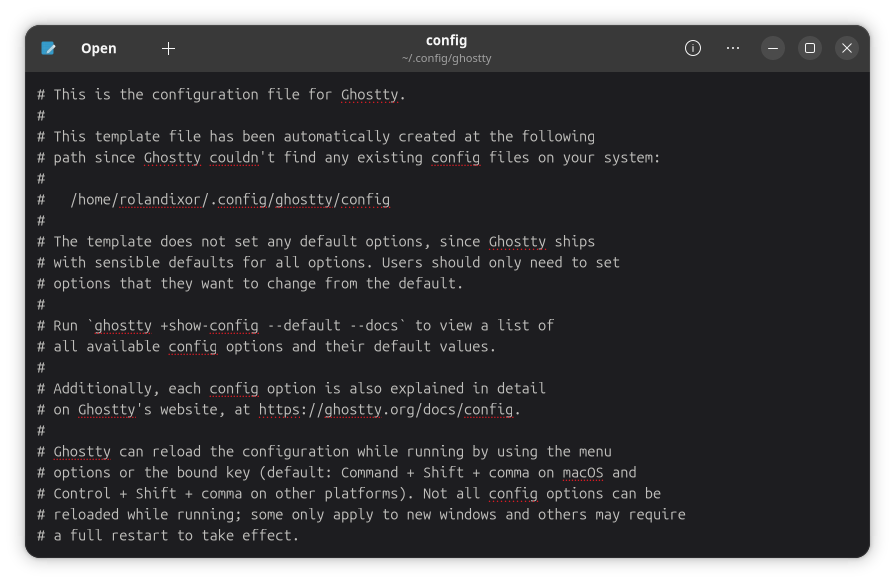
Unlike most GUI terminal emulators, Ghostty is designed around a zero configuration principle. This means that users should be able to use it without the need to edit the configuration due to the use of what the developers and community consider to be sane defaults.
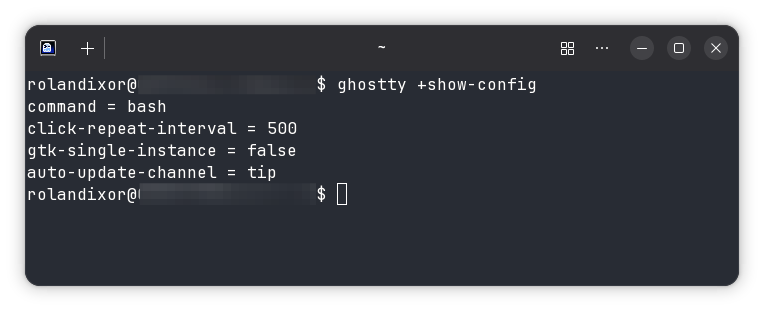
Still, beyond themes, users can change many of these defaults, from font settings down to shaders (yes, we're talking graphical shaders here), by following the option reference. This level of customization is way beyond anything you'd find in most terminal emulators, and should make power users who love to dig deep quite pleased with the flexibility on offer.
Kitty: Putting you right in the heart of the beast
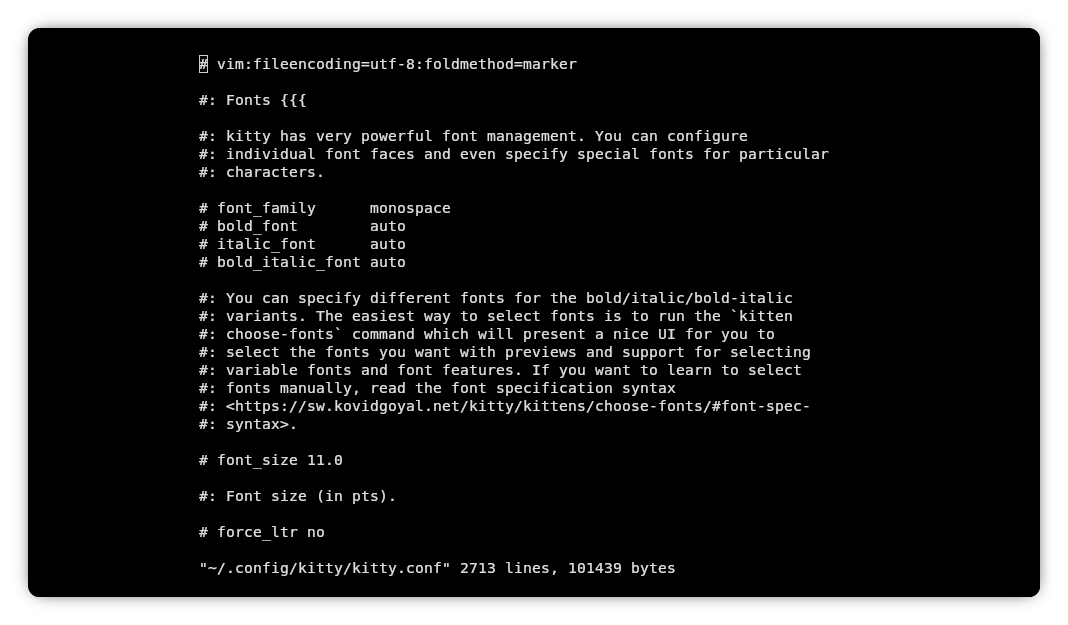
Where most terminal emulators offer just a few simple configuration options or a preference dialog with some tabs and settings, kitty takes you right to the core and lets you customize just about everything you can think of, including framerates.
By pressing CTRL + SHIFT + F2, you can open the kitty.conf file in your default (CLI) text editor and get right down to the business of editing the config. This file is fully commented, guiding you every step of the way. It's great for power users who like to tweak every possible value until it's just right.
For a guided overview of how to configure kitty to your heart's delight, you can view the configuration docs.
Extensibility & scripting
Beyond their innate customization options, both of these apps are extensible, though to differing degrees. Ghostty is still in the early stages of its extensibility journey, but whereas kitty lets you deck the halls, the walls, and everything in between. So how do they stack up side by side?
Ghostty
Ghostty's extensibility is still in development, so most of what can actually be done comes down to configuration. You can bind custom actions and add your own entries to the command palette, or you can load post-processing shaders. Otherwise, Ghostty's extensibility is very much a work in progress at this stage.
kitty
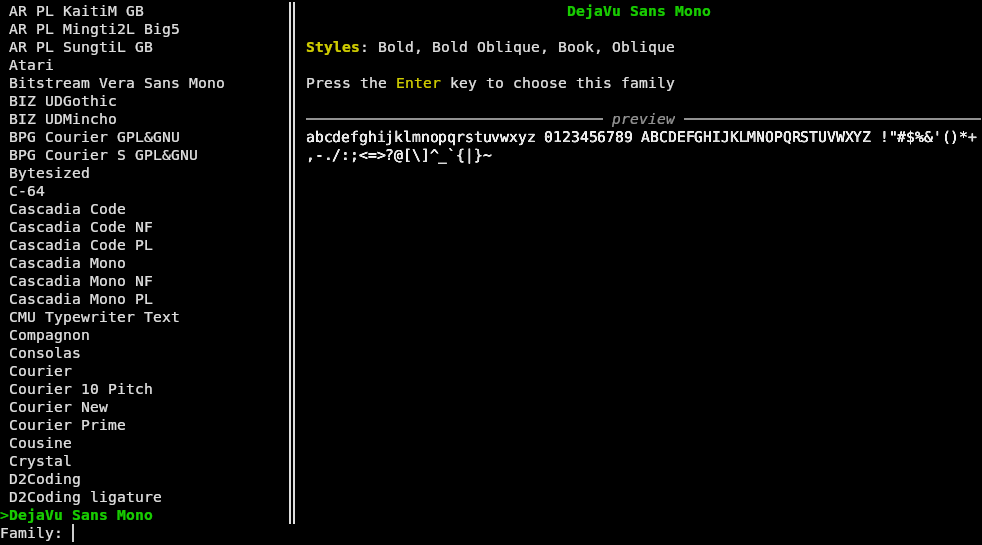
Between the two, kitty truly takes the extensibility crown, with its versatile system of "kittens", which are built-in mini-tools that extend its functionality. You can also create your own.
With kittens, you can do everything from loading images (using the kitty graphics protocol) with kitten icat ..., to showing differences between files with kitten diff. It would take an entire article all its own to cover the fullness of what kittens can do, so if you'd like to read more about this feature I'd recommend reading the official kitten docs.
As for its remote control interface, kitty can be scripted from within other apps, and allows for tighter security by requiring a password. Even more impressive, kitty lets you lock actions specifically, meaning for instance, you could password-protect colour changes, while allowing other actions to be remote controlled freely.
Final thoughts
One thing I try to avoid when discussing software is declaring any particular app as definitively “better.” Every piece of software suits some people perfectly while not working as well for others, depending on their needs, preferences, and workflow.
That said, if I had to make a recommendation between the two, I'd say Ghostty is definitely the choice if you're looking for GNOME/GTK-native integration and prefer that visual style. You'll still get an extensible, keyboard-friendly terminal that doesn't sacrifice familiarity to deliver advanced functionality.
On the other hand, kitty is solid choice for those with a more "super-minimalist" minimalist taste, especially in the modern era of tiling managers like Hyprland. Its customization and extensibility options should fit in well with environments pushing the edge of the desktop paradigm.
Either way, both terminal emulators are great solutions for power users who need max performance on the CLI, image support and other cutting edge features. Which one will you choose?
