AppImages are portable Linux applications packaged in a single file that you can download and run without installation. Unlike DEB or RPM packages, they don't require root access or system-level changes. You just make the file executable and double-click to run.
But here's the catch. AppImages don't actually install on your system in the traditional sense. They exist as standalone executables that you have to manage manually. There's no automatic desktop integration, no system menu entries, and no built-in update mechanism.
This way, you are stuck manually making files executable, going through folders to launch apps, and checking for updates yourself.
That is where AppManager comes in. This is a tool that handles all that tedious legwork for you.
AppManager: Something For Your AppImages
Written in Vala and built on GTK 4 with Libadwaita, AppManager is a tool that brings reliable management for AppImage files on Linux. It supports both DwarFS and SquashFS AppImage formats, giving you flexibility regardless of how your apps are packaged.
The app also offers a macOS-style drag-and-drop installer, maintains an install registry that lists all your AppImages in one place, and lets you search through installed applications from the main view.
⭐ Key Features
- Optional Automatic Updates
- Smart Install Modes
- Desktop Integration
💻 User Experience
On an Ubuntu 25.10 system, I first had to install AppManager. To do that, I had to make its AppImage file executable by right-clicking on it, going into Properties, and choosing "Executable as Program."
Then, I drag/dropped the AppManager logo into the Applications folder, agreed to a disclaimer, installed it, and then launched it.
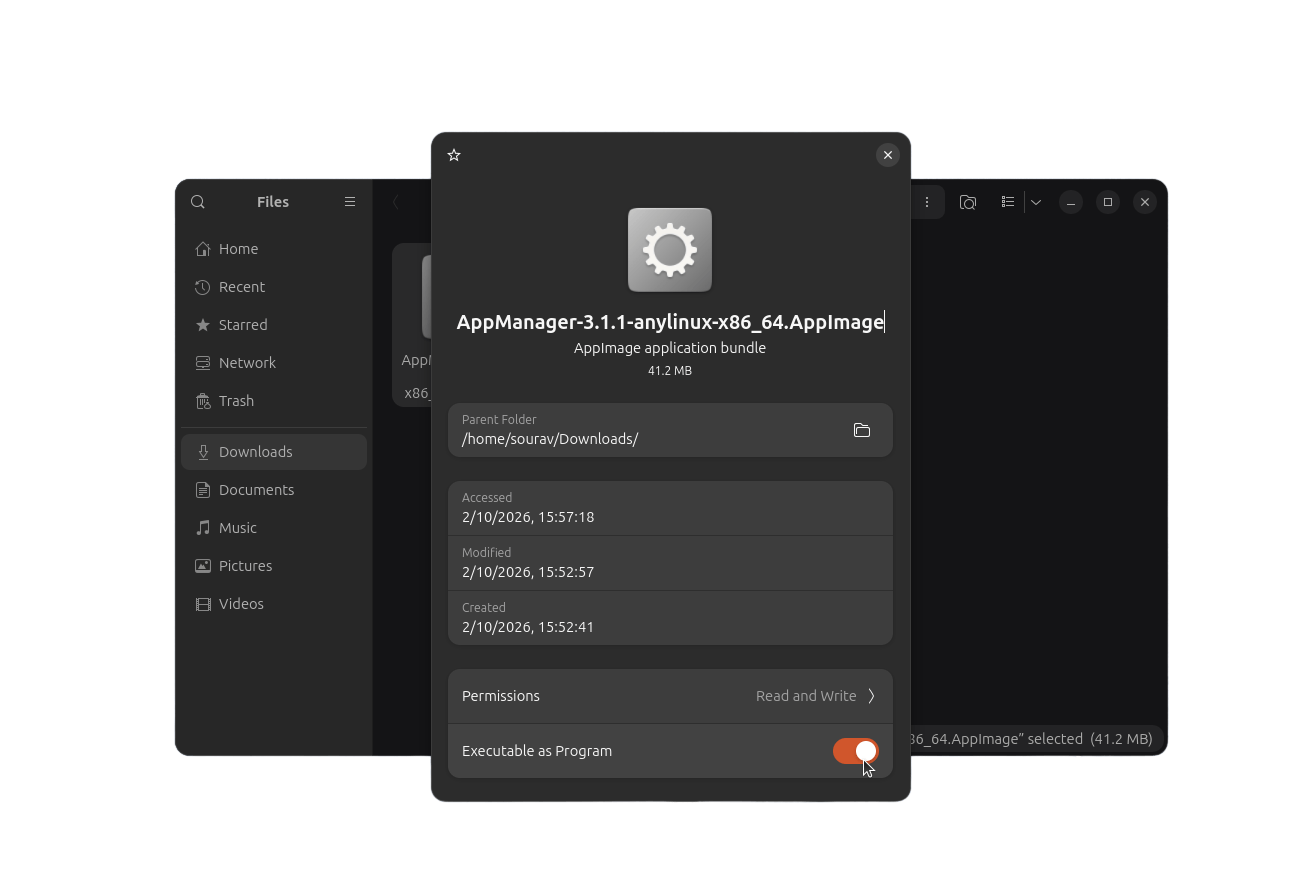
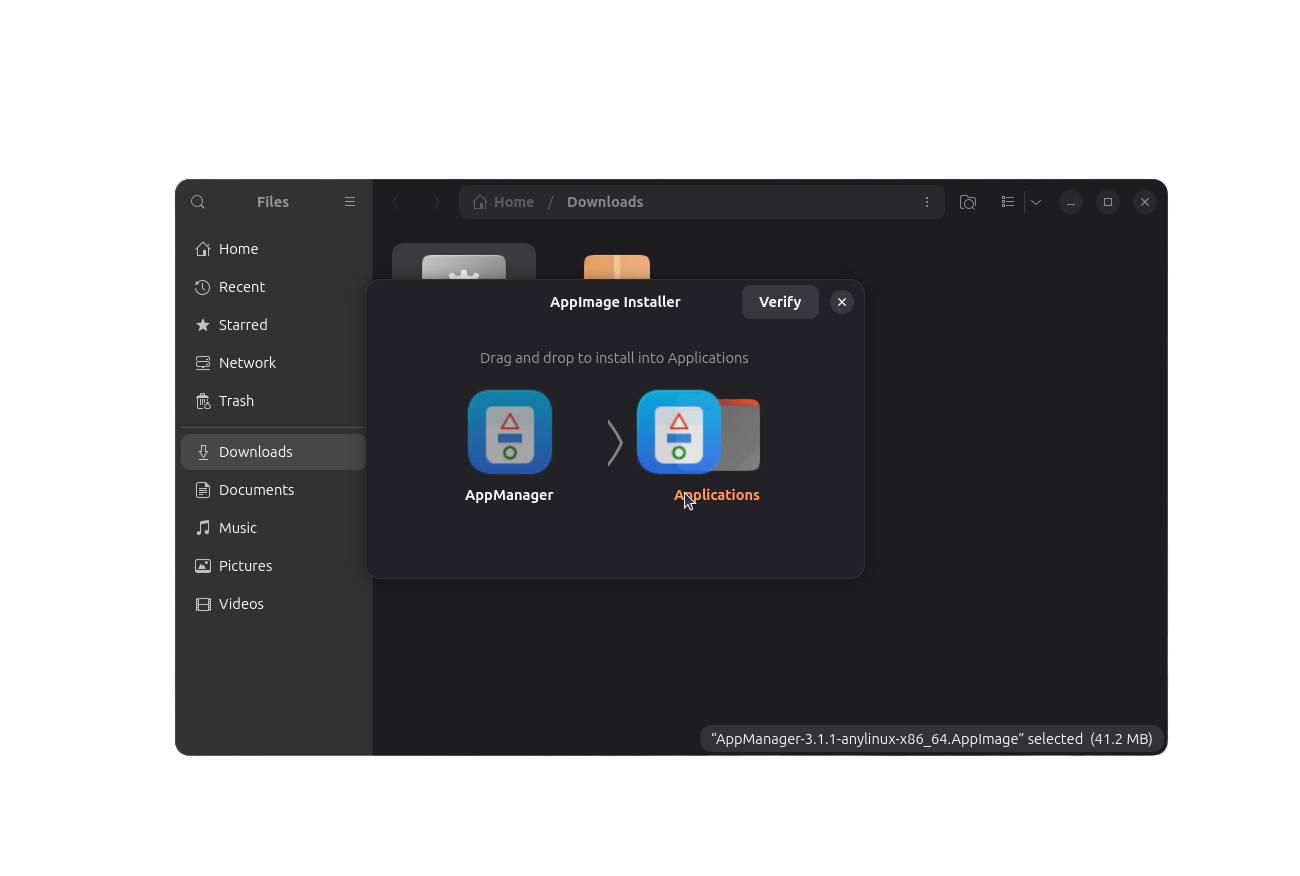
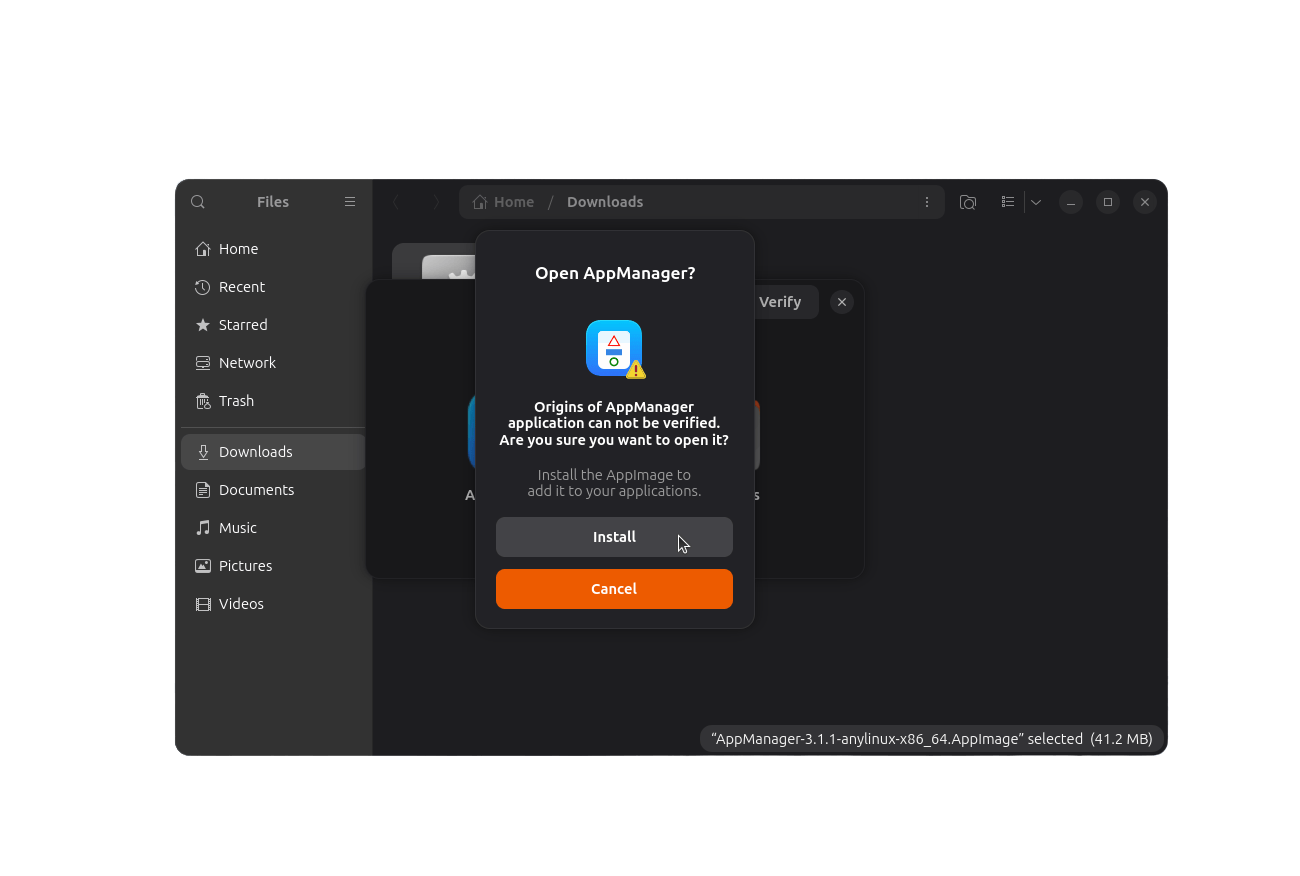
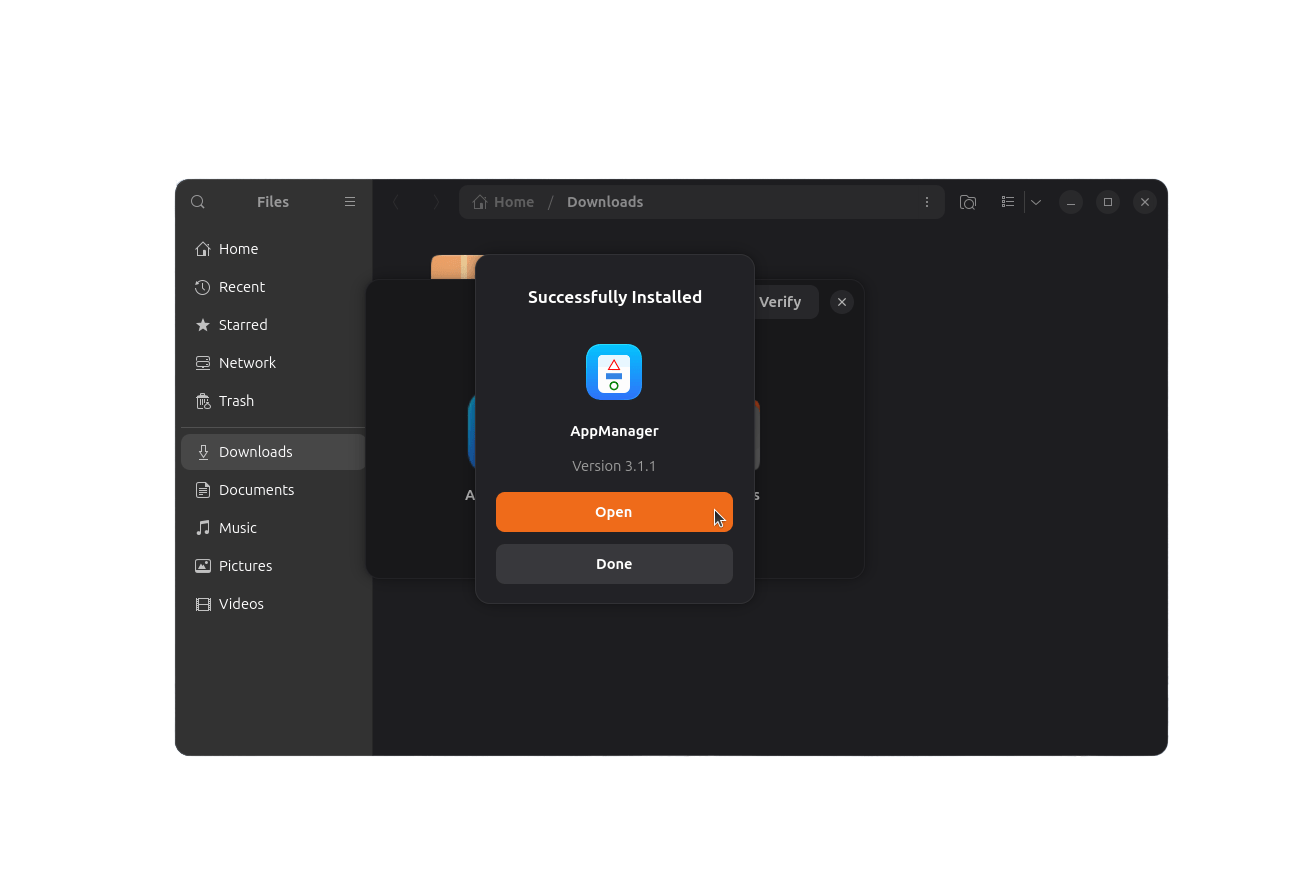
The installation flow for AppManager.
I downloaded a few AppImage files for popular applications like Bitwarden, Krita, and MuseScore Studio to see how AppManager handled them. These were easy to add; I just had to drag-and-drop these into the interface. The video linked above shows it in action.
Any added AppImages are laid out nicely in a list, though a grid view would also be a welcome addition here, and there are two AppImage source options: AnyLinux AppImages and Portable Linux Apps. These can be used to source new AppImages.
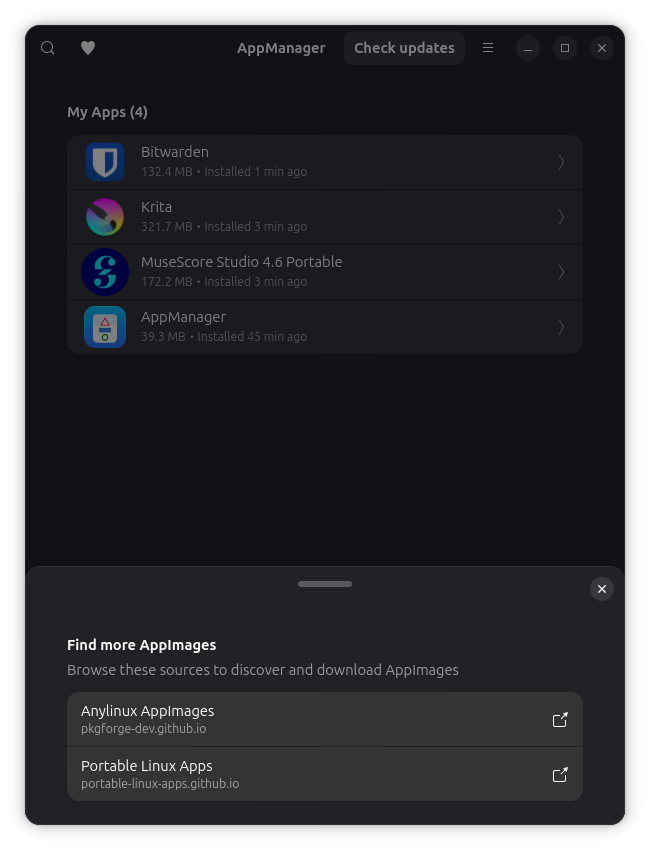
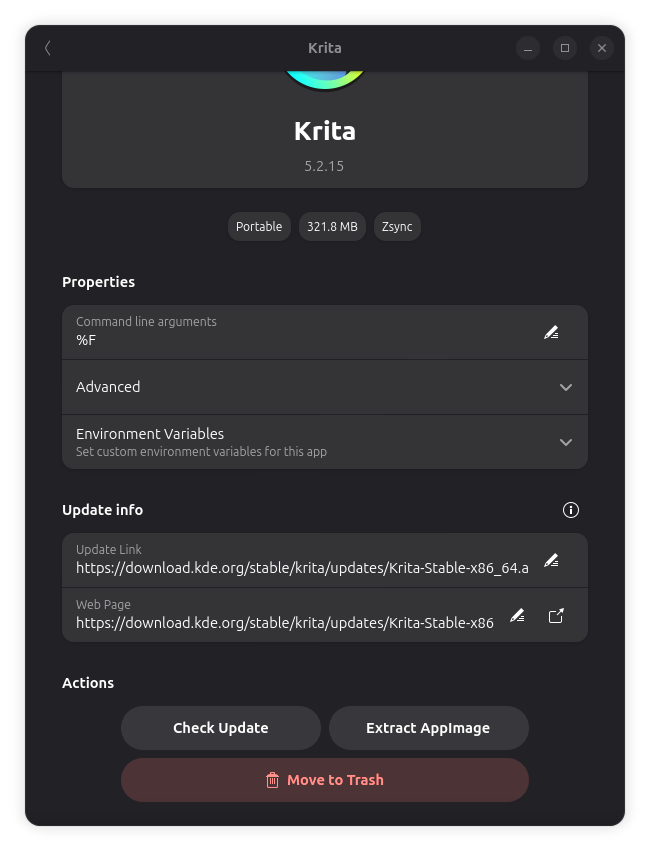
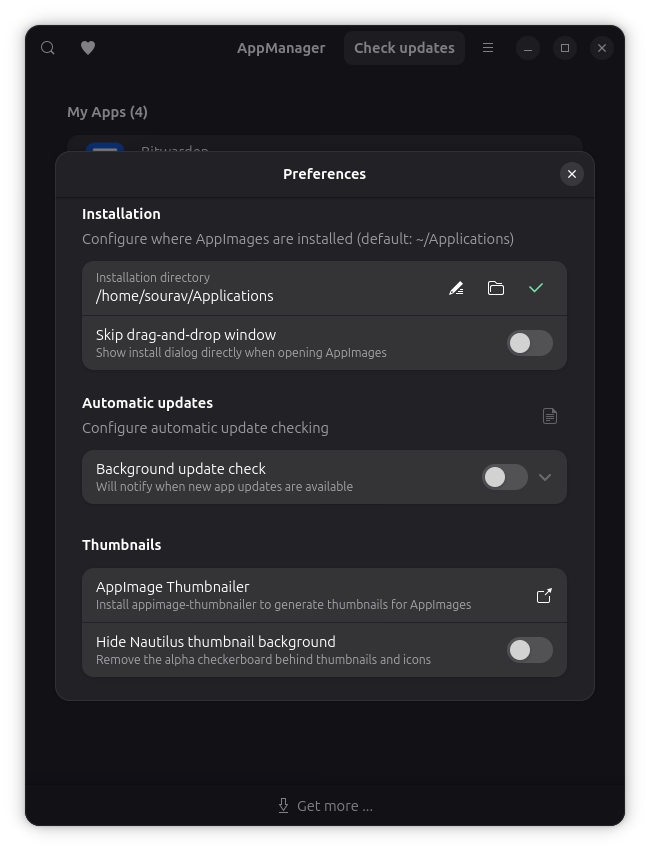
The list view, AppImage options, and preferences menu on AppManager.
Managing each entry is intuitive too, with options to tweak command line arguments, set environment variables, configure update servers, manually trigger update checks, extract AppImages for faster launches, and remove apps when needed.
I could also remove an installed app by right-clicking on its app launcher entry and moving it to the trash folder.
The Preferences menu offers several useful configuration options for customizing how AppManager behaves. You can set a custom installation directory for new AppImages instead of the default /home/user/Applications location, configure the automatic update interval to suit your needs, and configure thumbnail generation.
⚙️ Installing AppManager
You can get the latest release of AppManager from GitHub, where there are 64-bit packages for x86_64 and ARM systems. There are also packages available for those who prefer building from source.
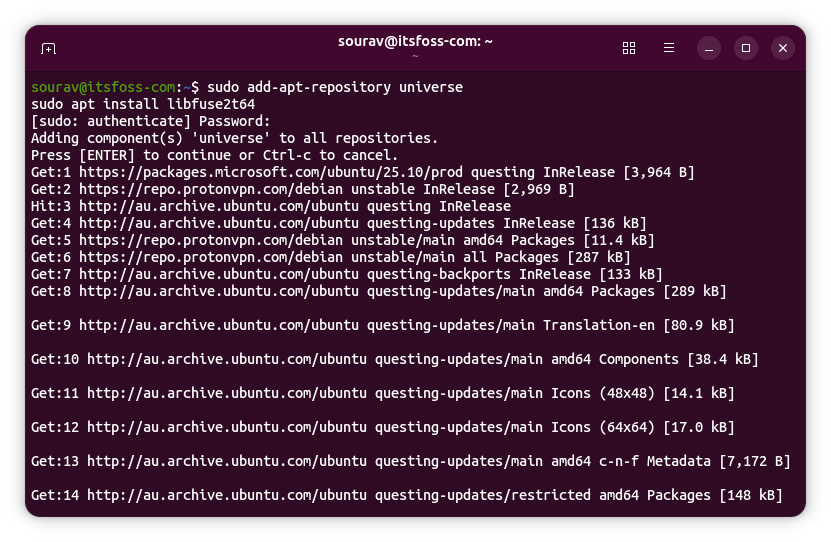
If AppManager shows you an error saying that "FUSE is not installed. Some AppImages may fail to run." Then you can fix that by running the following commands:
sudo add-apt-repository universe
sudo apt install libfuse2t64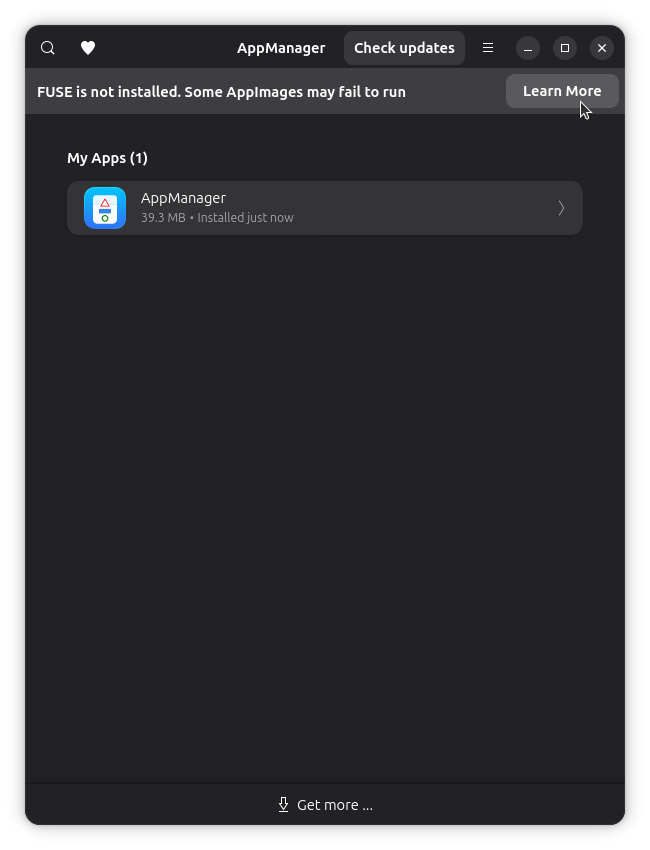
And then reboot your computer:
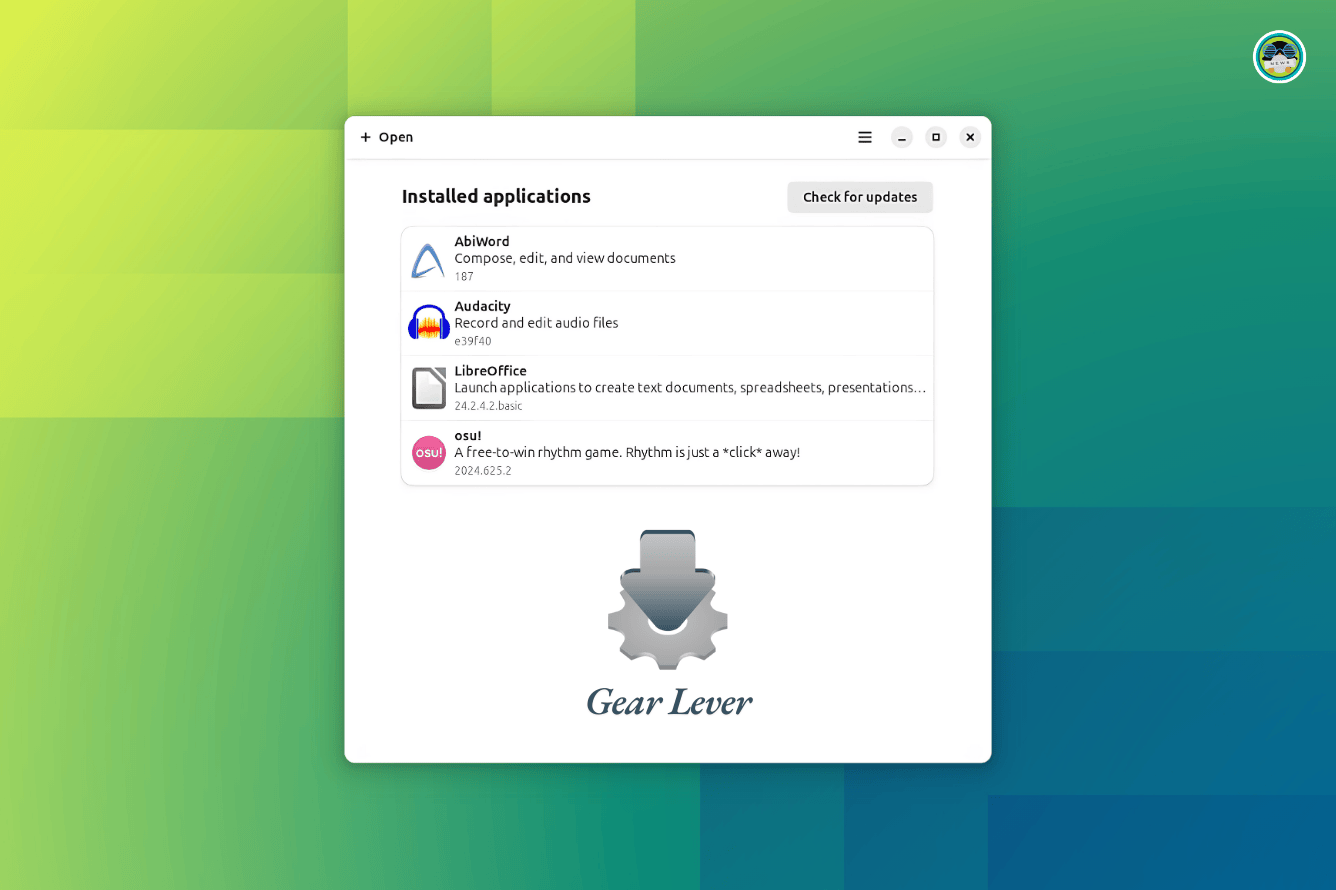
sudo rebootIf this tool doesn't pique your interest, then there's also Gear Lever, which does a good job managing AppImage files on Linux.
 Sourav Rudra