


This is my first dedicated NAS device...well...sort of. I do use a ZimaCube, which is a somewhat similar product, but it isn’t marketed as a traditional NAS in the same way the TerraMaster F4-425 Plus is.
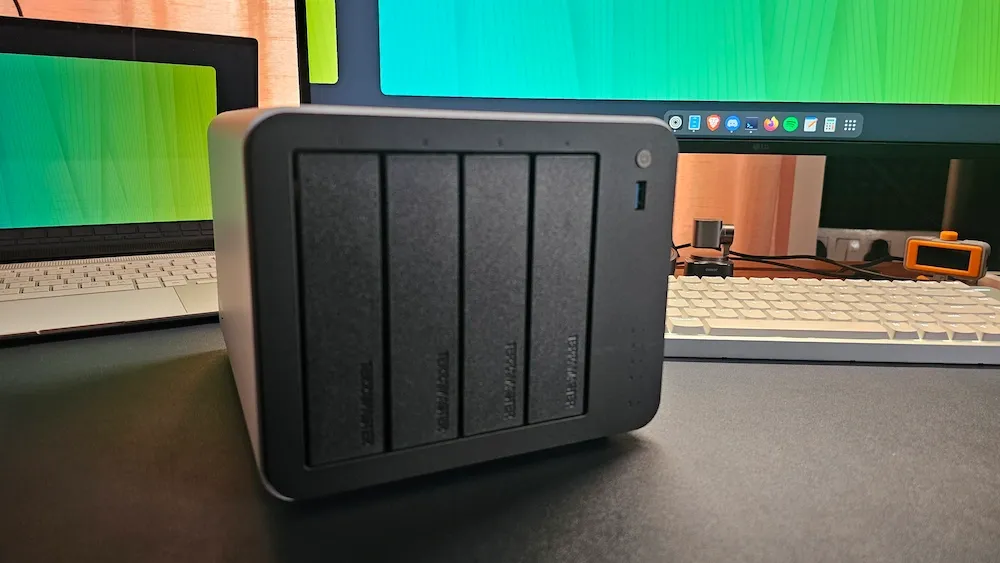
Before going further, a quick disclaimer. I’m not a NAS expert, and I didn’t run synthetic benchmarks for this review. Instead, this is based on hands-on usage and first impressions. In my experience, the real strengths and frustrations of a device only start to surface with regular, day-to-day use over time. That’s when you notice both the pleasant surprises and the small annoyances.
With that in mind, my initial impression of the TerraMaster F4-425 Plus has been quite positive. It’s a reasonably sized device that supports both HDDs and SSDs, runs surprisingly quietly, and offers an almost plug-and-play setup experience.
Before I share my usage experience, let’s start with the hardware specifications.
The hardware
F4-425 Plus is a slight upgrade to its previous version, F4-425. It consists of Intel N150 processor, which is a much-needed upgrade from the aging Celeron chips still found in many other NAS devices. This new processor delivers better per-core performance, lower power consumption. Integrated GPU is definitely a plus in the Plus version.
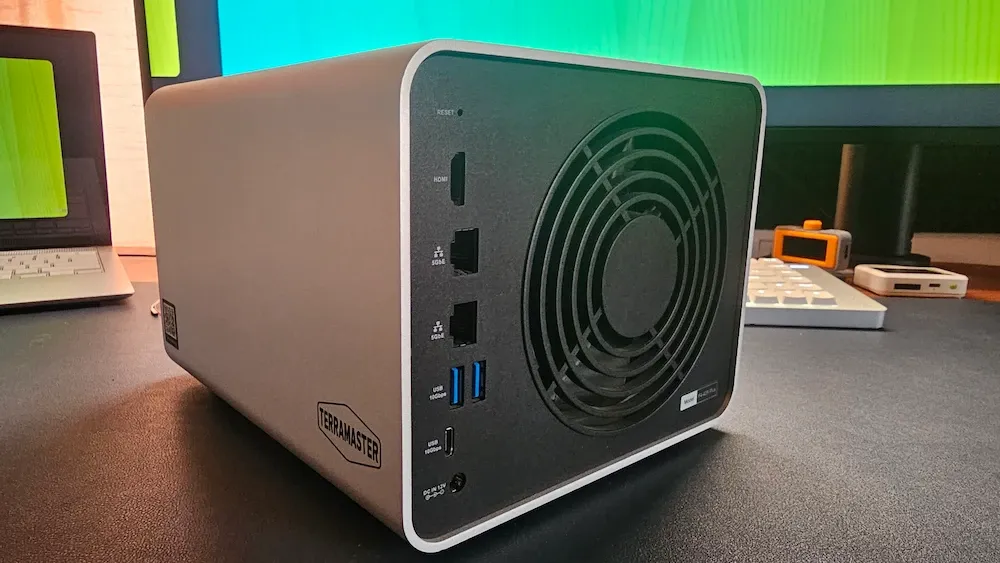
The CPU pairs with 16GB of DDR5 memory. This is generous for the price point and provides headroom for Docker containers, virtual machines, or memory-hungry applications.
The "hybrid" designation comes from the storage configuration: four hot-swap bays for 3.5-inch hard drives (or 2.5-inch SATA SSDs) alongside three M.2 NVMe slots. Each M.2 slot supports drives up to 8 TB, though bandwidth caps at PCIe Gen3 x1 speeds, just under 1,000 MB/s per drive. That's more than sufficient for caching, fast scratch volumes, or VM workloads. In theory, you can have 144TB (120TB across the HDD bays plus 24TB of NVMe storage) storage on this Hybrid NAS device.
Connectivity is also improved in the new version. Dual 5GbE LAN ports outclass the 2.5GbE in the previous version. You also get four USB ports (one front-facing USB-A, plus two USB-A and one USB-C on the rear), all running at 10 Gbit/s. An HDMI port exists but currently only supports terminal access, no dashboard or media playback. So not as useful as I would want it to be.
Build quality is impressive, too. The chassis features thick aluminum construction that's easy to service (four bottom screws, slide off the shell). A single 120mm rear exhaust fan handles cooling, pulling air across the drives while passively cooling the CPU.
| Component | Specification |
|---|---|
| Processor | Intel N150 Quad-Core (up to 3.6 GHz) |
| Memory | 16GB DDR5 (upgradeable to 32GB, non-ECC) |
| HDD Bays | 4× 3.5"/2.5" SATA (hot-swappable) |
| M.2 Slots | 3× NVMe (PCIe Gen3 x1, up to 8TB each) |
| Max Storage Capacity | 144TB (120TB HDD + 24TB NVMe) |
| LAN Ports | 2× 5GbE |
| USB Ports | 4× USB 10 Gbit/s (1 front Type-A, 2 rear Type-A, 1 rear Type-C) |
| Video Output | HDMI (terminal access only) |
| Hardware Transcoding | H.264, H.265, MPEG-4, VC-1 |
| Cooling | 1× 120mm rear exhaust fan |
| Dimensions | 181 × 219 × 150 mm (W × D × H) |
In the package, there were tiny stickers that you can put on the HDDs and label them. Helps you recognize them easily when you are pulling the disk bay. Tiny thing but definitely well thought.
Initial setup
The initial setup follows a fairly standard headless approach. I used Angry IP Scanner to locate the device on my network and then accessed it by entering the IP address in a web browser.
The setup process began with a Terms of Service screen, which appeared before I could proceed to TOS (TerraMaster Operating System).
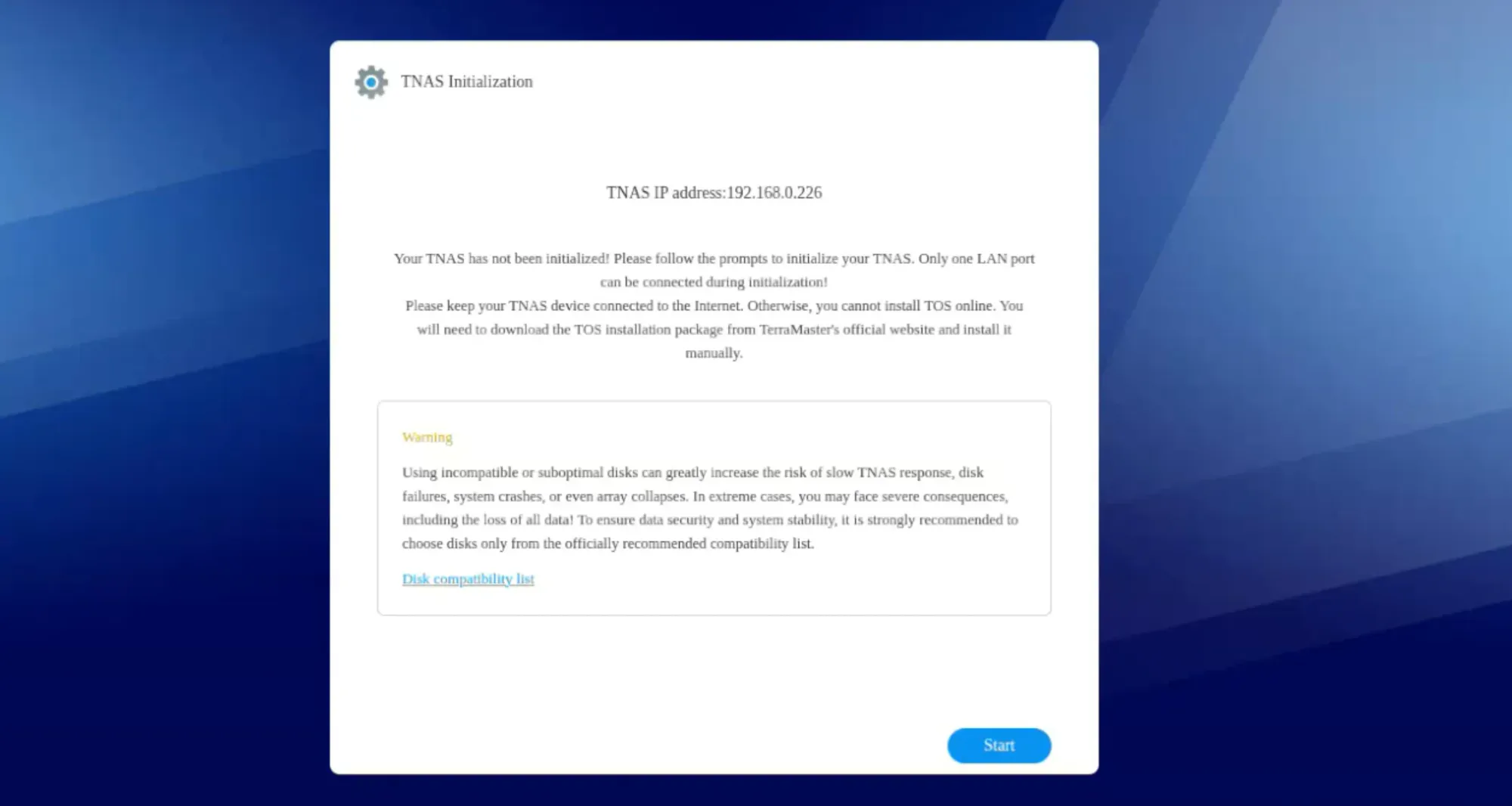
From there, the system automatically detected the installed SSDs and configured them into a TRAID setup.
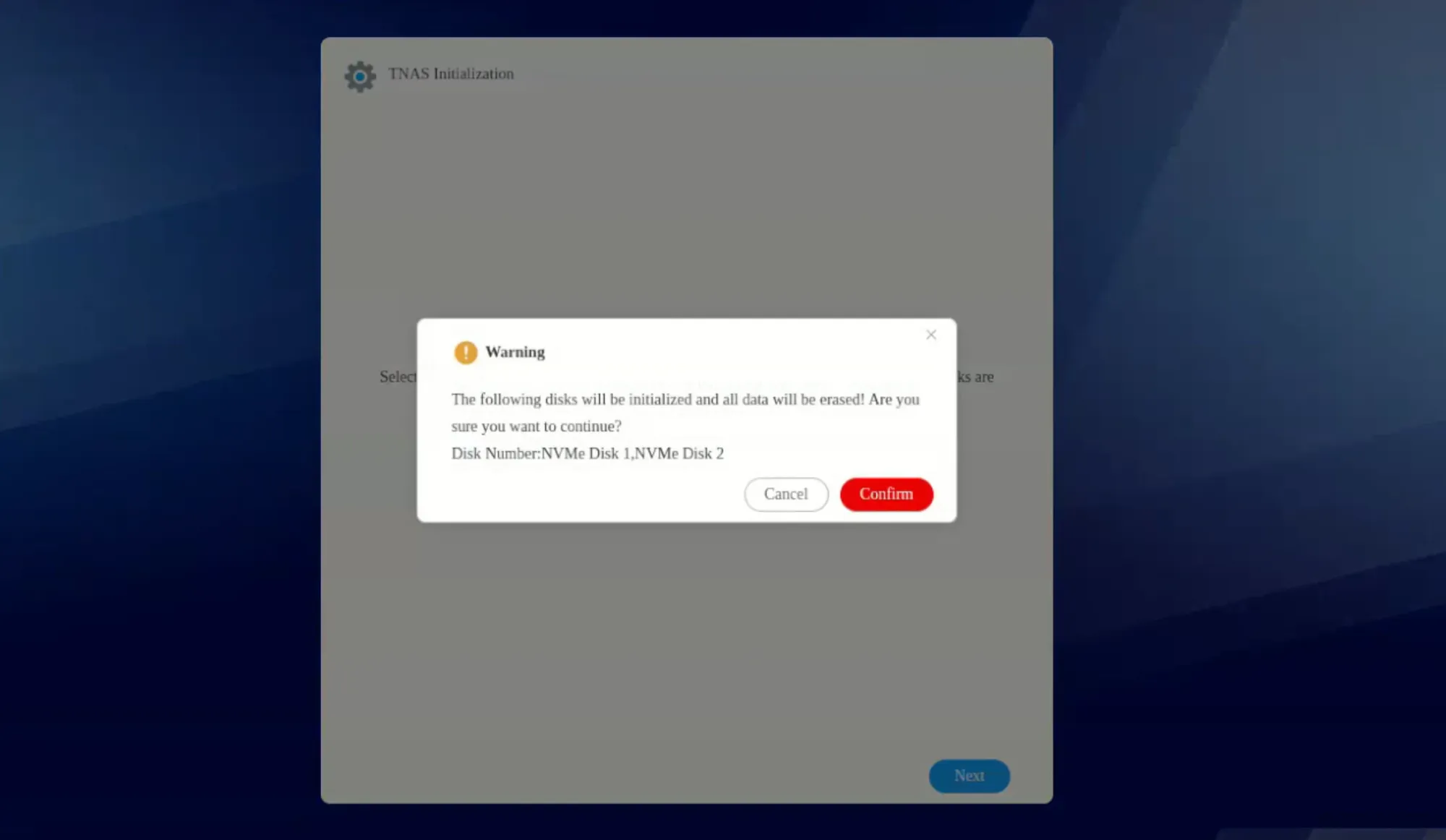
In my case, I used SSDs instead of traditional hard drives, as my homelab setup doesn’t include HDDs. At current prices, SSDs cost almost the same as HDDs in lower storage capacities, and I prefer taking advantage of the improved speed. That said, I do understand that HDDs still offer long-term advantages in a NAS environment, particularly for large-scale storage. If prices become more attractive, I may consider adding a couple of HDDs in the future, though that seems unlikely at the moment.
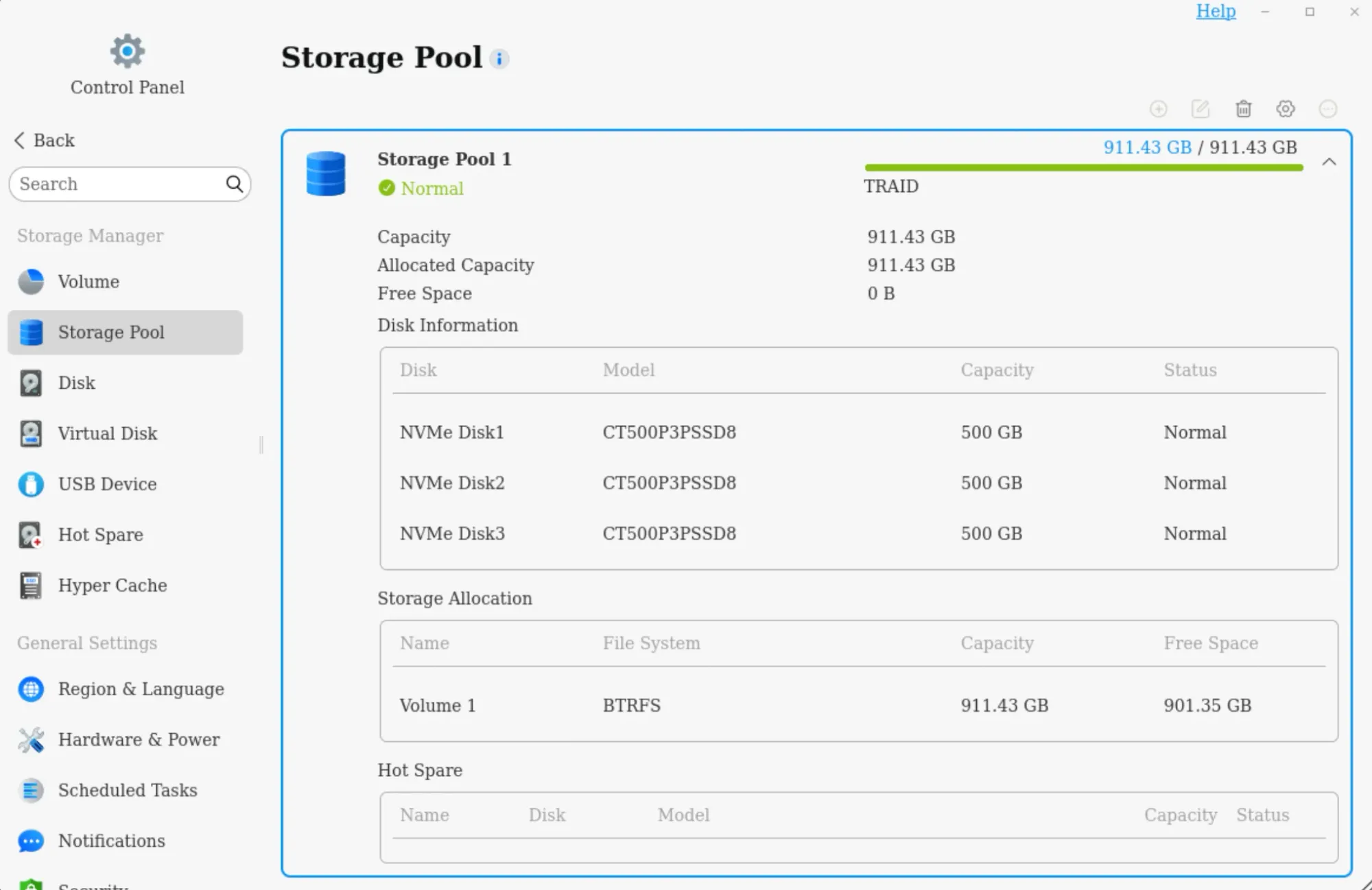
Once the storage pool was created, the system proceeded to install TOS, TerraMaster’s proprietary operating system. After setting up user credentials, the NAS was ready for use.
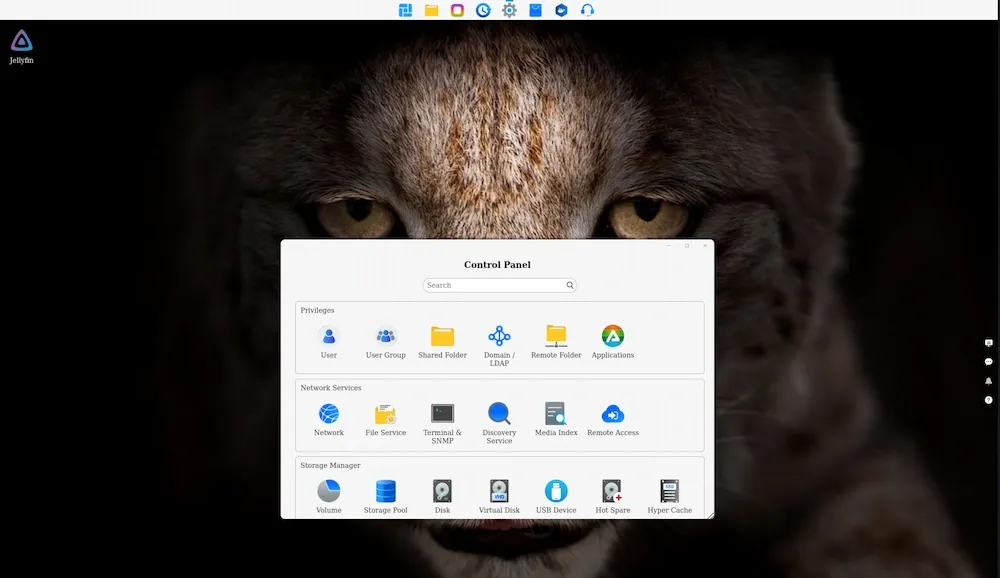
Within minutes, it appeared as an available network drive on my Linux system, allowing me to start transferring files right away.
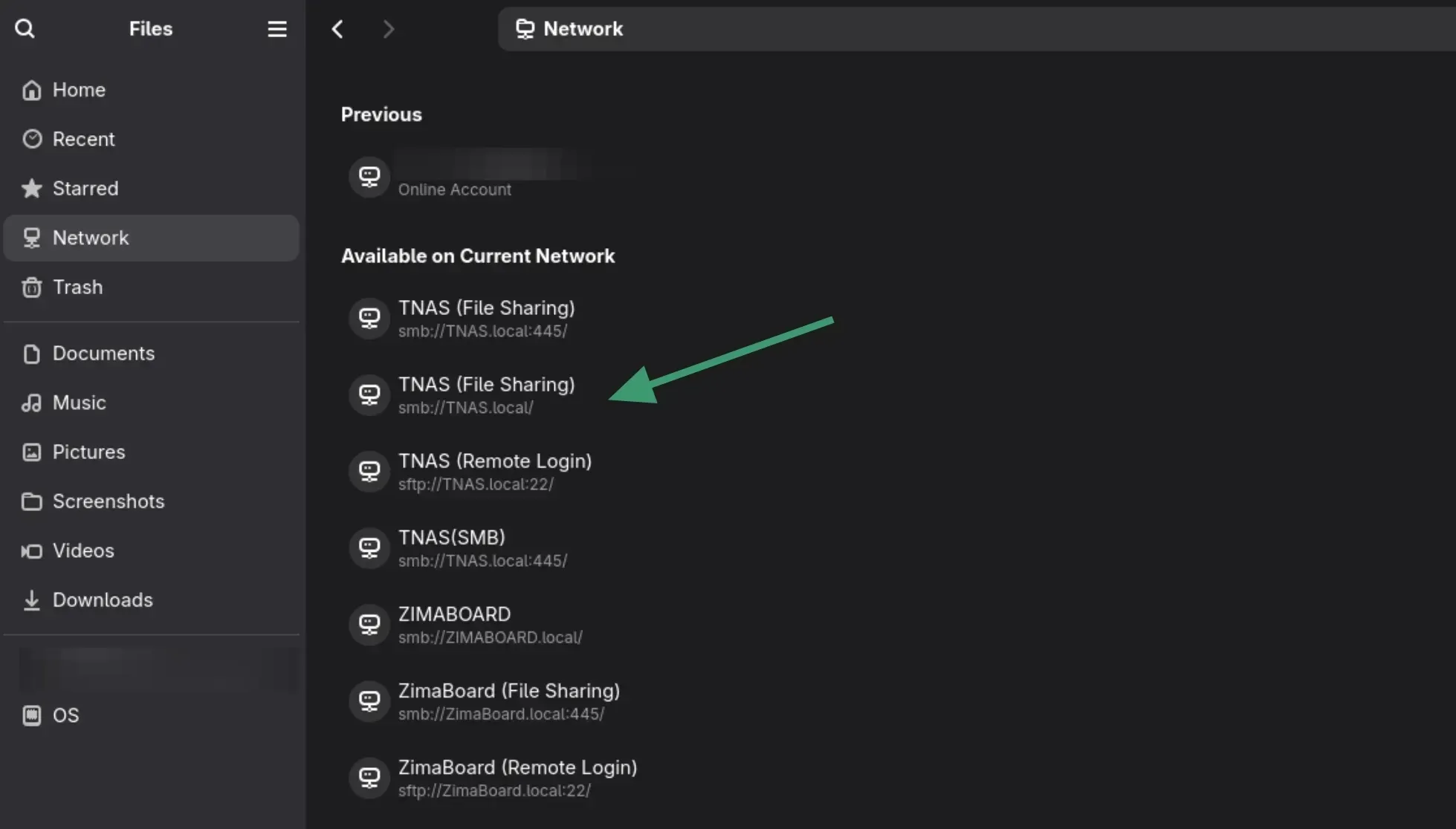
TOS: More capable than its looks
TerraMaster's operating system surprised me with its built-in tools.
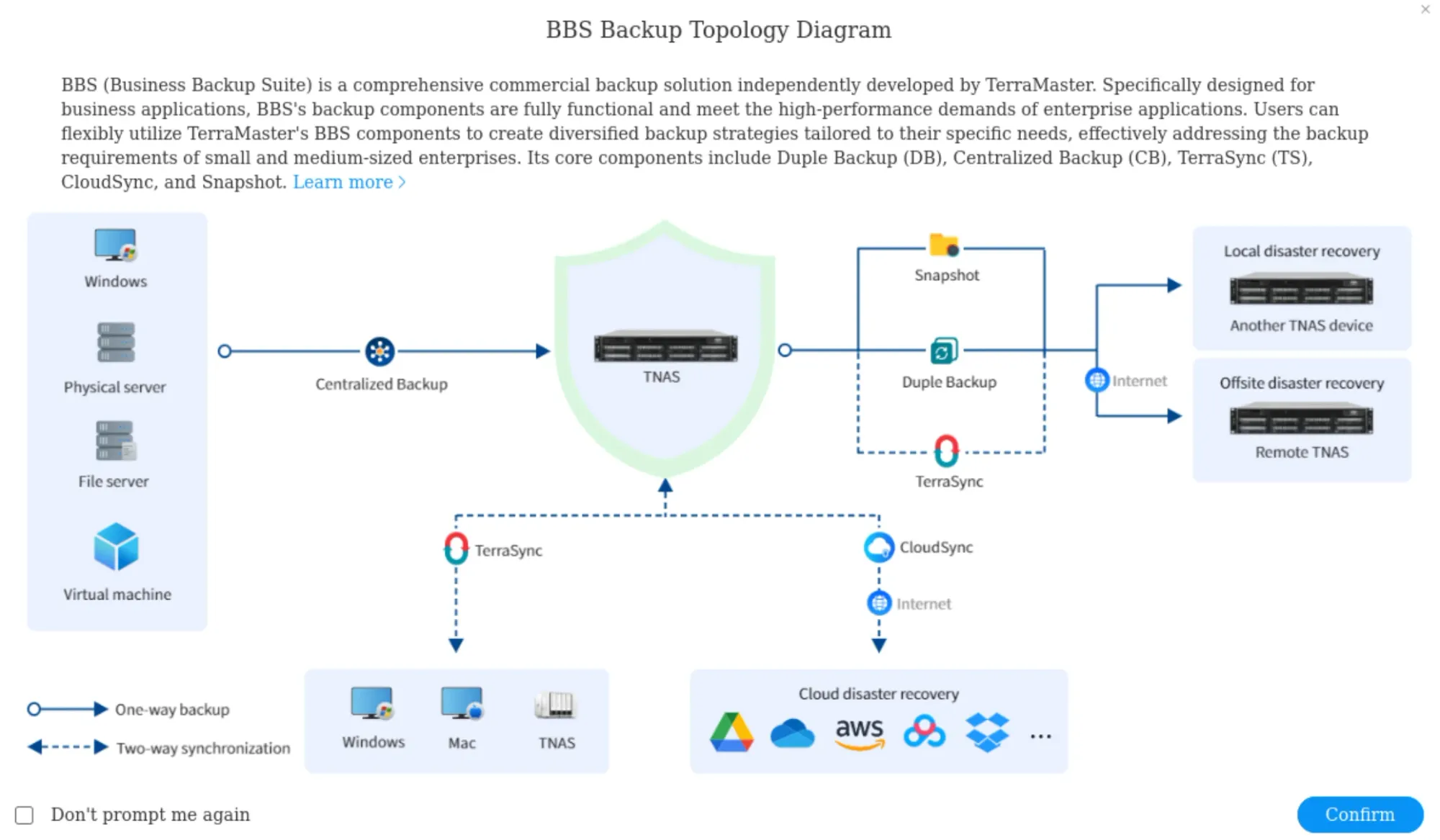
Backup options are comprehensive. TerraSync runs on both the NAS and client PCs to automatically synchronize folders. The TerraSync client can be downloaded from this page. It's weird that they have not put the download links on the main TerraSync webpage.
Next, CloudSync mirrors NAS data to cloud storage providers for offsite protection. You get rsync support for NAS-to-NAS replication, scheduled snapshots for point-in-time recovery, and native Time Machine support for Mac users (not that I care).
Basically, all the building blocks for a proper 3-2-1 backup strategy are present.
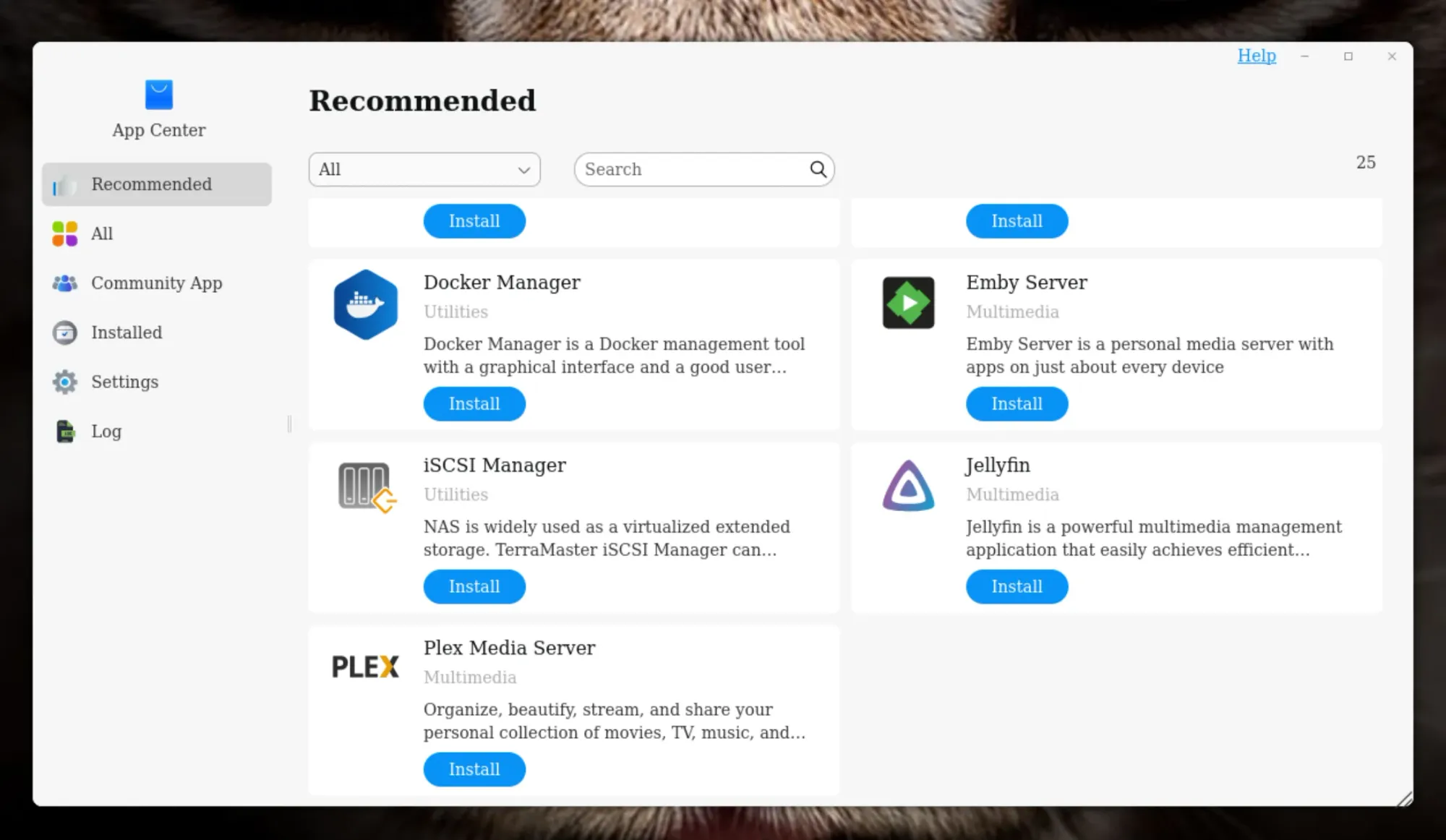
Other than that, TOS has its own app store with a few additional applications. Most of them are TerraMaster utilities but there are also media server software like Emby, Plex and Jellyfin. There is a handy Docker Manager to graphically run and maintain software in Docker containers.
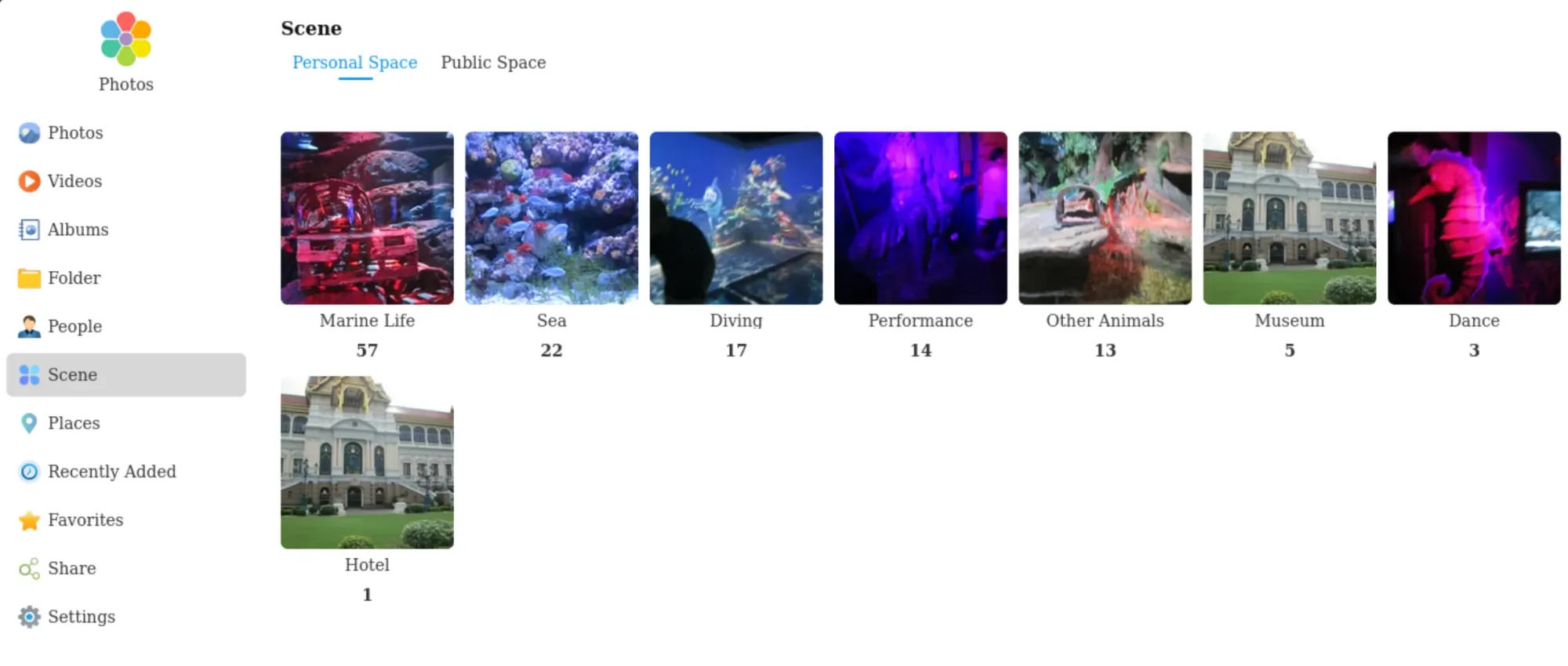
TOS also has a Photos app to give you a better experience with your photo collection. You can enable its built-in AI features to automatically tag people, location and characters. This is reasonably good but I would still prefer Immich or PhotoPrism.
Media serving works well, too. I tested Jellyfin and it showed smooth 4K HEVC playback with HDR and AAC 5.1 audio and the CPU hovered under 6% utilization thanks to hardware decoding.
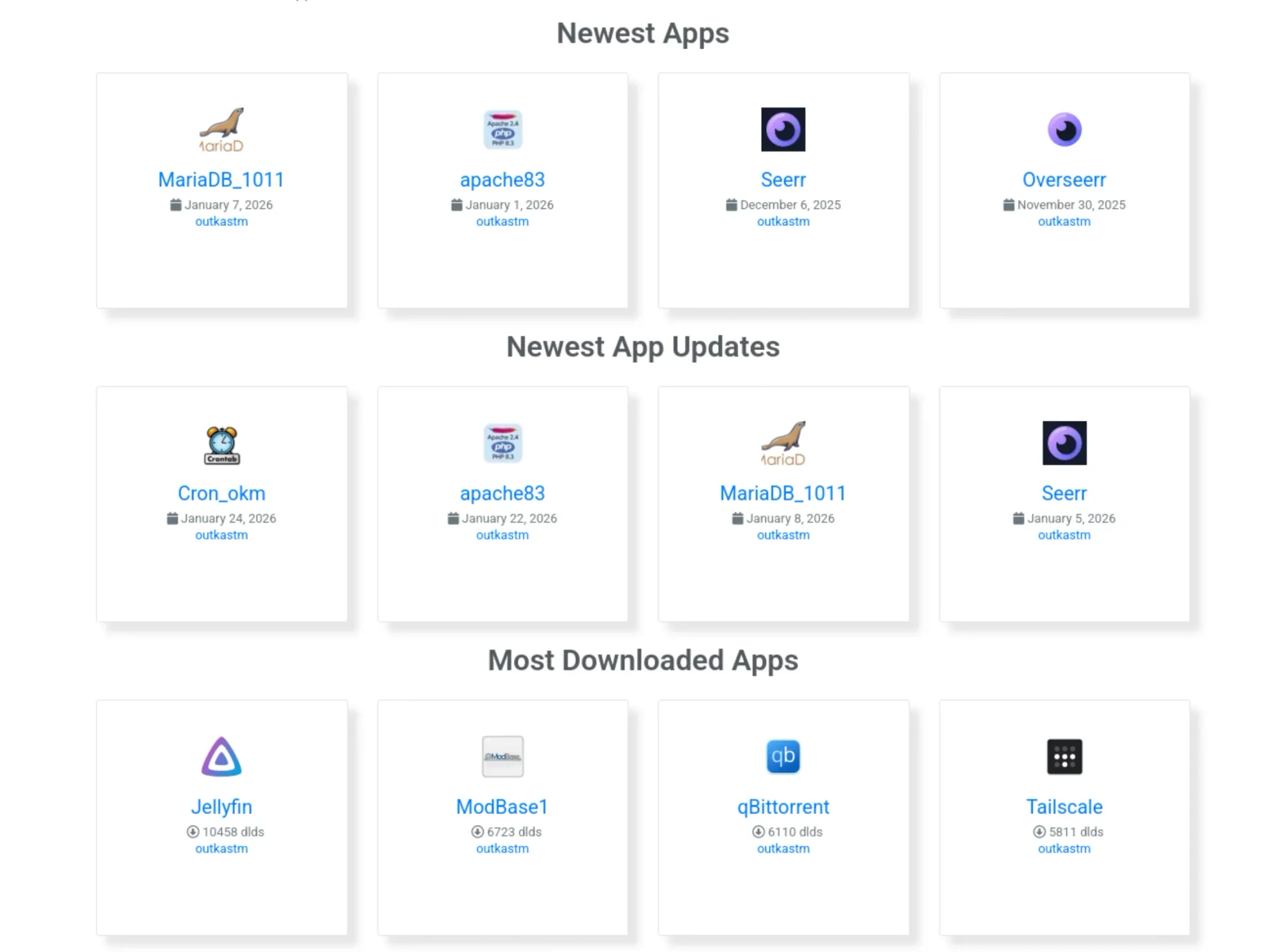
For advanced users, Docker and Portainer support opens up containerized applications. There is an unofficial, community app store for people looking for more software to install but don't want to use Docker or other containerization tool.
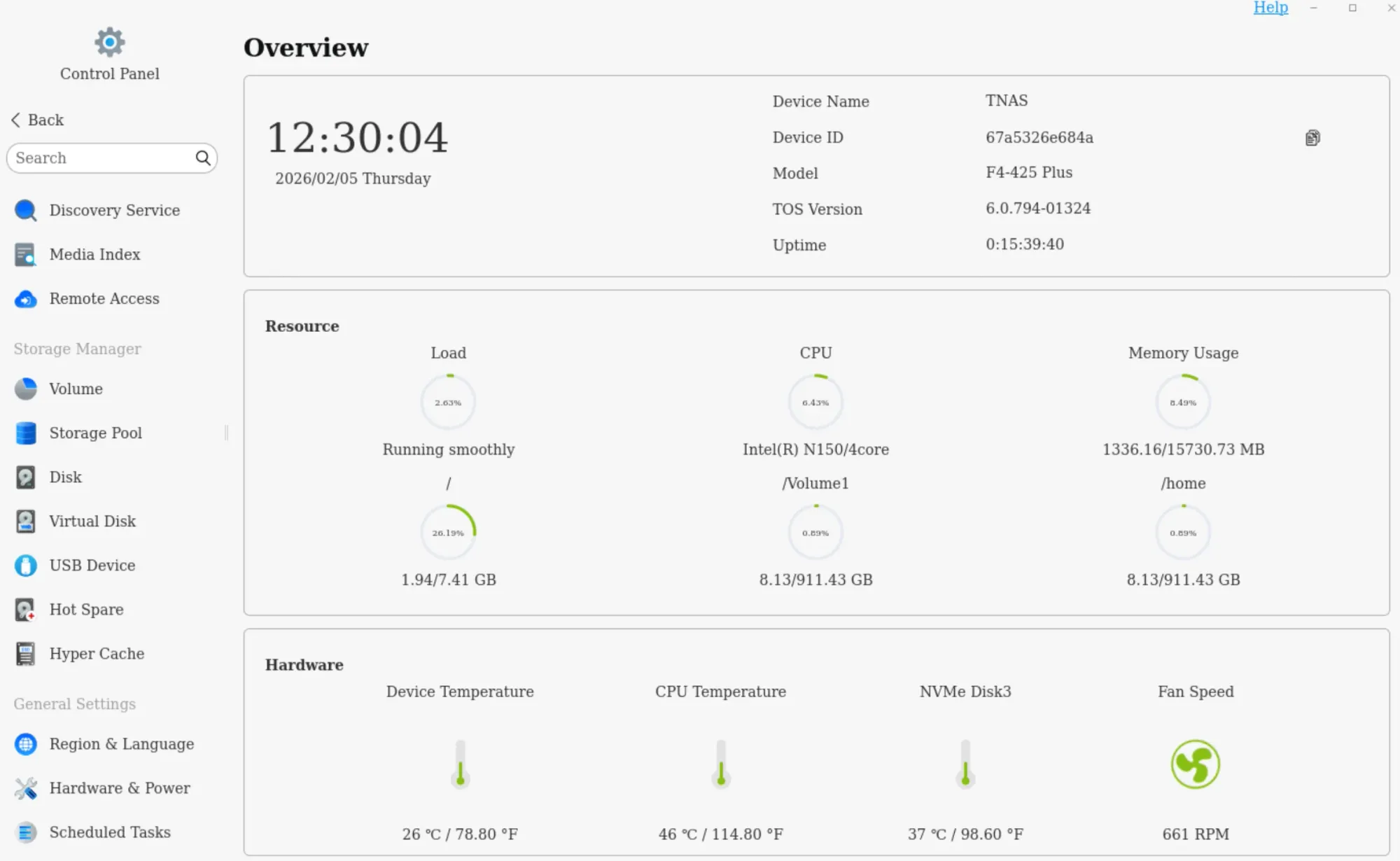
The rough edges show in details: the resource monitor looks dated, thermal monitoring for multiple NVMe drives requires digging through individual disk menus, and the security advisor while feature-complete isn't beginner-friendly.
Everything needed is present; it just requires more clicks and exploration. If they could improve their user interface, make it look more modern, TerraMaster will be unbeatable. Their heart is in the right place as they have think about all the important things to run and manage a NAS, a homelab. It just needs to be more polished, more cohesive.
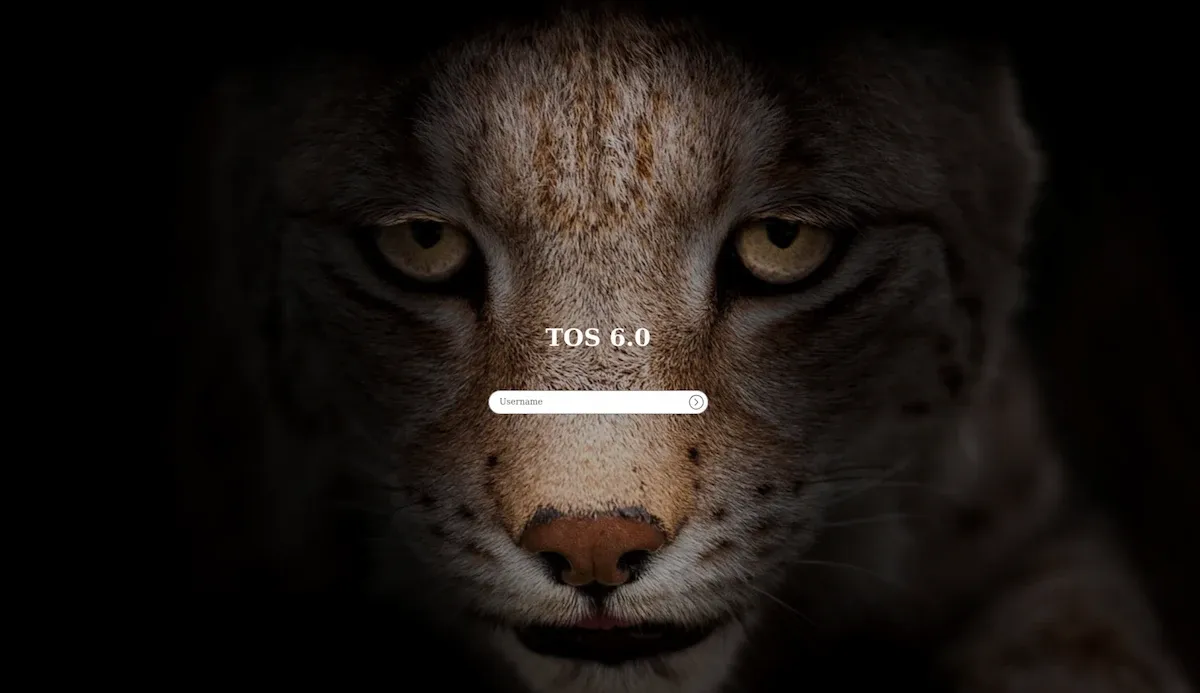
By the way, the default wallpaper does look badass.
Performance: Solid numbers for the class
F4-425 Plus has dual 5GbE ports which is a good option if you have that kind of infrastructure. I use it over WiFi but at least the high-speed option is present for faster data transfer.
When I played 4K media over WiFi, I was expecting the CPU to go crazy. It stayed under 6% to my surprise. Similarly, CPU remained under 60°C even under considerable load, SSDs sat between 41-45°C. The aluminum chassis stays cool to the touch. I was lowkey expecting it to be hot.
Power consumption measured under 10W for the NAS hardware. Perhaps it would consume more over heavy load and when all the HDDs are utilized.
Things that could have been better (but no deal breakers)
The F4-425 Plus is a capable and well-built NAS overall, but like any product, it has a few areas where the experience could be better. None of these are deal-breakers, but they did stand out during regular use.
Could use more modern ports
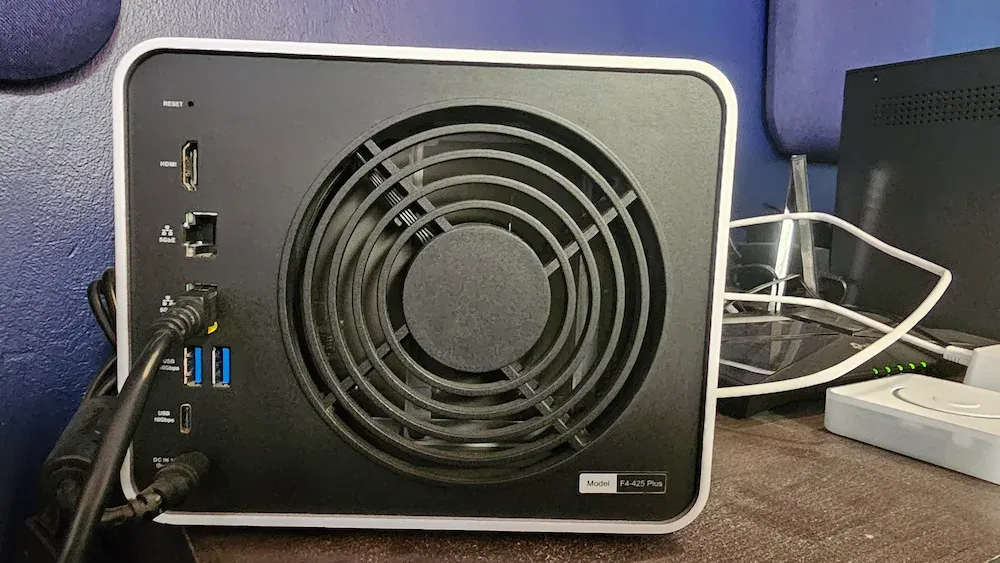
The F4-425 Plus offers three USB-A ports and a single USB-C port. While USB-A is still very much in use, USB-C has become the default choice for many modern peripherals, especially portable SSDs.
When transferring large amounts of data, USB-C is generally more convenient and better suited for higher-speed external storage. Having only one USB-C port slightly limits flexibility, particularly if you regularly work with external drives.
Don't get me wrong. The three USB A ports it provides are capable of upto 10 Gbps (in theory) but somehow, I am biased towards USB type C.
Additionally, there is no Thunderbolt port. ZimaCube offers Thunderbolt connectivity, which allows for extremely fast direct connections to a (Windows and Mac) computer. While Thunderbolt isn’t essential for everyone, including it would have future-proofed the device.
Front panel connectivity could be better
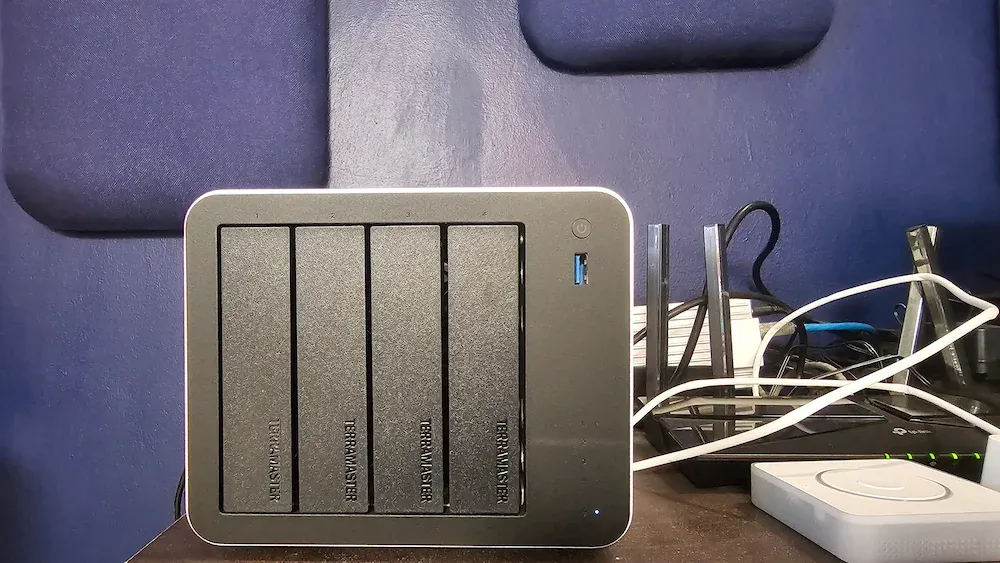
On the front of the F4-425 Plus, you’ll find the power button, four drive bays, and a single USB-A port. The only USB-C port is located at the back.
This means that when I want to quickly connect a portable SSD, I need to access the rear of the NAS. It’s not a major inconvenience, but a front-facing USB-C port would have made everyday usage more convenient, especially for temporary connections.
SSD access requires opening the enclosure
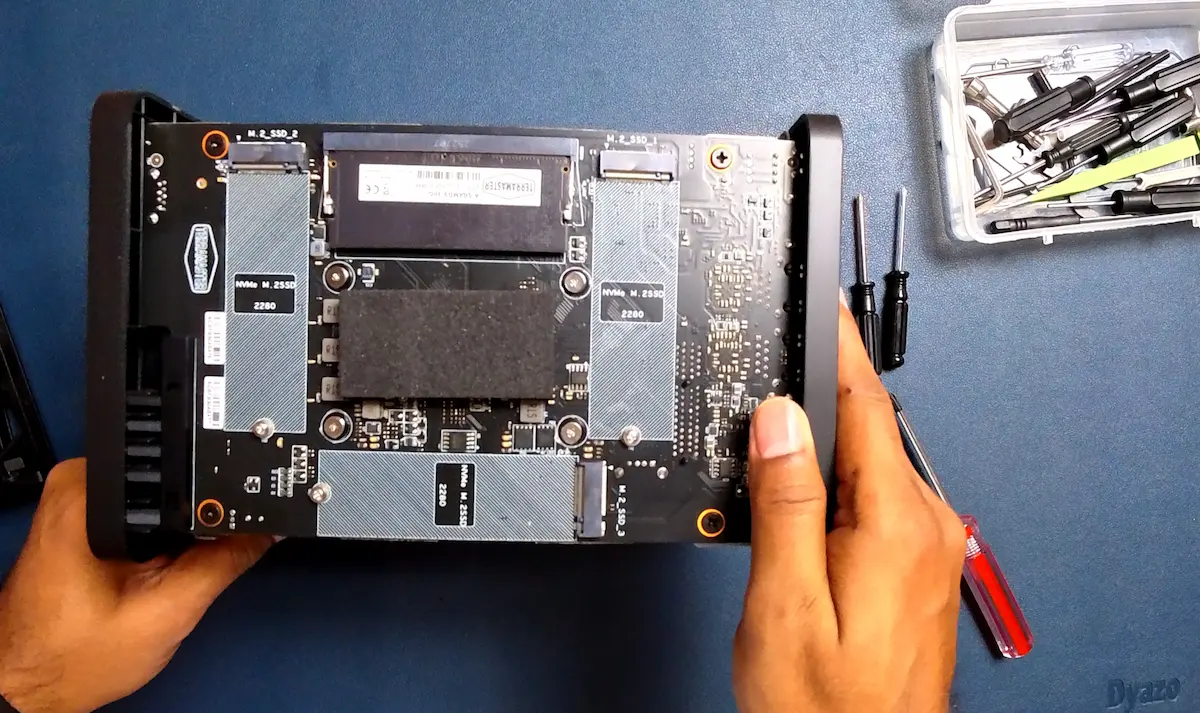
This is a relatively minor point, as internal SSDs are not something you’ll be removing frequently. To access the SSDs on the F4-425 Plus, you need to remove the outer metal casing. The process is straightforward, but it does require tools.
I like what ZimaCube did. They offer front-accessible SSD bays, which makes upgrades faster and simpler. It would be nice to see a similar approach in future models from TerraMaster.
TerraMaster mobile app could be more polished
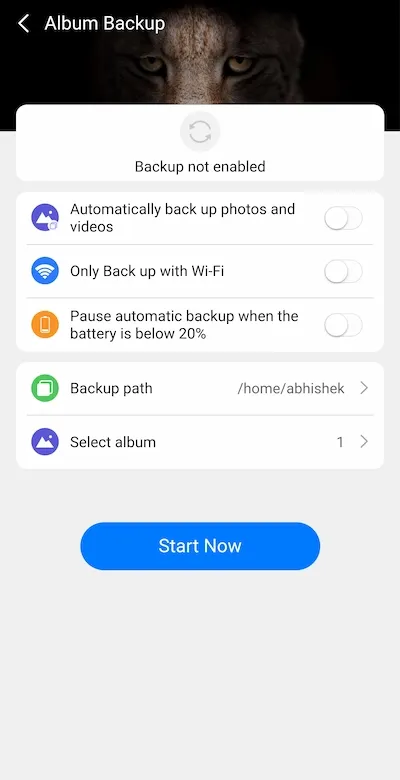
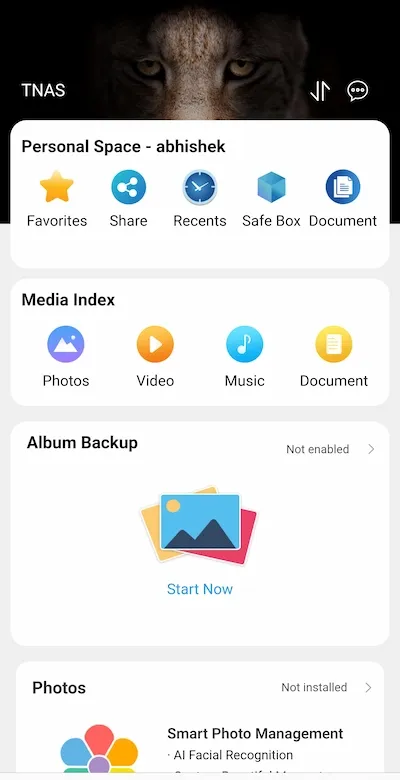
The idea behind TerraMaster’s mobile apps is solid. Being able to access files remotely and back up phone media directly to the NAS is genuinely useful. However, the overall experience could be smoother.
The interface feels a bit dated in places, and some actions are not as intuitive as they could be. For instance, selectively uploading files from an Android phone didn’t work as smoothly as expected. While the TNAS app appears in the share menu, file uploads were inconsistent in my testing.
Uploading files from within the TNAS app itself does work, but it can feel cumbersome when dealing with large photo or video libraries. With some UI and workflow improvements, this app could be much more pleasant to use.
Conclusion
As I mentioned at the beginning of the article, I am not a NAS expert. I am just a technophile who likes plenty of Linux and open source software and is now keenly interested in maintaining homelab and self-hosting.
From what I have experienced with TerraMaster so far, I feel it is an excellent piece of hardware coupled with software that can be greatly improved to give it a top-notch, plug-and-play experience to a wider user.
Even at present, its TOS operating system is good enough if you are going to use it primarily as a NAS. Some may not like it, but I liked the flexibility its TRAID provides. If you want the device in a multi-role, you'll have to install a different operating system.
