


You can totally read CSV files in the terminal. After all, it's a text file. You can use cat and then parse it with the column command.
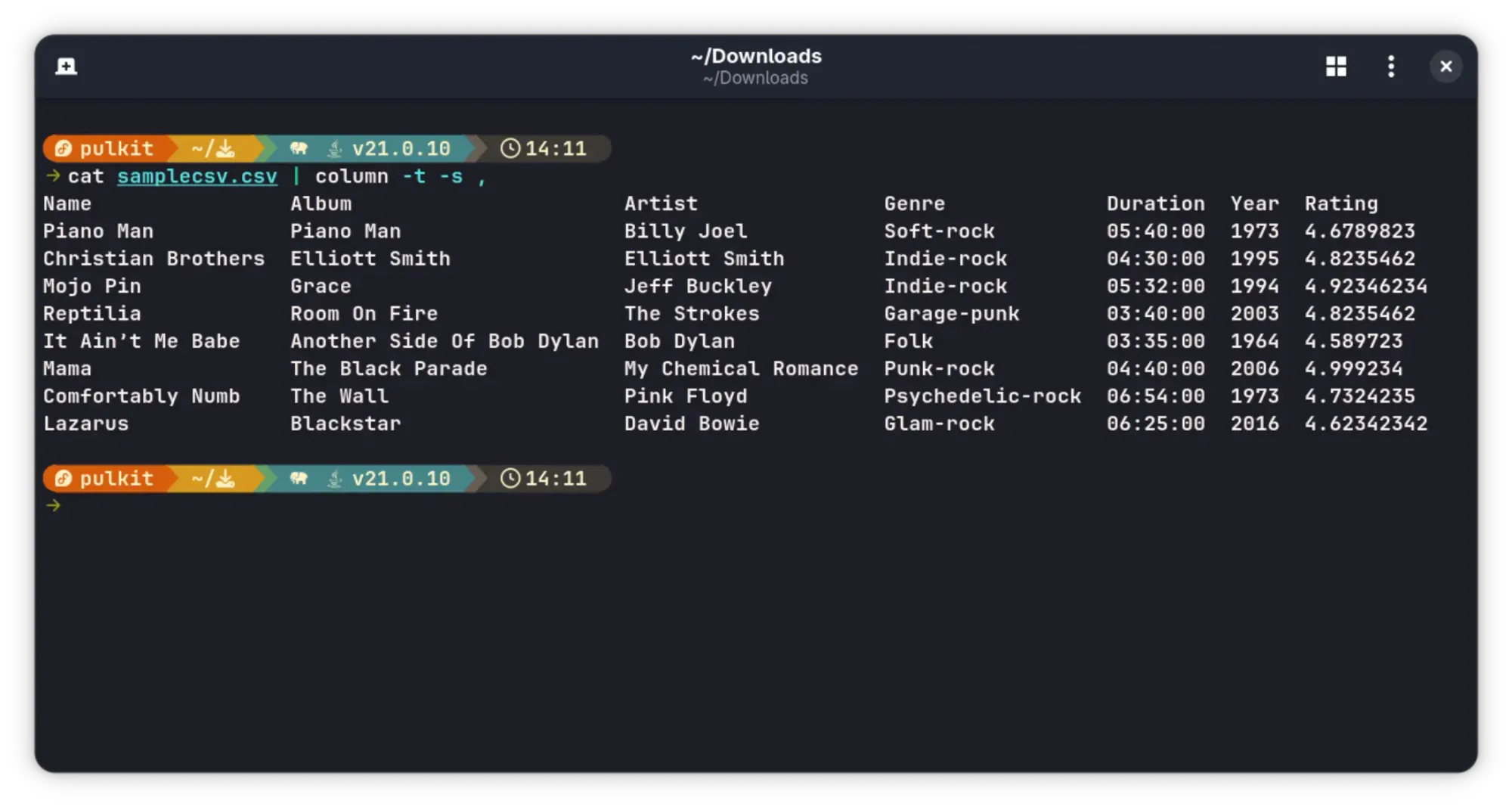
That works. No doubt. But it is hard to scan and certainly not easy to follow.
I came across a tool that made CSV files look surprisingly beautiful in the terminal.
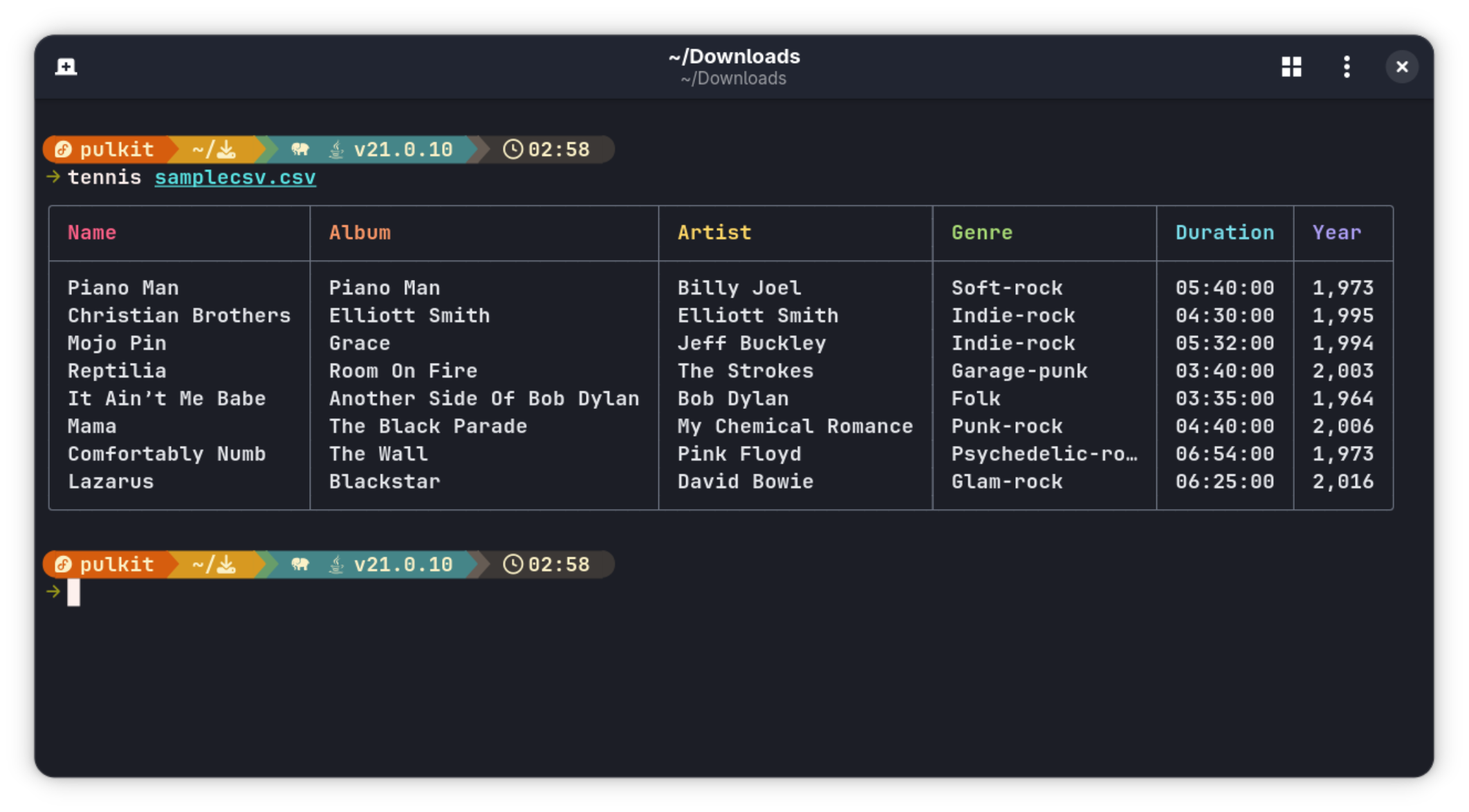
That looks gorgeous, isn't it? That is the magic of Tennis. No, not the sport, but a terminal tool I recently discovered.
Meet Tennis: CSV file viewing for terminal junkies
Okay... cheesy heading but clearly these kinds of tools are more suitable for people who spend considerable time in the terminal. Normal people would just use an office tool or simple text editor for viewing CSV file.
But a terminal dweller would prefer something that doesn't force him to come out of the terminal.
Tennis does that. Written in Zig, displays the CSV files gorgeously in a tabular way, with options for a lot of customization and stylization.
You don't necessarily need to customize it, as it automatically picks nice colors to match the terminal. As you can see, clean, solid borders and playful colors are visible right upfront.
Things you can do with Tennis
Let me show you various styling options available in this tool.
Row numbering
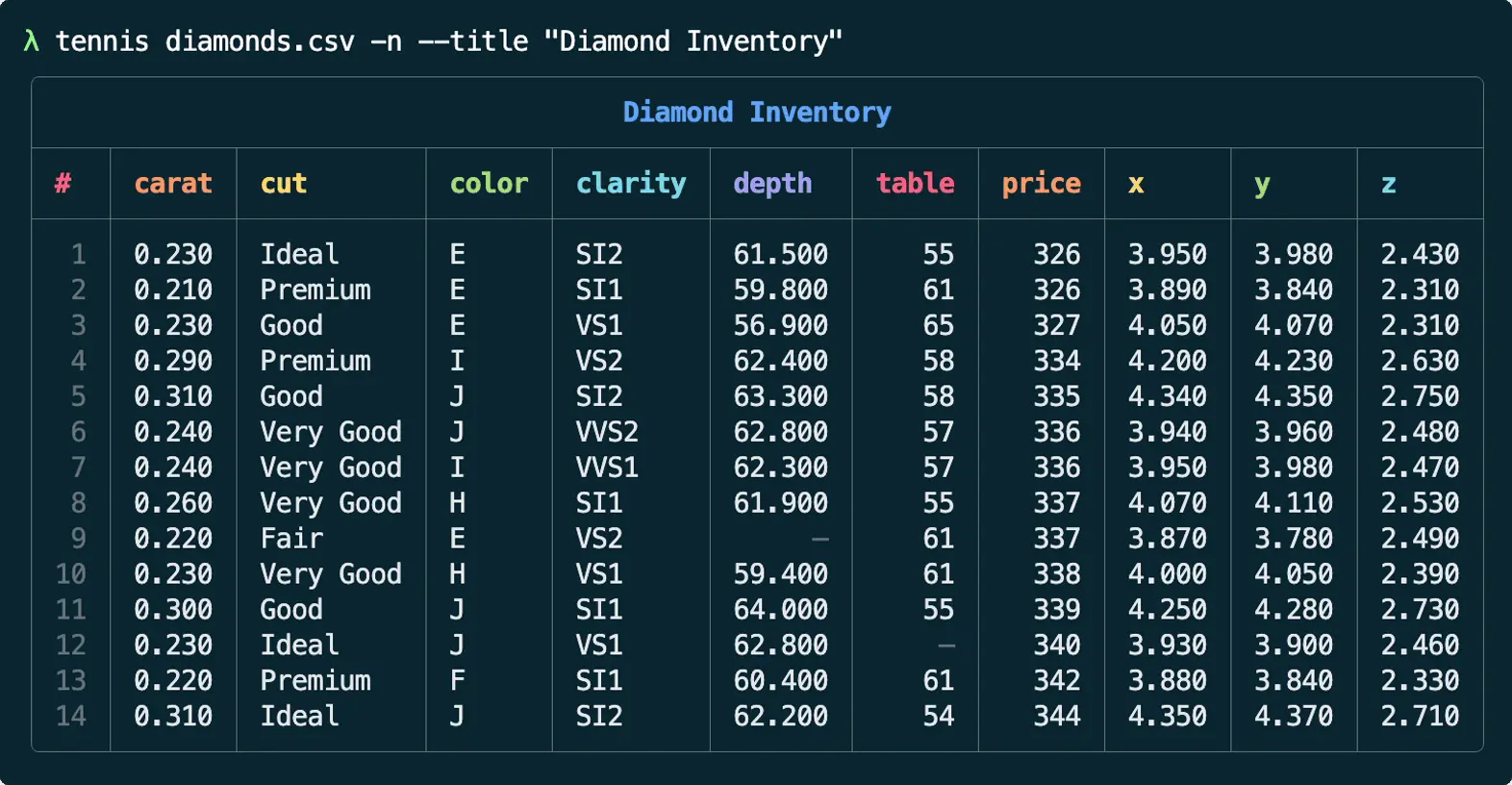
You can enable the numbering of rows on Tennis using a simple -n flag at the end of the command:
tennis samplecsv.csv -n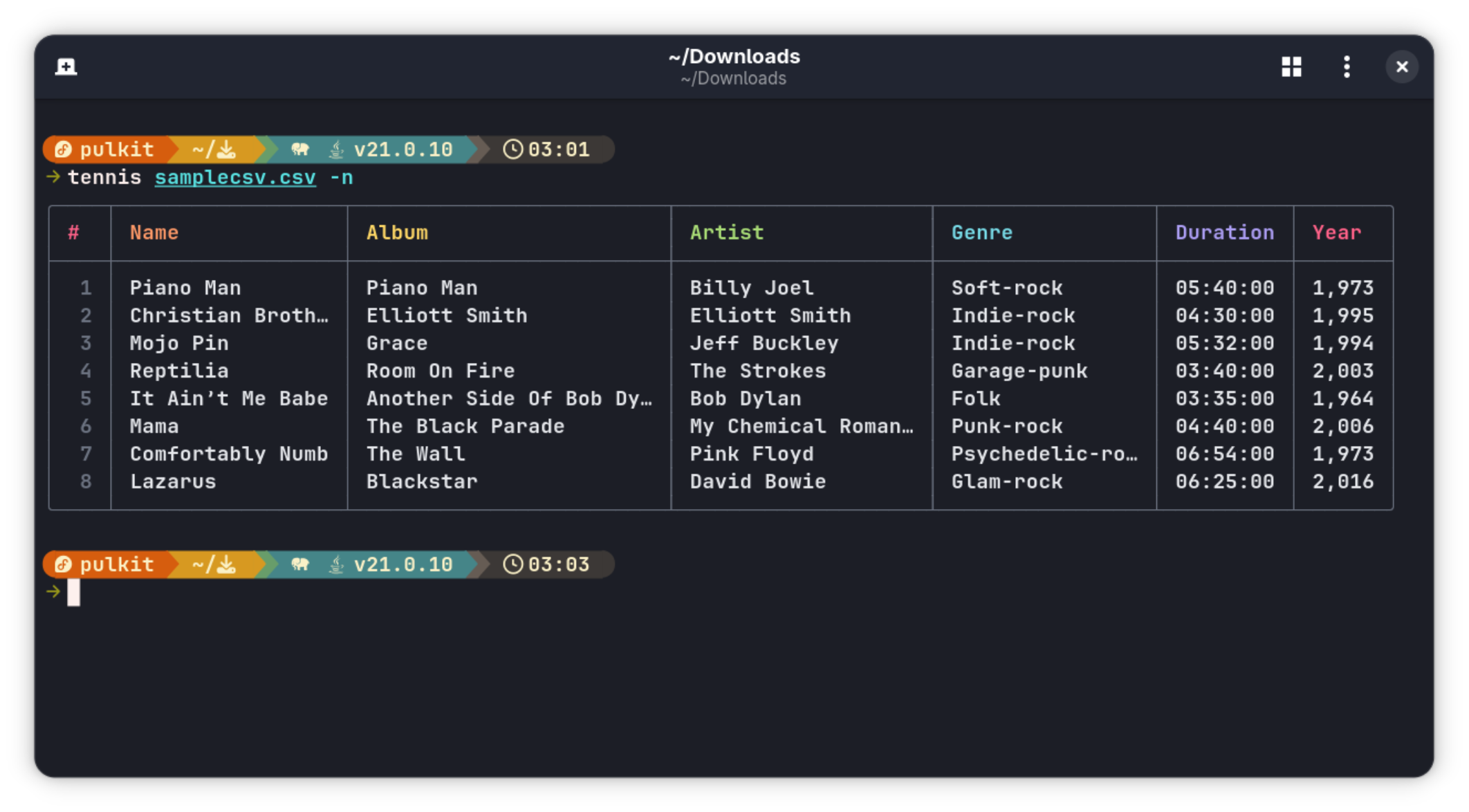
This can be useful when dealing with larger files, or files where the order becomes relevant.
Adding a title
You can add a title to the printed CSV file on the terminal, with a -t argument, followed by a string that is the title itself:
tennis samplecsv.csv -t "Personal List of Historically Significant Songs"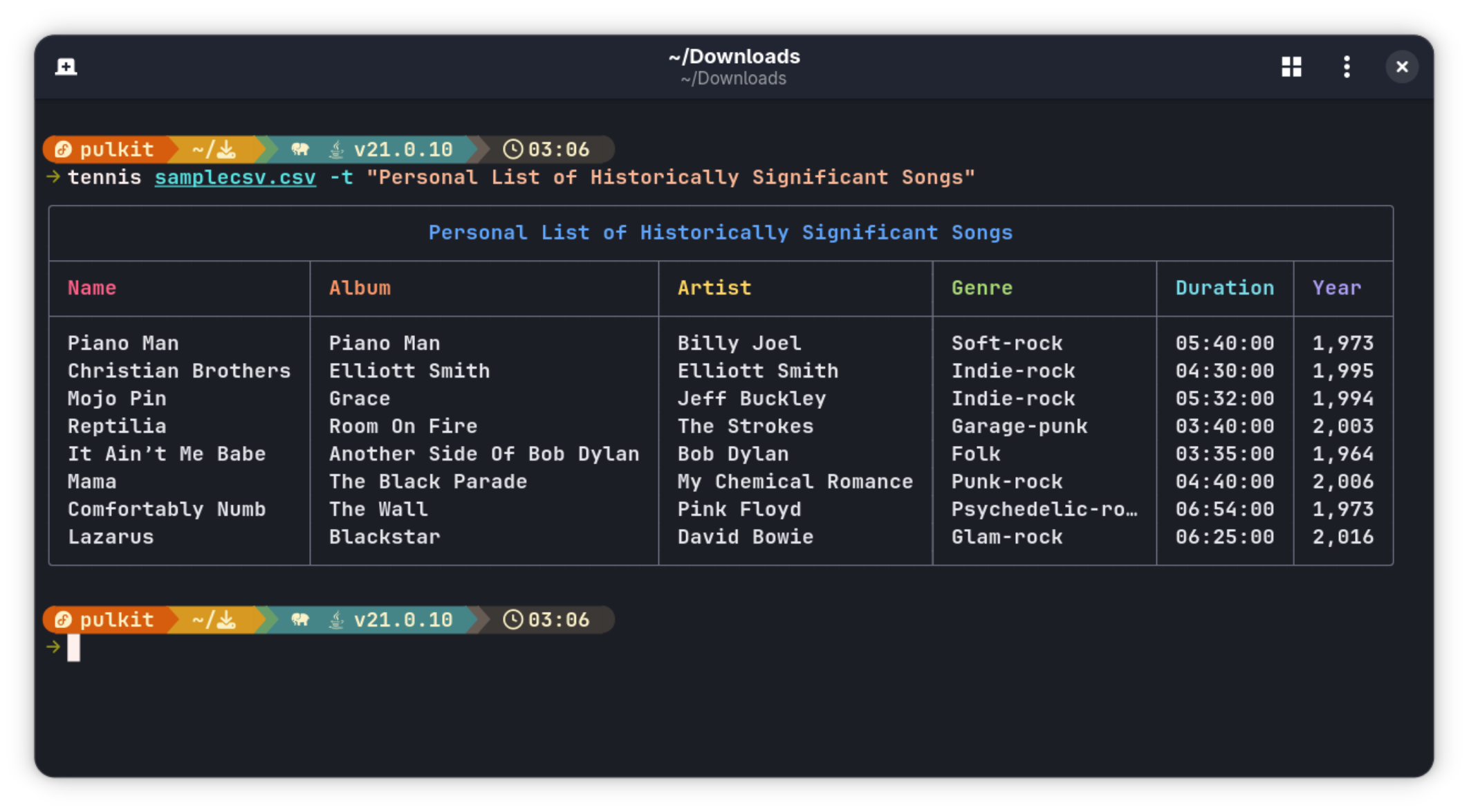
The title is displayed in an extra row on top. Simple enough.
Table width
You can set a maximum width to the entire table (useful if you want the CSV file not to occupy the entire width of the window). To do so, use the -w tag, followed by an integer that will display the maximum number of characters that you want the table to occupy.
tennis samplecsv.csv -w 60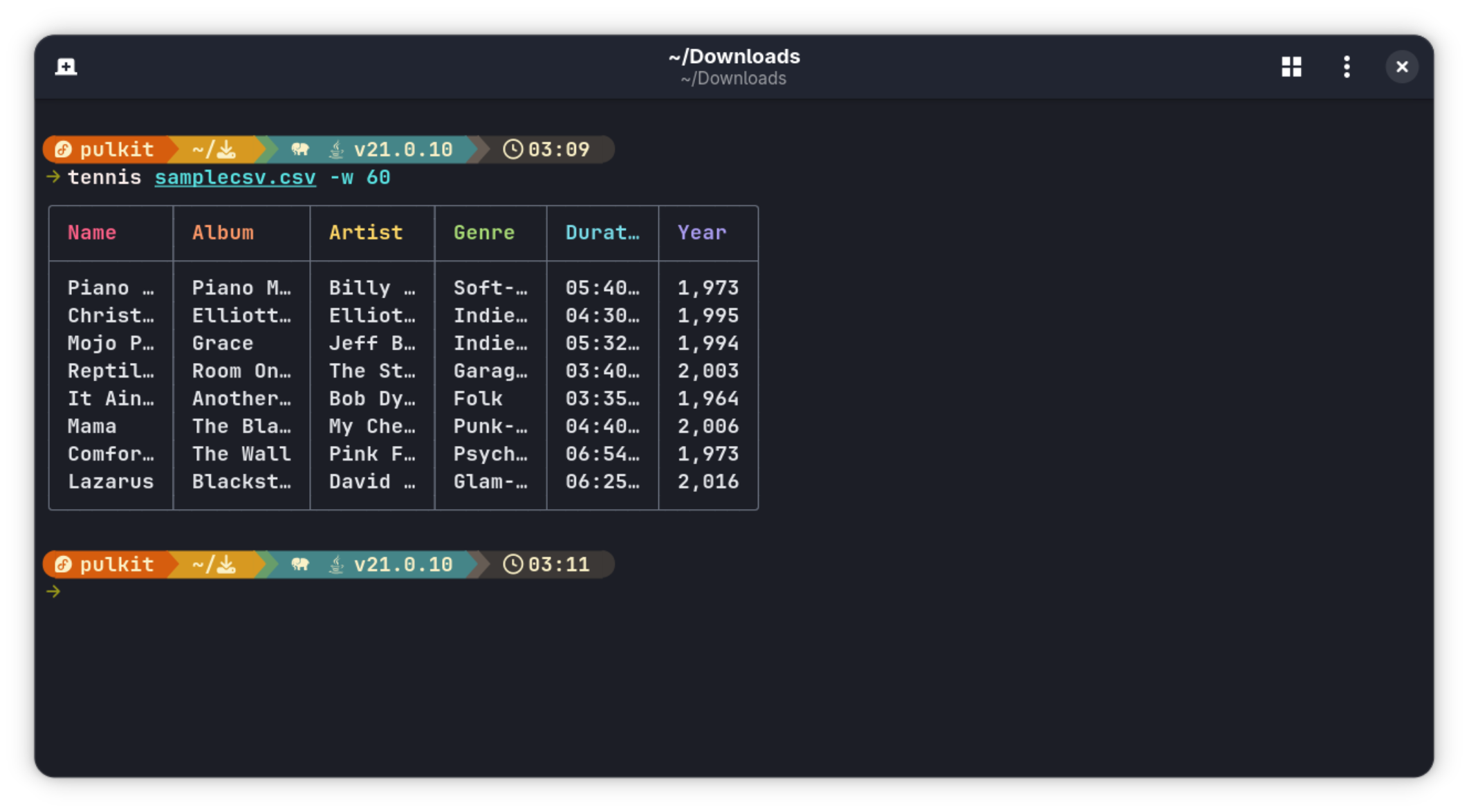
As you can see, compared to the previous images, this table has shrunk much more. The width of the table is now 60 characters, no more.
Changing the delimiter
The default character that separates values in a CSV file is (obviously) a comma. But sometimes that isn't the case with your file, and it could be another character like a semicolon or a $, it could pretty much be anything as long as the number of columns is the same for every row present. To print a CSV file with a "+" for a delimiter instead, the command would be:
tennis samplecsv.csv -d +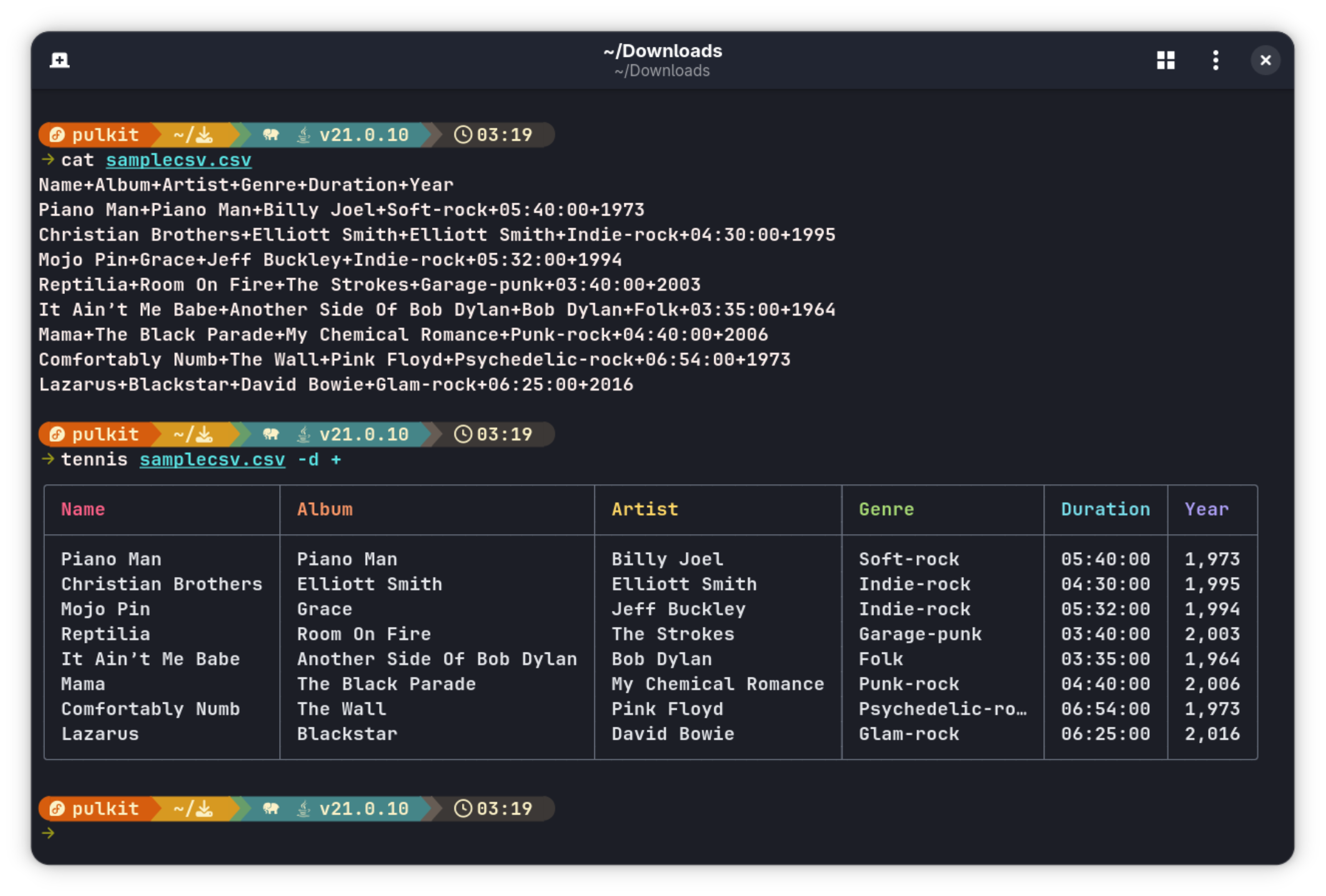
As you can see, the change of the delimiter can be well specified and incorporated into the command.
Color modes
By default, as mentioned in the GitHub page, Tennis likes to be colorful. But you can change that, depending on the --color flag. It can be on, off or auto (which mostly means on).
tennis samplecsv.csv --color off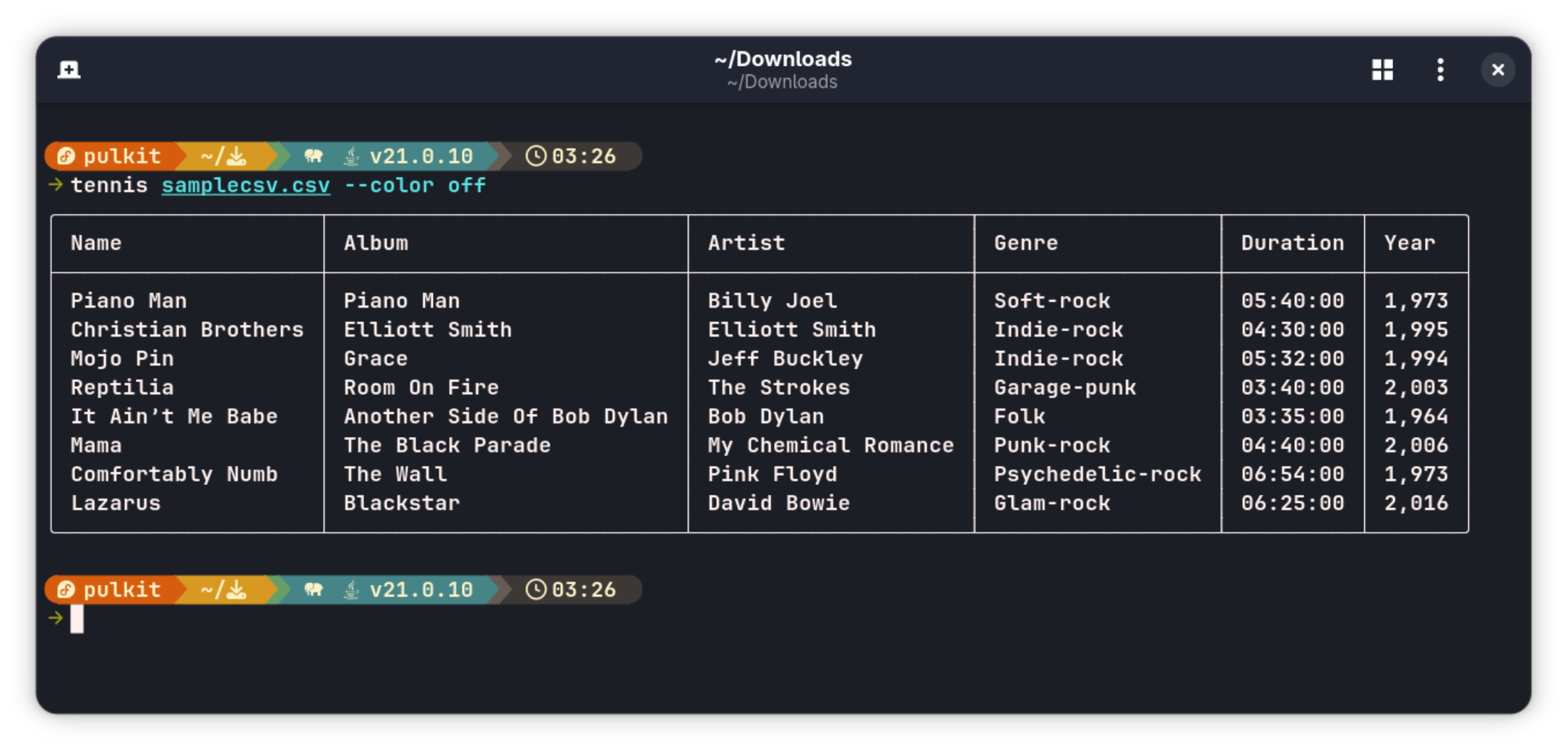
Here's what it looks like with the colors turned off.
Digits after decimal
Sometimes CSV files involve numbers that are long floats, being high precision with a lot of digits after a decimal point. While printing it out, if you don't wish to see all of them, but only to a certain extent, you use the --digits flag:
tennis samplecsv.csv --digits 3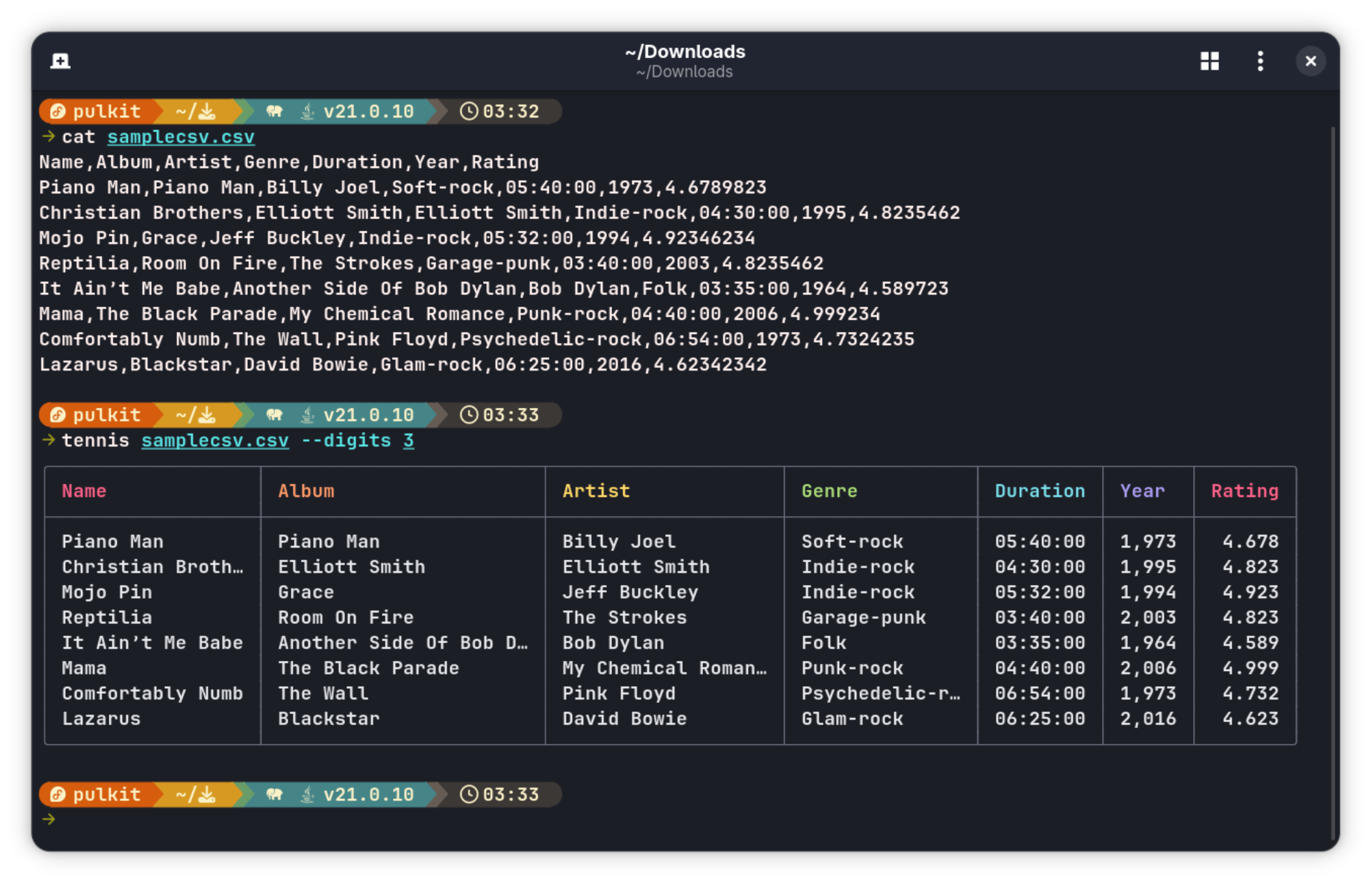
As you can see on the CSV file printed with cat, the rating numbers have a lot of digits after the decimal points, all more than 3. But specifying the numbers caused Tennis to shorten it down.
Themes
Tennis usually picks the theme from the colors being used in the terminal to gauge if it is a dark or a light theme, but you can change that manually with the --theme flag. Since I have already been using the dark theme, let's see what the light theme looks like:
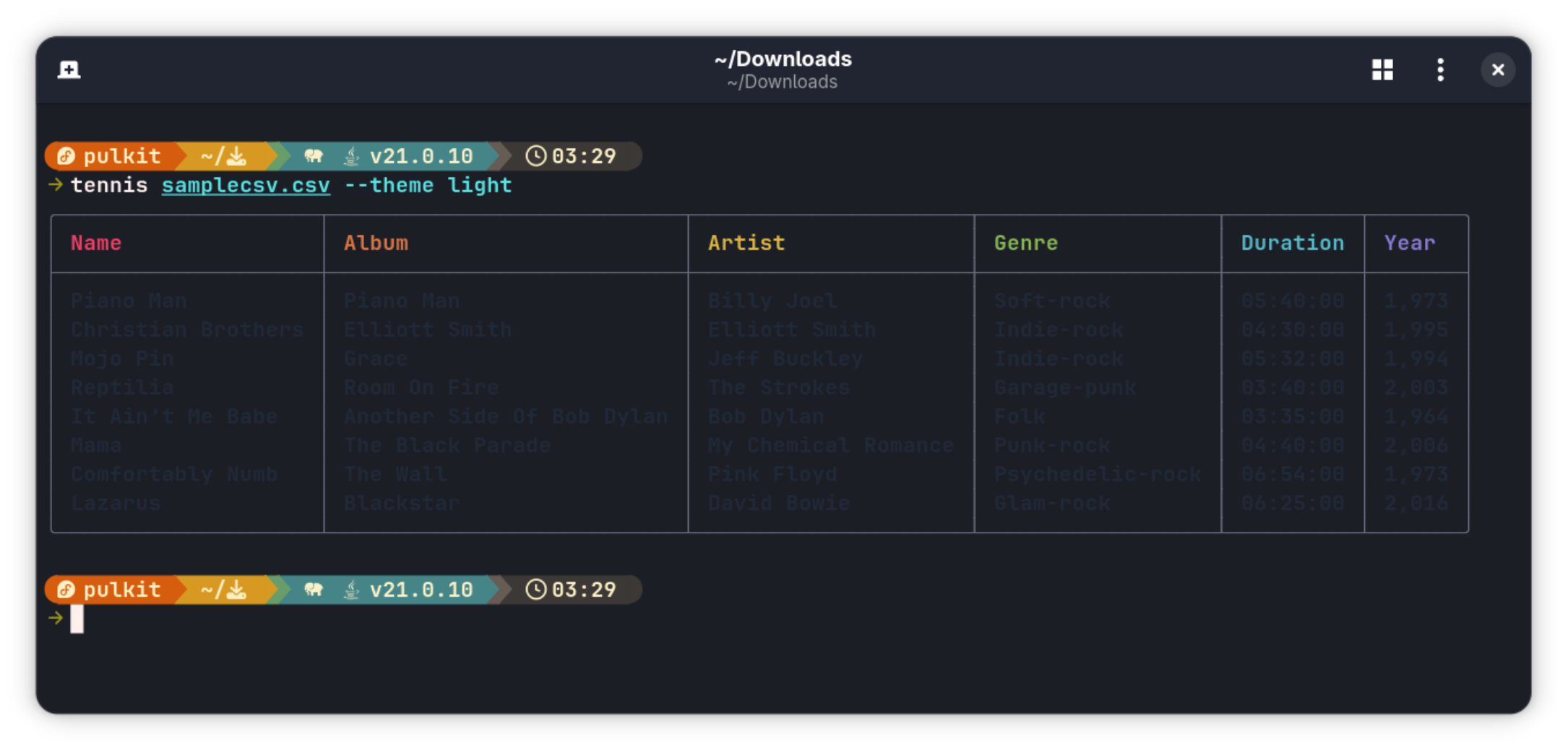
Doesn't look like much at all in a terminal with the dark theme, which means it is indeed working! The accepted values are dark, light and auto (which again, gauges the theme based on your terminal colors).
Vanilla mode
In the vanilla mode, any sort of numerical formatting is abolished entirely from the printing of the CSV file. As you can see in the images above, rather annoyingly, the year appears with a comma after the first number because the CSV file is wrongly assuming that that is a common sort of number and not a year. But if I do it with the --vanilla flag:
tennis samplecsv.csv --vanilla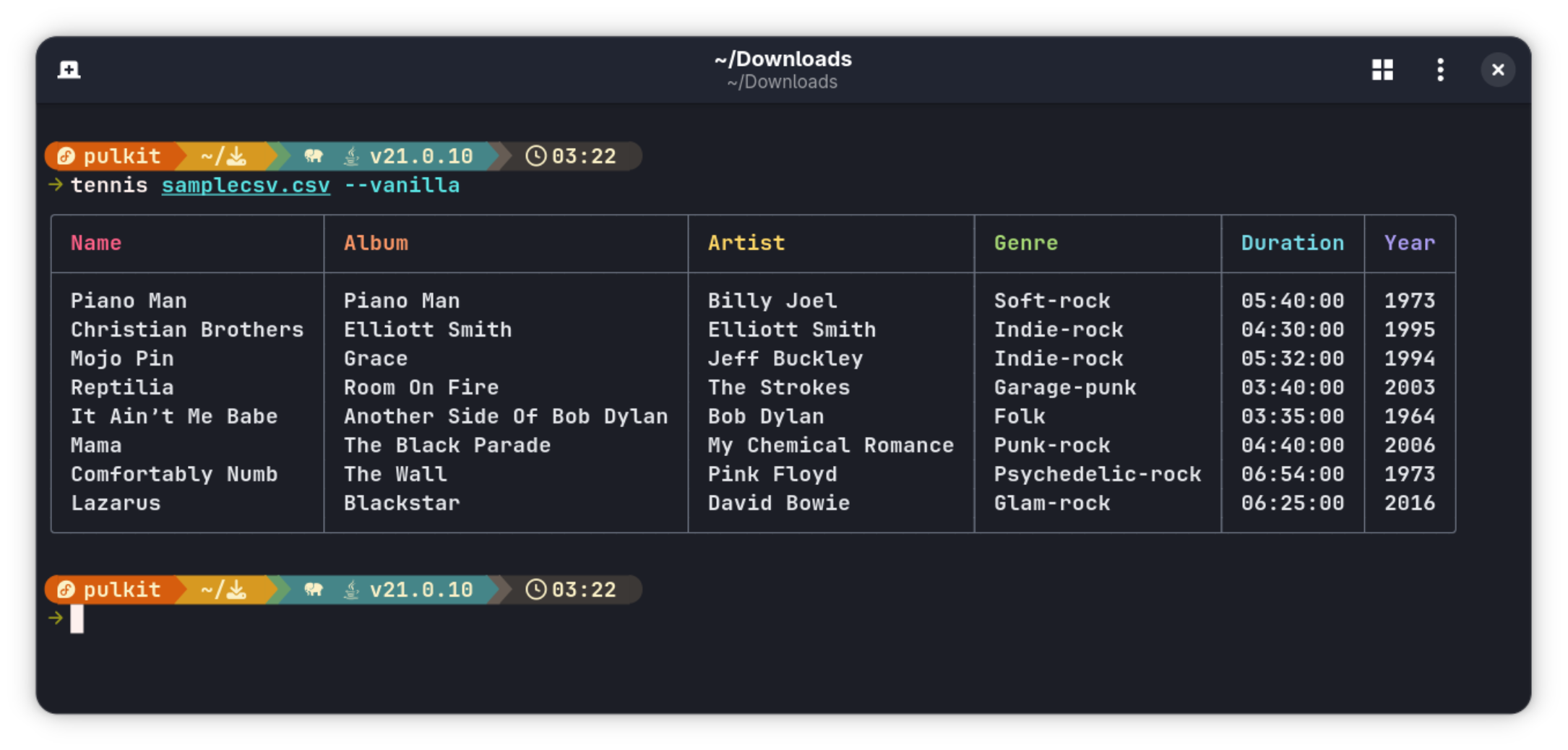
The numerical formatting of the last row is turned off. This will work similarly with any other sort of numbers you might have in your CSV file.
Quick commands (you are more likley to use)
Here's the most frequently used options I found with Tennis:
tennis file.csv # basic view
tennis file.csv -n # row numbers
tennis file.csv -t "Title"
tennis file.csv -w 60
tennis file.csv --color off
I tried it on a large file
To check how Tennis handles larger files, I tried it on a CSV file with 10,000 rows. There was no stutter or long gap to process the command, which will obviously vary from system to system, but it doesn't seem like there is much of a hiccup in the way of its effectiveness even for larger files.
That's just my experience. You are free to explore on your system.
Not everything worked as expected
While Tennis looks impressive, not everything works as advertised yet.
Some features listed on GitHub simply didn’t work in my testing, even after trying multiple installation methods.
For example, there is a --peek flag, which is supposed to give an overview of the entire file, with the size, shape and other stats. A --zebra flag is supposed to give it an extra layer of alternated themed coloring. There are --reverse and --shuffle flags to change the order of rows, and --head and --tail flags to print the only first few or last few rows respectively. There are still more, but again, unfortunately, they do not work.
Getting started with Tennis
Tennis can be installed in three different ways, one is to build from source (obviously), second to download the executable and place it in one of the directories in your PATH (which is the easiest one), and lastly using the brew command (which can indeed be easier if you have homebrew installed on your system).
The instructions for all are listed here. I suggest getting the tar.gz file from the release page, extracting it and then using the provided executable in the extracted folder.
There is no Flatpak or Snap or other packages available for now.
Final thoughts
While the features listed in the help page work really well, all the features listed on the website do not, and that discrepancy is a little disappointing, but something that we hope gets fixed in the future.
So altogether, it is a good tool for printing your CSV files in an engaging way, to make them more pleasing to look at.
While a terminal lover find such tools attractive, it could also be helpful in cases where you are reviewing exported data from a script or you have to deal with csv files on servers.
If you try Tennis, don't forget to share the experience in the comment section.

