

If you’ve recently dipped your toes into the world of immutable Linux distributions like Fedora Silverblue, openSUSE MicroOS, or even the Steam Deck, you'll encounter this issue eventually.
You try to perform a basic task, like adding a custom script to /usr/bin or creating a global configuration directory, and the terminal throws an error: Read-only file system.
It’s a frustrating moment. You chose an immutable OS for the stability, the atomic updates, and the "unbreakable" nature of the system. But now you feel like a guest in your own house.
The traditional fixes, manually mounting an overlay filesystem or using rpm-ostree to layer packages, either require a reboot or complex manual management.
systemd-sysext was built specifically to solve this problem. This often-overlooked utility uses OverlayFS under the hood but adds compatibility checking, systemd integration, and a standardized format, allowing you to dynamically merge binaries and libraries into /usr at runtime, without touching the underlying read-only image and without a reboot.
Quick Look at Immutability
To understand why we need sysext, you first have to understand why the Linux world is moving toward immutability. In a traditional "mutable" distribution like Ubuntu or Arch, the root filesystem is a giant, writable scratchpad. Any process with root privileges can modify any file in /usr or /bin.
While this gives us total freedom, it’s also a major source of system drift. Over time, manual changes, conflicting libraries, and failed package installations make the system unpredictable.
Immutable distributions solve this by treating the operating system as a read-only image. When you update the system, you aren't just changing individual files; you are switching to a completely new, pre-verified version of the OS. This makes the system "atomic", it either works perfectly, or it rolls back to the previous version.
The Problem: Seeing the "Read-Only" Barrier
While immutability is great for stability, it’s a nightmare for "on-the-fly" troubleshooting. On a standard system, if I need to see why a network port is blocked, I might quickly install nmap or tcpdump. On an immutable system, I’m stuck.
You can see this in action by trying to manually add a file to your system binaries:
sudo touch /usr/bin/test_file
Instead of creating a file, you’ll get a rejection message: touch: cannot touch '/usr/bin/test_file': Read-only file system. This proves that even with sudo, the core of your OS is locked.
To add a tool "the official way" (layering), you’d have to run a command like rpm-ostree install and then restart your computer. For a quick task, that's a massive interruption. And this "rpm-ostree" is more of a Fedora Silverblue thing, it won't work on non-Fedora atomic distros.
How System Extensions Actually Work
I'd like to think of systemd-sysext as a digital "overlay." Instead of fighting the read-only filesystem, we are going to build a small directory structure that contains our tools and tell the system to virtually "merge" it on top of the existing /usr.
This uses a kernel feature called OverlayFS. It takes your base (read-only) system as the "Lower" layer and your extension as the "Upper" layer. The result is a "Merged" view that the user interacts with. To your applications, it looks like the files were there all along.
Step 1: Building Your First System Extension
You don't need complex build systems to create a system extension. At its simplest, a sysext is just a directory structure that mirrors the Linux root. Let's build a workspace for a custom tool.
First, mirror the Linux filesystem hierarchy:
mkdir -p my-tool-ext/usr/bin
mkdir -p my-tool-ext/usr/lib/extension-release.d/

Next, let's create a simple test tool. In a real-world scenario, you could drop a compiled binary like ncdu or htop here, but for this guide, a script works perfectly:
echo -e '#!/bin/sh\necho "Sysext is active on Fedora!"' > my-tool-ext/usr/bin/foss-tool
chmod +x my-tool-ext/usr/bin/foss-tool

Step 2: The Metadata "Passport"
This is the most critical step and where you can get stuck. systemd-sysext acts as a gatekeeper. It will not merge an extension unless it knows exactly which OS version the extension is built for. To find out what your system expects, run:
cat /etc/os-release | grep -E '^ID=|^VERSION_ID='

On my setup, this returns ID=fedora and VERSION_ID=43. If you are following along, make sure to replace these values with whatever your specific system reports. If you are on Silverblue 39, use those numbers.
Now, create the mandatory release file:
echo "ID=fedora" > my-tool-ext/usr/lib/extension-release.d/extension-release.my-tool-ext
echo "VERSION_ID=43" >> my-tool-ext/usr/lib/extension-release.d/extension-release.my-tool-ext

Before we merge anything into the live system, it’s worth double-checking our work. A systemd-sysext image is essentially a mirror of your root directory, so the file hierarchy must be exact. You can verify your layout by running:
ls -R my-tool-ext
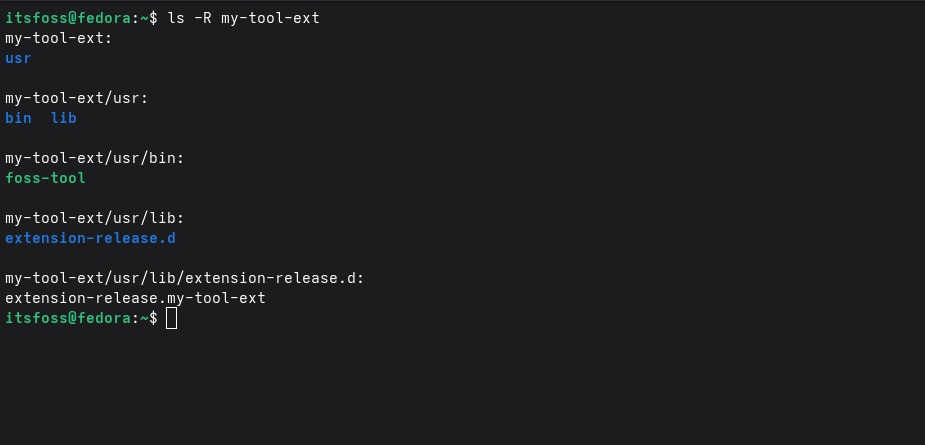
You should see your binary sitting in usr/bin and your metadata 'passport' tucked away in usr/lib/extension-release.d/. If these aren't in the right place, the system simply won't know how to 'map' them during the merge.
Step 3: The "Merge" Moment
Now that our extension has its "passport" ready, we move it to the system's extension path and trigger the merge. This is the moment where the read-only barrier is bypassed:
sudo cp -r my-tool-ext /var/lib/extensions/
sudo systemd-sysext merge

Next, confirm the binary location. The system should see it as a standard system tool:
ls -l /usr/bin/foss-tool
foss-tool

You can verify the status and run your new tool:
systemd-sysext status

Your system is still technically read-only, but you’ve successfully injected new functionality into it without a single reboot.
Troubleshooting: When the Merge Fails
One of the most common frustrations is seeing the error: No suitable extensions found (1 ignored due to incompatible image). This isn't a bug; it's a safety feature.
If your extension-release file says you are on Fedora 42 but you actually just upgraded to Fedora 43, systemd will block the merge.
It does this because libraries often change between versions, and merging an incompatible binary could cause system instability. If you hit this error, simply update your metadata to match your current os-release and re-run the merge.
Reverting Without a Trace
The most powerful feature of systemd-sysext isn't just how easily it adds tools, it’s how cleanly it removes them. Traditional package management often leaves behind config files or libraries that clutter your system over time.
With sysext, unmerging is a clean break:
sudo systemd-sysext unmerge

If you try to run your tool now, the shell will return a No such file or directory error. The overlay has been lifted, and your /usr directory is exactly as it was when you first installed the OS.
Why This Beats the Container Approach
A common question is: "Why not just use Distrobox?" Containers are amazing for general applications, but they run in an isolated namespace. If you are trying to debug a kernel issue or analyze hardware peripherals, that isolation can get in the way.
systemd-sysext puts the tool directly on the host. It has the same permissions and visibility as a tool shipped with the OS itself. If you need a tool to "be" the system rather than just "run on" the system, sysext is the surgical choice.
Conclusion
The move toward immutable Linux shouldn't feel like a move toward a "locked-down" experience. Tools like systemd-sysext prove that we can have our cake and eat it too. We get the security of a read-only core and the flexibility to inject any tool we need instantly.
