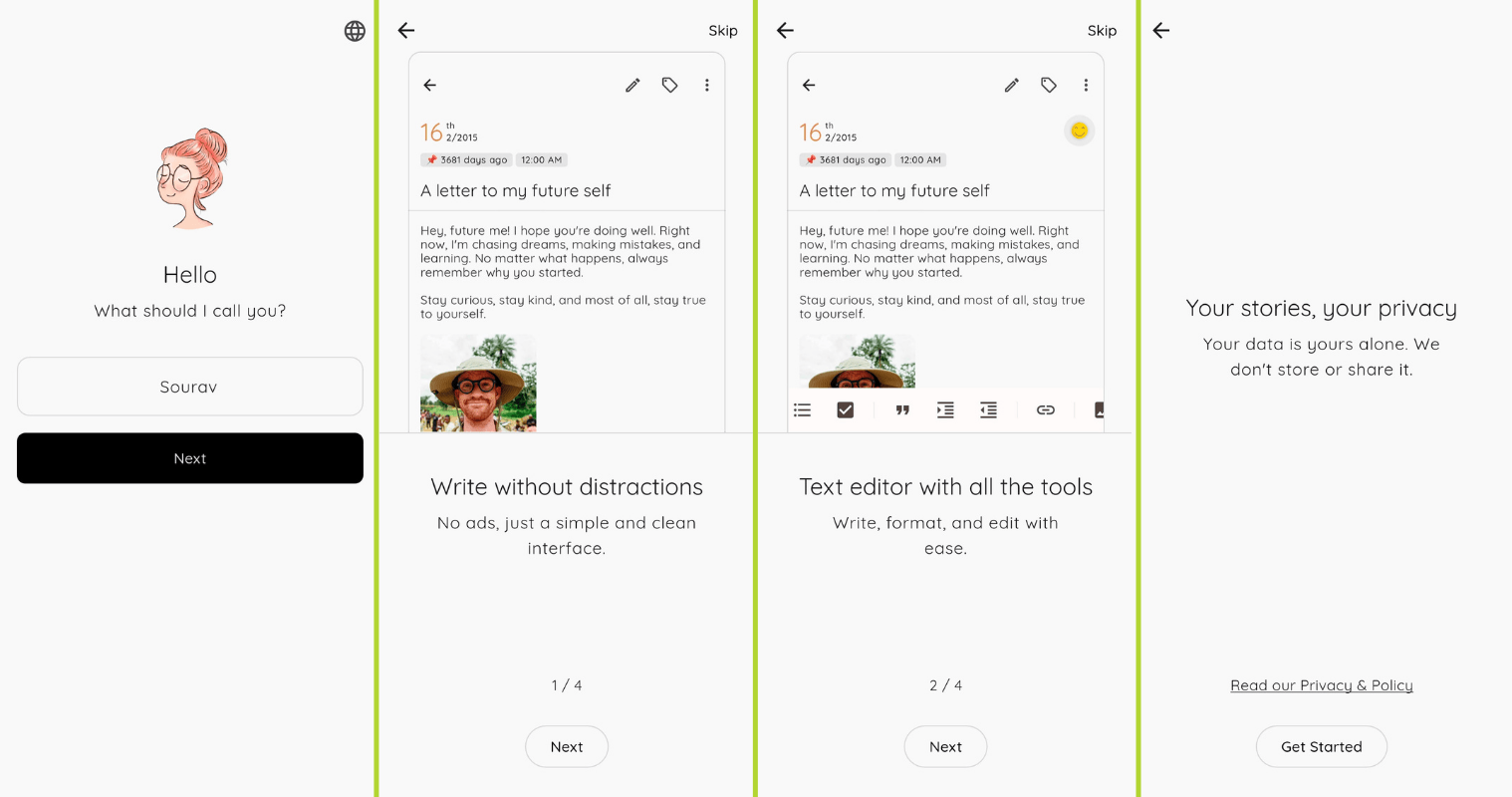
Earlier last month, I took you all through an open source diary app that helped me realize that journaling is a seriously good way to beat the blues. I am still quite inconsistent in doing it, but when I do write, I feel more calm, and feel like some weight was taken off my shoulders.
This time, we are focusing on productivity on the go; by that, I mean an open source to-do mobile app that handles your tasks, tracks time, and keeps its nose out of your data.
Super Productivity: Stay Efficient
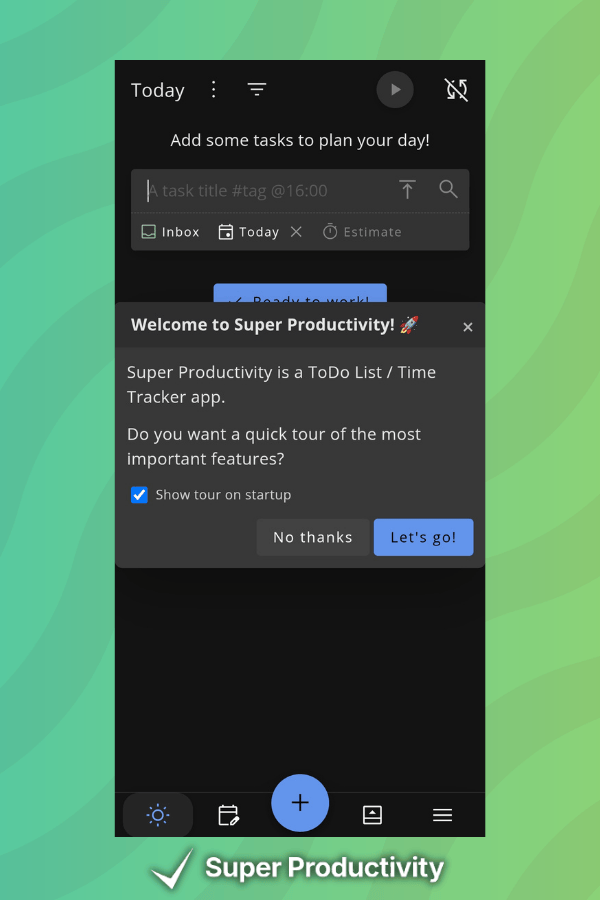
Super Productivity is an MIT-licensed open source to-do app built around the idea that a productivity system should adapt to how you actually work, not the other way around. It is available on Linux, Windows, macOS, Android, iOS, and as a web app.
And it doesn't only do task management. It packs in time boxing, a Pomodoro timer, and break reminders that nudge you to take rest. You can also attach notes, files, and bookmarks to individual projects and collect personal metrics to see where your routines need tweaking.
This to-do app has the following key features:
- Task planning with sub-tasks, projects, and tags.
- Connects with Jira, GitHub, GitLab, Trello, Linear, ClickUp, OpenProject, Azure DevOps, and CalDAV.
- Optional sync via Dropbox and WebDAV, with all data stored locally by default.
- No user accounts, no registration, and no data collection.
How Does it Fare?
A word before we begin, this one was a quick test that I did over an afternoon, so I might've missed showcasing some features.
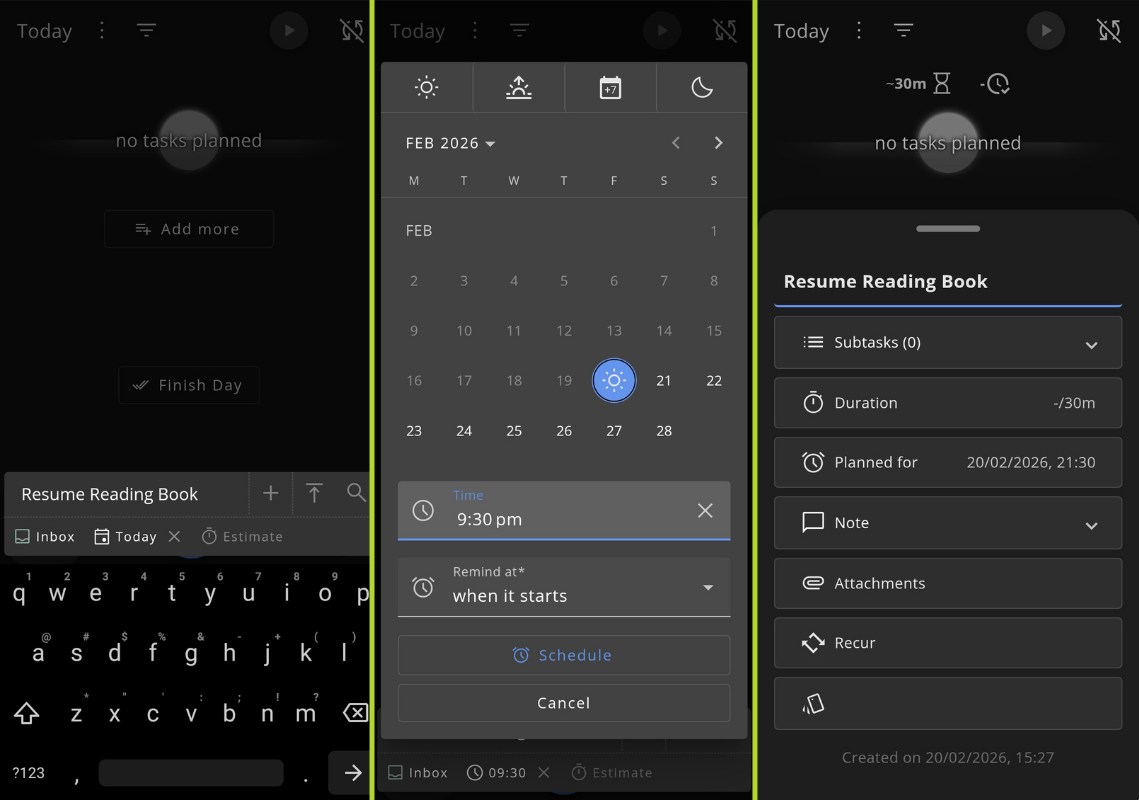
Creating a new task is very easy; you just click on the big plus button and start by giving the task a name. The interface might feel a bit old-fashioned if you are used to big buttons and bright colors, but you will get the hang of it over time.
I could set the date and time, configure the notification lead time, and define how long I planned to work on it.
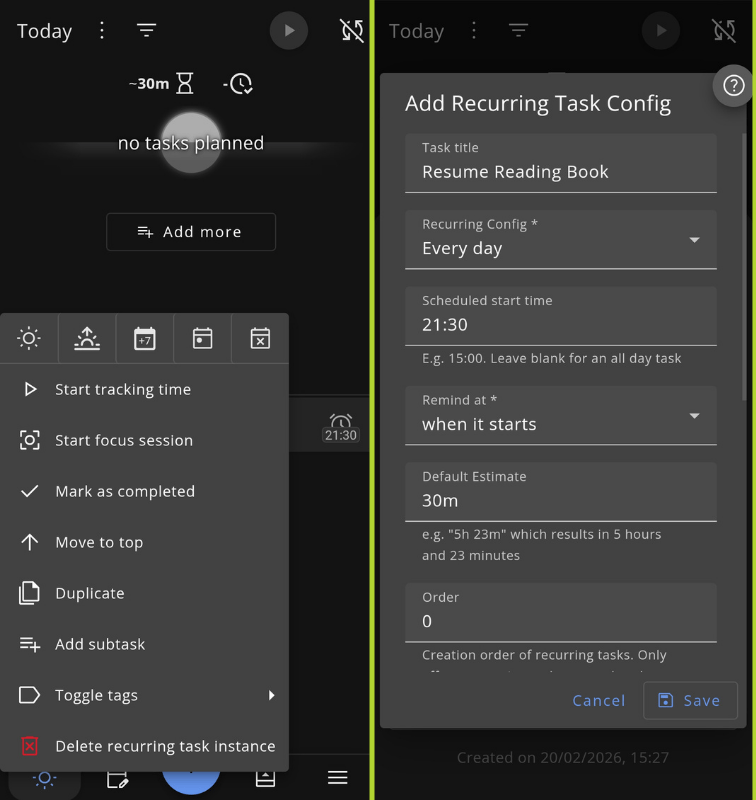
Selecting a task brought up a handy menu with a quick due date selector at the top, and below that, toggles to start time tracking, kick off a focus session, mark it done, move it to the top, duplicate it, add subtasks, or delete it.
If I wanted a task to repeat at a set interval, editing it and selecting the "Recur" option did the trick. It opened a detailed config menu where I could tweak the order, time estimate, reminder, and recurring interval.
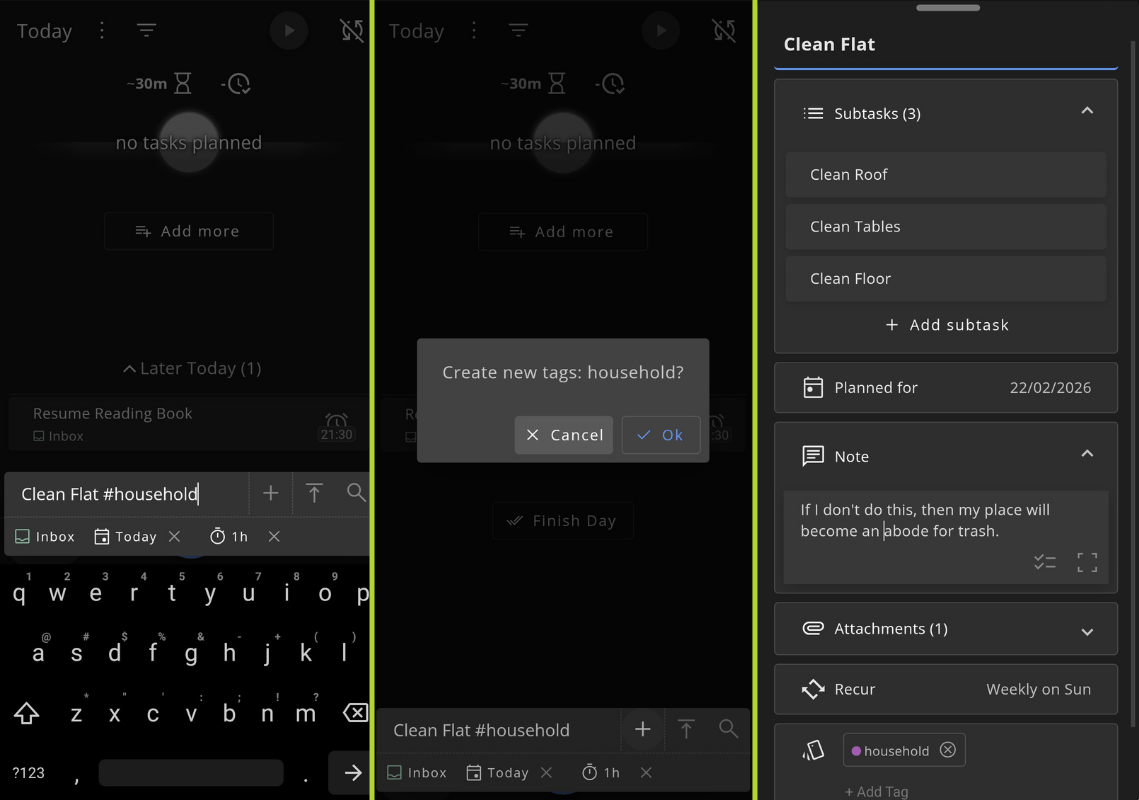
Organizing tasks with tags is possible by adding it to the title when creating a new task or doing it from the sidebar menu. And if you were wondering whether you can add notes or attachments to a task, you can!
I could add quick notes, images, and web URLs to any task, which is handy for keeping relevant context close to the work at hand.
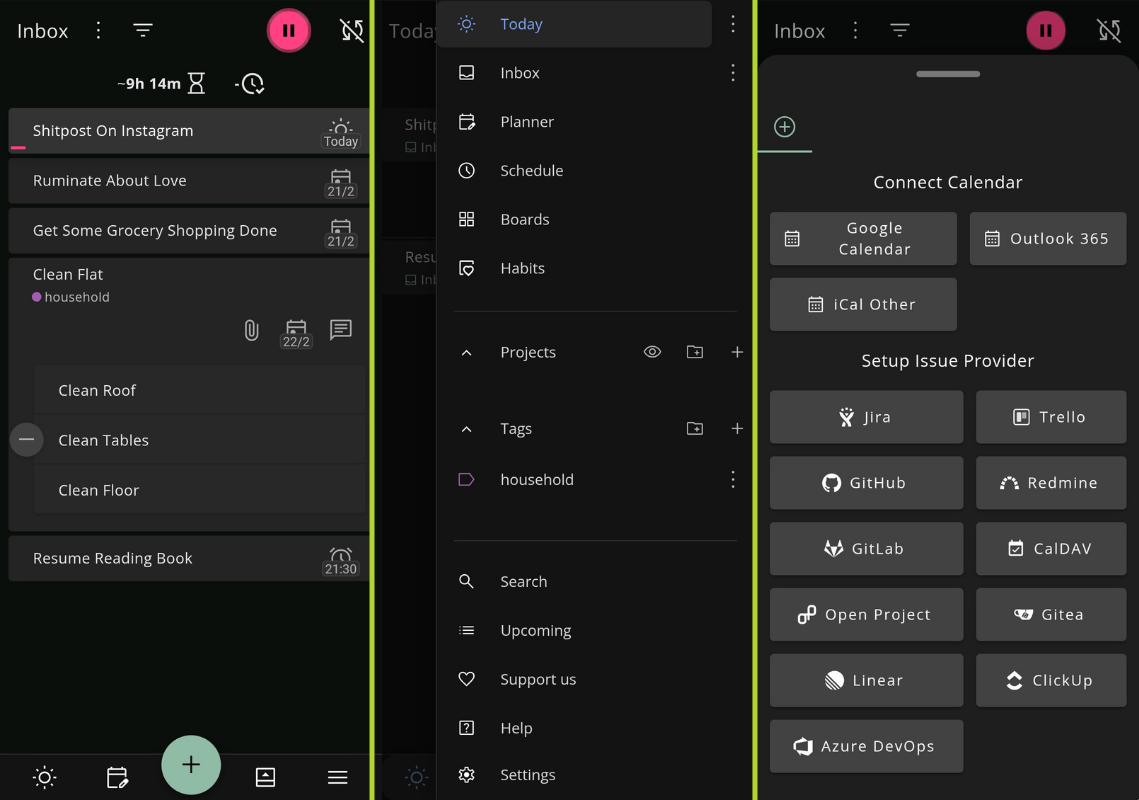
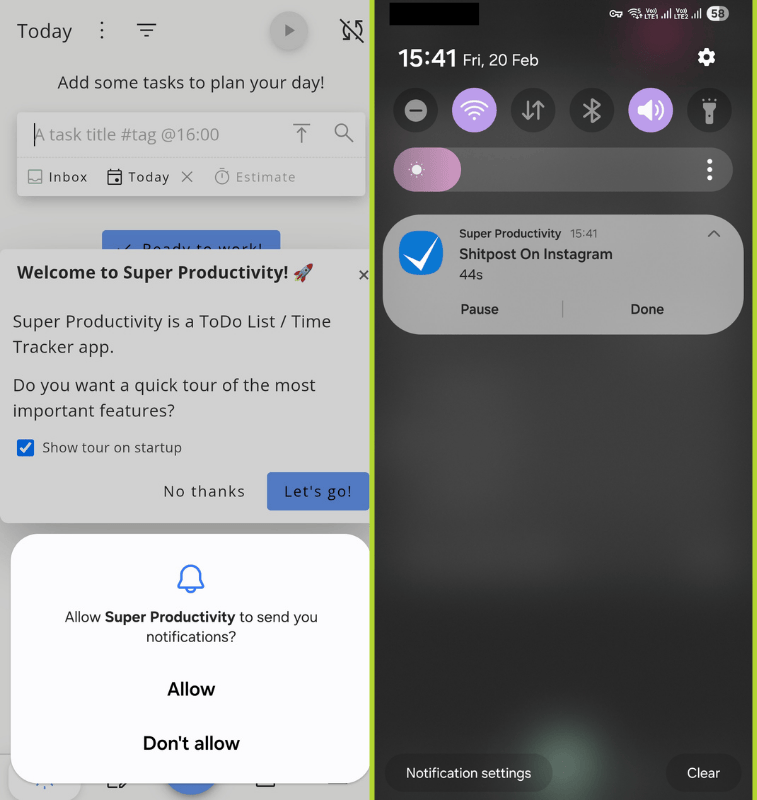
The Inbox view, sidebar menu, connection options, and notifications for Super Productivity.
The Inbox view acts as a one-stop dashboard for your current and upcoming tasks. The hamburger menu at the bottom gives quick access to the most important pages, like Today, Inbox, Schedule, Boards, Tags, and the app settings.
You will also find the connections menu (Issue Provider Panel) nearby, which is where you connect the app to third-party services. For timely notifications, you have to manually grant Super Productivity the notification permission, and that is the only permission it asks for, btw (at least on Android).
Install Super Productivity
This to-do app is available for both Android and iOS. You can install the latest release from F-Droid, the Play Store, and the App Store. The source code lives on GitHub, where you will also find binaries for the desktop version of Super Productivity.
There's also a web app if you don't prefer installing an app.
Suggested Read 📖: We Ditched ClickUp for Fizzy, An "Open Source" Alternative
 Sourav Rudra