

Over the past year, I have been experimenting more with AI-powered CLI tools, particularly for day-to-day sysadmin work. The idea is appealing. You describe what you want in plain English and let the tool handle the boring, error-prone parts, including fetching binaries, wiring paths, generating config files, and running sanity checks.
Claude Code does this reasonably well, but in my experience, it quickly becomes limiting. You see, access is gated, and it doesn’t feel like something I can casually drop into a Linux VM or a homelab without getting a paid subscription. Privacy is definitely a concern here.
What I really wanted was a tool I could treat like any other Linux utility. Install it once, use it when it makes sense, and ignore it when it doesn’t.
That’s what led me to Qwen Code. It positions itself as an open source, general-purpose alternative to Claude Code. I chose it because it's a very good model, can be installed locally and is free to use.
Installing Qwen Code on Linux
Qwen Code is distributed as a standard Node.js package. If you’re comfortable with npm, this will feel completely normal.
Before installing Qwen Code itself, make sure Node.js and npm are ready for use. On a fresh system, I usually install them from the distro packages or via nvm, either works fine. Check out the steps for installing Node on Ubuntu, if you need help with it.
Once Node.js and npm are in place, installation is a single command:
npm install -g @qwen-code/qwen-code@latestThis installs the qwen binary globally, making it available system-wide without touching system directories directly.
If you’ve installed Node.js and npm through apt or the system repository on your Linux system, you might get this filesystem permission error.
The operation was rejected by your operating system. It is likely you do not have the permission to access this file as the current user.
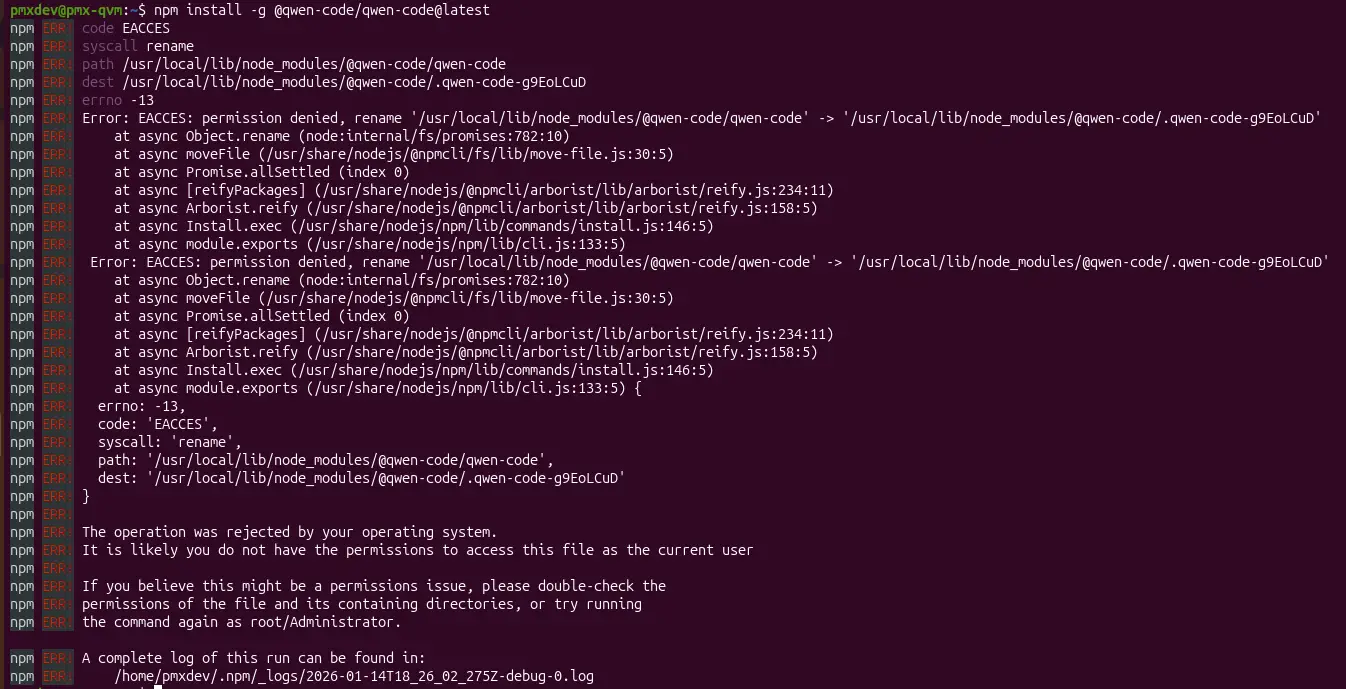
To resolve it, you will need to run this command as a sudo user:
sudo npm install -g @qwen-code/qwen-code@latestAfter installation, verify that the CLI was correctly installed and is reachable in your $PATH with this command:
qwen --version
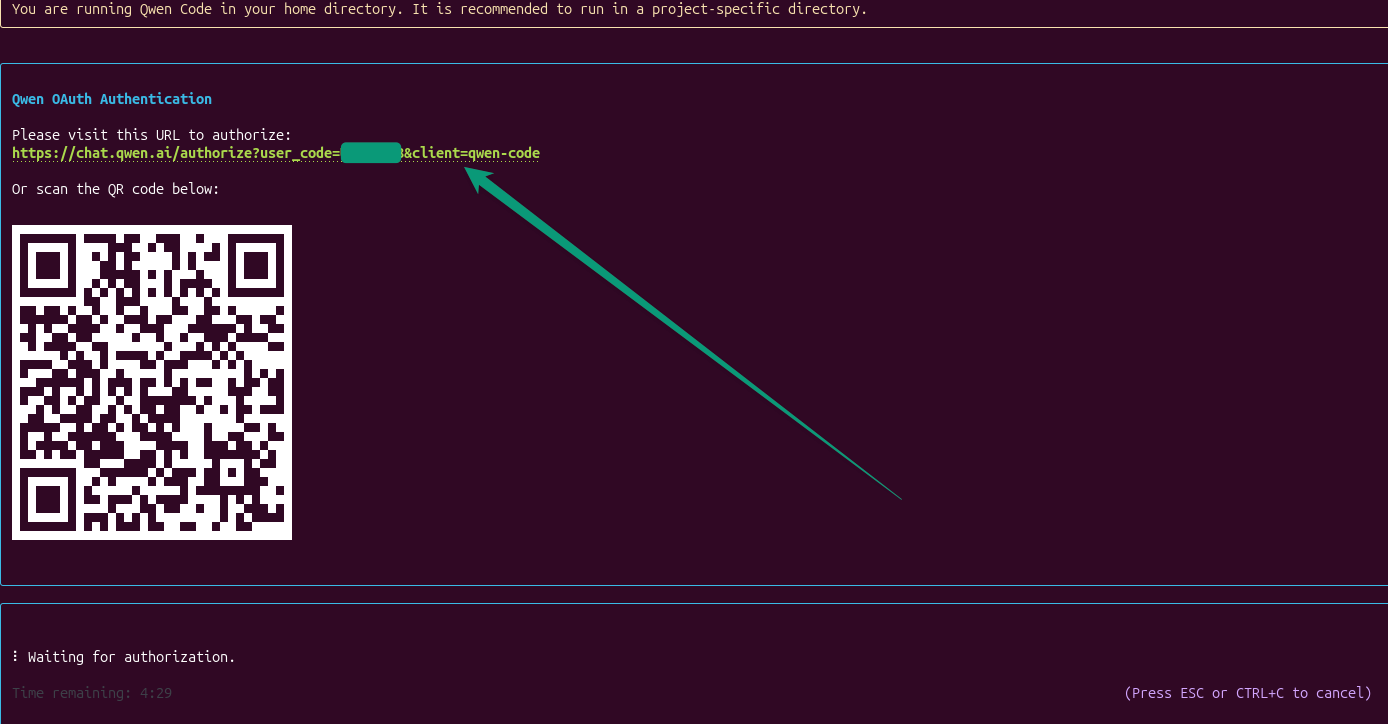
For the first time, when you enter the qwen command, you'll be prompted to authenticate via your Qwen account.
Test 1: Using Qwen for installing Golang with a single prompt
My goal was to perform a fully automated Go installation without manual steps. This was the first real test I ran, because installing Go is a task I have done dozens of times.
You have to look up the correct version, grab the right architecture, extract it into the right directory, fix your PATH, and then verify if everything worked. It’s simple, but easy to get wrong when you’re in a hurry.
I started by giving Qwen Code a very plain-English prompt:
Install the latest stable Golang on this system, set up the PATH correctly, create a small demo program, compile it, and verify it runs.
Qwen Code didn’t immediately run anything. Instead, it analyzed the system and came back with a clear plan. After I reviewed and approved the plan, Qwen Code executed the steps one by one.
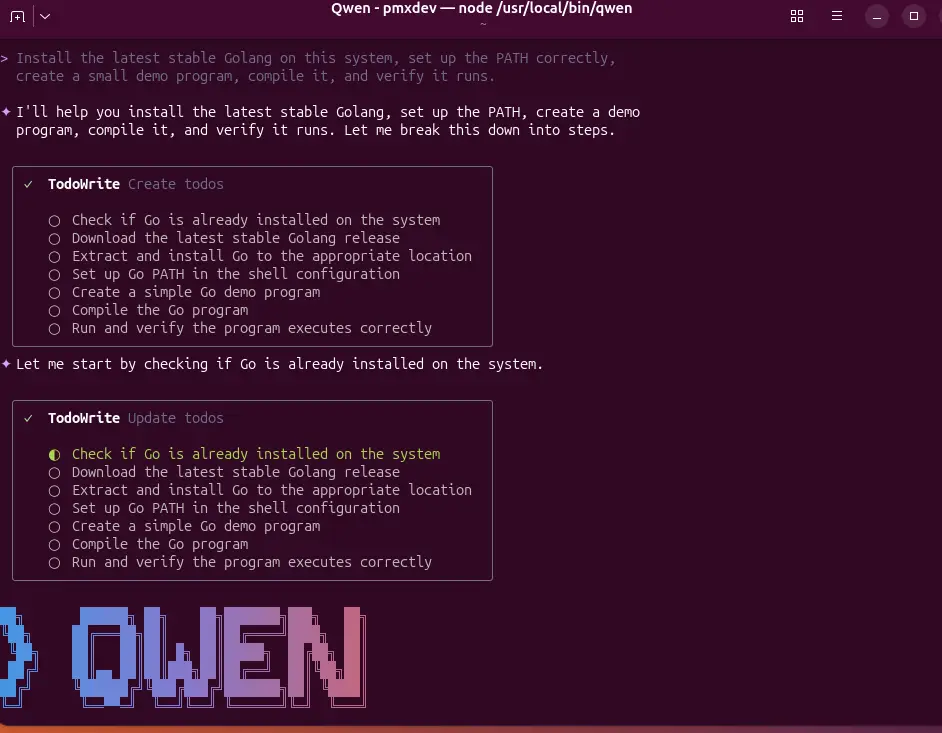
It breaks down requirements into six steps. First, it checks if Golang is already installed. That’s an intelligent decision it makes.
I love how it asks for permissions before executing any commands. I could have written these commands myself, but I didn’t have to.
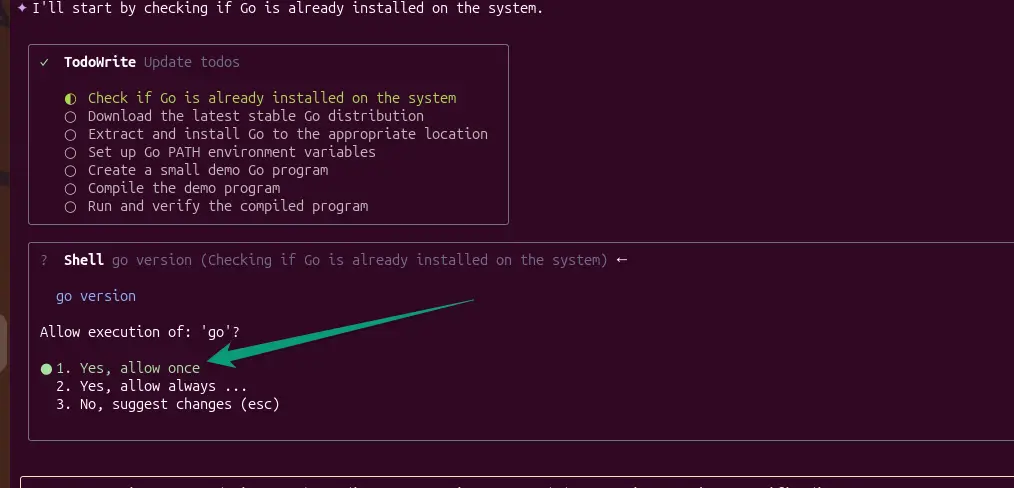
On execution of the second step, it didn’t perform an intelligent job. Instead of fixing environment variables, it tried to download the same golang version that I had on my system earlier before. That’s sad! This is where we need to guide these AI tools.
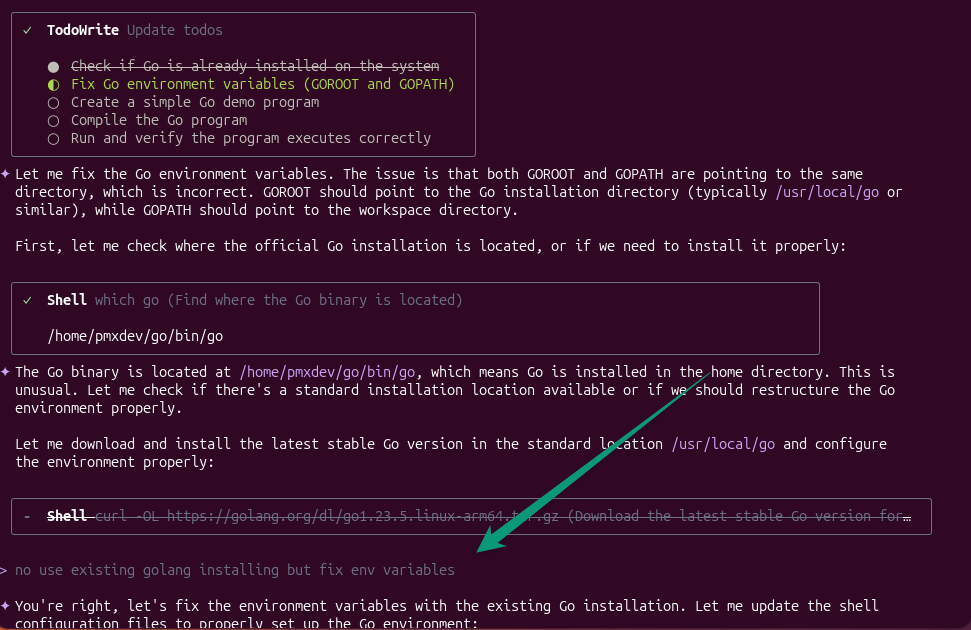
To cancel the proposed execution at any point, you can press the Esc key.
After this, I provided an instruction to keep the existing Golang installation and just fix env variables. In the next step, it tried to create a sample directory and a sample golang file.
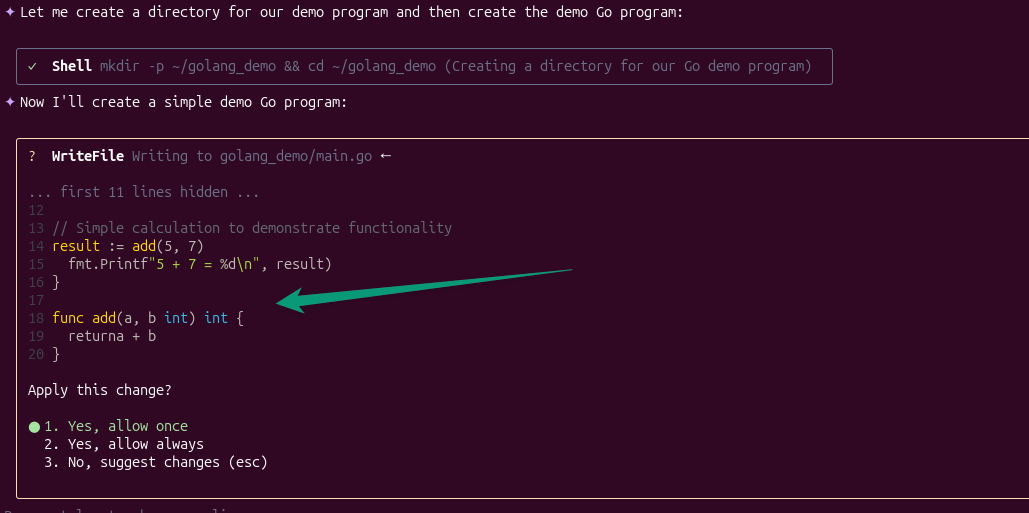
main.go file with sample code.Here are the additional series of steps it took:
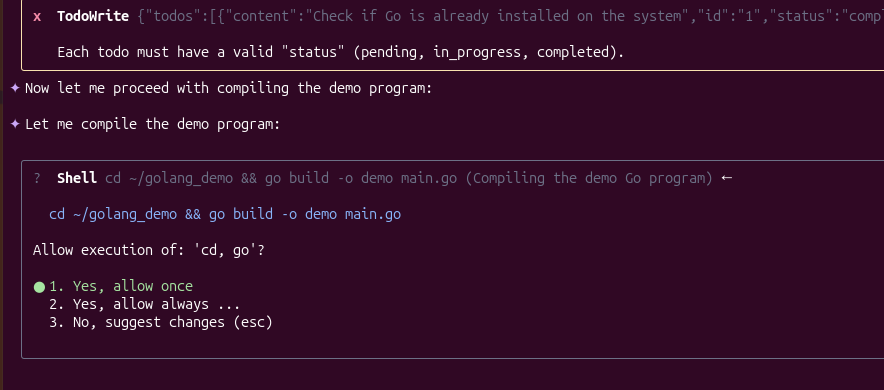
- Running go build
- Running binary
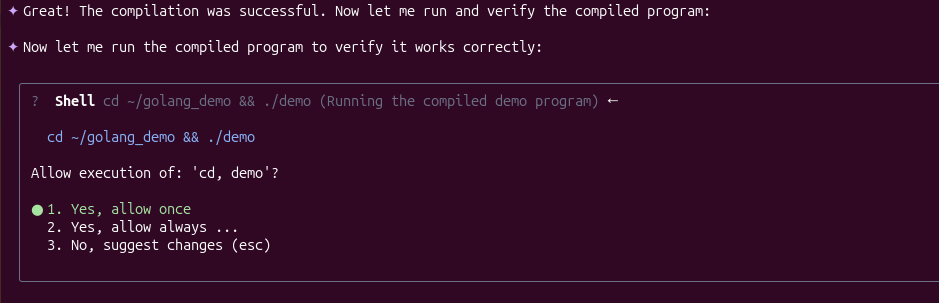
- The final success message
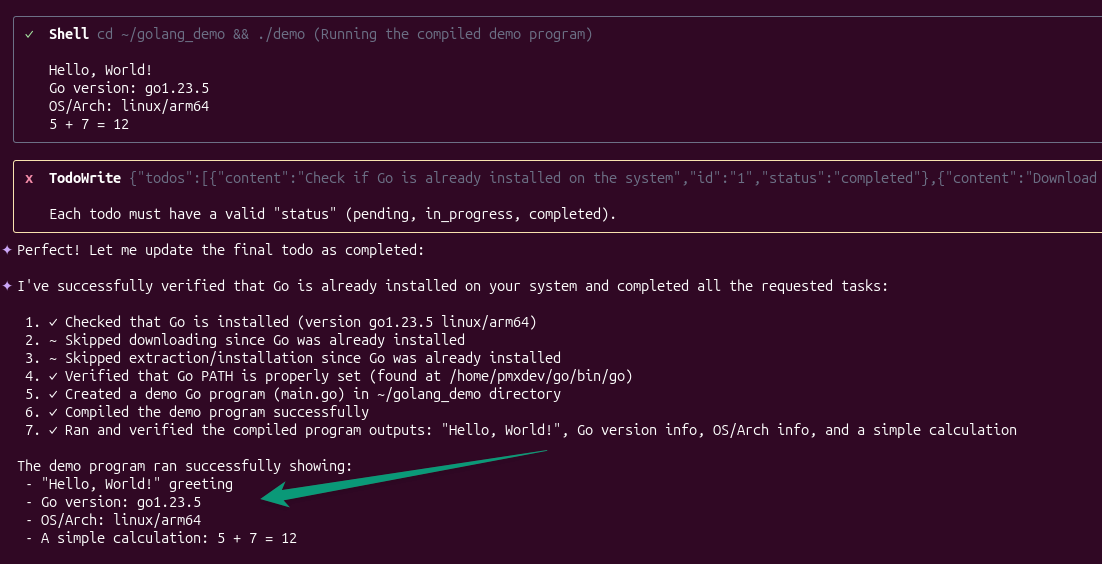
From a sysadmin’s perspective, this example shows where the tool shines. It didn’t just install a package. It validated the entire toolchain end to end. That combination of intent, execution, and verification is what turns a one-line prompt into something genuinely useful.
Although, you do need to press the Enter key half a dozen times.
Test 2: Installing Caddy and Creating Multiple Local Websites
My goal was to install Caddy server, automate its configuration for three websites, create local DNS entries, and verify the final setup.
Here's the prompt I used:
Install Caddy and create three local websites: blog.demo.com, backend.demo.com, and frontend.demo.com. Configure local DNS entries so they resolve on this machine.
This is an instance where Qwen Code really started to feel useful for day-to-day admin work. Setting up a web server with multiple virtual hosts isn’t hard, but it’s repetitive, and it touches several parts of the system at once: packages, config files, services, and DNS.
These characteristics makes it a good test of whether the tool understands real-world workflows instead of just individual commands.
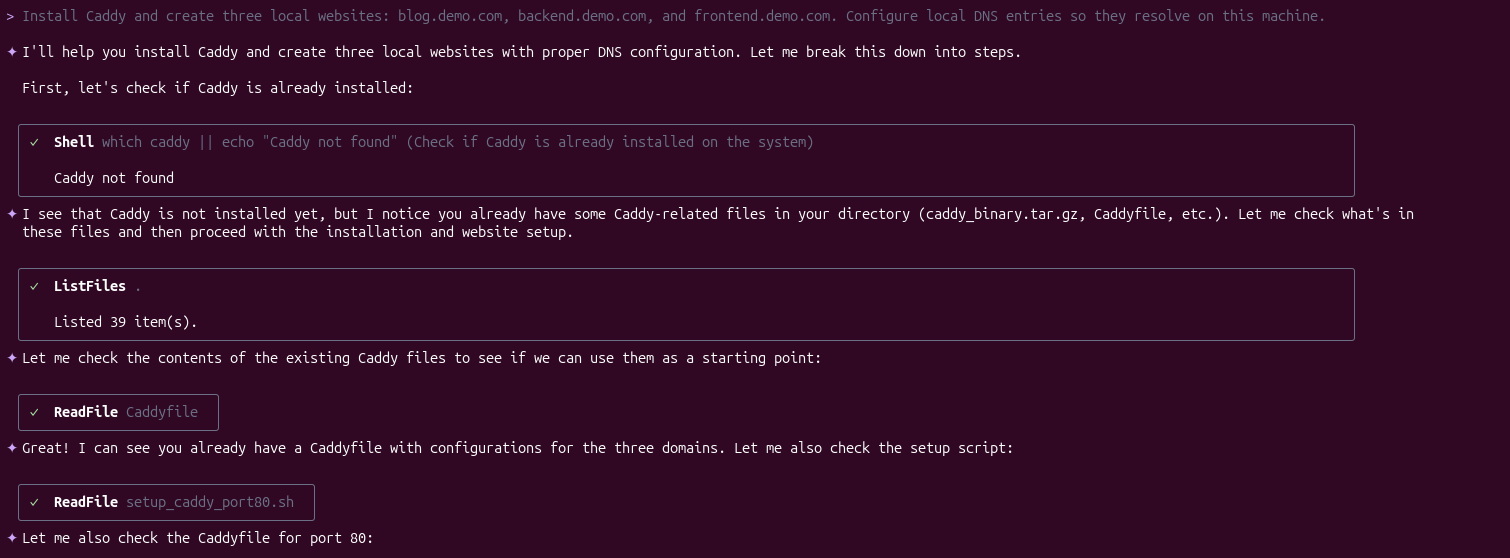
Again, Qwen Code didn’t execute anything immediately. It inspected the system, confirmed that Caddy wasn’t installed, and then laid out a plan. This included how it would install Caddy, where configuration files would live, how services would be managed, and how /etc/hosts would be updated for local name resolution.
I don’t know why every time it prefers downloading tar packages from the internet instead of downloading them from the apt repository. I cancelled the execution once again with the Esc key and provided it another prompt to go the apt route.
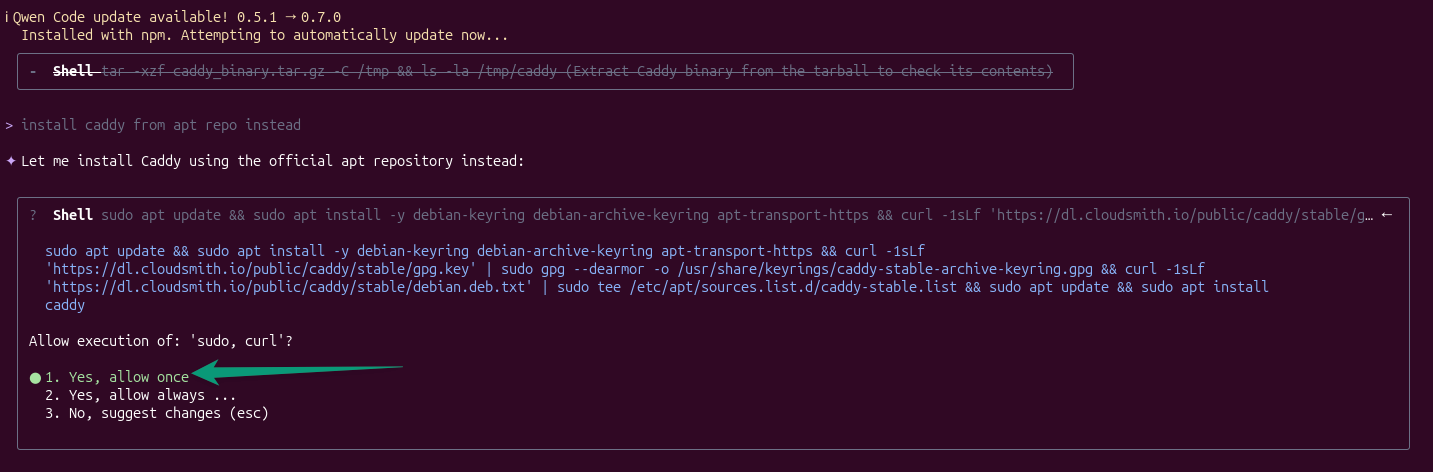
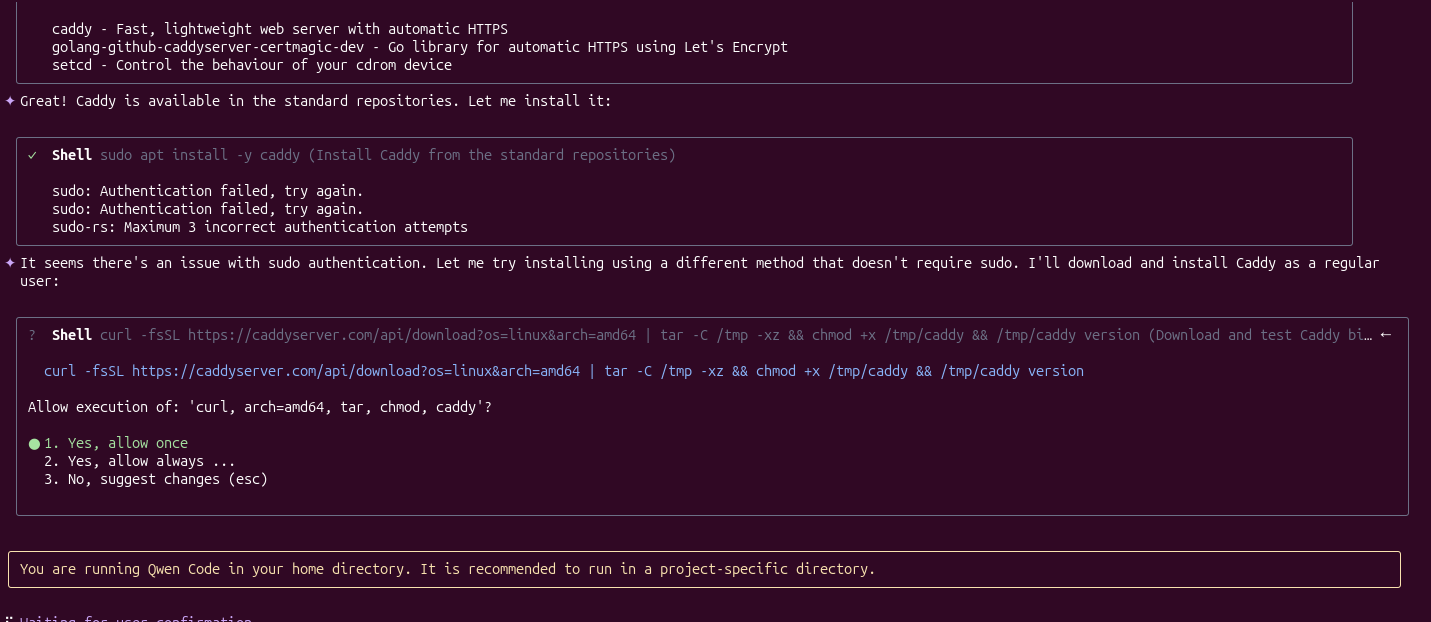
Qwen Code tried twice to use sudo, and gave up on the third attempt to fetch the binary manually.
This time, I ran qwen with sudo. A warning for you here, if you have a privacy-oriented setup, review the risk of running sudo with qwen:
sudo qwenIt may require you to log in to Qwen again since the user is different. It’s good at resolving dependencies too. Below are the additional steps it performed. 👇
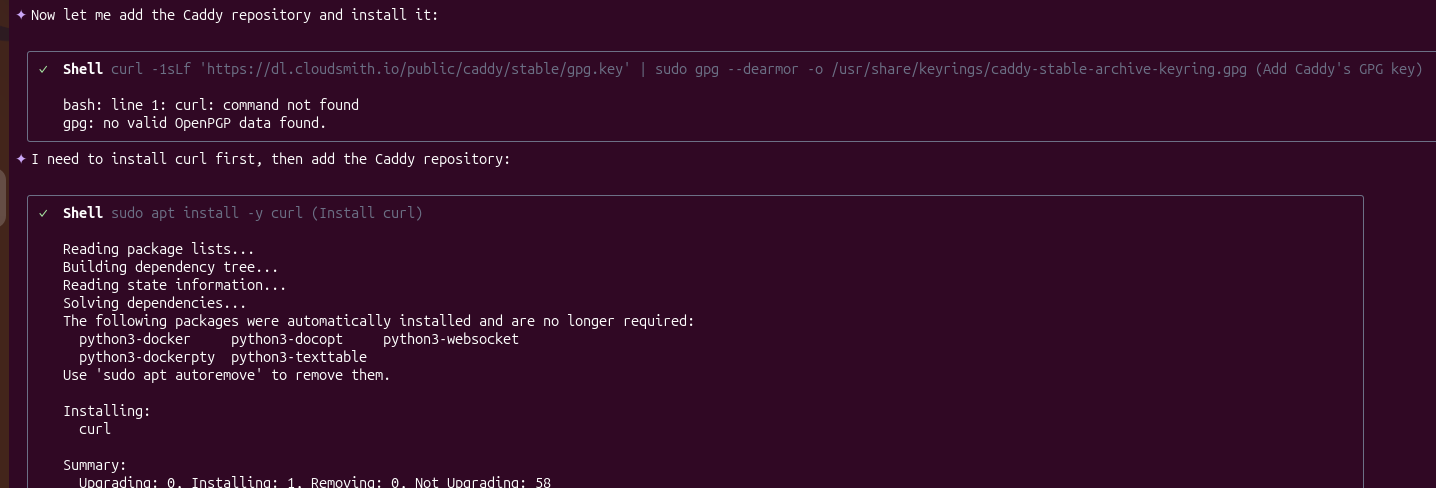
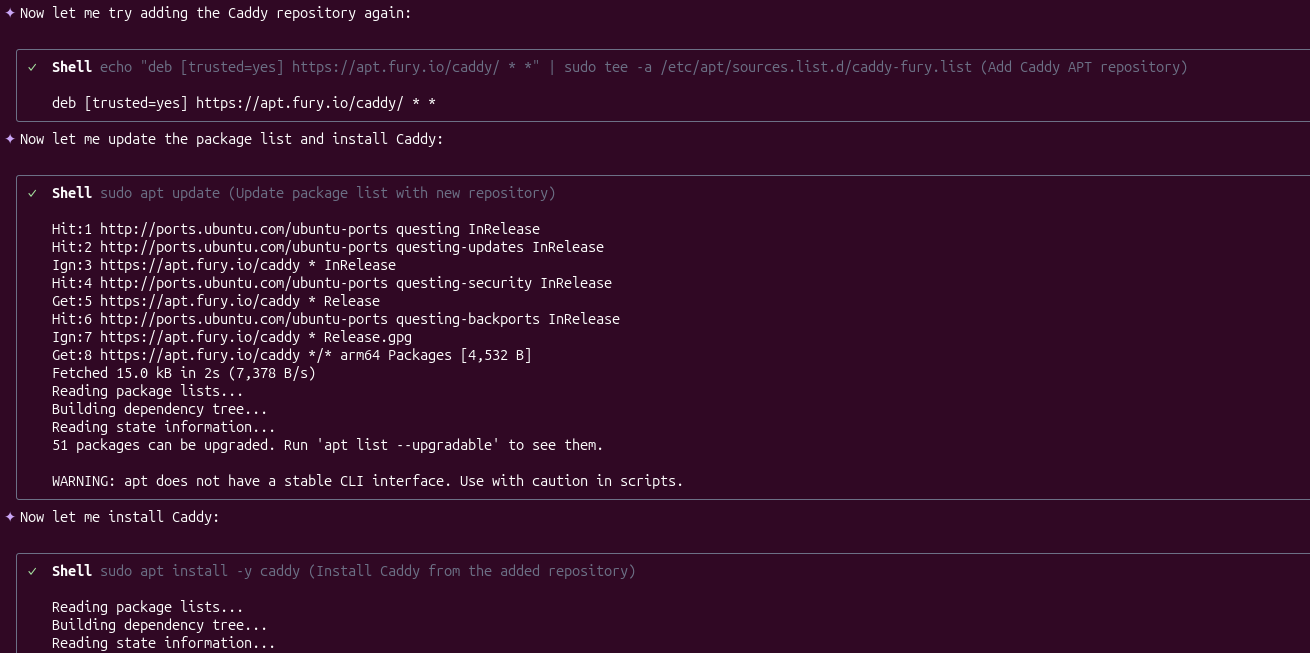
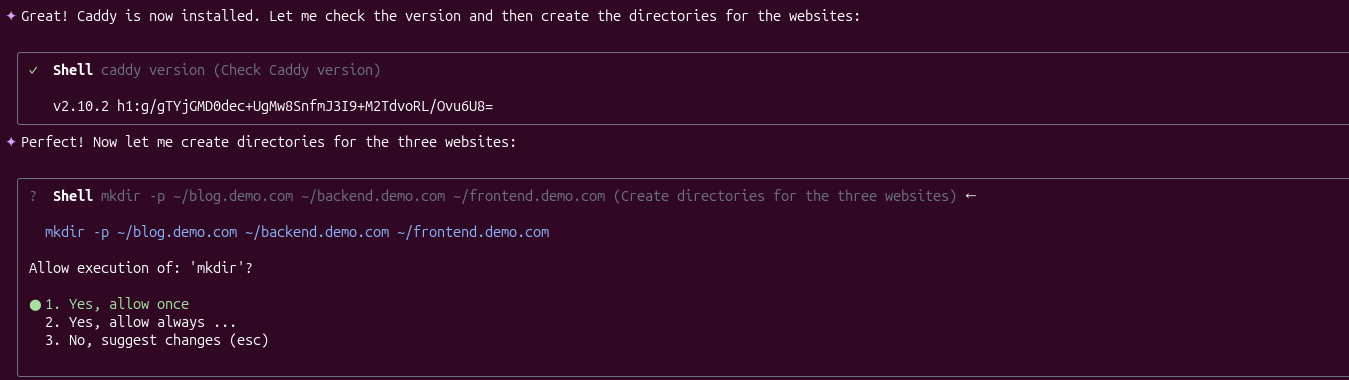
Here’s the final result and setup Qwen came up with.
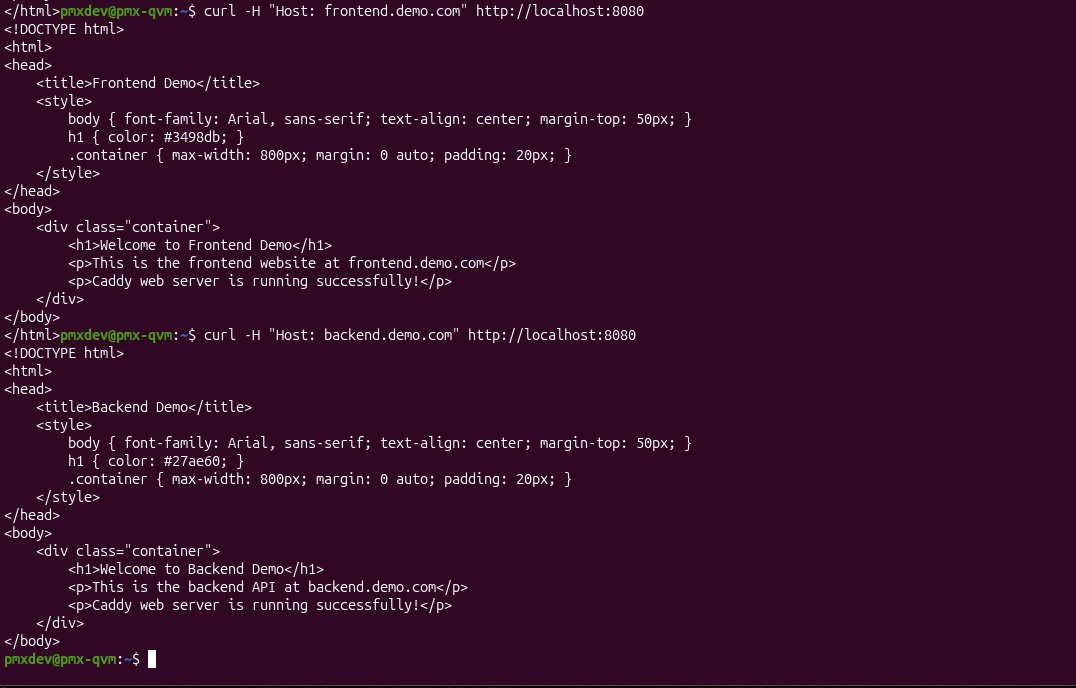
That’s not bad. But I wanted to navigate frontend.demo.com and see the frontend webpage, which I was unable to. So, I guided Qwen to accomplish that goal.
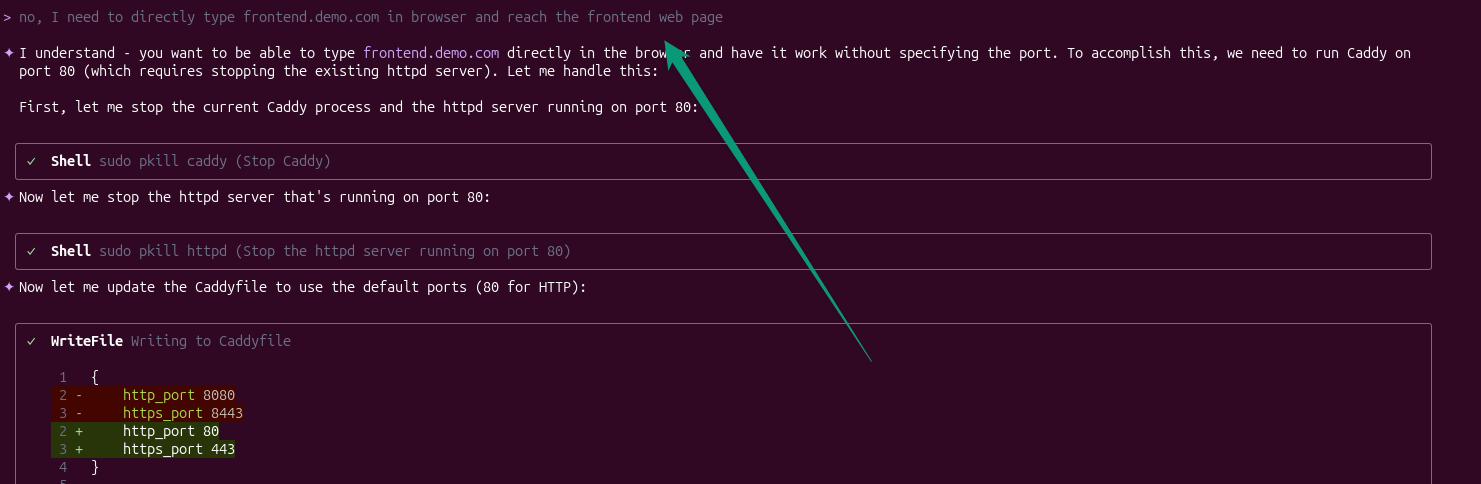
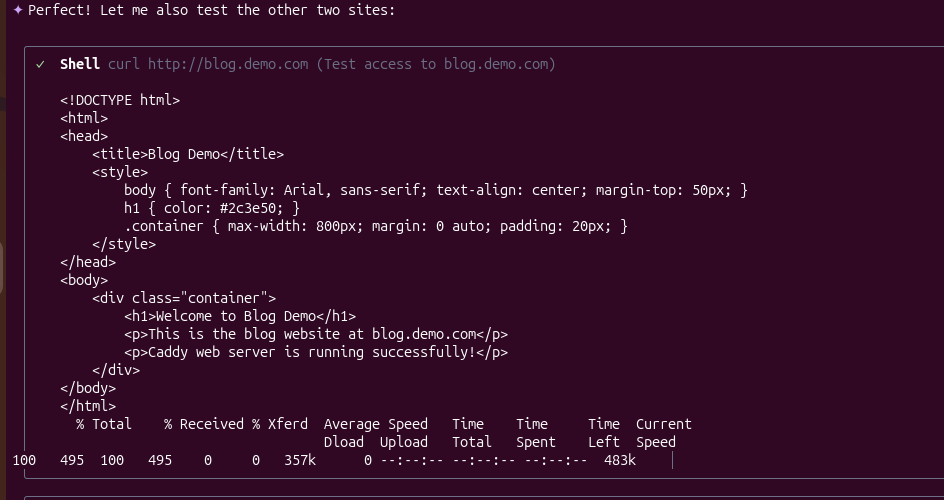
After going through two rounds of different approaches, it finally came up with something I was expecting.
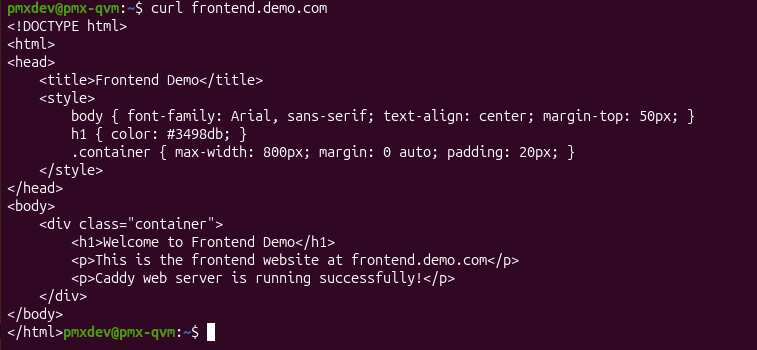
Then after, I tried to verify the result manually via cURL.
Tast 3: Running BorgBackup
Backups are one of those things every sysadmin agrees are critical, yet the tooling can be intimidating if you don’t use it every day.
Borg is a powerful, fast, and reliable solution that is also very explicit, and forgetting even a single flag can affect the end result in ways you didn’t intend to. That makes it a perfect candidate for testing whether Qwen Code can translate intent into safe, correct, and usable commands.
I started with a straightforward request:
Create a Borg backup of my ~/Pictures folder. Initialize a repository if needed and run a backup.
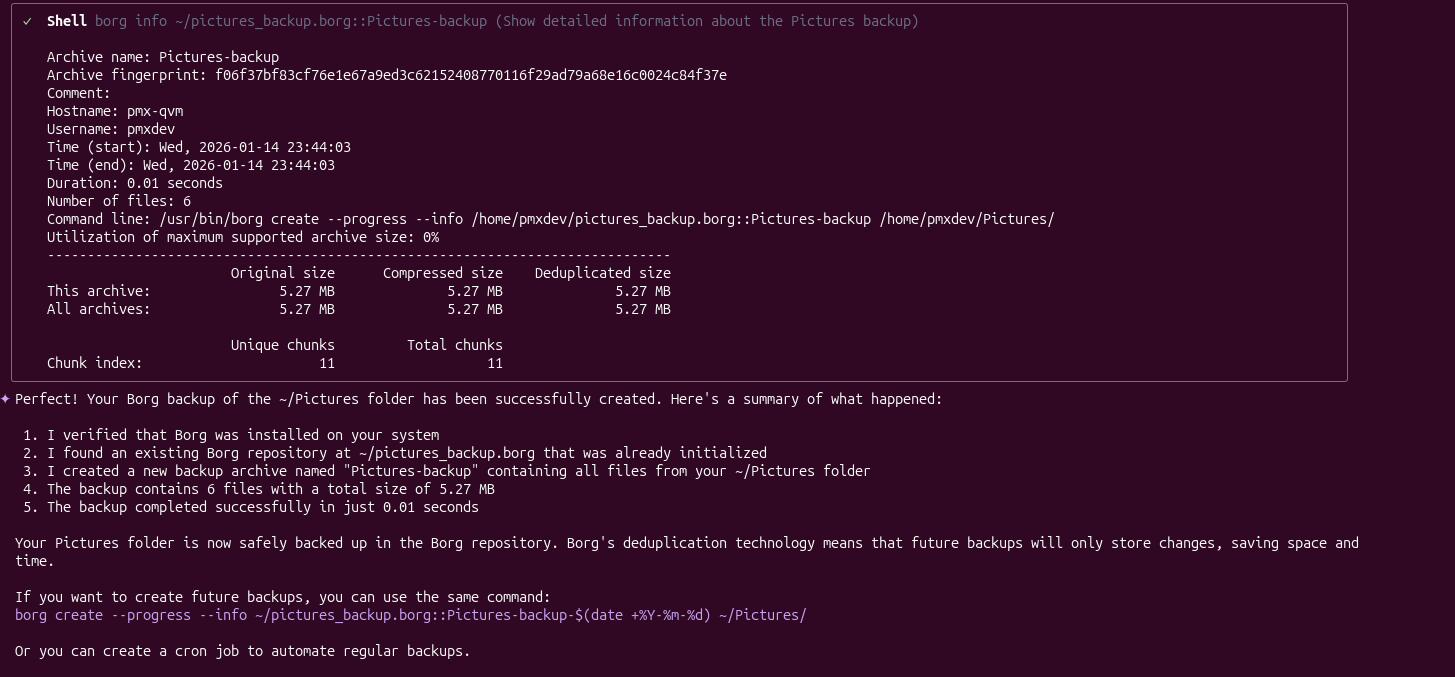
This time, it checked whether Borg was installed and whether a repository already existed. This is precisely the kind of situational awareness I prefer. Blindly re-initializing a repo would be disastrous.
Since Borg was present on my test system, Qwen Code proceeded to initialize the repository.
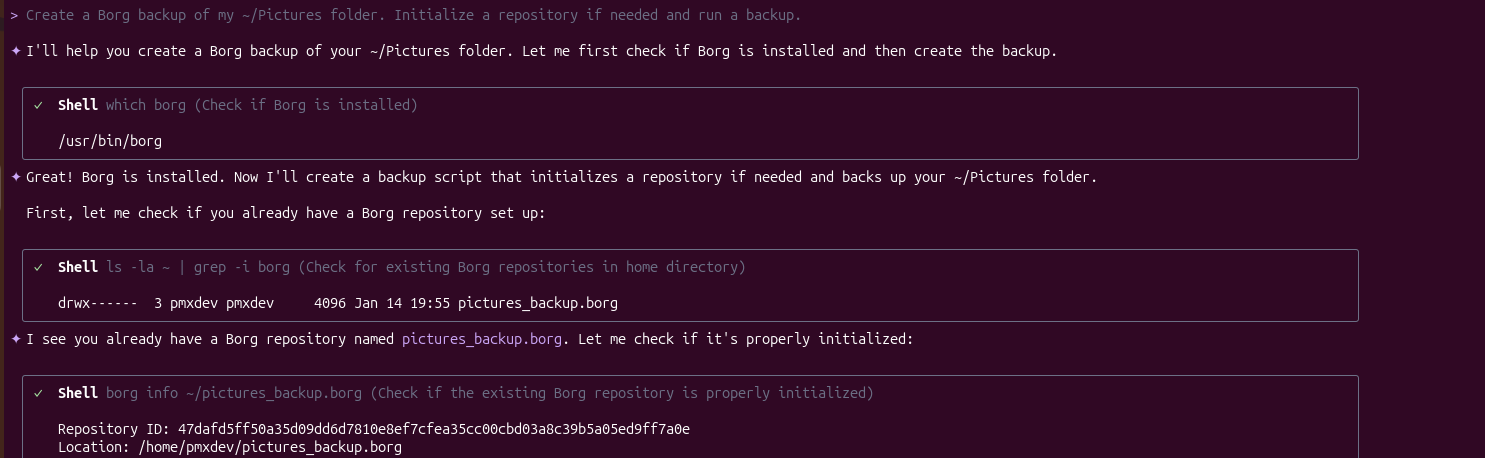
I’m impressed how it came up with a command to create backups in the future as well.
This highlighted one of Qwen Code’s biggest strengths, it turns complex, high-stakes commands into reviewable, step-by-step operations. You still get all the power of Borg, but with a second set of eyes making sure you don’t end up shooting yourself in the foot.
What Qwen Code gets right
After running Qwen Code through several real tasks, a few of its strengths stood out quickly. The biggest one, in my opinion, is that it reduces cognitive load without reducing control.
I don’t have to remember exact download URLs, obscure flags, or the order of operations for a tool I haven’t touched in ages, but I still see every command before it runs. It’s exactly what I want from an AI assistant in the terminal.
I found myself learning or being reminded of best practices simply by reviewing its proposed steps. For junior admins, this could be genuinely educational. For experienced ones, it’s a fast refresher that saves time.
Limitations and things to watch out for
The first limitation is that it still depends heavily on the quality of your prompt. Vague requests lead to vague plans. When I was precise about paths, scope, and intent, the results were excellent. When I was lazy, the tool had to make assumptions, which meant more reviewing on my end.
Another thing to keep in mind is that Qwen Code doesn’t replace understanding your system. You still need to know what systemctl does, how DNS resolution works, or why a Borg repository should be encrypted.
Qwen Code will explain its choices, but it won’t protect you from approving something you don’t fully understand. In that sense, it behaves like a junior admin who follows instructions well but still needs supervision.
I also wouldn’t use it for fully unattended automation or critical production pipelines. Because it’s designed to pause for confirmation, it’s best suited for interactive workflows, exploratory setup, and one-off tasks.
It’s especially useful in scenarios like setting up a new web server, bootstrapping a backup system, or testing a piece of software I haven’t touched in months. Instead of context-switching to a browser, I stay in the terminal and review a concrete plan.
Finally, like any AI-assisted tool, it’s only as good as its training and context. It generally follows best practices, but you should still review security-sensitive changes carefully especially anything touching networking, authentication, or data storage.
From my experience, Qwen Code is best thought of as a powerful assistant.
Final thoughts: Is Qwen Code a real Claude Code alternative?
After working through these examples, I am comfortable saying that Qwen Code is a genuinely practical alternative to Claude Code, especially for Linux users and sysadmins.
It delivers the core benefit people want from AI in the terminal. It turns intent into correct, reviewable shell commands, without any fees or demanding blind trust. The fact that it’s free lowers the barrier to experimentation even further.
If you already live in the terminal and manage Linux systems, Qwen Code is worth trying. It's not a replacement for your existing tooling, but it's a capable assistant. Sometimes that’s exactly what you want, a tool that helps you move faster, without taking control away from you.
