


In the eternal editor battle of Vim and Emacs, which focuses on customized mastery and deep knowledge of the editors, I would like to tap into the counter-culture and bring you editors that are easier than even the beloved nano editor.
How, you may ask, can be something simpler than nano? I'm glad you asked. Most of these editors have full-blown menus and interfaces which can be navigated using a mouse. Other than that, they use popular keyboard shortcuts like Ctrl+C for copying, Ctrl+V for pasting, Ctrl+S for saving, and so on.
Tag along with me and see the friendlier side of the editor battle.
1. Fresh
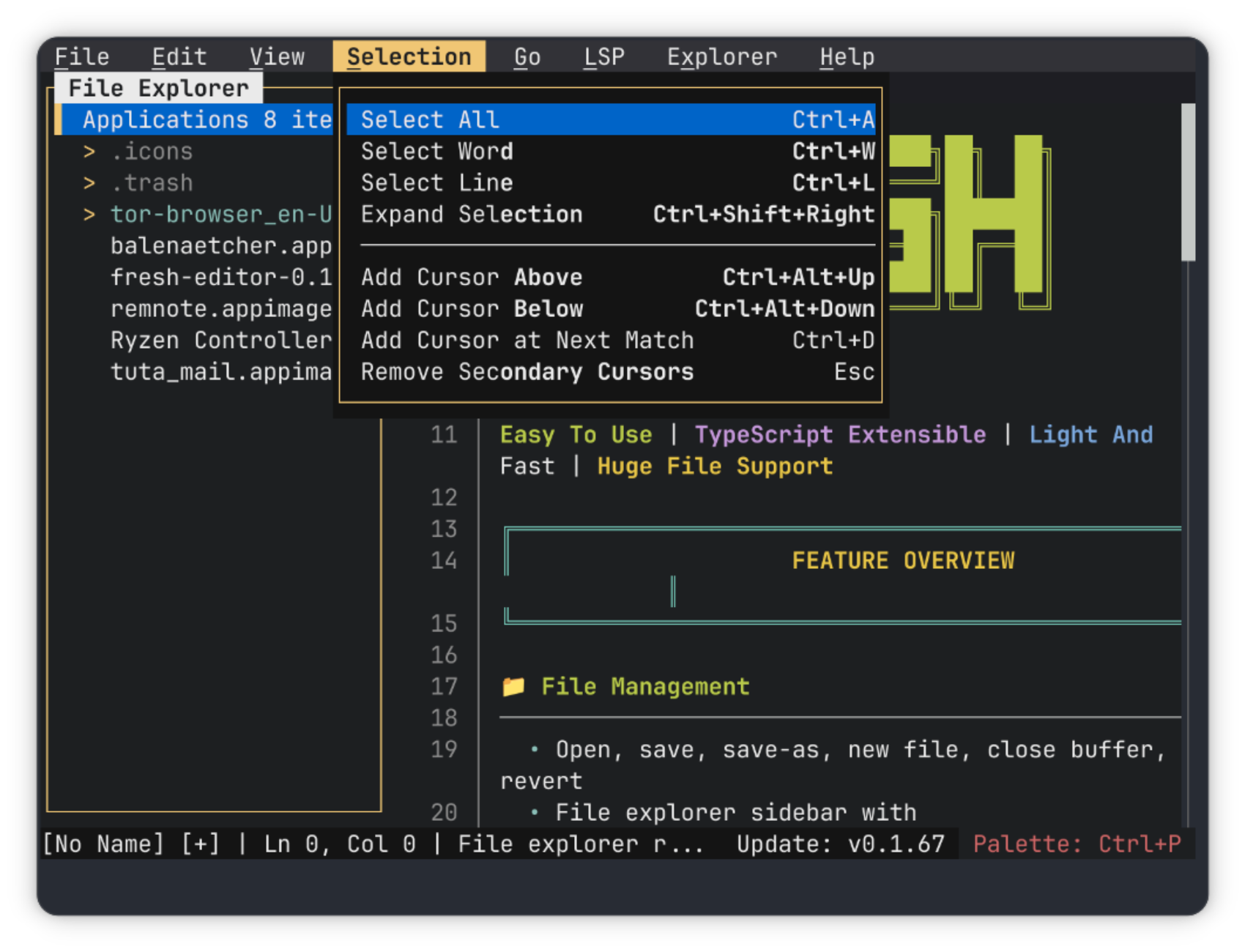
The Fresh editor, written in Rust, is basically a GUI editor on the terminal, convincing itself that it belongs there. What makes me say so? The features it has, of course. Some of the highlight ones are: a file explorer on the left of the window, where you can create and delete files (even see hidden files). You can split the window either vertically or horizontally, or even open the command line in one of the splits. There is syntax highlighting and smart indentation, you can do multi-cursor editing, and even find and replace operations.
There are keyboard shortcuts for navigation of all kinds, such as to go to a specific line, word movement, selecting a word/line/all the content, adding a cursor above/below where you are, etc. Are these too many features to remember? They've taken care of that, too. Hitting Ctrl+P brings up the command palette, where you can scroll up and down to find all actions you can do (with their keyboard shortcuts on the side).
On the other hand, if these features are not enough for you, you can add more to the mix using extensions written in TypeScript. These extensions include things like Git integration, Markdown support, and clangd support, among other things. You can even create your own. You can read more about it on our article here.
2. ne (Nice Editor)
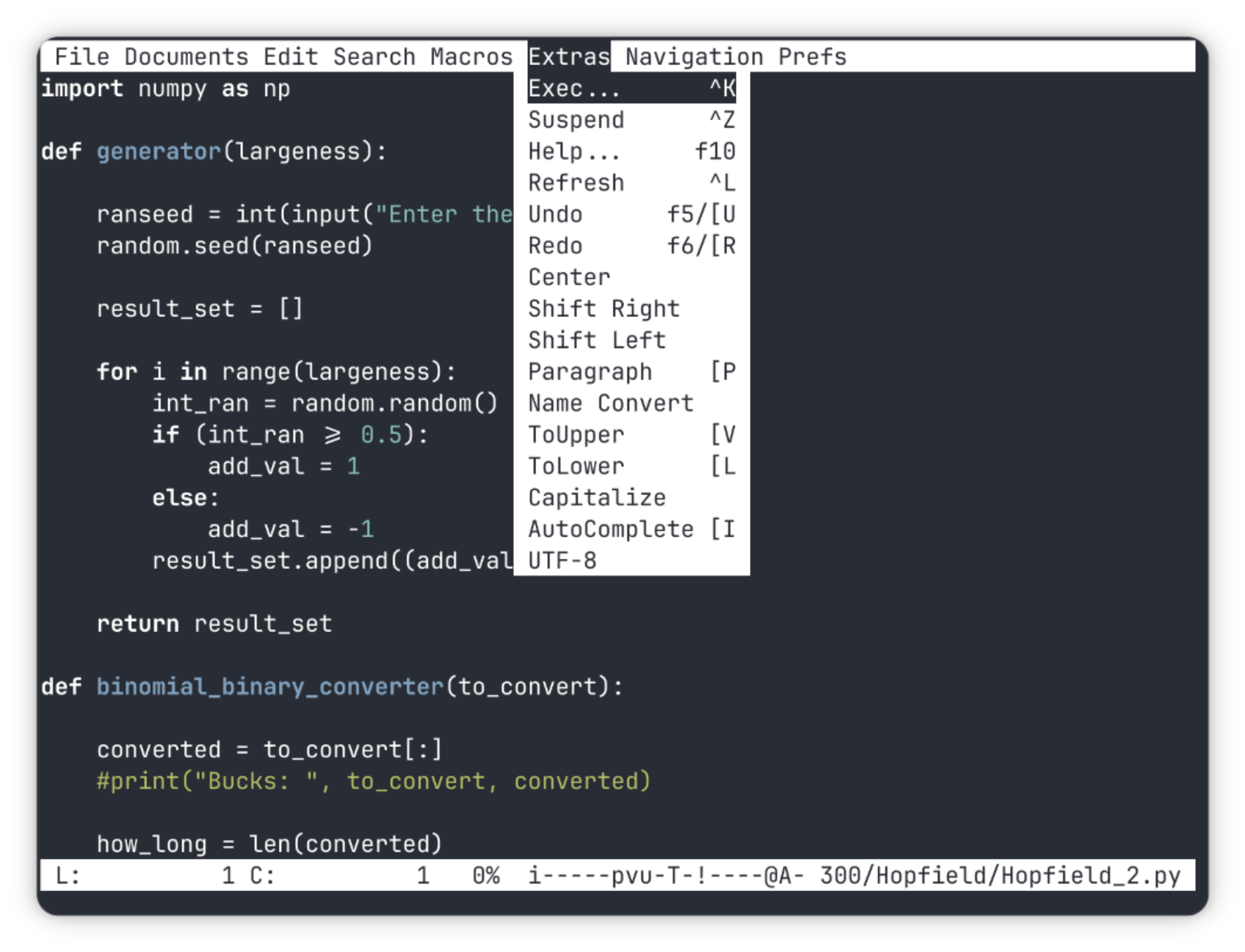
ne, the nice editor, has a very plain interface with only a status bar on the bottom and no menu in sight. Only when you press F1 does the menu show up with all the available features and their keybindings written next to them, if at all. Most of the features are pretty standard, like the usual keybindings for the usual tasks such as copying, pasting, saving or opening files. It has some extra keybindings for faster workflow, such as to delete till the end of line, delete previous/next words, vertical marking and pasting, going to specific positions in the file, etc. You can add and visit bookmarks in the files, as well.
There are some developer-friendly features such as the ability to execute the opened file, syntax highlighting, and more importantly setting macros. With macros, you can record a set of actions once and perform them in a single stroke, if there's anything repetitive you need to do. This often comes up to be helpful for a lot of users.
3. micro
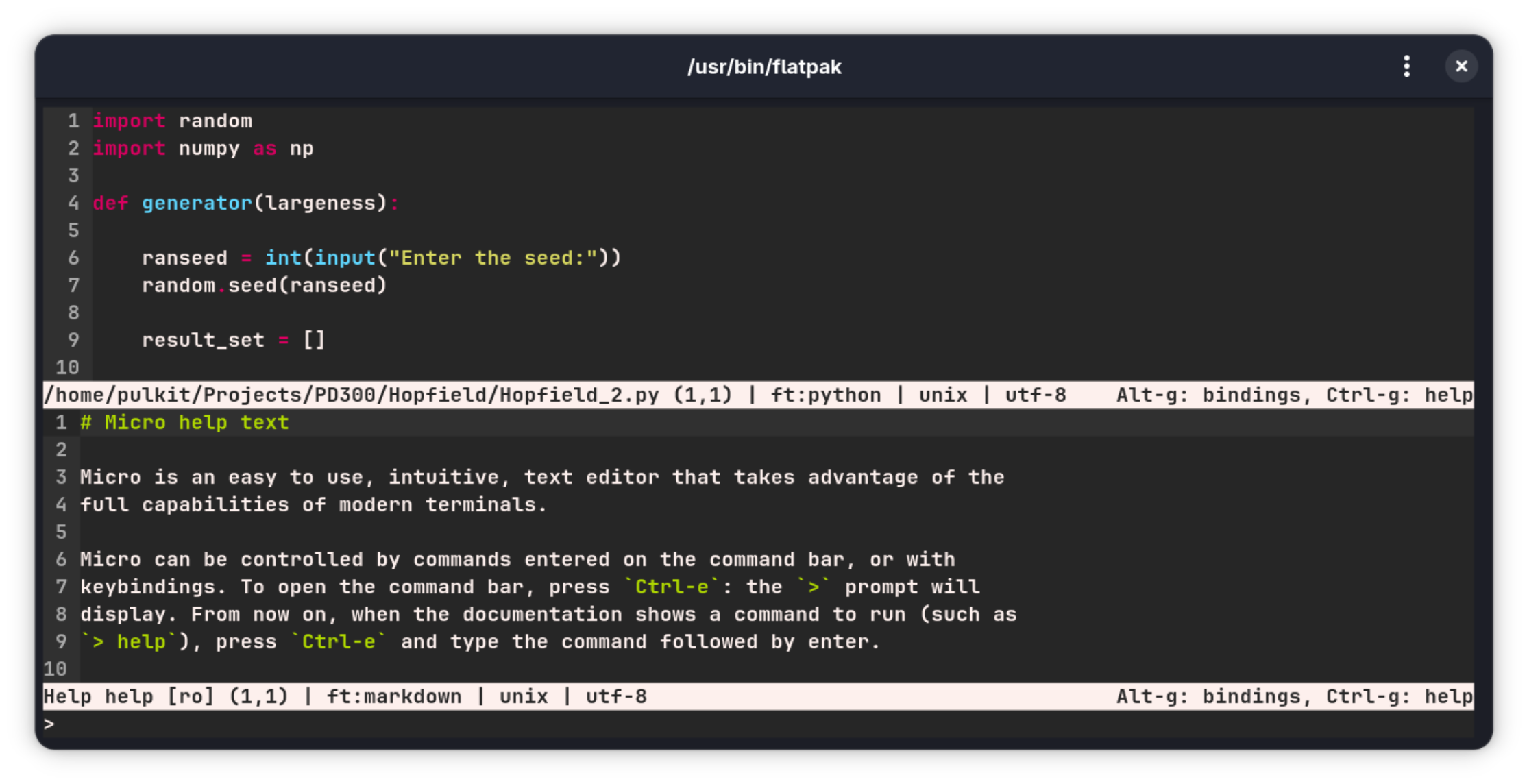
micro is another editor that is easy to use, but laden with all sorts of features. It has window splits and tabs, multiple cursors, syntax highlighting for over 130 languages, the ability to use a terminal within the editor, etc. The developers claim to have set the keybindings to very sane defaults, with a nano-like menu on the bottom that shows up when you press Alt+G.
The only things in the interface by default are the status bar on the bottom and the contents of the file itself. One of the best features is the command bar that can be summoned with Ctrl+E. Everything on the editor can be modified through the command bar, including the colorschemes, keybindings, splitting the window, jumping to lines, replacing text, searching for text, running shell commands, opening/switching tabs, etc.
In simpler terms, this one command bar acts as the hub for any and all actions. You learn the commands, and the editor works exactly how you want it to. If all this isn't enough, micro also offers plugins written in Lua, for which there is a page. You can read more about micro on our article here.
4. Dinky
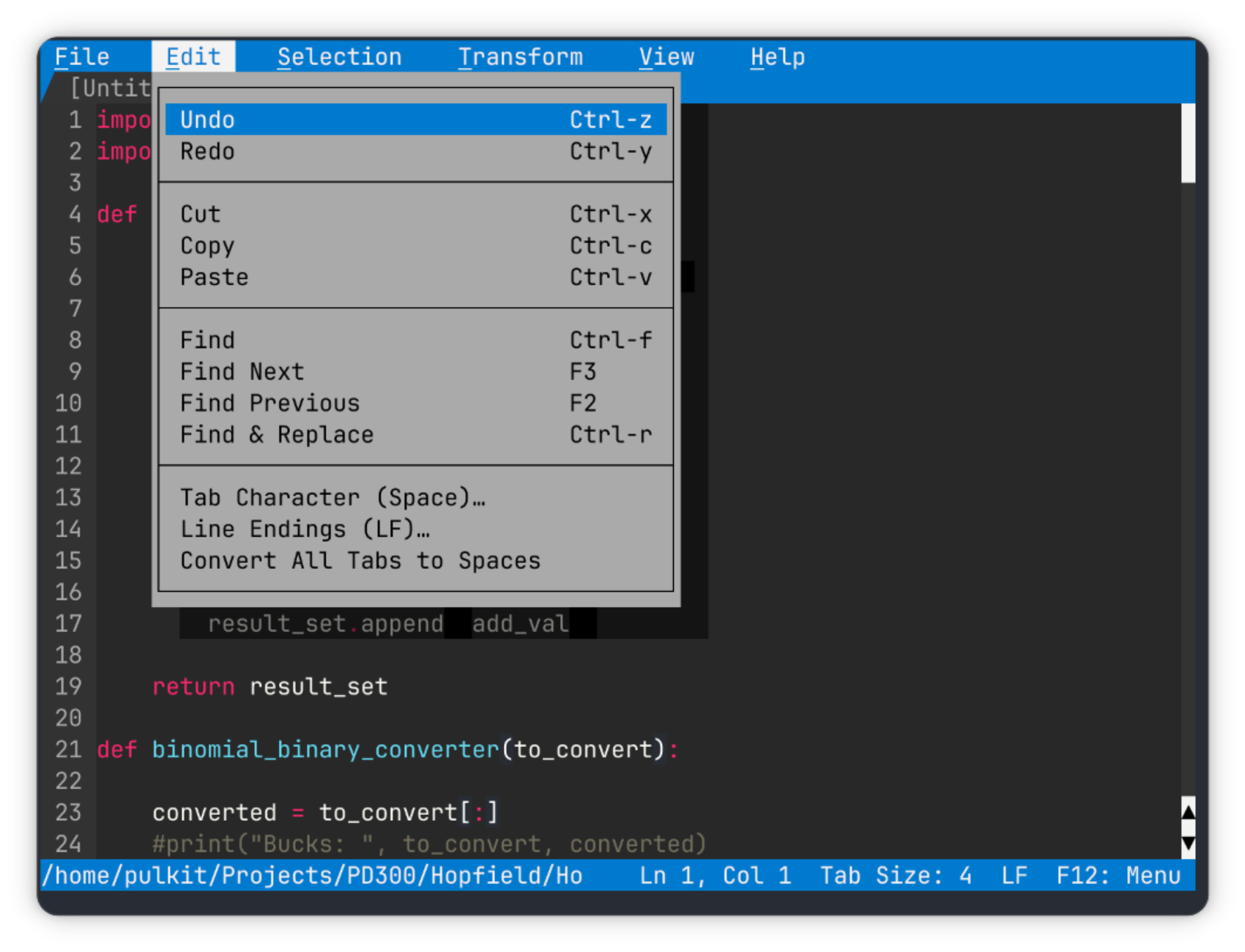
Dinky is a simple TUI text editor that comes with a menu on top for the options, a status bar on the bottom, and nostalgic trapezoidal tabs. It doesn't have any fancy features, but has everything you might need to get the job done. In terms of appearance, it comes with many pre-installed themes, which you can explore to find the best one for yourself. The default one is a pretty interesting retro-looking theme (complete with the solid shadows and all), that also has a certain nostalgia to it. There is a settings menu that has many controls, like choosing the size of one tab press, showing of whitespaces (trailing or otherwise), text wrapping, etc.
In the selection menu, you can see the various navigation options and their keyboard shortcuts for actions such as going to a specific line, to the previous/next paragraph, switching tabs, adding/removing cursors, going to the next/previous occurrence of a word, etc. There are options to encode/decode URLs, sort or reverse lines, and to transform selections to all uppercase or lowercase.
5. ash
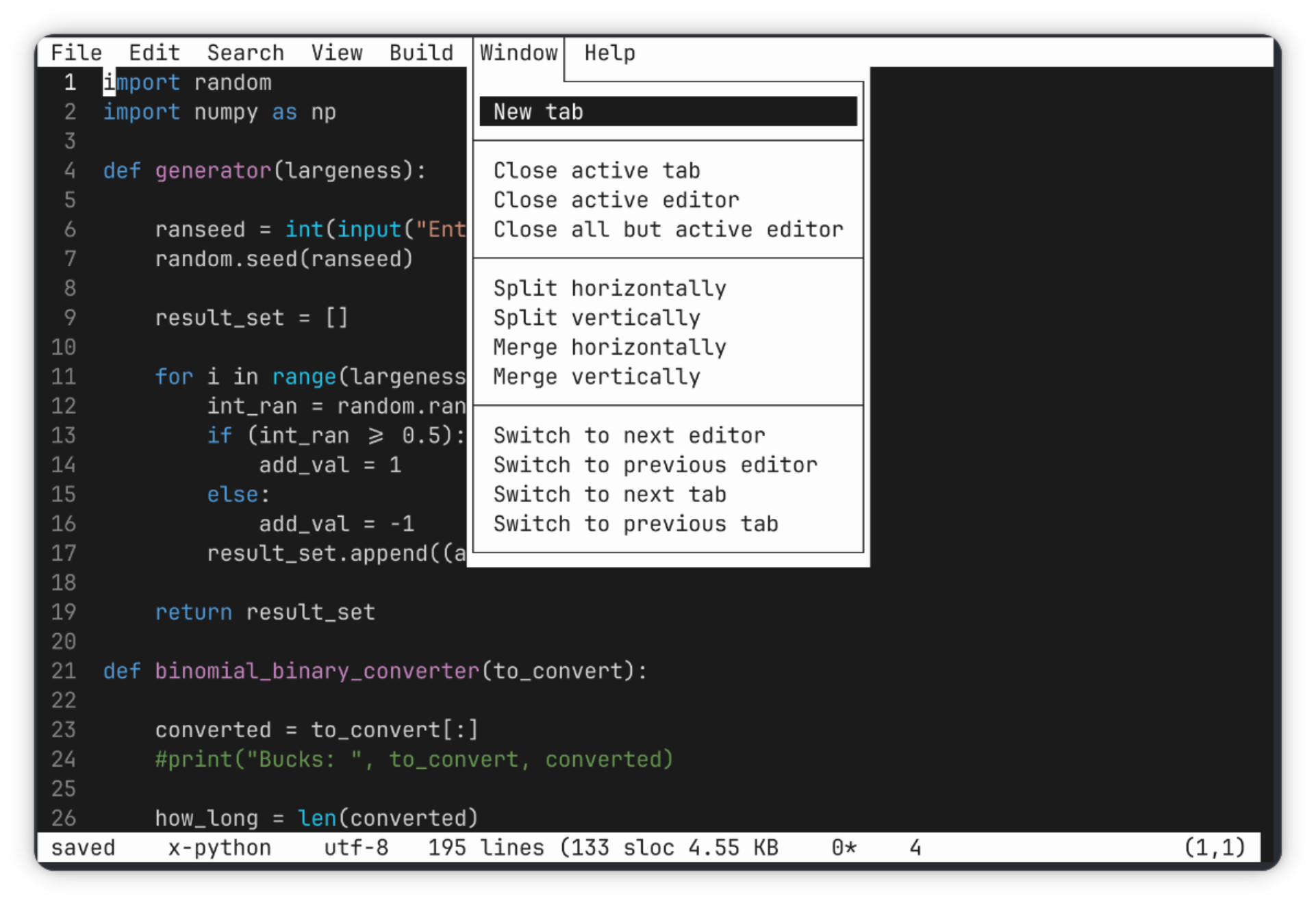
ash is a simple editor with great features under the hood. It looks extremely clean by default, with just a status bar on the bottom, and not even a menu on top, instead there is just the filename is on top of the window. If, however, you click the top of the windows, you get the menu. All the features are accessible from there. Strangely, the keybindings are not written on the menus, but pressing F1 brings up the help section, where all the actions can be accessed and their keybindings can be found.
The features include split-windows, hard/soft wrapping, multi-file editing, auto-backups, Git integration and multiple cursors among others. A very helpful feature is the option to build and execute any programming script right from the window, which seems to be rare among TUI editors.
Special mention: MS Edit
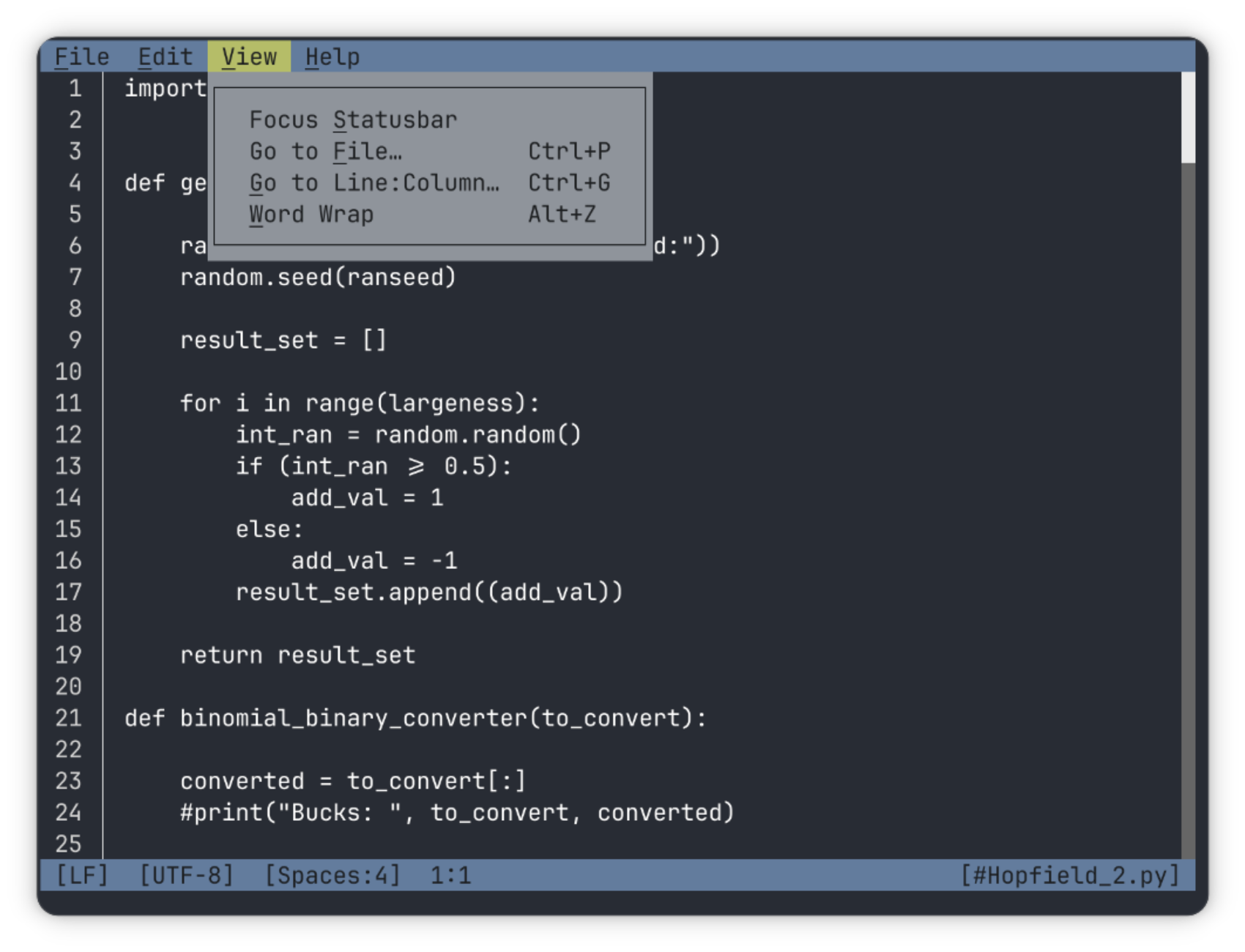
In a surprising turn of events for everyone on this website, one of the best simple terminal editors is from Microsoft. It is inspired from the good ol' MS-DOS Editor, but written in Rust with a modern interface and VS Code-like input controls. Nostalgia is indeed a sweet thing when it works out well.
The editor is as simple as it gets, with actions as simple as they get. You can open files, close them; copy, paste, find and replace text; enable/disable wrapping, go to specific line:column positions, and so on. The interface is plain, showing the line position and the filename on the status bar at the bottom, along with the character encoding. Read more about the features Edit offers on our article here, or watch our video about it.
Wrapping Up
Happily for us, the Linux terminal has come a long way from supporting only the keyboard to having software that can be navigated fully using a mouse. These editors have amazing features, each outdoing the previous one, and offer the users everything they might need. Let us know which one you like the best. Cheers!

