Running Linux-based operating systems on smartphones has come a long way. We now have several Linux-powered smartphones on the market that cater to different use cases. Some pack in flagship-level performance, while others try to be a value-for-money proposition.
Sadly, these devices are out of reach for most people around the world due to excessive taxation from their countries and shipping charges. Of course, many do have an older spare Android smartphone laying around.
Why not make good use of it? In this article, we will be taking a look at a very cool project that turns an Android smartphone into a Linux machine with a simple APK file and no root access.
Local Desktop: Easily Run Linux Desktop
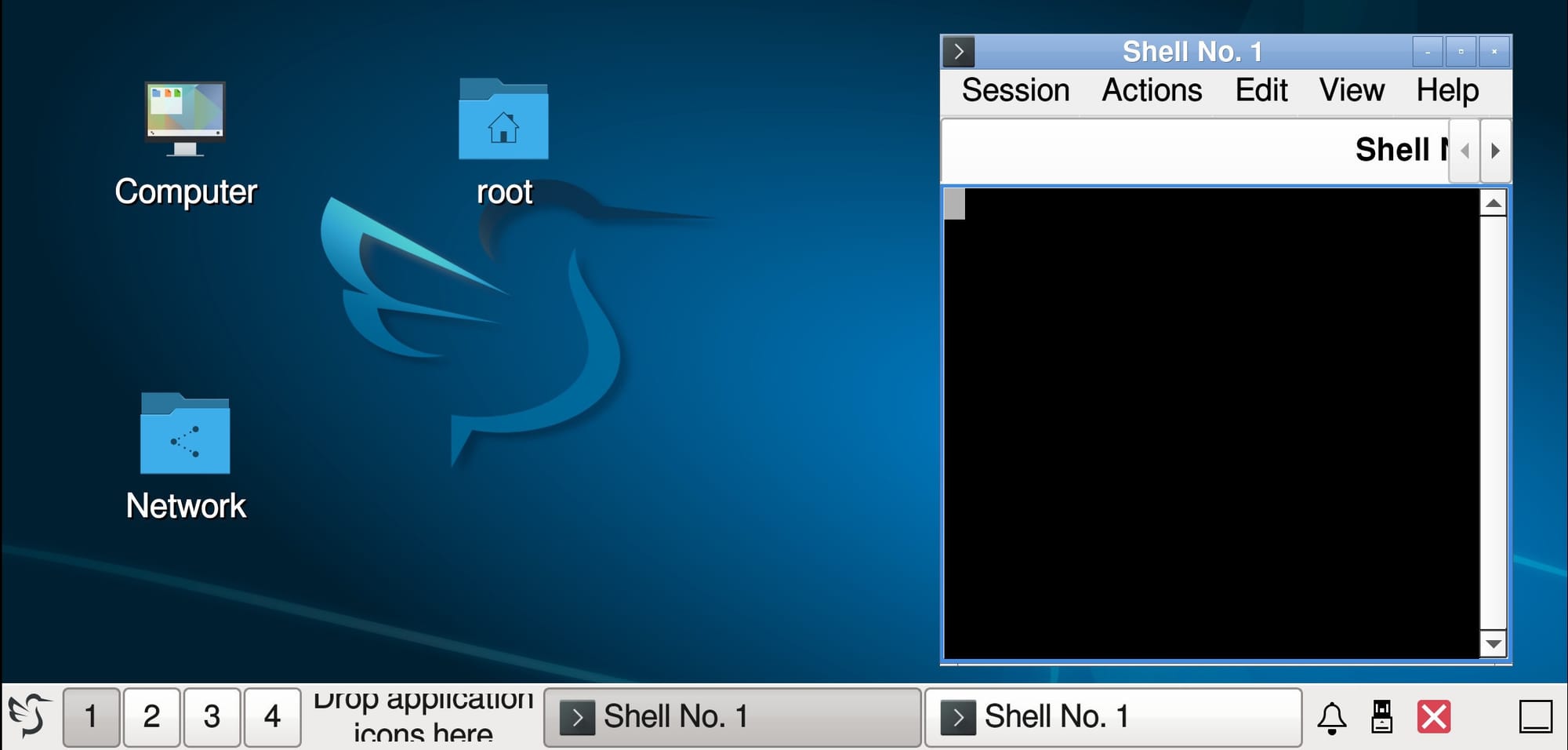
Local Desktop is an open source app that brings a complete Linux ARM64 environment to your Android device. The project is being led by Mister Teddy, who has built it on Rust and has been pushing out updates regularly.
As for what it offers, well, for starters, you can install different desktop environments on this, with the app currently shipping with LXQt as the default. But you should be able to set up KDE Plasma, GNOME, or any other desktop environment that works on Arch Linux.
By default, Local Desktop logs you in as the root user for a simpler setup process. However, you can create non-root users if you need to. This is particularly important for certain applications.
The documentation for the app reads that Chrome and Electron-based apps like VS Code run better or are more securely without root access, and AUR helpers like Paru or Yay actually require a non-root user and will refuse to work as root.
Moreover, if you want to install new software, then it's easy since Local Desktop is based on Arch Linux. I forgot to mention that earlier. 😅
You can install applications from the official Arch repositories using pacman, and should you need, you can also install new ones from the Arch User Repository (AUR). Though, keep in mind that not every app might run, and the developer's testing is limited to a few popular ones.
Few Things to Keep in Mind
When I had tested it, the installation progress was stuck at 33% for a few hours, with new components being downloaded and installed during that. This could either be due to my device being slow, my ISP's routing being bad, or the download mirrors having a slow day.
Once it was done, I understood why the documentation for Local Desktop recommended using a physical keyboard. There's an on-screen keyboard that can be enabled via the Applications menu, but having a real one at your fingertips should be much more convenient.
Also, I recommend you install Local Desktop on a tablet or a smartphone with a big screen, as the interface has many things to show. You will end up touching the wrong pixels for certain options if your screen size is too small.
Desktop Linux is mostly neglected by the industry but loved by the community. For the past 13 years, It's FOSS has been helping people use Linux on their personal computers. And we are now facing the existential threat from AI models stealing our content.
If you like what we do and would love to support our work, please become It's FOSS Plus member. It costs $49 a year (less than the cost of a McDonald's burger a month), and you get 5 ebooks, an ad-free reading experience and the satisfaction of helping the desktop Linux community.
Suggested Read 📖: Looking for Linux Phones? Here are Your Options
 Sourav Rudra