


Most people live on the mouse; click, move, repeat. It’s easy, especially on a polished desktop like Linux Mint. But once your fingers learn the shortcuts, the keyboard quietly wins every time.
Not only they give you a power user feel, they also make you more productive as you don't have to move the fingers away from the keyboard to grab the mouse.
Now, Linux Mint is one of the best distributions for beginner Linux users and you can comfortably use it with the mouse.
However, if you want to explore, Linux Mint supports plenty of keyboard shortcuts.
In this tutorial, I'll share some essential shortcuts to get you started, followed by some not so common ones. In the end, I will also briefly share how you can set custom shortcuts for all actions.
Using keyboard shortcuts on Linux Mint Cinnamon
Here's a quick look at the keybindings I am going to share in details:
| Linux Mint Keyboard Shortcuts | Action |
|---|---|
| Opening Apps | |
| Open a terminal | CTRL+ALT+T |
| Open Home directory in Nemo file manager | SUPER+E |
| Open nth item in the task bar | SUPER+Number |
| Utility | |
| Open Notifications view | SUPER+N |
| Open calender and events view | SUPER+C |
| Run a command in console | ALT+F2 |
| Windows and Workspaces | |
| Active windows overview and selector | CTRL+ALT+Down |
| Cycle through open windows | ALT+TAB |
| Cycle through windows of specific application | ALT+Backtick (above tab) |
| Hide all windows and show desktop | SUPER+D |
| Workspace overview and selector | CTRL+ALT+Up |
| Switch workspaces | CTRL+ALT+Left/Right |
| Tiling Windows | |
| Tile to the left | SUPER+Left |
| Tile to the right | SUPER+Right |
| Tile to the top | SUPER+Top |
| Tile to the bottom | SUPER+Down |
| Screenshots and Screencast | |
| Take screenshot of the screen | PrtScr |
| Take screenshot of an area | SHIFT+PrtScr |
| Start or stop screen recording | SHIFT+CTRL+ALT+R |
| Session Control | |
| Access the logout menu | CTRL+ALT+DEL |
| Access the reboot/shutdown/suspend menu | CTRL+ALT+END |
| Lock screen | CTRL+ALT+L |
| Restart Cinnamon desktop | CTRL+ALT+ESC |
Super Key: Open the start menu
This is a well known, probably the most used, shortcut. Press the Super key (key with Windows logo on most keyboards) and the Start menu opens instantly. From there, you can search for applications, open settings, or launch recently used programs.
A clip showing the opening of start menu using the Super key.
Open a terminal or file manager
These two are most used by me since terminal and file manager are two essential tools in my workflow.
To open a terminal, you can use CTRl + ALT + T. Press it again and you open multiple windows.
A clip showing opening a terminal using shortcut
In Linux Mint, Nemo is the default file manager, and you can open your home directory in Nemo using Super + E.
A clip showing opening a file manager window.
SUPER + <NUMBER> to open the nth item in the task bar.Close an application window
You do not need to click on the "X" button at the top! Without taking the hands away from the keyboard, you can use ALT + F4, where F4 is the Function key 4.
A clip showing closing multiple windows using shortcuts
Show desktop instantly
When your screen is full of open windows and you need a clean view, press SUPER + D. Press it once to hide everything. Press it again to bring all windows back.
A clip showing window hide and restore
Show notifications
Lots of unread messages? Use the SUPER + N shortcut to open the notification section in the panel.
A clip showing accessing notifications in panel using shortcuts.
Switch between windows
If you multitask, this section is for you. To switch between open windows, use ALT + TAB.
A Clip showing window switch
If you have more than one window opened for an app, say terminal, use ALT + backtick to switch between them without pulling other windows to the view.
A clip showing switching windows of one app.
Use window tiling
The Cinnamon desktop of Linux Mint is not a tiling window manager that offers functions like automatic tiling, layouts, etc. But it does give you a set of basic window tiling options. Here are the shortcuts to manage the tiles:
| Description | Shortcut |
|---|---|
| Tile Window to the Left | SUPER + Left |
| Tile Window to the Right | SUPER + RIGHT |
| Tile Window to the Top | SUPER + TOP |
| Tile Window to the Bottom | SUPER + DOWN |
Apart from this, if you press SUPER + LEFT/RIGHT and then press SUPER + UP, the window will be tiled on top-left or top-right corner.
A clip showing the working of window tiling in Linux Mint Cinnamon desktop.
Get applications overview
You can use the CTRL + ALT + DOWN shortcut to get an overview of all open windows,like what the GNOME Activities overview do.
A clip showing windows overview
Work with Workspaces
Workspaces are well supported in Linux Mint. By default, you get four workspaces. To get an overview of the workspaces, use CTRL + ALT + UP.
A clip showing workspace overview in Linux Mint
To switch to another workspace, use CTRL + ALT + Left/Right.
A clip showing switching workspace in Linux Mint
Lock the screen
When you take a break from the session, it is better to lock the system. And in Mint, do this by pressing CTRL + ALT + L.
A clip showing the lockscreen shortcut in Linux Mint.
Take screenshots
Linux Mint has a decent screenshot utility that offers the basic functionalities, like:
- Taking the screenshot of the screen using
PrtScrkey - Taking the screenshot of a selected rectangular area using
SHIFT+PrtScr.
It also offers a screen recording feature. To start recording, press CTRL+ALT+SHIFT+R. Once recording is finished, press the same shortcut to stop recording, and the file is saved automatically in the ~/Videos directory.
A clip showing the screenshot shortcuts
Run a console
If you want to run a quick command without opening the terminal, ALT + F2 is the shortcut. It opens a small dialog box. Enter the command you want and hit enter.
A clip showing running a command using the console shortcut.
Session management shortcuts
No need to open the menu and look for power options. Linux Mint has some accessible shortcuts for these tasks:
Use CTRL + ALT + DEL to get the logout menu.
Or use CTRL + ALT + END to get the shutdown/reboot/suspend menu.
A clip showing the session menu shortcuts
CTRL + ALT + ESC to restart the Cinnamon desktop if something goes wrong or feels laggy.Add custom shortcuts in Linux Mint
You can always create custom keyboard shortcuts. For example, if you are using a tenkeyless keyboard from Keychron and you don't have the print screen button, you can create a custom keybinding to initiate the screenshot app.
There are more practical uses of custom shortcuts. For example, I use SUPER + Q to open the terminal. Also, I keep SUPER + SHIFT + D to open Discord. Let's see how you can create custom keyboard shortcuts.
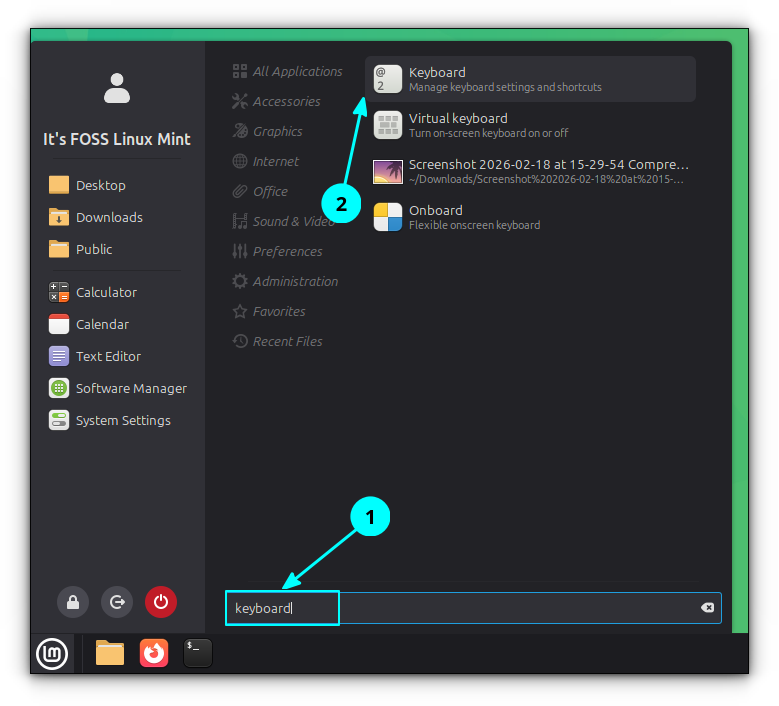
First, open the Start menu with the SUPER key and search keyboard.
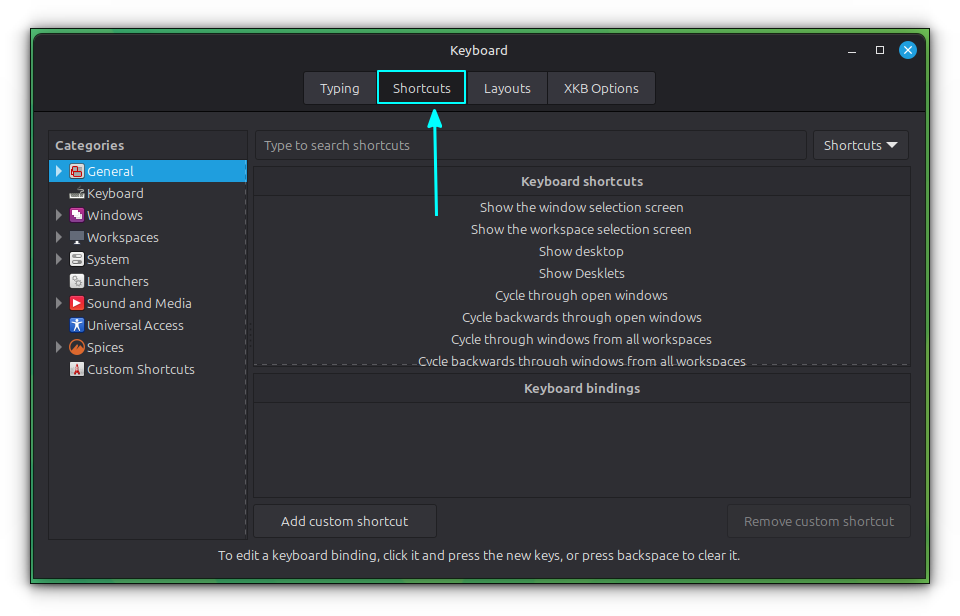
Inside the keyboard window, go to Shortcuts. Here, you can see a categorized list of options and respective keyboard shortcuts.
Change a shortcut
First, let's change an existing keybinding. For this, use the search bar and enter the one you want to change. If a default option for that is available, it will be shown. Like terminal in this case.
Select the action (Launch terminal) and then under Keyboard bindings, click on the unassigned option.
This will ask you to enter a keyboard shortcut. Press the shortcut of your choice. I will press SUPER + Q.
All this action is shown in the video clip below:
A clip showing an additional shortcut is added to the launch terminal option.
That's it. You can now open terminal with either CTRL + ALT + T or SUPER + Q.
Create a new keybinding
Now, let's see how to assign a keyboard shortcut to a new application.
In the same Keyboard -> Shortcuts section, select the Custom Shortcuts option in the left side bar.
Click on Add a custom shortcut button. In the new dialog box, enter a name for the shortcut and the command you want to execute.
In the above screenshot, you can see that in the command section, we used:
flatpak run com.discordapp.Discord
This is because it is a Flatpak application. If it is an application installed using system package manager like gedit or handbrake, you can add its name directly.
Once added, click on the Add button. In the settings, click on Unassigned and add a keybinding of your choice.
A clip showing adding a custom shortcut to Discord in Keyboard settings.
Download Linux Mint cheatsheet wallpaper
If you want, we have a 4K wallpaper for you. You can set it as desktop background and quickly look at the keyboard shortcuts. It will help you build your muscle memory.
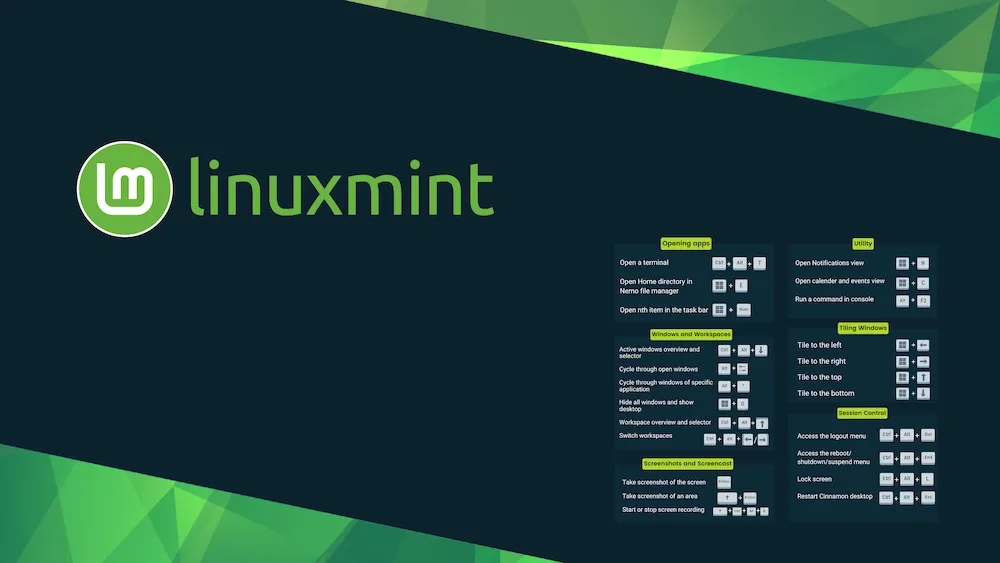
The 4K resolution wallpaper can be downloaded from the Proton Drive link below:
Wrapping up
Now you are familiar with the common keyboard shortcuts in Linux Mint. You also learned to create custom keybindings.
This list is limited in the sense that there are shortcuts for each applications as well! For example, apps like Nemo File Manager offers its own set of custom keyboards. VS Code has plenty of shortcuts of its own and so does Firefox.
Of course, those don not count here. The shortcuts I discussed are primarily at desktop environment level. I hope you enjoy using them as much as I do.
By the way, we have a similar article that discusses essential keyboard shortcuts for Ubuntu, too.

