


Searching on Linux used to be a chore, unless you knew how to work your way around the CLI with find, locate, and grep — fun times!, but today, times have genuinely changed. And I am not talking about fuzzy search options in the terminal. In this article, we'll look at some of the best GUI tools available for searching your files on Linux - no terminal required.
1. FSearch
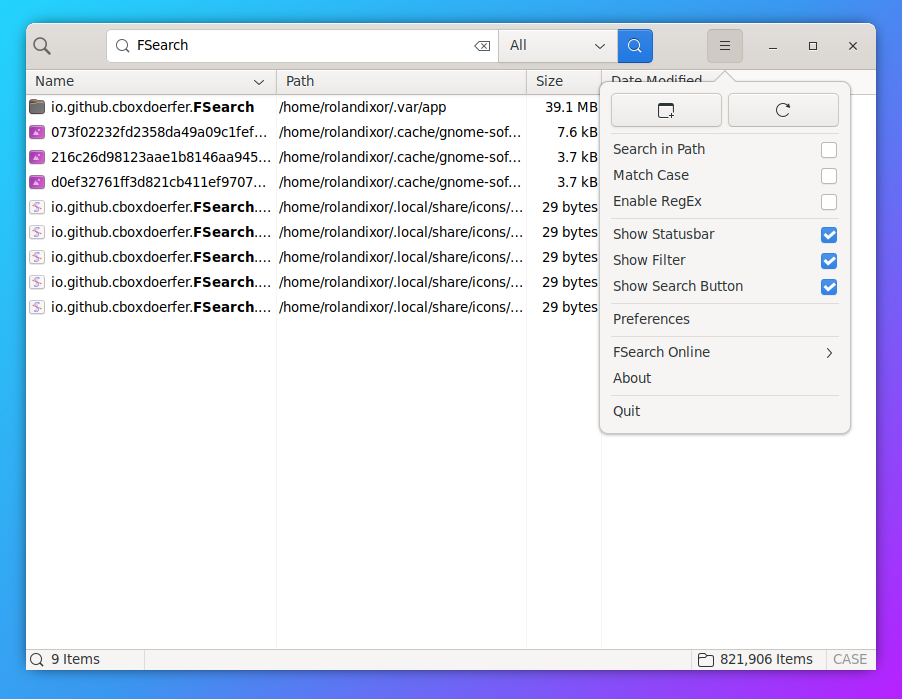
FSearch is a lightweight and modern filename search tool inspired by Everything search for Windows. Actively developed since around 2016, it’s built for speed and simplicity with almost zero overhead. It’s perfect for anyone who wants instant results without battling extensive menus and configuration screens.
Features & Highlights:
- Super fast, as-you-type results
- Regex and simple type filters
- Include/exclude folders for indexing
- Clean UI with dark mode
- Open results with single or double click
Downloads & Installation
FSearch is available on Flathub, and is packaged for many distros. If your distro doesn't package it, you can also grab packages following the project's README. Source code for the latest versions is available from the releases page, though these releases are somewhat behind the GitHub repo itself.
2. DocFetcher
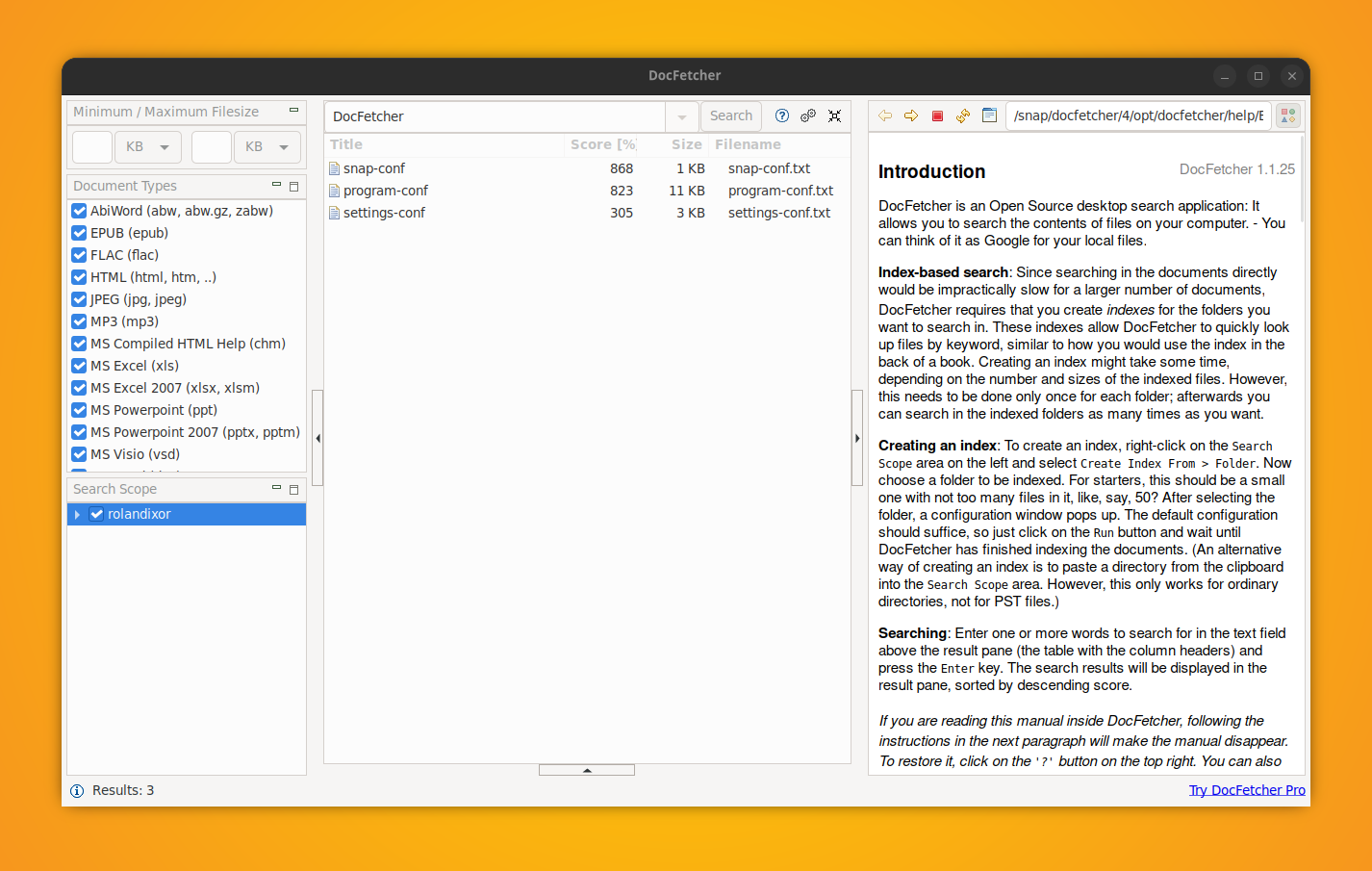
DocFetcher is a long-standing, Java-based search utility that calls itself “Google for your local files.” It’s been around for over a decade and remains one of the most featureful full text search tools on Linux. It’s best for heavy document users who want deeper indexing, previews, and power-user syntax. Do note though, you can only do full text search on files it's already indexed.
Features & Highlights
- True full-text search with rich previews
- Complex filters and regex support
- Pause/resume and background indexing
- Type-ahead suggestions
- Detailed built-in manual
Downloads & Installation
DocFetcher is available via the Snap Store for Linux distros that support it. You can also download zipped binaries from the project's Sourceforge, or grab the source code from git.
3. Recoll
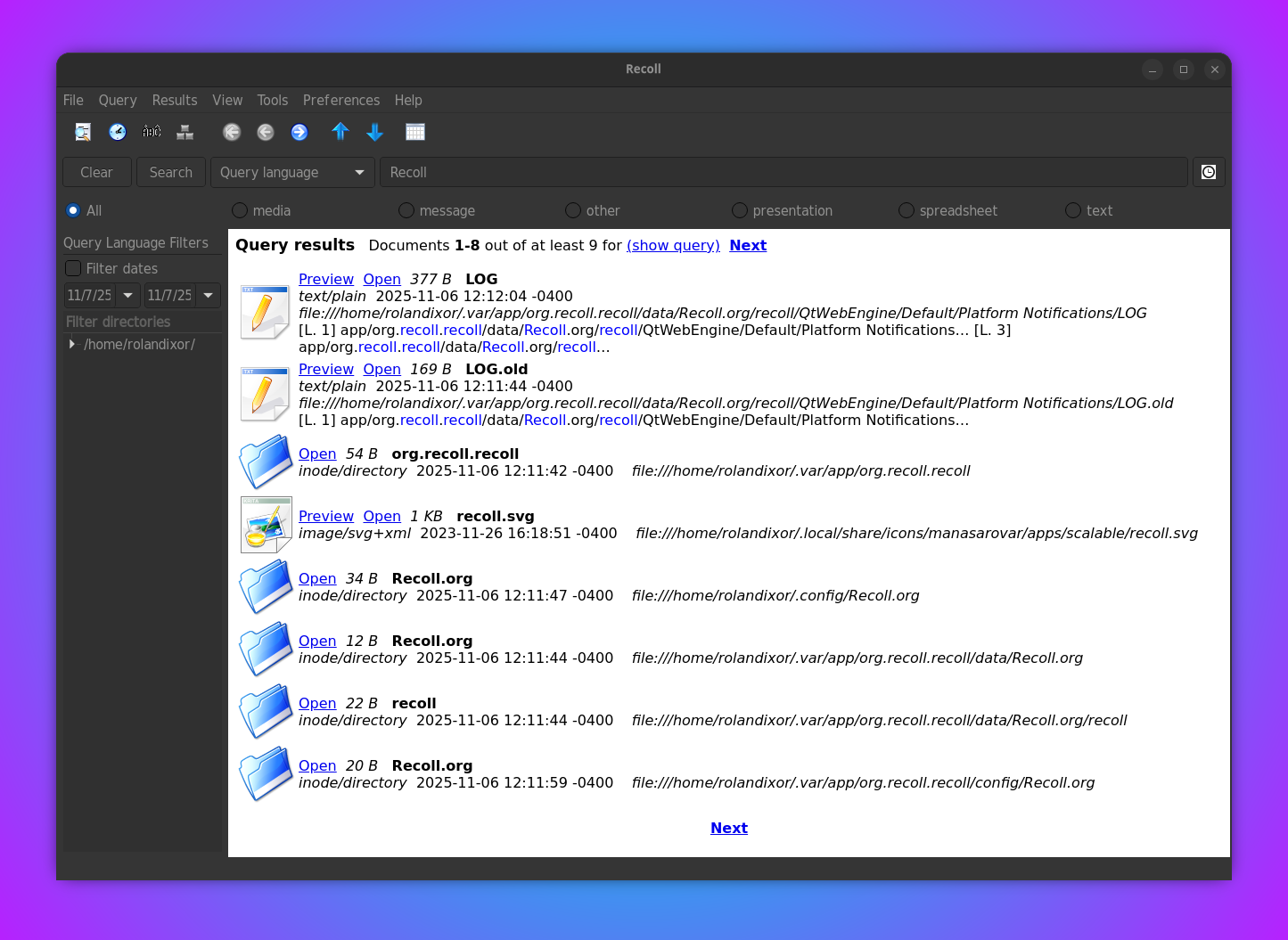
Recoll is a veteran desktop search tool (being around since about 2005) that looks and behaves more like a web search engine. It's a front end tool for the Xapian search engine library, and once indexed, it delivers fast results with advanced operators, field filters, and extensive configuration options. It's not the most modern or flashy, but it suits users who value precision and flexibility over aesthetics.
Features & Highlights
- Full-text and metadata search
- Advanced query language and history
- Can search outside its index for ad-hoc needs
- Optional GNOME Shell integration
- Actively maintained with frequent updates
Downloads & Installation
Recoll is available for many distributions in their standard repos. If you don't find Recoll in your package manager, you can install the Flatpak from Flathub. There's also an experimental AppImage available.
4. ANGRYsearch
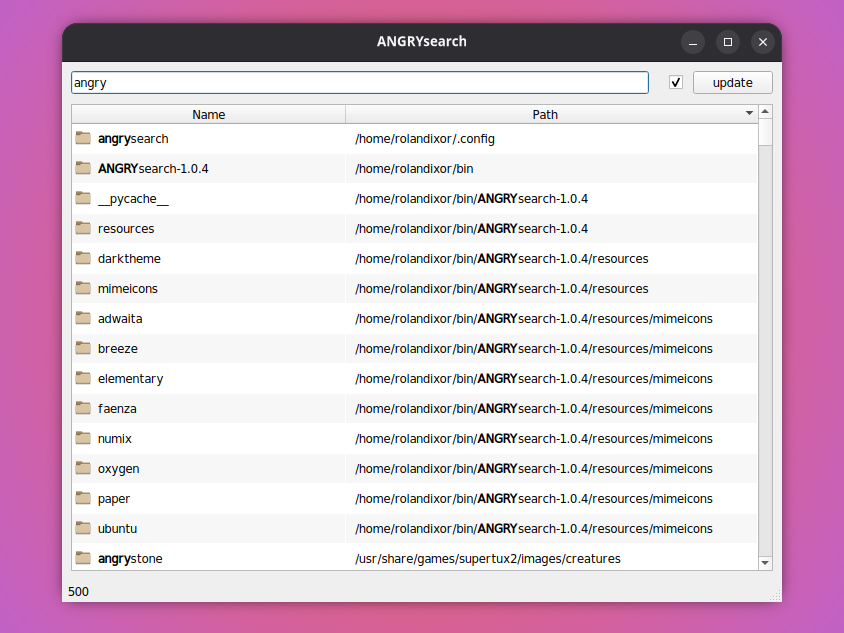
First created in back in 2015, ANGRYsearch is a fast Everything-style search tool for Linux, written in Python and using Qt5. It solely supports filename searches, but is built to index quickly and return substring matches almost instantly. The minimalist interface takes a moment to learn, but its raw speed is a real draw. Since it's written in Python, it can be run without being installed.
Features & Highlights:
- Lightning-fast substring and regex search
- Quick setup; can run without formal install
- Lightweight Python 3 + Qt5 design
- Handles very large file systems
- Focused on speed over extras
Downloads & Installation
ANGRYsearch is available for download from its Github page, but only as source code. Third-party packages are available for Arch, and openSUSE and Fedora.
5. Catfish
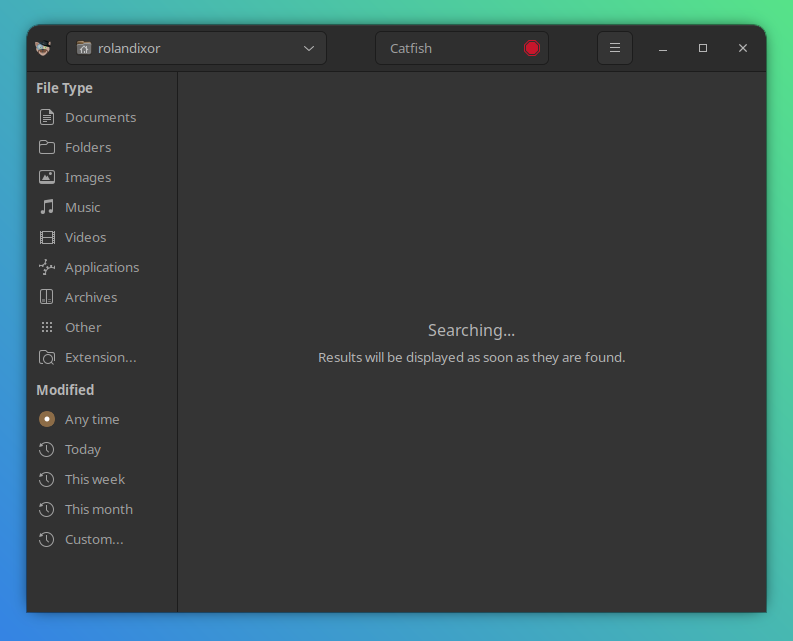
Catfish is the standard search tool for XFCE, and runs well on any desktop. It’s snappy for filename queries via the system’s locate/plocate database, and can optionally search inside files and archives. It can also search for files outside the locate/plocate database, albeit a little more slowly. With a clear, no-nonsense UI, it’s one of the most reliable choices for everyday use.
Featured & Highlights
- Fast filename search via
plocate - Optional full-text and archive search
- Simple, organized interface
- Filters for time, type, and location
- Blends well across GTK-based desktops
Downloads & Installation
As part of XFCE, Catfish should be available with for most distros in the standard repos. If you already use XFCE for your desktop environment, then it is likely installed with your system. You can also grab source code for Catfish on the project's GitLab page.
6. CoreHunt
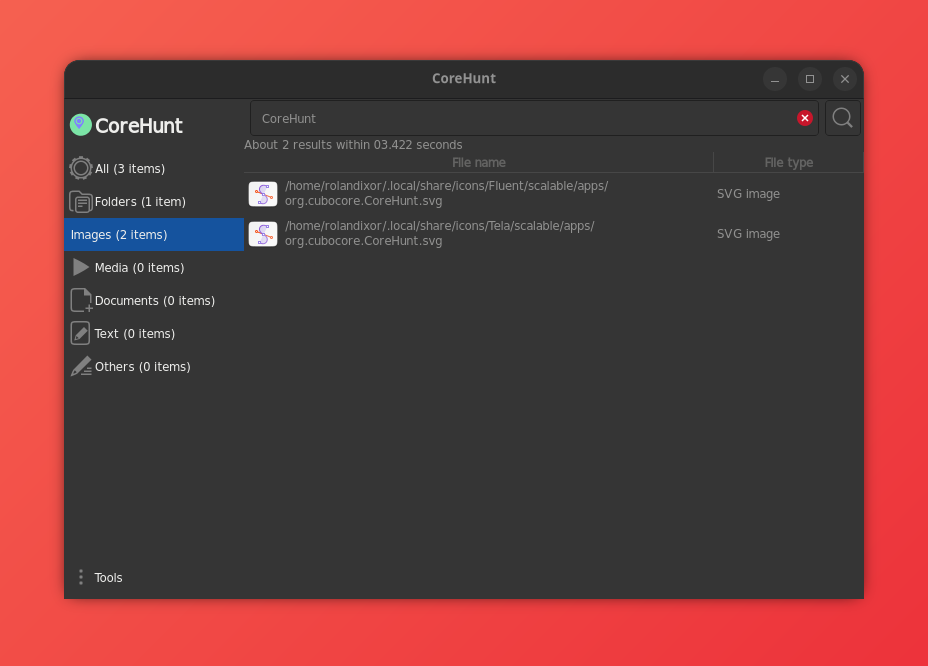
CoreHunt is a newer (circa 2018), minimalist option designed to get you from launch to results with zero fuss. It's written in C++, and it doesn’t rely on a persistent index, keeping the app light at the cost of slower scans on larger numbers of files. If you value simplicity above all else, it stays out of your way.
Features & Highlights
- Lightweight, straightforward workflow
- Scopes searches to a chosen folder
- Basic file-type filtering
- Instant to pick up and use
- Low memory footprint
Downloads & Installation
You can grab CoreHunt on Flathub or, or get packages for your system on the project's README.
7. Snoop
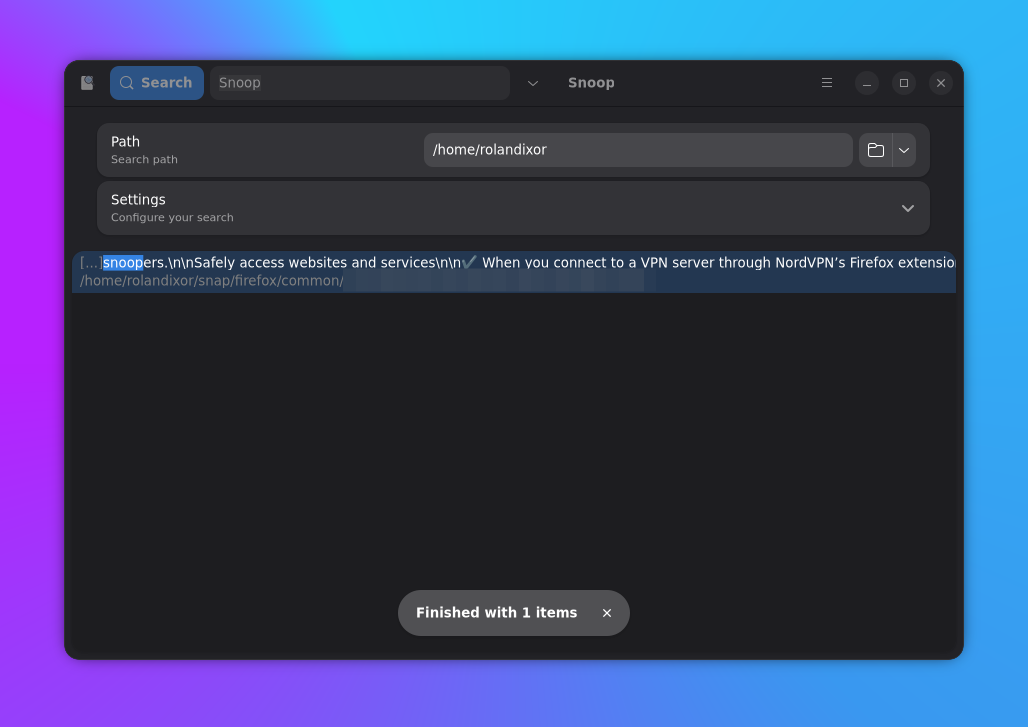
Snoop is a GTK 4 app that reaches beyond typical file search. Alongside files, it can search Firefox bookmarks and Thunderbird mail data, giving it a unique scope for a young project (first released in 2022). It’s still a bit quirky, with some challenges running search queries and duplicate preferences in three places, but the potential is impressive.
Features & Highlights
- Full-text and regex search
- Optional Nautilus integration
- Toggle hidden files and adjust scope
- Searches bookmarks and mail stores
- Modern GTK 4/libadwaita UI
Downloads & Installation
You can grab the Flatpak on Flathub, or build from source if you'd prefer not to use this packaging format.
8. KFind
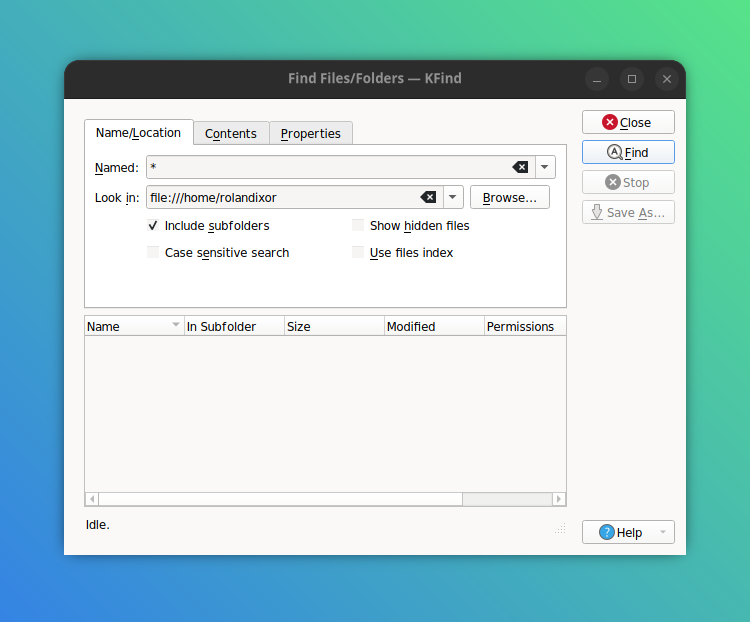
KFind is KDE’s long-running search companion and part of the Plasma suite, predating even the introduction of Dolphin and Baloo. Where possible, it uses Baloo for instant, indexed results, or falls back to classic recursive scanning. It features very fine-grained filters, even some not found in other search tools, and works well inside Plasma or as a standalone tool on other desktops.
Features & Highlights
- Full-text and metadata search
- Deep filters: dates, ownership, groups, permissions
- Works with or without Baloo
- Regex and name pattern support
- Clear, tabbed interface
Downloads & Installation
KFind is available for most distributions, since it's a part of the standard KDE app collection. You can also grab KFind on Flathub or on the Snap Store.
9. Clapgrep
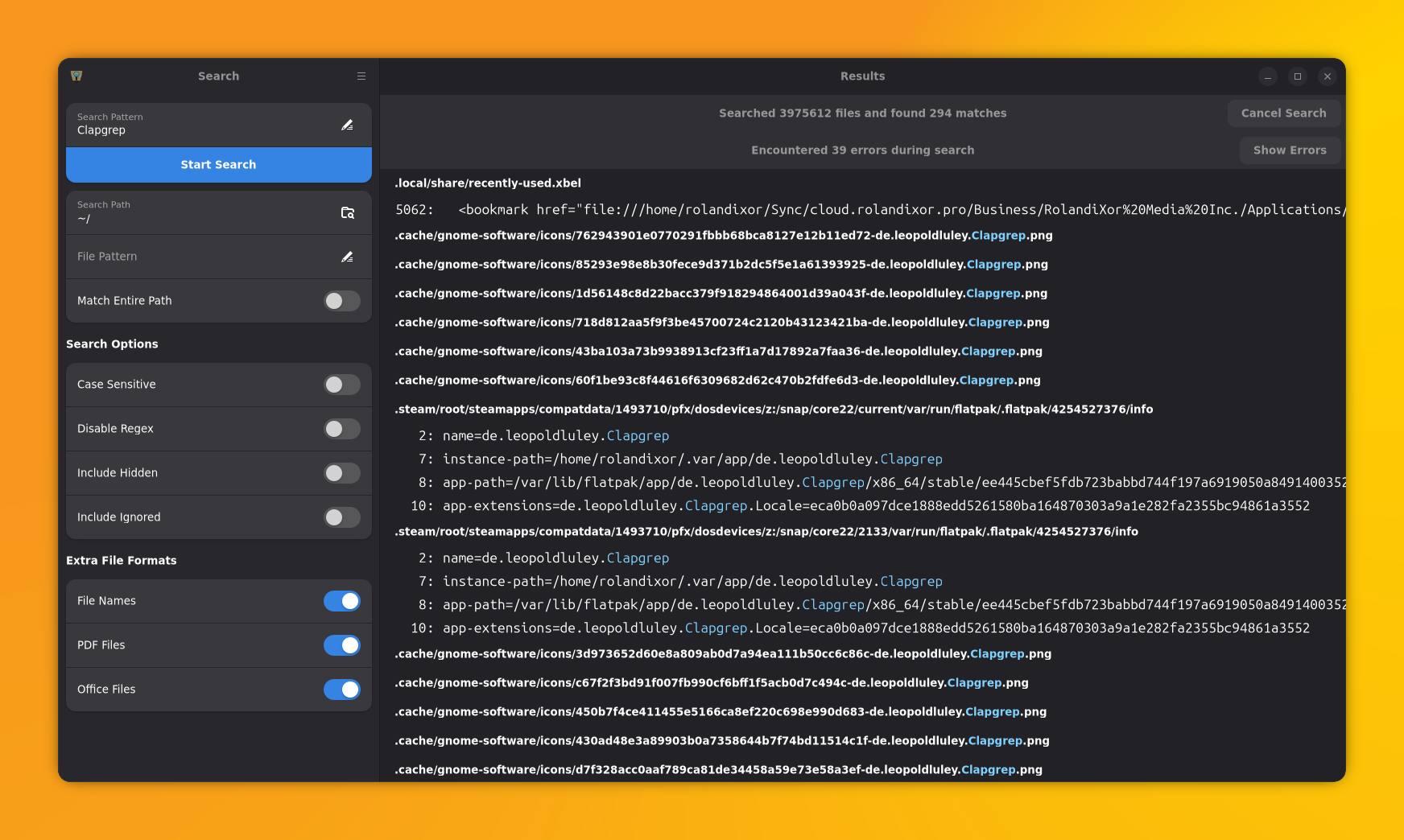
Clapgrep is a sleek GTK 4/libadwaita search tool with full text search and complex filters. It features optional GNOME Files integration, streams results live (you can stop a search at any time), and shows inline previews to ensure accuracy and speed up decision-making. It’s not the fastest raw scanner, but its polish and usability make it a joy to use. Out of all the apps in this list, it's my personal favourite.
Features & Highlights
- Full-text search with live updates
- Inline previews of matching text
- File-type and visibility toggles
- GNOME Files integration
- Modern, responsive design
Downloads & Installation
Clapgrep is available as Flatpak (via Flathub), or as source code from the project's GitHub releases page.
Bonus: File manager search
Most desktop environments and their file managers of choice also come with at least some search functionality. In fact, some are among the most featureful GUI tools you can find. We won't go in depth on these, but here are a couple honourable mentions.
GNOME: Files (Nautilus) & Shell Search
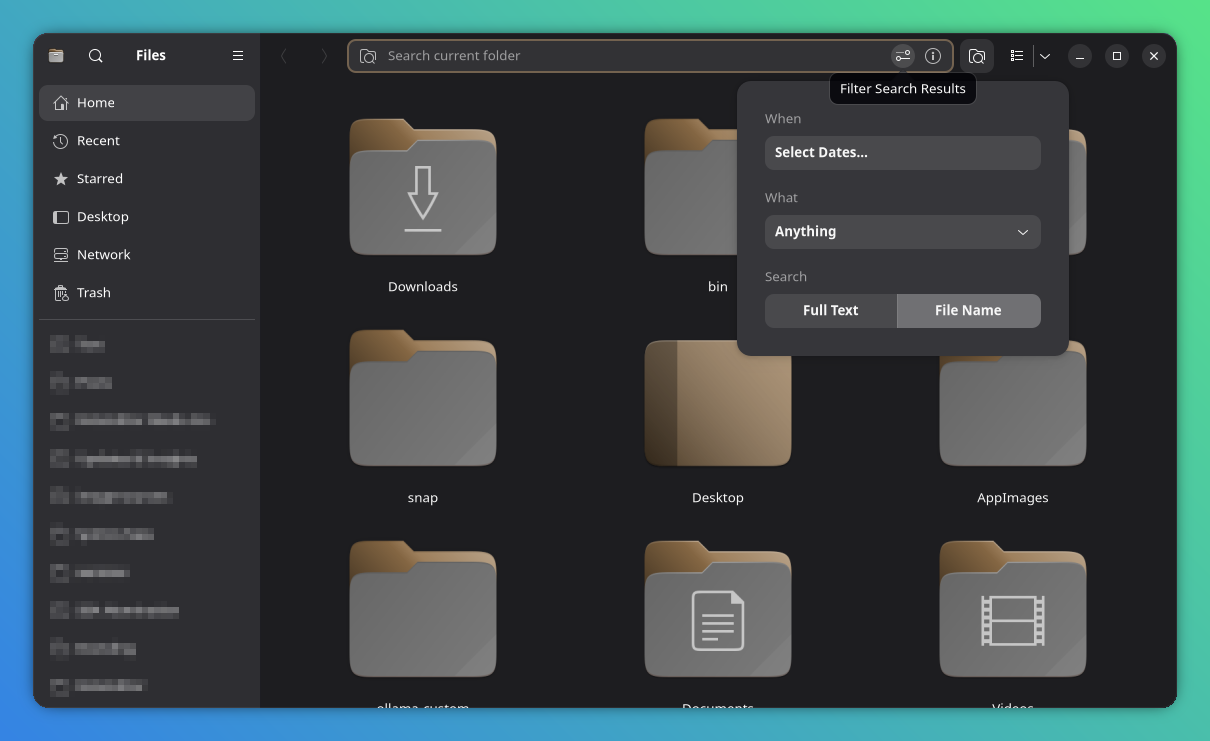
In GNOME, both Files Nautilus and the Shell's Dash utilize Tracker to power their search results, though Files can fall back to a simpler search method if Tracker is not available. Files gives you a more powerful UI, featuring date, file type and search-depth filters. You can also limit your search to just the individual folder, or search across the system with the search button in the sidebar.
The GNOME Shell Dash on the other hand, gives you a basic search based on filenames and meta-data. It can also search for special characters and copy them to the clipboard with a click.
 Sreenath
KDE Plasma: Dolphin & KRunner
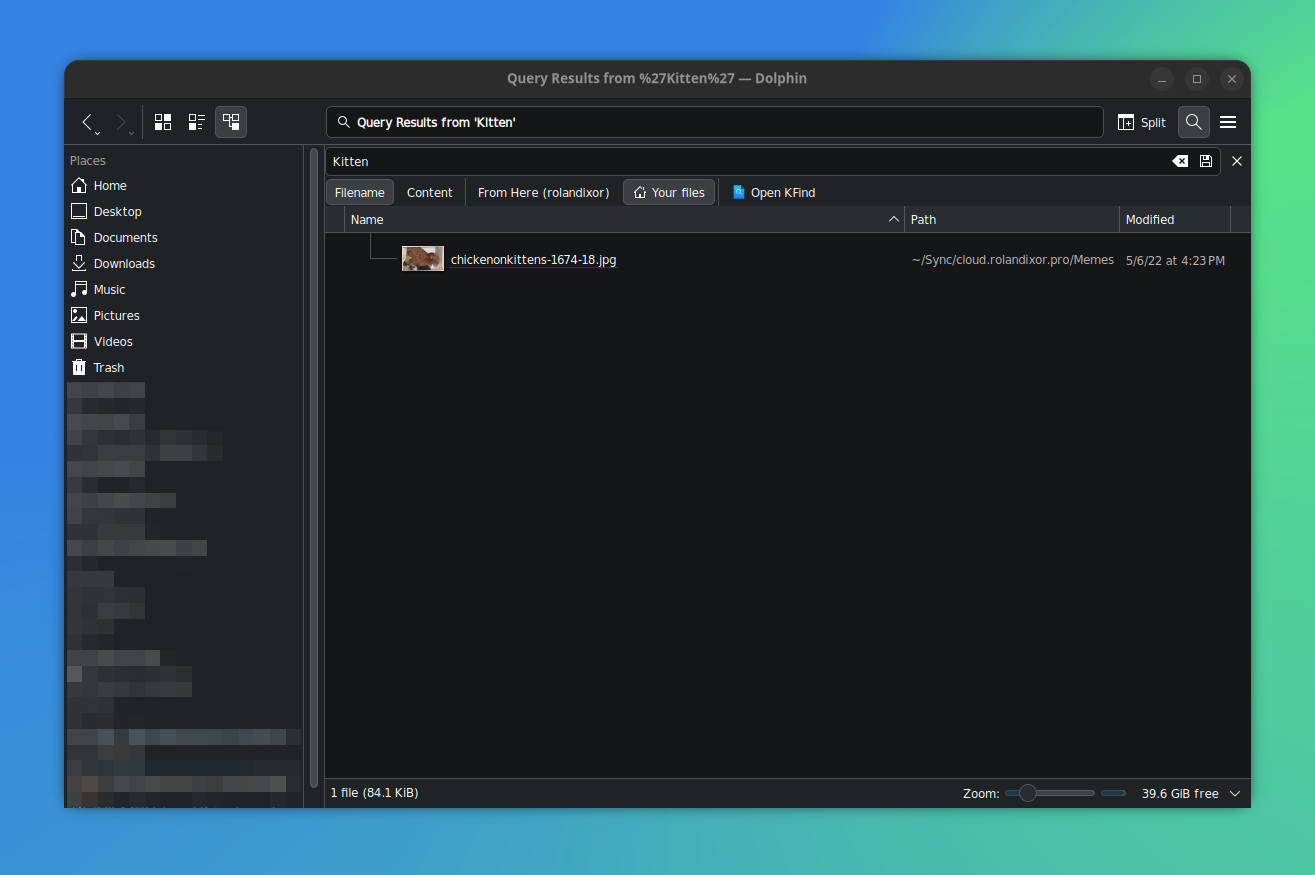
Dolphin is KDE's Plasma's file manager of choice, and it too has a powerful search built in. Contrary to Files, Dolphin uses Baloo as its primary backend, but can fall back to KIO if Baloo is disabled or if you choose "Filter" within the current working directory. Alternatively, you can run powerful searches using KDE's KRunner. Both allow you to perform full text searches of your files' content.
Conclusion
In short, file searching on Linux is no longer a headache. Whether you want lightning-fast filename lookups, true full text search, or deep desktop integration, there is a polished GUI fit to your workflow.
Start with one or two that fit your needs, tweak their indexing (if needed), and you will find what you need in seconds without ever needing to touch the terminal.
