


See the picture? You might have seen people sharing such desktop screenshot with terminals showing the logo of the Linux distribution used in ASCII art.
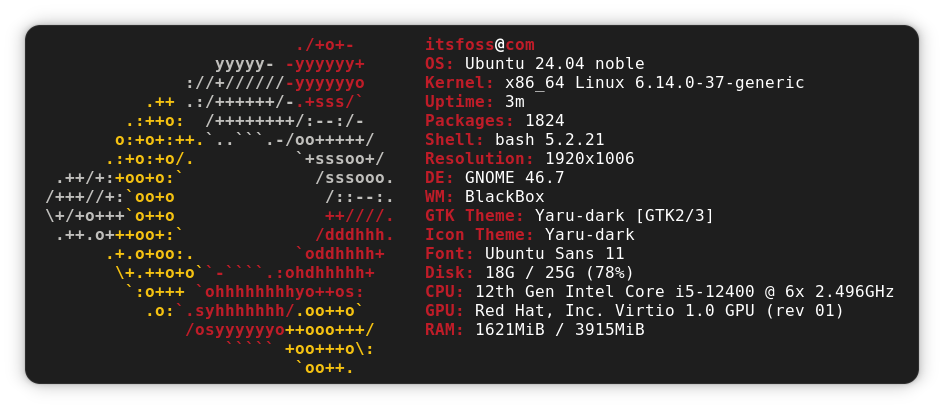
Looking at those screenshots, you may wonder how to show the logo of Linux distribution in ASCII art in the terminal.
In this tutorial, I’ll show you three tools that will display the Linux logo in the Linux terminal:
- Fastfetch
- Screenfetch
- Neofetch (Development Stopped)
Apart from the logo of the Linux distribution you are using, these tools also display the following system information:
- Linux distribution version
- System model
- Linux kernel version
- Uptime
- Packages
- Shell version
- Screen resolution
- Desktop Environment
- Windows Manager
- Theme and icons
- Terminal tool in use
- CPU, GPU and RAM information
Honestly, the main purpose of these tools is to be used in screenshots to show other users what distribution you’re running, what theme and icons you’re using etc.
1. Use Fastfetch to display Linux distribution logo in ASCII art
Fastfetch is a highly customizable command-line system information tool written in C that displays information about your system next to an image, generally your OS logo, or any ASCII file of your choice.
Fastfetch can be customized through the use of command line flags or the user config file. You can read its wiki page for more information.
Installing Fastfetch
To install Fastfetch in Ubuntu, you can use the official PPA. Use the command:
sudo add-apt-repository ppa:zhangsongcui3371/fastfetch
sudo apt update
sudo apt install fastfetch
If you are using Ubuntu 25.04 or newer, you can install Fastfetch from the official Universe repository. To install, open a terminal and run the command:
sudo apt install fastfetch
Using Fastfetch is fairly simple. Just type fastfetch in the terminal and it will display the Linux logo in ASCII form:
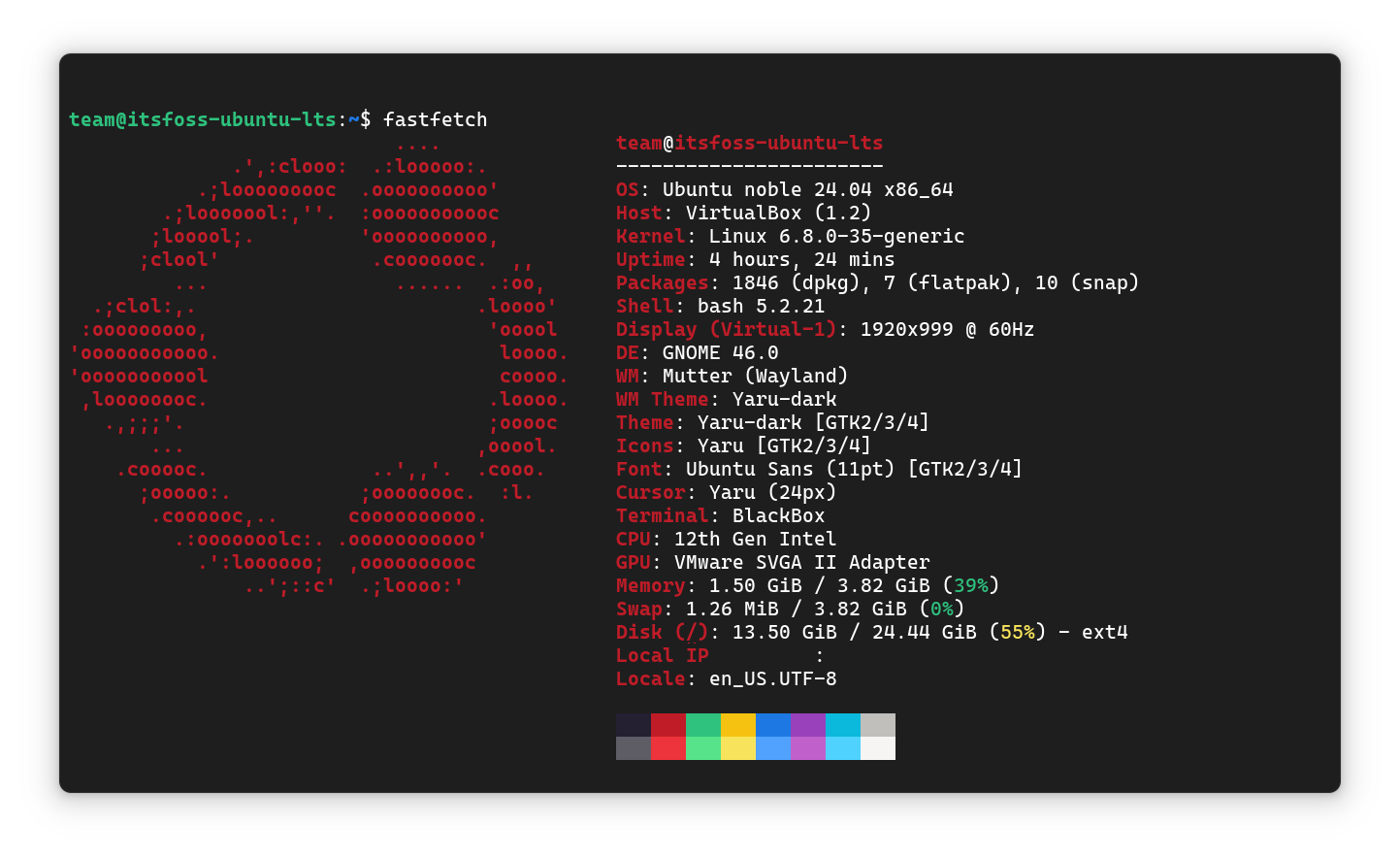
Fastfetch is extermely versatile and you can easily tweak its apperance and displayed information. We have a detailed guide on using Fastfetch if that interests you.
 Sreenath
2. Use screenFetch to display Linux distro logo in ASCII art
screenFetch is another way to display the Linux distribution logo in the terminal. You don’t have to specify anything, it will auto-detect the Linux distribution. And not just logo, screenFetch also displays some basic hardware information alongside it.
Install screenFetch
To install screenFetch in Ubuntu-based distributions such as Linux Mint, elementary OS, Linux Lite, Zorin OS, etc, you can use the command below:
sudo apt install screenfetch
To install screenFetch in Arch Linux and other Arch-based distributions such as CachyOS, EndeavourOS, Manjaro, etc., use the command below:
sudo pacman -S screenfetch
To install screenFetch in Fedora, and other Fedora-based distributions, use the command below:
sudo dnf install screenfetch
Using screenFetch
Using screenFetch is utterly simple. Open a terminal and use the command below:
screenfetch
That’s it. You’ll see the logo of your Linux distribution displayed in ASCII art along with some information about your system:
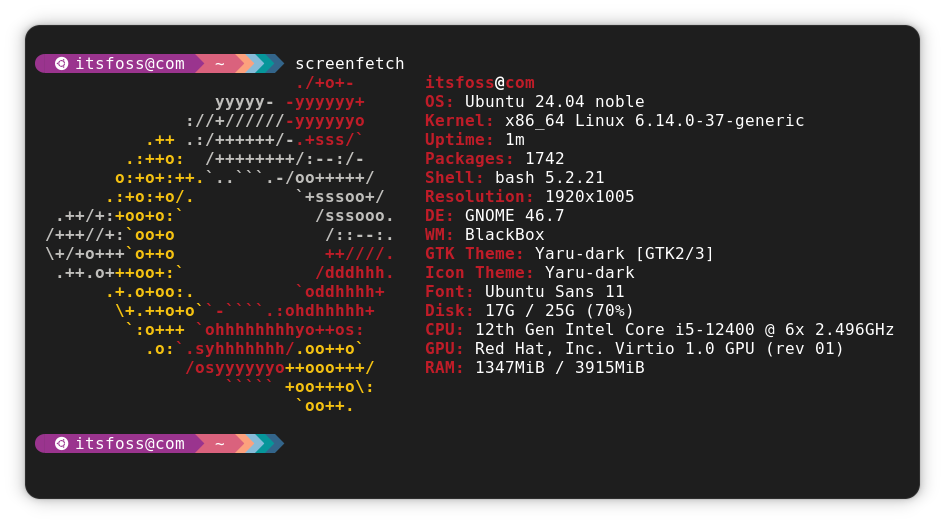
If I combine screenFetch with vintage looking cool-retro-term, the result is even more awesome:
screenFetch in Cool Retro Term
3. Use Neofetch to display Linux distribution logo in ASCII art (Development Discontinued)
Neofetch is a command line system information tool written in BASH that displays information about your system next to an image, generally your OS logo, or any ASCII file of your choice.
Neofetch is highly customizable through the use of command line flags or the user config file. There are over 50 config options to mess around with and there’s the print_info() function and friends, which let you add your custom info. You can read its wiki page for more information.
Neofetch can also be used in macOS and BSD systems.
Installing Neofetch
To install Neofetch in Debian, Ubuntu and other Ubuntu-based Linux distributions such as Linux Mint, elementary OS, Linux Lite, Zorin OS etc, use the command:
sudo apt install neofetch
For other Linux distributions, check the installation instructions on Neofetch GitHub page.
Using Neofetch
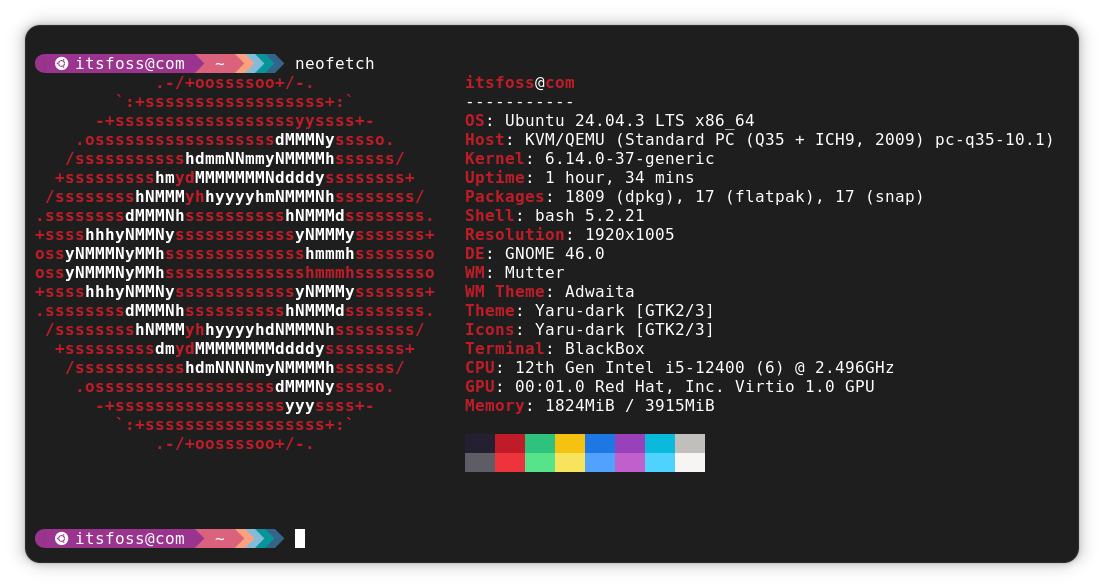
Using Neofetch is fairly simple. Just type neofetch in the terminal and it will display the Linux logo in ASCII form:
neofetch
Which one did you like more?
Which tool would you like to use for displaying Linux distribution logo in the terminal?
