


Do you know which is the most popular GNOME extension out there?
I don't know for sure, but if I have to make a guess, I would say Dash to Dock is a good candidate for that title.
Why do I say that? Because at the time of writing this article, this extension has more than ten million downloads.
What is Dash to Dock?
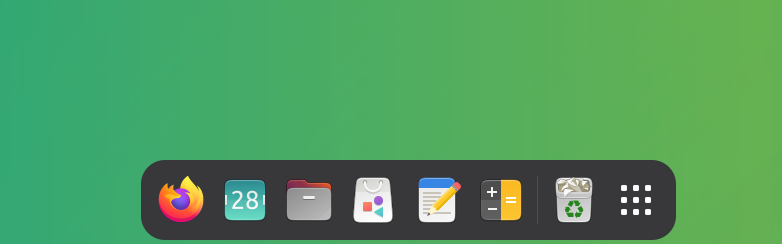
In the clean GNOME layout, you don't see any quick launcher. It's just the wallpaper. You press the Super key (Windows key), a launcher appears at the side or on the bottom. This launcher is called Dash in GNOME. The Dash to Dock extension takes the "dash" from GNOME Activities Overview and "docks" it to make it visible on the desktop all the time.
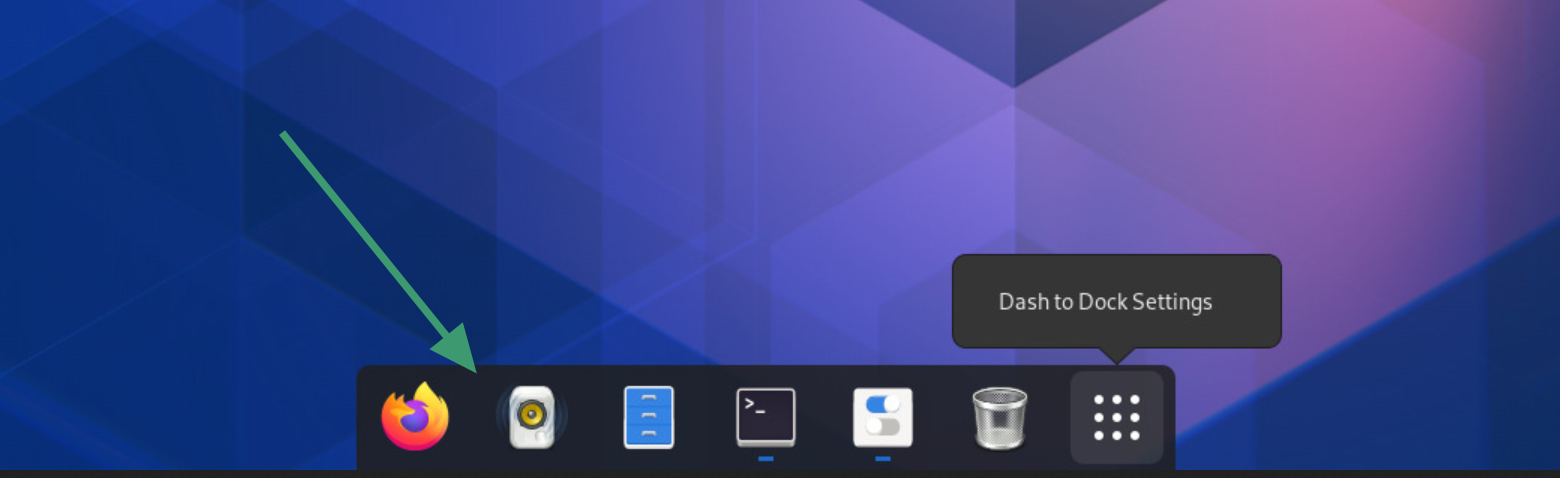
You can guess the popularity of this extension from the fact that even Ubuntu uses a customized version of Dash to Dock for its launcher.
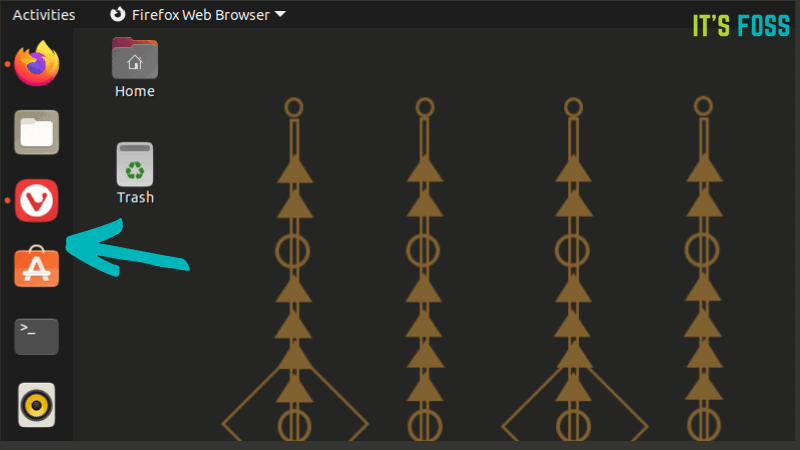
I have written a detailed tutorial on customizing the Ubuntu launcher in the past. I thought of doing the same with Dash to Dock. Behold this tutorial.
Installing Dash to Dock
You can install it using the GNOME Shell Extension Manager application. For that, you need to install it first.
Please use your distribution's package manager to install it. For Debian/Ubuntu users, use:
sudo apt install gnome-shell-extension-manager
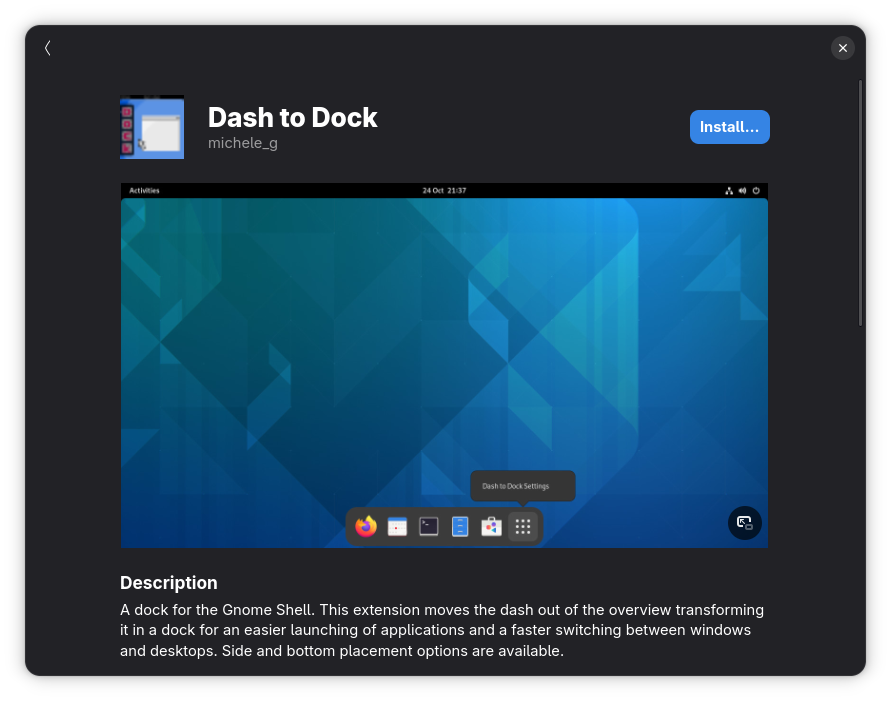
You can also use the classic method of installing an extension from the GNOME Extensions official website. But you need to install GNOME extension support first.
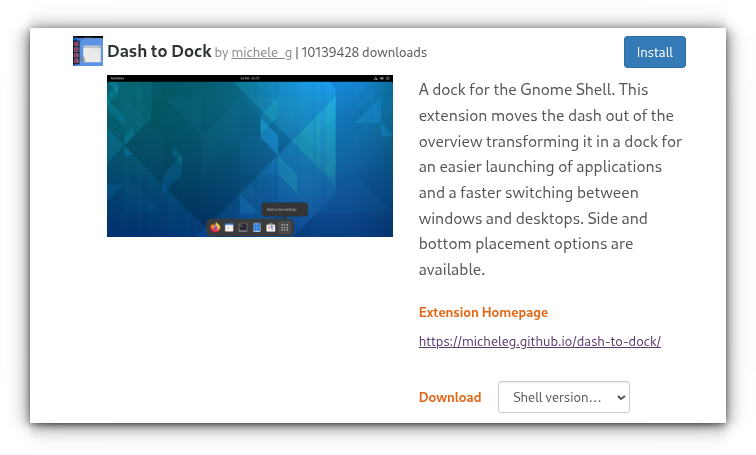
Once you have installed Dash to Dock, it will be activated immediately.
Exploring Dash to Dock features
Now let me show a few examples of how you can tweak this most downloaded GNOME extension. Since these changes are available from the settings, you need to know how to access that first.
Accessing Dash to Dock Settings
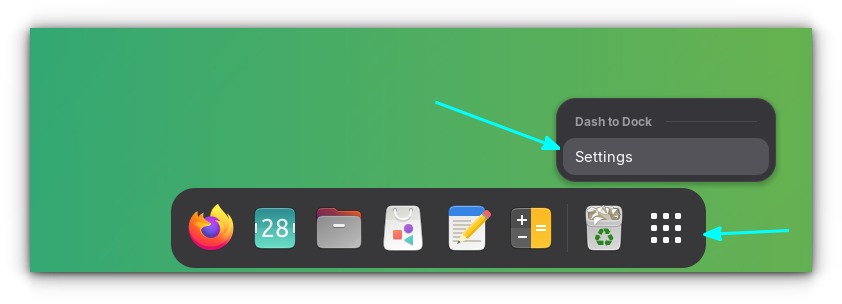
To access settings of Dash to Dock, right-click on the application menu button and click Settings.
Access panel items using keyboard shortcuts
In the Settings, go to Behaviour -> Use keyboard shortcuts to activate apps settings and enable it if it is not already enabled.
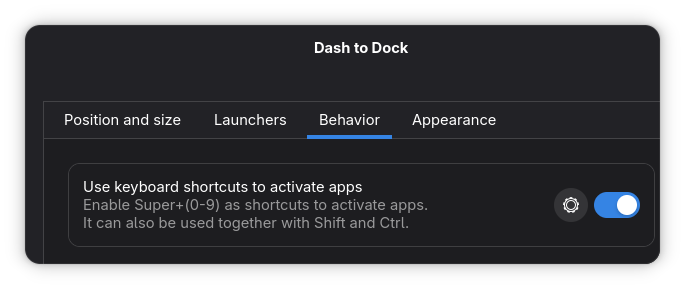
Now, you can use the Super + (0-9) keys to access the items in the dock.
Using the super key and number to launch an app of a position in the dock.
Set Ubuntu like dock
If you are using vanilla GNOME on Fedora, Debian or some other distro, you can change the appearance of Dash to Dock and make it look like the launcher in Ubuntu.
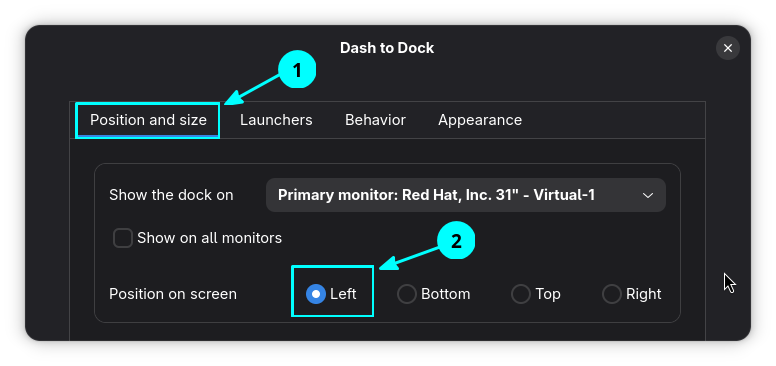
Change the position to left using the Position and Size -> Position on screen -> Left.
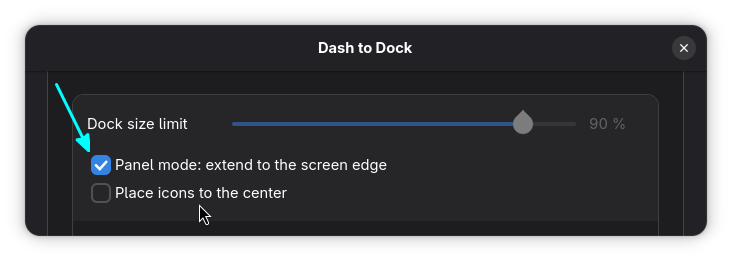
Check Panel extend to edge option. This will make the dock extend for the entire screen.
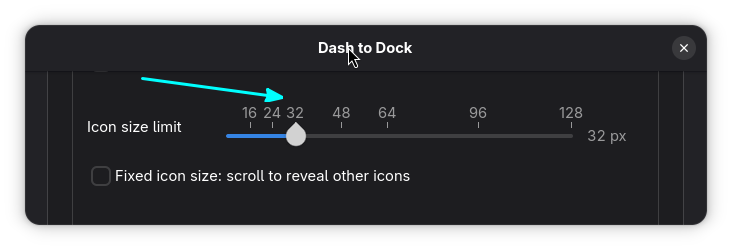
It would be wise to reduce icon size. In the same Position and Size setting tab, scroll down to access the icon size settings:
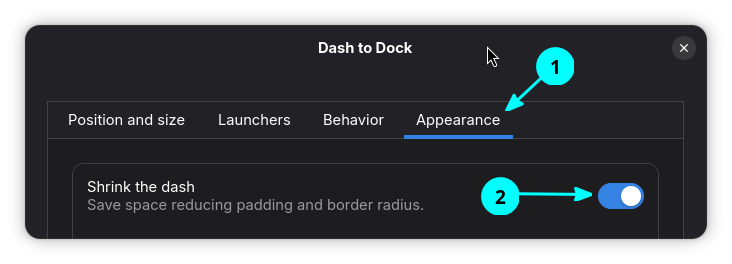
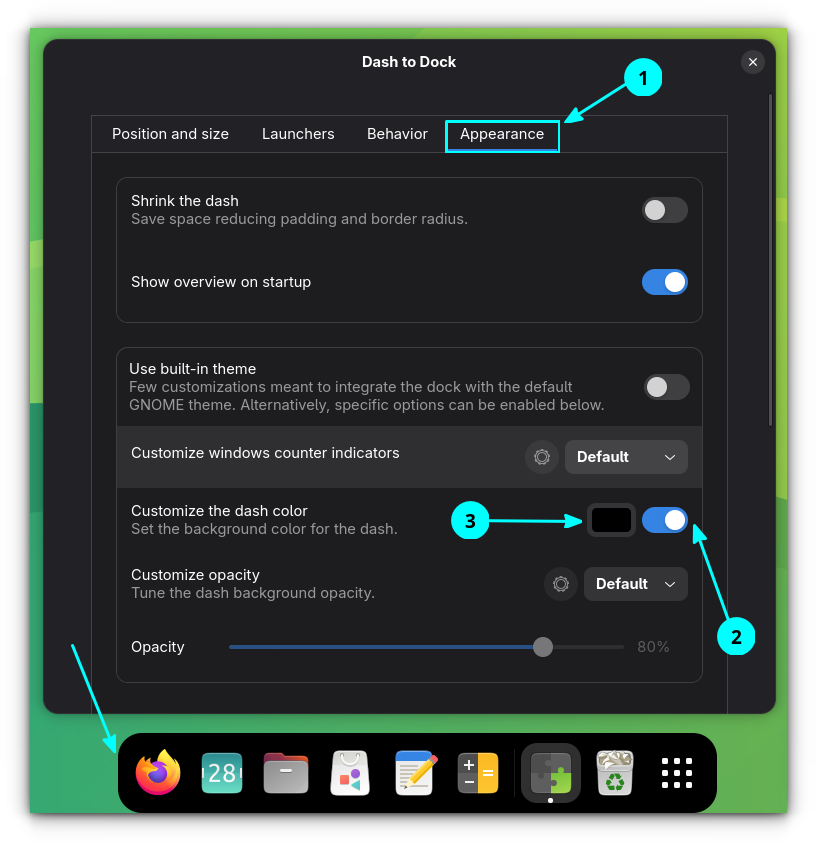
In the Appearance section, toggle on the Shrink the dash option.
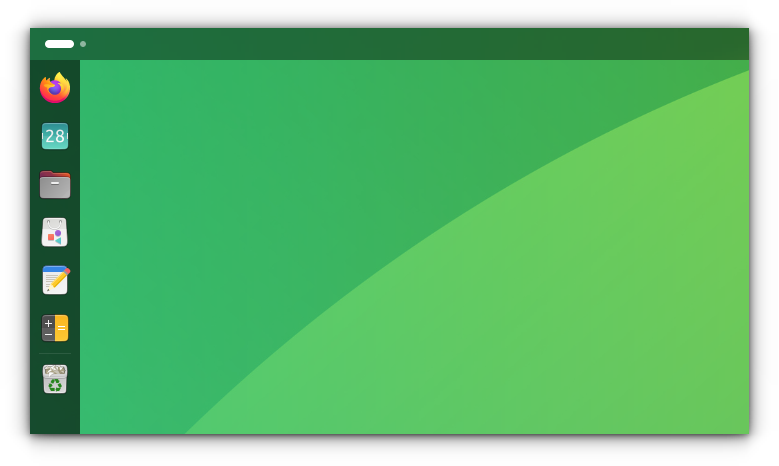
Here's what it looks like now:
Preview scale
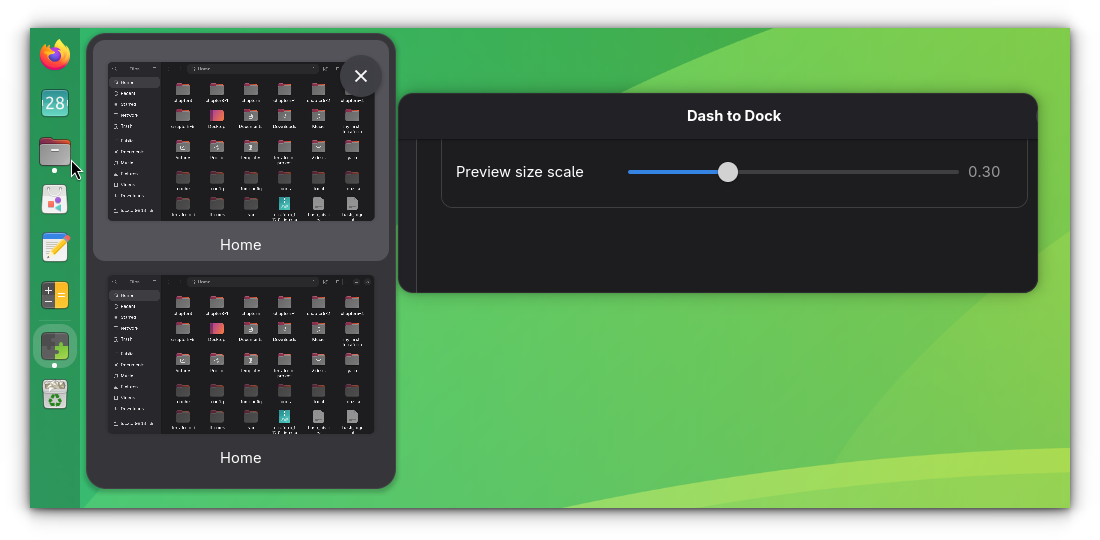
You can also experiment with the window preview. Make it bigger so that it is easier to see what's going on in an application window.
In the Position and size section, scroll to the bottom adjust the window preview size to make the window preview smaller or larger.
Click to minimize (my favorite)
In the Behavior tab in Settings, click on the drop-down list in the Click Actions segment and set it to Focus Minimize or app spread.
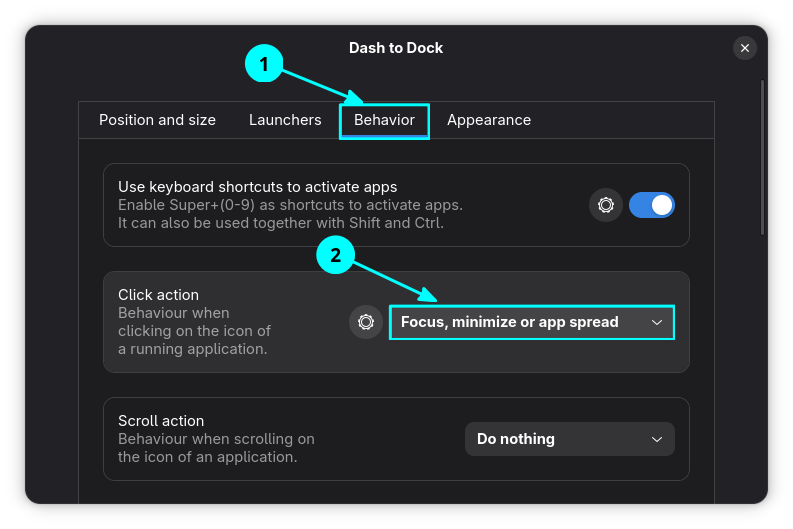
This will have the following behavior:
- Clicking on the icon of an unfocused application window will bring it to focus.
- Clicking on the icon of an application window in focus will minimize it (given only one window of that app is opened).
- If there are more than one window of an app open, clicking on the icon of the app on the dock will enable the app spread, an overview screen where only the windows of the current app are present.
See it in action in the demo video below:
A recording showing the working of the click action.
More click settings
Click on the settings gear button adjacent to Click Actions.
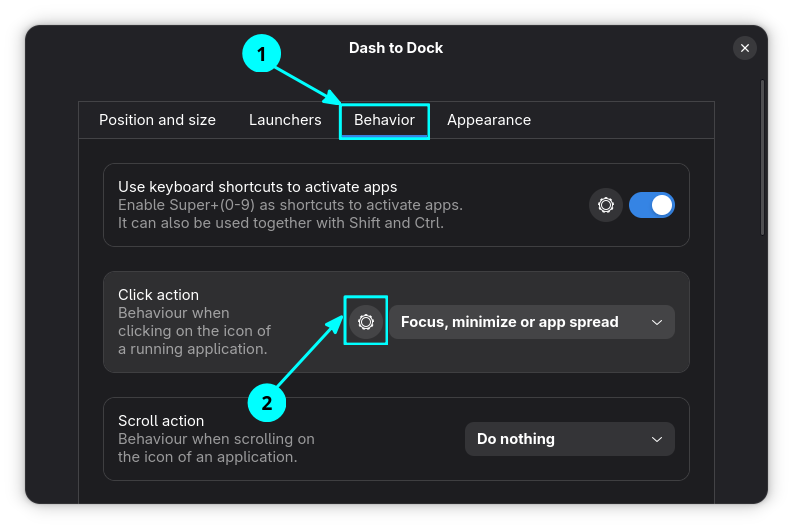
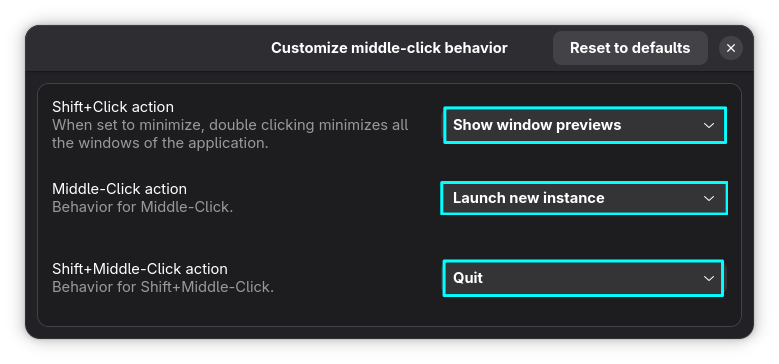
In the new dialog box, set what you like. In the example, I have set:
- Shift Click: Show window preview.
- Middle Click: Launch New Instance
- Shift Middle Click: Quit the whole app.
Control the dock color and opacity
I prefer setting background color for the dock. A dark color is more logical as it forms a better view with most of the wallpapers.
In the Appearance tab, enable the Customize dash color toggle button and select a color of your choice.
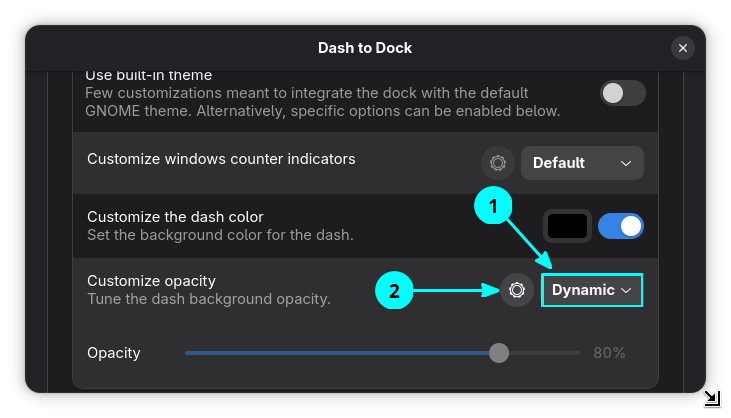
To set the opacity, first change the Customize opacity option to Dynamic. Then, click on the adjacent settings gear.
Enable the Customize minimum and maximum opacity values option and then set minimum and maximum opacity values as needed.
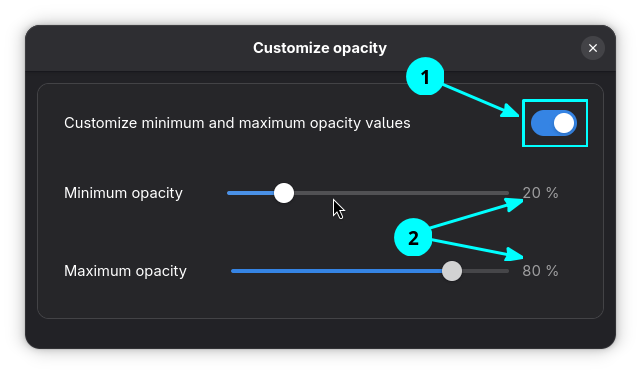
- Minimum opacity: When no window is near the Dock
- Maximum opacity: When window near the dock
The opacity of the dock is changed when a window appears near by.
Notification counter
In the Launchers tab, set the Show icons emblem and toggle the sub options. Now, apps like Discord, etc. will show the number of unread notifications. This is the same unread notification that we see in the notification section in top panel.

Show network volumes
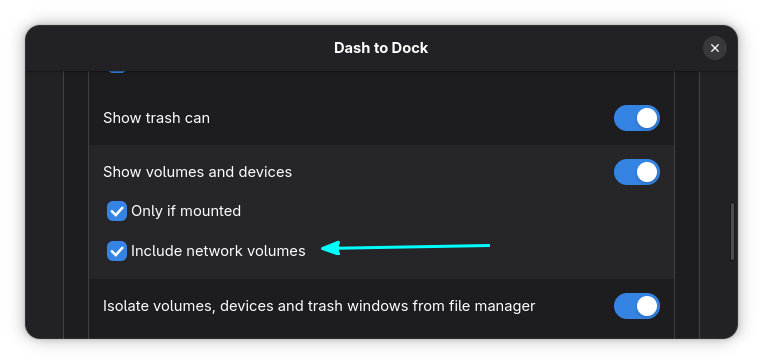
In the Launchers section, enable the Include network volumes to show Google Drive and other mounted network drives in the dock.
Bonus tip: Dash to Dock and Blur my shell
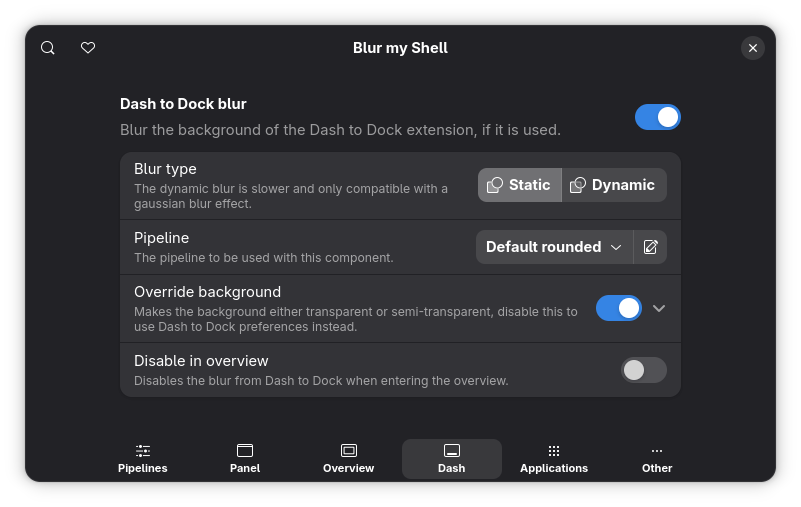
If you are using the Blur my shell extension in GNOME, there is a dedicated Dash to Dock section in its settings.
Conclusion
Dash to Dock enables the Intelligent Hide by default. You can change this settings in the Position and Size section.
When you log in to GNOME, the overview appears by default; you can also disable it by toggling off the Show overview on startup options in Appearance settings.
There are probably some other options and I let you explore them on their own.
Of all the docks available for Linux desktop, Dash to Dock remains a popular choice. Considering the vast configuration options it offers, you can guess why so many Linux users prefer Dash to Dock over others.
I hope you find this article helpful in your desktop customization journey 🐧
