> ## Content Index
> Fetch the complete content index at: https://itsfoss.com/llms.txt
> Use this file to discover other available public pages before exploring further.

# How I Run HTML Code in VS Code
- URL: https://itsfoss.com/vs-code-run-html/
- Published: 2025-04-29T10:55:28.000Z
- Updated: 2025-04-29T10:55:28.000Z
- Description: And I am talking about checking the HTML code as a web page because that's the best way to see the output of your HTML code changes.
- Author: Abhishek Kumar
- Tags: VS Code, #hide

If you're working with HTML regularly, whether for client projects, portfolio pages, or just experimenting, it’s important to have a smooth way to preview your changes as you go. 

VS Code, by itself, doesn’t render HTML in a browser. But thanks to its rich extension ecosystem, it becomes incredibly convenient to test and view web pages in real time.

One of the most useful tools for this is the [**Live Server** extension](https://marketplace.visualstudio.com/items?itemName=ritwickdey.LiveServer&ref=itsfoss.com). It creates a lightweight development server that refreshes your page automatically every time you save your file.

[Live Server - Visual Studio MarketplaceExtension for Visual Studio Code - Launch a development local Server with live reload feature for static & dynamic pages![](https://itsfoss.com/content/images/icon/favicon-15.ico)Visual Studio Marketplace![](https://itsfoss.com/content/images/thumbnail/Microsoft.VisualStudio.Services.Icons.Default)](https://marketplace.visualstudio.com/items?itemName=ritwickdey.LiveServer&ref=itsfoss.com)

I personally find this handy when I’m editing CSS, no need to jump back and forth refreshing the browser manually just to check if a margin is still being ignored or if my `color: salmon;` is really the vibe I want (spoiler: it usually isn’t).

In this guide, I’ll show you how to use Live Server to preview your HTML files in the browser and also share a few workflow tips to make working with HTML in VS Code faster and easier.

## Writing HTML in VS Code

For this tutorial, Here's a small demo snippet that I created. It includes a touch of CSS, just enough to make the webpage look nice and not just a blank screen with "Hello, World!" on it.

```html
<!DOCTYPE html>
<html lang="en">
<head>
    <meta charset="UTF-8">
    <meta name="viewport" content="width=device-width, initial-scale=1.0">
    <title>Sample Layout</title>
    <style>
        body {
            font-family: sans-serif;
            display: flex;
            justify-content: center;
            align-items: center;
            height: 100vh;
            margin: 0;
            background-color: #f0f0f0;
        }
        .card {
            background: white;
            padding: 2rem;
            border-radius: 10px;
            box-shadow: 0 0 10px rgba(0,0,0,0.1);
            text-align: center;
        }
    </style>
</head>
<body>
    <div class="card">
        <h1>Welcome to My Page</h1>
        <p>This is a quick preview layout using HTML and CSS.</p>
    </div>
</body>
</html>

```

You can play around with the layout if you want to improve my bleak effort of creating a webpage, tweak the styling, etc.

The point is, we can now edit this file while viewing it in a browser. but first install the extension.

## Viewing HTML with Live Server

HTML doesn’t “run” in the way a script or application does. You view it, and the browser interprets it.

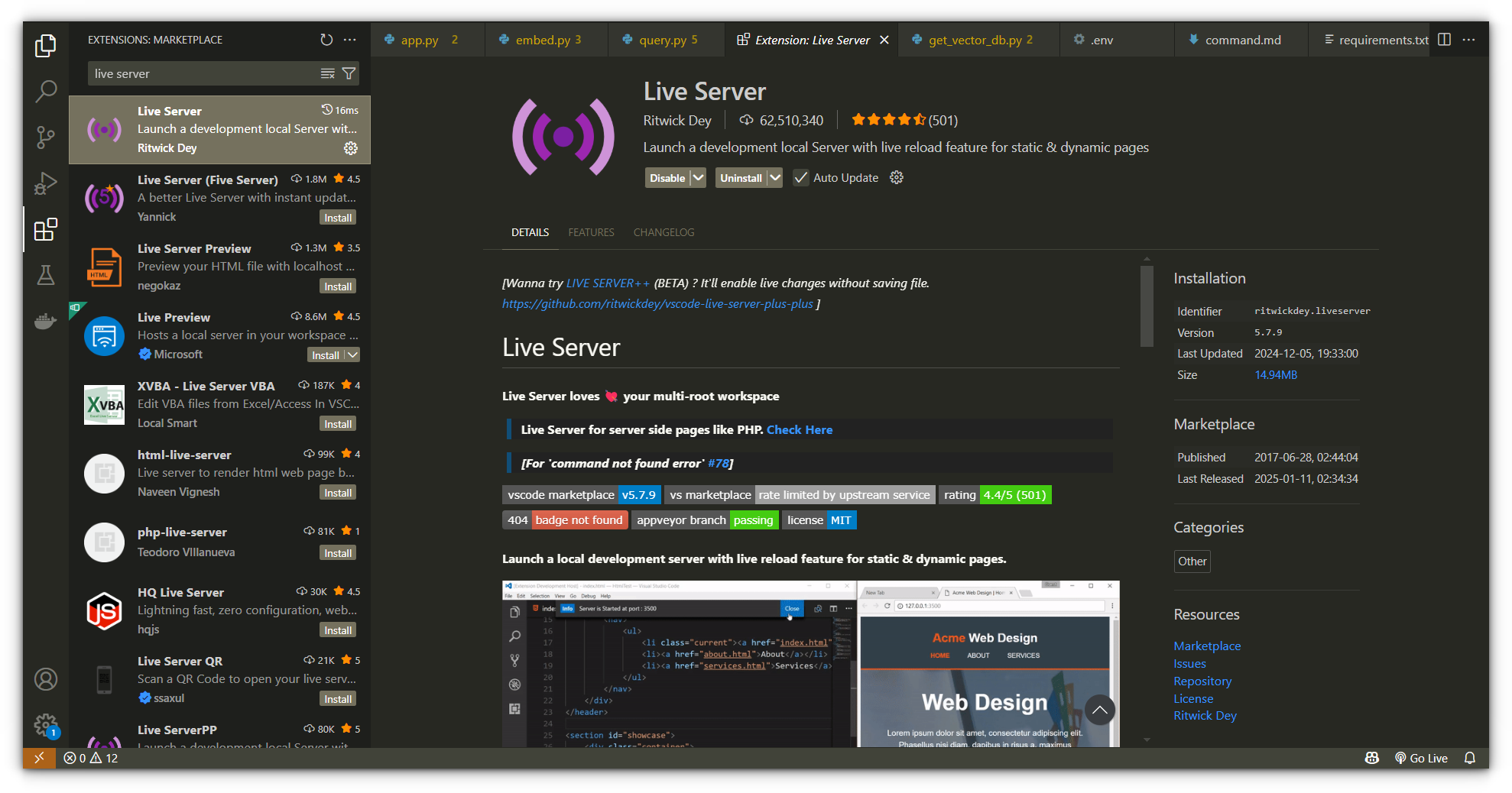
The easiest and fastest way to preview your HTML file in real time is to use the **Live Server** (my personal favorite)
![live server vs code extension](https://itsfoss.com/content/images/2025/04/live-server-extension.png)

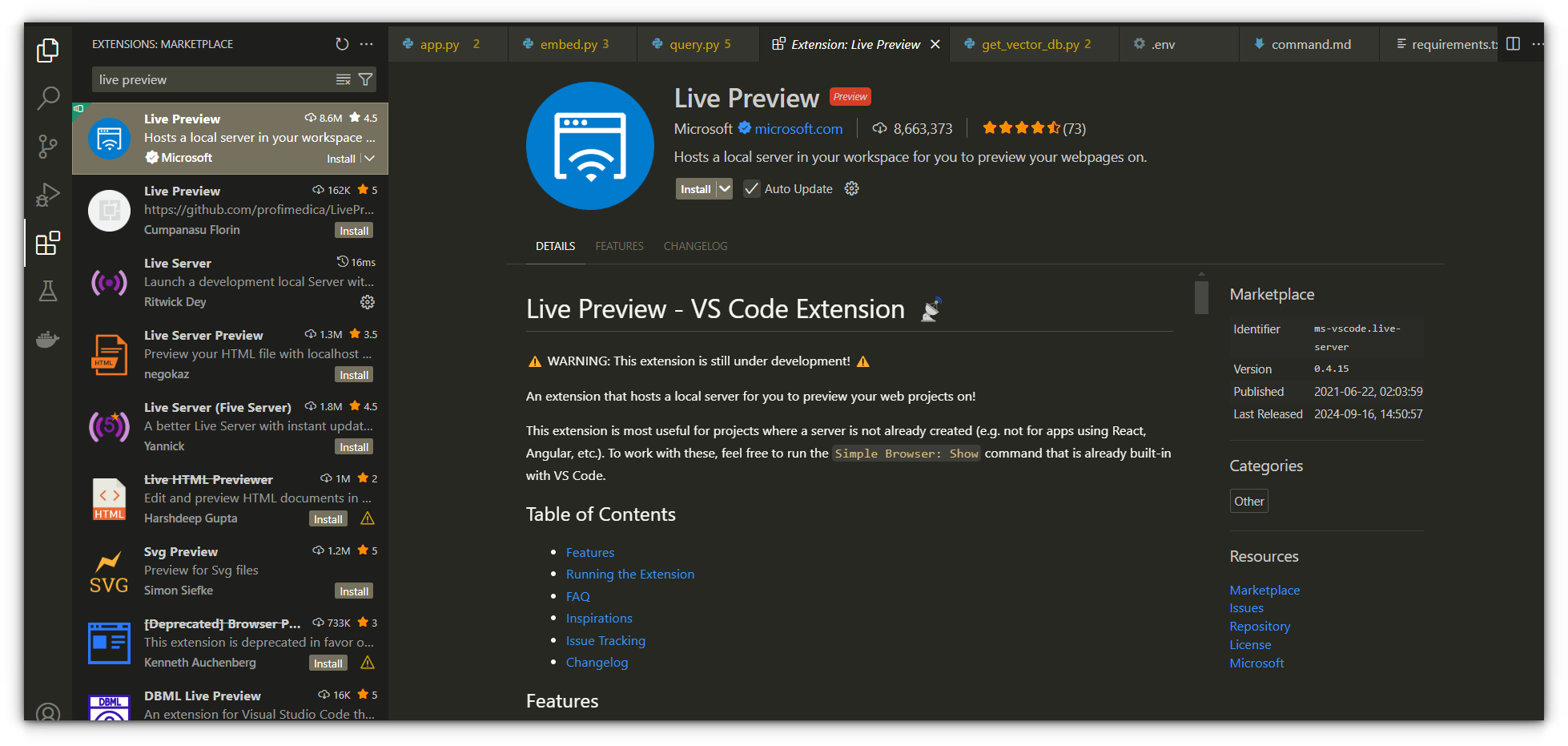
 or you can also use **Live Preview** extension by Microsoft, they both do the same thing.
![](https://itsfoss.com/content/images/2025/04/live-preview-extension.png)

If you haven’t already installed it, open the Extensions panel (or hit `Ctrl + Shift + X`), search for **Live Server**, and install it.

Once that’s done:

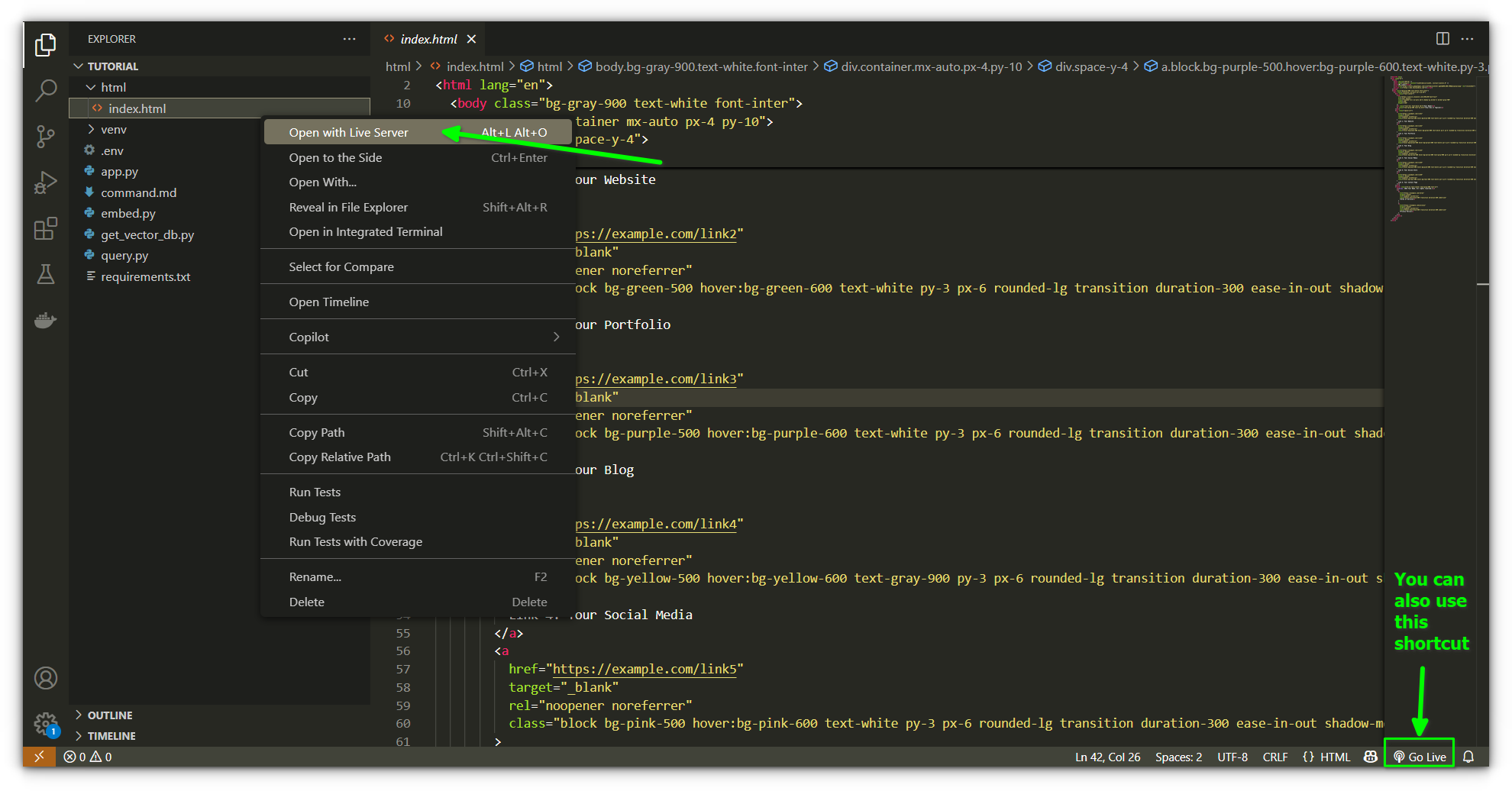
1. Right-click on your HTML file.
2. Click **"Open with Live Server."**
![opening the html file with live server](https://itsfoss.com/content/images/2025/04/making-live-the-webpage.png)

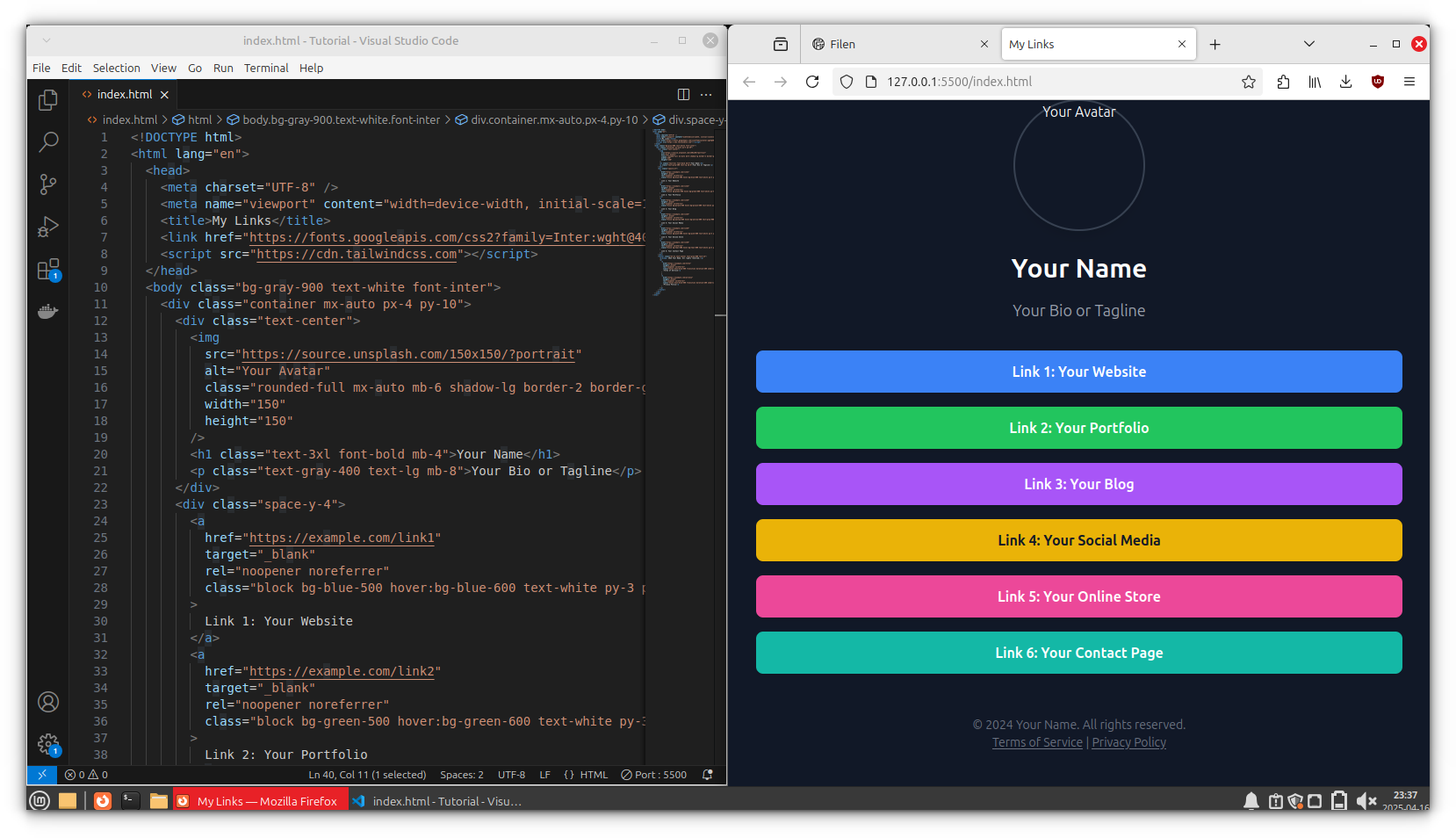
Your default browser will instantly load the page. 
![side to side view of html code with the live webpage](https://itsfoss.com/content/images/2025/04/html-code-with-live-preview-side2side.png)

Now, here's the cool part: every time you make changes in your HTML and hit save, the browser refreshes automatically. No need to reload manually.

💡

Live Server spins up a local development server on your machine, usually something like `http://127.0.0.1:5500`. That means it works on your local network too. So if you grab your phone or tablet and enter your computer’s local IP (like `192.168.1.x:5500`), you can view the same live HTML page there. Super useful for testing responsiveness on real devices.

## Quick Fix: If "Open with Live Server" doesn’t show up

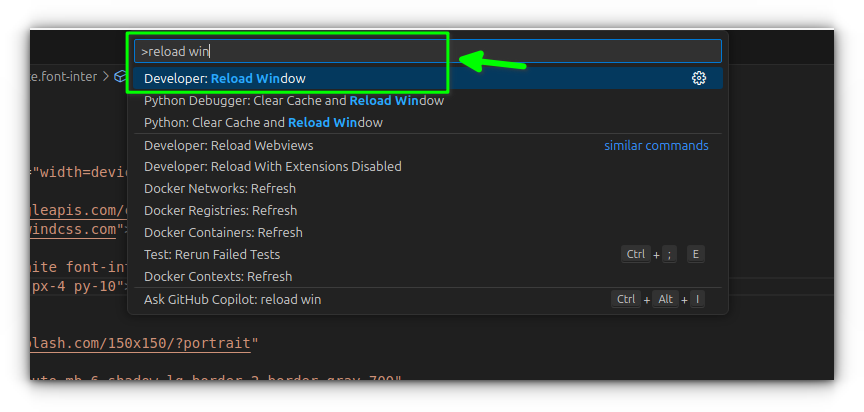
Sometimes the right-click option doesn’t appear right away. Just restart VS Code or reload the window (`Ctrl + Shift + P`, then type and select **Reload Window**). That usually solves it.
![troubleshooting the live server by reloading window](https://itsfoss.com/content/images/2025/04/troubleshoot-reload-windows.png)

## Pro tips to enhance HTML workflow in VS Code

VS Code is more than just a text editor, it’s packed with tools that make writing HTML faster, cleaner, and easier. 

Here’s a short list of features I keep coming back to:

**Emmet Abbreviations:** Type shortcuts like `ul>li*5` and hit `Tab, `Emmet expands it into five list items inside a `ul`. It’s magical once you get the hang of it.

**IntelliSense:** As you type, VS Code auto-completes HTML tags and attributes. It even suggests attribute values. 

**Format Document:** Messy code? Hit `Ctrl + Shift + I` and your HTML will be formatted cleanly. This helps you stay readable, especially on larger projects.

**Color Picker:** When working with inline CSS or style attributes, the color picker pops up to help you visually pick hex or RGB values. No need to Google color codes.

## Wrapping Up

If you're already spending a lot of time inside VS Code writing HTML, getting the Live Server extension running is a no-brainer. 

It's simple, snappy, and just makes the feedback loop faster. And that’s what modern web development is all about, tight, instant iterations.

Personally, I rely on it not just to view my pages, but also to quickly test mobile layouts or animations on other devices. It’s made designing responsive sites a lot smoother.

Once you’re comfortable here, you can start layering in CSS, JS, and frameworks like [Tailwind](https://tailwindcss.com/?ref=itsfoss.com) or Bootstrap right inside the same setup. VS Code can handle it all.