> ## Content Index
> Fetch the complete content index at: https://itsfoss.com/llms.txt
> Use this file to discover other available public pages before exploring further.
# Automatically Format Code On File Save in Visual Studio Code
- URL: https://itsfoss.com/vs-code-auto-format-code/
- Published: 2025-05-18T05:23:03.000Z
- Updated: 2025-05-18T05:23:03.000Z
- Description: Save time and effort by setting up auto format when you save files in VS Code. Let the code have good vibe.
- Author: Abhishek Kumar
- Tags: VS Code
Manually formatting code can be tedious, especially in fast-paced or collaborative development environments.
While consistent formatting is essential for readability and maintainability, doing it by hand slows you down and sometimes leads to inconsistent results across a project.
In this article, I’ll walk you through the steps to configure Visual Studio Code to automatically format your code each time you save a file.
We'll use the VS Code extension called [Prettier](https://prettier.io/?ref=itsfoss.com), one of the most widely adopted tools for enforcing code style in JavaScript, TypeScript, and many other languages.
By the end of this guide, you'll have a setup that keeps your code clean with zero extra effort.
## Step 1: Install Prettier extension in VS Code
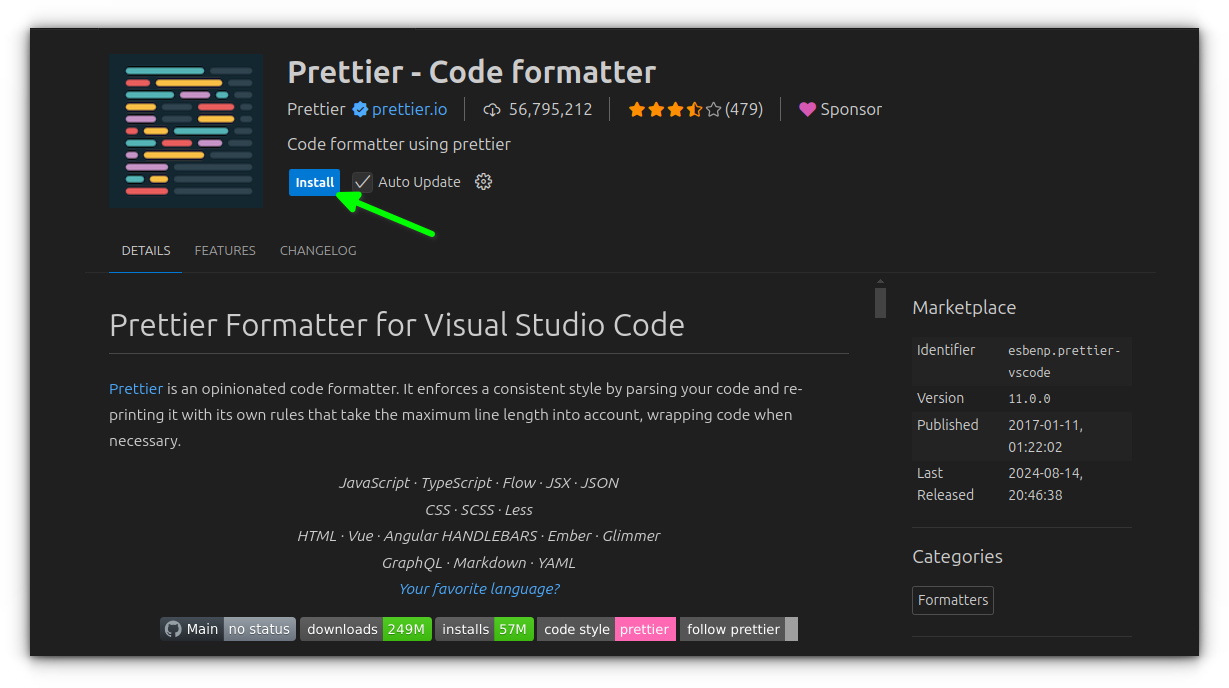
To start, you'll need the **Prettier - Code Formatter** extension. This tool supports JavaScript, TypeScript, HTML, CSS, React, Vue, and more.
Open VS Code, go to the **Extensions** sidebar (or press `Ctrl + Shift + X`), and search for [**Prettier**](https://marketplace.visualstudio.com/items?itemName=esbenp.prettier-vscode&ref=itsfoss.com).
Click on **Install** and reload VS Code if prompted.
## Step 2: Enable format on save
Now that Prettier is installed, let’s make it run automatically whenever you save a file.
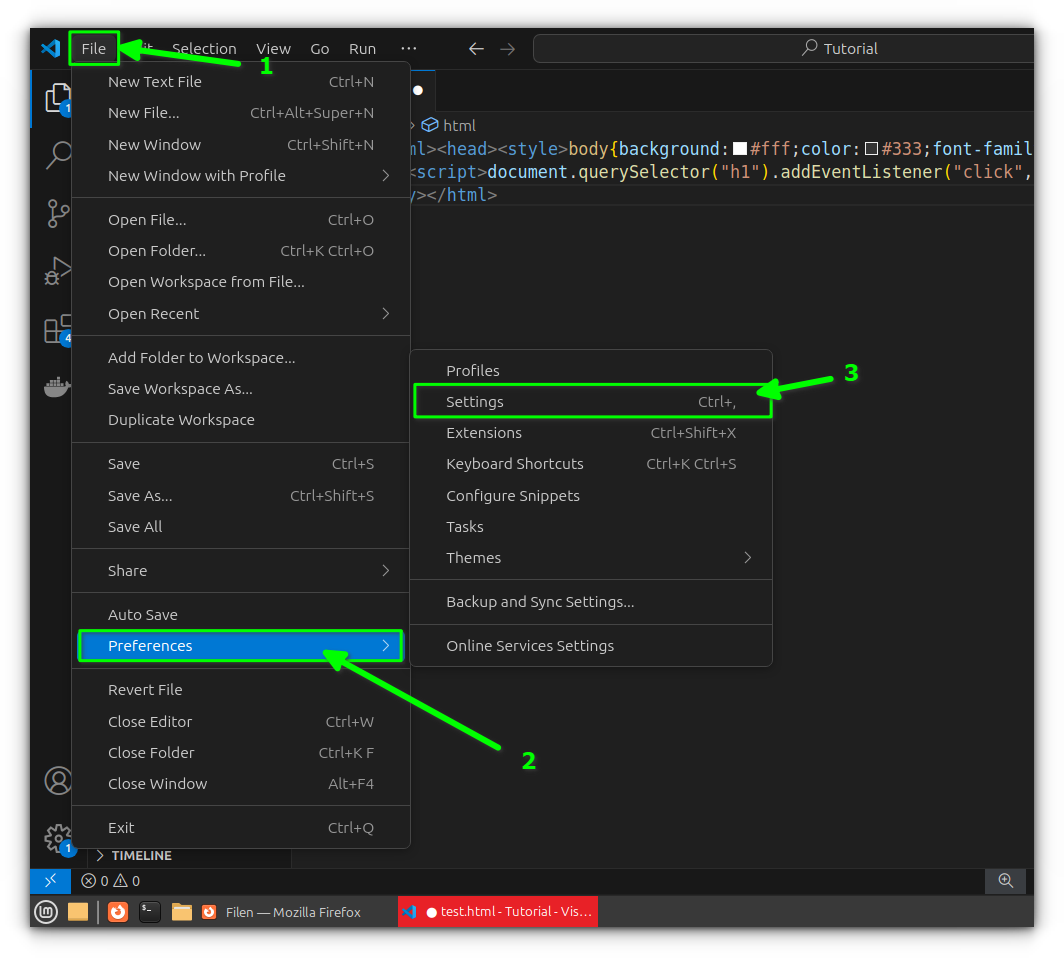
Open **Settings** via `Ctrl + ,` or by going to **File > Preferences > Settings**.
In the search bar at the top, type `format on save` and then Check the box for **Editor: Format On Save**.
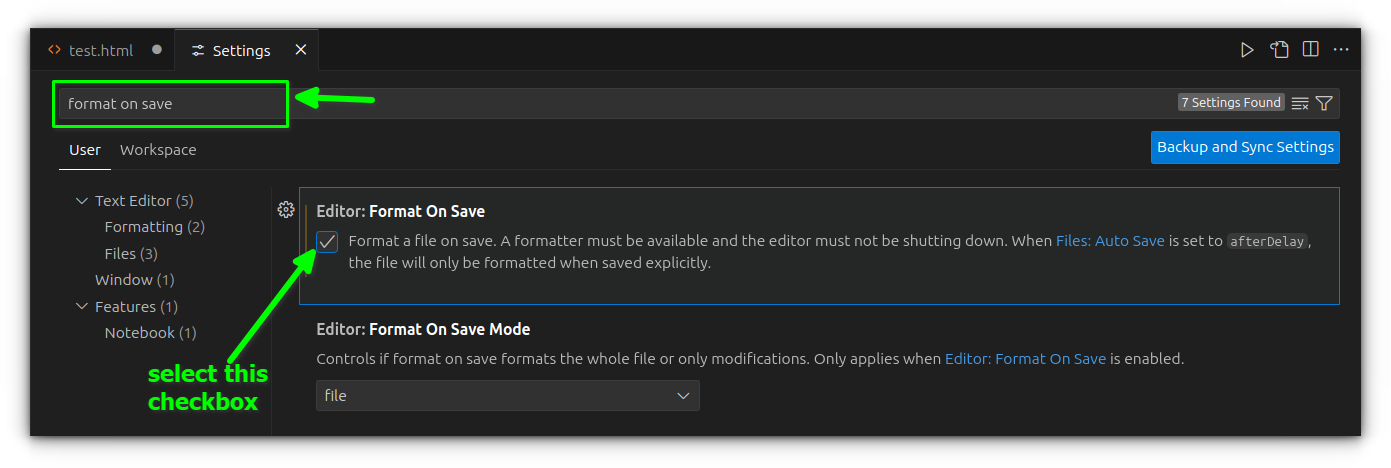
This tells VS Code to auto-format your code whenever you save a file, but that’s only part of the setup.
## Troubleshooting
If saving a file doesn’t automatically format your code, it’s likely due to multiple formatters being installed in VS Code. Here’s how to make sure Prettier is set as the default:
- Open any file in VS Code and press `Ctrl + Shift + P` (or `Cmd + Shift + P` on Mac) to bring up the Command Palette.
- Type **“Format Document”** and select the option that appears.
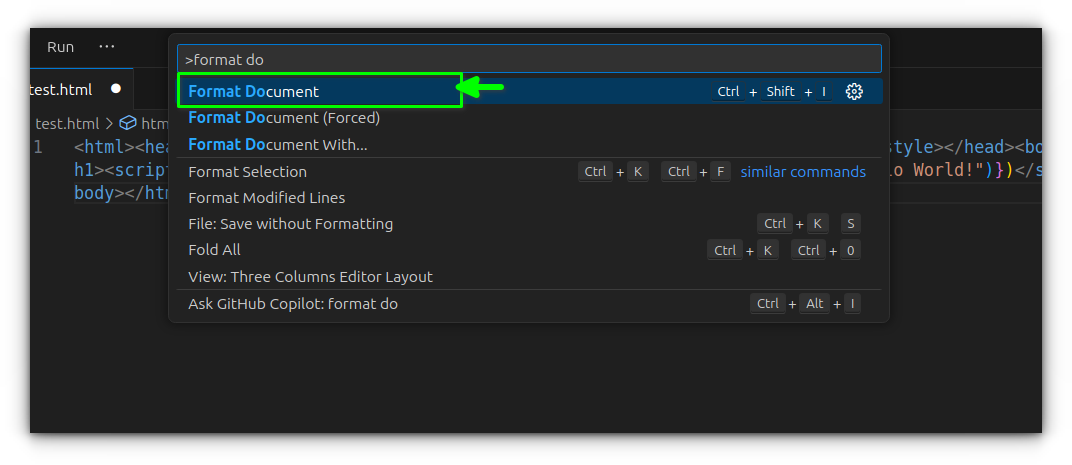
- If multiple formatters are available, VS Code will prompt you to choose one.
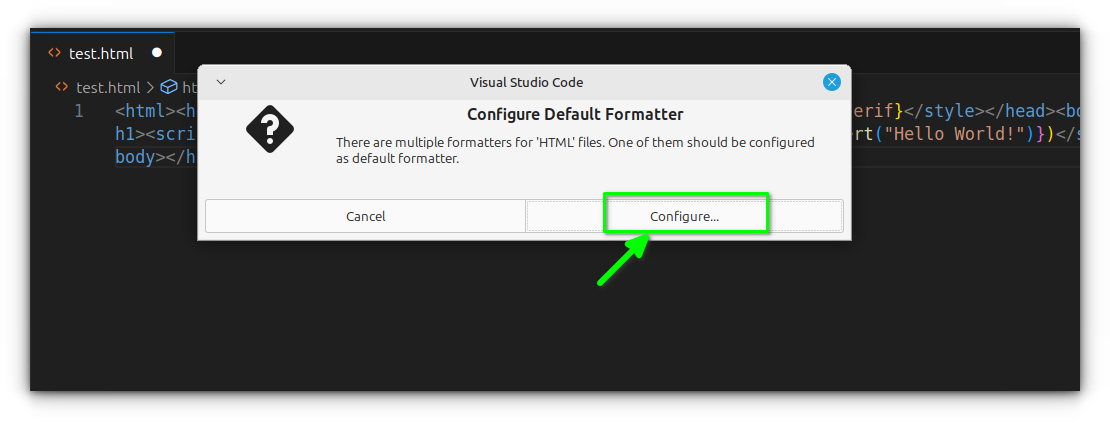
- Select **“Prettier - Code formatter”** from the list.
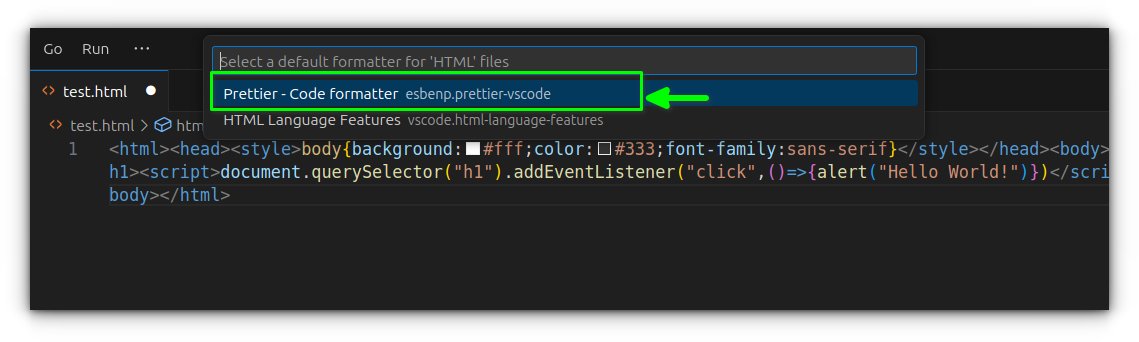
Now try saving your file again. If Prettier is correctly selected, it should instantly reformat the code on save.
In some cases, you might want to save a file *without* applying formatting, for example, when working with generated code or temporary formatting quirks. To do that, open the Command Palette again and run **“Save Without Formatting.”**
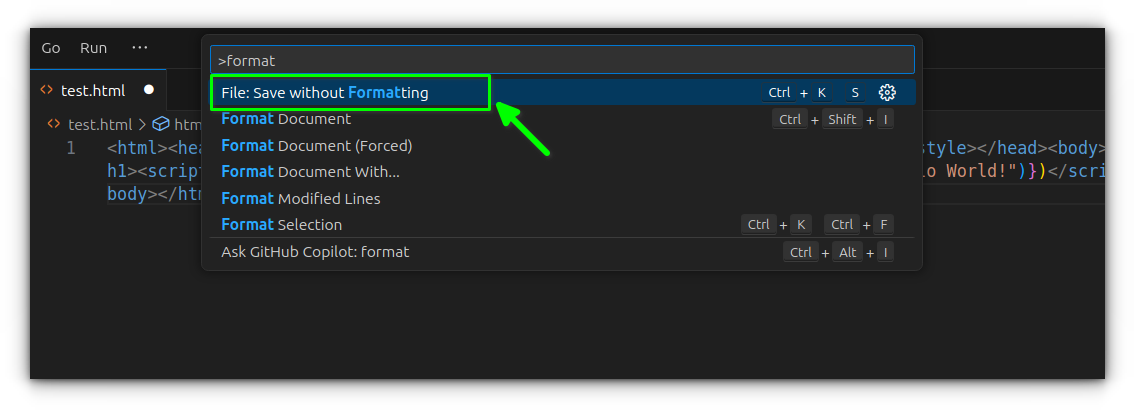
## Optional: Advanced configuration
Prettier works well out of the box, but you can customize how it formats your code by adding a `.prettierrc` configuration file at the root of your project.
Here’s a simple example:
```json
{
"singleQuote": true,
"trailingComma": "es5",
"semi": false
}
```
This configuration tells Prettier to use single quotes, add trailing commas where valid in ES5 (like in objects and arrays), and omit semicolons at the end of statements.
There are many other options available such as adjusting print width, tab width, or controlling how JSX and HTML are handled.
You can find the full list of supported options in [Prettier’s documentation](https://prettier.io/docs/configuration?ref=itsfoss.com), but for most projects, a few key settings in `.prettierrc` go a long way.
## Try It Out
Create or open any file, JavaScript, TypeScript, HTML, etc. Add some poorly formatted code.
```html
Hello
```
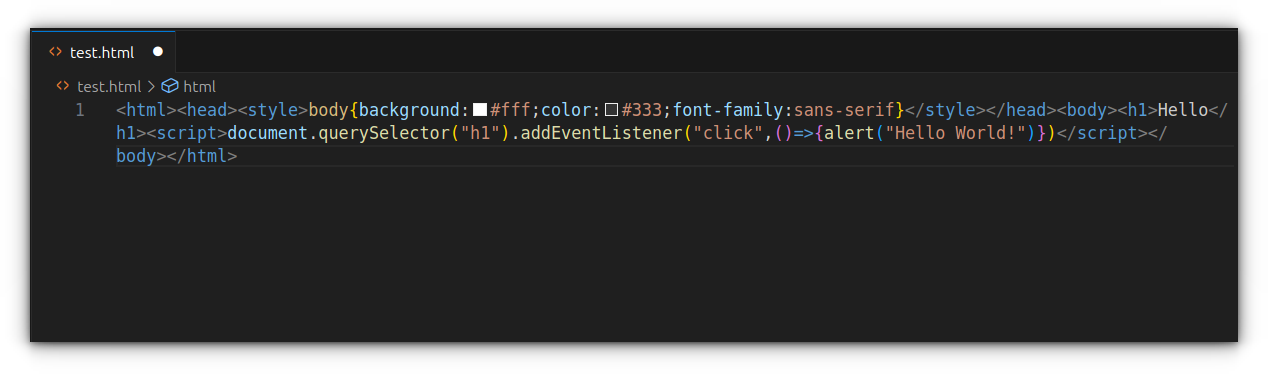
Then simply save the file (`Ctrl + S` or `Cmd + S`), and watch Prettier instantly clean it up.
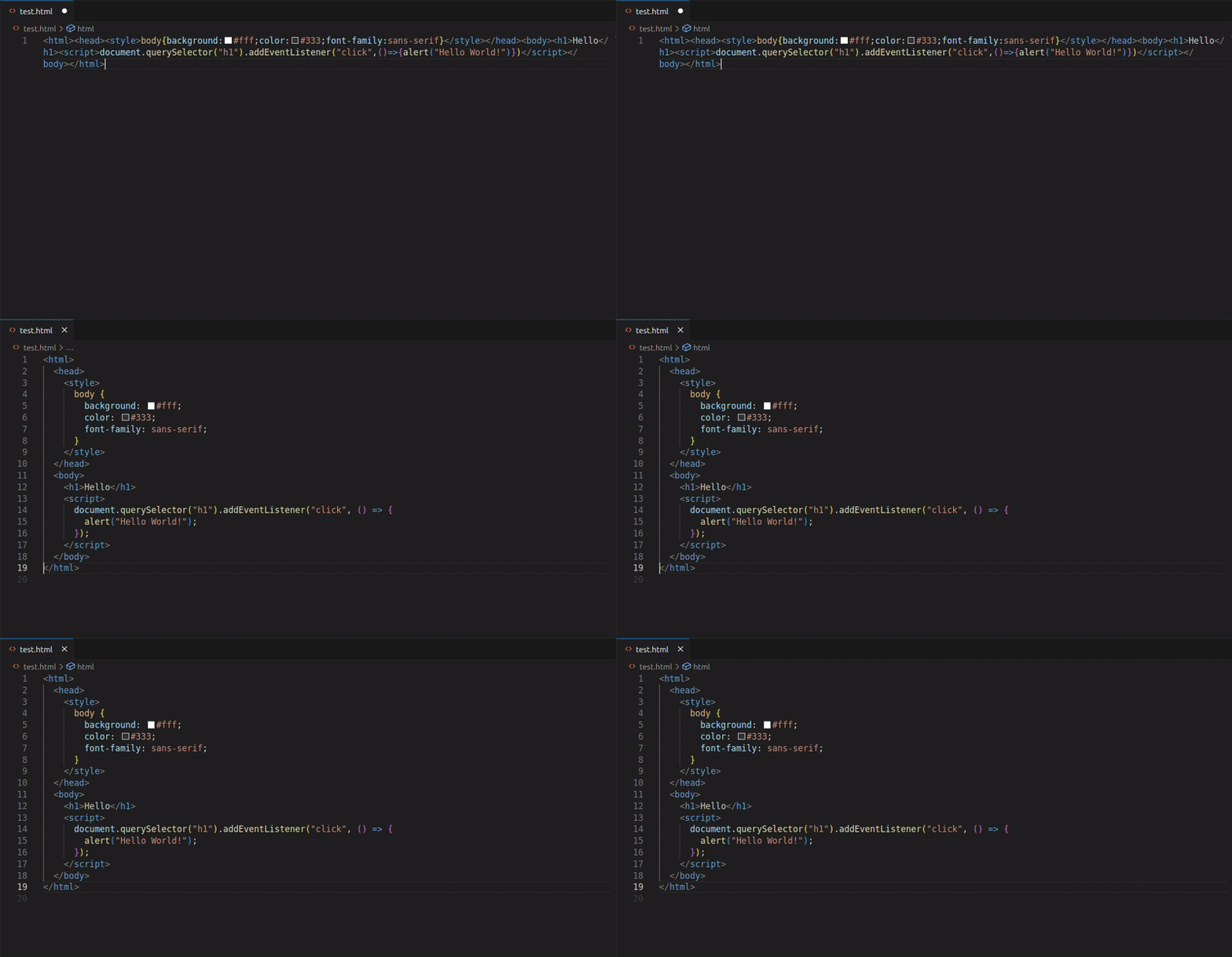
As you can see, Prettier neatly indents and spaces each part of the html code, even across different embedded languages.
## Wrapping Up
It doesn't matter if [you are vibe coding](https://itsfoss.com/vibe-coding-editors/) or doing everything on your own, proper formatting is a sign of writing good code.
We’ve already covered the fundamentals of writing clean, consistent code - [indentation](https://itsfoss.com/vs-code-indentation/), spacing, and [word wrap](https://itsfoss.com/vs-code-word-wrap/), and automatic formatting builds directly on top of those fundamentals.
Once configured, it removes the need to think about structure while coding, letting you focus on the logic.
If you're also wondering how to actually run JavaScript or [HTML inside VS Code](https://itsfoss.com/vs-code-run-html/), we've covered that as well, so check those guides if you're setting up your workflow from scratch.
If you’re not already using automatic formatting, it’s worth making part of your workflow.
And if you use a different tool or approach, I’d be interested to hear how you’ve set it up, let us know in the comments. 🧑💻